
How to use Video Player Widget of Sky Addons for Elementor
The Video Player widget of Sky Addons gives you one player that handles every source you are likely to use (YouTube, Vimeo, a video uploaded to your media library, or a file hosted somewhere else) and puts the whole player interface under Elementor’s style controls. You choose which buttons appear, recolour the control bar, add chapters that split the seek bar into labelled blocks, keep the player visible in a corner while the reader scrolls on, and publish structured data so search engines can show the video as a rich result. It also loads nothing until the visitor clicks, so a page full of videos stays fast. This documentation will guide you through setting up and styling the Video Player widget on your website.
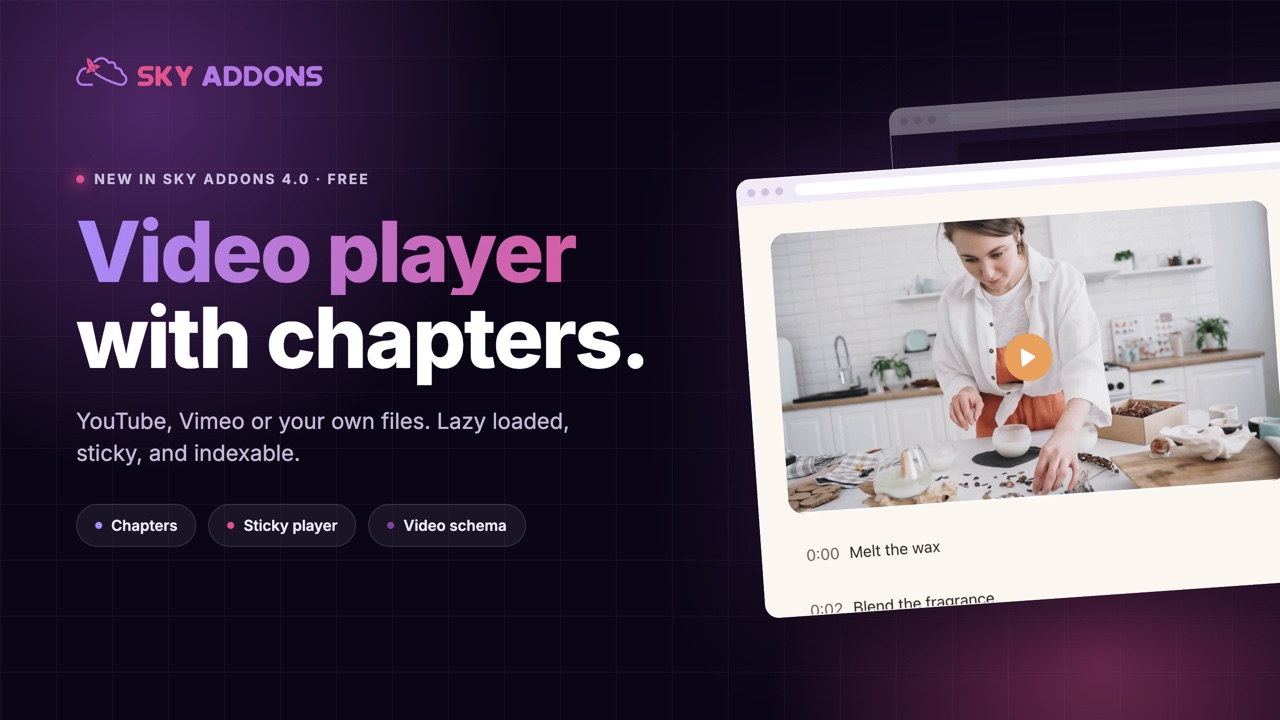
Key Features
- Four sources: YouTube, Vimeo, self-hosted media library files, and any external video URL
- Click-to-load: only the cover image is delivered until the visitor presses play. There is no player iframe, no provider script, no video data
- Every control is optional: fourteen individual switches decide which buttons the control bar shows
- Chapters: a segmented seek bar, a chapter name on the video, and a clickable list below the player
- Paste timestamps: drop the same chapter block you already wrote in a YouTube description and the widget parses it
- Real frame thumbnails: for self-hosted video, chapter thumbnails and the seek-bar hover preview are decoded from the file itself
- Sticky mini player: the video shrinks into a corner and keeps playing as the reader scrolls past
- VideoObject schema: publishes the structured data Google needs to treat the page as a video result
- Privacy mode: serves YouTube from the no-cookie domain and asks Vimeo not to track
- Full visual control: control bar, progress bar, tooltips, settings menu, captions, play button, poster, chapters and the sticky player each have their own Style section
Insert Video Player Widget
- Open the page in the Elementor editor and search for “Video Player” in the widget panel.
- Drag the widget onto the container where you want the video to appear.
Choose the Video
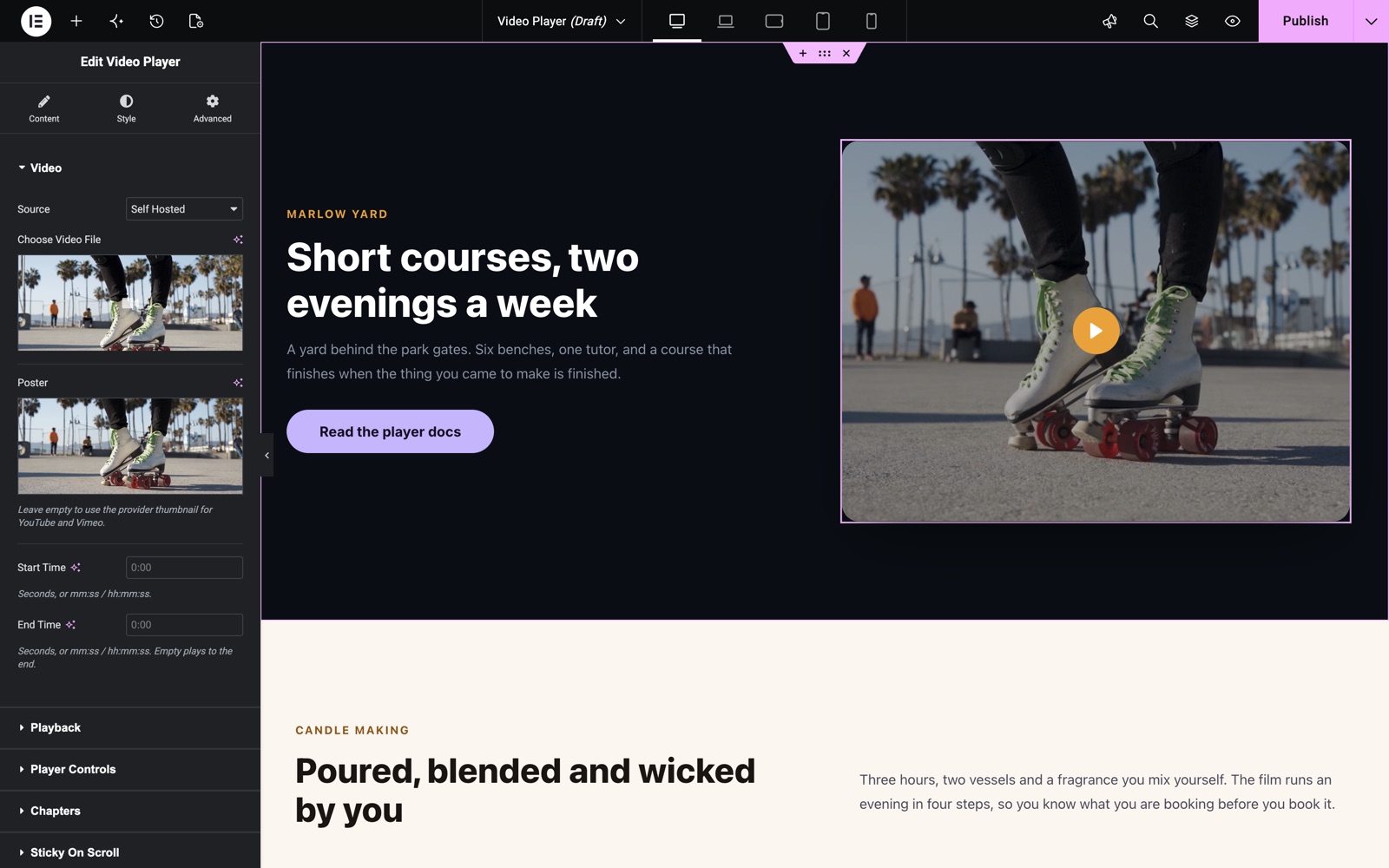
The Video section in the Content tab decides what plays. Pick a source first. The field below it changes to match.
- Source – YouTube, Vimeo, Self Hosted, or External URL.
- YouTube URL / Vimeo URL – paste the normal share link; the widget reads the video ID out of it.
- Choose Video File – for Self Hosted, pick an MP4 from the media library.
- External URL – for a file hosted outside WordPress, on your own CDN for example.
- Poster – the cover image shown before playback. Leave it empty on YouTube and Vimeo and the widget pulls the provider’s own thumbnail.
- Start Time and End Time – trim the clip without editing the file. Both accept plain seconds (90), minutes and seconds (1:30) or a full timestamp (01:02:03).
Configure Playback
- Aspect Ratio – 16:9, 4:3, 21:9, 1:1, 9:16, or Custom. Custom takes two numbers separated by a colon, such as 5:2.
- Fit – Contain letterboxes the video inside the ratio, Cover crops it to fill. This reaches the video itself only on self-hosted sources; YouTube and Vimeo letterbox inside their own player. The cover image always fills the frame.
- Lazy Load – on by default. Only the poster is shown until the visitor clicks, so nothing is requested from the provider before that.
- Autoplay – starts on load. Browsers block unmuted autoplay, so this forces Muted on, and it turns Lazy Load off because the two contradict each other.
- Play On Viewport – starts playback when the player scrolls into view instead of on load. Also turns Lazy Load off.
- Muted, Loop, Reset On End – the usual playback switches.
- Remember Settings – carries the visitor’s volume and speed choices between videos.
- Default Volume – the level the player opens at.
- Preload – None, Metadata or Auto, for self-hosted and external files only.
- Frame Capture – decodes real frames out of the video for chapter thumbnails and the seek-bar preview. Self-hosted only, because a provider keeps its frames inside a cross-origin iframe. Choose When Scrolled Into View, On First Play, or Off. On First Play is the option that keeps Lazy Load honest, since capturing downloads video data.
- Privacy Mode – on by default for YouTube and Vimeo. Serves the video from youtube-nocookie.com and asks Vimeo not to track.
Configure Player Controls
The Player Controls section builds the control bar one button at a time. Turn Show Controls off for a bare video with no chrome at all.
- Button switches – Big Play Button, Play / Pause, Restart, Rewind, Fast Forward, Progress Bar, Current Time, Duration, Mute, Volume, Captions, Settings, AirPlay and Fullscreen. Each one is its own switch.
- Picture in Picture and Download – self-hosted and external sources only; the providers offer no equivalent.
- Seek Interval (s) – how far the Rewind and Fast Forward buttons jump.
- Show Time Remaining – counts down instead of up.
- Settings Menu – which entries the gear icon offers: Captions, Speed, Loop.
- Speed Options – a comma separated list. YouTube and Vimeo ignore anything outside 0.5 to 2.
- Auto Hide Controls – fades the bar out during playback.
- Click To Play, Global Keyboard Shortcuts, Control Tooltips, Seek Tooltip – interaction niceties.
- Hover Frame Preview – shows the actual frame under the cursor while hovering the seek bar. Needs Frame Capture, so self-hosted only.
Add Chapters
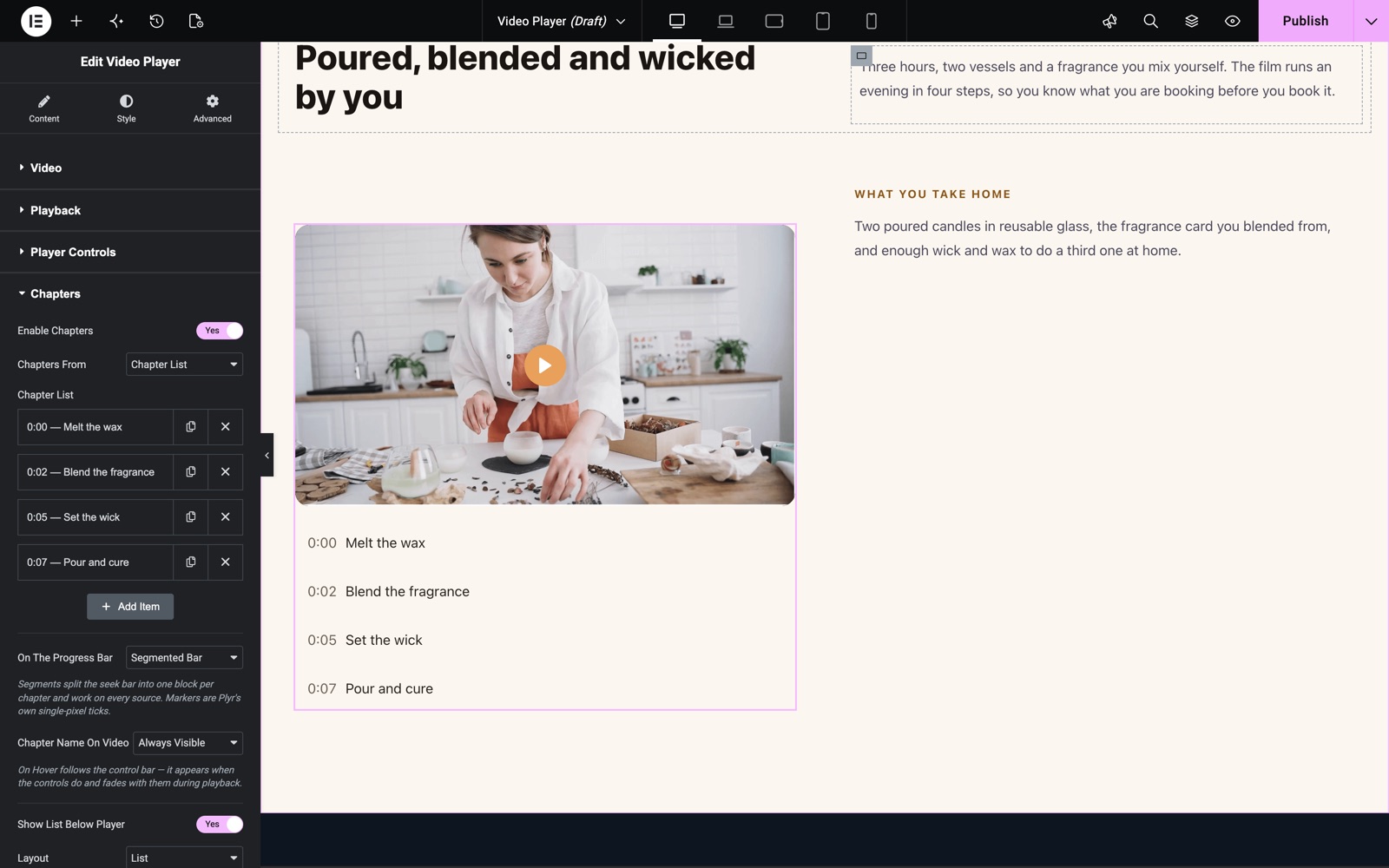
Chapters break a long video into named parts a viewer can jump straight to. Turn on Enable Chapters, then choose where they come from.
- Chapters From – Chapter List builds them row by row; Paste Timestamps takes a block of text.
- Timestamps – one chapter per line, timestamp first, then the label, exactly like a YouTube description. A colon in the time is required, so write 0:12 rather than 12. Lines without a timestamp are ignored.
- Chapter List – the repeater version. Each row takes a Time, a Label and an optional Thumbnail. Per-chapter thumbnails are only available here, not in paste mode.
- On The Progress Bar – Segmented Bar splits the seek bar into one block per chapter and works on all four sources. Markers draws thin ticks instead. Nothing leaves the bar plain.
- Chapter Name On Video – On Hover follows the control bar, Always Visible pins it, Hidden removes it.
- Show List Below Player – a clickable index under the video.
- Layout – List, Rail (a horizontal scroller) or Grid, with a responsive Columns control for the grid.
- Show In Each Item – Time + Label, Label Only, Time Only, or Thumbnail Only.
- Per-Chapter Progress – fills each list row as that part of the video plays.
- Thumbnails – shows a picture on each row. On a self-hosted video with Frame Capture on, rows without a set image get a frame decoded from the file; on YouTube and Vimeo every row falls back to the poster, so set a Thumbnail per row there.
Sticky On Scroll
- Enable Sticky – once the player scrolls out of view mid-playback, it shrinks into a corner and keeps going.
- Position – Top Left, Top Right, Bottom Left or Bottom Right.
- Width – the size of the mini player, in pixels or viewport width, per device.
- Edge Offset – the gap between the mini player and the edge of the screen.
- Close Button – lets the visitor dismiss it.
Video SEO
Turn on VideoObject Schema and the widget publishes structured data describing the video, which is what lets a search engine show the page as a video result. Google rejects an incomplete record, so fill in every field.
- Title – the video’s name. Plain text, no markup.
- Description – a sentence or two about the content.
- Upload Date – when the video was published.
- Duration – how long it runs.
Style Your Player
Everything the visitor sees is a control, and two players on the same page style independently. The Style tab is organised by the part of the player it changes:
- Player:
Overall width, border, radius, shadow and the letterbox colour behind the video. - Controls:
The control bar: background, icon colour and size, spacing, padding and radius. - Progress Bar:
Track and fill colours, height, radius and the buffered state. - Tooltip:
The small labels on the control buttons and the seek bar. - Settings Menu:
The panel behind the gear icon: background, text, hover state. - Captions:
Subtitle typography, colour and the box behind the text. - Play Button:
The large centre button, covering both the one on the poster and the player’s own. Size, colours, background and scale on hover. - Poster:
A tint over the cover image plus image filters. - Chapter Segments:
The blocks on the seek bar: gap, radius, track and fill colours, hover growth. - Chapter Title Overlay:
The chapter name shown on the video. - Chapter List:
The index below the player: row spacing, thumbnail width, typography and the active row. - Sticky Player:
The mini player’s border, radius, shadow and close button.
Set the colours once on your first player and save it as a global template or a copy-paste source. Every one of these controls is per widget, so a house style is worth building once.
Save and Preview
- Click “Publish” or “Update” to save your changes.
- Preview the page on the front end and play the video through. Chapters, the sticky player and lazy loading only run outside the editor.
Best Practices
- Leave Lazy Load on. A page with three embedded videos pulls in three player scripts and three iframes before anyone presses play. The poster costs a fraction of that.
- Set a real poster. The provider’s automatic thumbnail is whatever frame it picked; a chosen image is the reason a visitor clicks.
- Add chapters to anything over five minutes. They are the single change that most improves how long people actually watch, and the list below the player doubles as page content.
- Fill in the SEO fields. An incomplete VideoObject is ignored, so a half-filled form is the same as no schema at all.
- Check the control bar on a phone. Every button you enable has to fit; trim the list rather than shrinking the icons.
Troubleshooting
- Chapter thumbnails all show the same picture: the video is on YouTube or Vimeo, where individual frames cannot be read out of the provider’s player. Set a Thumbnail on each row in the Chapter List, or move the file to your media library.
- Pasted timestamps produced no chapters: each line needs a timestamp with a colon in it before the label. A line beginning “12 Days” is read as text, not as a time.
- Autoplay does nothing: browsers refuse to start an unmuted video on their own. Autoplay turns Muted on for exactly this reason. If you switched Muted back off, the browser blocks playback.
- Picture in Picture, Download or Hover Frame Preview are missing from the panel: they are hidden on YouTube and Vimeo sources, because those players cannot provide them. Switch the source to Self Hosted to see them.
- The control bar picked up your theme’s button styling: re-save the page so its CSS is regenerated, and if the site runs the Asset Manager in a generated mode, regenerate the files from the Sky Addons dashboard.
Frequently Asked Questions
How do I stop YouTube from loading until someone clicks play?
Leave Lazy Load on in the Playback section. It is on by default. Until the visitor clicks, the page holds only your poster image; the player, the iframe and the provider’s scripts are all built at the moment of the first click.
Can I add YouTube-style chapters to a self-hosted video?
Yes. Turn on Enable Chapters and either build them in the Chapter List repeater or paste a block of timestamps. Chapters work on all four sources: the segmented seek bar, the chapter name on the video and the list below the player need nothing from the provider.
How do I make the video follow the reader down the page?
Open Sticky On Scroll and turn on Enable Sticky. Once the player scrolls out of view while playing, it shrinks to the corner you pick and keeps going. Add the Close Button so a reader who does not want it can dismiss it.
Why can I only play one video at a time?
That is deliberate. When several Video Player widgets share a page, starting one pauses the others so two soundtracks never overlap.
Does the widget track my visitors?
Privacy Mode is on by default for YouTube and Vimeo, which serves the video from the no-cookie domain and asks Vimeo not to track. Combined with Lazy Load, a visitor who never presses play never contacts the provider at all.
Related Documentation
Conclusion
The Video Player widget by Sky Addons for Elementor replaces the usual embed with a player you actually control: your colours, your buttons, your chapters, and nothing loaded until it is wanted. If you have any questions while setting it up, the Sky Addons support team is happy to help.
Need help? Our team is happy to answer questions on the Sky Addons support page.