
A Tour of the Sky Addons Dashboard
The Sky Addons dashboard is the single admin area behind every part of the plugin: which widgets are switched on, how your CSS and JavaScript are delivered, your header and footer templates, your API credentials and your custom code snippets. It is one screen with a row of tabs down the WordPress menu, so nothing hides in a submenu of a submenu. This tour walks through each tab, says what people actually come there to do, and points at the full documentation where one exists. It ends with the five things worth setting up in your first ten minutes on a fresh install.
Features:
- One page, many tabs: Dashboard, Widgets, Extensions, Integrations, API Settings, Theme Builder, Custom Scripts, Advanced, License and Help & Support.
- Live status at a glance: counters that read “enabled / total” rather than a bare number, so you always know what is switched on.
- Getting-started checklist: four setup steps that tick themselves off from real site state and disappear when complete.
- Widget usage data: counted from what Elementor has actually placed on your site, with a one-click action to disable widgets nothing uses.
- System Info panel: a server environment report with status dots and a Copy button built for support tickets.
- What’s New reader: release notes for the free plugin and Pro, read straight from each plugin’s own changelog.
Requirements
- An administrator account: every tab requires the capability to manage options.
- Elementor active for the editor-facing parts, such as Theme Builder and widget usage counts.
How to open the Sky Addons dashboard
- In the WordPress admin sidebar, click Sky Addons. Its logo sits in the menu below the standard WordPress items.
- The submenu lists every tab. Clicking one opens the same page with that tab selected, which is why the address bar shows something like
#widgetsor#advanced. - You can also reach it from Plugins, where Sky Addons adds a Settings link to its own row.
- Because tabs are addressable, you can bookmark the one you visit most.
Every tab at a glance
| Tab | What it is for | What people come here to do |
|---|---|---|
| Dashboard | The home screen: health notices, counters, the setup checklist, widget usage, recent edits, release notes and System Info. | Check what is enabled, disable unused widgets, and copy System Info before opening a ticket. |
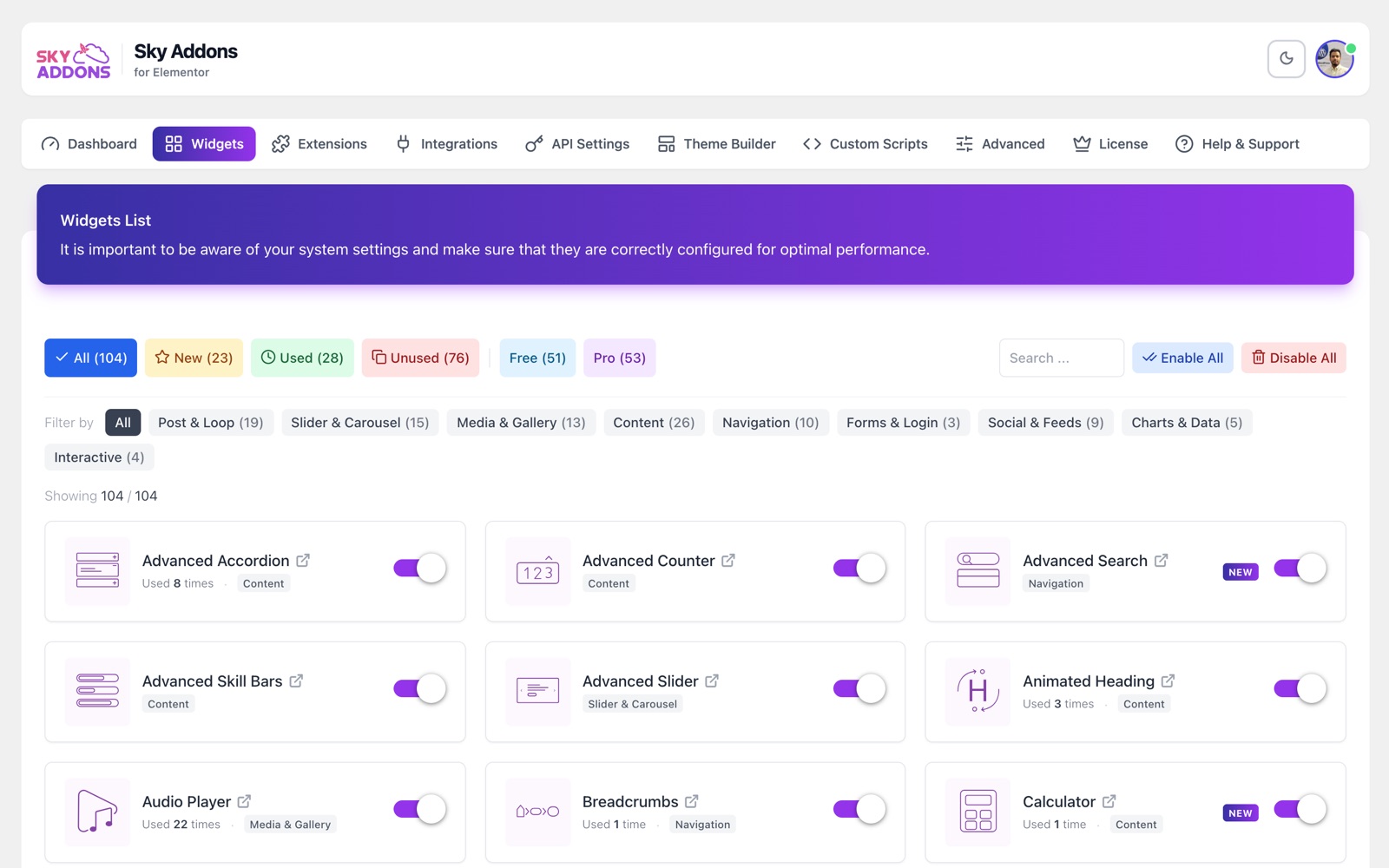
| Widgets | An on/off switch for every Sky Addons widget, with search, category chips and usage filters. | Turn off widgets you will never place, so less CSS and JavaScript is built and served. See the widgets and extensions manager. |
| Extensions | The same switchboard for extensions that add behaviour to Elementor’s own widgets and sections. | Enable an effect such as Gradient Text or Display Conditions before looking for it in the editor. |
| Integrations | On/off switches for widgets that display data from other plugins. | Turn on the integration for a form or e-commerce plugin you already run. |
| API Settings | One card per third-party service, holding its keys and tokens. | Paste a Google Maps key or an Instagram token once, for the whole site. See API Settings. |
| Theme Builder | Header, footer, single, archive, 404 and custom-hook templates, with display conditions and theme compatibility. | Replace the theme’s header or footer with an Elementor design. See the header builder. |
| Custom Scripts | Independent CSS and JavaScript snippets, each with its own targeting rules. | Add a tracking snippet or a CSS fix to specific pages. See Custom Scripts. |
| Advanced | The Asset Manager mode selector, plus toggle cards for Dynamic Tags, SVG Support, Templates Library, Duplicator, Video Link and Menu Duplicator. | Pick an asset delivery mode, or switch a platform feature on. See the Asset Manager. |
| Get PRO / License | A feature comparison on free installs; a licence key and email form on Pro installs. | Activate a licence, or check what Pro adds. See Sky Addons Pro. |
| Help & Support | Three support channels, an FAQ accordion and a one-click copy of your version numbers. | Find an answer, or start a ticket with the right details attached. |
The Dashboard home tab in detail
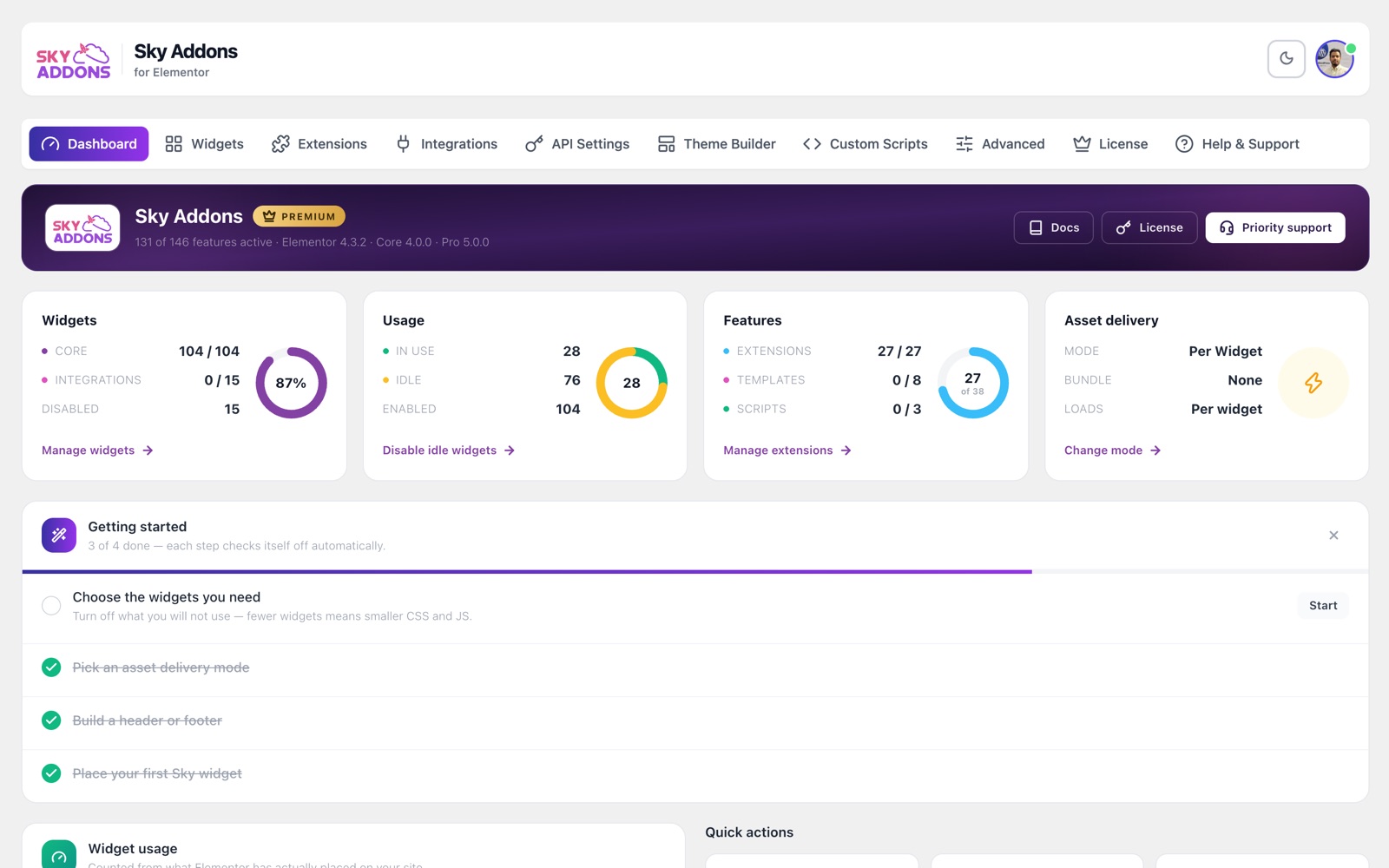
The home tab is the only one built to be read rather than edited, and it answers a single question: is this site set up sensibly? It shows a dark gradient header on a licensed Pro install and a lighter header with an upgrade prompt on a free one, then stacks the following:
- Health notices appear only when something needs attention, each with a button that takes you to the tab that fixes it. An empty space here is good news.
- Status cards report widgets, extensions and your templates and scripts as “enabled / total”, never as a bare count, so a number always has context.
- Getting started is a four-step checklist: choose the widgets you need, pick an asset delivery mode, build a header or footer, place your first Sky widget. Each step ticks itself from real site state rather than from a box you click, and the panel can be hidden once you are done.
- Quick actions jump straight to a new Elementor page, a new Theme Builder template, the widget and extension managers, Custom Scripts or asset delivery.
- Widget usage is counted from what Elementor has actually placed on your site. When enabled widgets are used nowhere, the panel says so and offers Disable unused widgets, with a confirmation reminding you they can be re-enabled from the Widgets tab at any time.
- Continue editing lists pages recently edited with Elementor.
- What is new reads release notes out of the plugins’ own changelogs, with separate Core and Pro tabs and a link to the full changelog.
- Resources collects documentation, support, the video tour and a review link, alongside System Info.
System Info and what to send with a support ticket
System Info sits on the Dashboard home tab as a collapsible panel headed “Your server environment: copy this when contacting support.” If any check needs attention, the subtitle says how many. Expanding it shows a table with a coloured status dot per row:
| Row | Why it matters |
|---|---|
| PHP Version | Flagged when below the version Sky Addons supports. |
| WordPress Version | Identifies the core release behaviour is being reported against. |
| Max Execution Time | Flagged when too short; long imports and bundle builds need headroom. |
| Memory Limit | The usual suspect behind a blank screen on a heavy page. |
| Max Post Limit / Max Upload Size | Governs how large a template or media file you can submit. |
| Uploads Folder Writable | Must be yes for the Asset Manager’s Auto Optimize mode to build a bundle. |
| MultiSite | Single site or multisite: changes how some behaviour is diagnosed. |
| GZip Enabled | Whether compression is available on the server. |
| Debug Mode | Flagged when on, since debug output can distort what you are seeing. |
The Copy button turns the whole table into plain text with your Sky Addons version (and Pro version, if installed) on the first line. Paste that straight into your ticket: it skips the first two rounds of “which versions are you on?”. The Help & Support tab offers a shorter version-numbers copy for the same purpose.
Example: your first ten minutes on a fresh install
You have just activated Sky Addons on a new site. Rather than opening every tab, do these five things in order.
- Open Sky Addons → Dashboard and read the checklist. It tells you exactly which of the next four steps are still outstanding, and it will tick them off as you go.
- Go to Widgets and switch off what you will not use. Search or filter by category, then use Disable All on a filtered set if a whole category is irrelevant. Everything starts enabled, so this is a subtraction job that directly shrinks what visitors download.
- Go to Advanced and choose an asset delivery mode. Auto Optimize is the default and the right answer for most sites; picking it explicitly also builds your first bundle from the widget list you just trimmed.
- Go to API Settings and paste any keys you already have. Doing it now means the map, feed or form widget simply works the first time you place it, instead of showing an error you have to go and diagnose.
- Go to Theme Builder and create a header or footer. This is the step that makes the site feel like yours, and the checklist item people most often postpone and then forget.
Come back to the Dashboard afterwards. The checklist should be complete and ready to hide, the status cards should show a much smaller “enabled” figure than “total”, and the widget usage panel will start filling in as you build pages.
Best Practices
- Trim widgets before you build, not after. Disabling a widget that a live page already uses removes it from that page.
- Revisit widget usage every few months. Sites accumulate experiments; the usage panel finds the ones nothing depends on.
- Take health notices seriously. They render only when something needs attention, so an empty area means there is nothing to chase.
- Copy System Info before you write a ticket, not after. Half the diagnosis is usually in that panel.
Troubleshooting
- A widget is missing from the Elementor panel. It is almost certainly switched off. Open the Widgets tab, search for it by name, and check its toggle. If it shows a Pro badge instead of a switch, it needs a Pro licence.
- The Sky Addons menu is not in the sidebar. The dashboard requires an administrator account. Editors and authors cannot see it, by design.
- The getting-started checklist reappeared. It is hidden per user, so another administrator logging in will see their own copy until they hide it.
- System Info shows an amber dot. That row needs attention: commonly a low execution time, a non-writable uploads folder, or debug mode left on. Your host can change the first two; the third is a setting in your site’s configuration.
Frequently Asked Questions
Where do I find the Sky Addons dashboard in WordPress?
Look for Sky Addons in the WordPress admin sidebar, or click the Settings link on the Sky Addons row of the Plugins page. Every tab lives on that one page and each has its own address you can bookmark.
Do I need Sky Addons Pro to use the dashboard?
No. Every tab is present on the free plugin, including Theme Builder, Custom Scripts and the Asset Manager. Pro-only widgets and integrations appear with a lock badge instead of a working switch, and free installs see a Get PRO tab where licensed installs see License.
What should I copy when opening a support ticket?
Press Copy on the System Info panel of the Dashboard tab. That gives your plugin versions plus the full server environment table as plain text. Add what you were doing, what you expected and what happened instead, and the ticket is already well past the usual back and forth.
Is it safe to press “Disable unused widgets”?
Yes. It only affects widgets that Elementor reports as placed nowhere on your site, it asks for confirmation first, and anything it turns off can be re-enabled from the Widgets tab whenever you want it back.
Conclusion
The Sky Addons dashboard is deliberately shallow: one menu, ten tabs, and each one answering a question you can name. Learn the home tab first (it will tell you what still needs doing) then treat Widgets, Advanced, API Settings and Theme Builder as the four screens you return to. When something does not look right, expand System Info, press Copy, and send it to https://wowdevs.com/support/.