
How to Use White Label in Sky Addons Pro
Important: White Label is an Agency plan feature. It is only available with an active Sky Addons Pro Agency license that is activated on the site where you want to use it. It is not part of the free plugin, and it does not appear with any other Pro plan. If the license expires, is deactivated or is not an Agency plan, White Label switches itself off and the normal Sky Addons branding comes back.
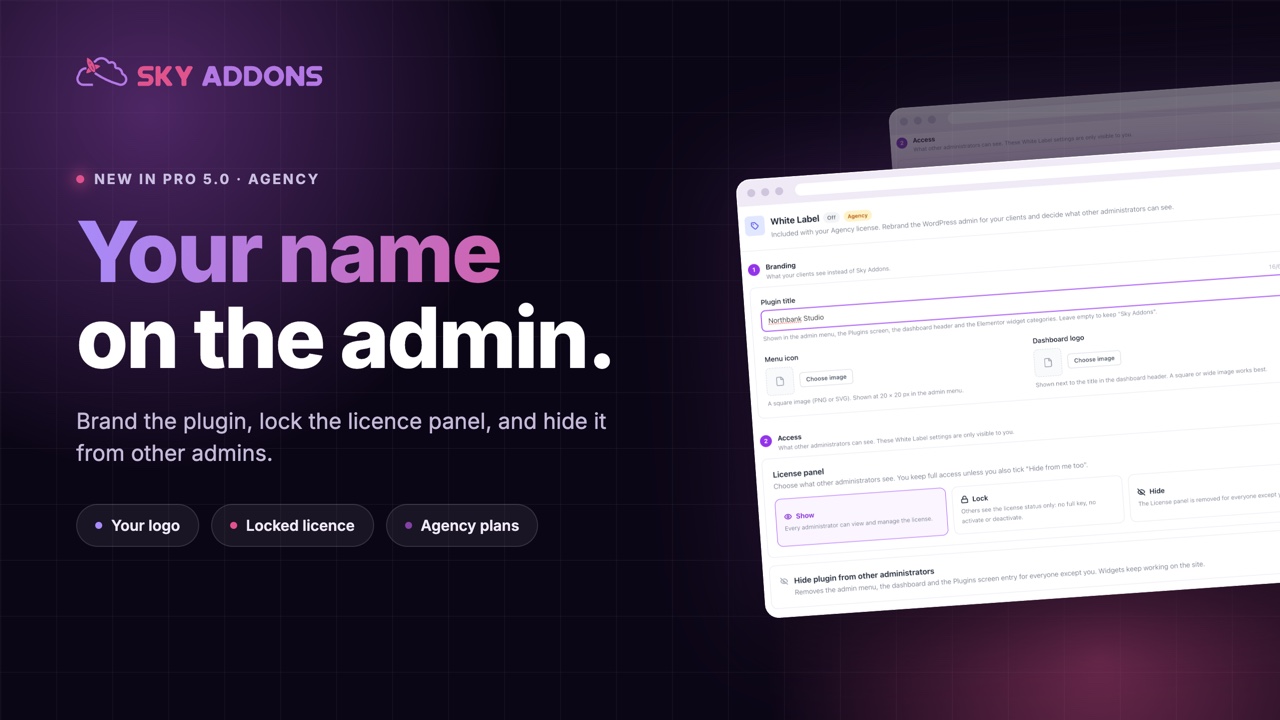
White Label lets an agency show its own brand instead of Sky Addons inside the WordPress admin, and decide what the other administrators on a site can see. Your client logs in and finds your plugin name in the admin menu, on the Plugins screen, in the dashboard header and in the Elementor widget panel. You can also lock or hide the license, or hide the plugin from other administrators altogether. Nothing changes on the front end, so your visitors see exactly the same pages. This documentation will guide you through turning White Label on, choosing what to hide, and getting back in if you ever lock yourself out.
Features:
- Your plugin name: replaces “Sky Addons” in the admin menu, the Plugins screen, the dashboard header and the Elementor widget panel.
- Your menu icon and logo: your own images in the admin menu and the dashboard header.
- Lock the license: other administrators see that the site is licensed, but not the full key, and they cannot activate or deactivate it.
- Hide the License panel: remove it for everyone except you.
- Hide the plugin: remove the Sky Addons menu, dashboard and Plugins screen entry for other administrators, while every widget keeps working.
- Live preview: see your title, icon and logo in place before you save.
- Safe recovery: one line in
wp-config.phpbrings everything back if you lock yourself out.
Requirements
- Sky Addons and Sky Addons Pro, both active and up to date. White Label needs the current version of both plugins.
- A Sky Addons Pro Agency license, activated on this site and not expired. If you have not activated it yet, see Sky Addons Pro.
- An administrator account.
- Optional: the images you want for the menu icon and the dashboard logo.
Before You Start: the White Label Owner
White Label has one owner: the administrator who saves the White Label settings first. Only the owner can see and change these settings, and the owner always sees everything, whatever is hidden. Every other administrator, such as your client or a colleague, sees your brand and only what you allow.
- Until someone saves, every administrator can open the settings. The first person to click Save White Label becomes the owner.
- If the owner’s account is deleted or is no longer an administrator, every administrator can manage White Label again, so nobody is locked out for good.
- Set White Label up while logged in with your own agency account, not your client’s account.
How to Turn On White Label
- Log in to WordPress as an administrator.
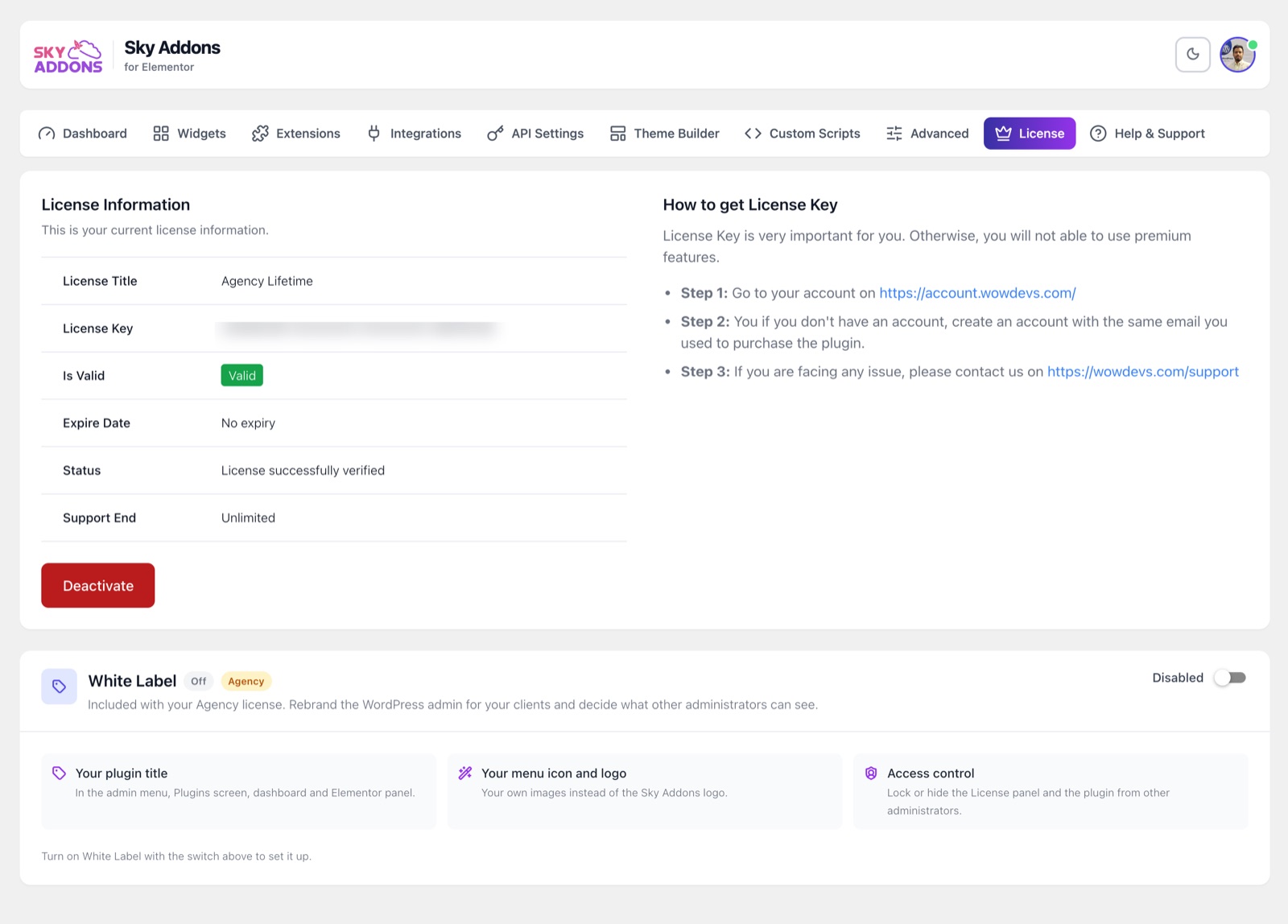
- Go to Sky Addons → License and check that the License Information table shows your Agency license as Valid.
- Scroll below the license information to the White Label card. It has an Agency label and an Off status.
- Turn on the switch at the top right of the card. It changes from Disabled to Enabled, and the settings appear in two steps: 1 Branding and 2 Access.
- Fill in your branding and choose your access options, as described below. The Preview on the right updates as you type.
- Click Save White Label at the bottom of the card. The page reloads with your brand applied, and the status now reads Active.
Nothing changes until you click Save White Label. You can switch it on, look at the preview and leave the page without changing anything.
Step 1: Branding
| Setting | What it changes | Tips |
|---|---|---|
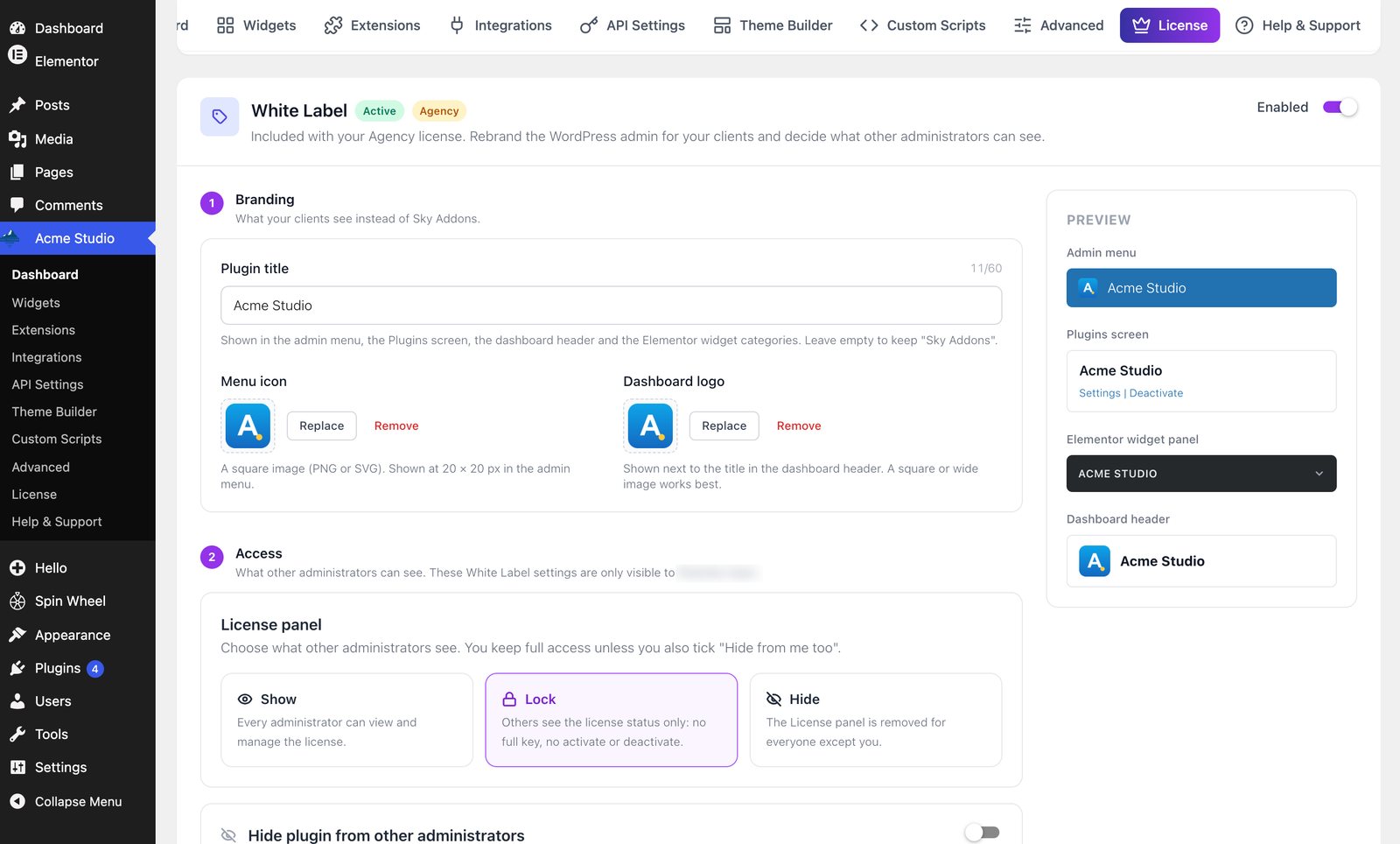
| Plugin title | The name “Sky Addons” in the admin menu, on the Plugins screen, in the dashboard header and in the Elementor widget panel. | Plain text, up to 60 characters. Leave it empty to keep “Sky Addons” and still use your own icon or logo. |
| Menu icon | The Sky Addons icon in the WordPress admin menu. | A square PNG or SVG works best; it is shown at 20 × 20 pixels, so simple shapes read better than detailed ones. SVG files can only be uploaded when SVG uploads are allowed, see Secure SVG Support. |
| Dashboard logo | The Sky Addons logo in the header of the Sky Addons dashboard. | A square or wide image. Click Choose image, pick or upload it in the Media Library, then click Use this image. Use Replace or Remove to change it later. |
Where Your Brand Appears
In this example the Plugin title is set to Acme Tools.
| Place | Without White Label | With White Label |
|---|---|---|
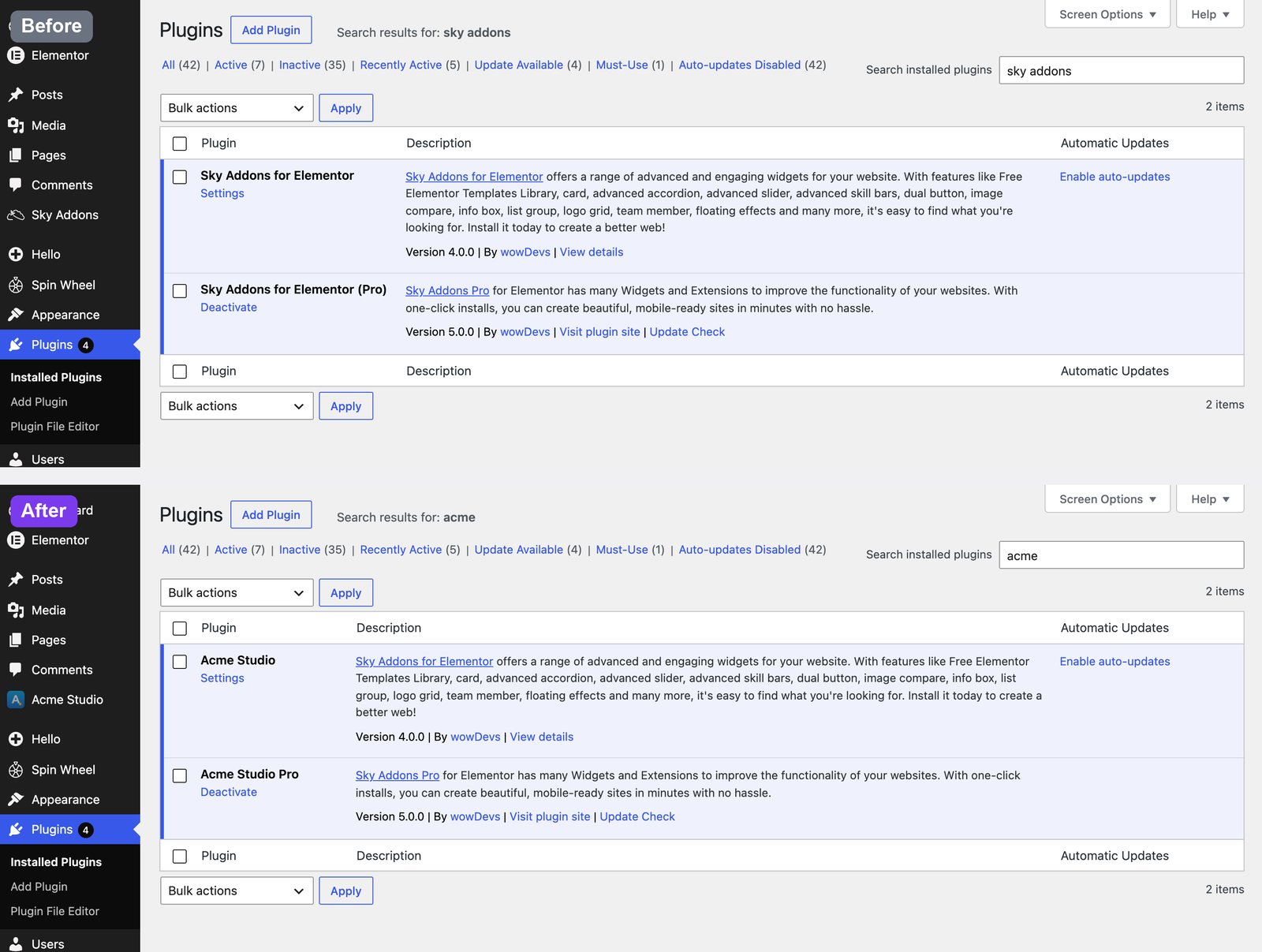
| WordPress admin menu | Sky Addons, with the Sky Addons icon | Acme Tools, with your menu icon |
| Plugins screen | Sky Addons for Elementor and Sky Addons for Elementor (Pro) | Acme Tools and Acme Tools Pro |
| Sky Addons dashboard header | Sky Addons logo and name | Your logo and Acme Tools |
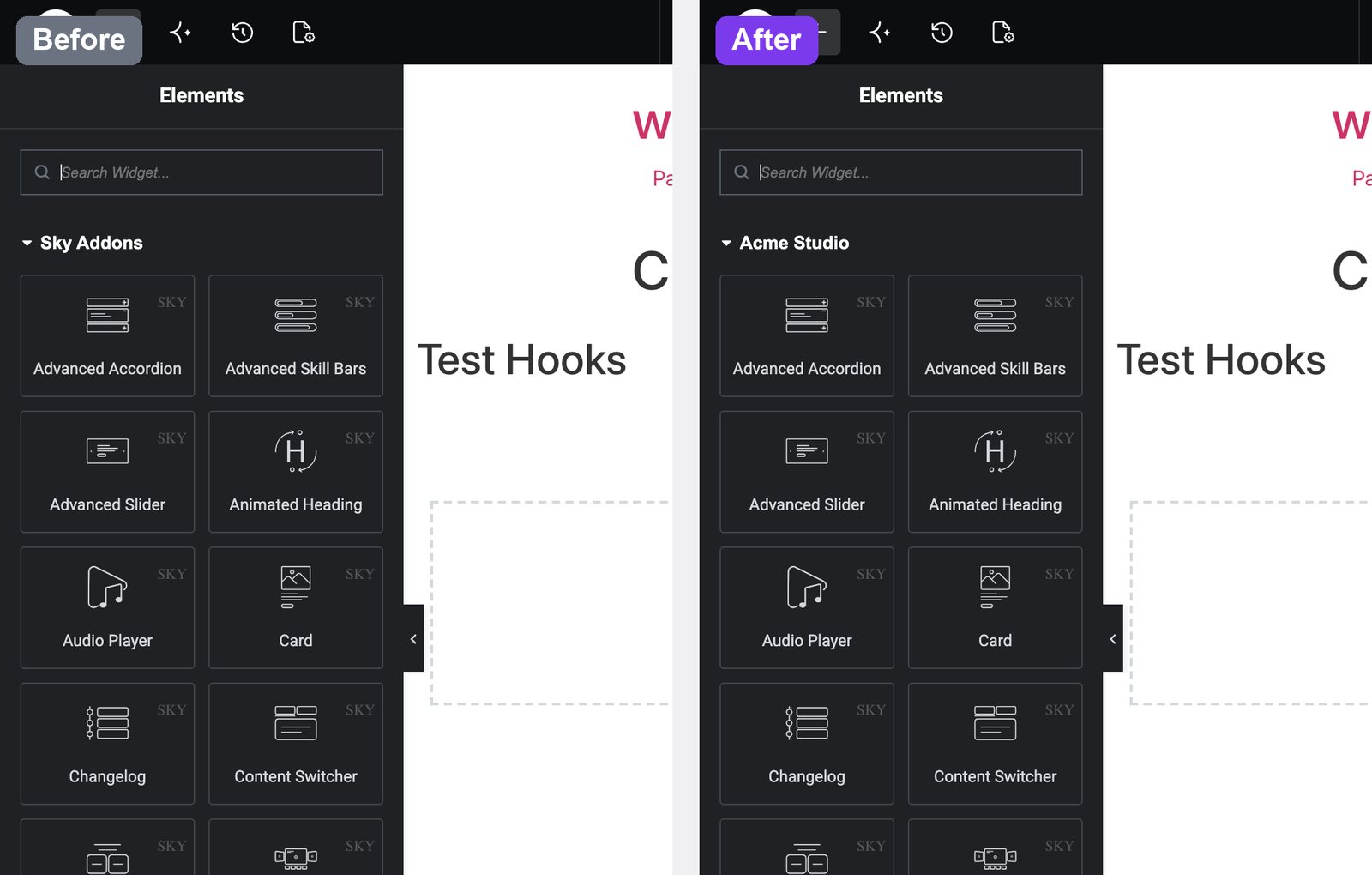
| Elementor widget panel | Sky Addons and Sky Addons Pro categories | Acme Tools and Acme Tools Pro categories |
Your visitors never see any of this. White Label only changes the WordPress admin and the Elementor editor.
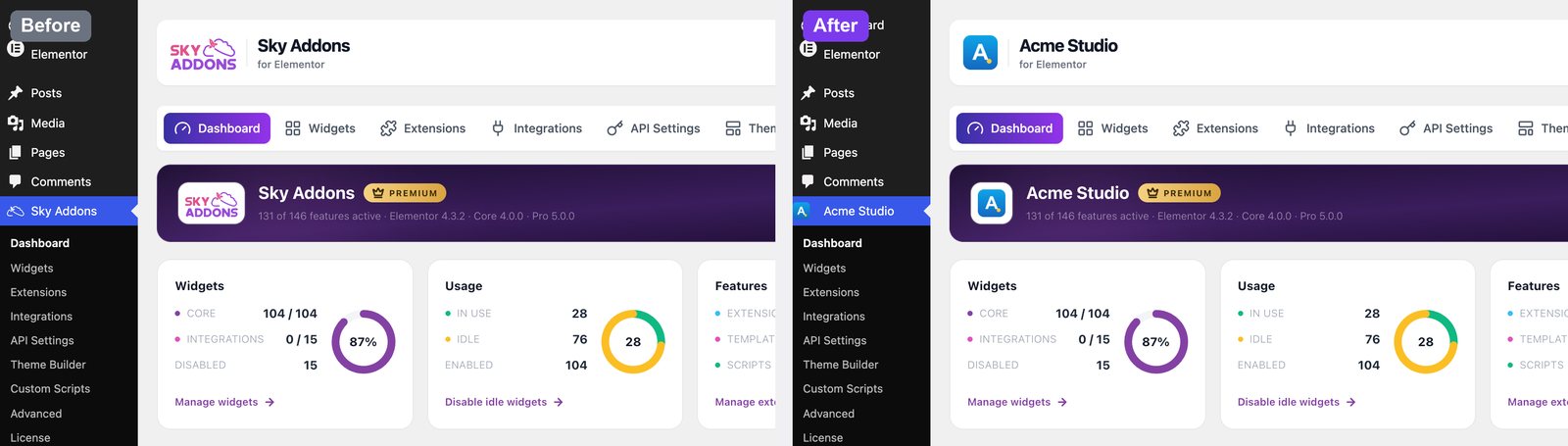
Here is the same site before and after saving White Label, with the Plugin title set to Acme Studio and one square image used as both the menu icon and the dashboard logo.
What White Label Does Not Change
- The Sky Theme Builder category in the Elementor widget panel keeps its name.
- The plugin author, description and links on the Plugins screen.
- The plugin name on Dashboard → Updates, which WordPress reads straight from the plugin file.
- Help and documentation links, notices and pop-up messages, which still mention Sky Addons.
- The small SKY label on each widget card and the Sky Addons icons next to Sky Addons sections in the Elementor panel.
- The Sky Addons Templates Library button on the empty Elementor canvas.
- Page addresses, such as
admin.php?page=sky-addons.
Step 2: Access: What Other Administrators Can See
These options only affect other administrators. As the owner you keep full access, unless you choose Hide from me too.
License panel: choose one of three options.
| Option | What other administrators see | Good for |
|---|---|---|
| Show | The License tab as normal. They can view, activate and deactivate the license. | Sites your own team manages. |
| Lock | The license status (plan, valid or not, expiry date, support end) with the key partly hidden and no email. There is no Activate or Deactivate button, and a note says the license is managed by the site administrator. | Clients who should know the site is licensed, but must not copy or remove the key. |
| Hide | No License tab, no License item in the Sky Addons menu and no License button in the dashboard header. | Clients who should not see licensing at all. |
Lock and Hide are enforced by the site itself, not only hidden on screen: a request to activate or deactivate the license from another administrator is refused.
Hide from me too: this checkbox appears only when you choose Hide. It removes the License panel and the White Label settings for you as well. A red confirmation asks you to be sure before saving, because the only way to get them back is the wp-config.php line described in Locked Out? How to Get Back In below.
Hide plugin from other administrators: when this is on, other administrators no longer see the Sky Addons menu, its dashboard, or Sky Addons and Sky Addons Pro on the Plugins screen. Opening the dashboard address directly shows “Sorry, you are not allowed to access this page.” Your widgets keep working on every page, and automatic updates that were already on stay on. On a multisite network, super admins still see the plugins.
When a save newly hides the plugin or the License panel, White Label asks you to confirm first.
Save, Turn Off or Reset
- Save White Label stores your changes and reloads the page. The button becomes clickable once you change something.
- Turn it off: switch the card to Disabled and click Save and turn off White Label. Everyone gets the normal Sky Addons branding and sees the plugin and the License panel again. Your title, images and access choices are kept for next time.
- Reset White Label, at the bottom left of the card, turns White Label off and clears the title, images, access choices and the owner. Your license is not affected. The next administrator to save becomes the new owner.
Locked Out? How to Get Back In
Use this if you chose Hide from me too, or you can no longer reach the White Label settings for any other reason. You need access to the site’s files through FTP or your hosting file manager, or you can ask your host to add the line for you.
- Open
wp-config.phpin the main folder of your WordPress site. - Add the line below above the line that says
/* That's all, stop editing! */, then save the file.
define( 'SKY_ADDONS_WHITE_LABEL_RESET', true );- Reload Sky Addons → License. White Label is switched off, the normal branding is back, and the White Label settings are open to every administrator. A yellow notice at the top of the card confirms this.
- Change what you need, for example untick Hide from me too, and click Save White Label.
- Remove the line from
wp-config.phpagain. White Label turns back on with your saved settings.
Do not leave the line in place: while it is there, White Label stays off. The same steps are shown inside the card under Locked out? How to get back in.
If Your License Expires or Changes
White Label checks the license details already saved on your site each time an admin page loads. This check never runs for visitors and does not contact the license server.
- License expired, deactivated, or not an Agency plan: White Label switches off on the next page load. The normal Sky Addons branding returns, the plugin and the License panel are visible to every administrator, and the White Label card disappears.
- Your settings are kept: activate an Agency license again and your brand comes back on its own.
- License server briefly unreachable: the license stays valid for a few more checks, about an hour apart, so your branding does not flicker on and off.
Example: Rebranding a Client Website
Your agency, Acme Studio, has built a website for a local bakery. The bakery owner has their own administrator account. You want them to see your brand, and you do not want them to deactivate the license by accident.
- Log in with your own agency administrator account and activate your Agency license under Sky Addons → License.
- In the White Label card, turn on the switch and set Plugin title to Acme Studio Tools.
- Choose your square studio mark as the Menu icon and your wide logo as the Dashboard logo, then check the Preview.
- Under License panel, choose Lock. Leave Hide plugin from other administrators off, so the bakery owner can still switch widgets on and off.
- Click Save White Label. The page reloads with Acme Studio Tools in the admin menu.
- Ask the bakery owner to log in, or check with a test administrator account: the menu says Acme Studio Tools, the License tab shows the license with the key partly hidden and no Deactivate button, and there is no White Label card.
The client now works in an admin that carries your brand, and the license stays exactly where you put it. If the bakery later moves to another agency, you can reset White Label in one click.
Best Practices
- Set it up from your own agency account. The first administrator to save becomes the owner.
- Keep a separate agency administrator account on every client site, and do not share its password.
- Try Lock before Hide. Lock still shows that the site is licensed, which saves “is this site licensed?” questions later.
- Think twice before Hide from me too. Only use it when you or the site’s host can edit
wp-config.php. - Keep your icon and logo in the Media Library. If an image is deleted, the normal Sky Addons icon or logo is shown instead.
Troubleshooting
- I cannot find the White Label card. Check that Sky Addons Pro is active, both plugins are up to date, and the License tab shows a Valid license whose title includes Agency. White Label does not appear on the free plugin or with other plans. If all of that is fine, another administrator is probably the owner, because only the owner sees the card.
- “Only the administrator who set up White Label can change it.” Another administrator is the owner. Ask them to make the change, or use the wp-config.php line from Locked Out? How to Get Back In.
- “White Label needs an active Agency license.” The license is expired, deactivated or not an Agency plan. Check the License tab, or your plan in your account at account.wowdevs.com.
- “Your session has expired. Reload the page and try again.” The page was open for a long time. Reload it and save again.
- My changes do not show. The page reloads after saving; if it did not, reload it yourself. For the Elementor widget panel, close and reopen the editor.
- The branding disappeared on its own. The license expired, was deactivated or could not be verified. Activate the Agency license again and your saved branding returns.
Frequently Asked Questions
Which plans include White Label?
Only Sky Addons Pro Agency plans. The free plugin and other Pro plans do not include it, and the White Label card does not appear for them. To change your plan, visit your account at account.wowdevs.com or contact support (see the link at the end of this page).
Will my website visitors see the White Label name?
No. White Label only changes what logged-in administrators see in the WordPress admin and the Elementor editor. Your pages look exactly the same.
Can other administrators change the White Label settings?
No. Once White Label is saved, only the owner sees the White Label card. Other administrators do not see it at all, and a change they try to send is refused.
Does hiding the plugin turn off my widgets?
No. Hiding only removes the menu, the dashboard and the Plugins screen entry for other administrators. Every widget, extension and template keeps working on the site.
Can other administrators see the license key?
With Lock or Hide, no: they get at most the license status with the key partly hidden and no email address. With Show, the License tab works as it normally does.
What happens to White Label if I delete Sky Addons Pro?
White Label is part of Sky Addons Pro, so it is off while Pro is not active. Your White Label settings are not erased, though: install Sky Addons Pro again, activate the Agency license, and your brand comes back.
Can I use White Label on more than one site?
Each site needs the Agency license activated on that site, and White Label is set up separately on each one, so every client site can have its own title, icon, logo and access choices.
Conclusion
White Label gives agencies on the Agency plan a clean, branded admin for their clients: your name and logo where Sky Addons used to be, a license nobody can remove by accident, and a plugin you can hide completely. Set it up from your own account, try Lock before Hide, and keep the wp-config.php recovery line in mind. If anything does not work as described, contact the team at https://wowdevs.com/support/.