
How to use Animated Heading Widget of Sky Addons for Elementor
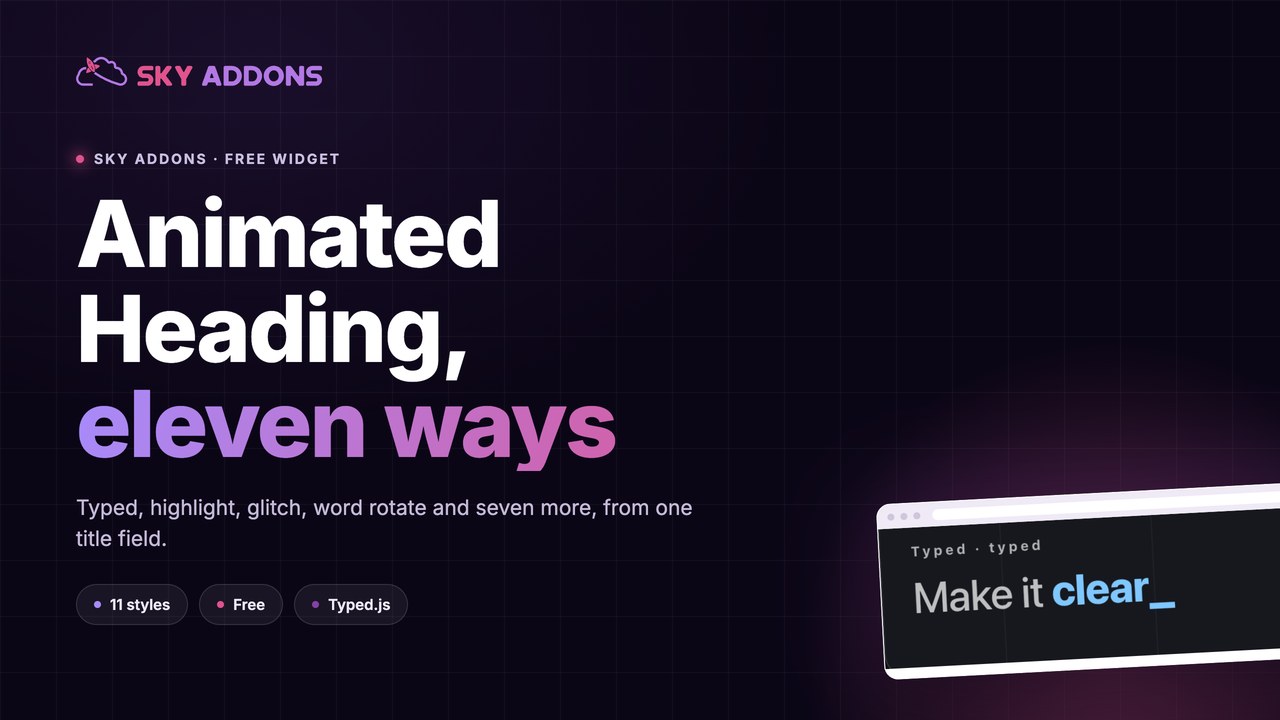
Animated Heading is an eye-catching heading widget for Elementor that brings your titles to life with motion. Instead of a plain static headline, you can rotate through multiple words with typewriter, highlight, glitch, reveal, and many more animation styles. Combine a static prefix and suffix with an animated middle section, link the whole heading anywhere, and fine-tune speed, loop, and cursor behavior. The Animated Heading widget for Elementor is perfect for hero sections, landing pages, and any spot where you want the headline to grab attention. This documentation will guide you through the process of using the Animated Heading Widget to create dynamic, attention-grabbing titles on your website.
Features:
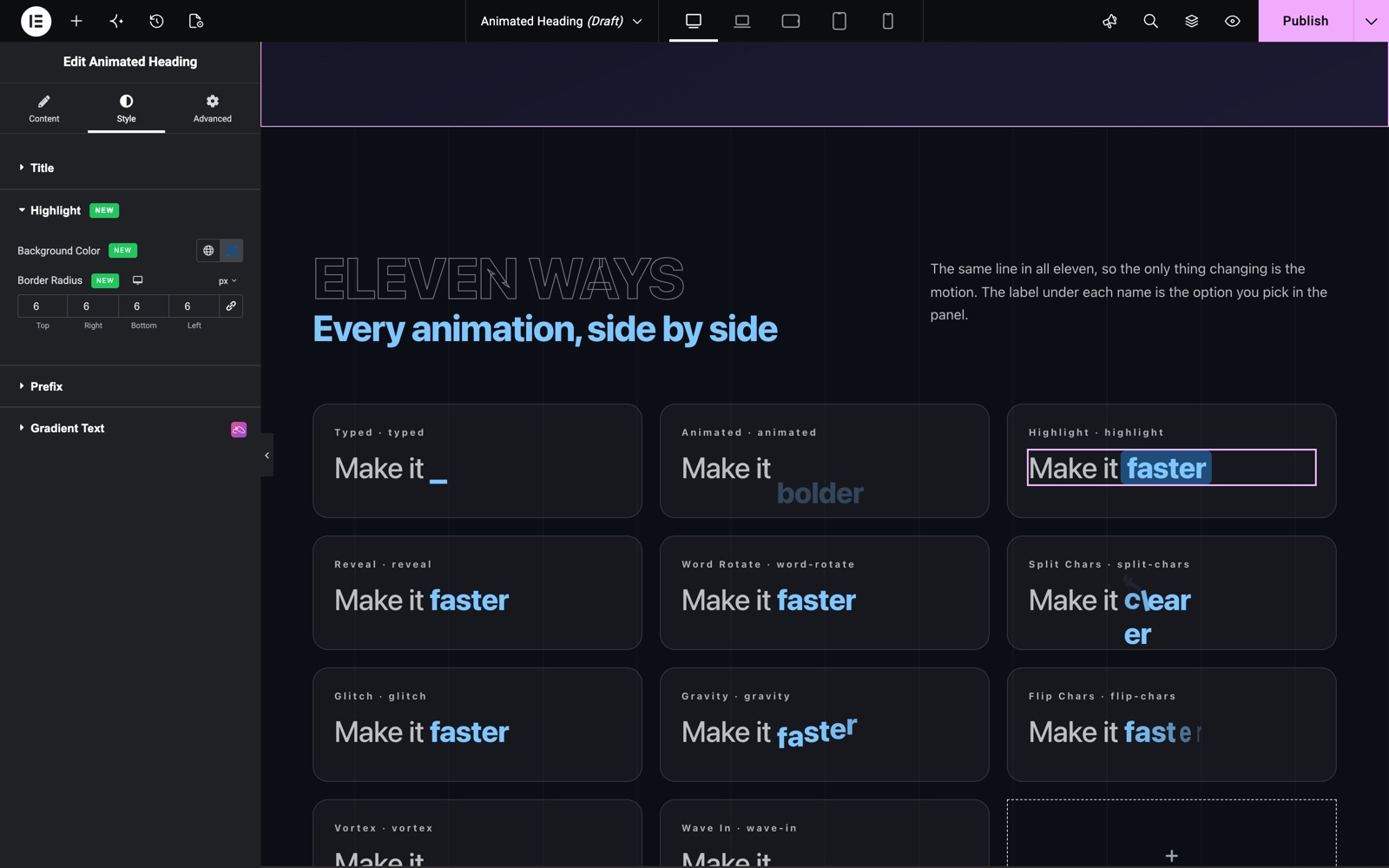
- 11 Animation Styles: Choose from Animated, Typed, Highlight, Glitch, Reveal, Word Rotate, Split Chars, Gravity, Flip Chars, Vortex, and Wave In.
- Multi-Word Rotation: Add comma-separated words in the Title field and the widget cycles through them automatically.
- Prefix and Suffix Text: Wrap the animated words with static text before and after for natural sentences.
- Typewriter Controls: Full Typed mode settings: speed, loop, loop count, delays, and a customizable cursor character.
- Linkable Heading: Wrap the entire heading in a link, with dynamic URL support.
- SEO-Friendly HTML Tag: Render the heading as H1–H6, div, span, or p to fit your page structure.
- Complete Styling: Separate style controls for the animated title, highlight shape, prefix, and suffix, including typography, text stroke, text shadow, and blend mode.
Insert Animated Heading Widget
- Open Elementor Editor. In the Elementor panel, search for “Animated Heading” under Sky Addons.
- Drag and Drop the Widget to the desired location on your page / editor.
Configure Content
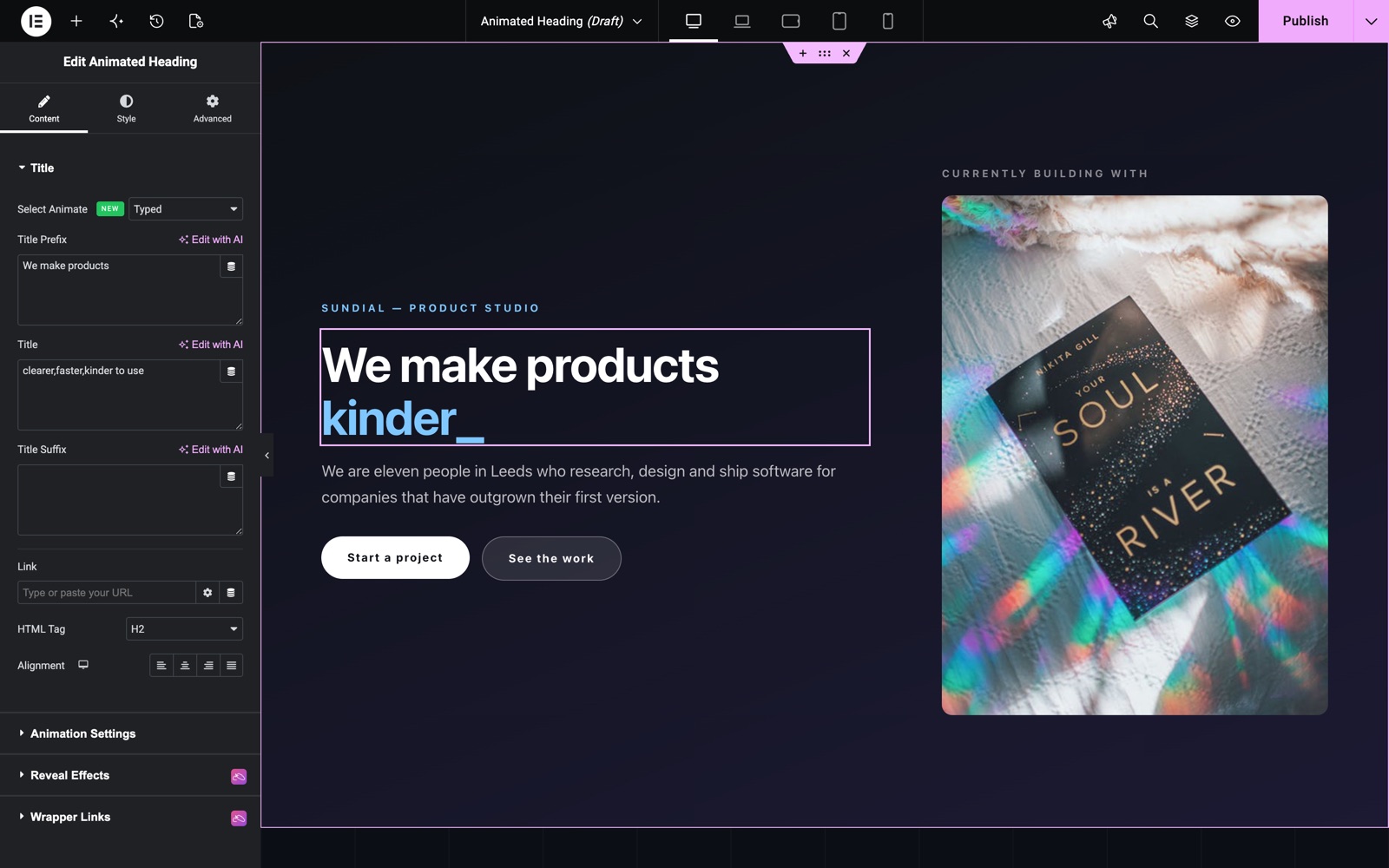
In the Title section, set up the heading text and pick the animation style:
- Select Animate: Choose the animation style: Animated, Typed, Highlight, Glitch, Reveal, Word Rotate, Split Chars, Gravity, Flip Chars, Vortex, or Wave In.
- Title Prefix: Static text shown before the animated part (e.g. “Hello I am”).
- Title: The animated words. Separate multiple words or phrases with commas (e.g.
Animated,Morphing,Awesome) and the widget rotates through them. - Title Suffix: Static text shown after the animated part.
- Link: Optionally wrap the whole heading in a link. Supports dynamic URLs.
- HTML Tag: Render the heading as H1–H6, div, span, or p for the right semantics and SEO.
- Alignment: Align the heading left, center, right, or justified, with a separate setting per device.
In this example the prefix is We make products and the Title field holds clearer,faster,kinder to use. The Typed style types each word, deletes it and types the next one.
Configure Settings
The Animation Settings section adapts to the style you selected, so you only see the options that matter:
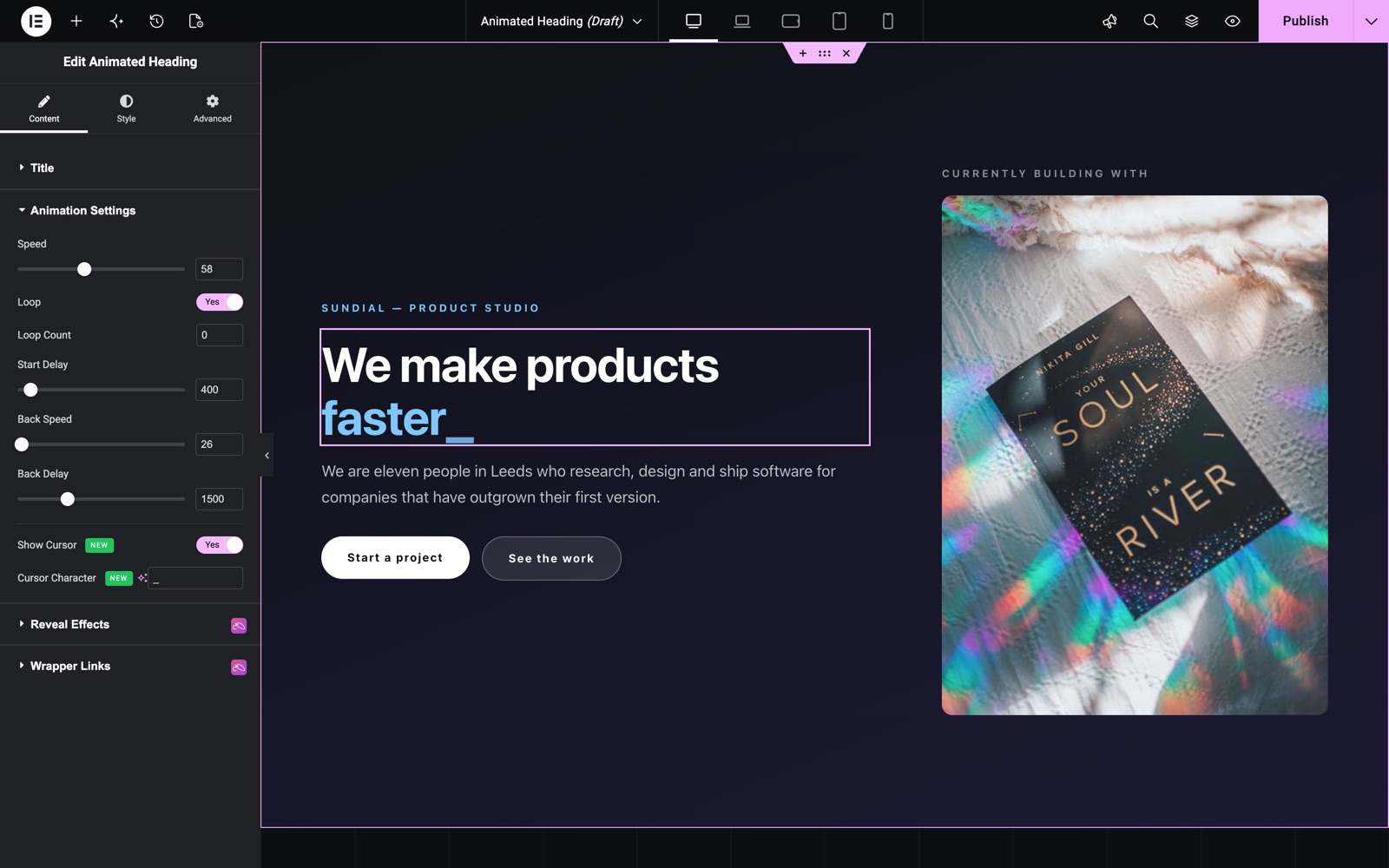
- Typed style: Control Speed (typing speed), Loop with an optional Loop Count, Start Delay, Back Speed (deleting speed), Back Delay, plus Show Cursor with a custom Cursor Character (default
|). - Animated style: Pick any Elementor entrance Animation (e.g. fadeIn) and set the rotation Speed between word changes.
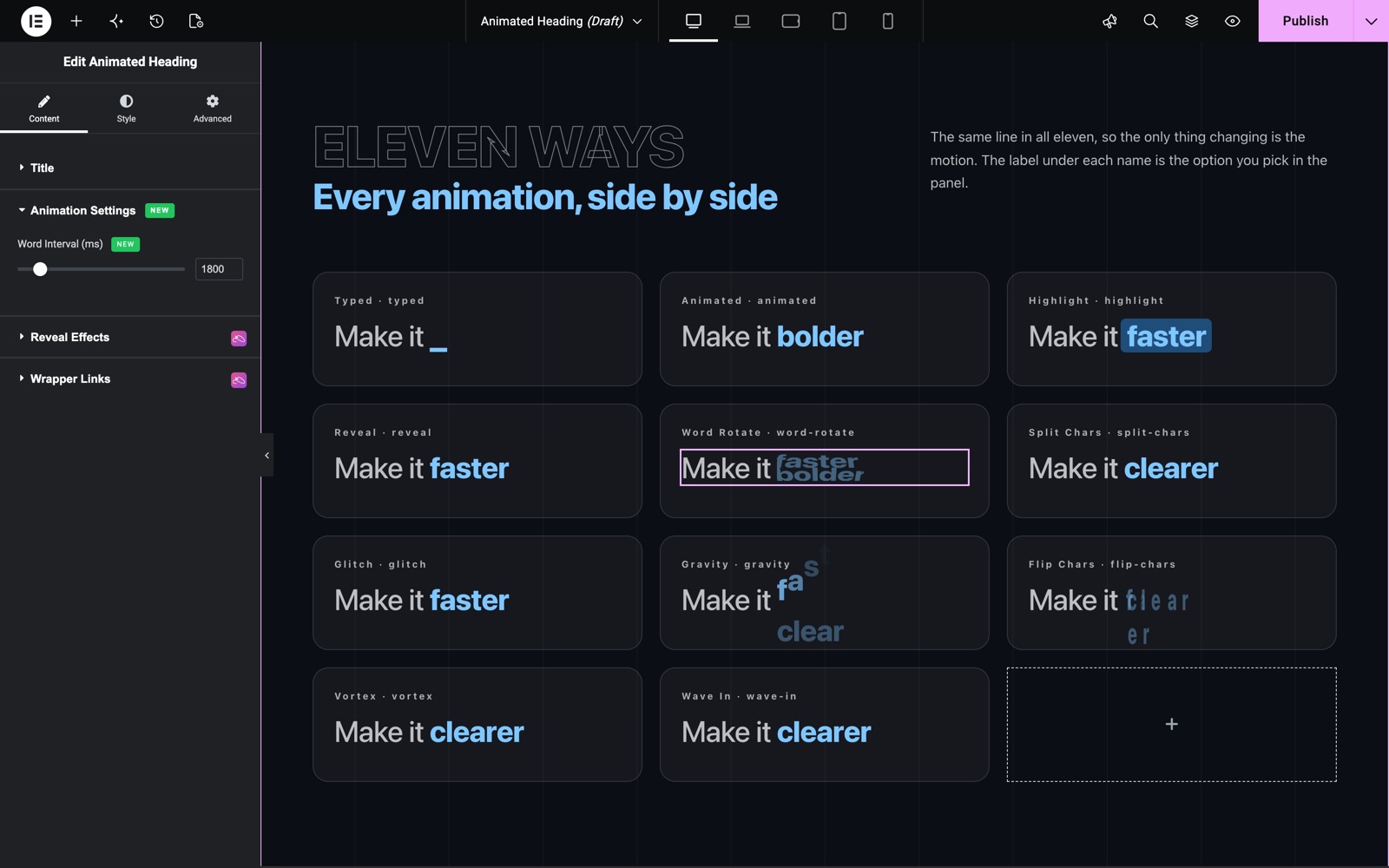
- Highlight, Glitch, Reveal, Word Rotate, Split Chars, Gravity, Flip Chars, Vortex, Wave In: Set the Word Interval (ms), which is how long each word stays on screen before the next one animates in.
For the Typed style, Loop is on by default, Start Delay is 1000 ms and Back Delay is 500 ms. Back Delay is the pause before a word is deleted. A longer pause gives visitors time to read each word.
The Animated style uses fadeIn and a 2000 ms Speed by default. The other nine styles share one control, Word Interval (ms). It runs from 500 to 10000 ms, and the default is 2000.
Style Your Heading
Make the heading match your brand with dedicated style sections for each part of the heading. Adjust colors, typography, stroke, and shadows to create a headline that stands out without breaking your design.
- Title:
Set the text color, typography, text stroke, text shadow, and a CSS blend mode for the animated heading. - Highlight:
When the Highlight style is active, customize the highlight shape’s background color and border radius. - Prefix:
Control the prefix display mode (inline, inline block, or block), text color, typography, text stroke, and text shadow. - Suffix:
The same display, color, typography, stroke, and shadow options for the suffix text.
Save and Preview
- Once you’ve customized and styled your heading, click “Publish” or “Update” to save your changes.
- Preview the page to ensure the widget looks and functions as desired.
Best Practices
- Consistency: Maintain a consistent style with the rest of your website for a cohesive look.
- Keep Words Similar in Length: Rotating words of similar length prevents the layout around the heading from jumping.
- Accessibility: Use a sensible HTML tag (one H1 per page) and keep the animation interval long enough to be readable.
- Testing: Check the animation across different devices and screen sizes for a responsive design.
Troubleshooting
- Heading Not Animating: Ensure JavaScript is enabled and there are no conflicting plugins; the Typed style needs the bundled Typed.js library to load.
- Only One Word Shows: Make sure the words in the Title field are separated by commas. Each comma-separated value becomes one rotating word.
- Styling Issues: Double-check the style section that matches your selected animation (e.g. Highlight options only appear for the Highlight style) and clear cache if recent changes aren’t displaying.
Frequently Asked Questions
How do I create a typewriter effect heading in Elementor?
Set Select Animate to Typed. The Animation Settings section then gives you typing Speed, Back Speed (deleting), Start/Back Delay, Loop with Loop Count, and a Show Cursor toggle with a custom Cursor Character.
Can the Animated Heading widget rotate through multiple words?
Yes. Enter the words in the Title field separated by commas (e.g. Fast,Reliable,Beautiful). Every animation style cycles through them; control the pace with Speed (Animated/Typed) or Word Interval (all other styles).
How do I add static text before and after the animated words?
Use Title Prefix and Title Suffix in the Title section. Both have their own style sections (color, typography, stroke, shadow) and a Display option to render them inline or as blocks.
Can I make the whole animated heading a link?
Yes. Fill in the Link control in the Title section and the entire heading (prefix, animated words and suffix) becomes clickable. Dynamic URLs are supported.
Is the Animated Heading widget good for SEO?
Yes. Choose the proper HTML Tag (H1–H6, div, span, or p) so the heading fits your page hierarchy, and the full text is rendered in the markup for search engines.
Related Documentation
Conclusion
The Animated Heading Widget by Sky Addons for Elementor turns ordinary titles into engaging, animated headlines. Utilize its eleven animation styles and detailed controls to create a memorable first impression. For further assistance, consult the Sky Addons support team or community forums. Enjoy building dynamic headings!
Need help? Our team is happy to answer questions on the Sky Addons support page.