
How to Use the Video Link Feature in Sky Addons
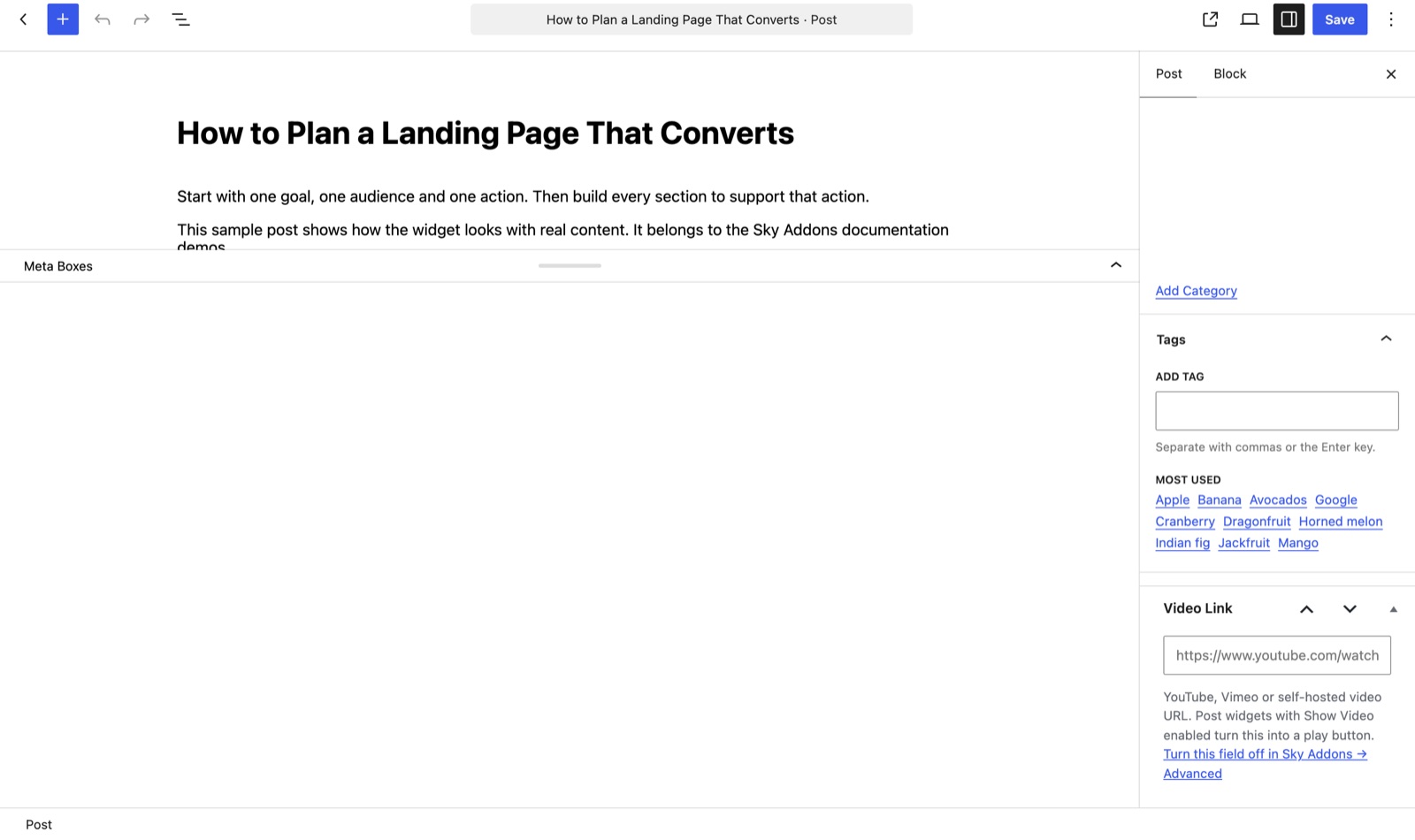
The Video Link feature adds one small field to the post editor that turns any post into a video post. Paste an Elementor video link (a YouTube, Vimeo or self-hosted video URL) into the Video Link box in the sidebar, and every Sky Addons post widget with Show Video switched on puts a play button over that post’s thumbnail, opening the video in a lightbox. Nothing needs wiring up: the widgets read the same key the box writes to. This documentation covers turning the feature on, filling the field, the Video Settings that control playback, and using your own custom field instead.
Features:
- One Field, Any Post Type: The box appears on posts, pages and every other public post type.
- Works With Any Source: YouTube, Vimeo and self-hosted video files are all accepted in the same field.
- Automatic Play Button: Post grids, lists, carousels and sliders overlay a play button on any post with a link saved.
- Lightbox Playback: Videos open in Elementor’s lightbox with aspect ratio, autoplay, mute and animation options.
- Custom Field Friendly: Point the widget at an ACF, SCF, Pods or plain meta key, or a dynamic tag.
- Lazy Load Option: Hold the player back until the visitor asks for it.
- Safe to Switch Off: Turning the feature off hides the field but never deletes the values already saved.
Requirements
- Elementor and Sky Addons active, with the Video Link advanced feature on (it ships enabled).
- Permission to edit the post you are adding a link to.
- A Sky Addons post widget where the videos should appear, such as Generic Grid, Post List or Mate Slider.
Turning the Video Link Feature On
Video Link is on by default, so most sites can skip this. To check or switch it off:
- Go to WordPress Dashboard → Sky Addons → Advanced.
- Scroll past the Asset Manager to the advanced feature cards.
- Find the Video Link card and check its toggle is on.
- Open any post and confirm the Video Link box appears in the sidebar.
Switching the feature off removes the box from the editor, but saved values stay in the database and widgets keep displaying them: safe to turn off on a site that has moved to a custom field.
Adding an Elementor Video Link to a Post
- Edit the post, page or custom post type entry.
- Find the Video Link box in the sidebar, near the publishing and featured image panels.
- Paste the full video URL. The placeholder shows a YouTube watch URL; a Vimeo URL or a self-hosted video file address works too.
- Set a featured image if the post lacks one: the play button sits on the thumbnail, which is what people see first.
- Update the post. Clearing the field and updating again removes the video.
The value saves to a post meta key that Sky Addons post widgets read by default:
sky_video_link_metaTo narrow or widen which post types show the box, filter the list from a child theme or a small plugin:
add_filter( 'sky_addons/video_link/post_types', function ( $post_types ) {
	return [ 'post', 'lesson' ];
} );
Showing the Video in a Post Widget
The field alone does nothing on the front end: a post widget has to ask for it. Add a Sky Addons post widget, open its Content tab and switch Show Video on. A Video Settings section appears.
| Control | What it does |
|---|---|
| Video Source | The custom field key holding each post’s video URL. Defaults to sky_video_link_meta, what the Video Link box writes. The dynamic tag icon pulls the URL from a tag instead. |
| Video Open | Default and Lightbox both open the video in an overlay; Media File opens the URL directly. |
| File Open in a New Tab? | Shown for Media File only. Opens the video in a new tab. |
| Entrance Animation | How the lightbox animates in. Set per device. |
| Aspect Ratio | 16:9, 21:9, 4:3, 3:2, 1:1 or 9:16 for the lightbox player. |
| Lazy Load | Defers loading the player until needed. |
| Autoplay | Starts the video as soon as the lightbox opens. |
| Mute | Starts the video muted. |
Posts without a video link render as normal cards with no play button, so one grid can mix video and written posts.
Using Your Own Custom Field Instead
Many sites already store video URLs elsewhere: an ACF field on a “Lesson” post type, a key written by an importer. The Video Source control exists for that.
- Find the meta key your field saves to: an ACF field named
lesson_videosaves tolesson_video. - In Video Settings, replace
sky_video_link_metain Video Source with that key. - Or click the dynamic tag icon and pick a dynamic tag returning the URL.
- If the built-in field is now redundant, switch Video Link off under Sky Addons → Advanced.
Choosing Between Self-Hosted and Platform-Hosted Video
The field takes all three, so choose deliberately.
| Option | Good for | Watch out for |
|---|---|---|
| YouTube | Reach, free bandwidth, adaptive quality, captions | Branding and related videos; third-party cookies to disclose |
| Vimeo | A clean player, privacy controls, domain restriction | A paid plan for the better privacy tiers |
| Self-hosted file | Full control, no third-party requests or branding | Your bandwidth and storage, no adaptive quality, captions are on you |
For a marketing site, platform hosting is usually the right default. Self-hosting suits short loops and members-only material where you would rather not send visitor data to a third party.
Performance and Core Web Vitals
Showing a thumbnail with a play button, rather than a player in every card, is a performance decision. One YouTube embed can pull in hundreds of kilobytes of script before anyone decides to watch; twelve make a slow page.
- Nothing loads until the click. Before the lightbox opens the card is an image and a button: no player, no third-party requests.
- Turn on Lazy Load on pages carrying many video posts.
- Size the featured image properly. The thumbnail is usually the card’s largest element, and a candidate for Largest Contentful Paint.
- Match the aspect ratio to your thumbnails so nothing shifts when the lightbox opens.
Accessibility Notes
- Captions are not optional. Add them on YouTube or Vimeo, or supply a track for a self-hosted file: they also serve everyone watching with the sound off.
- Use Autoplay sparingly. A video that starts by itself disorients screen reader users and anyone in a quiet room. If you use it, turn Mute on too.
- Go easy on the entrance animation. Large motion is uncomfortable for visitors sensitive to it; a subtle fade suits most pages.
- Write descriptive post titles. The title is what assistive technology announces, so “Fitting a bike chain” beats “Video 12”.
Example: A Tutorials Page of Video Posts
You publish weekly tutorials, some written and some recorded, and want one grid on /tutorials/ handling both.
- Open the first recording, “Fitting a bike chain”, and set its featured image to a clear still from the video.
- Paste the YouTube watch URL into the sidebar Video Link box and update the post.
- Repeat for the other recordings; leave the written ones alone, since an empty field means no play button.
- Edit
/tutorials/with Elementor and add a Generic Grid set to the Tutorials category, three columns. - In the Content tab, switch Show Video on so the Video Settings section appears.
- Leave Video Source at
sky_video_link_metaand Video Open at Default so videos play in the lightbox, then set Aspect Ratio to 16:9. - Turn Autoplay and Mute on so a video starts without startling anyone, and Lazy Load on for a page listing a dozen posts.
- Publish and test. Recordings show a play button over the still and open a muted 16:9 lightbox; written tutorials look like ordinary cards linking to the article.
The page loads as fast as a plain post grid: no player is fetched until someone asks for one.
Best Practices
- Pair every video link with a strong featured image. The thumbnail does the selling; the play button only signals a video exists.
- Paste the canonical URL, not a share link carrying tracking parameters.
- Keep the built-in field unless you have a reason not to. It needs no setup, and a custom field is one more thing to migrate later.
- Test on a phone. Lightbox video is where mobile layouts most often disappoint.
Troubleshooting
- The Video Link box is missing. Check the Video Link card under Sky Addons → Advanced is on. If it is, the post type may have been narrowed by the filter above, or you may lack permission to edit that post.
- No play button appears. Three things must line up: Show Video is on, the post has a URL saved, and Video Source matches the key holding it. A widget pointed at a custom field will not see values written by the built-in box.
- The play button leaves the page instead of opening a lightbox. Video Open is set to Media File; set it back to Default or Lightbox.
- The video does not start on its own. Browsers block autoplay with sound: turn Mute on alongside Autoplay.
Frequently Asked Questions
Where is the Video Link field in WordPress?
It is a small box titled Video Link in the post editor sidebar, alongside the publish and featured image panels. It appears on every public post type, so pages and custom post types get it too.
Which video services does the Elementor video link field accept?
YouTube, Vimeo and self-hosted video files. Paste the full URL of the video page, or the direct address of a file hosted on your own site.
Do I have to configure anything for the widgets to find it?
No. Each widget’s Video Source control already defaults to the meta key the Video Link box writes to, so filling the field and switching Show Video on is enough.
Can I use an ACF field for the video URL instead?
Yes. Type your field’s meta key into the widget’s Video Source control, or use the dynamic tag icon. This works with ACF, SCF, Pods and plain post meta.
Will I lose my video links if I turn the feature off?
No. Switching it off under Sky Addons → Advanced only removes the field from the editor. Saved values stay in the database and widgets pointed at that key keep rendering them.
Does the video slow my page down?
Not before someone clicks. The card is your featured image with a play overlay, and the player is fetched only when the lightbox opens. Lazy Load adds more restraint on pages with many video posts.
Conclusion
Video Link is deliberately small: one field, one meta key, and a play button wherever your posts are listed. Paste an Elementor video link into the sidebar box, switch Show Video on in a post widget, and use Video Settings to decide how playback behaves, or point Video Source at a custom field if your videos already live elsewhere. Keep captions on and pair autoplay with mute, and your video listings stay fast and watchable. For anything else, our team is at https://wowdevs.com/support/.