
Theme Compatibility for Sky Addons Header and Footer Templates
Elementor header footer theme compatibility in Sky Addons Theme Builder is automatic: the plugin detects your active theme and takes your theme’s own header and footer out of the page so your template can render in their place. Eight popular themes have dedicated support written specifically for them, and every other traditional WordPress theme is handled by a generic fallback that needs no setup. There is no “choose your theme” setting to find, because detection happens on every page load. This documentation explains which themes are covered, how the fallback works, what to expect on block-based themes, and what to check when your theme’s header refuses to step aside.
Features:
- Automatic detection: Your active theme is identified on every request.
- Eight dedicated integrations: Astra, Neve, GeneratePress, OceanWP, Beaver Builder Theme, Genesis, Kadence and Storefront.
- Generic fallback: Any classic theme using the standard template tags is supported without a dedicated integration.
- Child themes included: A child theme inherits its parent’s support automatically.
- No double output: The theme’s own header and footer are suppressed, not merely hidden with CSS.
- Free: Theme Builder and all of its compatibility work are part of the free plugin.
Requirements
- Elementor installed and active.
- A classic (PHP template) WordPress theme. See the note on block themes below.
- A published, enabled header or footer template whose display conditions match the page you are looking at.
How Elementor Header Footer Theme Compatibility Works
Every theme prints its header and footer in its own way, so replacing them takes theme-specific knowledge. Sky Addons handles this in two layers and picks the layer automatically.
- On each page load the plugin reads the active theme. Where a dedicated integration exists for it, that integration runs.
- The integration removes the theme’s own header and footer output from the hooks the theme uses, then renders your Theme Builder template on those same hooks, so your header lands in exactly the place the theme’s header would have been, inside the theme’s own page structure.
- If no dedicated integration matches, the generic fallback takes over and works with the standard WordPress template tags instead.
Two details are worth knowing. First, the plugin only intervenes when it actually has a matching template: with no enabled header template whose conditions match the current page, nothing is removed and your theme’s header renders as it always did. Second, detection reads the parent theme, so a child theme of a supported theme gets that theme’s support with no extra step.
Themes With Dedicated Support
| Theme | Supported | Notes |
|---|---|---|
| Astra | Dedicated | The theme’s header and footer markup is removed and your template rendered on the theme’s own hooks. |
| Neve | Dedicated | Neve’s header and footer builder output is cleared before your template is injected. |
| GeneratePress | Dedicated | Child themes covered by the same integration. |
| OceanWP | Dedicated | The top bar and page header are removed as well as the main header. Child themes covered. |
| Beaver Builder Theme | Dedicated | The theme’s header and footer are switched off outright, and its own no-header-footer page template is respected. Child themes covered. |
| Genesis | Dedicated | The framework’s callbacks are cleared, then the wrapper markup is rebuilt around your template so Genesis structural wraps stay intact. Child themes covered. |
| Kadence | Dedicated | The theme renders on the same hook the plugin uses, so removal and re-attachment happen together. |
| Storefront | Dedicated | Same approach as Kadence. The usual choice for a WooCommerce store on the default theme. |
| Any other classic theme | Generic fallback | Handled automatically through the standard template tags. No setup required. |
| Block / full site editing themes | Not supported | See the section below. |
The Generic Fallback for Any Classic Theme
Most themes are not on the list above, and that is fine. Nearly every traditional theme builds its pages by calling the standard header and footer template tags, and the fallback hooks into exactly those calls.
When your template is due to render, the fallback prints the opening document structure and your header itself, then loads the theme’s own header file but discards its output. That second step matters: many themes define functions inside their header file, and skipping it would break the rest of the page. Loading it and throwing away what it prints keeps the theme working while making sure its header chrome never appears twice. The footer is handled the same way.
Nothing here needs enabling. On a niche or custom theme, a header template that appears correctly with no duplicate underneath means the fallback is doing its job.
Block and Full Site Editing Themes
Be aware of one honest limitation. Theme Builder is built around classic themes: it works by intervening in the PHP template tags and theme hooks a classic theme uses to draw its header and footer. A block theme does not draw its header that way: it renders header and footer template parts through the block editor’s own system, which has no equivalent hook for the plugin to step into.
In practice a Sky Addons header or footer template is unlikely to replace a block theme’s header or footer, and other template types may behave unpredictably there. If you want Sky Addons headers and footers, the reliable route is a classic theme: any of the eight above, or any traditional theme through the fallback. The quickest way to tell which you have is the admin menu: a block theme offers Appearance → Editor rather than the Customizer. When in doubt, ask our support team first.
Example: Moving From a Supported Theme to an Unsupported One
Your site runs on Astra with a Sky Addons header and footer that have worked for months. A redesign means moving to a small commercial theme that is not one of the eight. Here is the safe order of operations.
- Confirm the new theme is classic, not block-based, before you buy it. If Appearance offers Editor rather than Customize, stop and reconsider.
- Activate it on a staging copy of the site, not the live one.
- Load the home page. Your header and footer should still appear, now through the generic fallback rather than the Astra integration: nothing in Sky Addons needs changing.
- Check for duplicates. Two headers stacked together means the new theme prints its header somewhere the fallback cannot reach: see Troubleshooting.
- Walk through one page of each kind: a page, a single post, a category archive, the 404 screen and, on a shop, the shop page. Themes sometimes use a different header on some of these.
- Look at spacing and colour. The new theme’s stylesheet now loads behind your template, so container widths, link colours and heading sizes may shift even though the template is unchanged. Fix these with explicit values in the template.
- Check any page set to Elementor’s Canvas page template. Canvas strips all theme chrome by design, so no Theme Builder header or footer appears there, on any theme.
- Only when staging is clean, switch the live site over and clear your caches.
In the ordinary case the migration needs no Theme Builder changes at all: the templates carry over and the plugin switches integration underneath them.
Best Practices
- Test a theme change on staging first. Compatibility is automatic, but the visual result of a different stylesheet behind your template is not.
- If your theme has its own header and footer builder, leave it alone rather than emptying it. Sky Addons removes the theme’s output for you.
- After updating a theme, load the site and check the header once. A theme that changes its internal structure in an update is the usual cause of a header suddenly appearing twice.
- Set explicit values for spacing, widths and colours inside the template instead of relying on what the theme happens to provide.
Troubleshooting
- Two headers appear, one above the other. Your Sky Addons header rendered, but the theme’s own was not removed: usually because the theme prints it outside the pattern the fallback covers, or a theme update changed how it does so. First check whether your theme has its own setting to disable the header; many do, often per page, and switching that off resolves most cases. Otherwise tell our support team which theme you are on: dedicated integrations are added on that basis.
- The theme header still appears and mine does not. Usually not a compatibility problem: the plugin only replaces the theme header when it has a matching template. Confirm the template is published and its status toggle is on, that its display conditions cover the page, that no exclusion knocks it out, and that any role restriction still lets you see it. Then clear your cache.
- The template applies everywhere except one page. Check that page’s Elementor page layout setting. A page set to the Canvas template renders with no theme chrome by design, which includes your Theme Builder header and footer: switch it to Default or Full Width instead. The other candidate is an exclusion in the template’s Exclude From list, or a second template of the same type matching only that page.
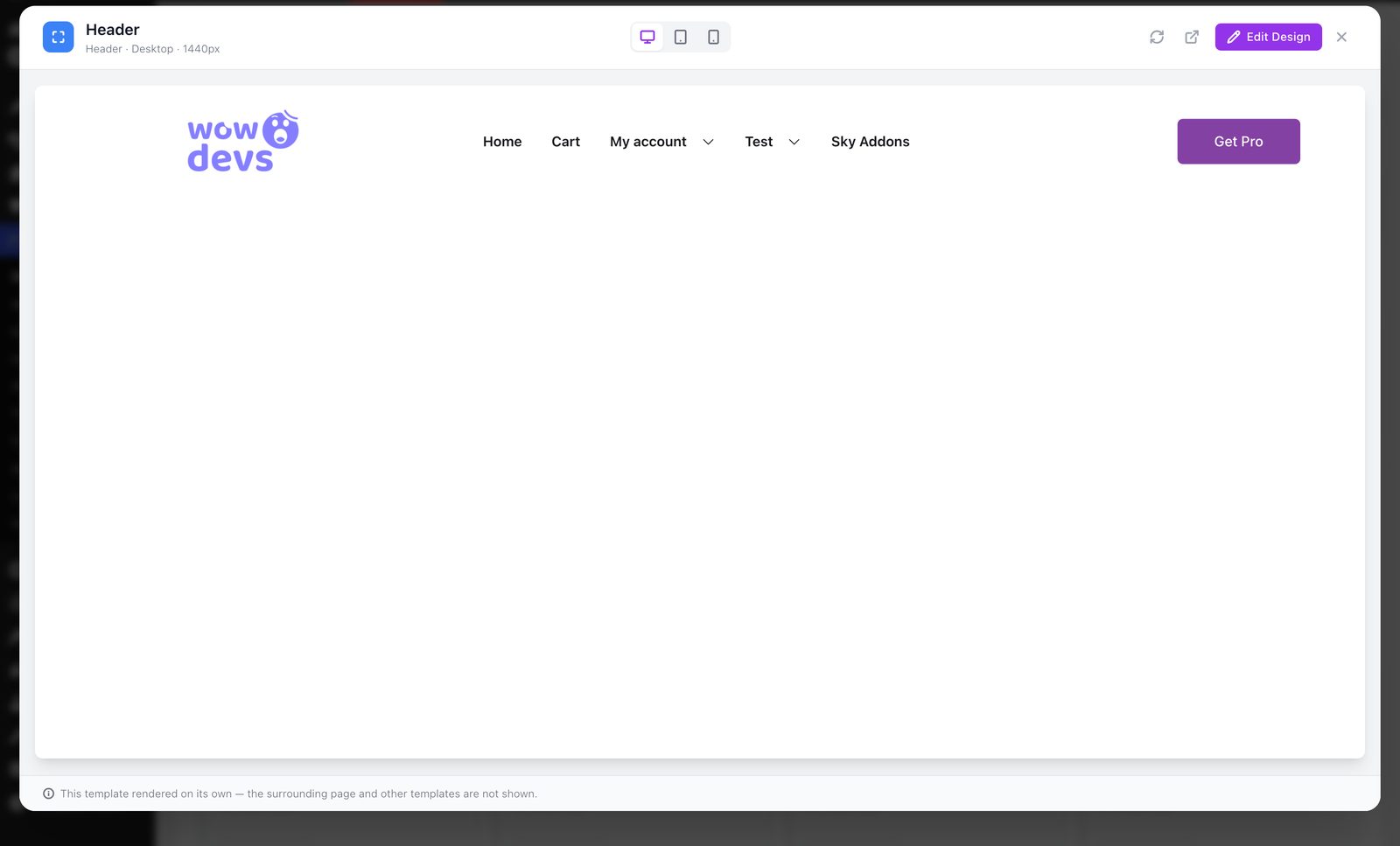
- It looks right in the dashboard preview but wrong on the site. The live preview renders your template with no theme stylesheet behind it. Differences in spacing, width or colour come from the theme’s CSS, and are fixed by setting the value explicitly in the template.
Frequently Asked Questions
Do I need to select my theme anywhere in Sky Addons?
No. There is no theme setting to configure. The active theme is detected on every page load and the right integration (dedicated or generic) is applied for you. Switching themes needs no change in Theme Builder.
Does my theme have to be on the supported list?
No. The eight named themes get integrations written specifically for them, but any classic WordPress theme using the standard header and footer template tags works through the generic fallback, which is effectively all traditional themes.
Does a child theme need separate support?
No. Detection reads the parent theme, so a child of Astra, GeneratePress, OceanWP, Genesis, Beaver Builder Theme or any other supported theme gets the parent’s integration automatically. A child of an unsupported theme uses the generic fallback, exactly as its parent would.
Will Sky Addons headers and footers work with a block theme?
Very likely not. Theme Builder replaces header and footer output through the hooks a classic PHP theme uses, and block themes render their header and footer as block template parts instead. If Sky Addons headers and footers matter to your build, choose a classic theme.
Do I need Elementor Pro for Elementor header footer theme compatibility?
No. Sky Addons Theme Builder is entirely free, including every template type and all of the theme integrations described here. Elementor itself is the only requirement.
Conclusion
Elementor header footer theme compatibility is one of the parts of Sky Addons Theme Builder you should never have to think about: eight themes have integrations of their own, every other classic theme is covered by the generic fallback, and child themes inherit their parent’s support automatically. The exceptions are worth remembering: block themes are outside what the system can reach, and Elementor’s Canvas page template intentionally shows no header or footer at all. From here, display conditions covers where each template appears and managing templates covers switching between them. If your theme’s header will not step aside, tell us which theme you are on at https://wowdevs.com/support/ and we will take a look.