
How to use Reveal Effects features of Sky Addons for WordPress
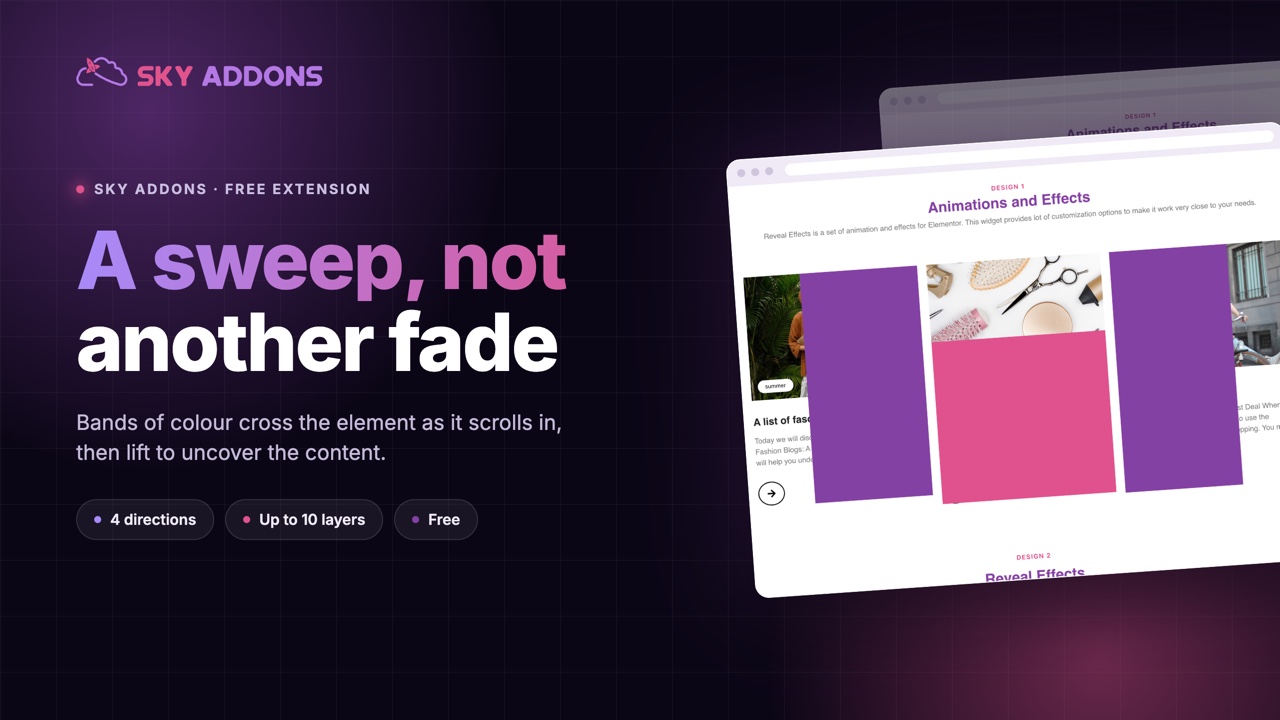
Sky Addons Reveal Effects extension for Elementor adds eye-catching block-reveal animations to any widget, section, or container. As the element scrolls into view, one or more colored overlay bands sweep across it and uncover the content beneath. It is the same cinematic reveal you see on premium agency websites. Direction, speed, easing, layer colors, and replay behavior are all configurable right inside the Elementor editor, with no custom code required. This documentation will guide you through enabling and configuring the Reveal Effects extension on your website.
Key Features
- Works on widgets, sections, and containers
- Four sweep directions: left to right, right to left, top to bottom, bottom to top
- Up to 10 colored overlay layers for a striped, multi-band reveal
- 25+ easing curves powered by the anime.js animation engine
- Replay on Scroll: re-run the animation every time the element re-enters the viewport
- Custom CSS selector targeting to animate inner items (grid cards, list items) individually
Activate Reveal Effects Module
Reveal Effects ships with Sky Addons and is available once the module is switched on. To verify its status:
- Navigate to your WordPress Dashboard and locate “Sky Addons” in the left sidebar menu
- Click on the “Extensions” tab within the Sky Addons dashboard
- Find “Reveal Effects” in the extensions list
- Ensure the toggle switch is in the “On” position
- Save your changes if you made any adjustments
Using Reveal Effects
- Open the Elementor Editor and select the widget, section, or container you want to animate
- For widgets: the “Reveal Effects” section appears in the “Content” tab
- For sections and containers: the “Reveal Effects” section appears in the “Layout” tab
- Locate the “Reveal Effects” section (marked with the Sky Addons icon)
- Toggle the “Enable” switch to activate the reveal animation for this element
In this example a card uses the Top → Bottom direction, an 800 ms duration and one pink layer. The section sits in the Content tab of the widget, and the Enable switch shows the rest of the controls.
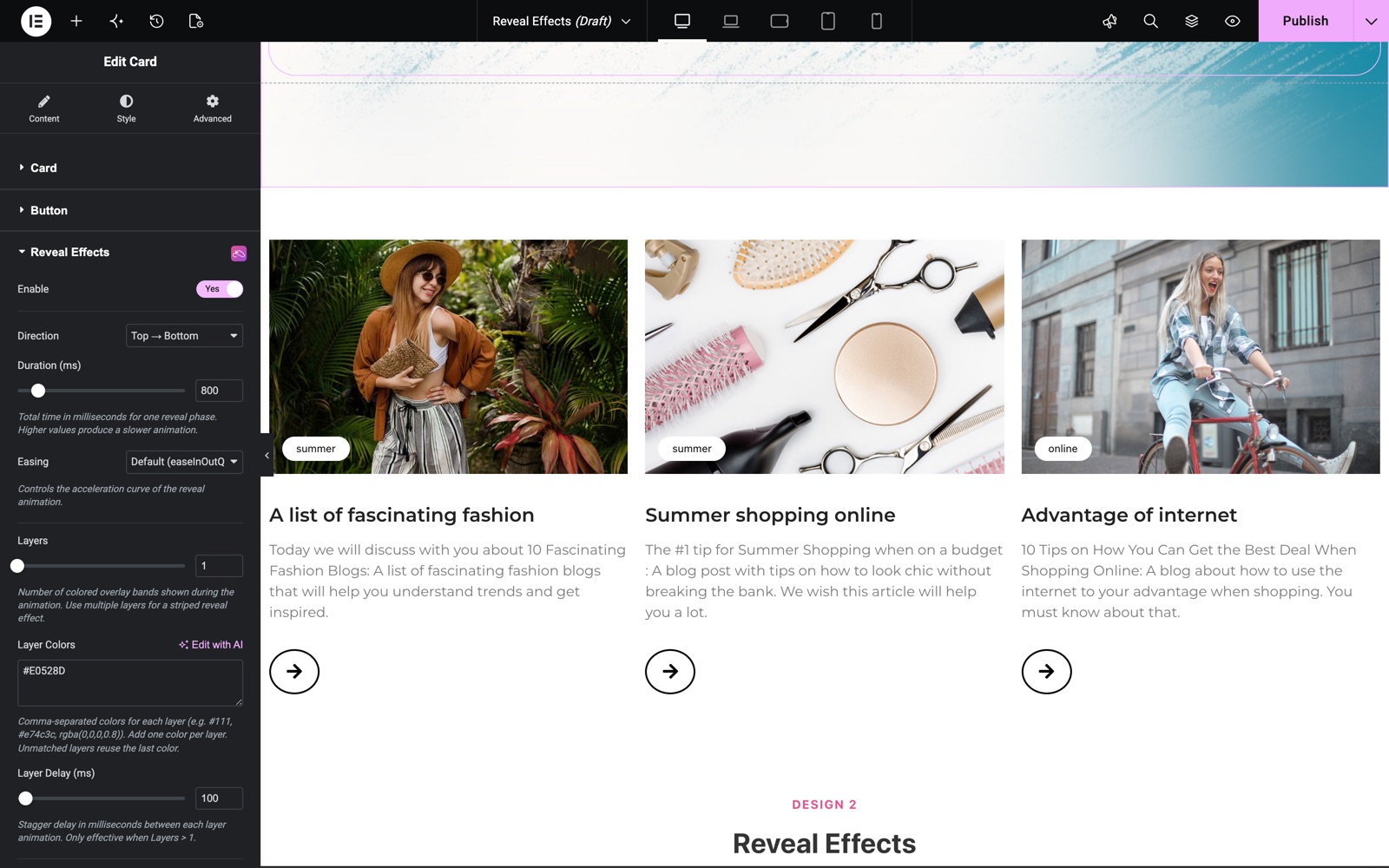
Reveal Effects Controls
Once enabled, the extension exposes a full set of animation controls:
- Enable – Activates the reveal animation on the selected element
- Direction – Sweep direction of the overlay: Left → Right, Right → Left, Top → Bottom, or Bottom → Top
- Duration (ms) – Total time in milliseconds for one reveal phase (200–5000, default 600). Higher values produce a slower animation
- Easing – Acceleration curve of the animation; choose from 25+ anime.js easings such as easeOutExpo, easeInOutBack, or easeOutBounce (default easeInOutQuint)
- Layers – Number of colored overlay bands (1–10). Multiple layers create a striped reveal effect
- Layer Colors – Comma-separated colors for each layer, e.g. #111, #e74c3c, rgba(0,0,0,0.8). Unmatched layers reuse the last color
- Layer Delay (ms) – Stagger delay between each layer animation (0–2000). Only effective when Layers is greater than 1
- Show Content During Animation – Keeps the element content visible while the overlay animates; when off, content appears only after the overlay fully passes
- Cover Area (%) – Percentage of the element left covered by the overlay after the animation completes. Set to 0 for a full reveal
- Replay on Scroll – Replays the reveal animation every time the element scrolls back into view
- Trigger Threshold (%) – Percentage of the element that must be visible in the viewport before the animation triggers (5–100, default 80). Lower values trigger earlier
- Target Selector – Apply the effect to the entire element (Default) or to inner items via a Custom Selector
- CSS Selector (Pro) – CSS selector for inner elements to animate individually, e.g. .post-item or .sa-card. Each matched element gets its own reveal animation
- Overlay Z-Index – Stacking order of the reveal overlay. Increase it if the overlay appears hidden behind other elements
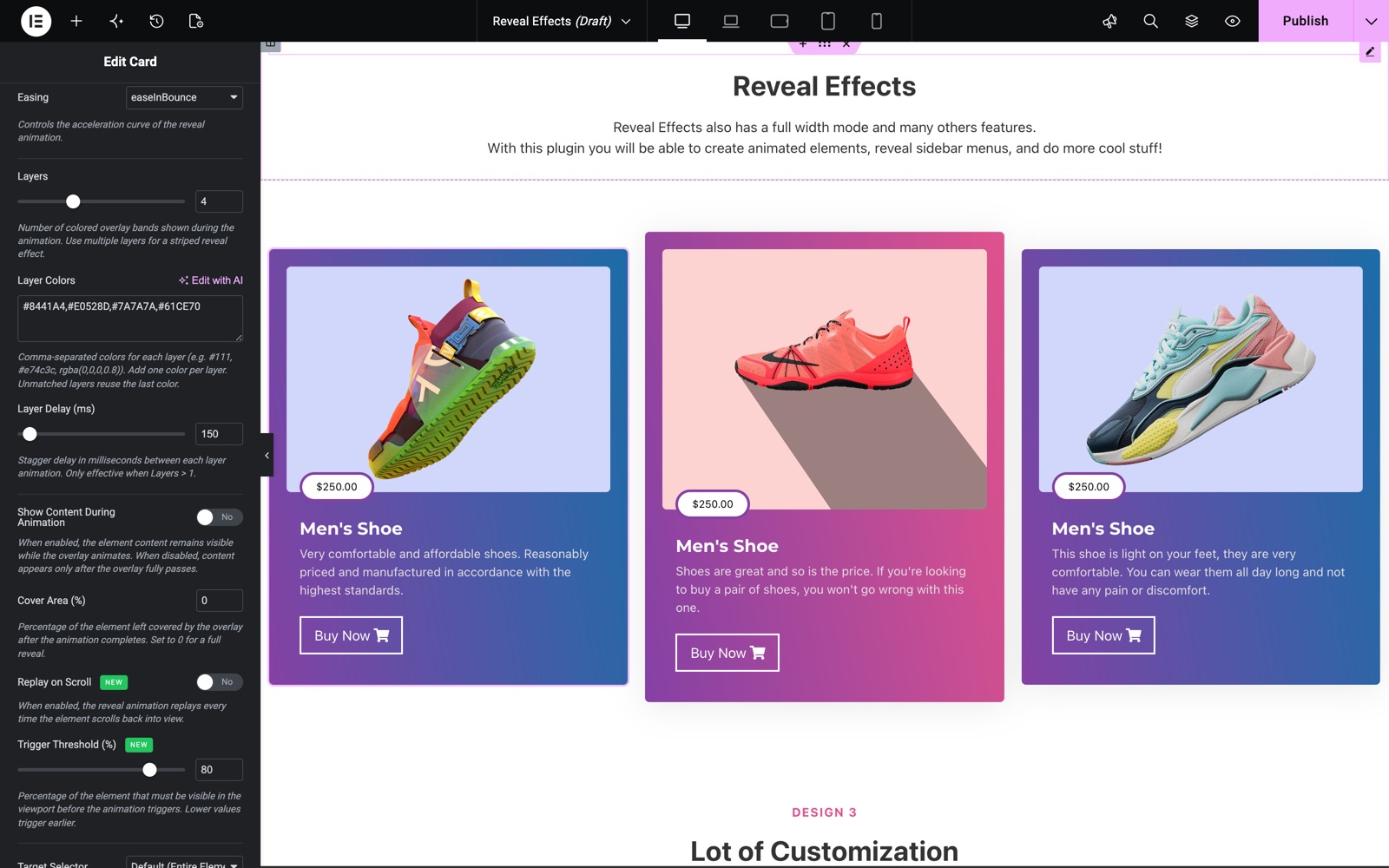
Set Layers to 4 and enter four colors in Layer Colors to get a striped sweep. Layer Delay adds a pause between the bands. The default is 100 ms. If you enter fewer colors than layers, the extra layers reuse the last color.
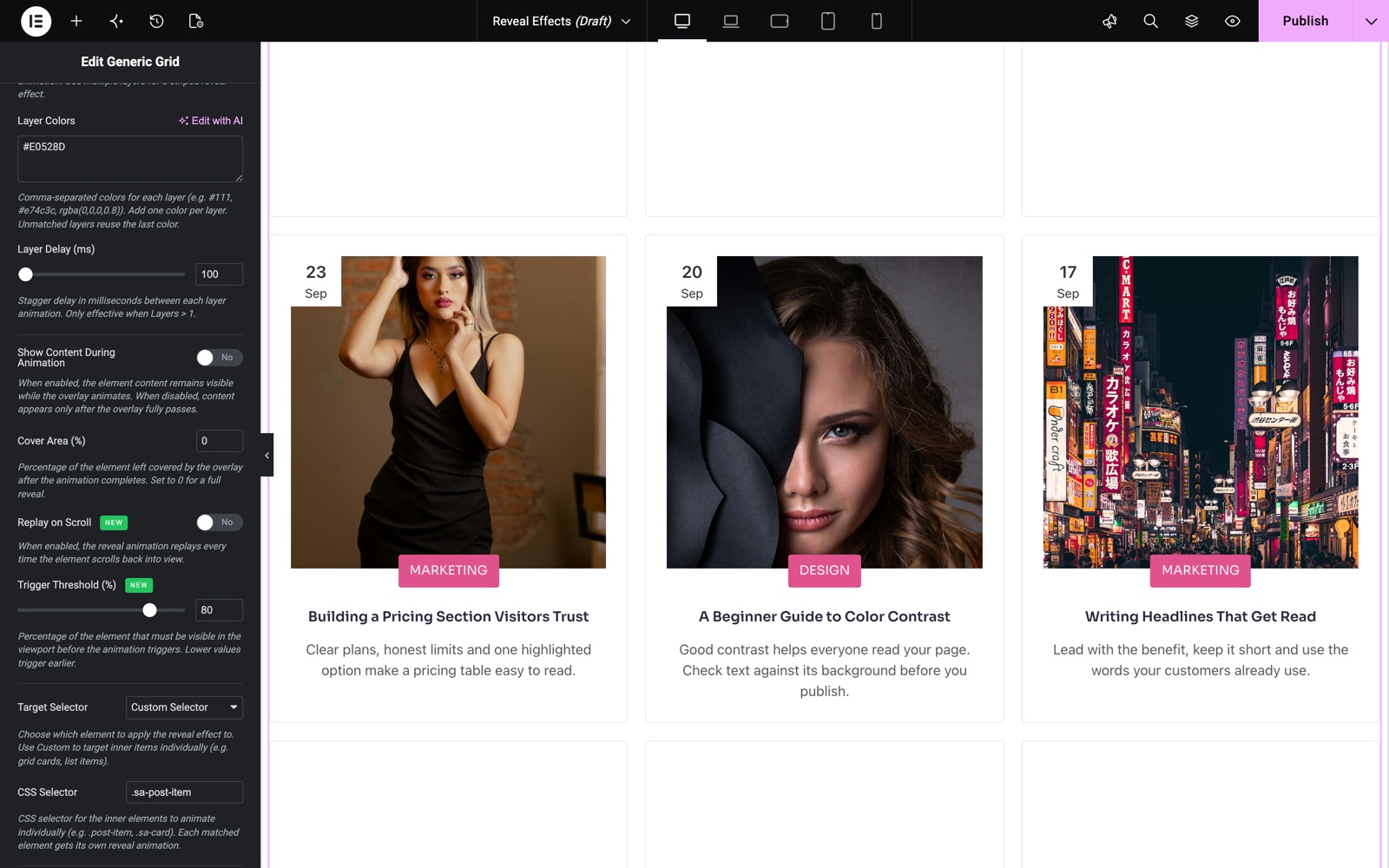
To reveal each card of a grid on its own, set Target Selector to Custom Selector and enter the class of the items. This Generic Grid uses .sa-post-item, so every post card plays its own reveal as it scrolls into view.
Save and Preview
- Once you’ve configured your reveal effect, click “Publish” or “Update” to save your changes.
- Preview the page and scroll to the element to ensure the animation triggers as desired.
Troubleshooting
- Animation Not Triggering: Lower the Trigger Threshold so less of the element needs to be visible, and confirm the Enable switch is on for the correct element
- Overlay Hidden Behind Content: Increase the Overlay Z-Index value so the reveal bands render above neighboring elements
- Custom Selector Not Animating: Verify the CSS selector matches elements inside the widget (check with your browser inspector). The Custom Selector option targets inner items only
Frequently Asked Questions
How do I add a reveal animation to an Elementor section?
Select the section, open the Layout tab, find the Reveal Effects section marked with the Sky Addons icon, and switch Enable on. Then pick a Direction and Duration. The overlay sweep plays automatically when the section scrolls into view.
Can the reveal effect replay every time I scroll?
Yes. Turn on the Replay on Scroll option and the animation re-runs each time the element re-enters the viewport, instead of playing only once per page load.
How do I create a multi-color striped reveal in Elementor?
Set Layers to 2 or more, then enter one color per layer in the Layer Colors field as a comma-separated list (e.g. #111, #e74c3c, #3498db). Use Layer Delay to stagger the bands for a cascading sweep.
Can I reveal each card in a grid individually?
Yes. Set Target Selector to Custom Selector and enter the CSS class of the inner items (for example .sa-card). Each matched element then gets its own independent reveal animation. The CSS Selector field is a Pro feature.
Does the Reveal Effects extension slow down my page?
The animation scripts (anime.js and the reveal handler) are loaded only on pages where at least one element has the effect enabled, so pages without reveal effects carry no extra weight.
Related Documentation
Conclusion
The Reveal Effects extension by Sky Addons for Elementor turns ordinary scroll-ins into polished, cinematic reveals with no code and no extra plugins. Use it sparingly on hero sections, headings, and feature cards for maximum impact. If you have any questions while using Reveal Effects, the Sky Addons support team is happy to help.
Need help? Our team is happy to answer questions on the Sky Addons support page.