
How to use Footer Builder features of Sky Addons for WordPress
Sky Addons Theme Builder Footer feature lets you create fully customized footers for your WordPress website using Elementor’s drag-and-drop interface. Replace your theme’s default footer with a custom design that perfectly matches your brand, adds unique functionality, and applies conditionally to specific parts of your site.
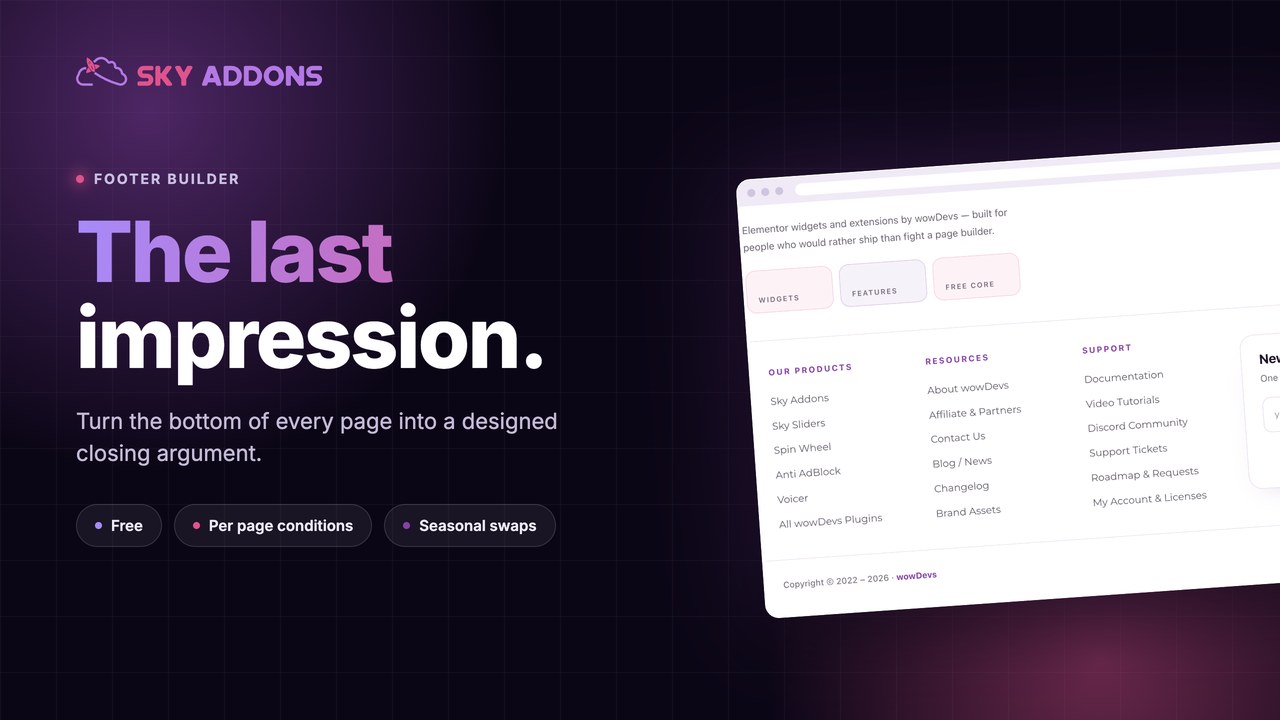
The Footer Builder gives you complete design freedom beyond your theme’s limitations. Create multi-column footers, copyright sections, widget areas, call-to-action regions, and more – all using familiar Elementor widgets and controls. Advanced display conditions let you show different footers based on pages, user roles, or other criteria, enabling truly personalized user experiences.
Key Features
- Full Elementor design capabilities with all widgets and styling options
- Multi-column layouts with flexible width and spacing controls
- Conditional display based on pages, posts, user roles, and more
- Multiple footer templates for different sections of your site
- Dedicated support for Astra, Neve, GeneratePress, OceanWP, Beaver Builder Theme, Genesis, Kadence and Storefront, and a fallback for other classic themes
- Responsive design controls for all device types
- Copyright line with the current year and site name, using the Current Date Time and Site Title dynamic tags
Create a Footer Template
- In your WordPress Dashboard, go to Sky Addons > Theme Builder
- Click the “Add New” button to create a new template
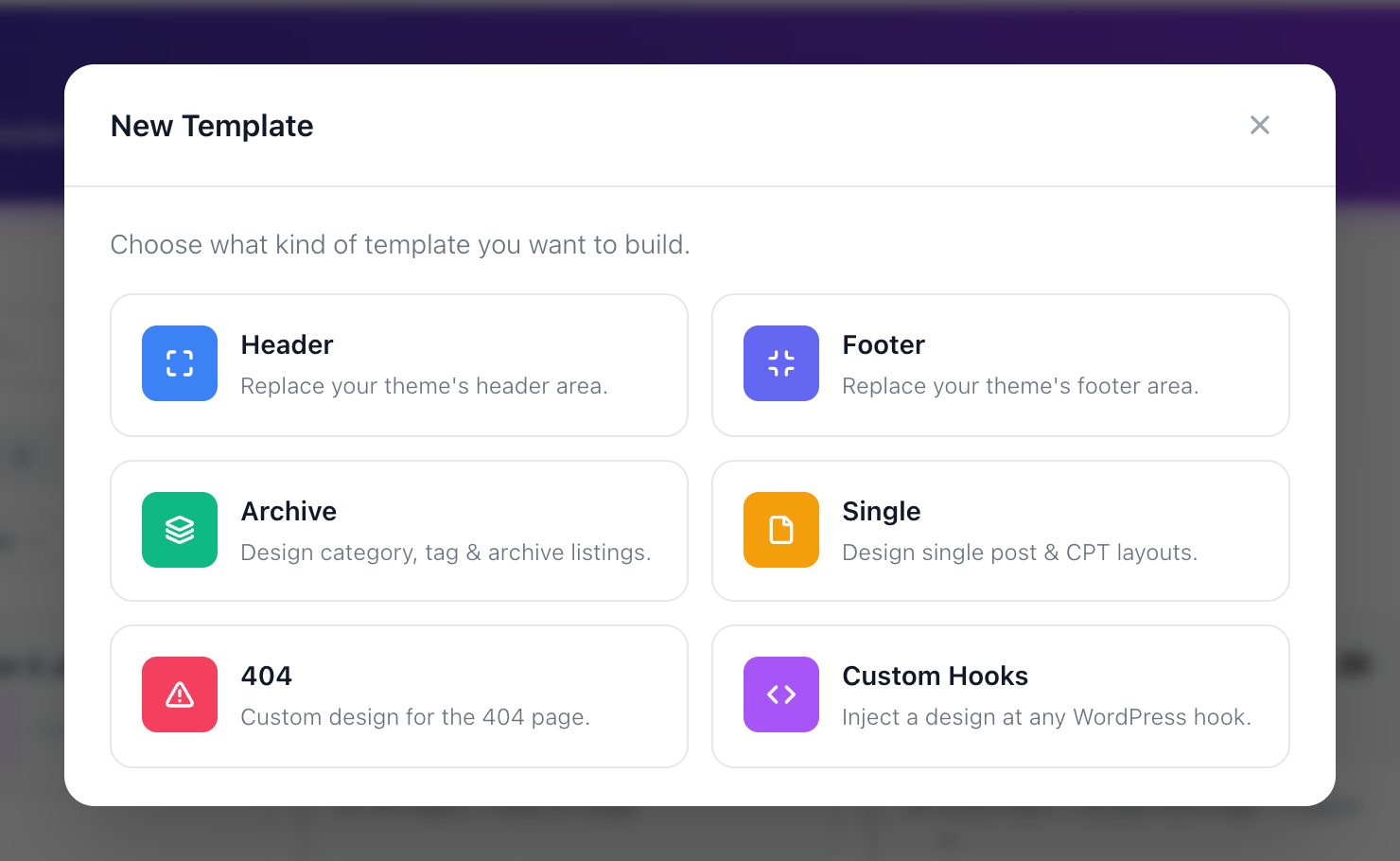
- In the New Template window, click the Footer card
- The settings form opens in the same window. Fill it in as shown below, then click Publish. Click Save Draft instead to keep the template off the site while you work on it.
Footer Layout Settings
Configure the basic settings for your footer template:
- Give your footer a descriptive name (e.g., “Main Site Footer” or “Shop Footer”)
- Template type – The type you picked shows in the window title (New Footer). To pick another, click the back arrow before you save. You cannot change the type later.
- Status – Set to “Enabled” to activate your footer, or “Disabled” to temporarily turn it off. The footer shows on the site only when it is published and its Status is Enabled.
Display Conditions
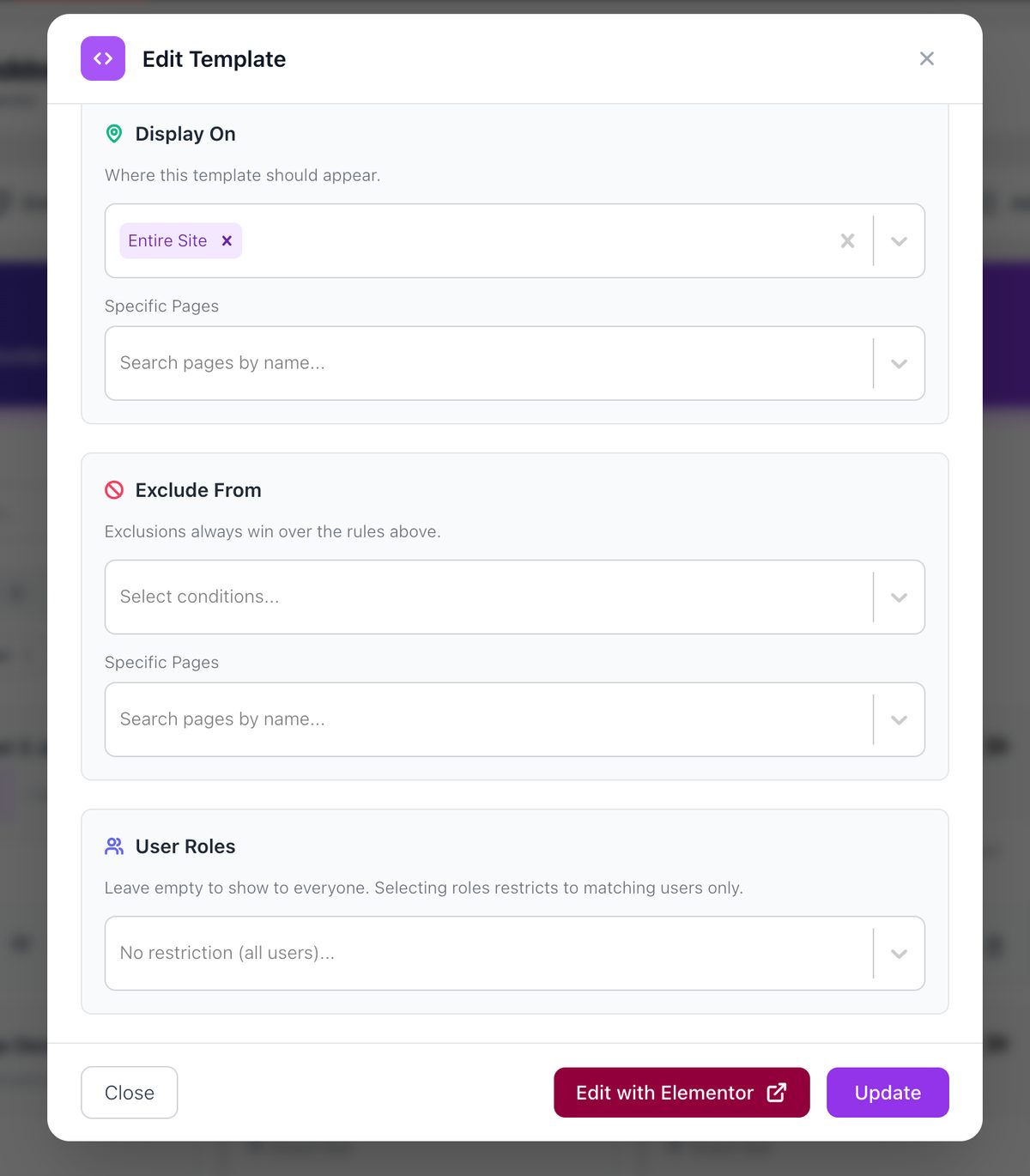
Control exactly where your footer appears with powerful targeting options:
- Entire Site – Apply the footer across your complete website
- All Pages – Show on every standard WordPress page
- All Posts – Display on all single posts, including single entries of custom post types
- Special Pages – Target specific page types:
- Front Page – Your site’s homepage
- Blog Page – Your main blog listing
- Archive Pages – Category, tag, author, date and post type archives
- Search Page – Search results. Archive Pages does not include them, so tick this one as well if you need it
- 404 Pages – Custom “not found” page footer
- Specific Pages – Select specific pages by searching and choosing them individually
Exclusion Rules
The Exclude From panel lists where your footer must not appear. It always wins over Display On:
- Entire Site – Override other display conditions to hide the footer completely
- All Pages – Exclude all standard WordPress pages
- All Posts – Exclude all blog posts
- Special Pages – Exclude specific special page types
- Specific Pages – Hide the footer on specific individually selected pages
User Role Targeting
Control footer visibility based on user roles:
- All Users – Display the footer to everyone
- Logged In – Show only to any logged-in WordPress user
- Logged Out – Display only to visitors who aren’t logged in
- Administrator/Editor/Author/Contributor/Subscriber – Target specific WordPress user roles
Then click Edit with Elementor – Click to open the Elementor editor and begin designing your footer.
Design Your Footer with Elementor
- After creating your footer template and setting conditions, click “Edit with Elementor”
- Design your footer using the full range of Elementor widgets:
- Text Editor – Add copyright information, disclaimers, and legal text
- Navigation Menu – Create footer menu links for important pages
- Widgets – Add recent posts, categories, or other WordPress widgets
- Social Icons – Connect visitors to your social media profiles
- Contact Information – Display address, phone, and email details
- Forms – Add newsletter signup or contact forms
- Buttons – Create call-to-action buttons with custom designs
- Use Elementor’s section and column controls to create multi-column footer layouts
- Apply responsive settings to ensure your footer looks perfect on all devices
Footer Positioning Options
Customize how your footer appears on the page:
- Fixed Width/Full Width – Control whether your footer spans the full browser width or matches your content width
- Short pages – Sky Addons has no setting that pins the footer to the bottom of a short page. Your theme controls the page height
- Background Options – Apply colors, gradients, images, or videos as footer backgrounds
- Z-Index – Control how your footer interacts with other elements when needed
Theme Compatibility
Sky Addons Theme Builder has dedicated support for popular WordPress themes:
- Astra – Seamlessly replaces Astra’s footer with your custom design
- GeneratePress – Full compatibility with GP’s structure and hooks
- OceanWP – Perfect integration with OceanWP theme framework
- Neve – Compatible with Neve’s footer structure
- Genesis – Works with Genesis framework and child themes
- BB Theme – Compatible with Beaver Builder’s theme
- Kadence – Replaces the Kadence header and footer
- Storefront – Replaces the Storefront header and footer
- Default Theme Support – Works with most standard WordPress themes
Save and Preview
- Once you’ve designed your footer, click “Publish” or “Update” in Elementor to save your changes
- Click the eye icon on the template card to open the live preview and check the design at desktop, tablet and mobile width
- Visit your website frontend to see your custom footer in action
- Test your footer on different pages to ensure conditional logic works correctly
- Check responsiveness by viewing your site on different devices or using browser dev tools
Troubleshooting
- Footer not appearing: Verify display conditions and check that no exclusion rules are preventing display. Ensure the template is published and its status is set to “Enabled”. Pages set to Elementor’s Canvas template never show Theme Builder templates.
- The wrong footer is showing: Only one footer template can render on a page. If two templates match the same page, the plugin uses one of them. Give each template conditions that cannot overlap.
- Theme compatibility issues: There is no theme setting to change in Sky Addons. Check whether your theme has its own option to hide its header or footer, then read Theme Compatibility or contact support with your theme name.
- Mobile display problems: Check your responsive settings in Elementor to ensure your footer adapts properly to smaller screens.
- Copyright shortcodes not working: If you’re using dynamic shortcodes in your copyright text, ensure they’re properly formatted and supported by your theme.
Conclusion
The Sky Addons Theme Builder Footer feature gives you unprecedented control over your site’s footer design without touching code. Create professional, functional footers that perfectly complement your content and provide important information and navigation options for your visitors. Whether you need a simple copyright footer or complex multi-column layouts with menus and widgets, the Footer Builder makes it possible through a familiar Elementor interface.
If you have any questions or encounter any challenges while using, please don’t hesitate to reach out to our dedicated support team at https://wowdevs.com/support/ where our expert team is ready to provide prompt and helpful assistance.