
How to use Particles Effects Extension of Sky Addons for Elementor
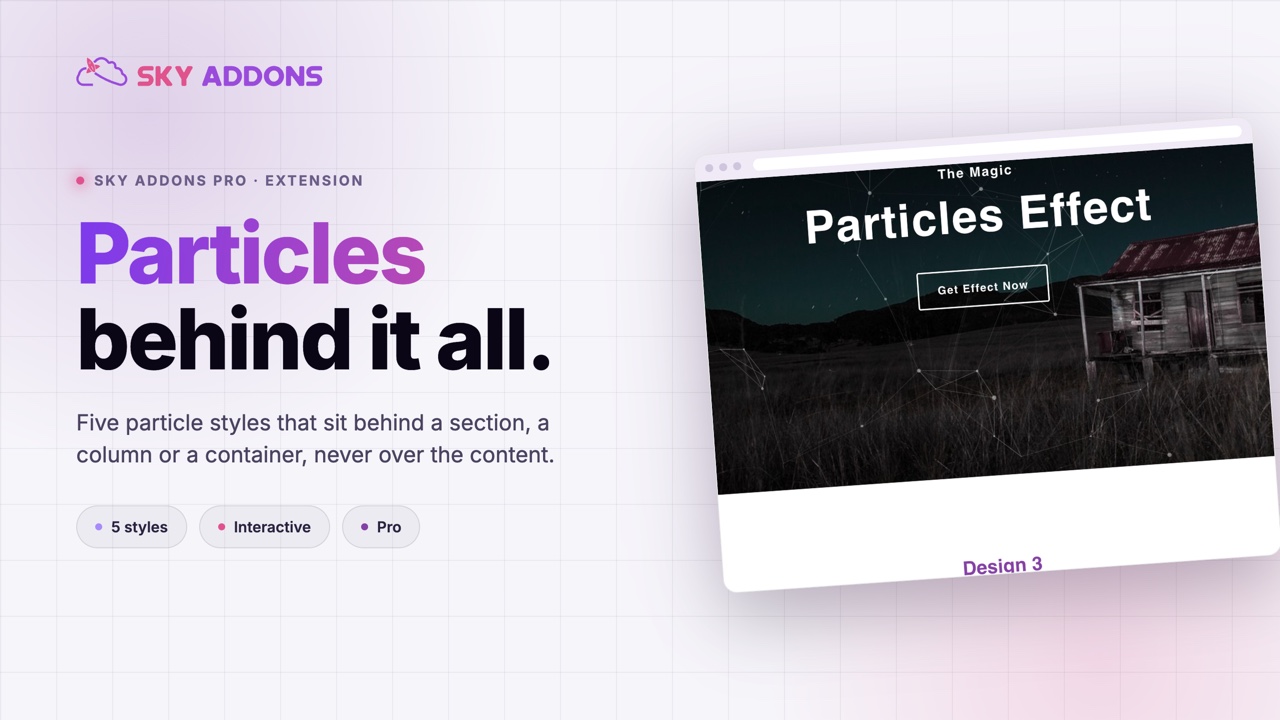
The Sky Addons Particles Effects extension adds an animated particle background to any Elementor Section or Container. Unlike a widget, it is an extension. The controls appear inside the existing section or container’s Style tab, so there is nothing to drag onto the canvas. Choose from four ready-made presets (Polygon, Nasa, Bubble, Snow) or paste your own custom particles.js JSON config for complete creative control. Particle color, opacity, quantity, size, movement speed, direction, and mouse interactivity are all adjustable. This documentation will guide you through the process of using the Particles Effects Extension to add eye-catching animated backgrounds to your Elementor sections.
Features:
- Works on Sections and Containers: The Particles Effects controls appear inside every Elementor Section and Container, with no widget to place.
- Four Built-in Presets: Polygon (interconnected geometric web), Nasa (floating star field), Bubble (drifting circles), and Snow (downward-falling particles).
- Custom JSON Mode: Paste any particles.js-compatible JSON configuration for fully unique effects: gradients, custom shapes, images as particles, and more.
- Color Control: Set the particle color for any built-in preset using Elementor’s color picker.
- Opacity: Adjust particle transparency (0–1) to layer the effect subtly over background images or gradients.
- Quantity, Size, and Speed: Fine-tune the number of particles (1–400), their size (1–300 px), and their movement speed (1–10) through the Additional Customize panel.
- Move Direction: Choose from 8 compass directions plus None, available for Snow and Bubble presets.
- Mouse Interactivity: Enable interactivity so particles react to cursor movement, creating an engaging hover effect.
Enable Particles on a Section or Container
- Click on the Section or Container you want to add particles to and open its settings panel in Elementor.
- Click the Style tab (for sections and containers).
- Scroll down to the Particles Effects section (marked with the Sky Addons icon).
- Toggle Enable to on. The particles canvas is immediately injected into the section and begins animating in the editor preview.
Choose a Preset Style
The Style dropdown sets the particle animation type. Options are available after Enable is toggled on.
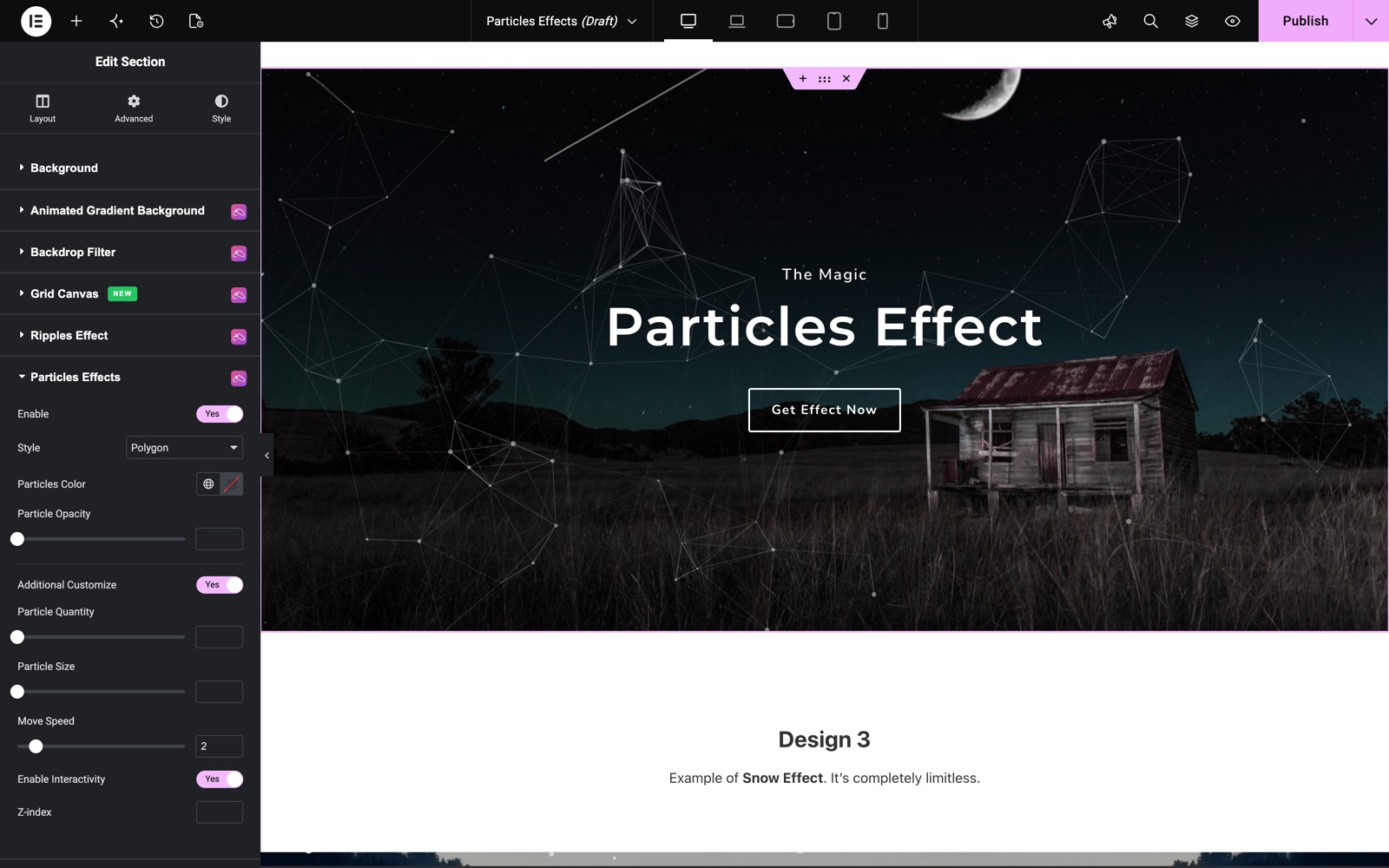
- Polygon: Small dots connected by thin lines forming a dynamic geometric web, great for technology and SaaS landing pages.
- Nasa: Dense star-field of tiny dots that slowly drift, evoking a space atmosphere, ideal for dark-background hero sections.
- Bubble: Floating translucent circles of varying sizes, well-suited for playful or creative layouts.
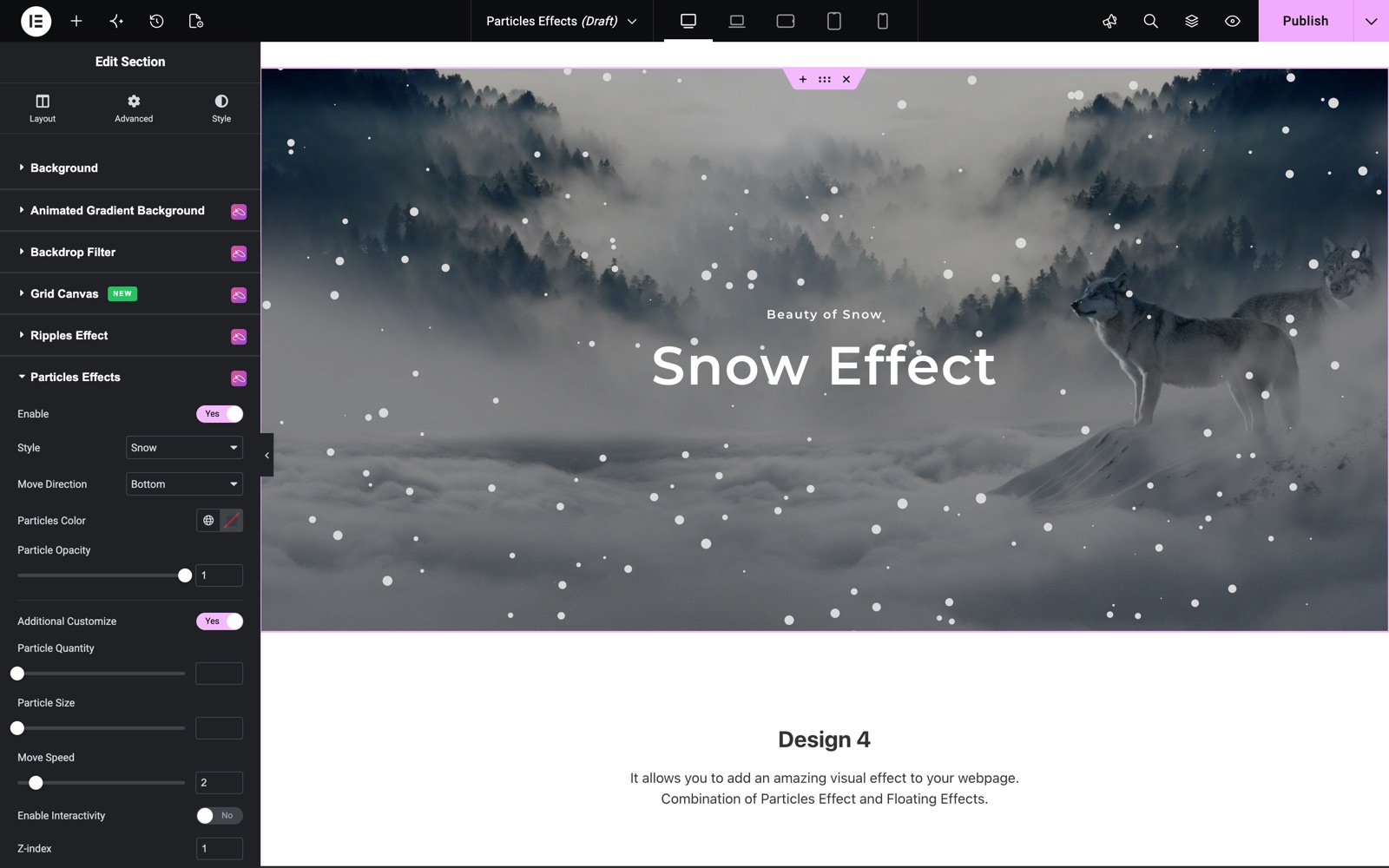
- Snow: Particles that drift downward at a gentle speed, a seasonal or ambient effect for winter campaigns.
- Custom: Disables the preset controls and shows a code editor where you paste your own particles.js JSON configuration.
The hero of the Particles Effects demo uses the Polygon style with Additional Customize on, a Move Speed of 2 and Enable Interactivity on, so the web reacts to the cursor.
Configure Particle Appearance
These controls are available for all built-in presets (not Custom).
- Move Direction: Available for Bubble and Snow. Choose None, Top, Top-right, Right, Bottom-right, Bottom, Bottom-left, Left, or Top-left to direct particle flow.
- Particles Color: Pick any color for the particles using Elementor’s color picker.
- Particle Opacity: Set transparency from 0 (invisible) to 1 (fully opaque), in steps of 0.1.
This section uses the Snow style. Move Direction is Bottom and Particle Opacity is 1, so the flakes fall over the photo.
Fine-Tune with Additional Customize
Toggle Additional Customize on to reveal advanced particle controls.
- Particle Quantity: Number of particles rendered simultaneously (1–400). Higher numbers look denser but may affect performance on low-end devices.
- Particle Size: The base particle radius in pixels (1–300). For most presets, keep this between 2 and 10 for a natural look.
- Move Speed: How fast particles travel across the canvas (1–10). Lower values produce a calm, ambient effect; higher values feel more energetic.
- Enable Interactivity: When on, particles respond to the mouse cursor. They may repel, attract, or connect with additional lines on hover depending on the preset’s default interactivity config.
Use Custom JSON
Select the Custom style option to unlock the JSON code editor.
- Generate a particles.js config at vincentgarreau.com/particles.js or write your own.
- Paste the full JSON into the Custom Particles code field in the Elementor panel.
- The editor preview updates immediately so you can iterate without leaving Elementor.
Additional Settings
- Z-index: Set the stacking order of the particle canvas relative to other elements inside the section. Use a negative value (e.g.,
-1) to place particles behind text and images, or a positive value to place them above (not usually recommended).
Save and Preview
- Click Update in Elementor to save your page.
- Preview the page to see your Particles Effects extension in action.
Best Practices
- Keep particle quantity below 80–100 for hero sections with complex content above. Too many particles running on CPU-intensive presets can cause jank on mid-range mobile devices.
- Set particle opacity to 0.3–0.5 when layering over a background image so the particles add depth without obscuring the photo.
- Use a dark or deep-color section background with the Nasa preset for the most dramatic star-field effect. Light backgrounds wash out the dots.
- Set the Z-index to a negative number (e.g.,
-1) so particles appear behind your text and button elements. This is almost always the right choice for readability.
Troubleshooting
- Particles do not appear on the frontend but work in the editor: The
particlesandsa-particlesscripts are only enqueued when the Enable toggle is on and the section renders. Check that a caching plugin is not serving a page cached before particles were enabled. Clear the full-page cache after saving. - Custom JSON does not animate: Invalid JSON will silently fail. Validate your JSON at jsonlint.com before pasting it into the code field. Also confirm the JSON uses the particles.js schema (a top-level
particleskey), not the tsParticles schema which is a different library. - Particles appear on top of the section’s text, blocking clicks: Set the Z-index control to
-1or addpointer-events: none;to the.sa-particles-canvaselement via Elementor’s Custom CSS field on the section.
Frequently Asked Questions
Does enabling Particles slow down the page?
Particles are rendered on an HTML5 canvas element using JavaScript. A moderate quantity (under 100) with a simple preset (Polygon, Snow) has negligible impact on most devices. Heavier configs (high particle counts, large sizes, interactivity on) can consume more CPU. Always test on a mid-range mobile device before publishing to a high-traffic page.
Can I add particles to a Container (Flexbox/Grid) as well as a Section?
Yes. The extension hooks into both Elementor Sections and Containers. The Particles Effects section appears in the Style tab of any section, column, or container element.
Can I use different particle settings on different sections of the same page?
Yes. Each section or container has its own independent Particles Effects controls. You can run a Polygon preset on the hero section and a Snow preset on a footer section simultaneously.
The particles cover my call-to-action button. How do I fix it?
Set the Z-index control in the Particles Effects section to -1. This places the particle canvas below all child elements in the section, including buttons and text.
Where can I find custom particles.js configurations?
The official particles.js demo at vincentgarreau.com/particles.js includes a visual configurator that exports ready-to-paste JSON. Community repositories on GitHub also publish hundreds of themed configs for specific effects (confetti, fireworks, network diagrams, etc.).
Related Documentation
Explore other Sky Addons widgets and extensions that complement the Particles Effects extension:
- Pricing Table: Add a Polygon or Nasa particle background to the section containing your pricing cards for a premium feel.
- Loop Grid: Pair a subtle Snow particle layer with a blog post grid for a seasonal campaign page.
- Login Form: Give your custom login page a distinctive feel by adding a Bubble particle background to the full-screen section containing the form.
Conclusion
The Particles Effects extension is the fastest way to add a live, animated background to any Elementor section. Toggle Enable, pick a preset, and adjust color and opacity to match your design. If you have any questions or need help, visit the Sky Addons support center.