
How to use Tilt Effect features of Sky Addons for WordPress
The Sky Addons Tilt Effect extension makes any widget, container or section lean in 3D toward the cursor as it moves across it, with an optional light sheen that follows the pointer. It is the depth trick you see on premium product cards and pricing tables, and it takes one switch, with no library, no stylesheet and no custom code. Tilt angle, perspective, speed, easing, zoom, axis and glare are all controls, and the effect switches itself off on touch devices and for visitors who have asked for reduced motion. This documentation will guide you through enabling and configuring the Tilt Effect extension on your website.
Key Features
- Works on widgets, containers and sections
- Tilt up to 45 degrees, toward the cursor or away from it
- Adjustable perspective: the lower the value, the more dramatic the depth
- Optional zoom while hovered
- Lock the movement to one axis when a two-axis tilt is too much
- Glare: a light sheen that tracks the pointer across the surface, with its own colour and opacity
- Five easing curves and an adjustable speed
- No vendor library and no extra stylesheet. The script is loaded only on pages that use it
- Skips touch-only devices entirely and stays inert under reduced-motion settings
Activate Tilt Effect Module
Tilt Effect ships with Sky Addons and is available once the module is switched on. To verify its status:
- Navigate to your WordPress Dashboard and locate “Sky Addons” in the left sidebar menu
- Open the “Widgets & Extensions” screen and switch to the Extensions list
- Find “Tilt Effect” in the list
- Ensure the toggle switch is in the “On” position
- Save your changes if you made any adjustments
Using Tilt Effect
- Open the Elementor Editor and select the widget, container or section you want to tilt.
- Open the “Advanced” tab and find the “Tilt Effect” section, marked with the Sky Addons icon.
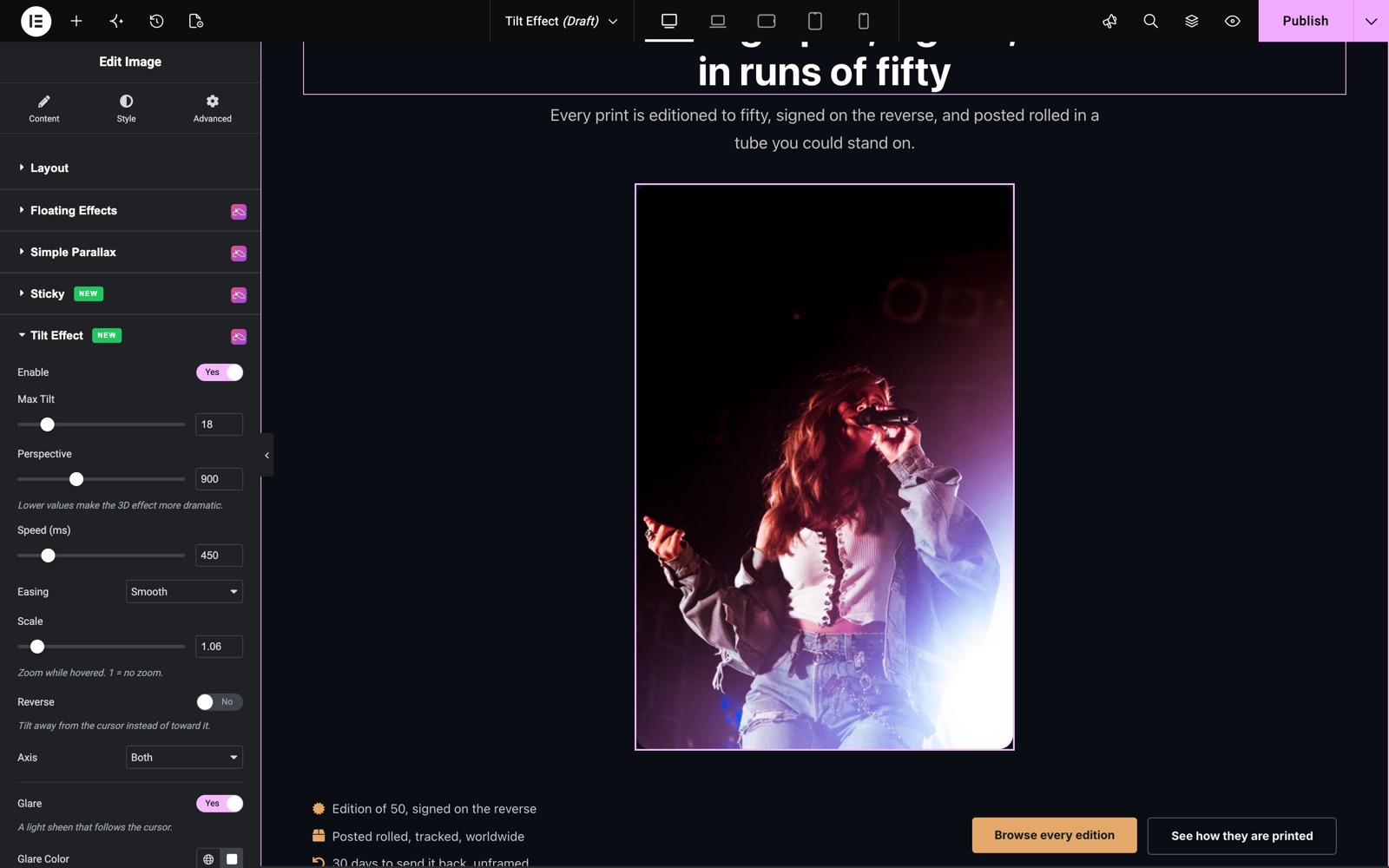
- Switch “Enable” on. The rest of the controls appear underneath.
- Move your cursor across the element on the canvas to see the tilt as you adjust it.
Tilt Effect Controls
- Enable – activates the tilt on the selected element.
- Max Tilt – the strongest angle the element reaches at the edges, 0 to 45 degrees, default 15. Around 8 to 15 reads as depth; beyond 25 it reads as a gimmick.
- Perspective – how close the imaginary camera sits, 300 to 2000, default 1000. Lower values make the 3D effect more dramatic for the same tilt angle.
- Speed (ms) – how quickly the element follows the pointer, default 300. Higher values feel heavier and smoother; lower values feel snappier.
- Easing – the acceleration curve: Smooth (the default), Ease, Ease Out, Ease In Out or Linear.
- Scale – zoom while hovered, 1 to 1.5. A value of 1 means no zoom; 1.03 to 1.05 is enough to register.
- Reverse – tilts away from the cursor instead of toward it.
- Axis – Both, X Only (responds to vertical mouse movement) or Y Only (responds to horizontal movement). A wide banner often looks better on Y only.
- Glare – adds a light sheen that follows the cursor across the surface.
- Glare Color – the sheen colour. Leave it empty for white.
- Glare Opacity – how strong the sheen is, 0 to 1, default 0.4.
Save and Preview
- Click “Publish” or “Update” to save your changes.
- Preview the page on a device with a mouse and move the cursor across the element. The effect is intentionally absent on touch screens.
Best Practices
- Keep Max Tilt modest. Around 10 degrees gives the impression of a card lifting off the page; a large angle distorts the text and makes the element hard to read while it moves.
- Give the element a background and a radius. Tilt reads as depth only when the thing tilting has a visible edge. On plain text it just looks like a rendering fault.
- Use it on a set, not on everything. A row of three pricing cards or feature boxes is the ideal case; a whole page of tilting elements is exhausting.
- Glare suits dark surfaces. On a white card the sheen barely shows and mostly washes the text out. Lower the opacity or leave it off there.
- Do not combine it with Floating Effects on the same element. Both write to the same transform, so one cancels the other. Put them on different elements instead.
Troubleshooting
- Nothing happens on a phone or tablet: that is by design. The extension binds no listeners at all on a touch-only device, because a tilt that needs a hovering pointer has nothing to follow.
- Nothing happens on a desktop either: check whether the operating system has reduced motion enabled. The effect deliberately stays inert there. Also confirm Enable is on for the element you are hovering and not for its parent.
- The element jumps or fights another animation: something else is writing a transform to the same element, most often Floating Effects or an Elementor motion effect. Use one or the other.
- The glare has square corners on a rounded card: the sheen inherits the element’s radius, so set the border radius on the same element that carries the tilt, not on a child inside it.
- The tilt feels sluggish: lower Speed and switch Easing to Ease Out. Speed is the time the element takes to catch up with the cursor.
Frequently Asked Questions
How do I add a 3D tilt to a card in Elementor?
Select the card, open the Advanced tab, find the Tilt Effect section and switch Enable on. Set Max Tilt to around 10 degrees and leave Perspective at 1000. That combination gives depth without distorting the content.
Can I tilt a whole container instead of one widget?
Yes. The Tilt Effect section is on the Advanced tab of widgets, containers and sections alike. Tilting the container moves everything inside it as one surface, which is usually what you want for a card.
What does Reverse actually change?
By default the element leans toward the cursor, as though the pointer were pressing the near corner down. Reverse flips that so the element leans away: the corner under the cursor rises instead.
Does the glare need an image?
No. It is generated on the fly as a soft gradient over the element and removed the moment the cursor leaves. Leave Glare Color empty for a white sheen, or set a colour to tint it.
Will this slow my site down?
The handler is small, ships no vendor library and carries no stylesheet, and it is loaded only on pages where at least one element has the effect enabled. Movement is throttled to the browser’s own frame rate.
Related Documentation
Conclusion
The Tilt Effect extension by Sky Addons for Elementor adds the small amount of depth that makes a card feel like an object rather than a rectangle. Use a gentle angle, put it on a set of cards, and leave it off everything else. If you have any questions while using Tilt Effect, the Sky Addons support team is happy to help.
Need help? Our team is happy to answer questions on the Sky Addons support page.