
How to use Scroll Fill Extension of Sky Addons for Elementor
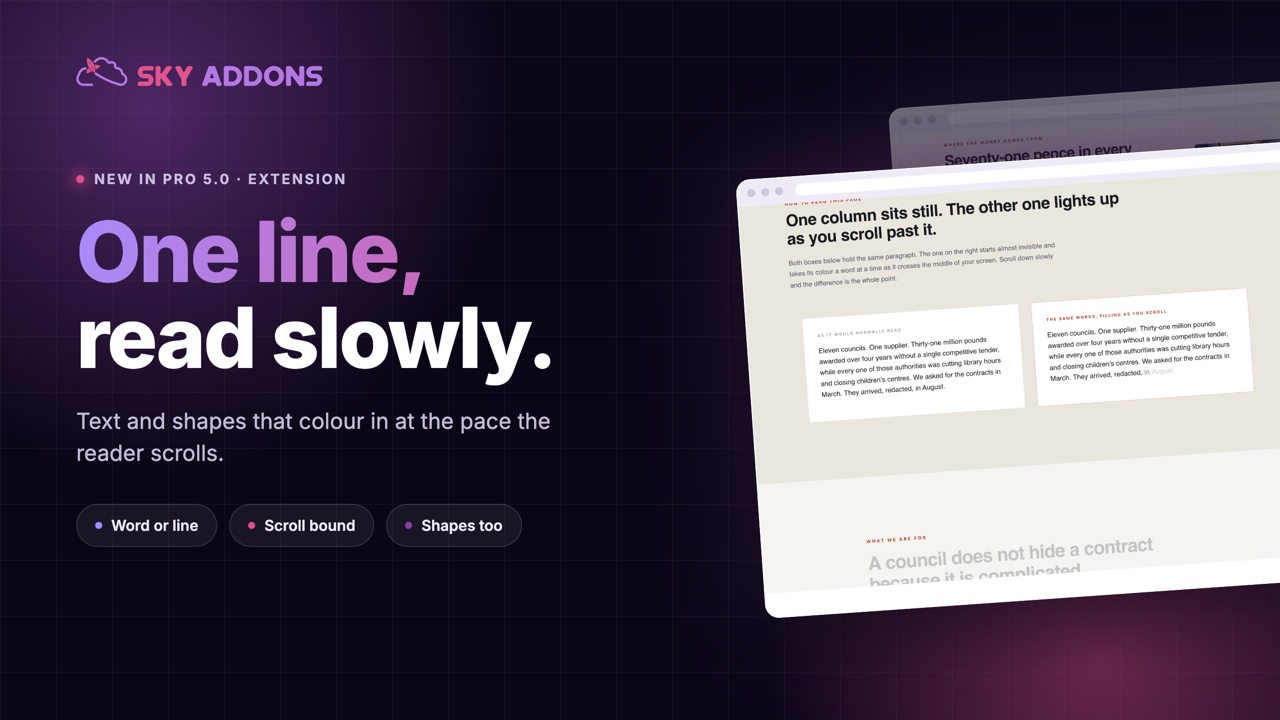
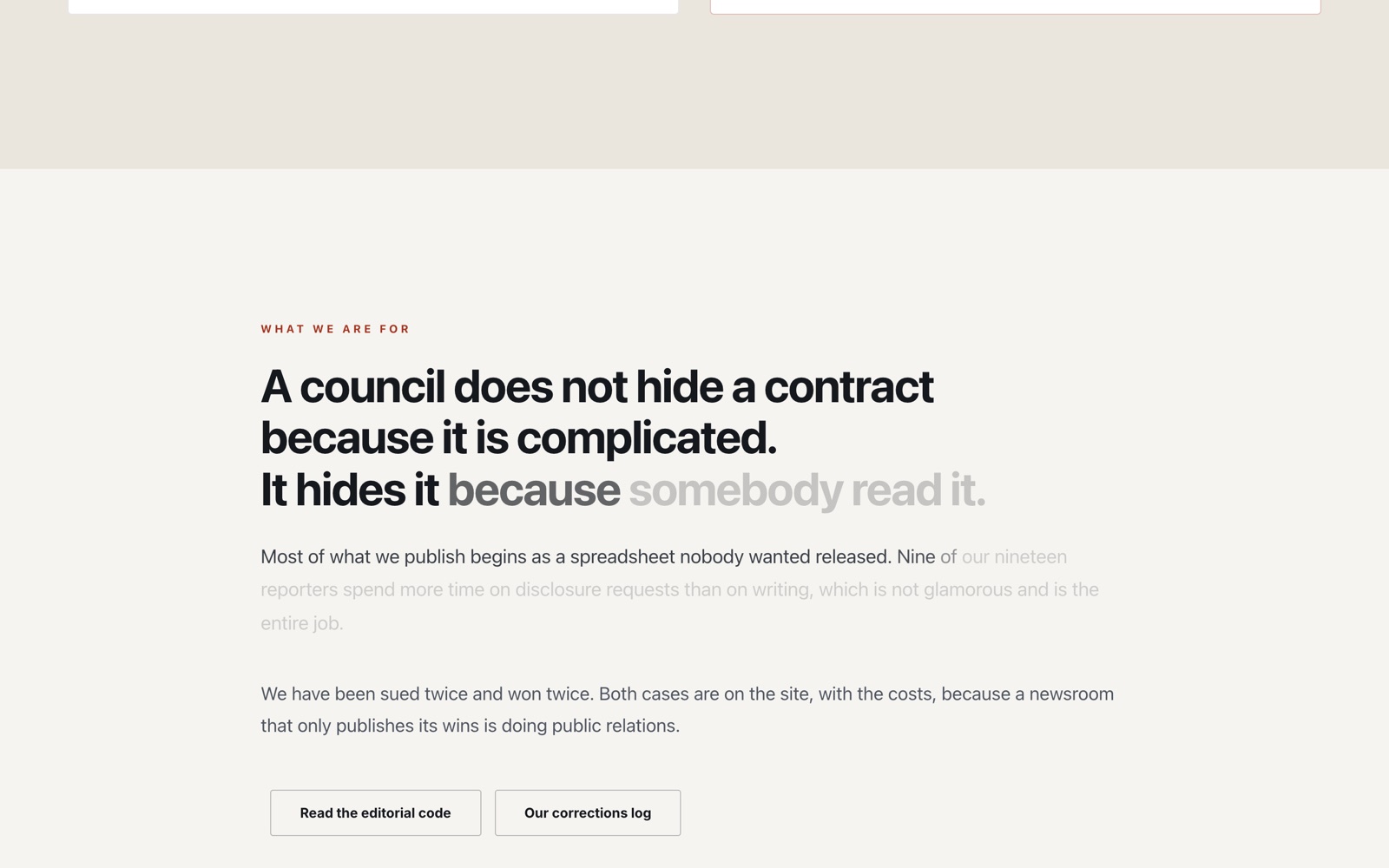
The Sky Addons Scroll Fill extension for Elementor turns ordinary headings and paragraphs into scroll-reactive text that fills with color as the reader moves down the page. Your text starts in a dim, unfilled color and brightens to its active color as it scrolls through the viewport. It is the reading-highlight look you see on modern editorial sites. With the Scroll Fill extension you choose a solid word-by-word wave or a smooth gradient sweep, then set the colors from one section in the Elementor editor with no code. Because the fill is scrubbed to scroll position, it also reverses when the visitor scrolls back up. This documentation will guide you through enabling and configuring the Scroll Fill extension on your website.
Features:
- Works on the Elementor Heading and Text Editor widgets
- Two fill styles: Solid (word/character wave) and Gradient (smooth sweep)
- Separate unfilled and fill colors so you control the before and after states
- Fill by whole words or letter by letter, with adjustable wave spread and sweep angle
- Scrubbed to scroll position, so the fill reverses when you scroll back up
- Smoothness control and independent tablet/mobile disable toggles
Enable the Scroll Fill Extension
The Scroll Fill extension ships with Sky Addons and adds its own “Scroll Fill” section to the widgets it supports. There is nothing to install.
- Select a Heading or Text Editor widget in the Elementor Editor
- In the Content tab, locate the Scroll Fill section (marked with the Sky Addons icon)
- Toggle the Enable switch on to activate the effect
- Scroll the preview canvas. The fill runs the same way in the editor as on the live page
Fill Style and Unfilled Color
These controls appear once you enable the effect and apply to both fill styles.
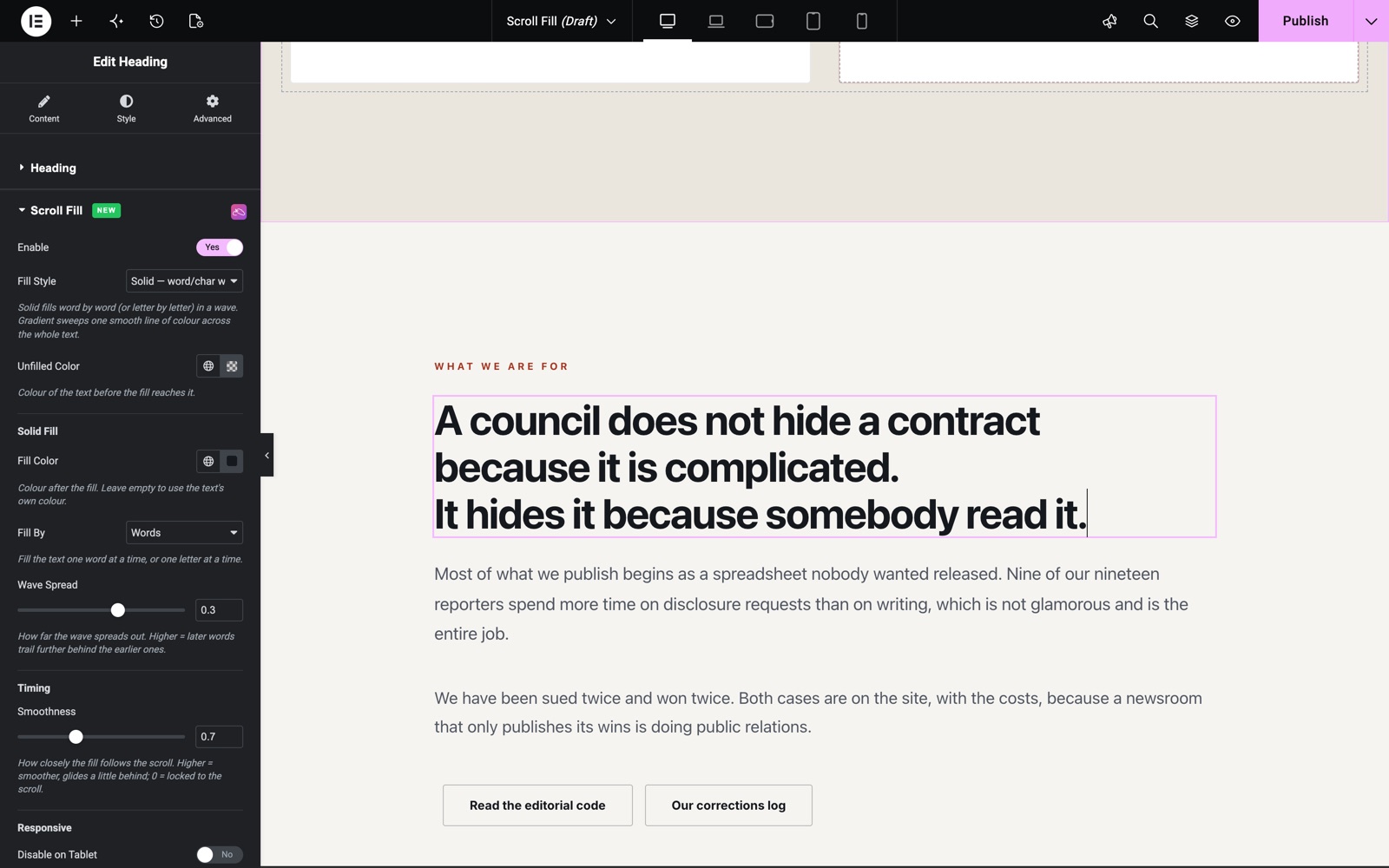
- Enable – Activates the Scroll Fill effect on the selected widget.
- Fill Style – Choose Solid (word/char wave) to fill the text one word or letter at a time in a wave, or Gradient (smooth sweep) to sweep one continuous line of color across the whole text.
- Unfilled Color – The color of the text before the fill reaches it (default is a soft grey). This is the resting, dim state shared by both fill styles.
Solid Fill Controls
Shown when Fill Style is set to Solid, which tints each word or character in a staggered wave.
- Fill Color – The color the text becomes after the fill passes. Leave it empty to use the text’s own color from the widget’s Style settings.
- Fill By – Fill one Word at a time, or one Character (letter) at a time for a finer wave.
- Wave Spread – How far the wave spreads out (0–0.5, default 0.1). Higher values make later words trail further behind the earlier ones.
Gradient Fill Controls
Shown when Fill Style is set to Gradient, which sweeps a two-color boundary across the whole text.
- Fill Color 1 – The first color of the gradient. Leave it empty to use the text’s own color.
- Fill Color 2 – The second color of the gradient. Leave it empty for a single-color fill (same as Color 1).
- Sweep Angle – The angle of the fill line in degrees (30–150, default 90). At 90 every line fills together; tilt it for a diagonal cascade.
Timing and Responsive
Shared by both fill styles. Tune how the fill tracks the scroll and where it runs.
- Smoothness – How closely the fill follows the scroll, in seconds (0–2, default 0.5). Higher glides a little behind for a smoother feel; 0 locks it to the scroll.
- Disable on Tablet – Turns the effect off on tablet screens, leaving the text in its normal color.
- Disable on Mobile – Turns the effect off on mobile screens for a lighter reading experience.
Save and Preview
- Once you’ve configured your Scroll Fill effect, click Publish or Update to save your changes.
- Preview the page and scroll the text through the viewport to confirm the fill triggers and reverses.
Best Practices
- Reserve the effect for a single hero statement. Use Scroll Fill on one headline or short intro per section rather than every block, so the reveal keeps its impact.
- Keep the unfilled color readable. A low-opacity grey hints at the words while staying dim enough that the fill still feels like a reveal.
- Fill by characters only on short lines. Characters looks best on a few big words; on long paragraphs, Words keeps the wave from feeling busy.
- Tilt the Sweep Angle for multi-line quotes. Nudging the gradient angle off 90 degrees makes each line light up just after the one above it.
- Simplify on mobile. Enable Disable on Mobile for long articles so reading stays fast on small screens.
Troubleshooting
- Text stays a single color: Confirm the Enable switch is on and that Disable on Tablet or Disable on Mobile is not set for the screen size you are previewing.
- Fill barely shows: If the Unfilled Color and the fill color are too similar, darken the Unfilled Color or set an explicit Fill Color so the reveal is visible.
- Effect only appears on Heading or Text Editor: Scroll Fill attaches to those two widgets only. To style other text, place it inside one of them.
- Fill feels laggy or floaty: Lower the Smoothness toward 0 to lock the fill to the scroll, or raise it for a softer glide.
Frequently Asked Questions
Which widgets support the Scroll Fill extension?
It adds its section to the Elementor Heading and Text Editor widgets. Select either widget, open the Content tab, and switch Enable on in the Scroll Fill section.
What is the difference between the Solid and Gradient fill styles?
Solid fills one word (or character) at a time in a staggered wave. Gradient sweeps a smooth two-color boundary across the whole text as you scroll.
Does the fill reverse when I scroll back up?
Yes. The fill is scrubbed to scroll position, so scrolling up unwinds it back toward the Unfilled Color. The same behavior runs in the editor preview.
Can I keep the widget’s existing text color as the fill color?
Yes. Leave the Fill Color (Solid) or Fill Color 1 (Gradient) empty and the extension uses the text’s own color from the widget’s Style settings.
How do I turn off Scroll Fill on phones?
Switch on Disable on Mobile (and Disable on Tablet if needed). The text then displays in its normal color on those breakpoints while the effect stays active on desktop.
Related Documentation
Explore other Sky Addons features that pair well with the Scroll Fill extension:
- Reveal Effects: Sweep colored overlay bands across any widget, section, or container as it scrolls into view.
- Gradient Text: Apply static or animated gradient color fills to your headings and text.
- Reading Progress: Add a scroll-driven progress bar that shows how far readers have moved through a page.
Conclusion
The Scroll Fill extension by Sky Addons for Elementor gives your headings and paragraphs a premium, scroll-reactive reveal with one switch and a handful of controls. Choose a solid wave or a gradient sweep, set your colors, and let the fill guide readers down the page. If you have any questions while using the Scroll Fill extension, the Sky Addons support team is happy to help.