
How to use Simple Parallax features of Sky Addons for WordPress
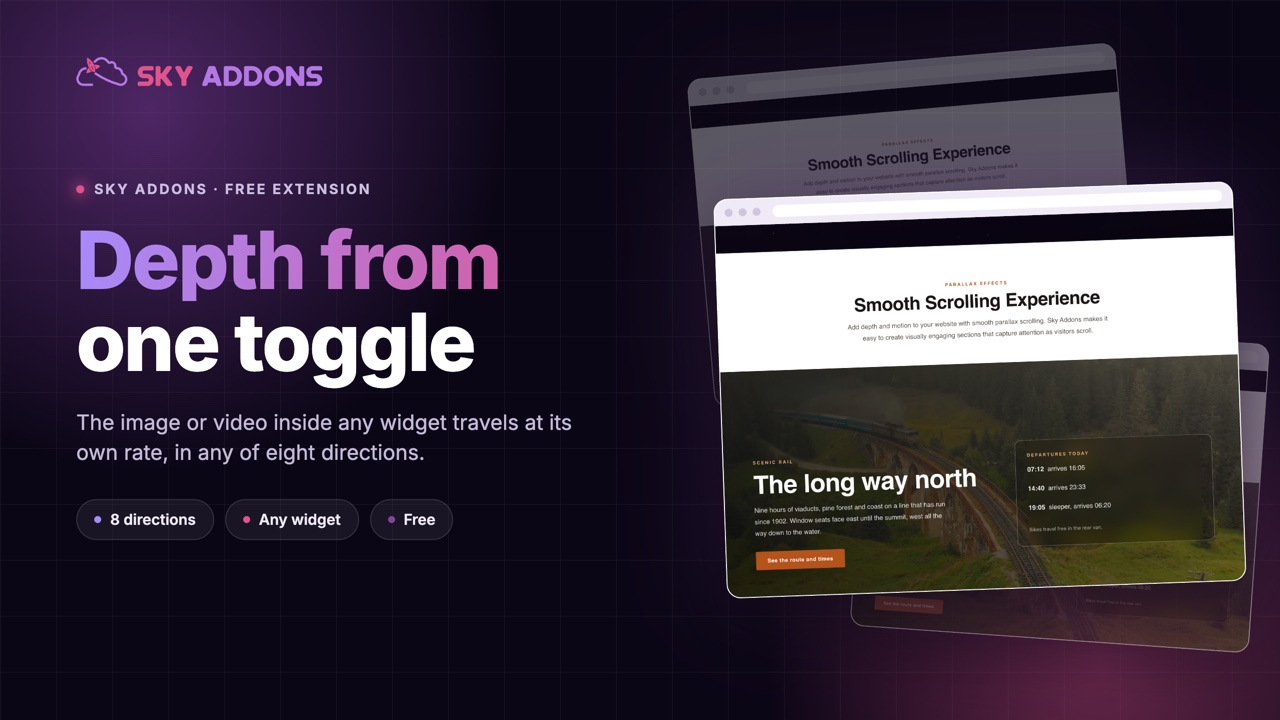
Sky Addons Simple Parallax extension adds smooth scroll parallax to images and videos inside your Elementor widgets. As visitors scroll, the media drifts gently in the direction you choose, creating the sense of depth that makes long pages feel dynamic and modern. You control the strength, direction, inertia, and easing of the movement, all from a single section in the Elementor editor, no code needed. This documentation will guide you through enabling and configuring the Simple Parallax extension on your website.
Key Features
- Parallax for both images and videos inside widgets
- Eight movement orientations, including diagonal directions
- Adjustable scale for stronger or subtler depth
- Delay with selectable easing curves for a natural inertia after scrolling stops
- Custom scroll container support for advanced layouts
Activate Simple Parallax Module
Simple Parallax ships with Sky Addons and is available once the module is switched on. To verify its status:
- Navigate to your WordPress Dashboard and locate “Sky Addons” in the left sidebar menu
- Click on the “Modules” tab within the Sky Addons dashboard
- Find “Simple Parallax” in the modules list
- Ensure the toggle switch is in the “On” position
- Save your changes if you made any adjustments
Using Simple Parallax
- Open the Elementor Editor and select a widget that contains an image or video (for example the Image widget)
- Navigate to the “Advanced” tab
- Locate the “Simple Parallax” section (marked with the Sky Addons icon)
- Toggle the “Enable” switch to activate the parallax effect for this widget
- Choose the Media Type that matches the widget’s content: Image or Video
Simple Parallax Controls
- Enable – Activates the parallax effect on the selected widget
- Media Type – Tells the extension whether to animate an Image or a Video inside the widget
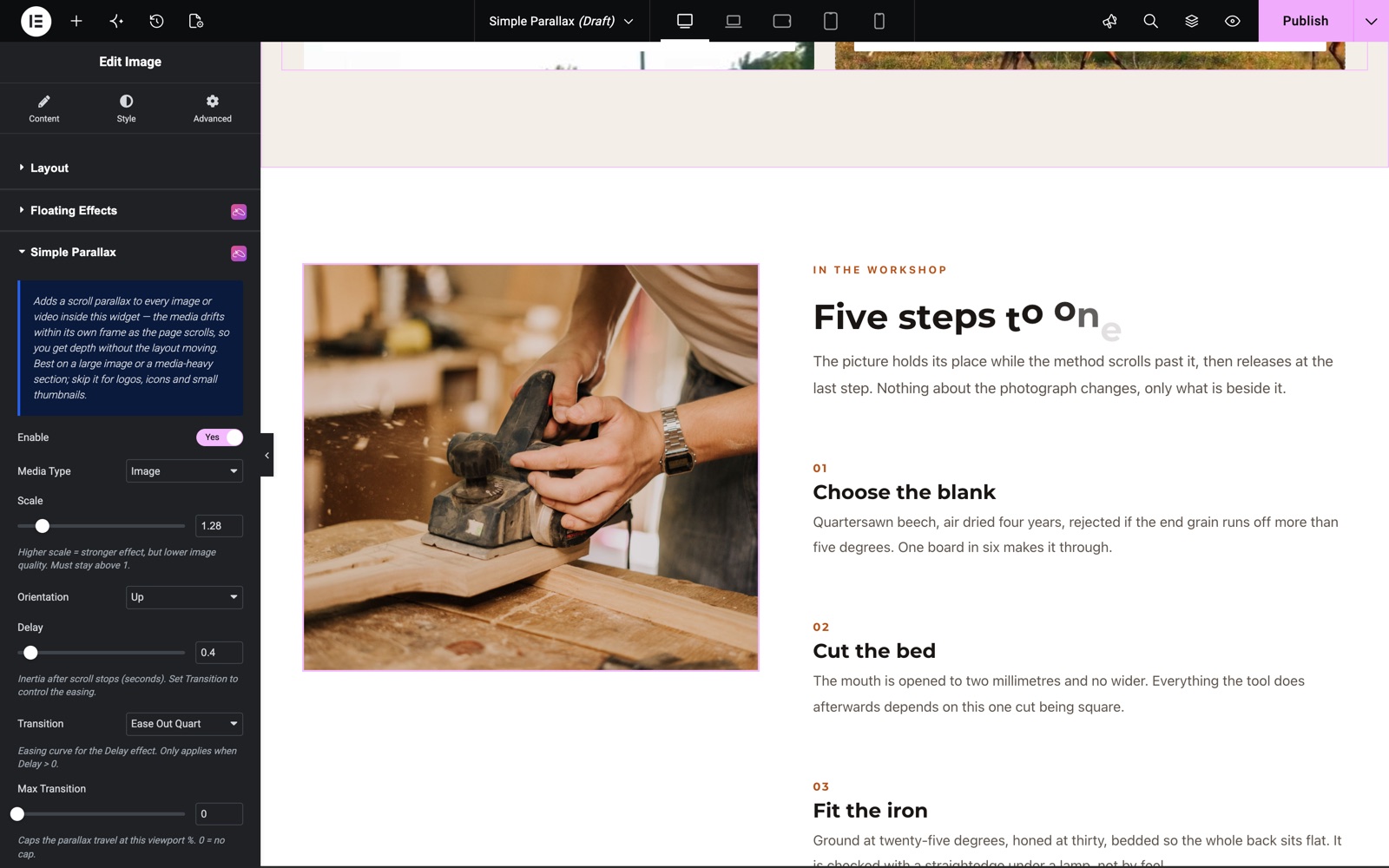
- Scale – Strength of the effect (1–3). A higher scale produces stronger movement but slightly lower image quality; it must stay above 1
- Orientation – Direction the media drifts while scrolling: Up, Down, Left, Right, Up Left, Up Right, Down Left, or Down Right
- Delay – Inertia after scrolling stops, in seconds (0–5). The media keeps gliding briefly for a fluid feel
- Transition – Easing curve for the Delay movement. Pick from presets such as Ease Out Expo, Spring, or Bounce (Soft). It only applies when Delay is greater than 0
- Custom Easing – Enter your own cubic-bezier value when Transition is set to Custom
- Max Transition – Caps the parallax travel at a percentage of the viewport (0–99). 0 means no cap
- Overflow – Lets the media visually overflow its container instead of being cropped
- Custom Container – CSS selector (e.g. .my-scroll-box) for when the widget sits inside a custom scrollable container rather than the page itself. Custom Wrapper uses an existing parent element, given as a CSS selector such as .my-wrapper, as the clipping wrapper
In the Simple Parallax demo, this Image widget uses a Scale of 1.28, Orientation Up, a 0.4 second Delay and the Ease Out Quart transition.
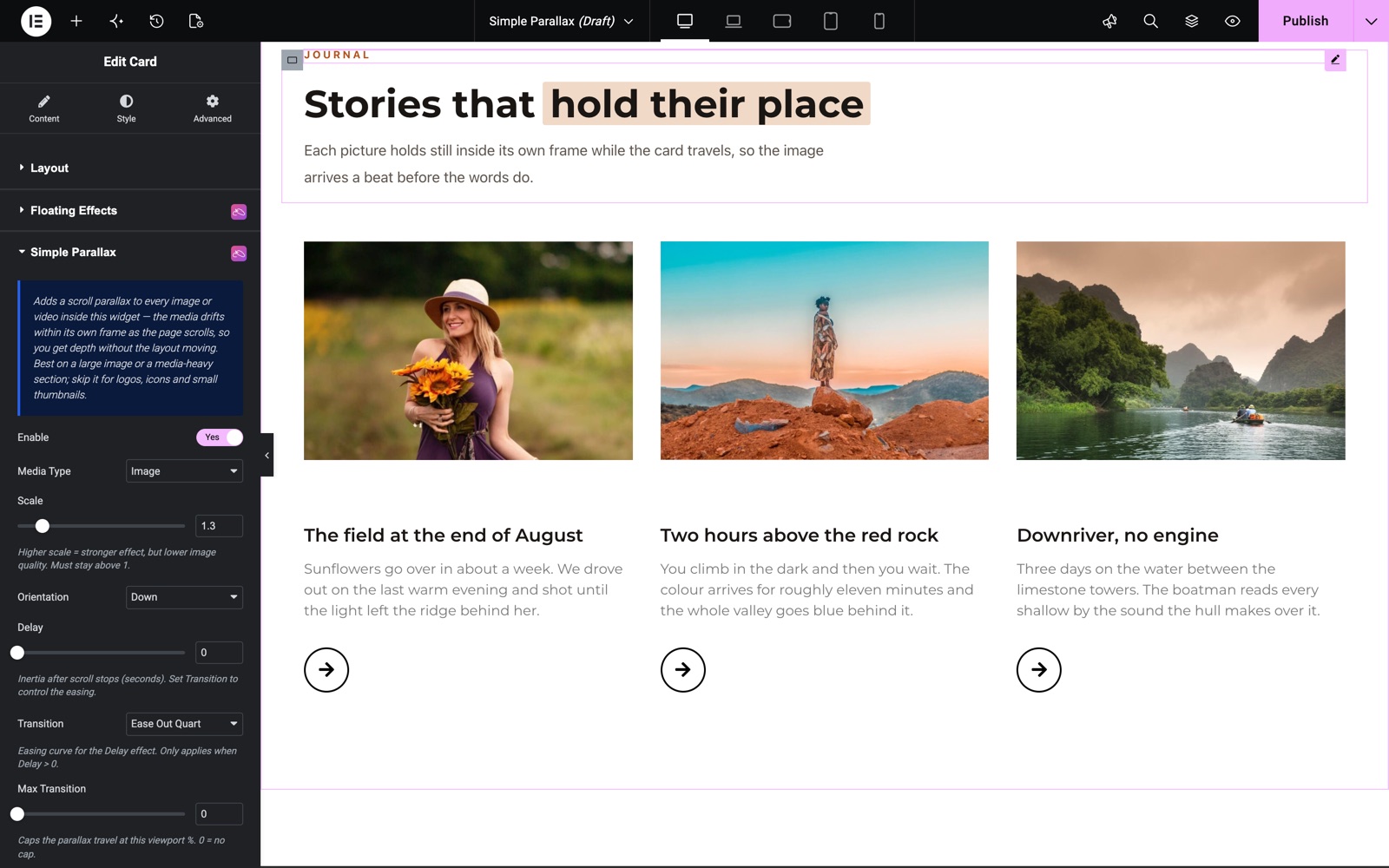
The effect also works on widgets with images, such as the Sky Addons Card. Here the photos drift Down with a Scale of 1.3.
Save and Preview
- Once you’ve configured your parallax effect, click “Publish” or “Update” to save your changes.
- Preview the page and scroll past the widget to confirm the movement looks as desired.
Troubleshooting
- No Movement on Scroll: Confirm the widget actually contains an image or video and that Media Type matches it; the effect animates the media element, not the widget wrapper
- Image Looks Blurry or Cropped: Lower the Scale value. The media is zoomed by the scale factor to create room for movement
- Parallax Not Working Inside a Scrollable Box: Enter the scroll container’s CSS selector in Custom Container so the effect tracks the right scroll position
Frequently Asked Questions
How do I add a parallax effect to an image in Elementor?
Add an Image widget, open its Advanced tab, find the Simple Parallax section, and switch Enable on. Set Media Type to Image, then adjust Scale and Orientation until the drift feels right.
Can I apply parallax to a video in Elementor?
Yes. Enable the effect on a widget that renders a video and set Media Type to Video. The same Scale, Orientation, and Delay controls apply.
How do I make the parallax movement stronger?
Raise the Scale slider (up to 3). Keep in mind that higher scale zooms the media further, which costs a little sharpness. For subtle depth most sites stay between 1.2 and 1.6.
What does the Delay option do in the Simple Parallax extension?
Delay adds inertia: after you stop scrolling, the media keeps gliding for the chosen number of seconds, eased by the Transition curve you pick (Spring, Ease Out Expo, a custom cubic-bezier, and more).
Can I make the parallax move diagonally?
Yes. Orientation includes four diagonal options (Up Left, Up Right, Down Left, Down Right) alongside the four straight directions.
Related Documentation
Conclusion
The Simple Parallax extension by Sky Addons for Elementor gives your images and videos elegant scroll depth with one switch and a few sliders. Use gentle scale values and consistent orientations across a page for the most professional result. If you have any questions while using Simple Parallax, the Sky Addons support team is happy to help.
Need help? Our team is happy to answer questions on the Sky Addons support page.