
How to use Grid Canvas Extension of Sky Addons for Elementor
Sky Addons Grid Canvas is a pure-CSS Elementor extension that paints a decorative grid-line overlay behind any Section, Container, or even the whole page. Draw vertical columns, horizontal rows, or a full grid, then style the lines with a single color or a smooth start-to-end gradient, fade them with a gradient mask, and bring them in with a scroll-triggered entrance. None of it needs JavaScript. Grid Canvas is the effortless way to add the modern “blueprint” or “graph-paper” backdrop seen on premium SaaS and agency landing pages. This documentation will guide you through enabling and configuring the Grid Canvas extension on your website.
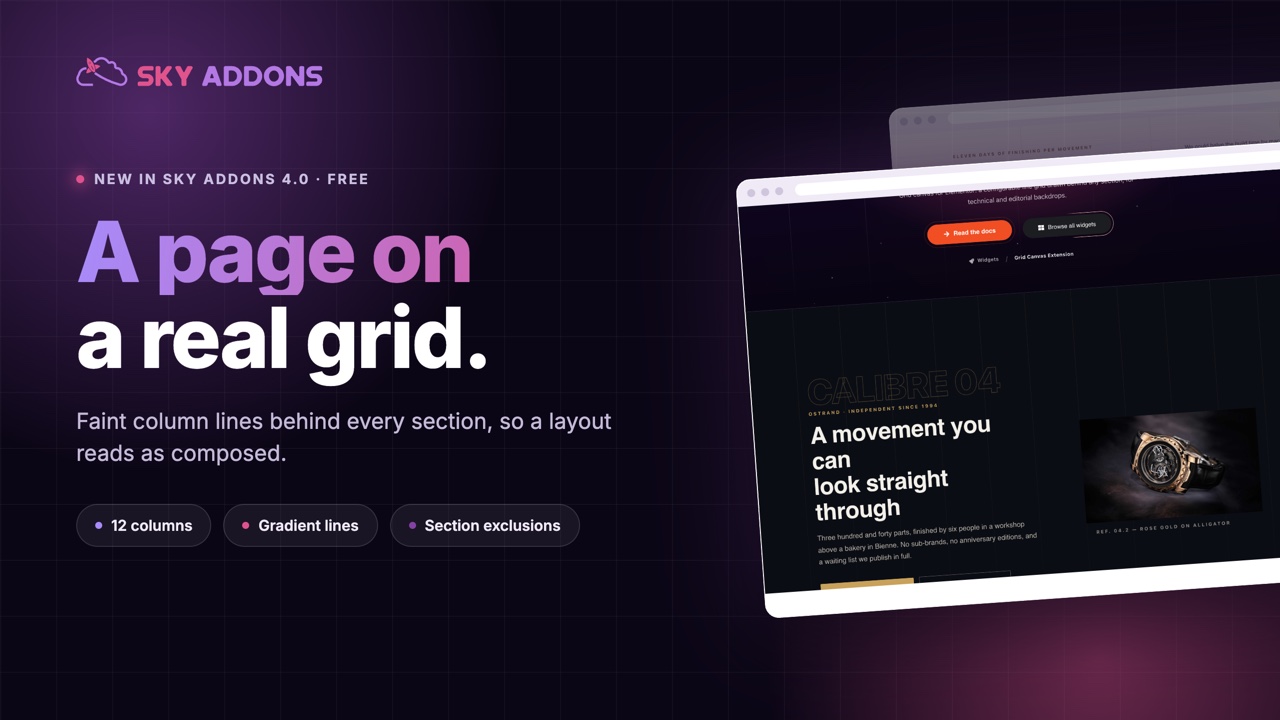
Features:
- Vertical, horizontal, or full-grid line layouts with per-breakpoint column and row counts
- Single line color or a smooth gradient that blends from a start color to an end color across the grid
- Optional column fill, adjustable line width, max width, opacity, blend mode, and z-index
- Gradient mask that fades the grid in any direction for a soft, framed look
- Scroll-triggered entrance animations (Fade In and Draw In) plus a looping Pulse, all in pure CSS
- Works on Sections and Containers, or across the entire page from Page Settings, with an option to exclude chosen areas
Enable the Grid Canvas Extension
Grid Canvas ships with Sky Addons as an extension you switch on from the dashboard. To confirm it is active:
- Navigate to your WordPress Dashboard and locate “Sky Addons” in the left sidebar menu
- Click on the “Extensions” (Modules) tab within the Sky Addons dashboard
- Find “Grid Canvas” in the extensions list
- Ensure the toggle switch is in the “On” position
- Save your changes if you made any adjustments
Once enabled, the controls appear in two places. On any Section or Container, open the Style tab and find the Grid Canvas section (marked with the Sky Addons icon) right after the Background section. To cover the whole page, open Page Settings (the gear icon at the bottom-left of the editor) and find the Grid Canvas section under the Style tab.
Grid Canvas Controls
The grid is drawn as a decorative layer behind your content. By default it sits at the back (z-index -1), so it shows through transparent areas and is hidden behind sections that already have a solid background or image.
- Enable – Activates the grid overlay on the selected Section, Container, or page
- Line Type – Choose Vertical (columns), Horizontal (rows), or Both (a full grid)
- Columns – Number of vertical divisions (2–24), set per device for desktop, tablet, and mobile
- Rows – Number of horizontal divisions (2–24), shown for Horizontal and Both line types, per device
- Line Start Color – The line color. On its own, all lines use this single color
- Line End Color – Optional. When set, the lines blend smoothly from the Start Color to this color across the grid. This overrides the Column Fill
- Column Fill – Optional tint for the space between the lines. Hidden while a Line End Color is set
- Line Width – Thickness of each line in pixels (1–10), set per device
- Max Width – Constrains the grid to a centered band of this width (px or %). Leave empty for full width
- Opacity – Overall transparency of the grid (0–1)
- Blend Mode – How the grid blends with what is behind it (Normal, Multiply, Screen, Overlay, Lighten, Color Dodge)
- Z-Index – Stacking order of the grid (default -1, behind content). Raise it to place the grid in front
The hero of the Grid Canvas demo uses Line Type Vertical with 12 columns on desktop, 8 on tablet and 4 on mobile. A faint gold Line Start Color keeps the lines in the background.

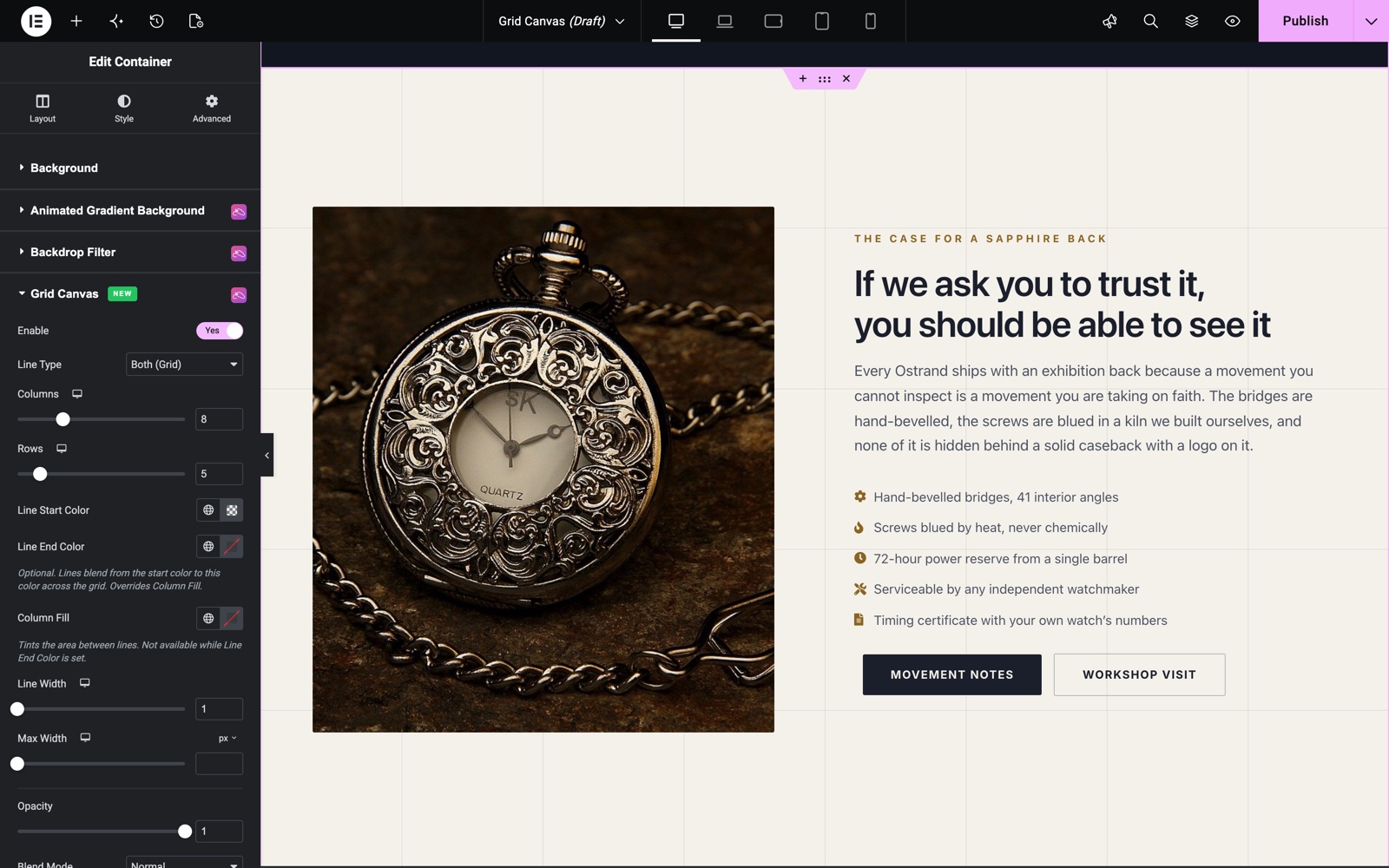
Set Line Type to Both (Grid) and the Rows control appears. This section uses 8 columns and 5 rows with a dark line color at 8% opacity on a light background.
Gradient Mask
The Gradient Mask fades the grid so it dissolves toward one edge, giving a soft, framed finish instead of a hard rectangle.
- Enable – Turns the fade mask on
- Direction – The direction the grid fades (Top → Bottom, Bottom → Top, Left → Right, Right → Left)
- Visible Until – The point (0%–100%) up to which the grid stays fully visible before it starts fading
- Hidden From – The point (0%–100%) at which the grid has fully faded out
In this closing section the mask runs Bottom → Top. The grid stays fully visible up to 18% and fades out by 100%, so the lines fade out toward the top. The Pulse (Loop) mode uses a 5 second cycle.

Animation
Bring the grid to life with a pure-CSS animation. Fade In and Draw In are triggered as the element scrolls into view, so they play right where the visitor is looking.
- Mode – None, Fade In (On Scroll), Draw In (On Scroll), or Pulse (Loop)
- Pulse Speed – For the Pulse mode only, the seconds per pulse cycle (0.3–10). Lower is faster
- Delay – For the Pulse mode only, a delay before the animation starts
Fade In gently fades the whole grid in, while Draw In makes the lines grow into place from the top and left as the section enters the viewport. Draw Down (from earlier versions) is treated the same as Draw In, so existing designs keep working. On browsers that do not support scroll-linked CSS animations, the grid simply appears fully drawn.
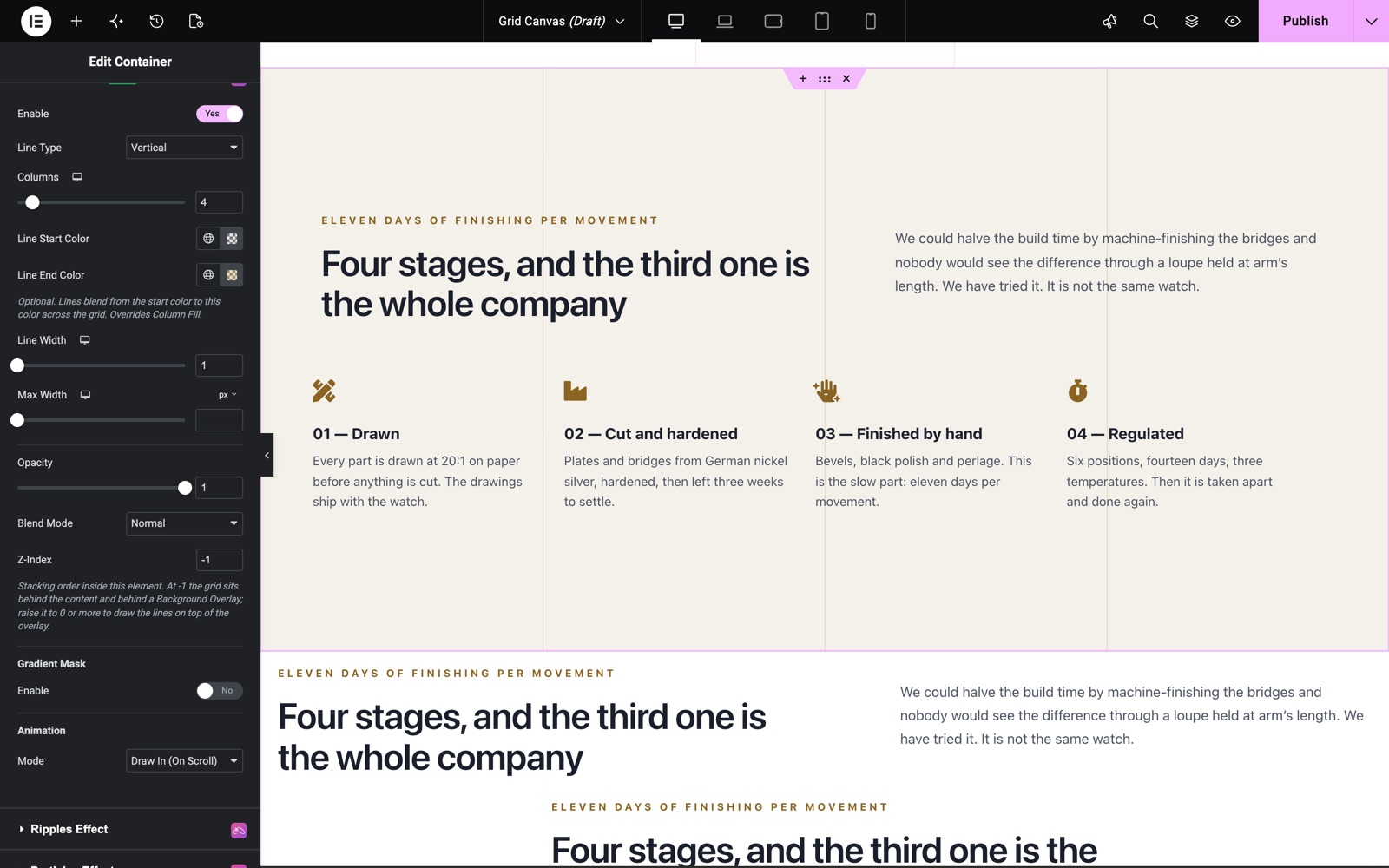
Here the grid has 4 vertical columns, one behind each step card. A Line End Color makes the lines a gradient, and Draw In (On Scroll) draws them as the section scrolls into view.
Whole-Page Grid and Excluding Sections (Page Settings)
To place the grid across the entire page, enable Grid Canvas from Page Settings instead of a single element. The same controls apply to the whole page background. Two extra controls let you keep chosen areas grid-free:
- Exclude Selectors – A comma-separated list of CSS selectors (for example
header, .site-footer, .no-grid). The grid is hidden inside these elements - Escape Background – The color painted over the grid inside the excluded elements. Set it to match your page background so the grid disappears cleanly there
Save and Preview
- Once configured, click “Publish” or “Update” to save your changes.
- Preview the page and scroll the element into view to see the Fade In or Draw In entrance.
Best Practices
- Use a subtle, low-opacity Line Start Color (a faint white or brand tint) so the grid reads as a backdrop, not the main content.
- Pair a Gradient Mask with the grid so it dissolves toward the content and never competes with text.
- Set a Line End Color for a modern gradient-line look; remember it replaces the Column Fill.
- For a whole-page backdrop, enable it in Page Settings and use Exclude Selectors to keep the header, footer, or busy sections clean.
- Use a thicker Line Width or a contrasting color when you want the columns to read clearly; keep it at 1px for a fine graph-paper feel.
Troubleshooting
- I don’t see the grid: The grid sits behind content at z-index -1, so it only shows through transparent areas. If your section has a solid background or image, raise the Z-Index or apply the grid to a transparent element.
- Column Fill does nothing: A Line End Color is set, which replaces the fill. Clear the Line End Color to use Column Fill.
- The scroll animation doesn’t play: Fade In and Draw In trigger as the element enters the viewport. Preview the page and scroll to it. On older browsers the grid appears fully drawn instead of animating.
- Changes don’t appear on the front end: Elementor caches page CSS. Go to Elementor → Tools → Regenerate CSS & Data, or re-save the page, then hard-refresh.
- An excluded section still shows the grid: Check the selector is correct and set the Escape Background to your page background color so the grid is covered cleanly.
Frequently Asked Questions
Does Grid Canvas use any JavaScript?
No. Grid Canvas is entirely CSS. The lines, the gradient color, the mask, and even the scroll-triggered entrance animations run without any JavaScript, so it stays fast and lightweight.
Can I put the grid across my whole page?
Yes. Enable Grid Canvas from Page Settings and the grid covers the entire page background. Use the Exclude Selectors field to keep specific areas, like the header or footer, free of the grid.
How do I make the lines a gradient instead of one color?
Set both a Line Start Color and a Line End Color. The lines then blend smoothly from the start color to the end color across the grid. Note that this replaces the Column Fill.
Why is the grid hidden behind my section?
By default the grid sits behind your content at z-index -1, so a solid background or image on the section covers it. Raise the Z-Index to bring the grid in front, or apply it to a transparent element.
Related Documentation
Conclusion
The Grid Canvas extension by Sky Addons for Elementor adds a modern, zero-JavaScript grid backdrop to any section, container, or full page, with gradient lines, a soft fade mask, and scroll-triggered entrances, all configured visually with no code. Use it to give landing pages that clean, technical “blueprint” feel. If you have any questions, the Sky Addons support team is happy to help.