
How to use Calculator Widget of Sky Addons for Elementor
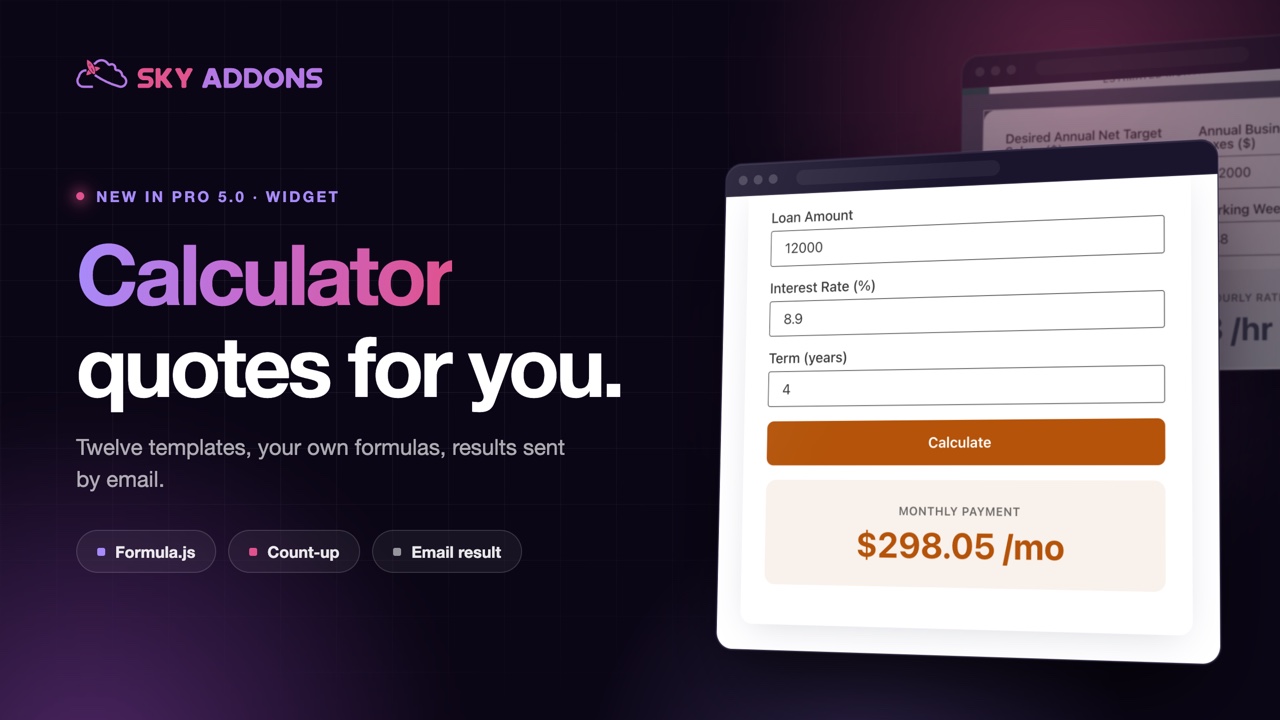
Calculator is a powerful formula calculator widget for Elementor that lets you build interactive calculators directly on your pages: price quotes, loan/EMI payments, BMI, tips, savings growth, ROI, and more. Pick one of the 12 ready-made templates or build a fully custom calculator with your own fields and Excel-style formulas powered by Formula.js. Results can animate with a count-up effect, show multiple breakdown rows, and even be emailed to the visitor and to you as a lead. This documentation will guide you through the process of using the Calculator Widget to create useful, conversion-friendly tools on your website.
Features:
- 12 Ready-Made Templates: Price Quote, Loan / EMI, BMI, Tip Split, Savings Growth, Percentage, Discount, VAT / Tax, Profit Margin, ROI, Calorie (BMR), and Fuel Cost. Each has editable default values.
- Custom Calculator Builder: Add your own fields (Number, Text, Select, Radio, Hidden, Disabled) and write formulas referencing them by key.
- Excel-Style Formulas: Use functions like SUM, IF, ROUND, PMT, and POWER via the Formula.js library. Chain results so later rows reuse earlier ones.
- Multiple Results: Output several values at once, with one highlighted as the primary hero result and the rest listed as breakdown rows.
- Number Formatting: Prefix, suffix, decimals, and thousands separator per result, or text results for categories like “Underweight / Normal”.
- Count-Up Animation: Results roll up to their value instead of snapping.
- Email Result / Lead Capture: Visitors can email the calculation to themselves while you receive a copy as a lead.
- Flexible Layout: Field column widths, card container, input sizes, and full style control over every part.
Insert Calculator Widget
- Open Elementor Editor. In the Elementor panel, search for “Advanced Calculator” under Sky Addons.
- Drag and Drop the Widget to the desired location on your page / editor.
Choose a Template
In the Template section, the Calculator dropdown decides what your widget computes:
- Ready-made presets: Price Quote, Loan / EMI, BMI, Tip Split, Savings Growth, Percentage, Discount, VAT / Tax, Profit Margin, ROI, Calorie (BMR), and Fuel Cost. Each preset ships with sensible fields and formulas.
- Default Values: When a preset is selected, a Default Values panel appears so you can change its starting numbers (e.g. the interest rate or unit price) without building anything yourself.
- Custom (build your own): Unlocks the Fields and Results sections so you can design the calculator from scratch.
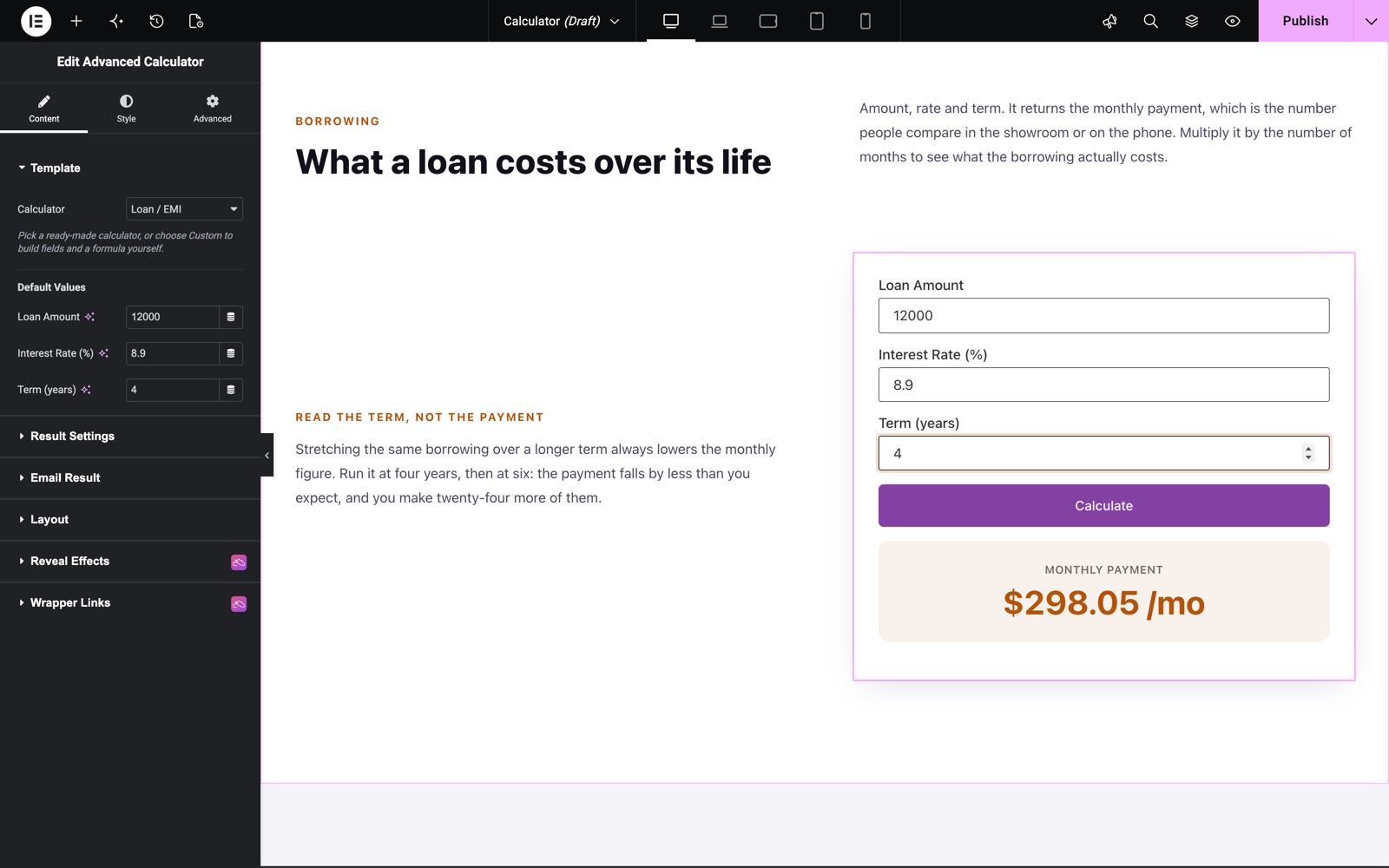
Here the Loan / EMI template is selected. Its Default Values are a 12000 loan, 8.9% interest and a 4 year term, and the widget shows the monthly payment straight away.
Configure Fields (Custom)
With the template set to Custom, the Fields repeater defines what visitors fill in. Each field has a Content tab and an Advanced tab:
- Type: Number, Text, Select, Radio, Hidden, or Disabled.
- Label & Placeholder: The visible field label and hint text (placeholder applies to Text and Number fields).
- Formula Key: The name used in formulas (lowercase letters, numbers, underscore, e.g.
price). It stays valid when you reorder fields; left empty, fields fall back to f1, f2 … - Options: For Select and Radio fields: one option per line, with a pipe to split label and value (e.g. Premium|100). Radio fields can also display as an Inline List.
- Column Width: Responsive width per field (100%, 75%, 66%, 50%, 33%, 25%, 20%) so fields can sit side by side.
- Default Value (Advanced tab): Pre-filled value for Text, Number, Hidden, and Disabled fields. Hidden fields are great for fixed rates used in formulas.
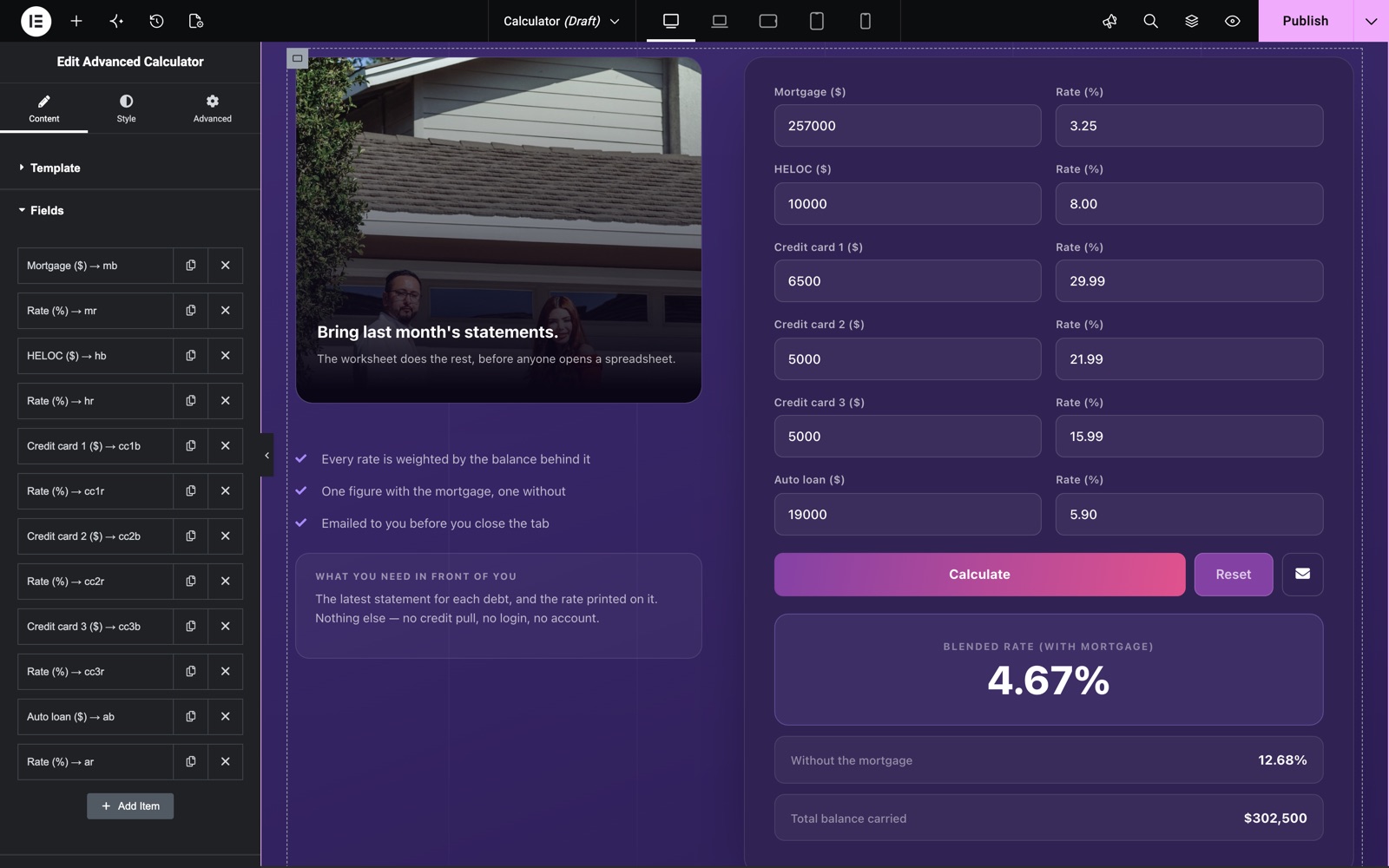
This debt calculator is built in Custom mode. Each row in the Fields list shows its label and its Formula Key, for example Mortgage ($) → mb and Rate (%) → mr. Fields set to 50% width sit in pairs.
Configure Results (Custom)
The Results repeater defines the outputs. Rows compute top to bottom, and a later row can reuse an earlier row’s Result Key (e.g. tax = subtotal * 0.1):
- Label & Result Key: The visible result name and an optional lowercase key so other formulas can reference this result.
- Formula: Reference fields by their keys (or f1, f2 …). Functions like SUM, IF, ROUND, PMT, POWER are available. The full function list is at formulajs.info.
- Format: Number or Text. For a Text result use IF(…) returning quoted strings, e.g. BMI categories.
- Prefix / Suffix / Decimals / Thousands Separator: Number formatting, e.g. a “$” prefix, ” /mo” suffix, 2 decimals, and 1,000-style separators.
- Primary (hero): Shows this result big in the hero panel; the remaining rows list as a breakdown beneath it.
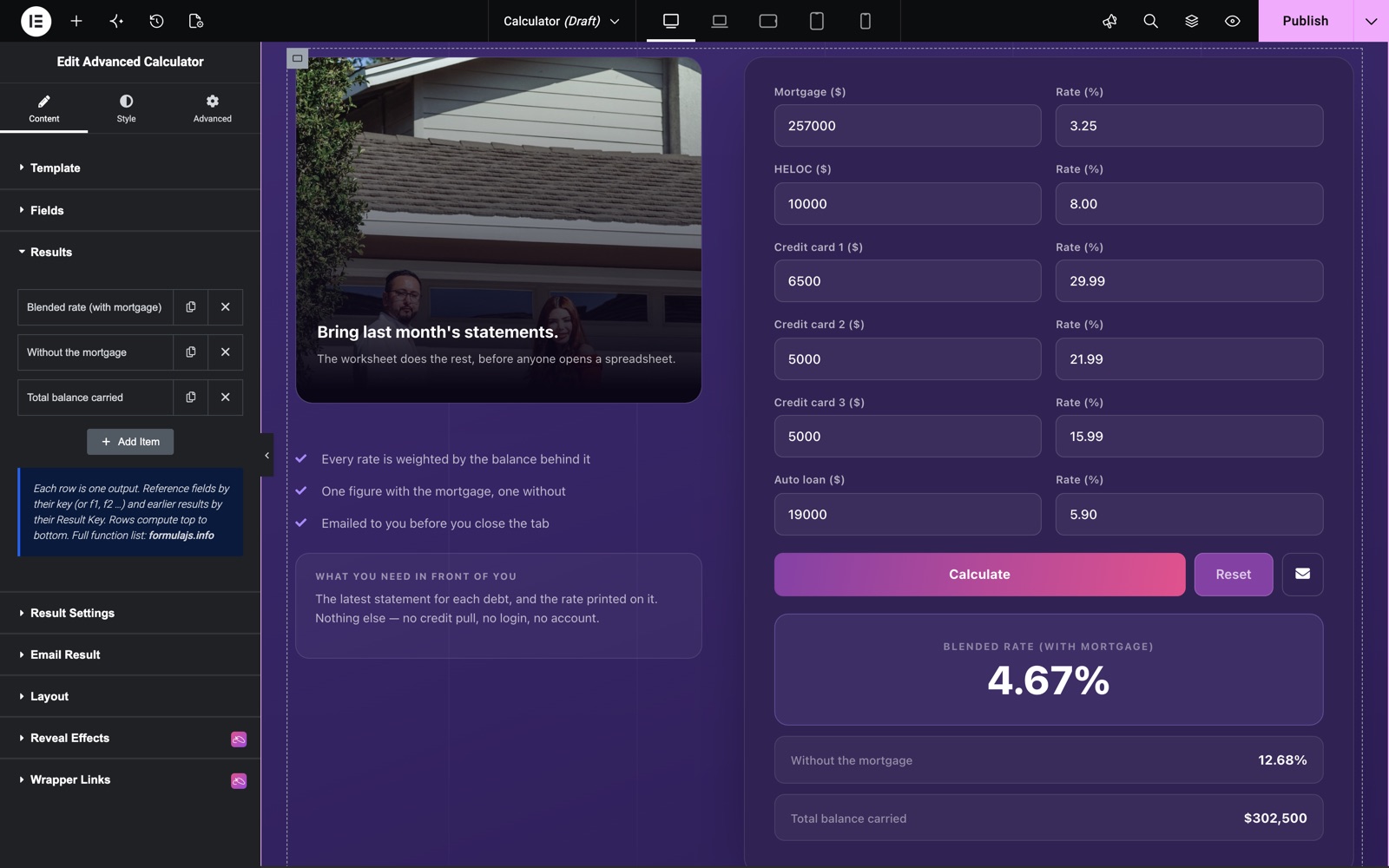
The same calculator has three results. Blended rate (with mortgage) is the primary result in the large panel. The other two rows appear as a breakdown below it.
Result Settings
- Calculate On: Button Click (a Calculate button is shown) or Field Change (results update live as visitors type).
- Count-Up Animation: Roll the number up to the result instead of snapping.
- Result Position: Show the result panel above (Top) or below (Bottom) the fields.
- Button Text: Label for the Calculate button (Button Click mode).
- Reset Button: Optional Reset button with its own text to clear the form back to defaults.
- Error Text: Message shown when the inputs can’t be calculated.
Email Result (Lead Capture)
The Email Result section adds an email field and send button under the result, so the inputs and outputs can be emailed:
- Enable Email: Turns the feature on.
- Send To: Admin (lead), Visitor, or Both. With Admin selected you receive every calculation as a lead.
- Admin Email: Custom recipient address. Leave it empty to use the site admin email.
- Subject, Field Label, Field Placeholder: The email subject line and the visitor-facing email input texts.
- Trigger Icon, Trigger Button Text, Send Button Text: The button under the result that reveals the email field, and the send action label.
- Preview Open (editor): Editor-only switch that opens the email panel so you can style it; on the live page it stays closed until the visitor clicks the trigger.
- Success / Error Message: Feedback texts after sending.
Configure Layout
- Show Labels: Toggle field labels on or off.
- Card Container: Wrap the calculator in a styled card.
- Input Size: Default, Small, or Large inputs.
- Text Align: Responsive text alignment for the form and inputs.
Style Your Calculator
Customize the calculator to match your design effortlessly. Adjust colors, typography, spacing, and borders to keep the tool on-brand and easy to read:
- General:
Overall spacing controls, including the space between results. - Card:
Background, border, radius, padding, and shadow for the card container. - Label:
Typography and color for field labels. - Fields:
Text color, background, border, and padding with separate Normal and Focus states. - Button:
Full button styling with Normal and Hover tabs plus a Hover Animation. - Result:
Style the hero result and breakdown rows: typography, colors, background, and spacing. - Error:
Typography and color for the validation/error message.
Save and Preview
- Once you’ve customized and styled your calculator, click “Publish” or “Update” to save your changes.
- Preview the page, enter sample values, and verify the results match what you expect.
Best Practices
- Verify your formulas: Test each result against a known calculation (a spreadsheet works well) before publishing.
- Use clear field keys: Names like
priceandqtykeep formulas readable and survive field reordering. - Accessibility: Keep labels visible and use descriptive button text so the form is usable with screen readers.
- Testing: Check the layout and column widths across devices. Fields stack responsively on small screens.
Troubleshooting
- Result Shows the Error Text: A formula references a key that doesn’t exist or an input isn’t numeric. Double-check Formula Keys and field types.
- Email Not Arriving: WordPress mail depends on your server/SMTP setup; test with an SMTP plugin and check spam folders. Also confirm Enable Email is on and the recipient mode is correct.
- Second Result Reads as Zero: Results compute top to bottom. A row can only reference Result Keys defined in earlier rows.
Frequently Asked Questions
Is the Calculator widget free?
No. The Calculator is a Sky Addons Pro widget. In the Elementor panel it is listed as Advanced Calculator.
How do I create a price calculator in Elementor?
Add the Calculator widget and pick the Price Quote template. It ships with Unit Price, Quantity, and Discount fields and a total formula. Adjust the default values in the Template section, or switch to Custom to design your own fields and formula.
Can I build a loan or EMI calculator with Elementor?
Yes. The Loan / EMI template uses the Excel-style PMT function to compute the monthly payment from the loan amount, interest rate, and term. You can edit its default values or rebuild it in Custom mode with your own formula.
What formulas does the Calculator widget for Elementor support?
Formulas use the Formula.js library, so Excel-style functions like SUM, IF, ROUND, PMT, and POWER work out of the box. Reference fields by their Formula Key (e.g. price * qty) and reuse earlier results by their Result Key.
Can visitors email themselves the calculation result?
Yes. Enable the Email Result section and choose Send To: Visitor, Admin, or Both. Visitors enter their address in a slide-open field; with Admin or Both selected you also receive each calculation as a lead at the address you set.
Can the result update live without a button click?
Yes. Set Calculate On to Field Change in Result Settings and the results recalculate as visitors type or pick options, with an optional count-up animation.
Related Documentation
Conclusion
The Calculator Widget by Sky Addons for Elementor turns static pages into interactive tools that answer your visitors’ questions, and capture leads while doing it. Start from a template, tune the formulas, and style it to match your brand. For further assistance, consult the Sky Addons support team or community forums. Enjoy building useful calculators!
Need help? Our team is happy to answer questions on the Sky Addons support page.