
How to use Video Gallery Widget of Sky Addons for Elementor
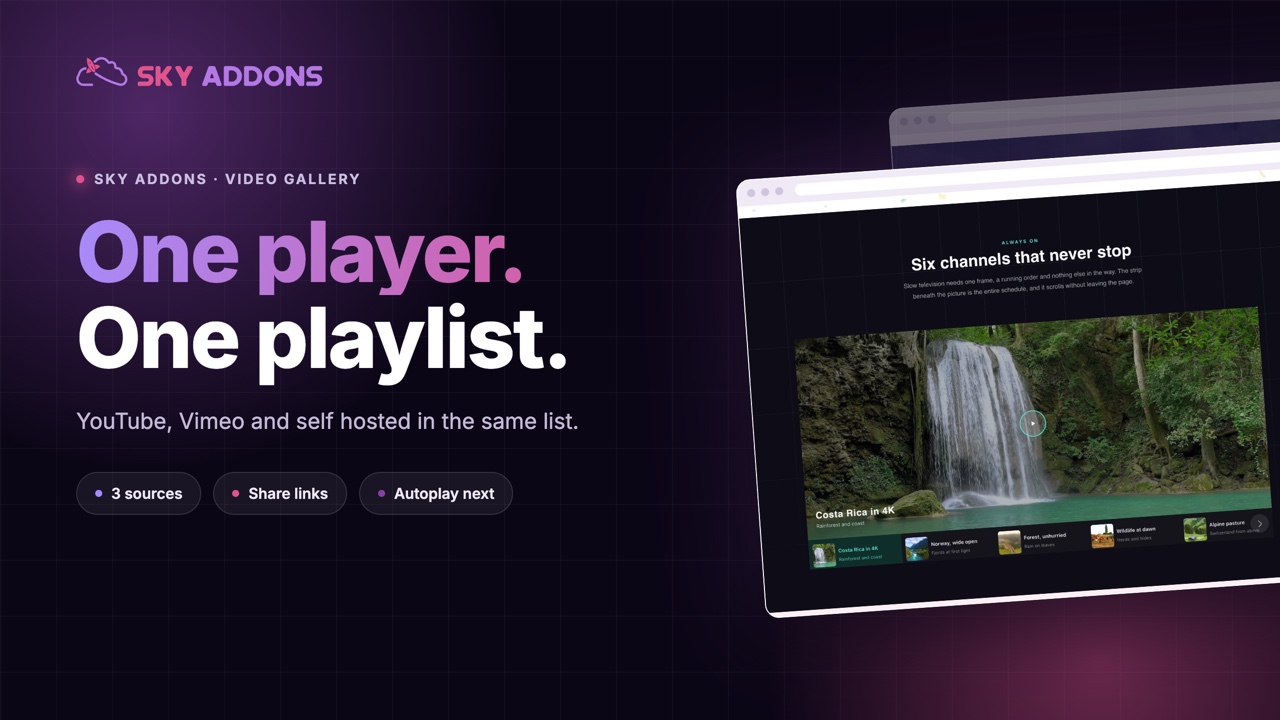
The Sky Addons Video Gallery widget combines a full-size video player with a scrollable thumbnail playlist into a single Elementor widget. It supports YouTube, Vimeo and self-hosted video files, and the playlist can run vertically or horizontally. Each video entry has its own title, credit/subtitle, optional credit URL, and custom poster image, with automatic thumbnail fetching if no poster is supplied. This documentation will guide you through the process of using the Video Gallery Widget to create a polished, playlist-driven video experience on your website.
Features:
- Three Video Sources: Mix YouTube, Vimeo and self-hosted (Media Library or external URL) videos freely in the same playlist.
- Vertical and Horizontal Layouts: Switch the gallery between a vertical stacked layout (player on left, playlist on right) and a horizontal layout (player on top, playlist below) with one click.
- Automatic Poster Images: If no custom poster is uploaded, the widget fetches the video’s thumbnail from YouTube or Vimeo automatically.
- Player and Playlist: The player uses Plyr, with its own control bar. The playlist uses Swiper, with free-mode scrolling, mouse wheel support, a scrollbar and navigation arrows. When a video ends, the next one can start on its own.
- Title and Credit Overlay: Display the video title and a credit/subtitle line over the player poster. Position the text in six zones (top/bottom × left/center/right) with independent typography, padding, and text shadow.
- Play-on-Hover Option: Show the play button only when the user hovers over the poster, keeping the interface clean.
Insert Video Gallery Widget
- Open your page in Elementor and click the + icon to add a new section.
- Search for Video Gallery in the widget panel and drag it onto the canvas.
Configure the Video List
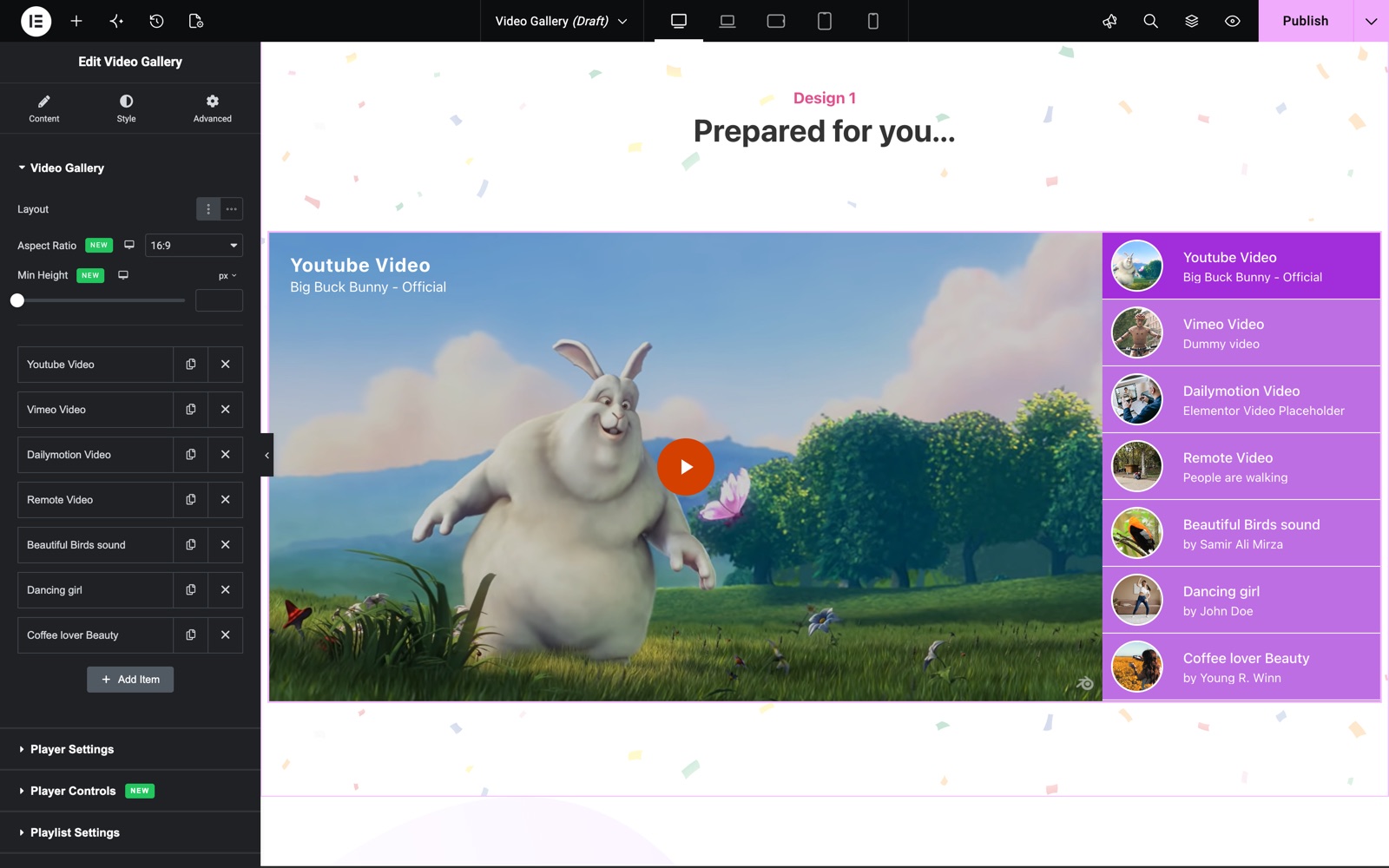
The Video Gallery section in the Content tab is where you build your playlist.
- Layout: Choose Vertical (side-by-side player and playlist) or Horizontal (player above, playlist below).
- Aspect Ratio: 16:9 (default), 4:3, 3:2, 1:1, 21:9 or 9:16. Min Height (200 to 1000 px, or vh) keeps the gallery from getting too short. Both are new in version 5.5.0.
- Video List (Repeater): Each list item has three tabs:
– Video tab: Choose the Source (YouTube, Vimeo, Self Hosted). Paste the video URL in the corresponding Link field. For self-hosted, choose a file from the Media Library or enter an External URL.
– Content tab: Enter a Title (shown on the player poster and in the playlist), a Credit / Subtitle (shown below the title), and optionally a Credit URL to make the credit a clickable link. Share Slug (new in 5.5.0) lets you link straight to this video with?sa-video=your-slugin the page URL.
– Poster tab: Upload a custom poster image. Leave empty to use the auto-fetched thumbnail.
Configure Player Settings
The Player Settings section controls the main video player behavior.
- Autoplay Next: On by default. When a video ends, the next one in the playlist starts.
- Loop Playlist: After the last video, start again from the first.
- Show Title: Toggle to show or hide the title overlay on the player poster. When on, choose the Title HTML Tag (h1–h6, p, span, div).
- Text Position: Place the title and credit overlay in one of six zones over the player (Top Left, Top Center, Top Right, Bottom Left, Bottom Center, Bottom Right). Responsive.
- Text Alignment: Align the text within the overlay area (Left, Center, Right, Justified). Responsive.
- Show Play Button On Hover: Toggle to hide the play button until the user hovers over the player.
Configure Player Controls
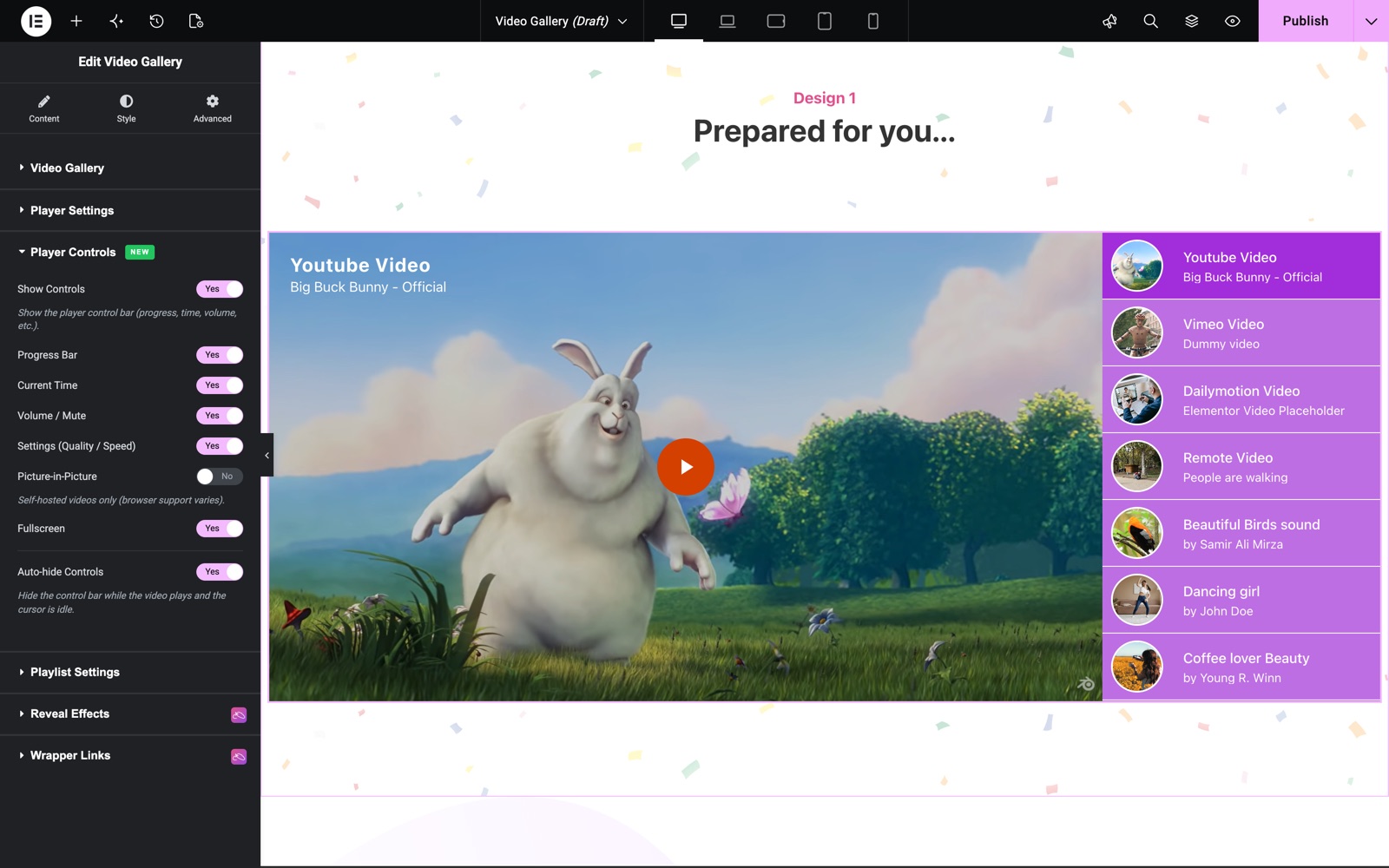
The Player Controls section (new in version 5.5.0) sets the control bar of the player. All switches are on by default, except Picture-in-Picture.
- Show Controls: Show the control bar.
- Progress Bar, Current Time, Volume / Mute and Settings (Quality / Speed): Turn each part of the bar on or off.
- Picture-in-Picture: For self-hosted videos only. Browser support varies.
- Fullscreen: Show the fullscreen button.
- Auto-hide Controls: Hide the bar while the video plays and the cursor is idle.
Configure Playlist Settings
The Playlist Settings section controls the thumbnail sidebar behavior.
- Mouse Wheel: Allow scrolling through the playlist with the mouse wheel.
- Free Mode: Enable free-scroll momentum so the playlist doesn’t snap to slides.
- Title HTML Tag: Set the heading tag for titles in the playlist thumbnails.
- Show Scrollbar: Show or hide the Swiper scrollbar on the playlist.
- Show Navigation: Show or hide the previous/next navigation arrows on the playlist.
Style Your Video Gallery
Use the Style tab to customize every visual element.
- Video Player:
Set a Poster Overlay color (semi-transparent tint over the poster image) and control the text padding for the title/credit block. - Video Title:
Set text color, background, typography, padding, and text shadow for the title overlay on the player. - Video Credit/Subtitle:
Set spacing (margin-top from title), text color, background, typography, padding, and text shadow for the credit line on the player. - Play Button:
Set icon size, padding, border, and border radius. Use Normal/Hover tabs for text color, background, text shadow, and box shadow. - Playlist:
Set separator size and color between playlist items, text padding, and Normal/Hover/Active backgrounds for the entire playlist area. - Thumbnail:
Set thumbnail width, border, and border radius for the small poster images in the playlist sidebar. - Playlist Title:
Typography and Normal/Hover/Active text colors for playlist item titles. - Playlist Credit/Subtitle:
Typography and Normal/Hover/Active text colors for playlist item credits. - Playlist Navigation:
Size, Normal/Hover color, and background for the previous/next arrows. - Playlist Scrollbar:
Set scrollbar width, track color, and drag handle color.
Save and Preview
- Click Update in Elementor to save your page.
- Preview the page to see your Video Gallery widget in action.
Best Practices
- Upload a custom poster for each video when possible. Custom posters load faster than remote thumbnails and give you design control over the first impression.
- Keep playlist titles short (under 50 characters) so they don’t overflow the thumbnail sidebar at the default width.
- Use the Horizontal layout for landing pages where the video is the primary focus, and Vertical for sidebar or blog-detail pages where vertical space is more available.
- For self-hosted videos, use MP4 format encoded at H.264 for the broadest browser compatibility and smallest file size.
Troubleshooting
- Videos do not play when clicked. Make sure the video URL is correct and publicly accessible. For YouTube/Vimeo, confirm the video is not set to private or restricted to certain domains.
- Playlist thumbnails show a grey placeholder instead of the video poster. Automatic thumbnail fetching relies on external services (YouTube’s image CDN, Vimeo’s API). If thumbnails fail to load, upload a custom poster in the Poster tab of each repeater item.
- The layout looks broken after changing Vertical to Horizontal. After switching the Layout option, click the Elementor refresh icon or save and reload the editor. The layout is set up again on page load.
Frequently Asked Questions
How many videos can I add to the playlist?
There is no hard limit, but keep in mind that each entry adds to the page’s DOM size. Playlists of 10–30 items are typical for performance-conscious sites.
Can I mix YouTube and self-hosted videos in the same gallery?
Yes. Each repeater item has its own Source selector, so you can freely mix YouTube, Vimeo and self-hosted items in the same playlist. Dailymotion is no longer a source. If an older gallery has a Dailymotion item, set its Source to YouTube or Vimeo and add a link.
Does the video autoplay when the page loads?
No. Videos start playing only when the visitor clicks the play button for a specific item. Browser autoplay policies block silent autoplay on most modern browsers.
Can I use this widget without a playlist, just as a single video player?
Yes. Add only one item to the repeater. The playlist pane will be present but only contain that single thumbnail. For a cleaner single-video look, the playlist pane can be styled very small or the navigation/scrollbar hidden.
Will the widget embed videos from private YouTube or Vimeo accounts?
No. The widget embeds videos via iframe using each platform’s standard embed URL. Private, unlisted-with-domain-restriction, or paywalled videos will not load in the player.
Related Documentation
Explore other Sky Addons widgets and extensions that complement the Video Gallery widget:
- Social Share: Add share buttons below your video gallery so viewers can spread your content easily.
- WC Products Carousel: Pair a video tutorial gallery with a product carousel below it for a content-to-purchase flow.
Conclusion
The Video Gallery widget turns any page into a professional video hub, combining a full-size player, a scrollable playlist, multi-platform support, and deep style customization in a single drag-and-drop Elementor widget. If you have any questions or need help, visit the Sky Addons support center.