
How to use Background Parallax Extension of Sky Addons for Elementor
The Sky Addons Background Parallax extension for Elementor makes a container’s background drift as the visitor scrolls, adding real depth to hero sections, banners and feature rows. It works with the background image the container already has, with no re-uploading and no extra widget. It can even play a YouTube, Vimeo or self-hosted video behind your content with the same parallax motion. Choose from five effects, send the movement in any of eight directions, and fine-tune the speed with a single slider. This documentation will guide you through enabling and configuring the Background Parallax extension on your website.
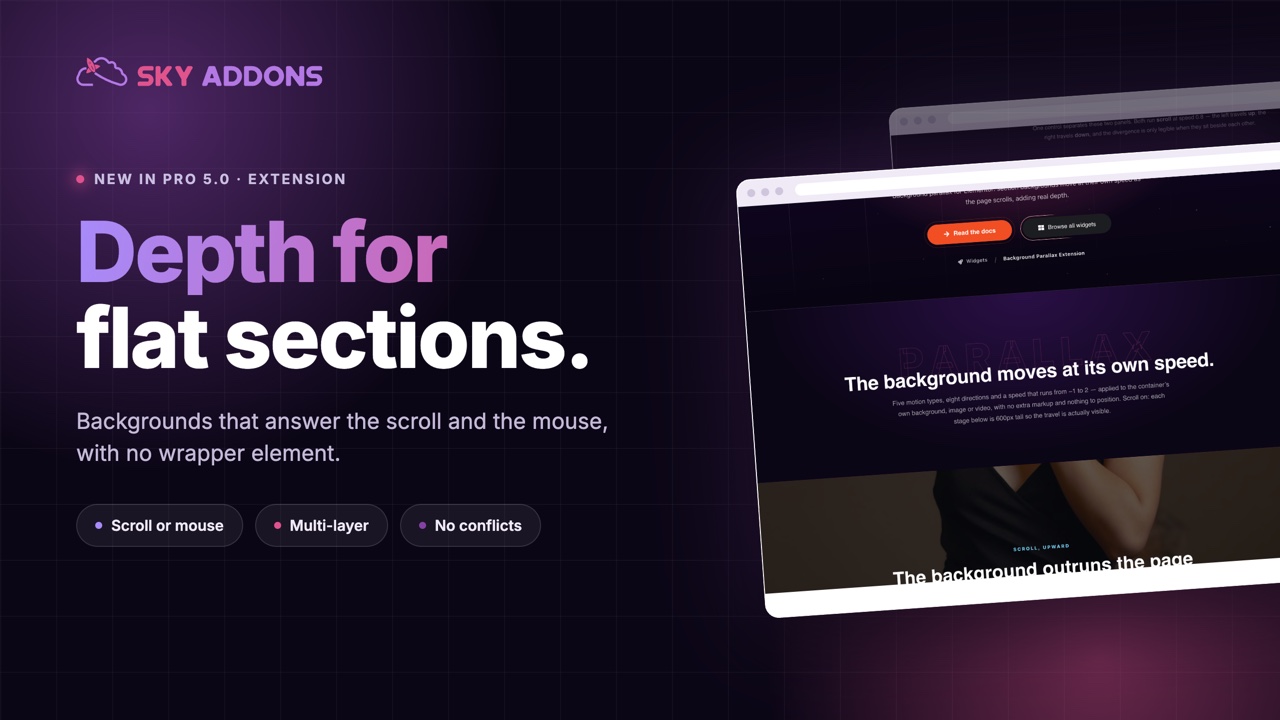
Features:
- Works on every Elementor Container and uses the container’s own Background Image automatically
- Video backgrounds: YouTube, Vimeo or a direct .mp4 link, with the background image as the loading poster
- Five effects: Scroll, Zoom, Fade, Scroll + Fade and Zoom + Fade
- Eight scroll directions: up, down, left, right and all four diagonals
- One Speed slider controls how fast the background moves against the page, including reverse motion
- Independent tablet and mobile disable toggles, and the effect automatically respects visitors who prefer reduced motion
Enable the Background Parallax Extension
The Background Parallax extension ships with Sky Addons Pro and adds its own “Background Parallax” section to every container. There is nothing to install.
- Select a Container in the Elementor Editor
- In the Style tab, set a Background Image for the container if it does not have one, and give the container a height (for example a Min Height) so the effect has room to travel
- Still in the Style tab, locate the Background Parallax section (marked with the Sky Addons icon)
- Toggle the Enable switch on. The container’s background image is picked up automatically and starts moving right in the editor preview
Choose the Media
- Media – Choose Background Image to animate the container’s own background image, or Video to play a video behind the content instead.
- Video URL – Appears when Media is set to Video. Paste a YouTube link, a Vimeo link, or a direct link to an .mp4 file. The container’s background image is shown as the poster while the video loads, so always set one for a smooth first paint.
Configure the Effect
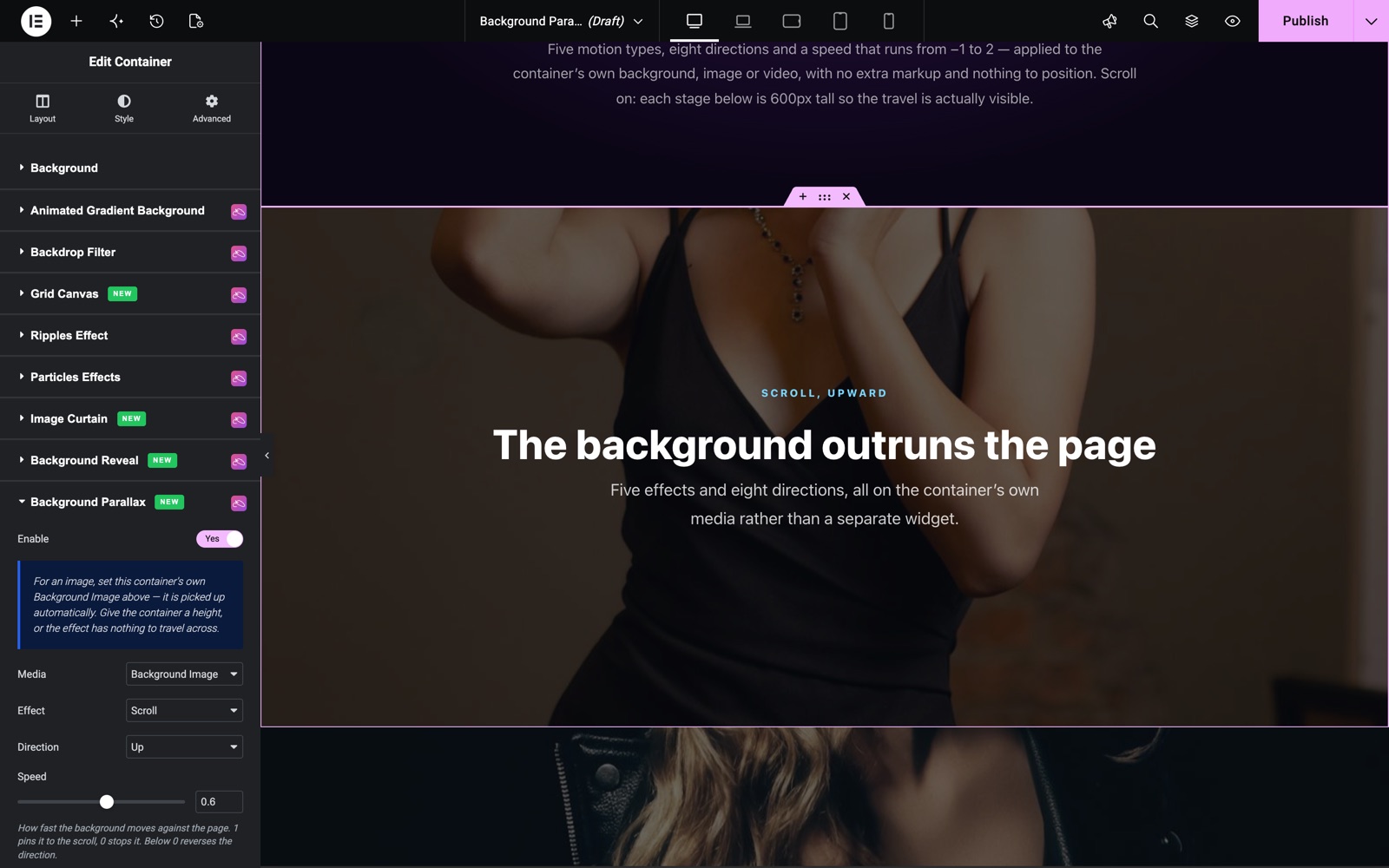
- Effect – Scroll moves the background against the page; Zoom scales it as it passes through the viewport; Fade changes its opacity; Scroll + Fade and Zoom + Fade combine the two.
- Direction – Available for the Scroll effects. Send the background up, down, left, right or diagonally toward any corner as the page scrolls down.
- Speed – How fast the background moves against the page. 1 pins it to the scroll, 0 stops it, and values below 0 reverse the direction. Around 0.5 gives the classic gentle parallax look.
- Disable on Tablet / Disable on Mobile – Turn the effect off below the tablet or mobile breakpoint. Disabling on mobile is recommended, because mobile browsers resize the viewport when the address bar hides, which can make scroll-driven motion jump.
In this example the container uses Scroll, direction Up and a speed of 0.6, so the photo moves a little slower than the page. The blue note under Enable is a reminder to set the container’s own Background Image and give it a height.
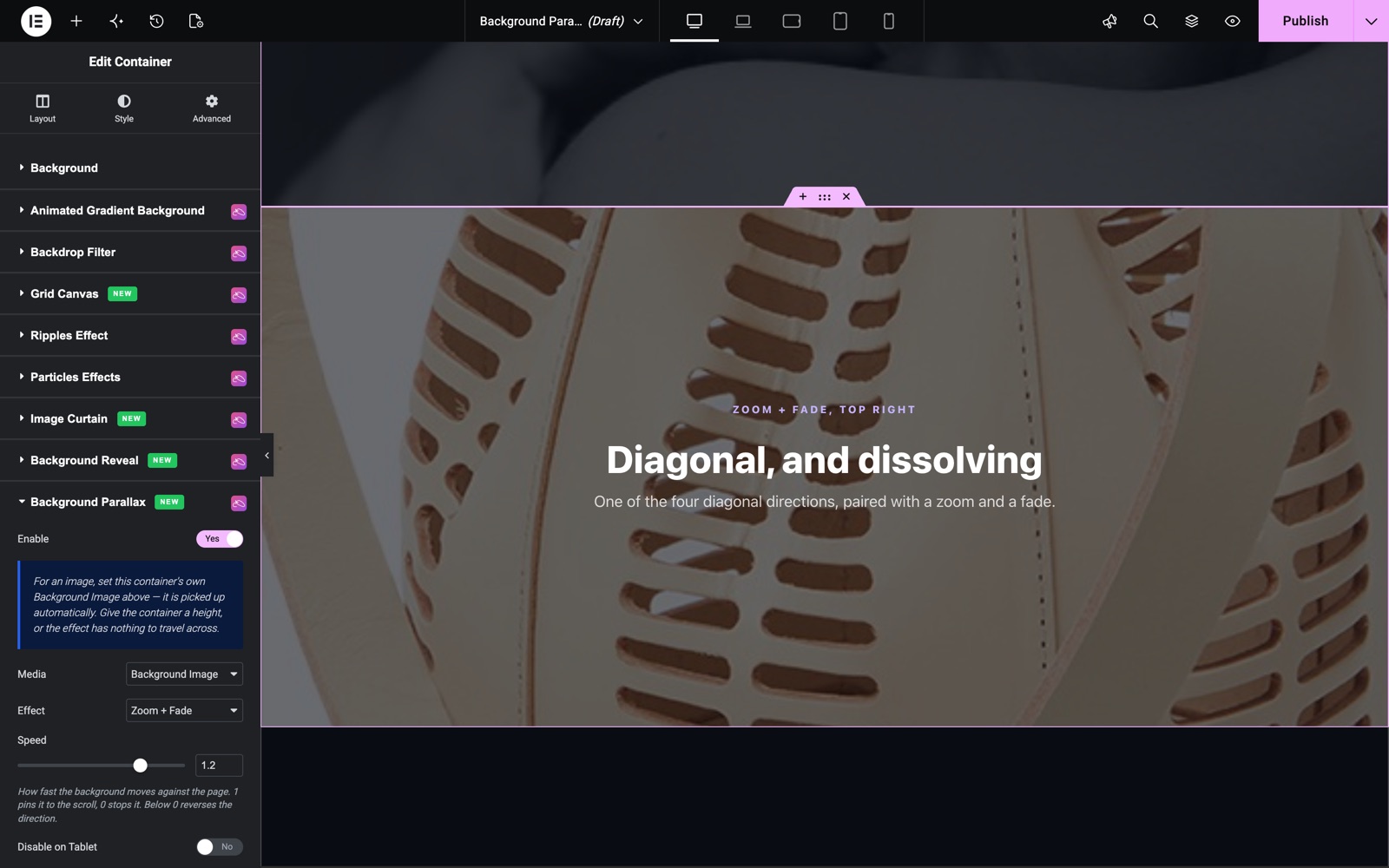
This section uses Zoom + Fade at speed 1.2. The image grows and fades as the section passes through the screen. Direction is hidden here because it applies only to the Scroll effects.
Save and Preview
- Click the Update/Publish button to save your changes
- Preview the page and scroll through the section to feel the motion at real page speed
Best Practices
- Give the container height: the effect travels as the container crosses the viewport, so a very short container has almost no room to move. A Min Height of 60–100vh works well for heroes.
- Use a larger image than the container: parallax shows more of the image as it moves, so a generous image avoids soft edges at high speeds.
- Keep speeds subtle: values between 0.3 and 0.7 read as depth; extreme values draw attention to the mechanic instead of the content.
- Pair with Element Parallax: put Background Parallax on the container and the Element Parallax extension on the widgets inside it for a full multi-layer scene.
Troubleshooting
- Nothing moves: confirm the container has its own Background Image set in the Style tab (or a Video URL in Video mode) and that the container has a height. Without both, the effect has nothing to show or nowhere to travel.
- Video does not play: check the URL is a plain YouTube/Vimeo page link or a direct .mp4 file link, and remember most browsers only autoplay muted videos. The extension handles this, but ad blockers can still block third-party players.
- No motion on a phone: Disable on Mobile is on by default; switch it off in the Background Parallax section if you want the effect on small screens.
Frequently Asked Questions
Is Background Parallax free?
No. Background Parallax is a Sky Addons Pro extension. It works on Elementor containers.
Why does the effect not run on my phone?
Disable on Mobile is on by default. Turn it off if you want the effect on small screens.
Related Extensions
- Element Parallax: move the widgets inside the container at their own speed.
- Simple Parallax: a lighter parallax effect for images.
Conclusion
The Background Parallax extension gives your containers the depth of a hand-coded landing page (image or video, five effects, eight directions) from one small section in the Elementor editor. If you run into anything this guide does not cover, the Sky Addons support team is happy to help.
Need help? Our team is happy to answer questions on the Sky Addons support page.