
How to use Image Compare Widget of Sky Addons for Elementor
The Image Compare Widget is a powerful, visual tool for showcasing before and after images on your Elementor website. Whether you’re showing design revisions, photo edits, product transformations, or more, this widget is built to deliver a smooth, responsive, and customizable experience.

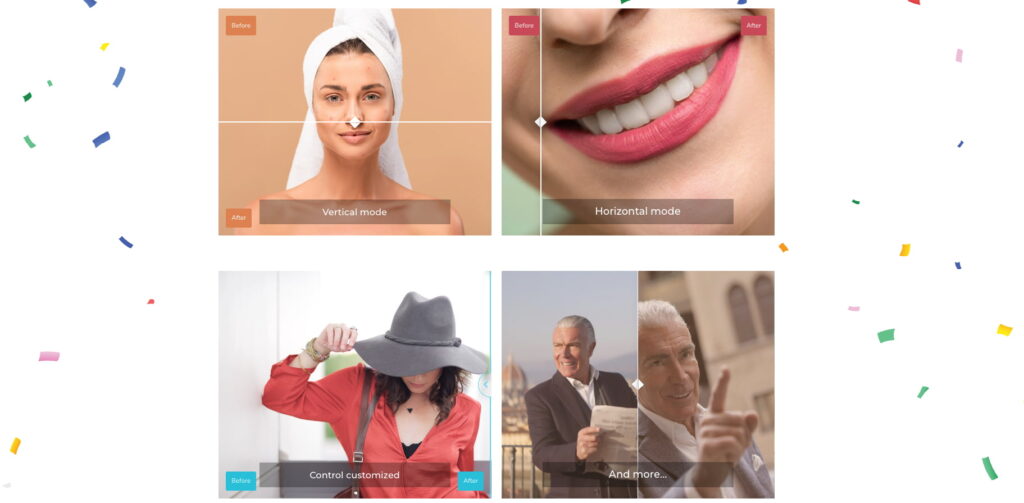
Features:
- Interactive Image Comparison Slider: Compare two images with a smooth draggable slider and support for both horizontal and vertical modes.
- Custom Labels & Hover Effects: Add customizable “Before” and “After” labels with flexible positions and optional hover behavior.
- Optional Content Overlays: Add a title, content text, and position them at the top, middle, or bottom of the image area.
- UI & Control Styling: Full control over the slider’s color, shape, shadow, and additional effects like control circle and smoothing.
- Responsive Design with Fluid Mode: Perfect for mobile users. Enable fluid layout, set custom heights, and adjust for all screen sizes.
Insert Image Compare Widget
- Open Elementor Editor. In the Elementor panel, search for “Image Compare” under Sky Addons.
- Drag and Drop the Widget to the desired location on your page / editor.
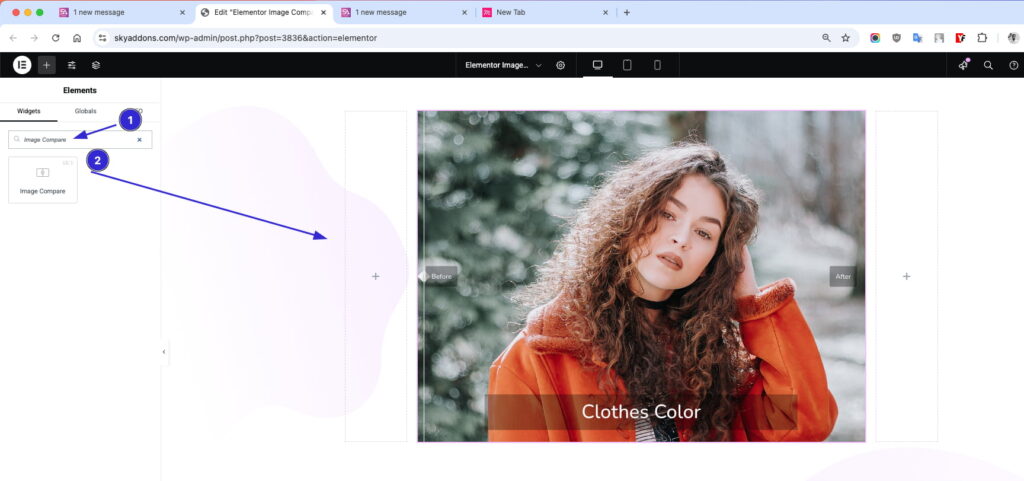
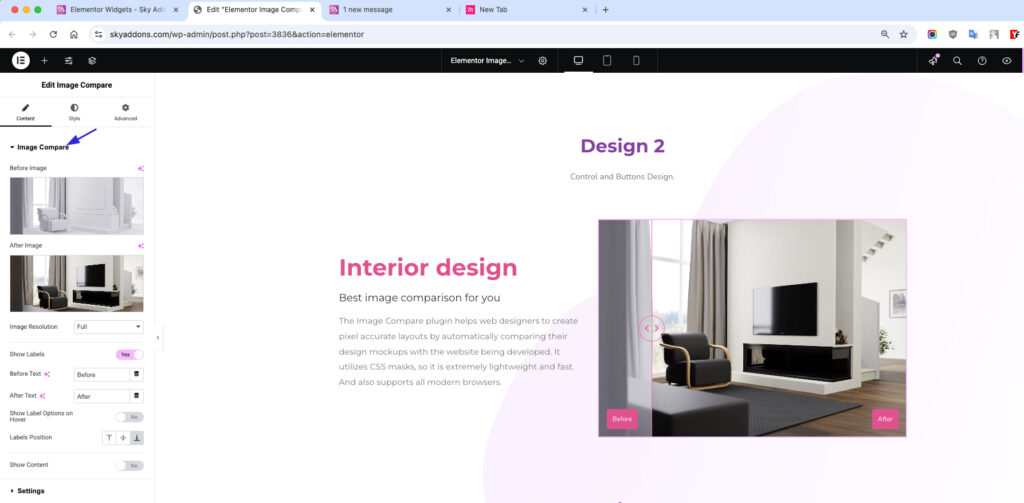
Image Compare Layout
- Select Before Image
- Select After Image
- Image Resolution – Adjust image quality/display settings.
- Show Labels – Enable or disable Before/After text.
- Before Text / After Text – Customize label text.
- Show Label Options on Hover – Labels appear only on hover for cleaner UI.
- Labels Position – Choose Top, Middle or Bottom (default Bottom). Labels Position Vertical then sets Left, Center or Right.
- Show Content – Toggle optional content (title/text) overlay.
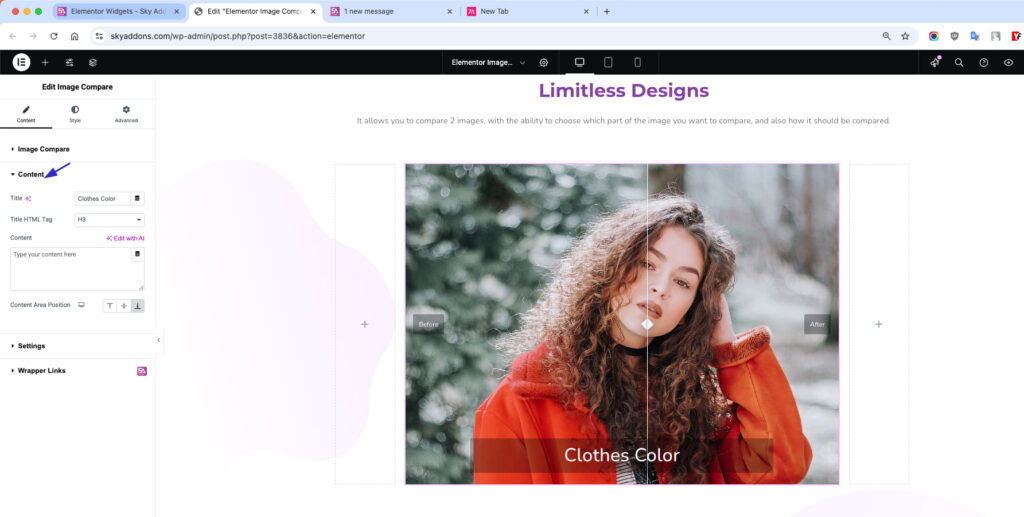
Content Options
- Title: Set a heading or short title for your content area.
- HTML Tag: Choose the appropriate heading level (H1–H6) for SEO and structure.
- Content Text: Add descriptive text or a message below the title.
- Content Area Position: Choose where to place the content over the image: Top, Middle, or Bottom.
Settings
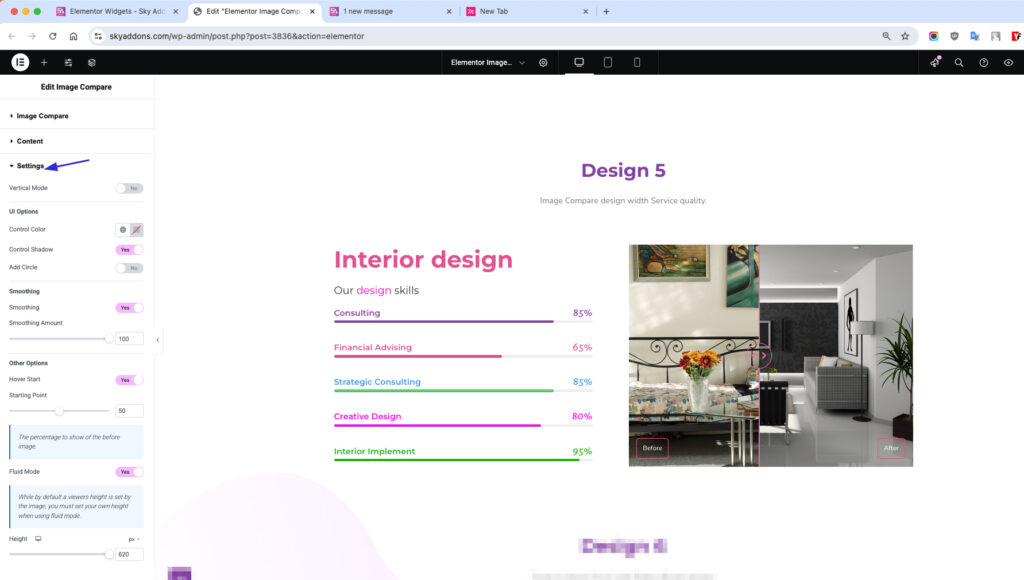
- Vertical Mode: Switch from default horizontal to vertical comparison.
UI Options
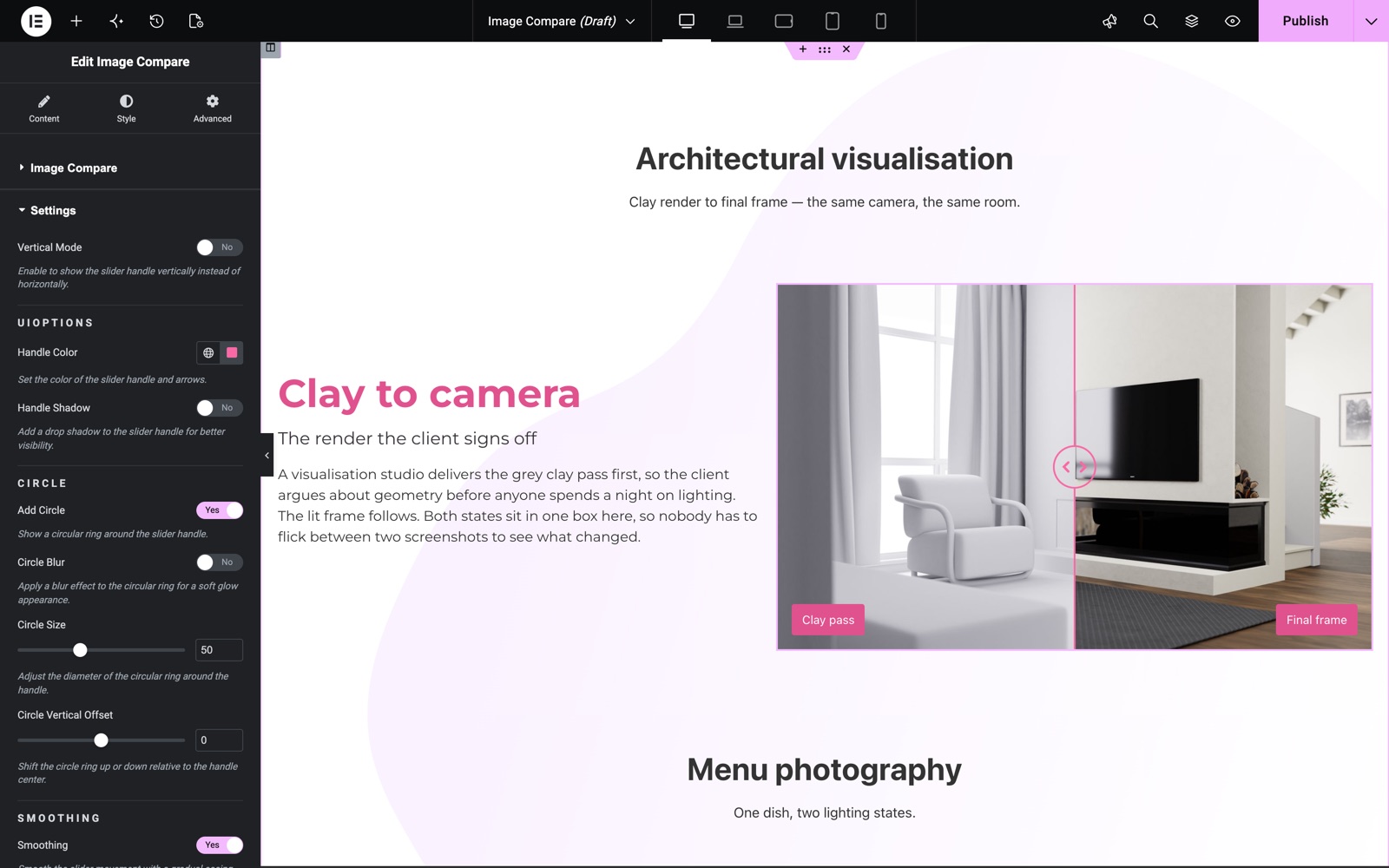
- Handle Color: Set the color of the slider handle and arrows.
- Handle Shadow: Add a drop shadow to the handle for better visibility. On by default.
- Add Circle: Enable a circle around the handle for a modern look. Once enabled, you can apply a Circle Blur for a soft glow, set the Circle Size, and fine-tune its Vertical Offset.
Smoothing Options
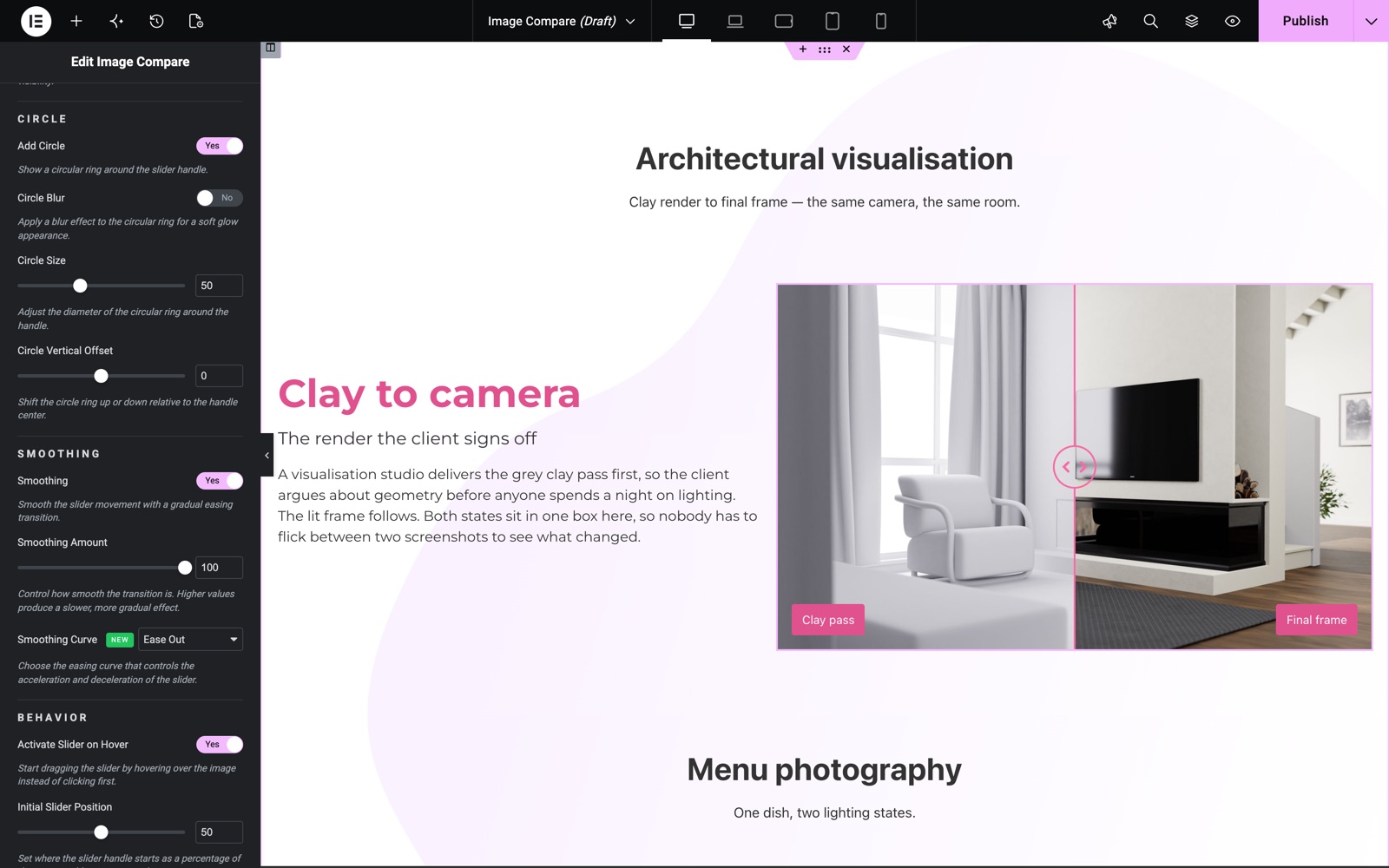
- Enable Smoothing
- Smoothing Amount: Adjust from 0–100 for smooth transition effects when dragging.
- Smoothing Curve: Choose the easing curve (Ease Out, Ease In Out, Linear or Ease In) that controls how the slider accelerates and decelerates.
Other Options
- Activate Slider on Hover: The handle follows the mouse over the image, with no click needed. On by default.
- Initial Slider Position: Set where the handle starts, as a percentage of the image (0–100%).
- Mobile Slider Position: Override the initial slider position specifically on mobile devices.
- Entry Animation: Animate the slider handle sliding in from its starting position on page load, with an adjustable animation duration.
- Fluid Mode: Enable responsive resizing.
- Height: Manually set the widget height.
In this example from the Image Compare demo, the handle is pink and Add Circle draws a 50 px ring around it.
Further down, Smoothing is on with an amount of 100 and the Ease Out curve. Activate Slider on Hover is on and the handle starts at 50%.
Style Customization
Overlay Section
Overlay Color: Add a color layer above the images.
Labels Section
Easily style your Before and After labels to match your site’s design. You can customize:
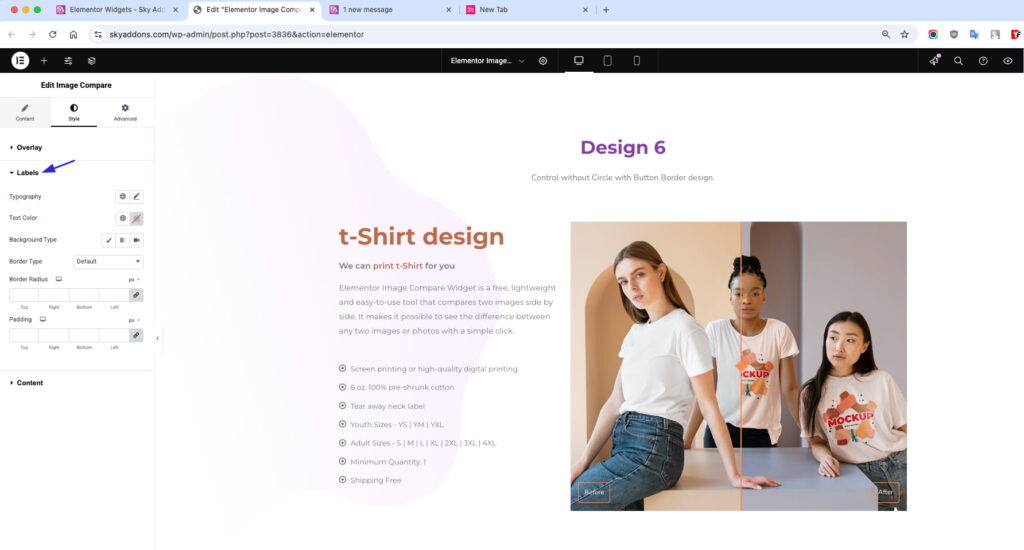
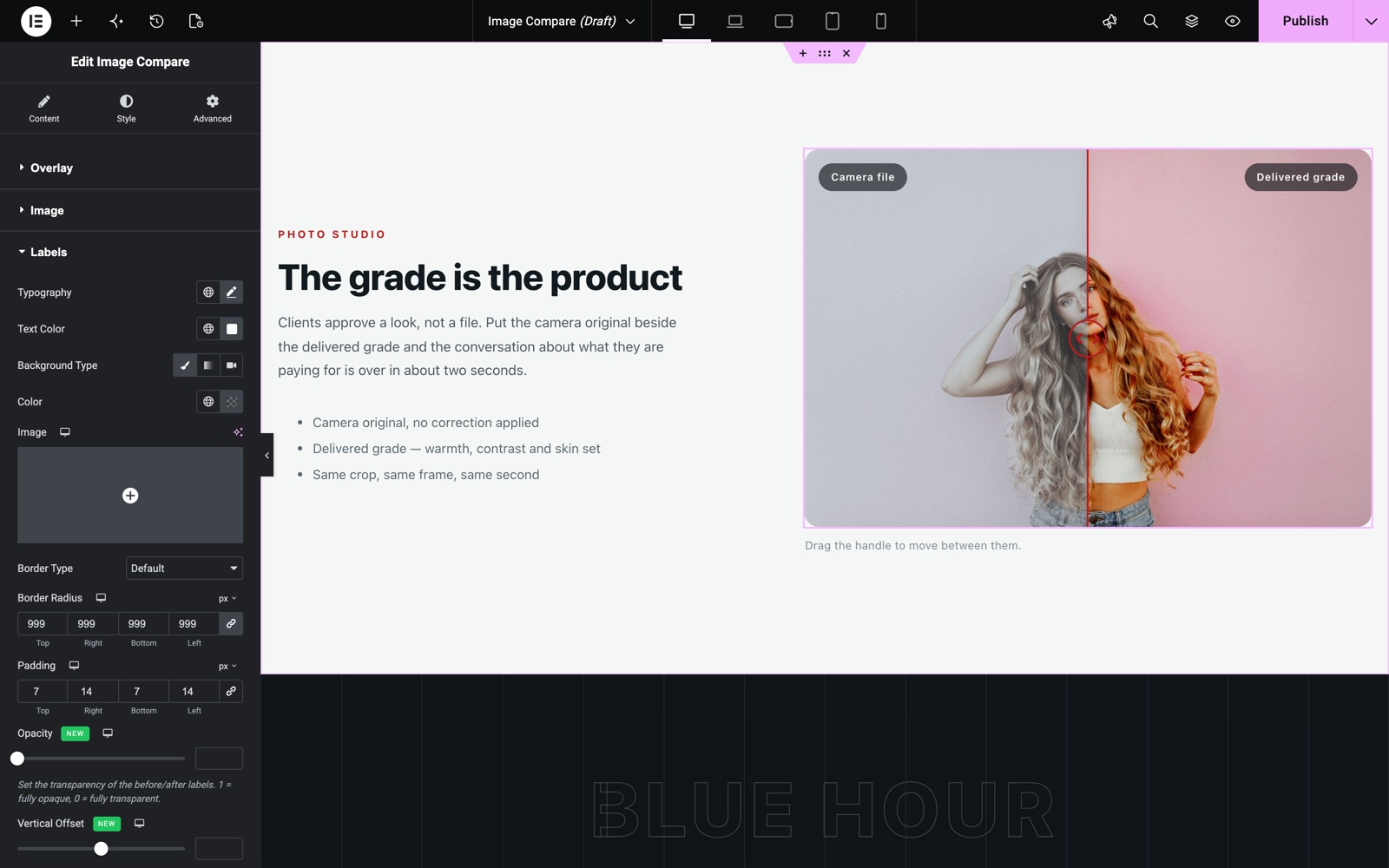
- Typography: Adjust font size, weight, family, and spacing for better readability.
- Color: Set text color to ensure it stands out against the image.
- Background: Add background color for contrast and visibility.
- Border & Radius: Apply borders and rounded corners to match your style.
- Padding: Control inner spacing to create a balanced, polished look.
- Opacity: Set the transparency of the before/after labels.
- Fade Animation Duration: Control how long the label takes to fade in when hovering over the image (when label options are shown on hover).
- Vertical Offset: Shift the labels up or down from their default position.
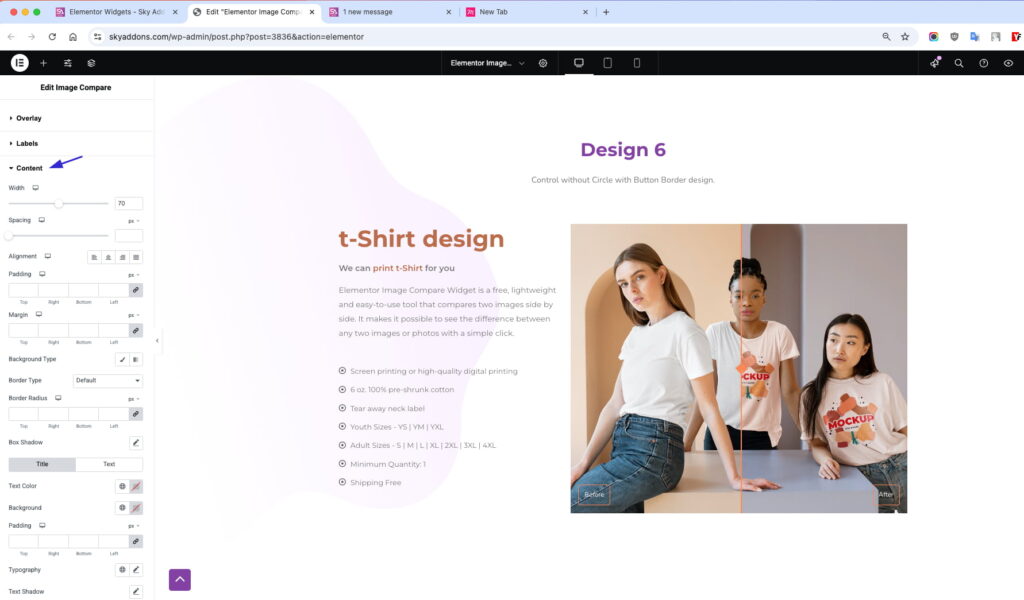
Content Section
- Content Area: Control width, spacing, alignment, padding, margin, background, border, radius, and box-shadow.
- Title & Text (Individually): Set unique colors, backgrounds, padding, typography, and more.
Here the labels sit at the top, with a dark background, a 999 px radius for a pill shape and 7 px by 14 px padding.
Troubleshooting
- Slider not moving: Make sure both images are uploaded and the resolution settings are correct.
- Label not showing: Ensure the “Show Labels” option is enabled and the Before Text and After Text fields are filled in.
- Overlay blocking visibility: Adjust overlay color opacity or disable it in the style settings.
Conclusion
The Image Compare Widget from Sky Addons is the perfect solution for showcasing visual changes and transformations. With full control over layout, style, and behavior, it is designed to be flexible, responsive, and user-friendly for any Elementor-powered site.
Need help? Our team is happy to answer questions on the Sky Addons support page.