
How to use Rounded Cursor Widget of Sky Addons for Elementor
The Sky Addons Rounded Cursor widget adds a circular, text-spinning cursor effect to the mouse pointer powered by GSAP and Splitting.js. The cursor tracks the mouse in real time, displays a rotating text ring around the pointer, and can optionally show a spinning animated border. You can target any element on the page by its CSS class or ID, making it easy to scope the effect to a hero section or apply it site-wide by placing the widget in your header or footer template. This documentation will guide you through the process of using the Rounded Cursor Widget to create a memorable, on-brand pointer experience on your website.
Features:
- Rotating Text Ring: Any text you enter is split into individual characters and arranged in a circle that rotates around the cursor, creating a distinctive branded effect.
- Target Scope: Enter CSS selectors (classes, IDs, comma-separated) to limit the effect to specific page elements, or place the widget globally in a header/footer template to cover the entire site.
- Auto Color Change: Enable mix-blend-mode difference so the cursor automatically inverts its color against whatever background it moves over, so it stays readable.
- Adjustable Radius and Rotation Speed: Control how large the text ring appears and how quickly it spins, independently of each other.
- Cursor Spin Effect: An optional animated spinning border ring sits around the cursor, with configurable size, border width, dual border colors, and spin speed.
- Text Typography and Stroke: Full Elementor typography controls plus text-stroke for the rotating character ring.
Insert Rounded Cursor Widget
- Open your page in Elementor and click the + icon to add a new section.
- Search for Rounded Cursor in the widget panel and drag it onto the canvas.
Note: The widget shows an editor-only placeholder block. The cursor effect is invisible in the Elementor editor and only activates on the live front end.
Configure Content
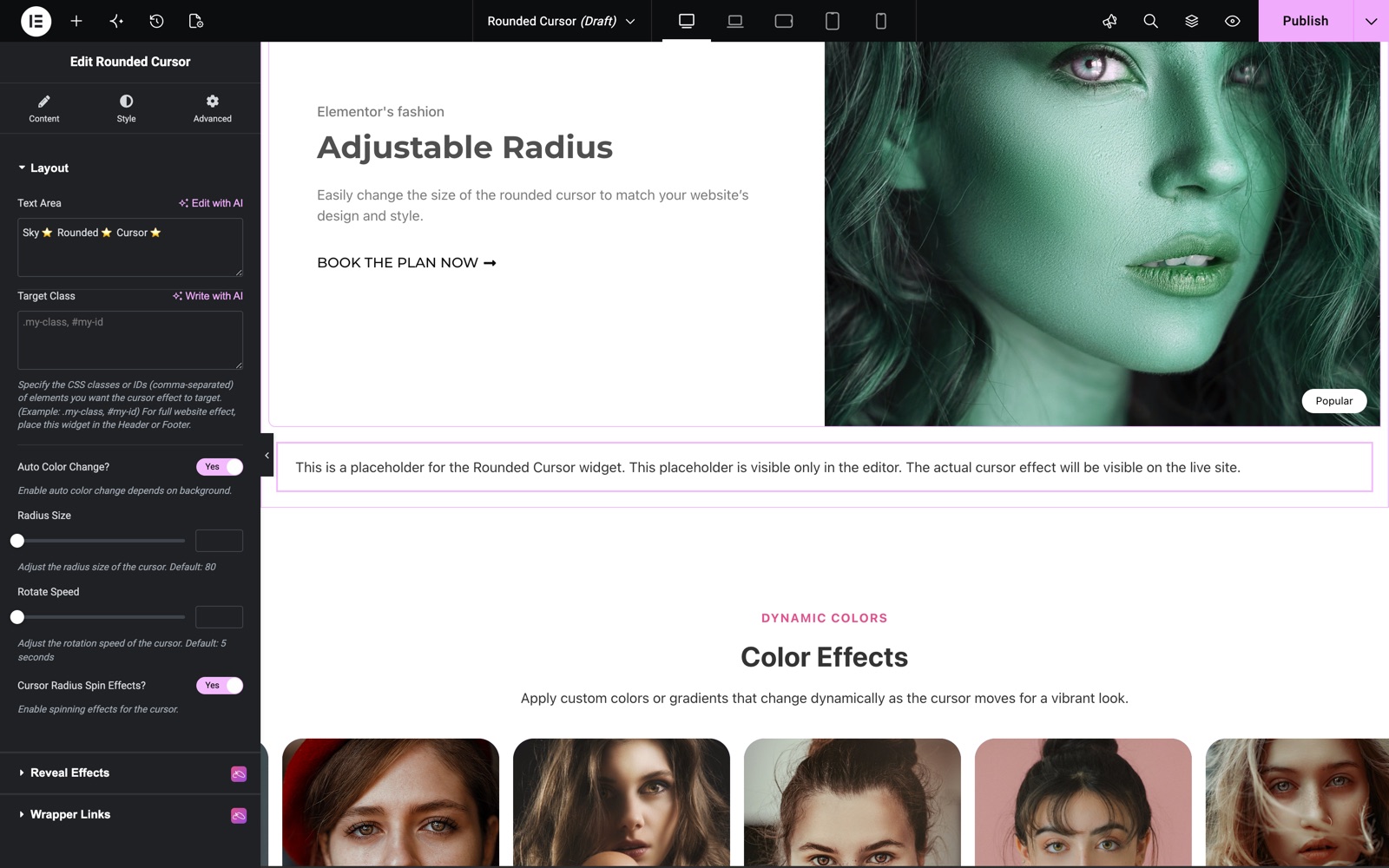
The Layout section in the Content tab controls the cursor text and behavior.
- Text Area: Type the text that will appear as the rotating ring around the cursor. Emojis and special characters are supported. Shorter text repeats more visibly; longer text is spaced wider.
- Target Class: Enter one or more CSS selectors (e.g.
.hero-section, #main-content) to restrict the effect. Leave it blank and the cursor works over the whole page. For a site-wide effect, place the widget in your header or footer template and leave this field empty. - Auto Color Change: Toggle on to apply mix-blend-mode difference to the cursor, automatically adapting its color contrast to any background color.
- Radius Size: Drag the slider (60–200 px) to set how far the text ring extends from the pointer center. Default is 80 px.
- Rotate Speed: Set how many seconds one full rotation of the text ring takes (3–20 s). Default is 5 s. Lower values spin faster.
- Cursor Radius Spin Effects: Toggle on to add the animated spinning border ring around the cursor dot. Exposes the Cursor Styles section in the Style tab.
In this example the Text Area holds Sky ⭐ Rounded ⭐ Cursor ⭐, Target Class is empty, and Auto Color Change and Cursor Radius Spin Effects are on.
Style Your Rounded Cursor
Use the Style tab to customize the visual appearance of the text ring and spin effect.
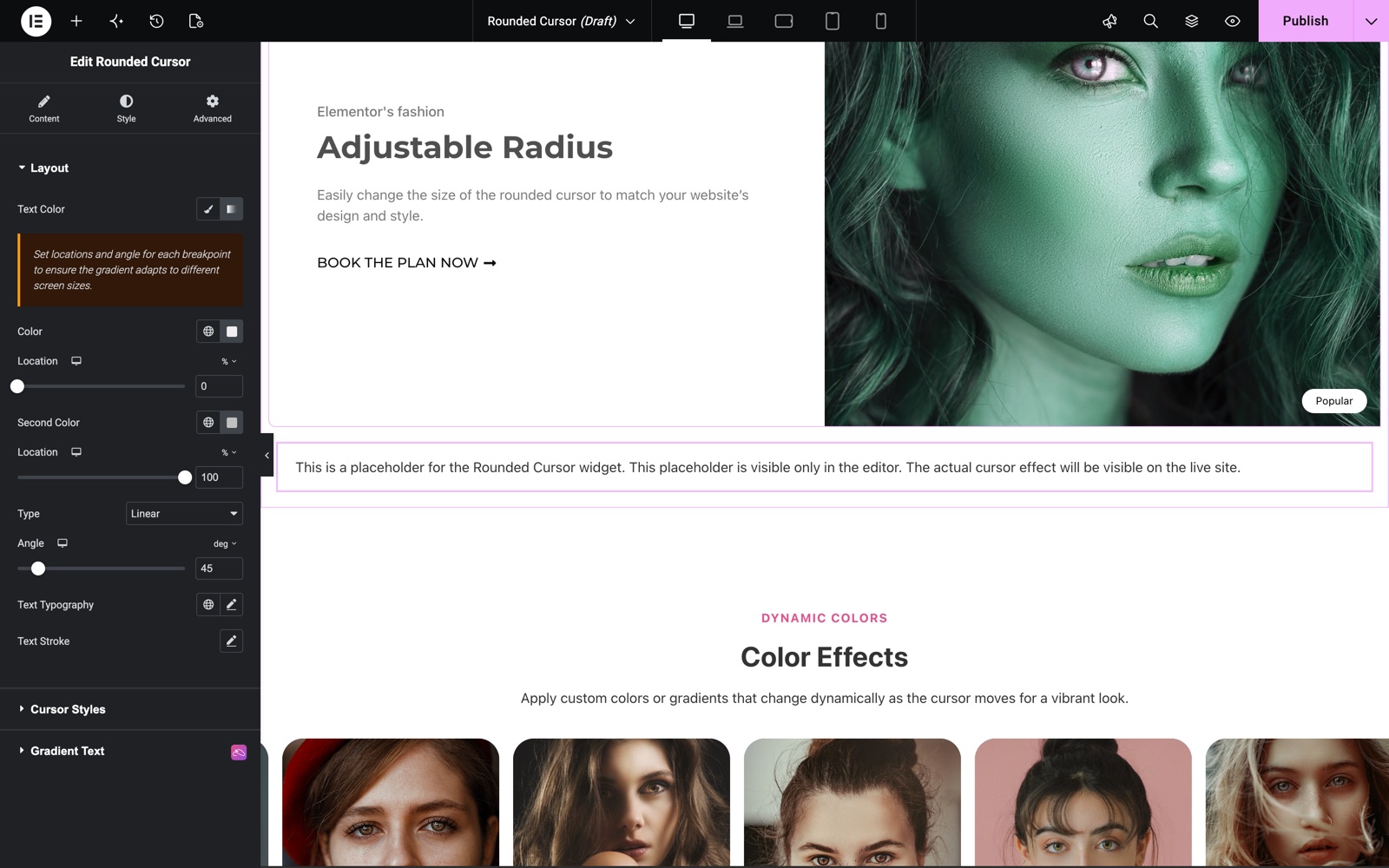
- Layout (Text):
Set the text color using a solid color or gradient (applied per character), control the typography (font family, size, weight, line height), and add a text-stroke outline to the characters. - Cursor Styles (spin effect only):
Visible when Cursor Radius Spin Effects is enabled. Set the spin ring’s size (50–200 px), border width (1–10 px), two border colors that create the split-tone spin appearance, and the animation speed in seconds per full rotation.
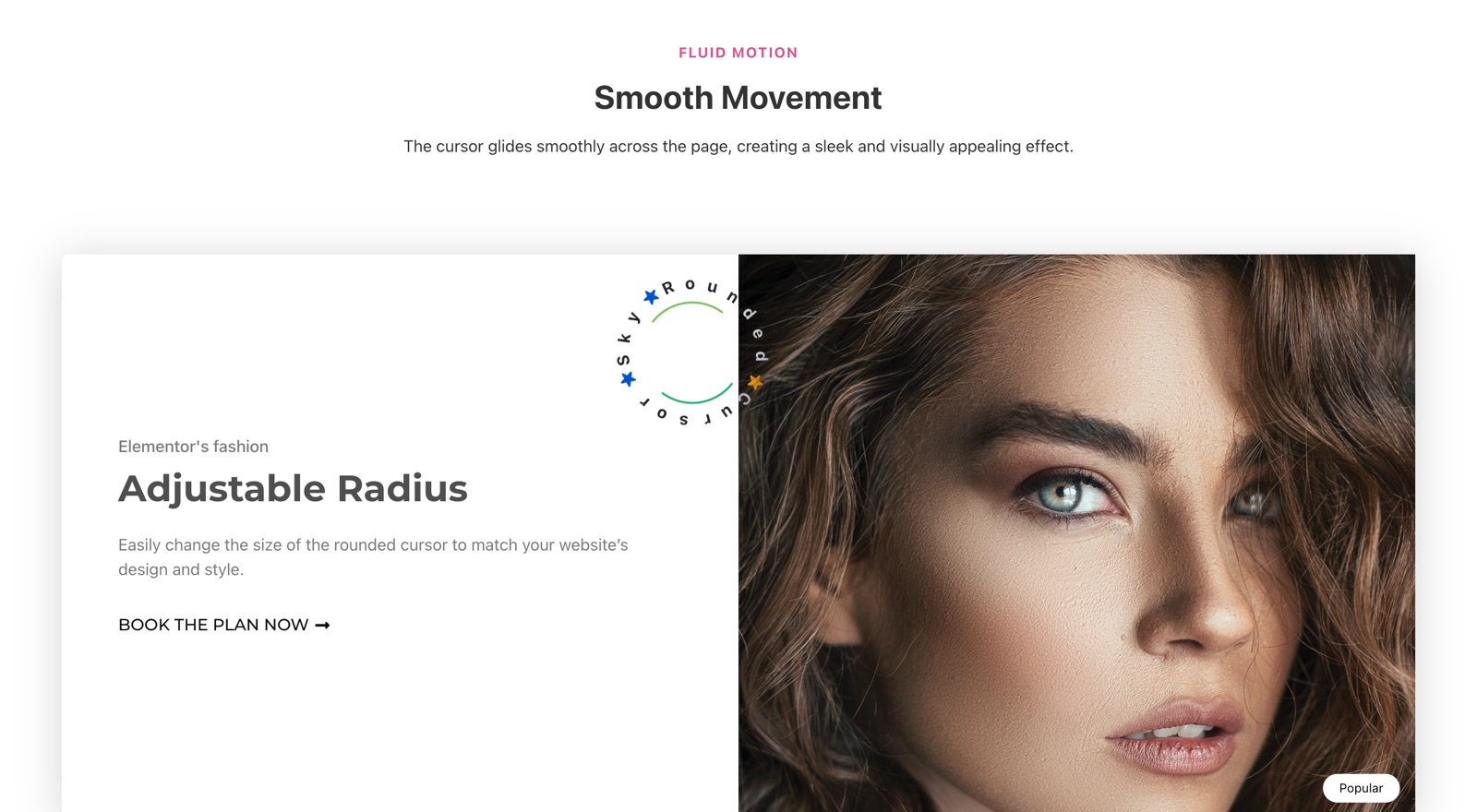
Open the page outside the editor and move the mouse. The text ring rotates around the pointer, and the spinning border sits inside it.
Save and Preview
- Click Update in Elementor to save your page.
- Preview the page to see your Rounded Cursor widget in action.
Best Practices
- For a site-wide cursor, insert the widget in your Elementor header or footer template rather than on individual pages. One widget covers the whole site.
- Keep the text short (5–15 characters) so each character is clearly spaced around the ring. Very long strings compress the characters too closely.
- Enable Auto Color Change on pages with alternating light and dark sections. It removes the need to manually match cursor color to background.
- Test on mobile devices. Custom cursors are pointer-device features; the cursor effect does not start on touch screens. It also does not start for visitors whose system asks for reduced motion.
Troubleshooting
- The cursor effect is not visible after publishing. The widget renders a placeholder in the Elementor editor. Open the page in a new browser tab outside the editor to see the actual cursor. Also confirm Sky Addons Pro is active and its scripts are not blocked by a caching plugin.
- The cursor only appears over one section, not the full page. Check the Target Class field. If it contains a selector, the cursor works only over those elements. Clear the field to use the whole page.
- Text characters overlap or appear on a single point. This can happen if Splitting.js fails to initialize. Make sure no JavaScript errors are present in the browser console, and that there are no conflicts with other animation libraries on the page.
Frequently Asked Questions
Does the cursor effect work on mobile devices?
No. The effect requires a mouse pointer and is automatically hidden on touch-only devices. Mobile visitors see the default system cursor (or none, as normal).
Can I have more than one Rounded Cursor widget on a page?
Technically yes, but practically you should use only one. Multiple instances targeting the same elements can conflict. Use a single widget with comma-separated selectors to cover multiple zones.
How do I apply the cursor to the whole website?
Place the widget inside an Elementor header or footer template. The widget outputs its script on every page that uses that template, covering the full site without needing to add it to each page.
Can I use emojis in the Text Area?
Yes. Emojis are valid characters and rotate with the rest of the text. Each emoji counts as one character in the ring, though some emoji render at a larger optical size than regular text.
Will the cursor style conflict with other custom cursor plugins?
It may. Two cursor effects on one page can look cluttered. Use one cursor effect per page, and turn off other cursor plugins on pages that use this widget.
Related Documentation
Explore other Sky Addons widgets and extensions that complement the Rounded Cursor widget:
- Register Form: Pair with a custom cursor for a polished membership signup page.
- Social Share: Add share buttons to pages where you also want the custom cursor. This suits editorial-style layouts.
Conclusion
The Rounded Cursor widget turns the browser pointer into a branded interactive element that responds to mouse movement across any scoped section or the entire site. With rotating text, optional spinning borders, and full typography control, it is a fast way to add a distinctive motion touch without writing any code. If you have any questions or need help, visit the Sky Addons support center.