
How to Speed Up Your Site with the Sky Addons Asset Manager
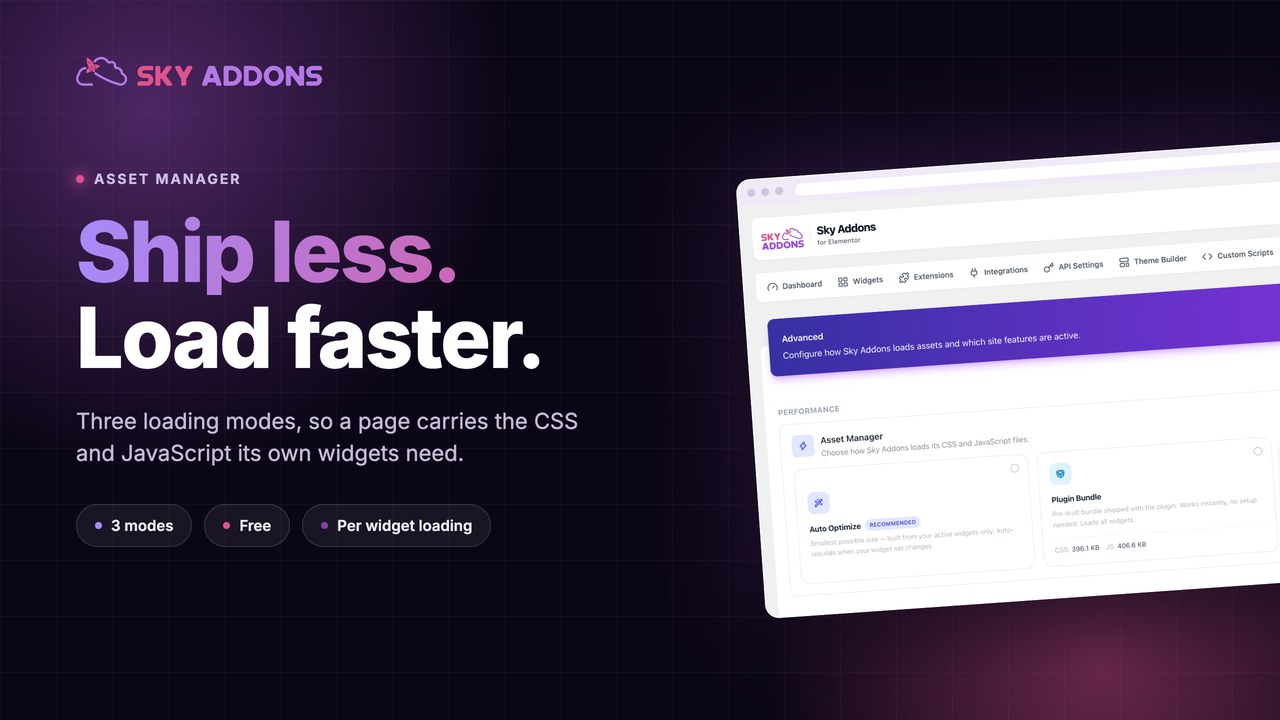
The Sky Addons Asset Manager is the Elementor performance optimization control that decides how much CSS and JavaScript your visitors actually download. Rather than shipping every widget’s styles to every page, it offers three delivery modes: one small custom bundle built from the widgets you have switched on, one pre-built file that works instantly, or per-widget files that load only where each widget appears. It maintains itself once configured, rebuilds when your widget list changes, and falls back safely if a build ever fails. This documentation walks you through each mode, when to pick it, and what to do after you change something.
Features:
- Three delivery modes: Auto Optimize, Plugin Bundle and Per Widget, chosen from one card grid with no code involved.
- Auto Optimize bundling: builds a minified CSS and JavaScript bundle containing only the widgets and extensions you have enabled.
- Automatic rebuilds: the bundle refreshes itself whenever you turn a widget or extension on or off, so it never drifts out of date.
- Manual Regenerate: a one-click rebuild with a live progress bar, for when you want to force the issue after an update.
- Insights and History: real file sizes, how much smaller your bundle is than the full plugin bundle, and a log of recent builds.
- Safe fallback: if a build fails or the uploads folder is not writable, the plugin’s own combined files are served and the front end keeps working.
Requirements
- Sky Addons for Elementor, free or Pro: the Asset Manager is a free feature.
- Elementor active, and an administrator account to reach the dashboard.
- A writable
wp-content/uploadsfolder, but only for Auto Optimize. The other two modes write nothing.
Where to find the Asset Manager
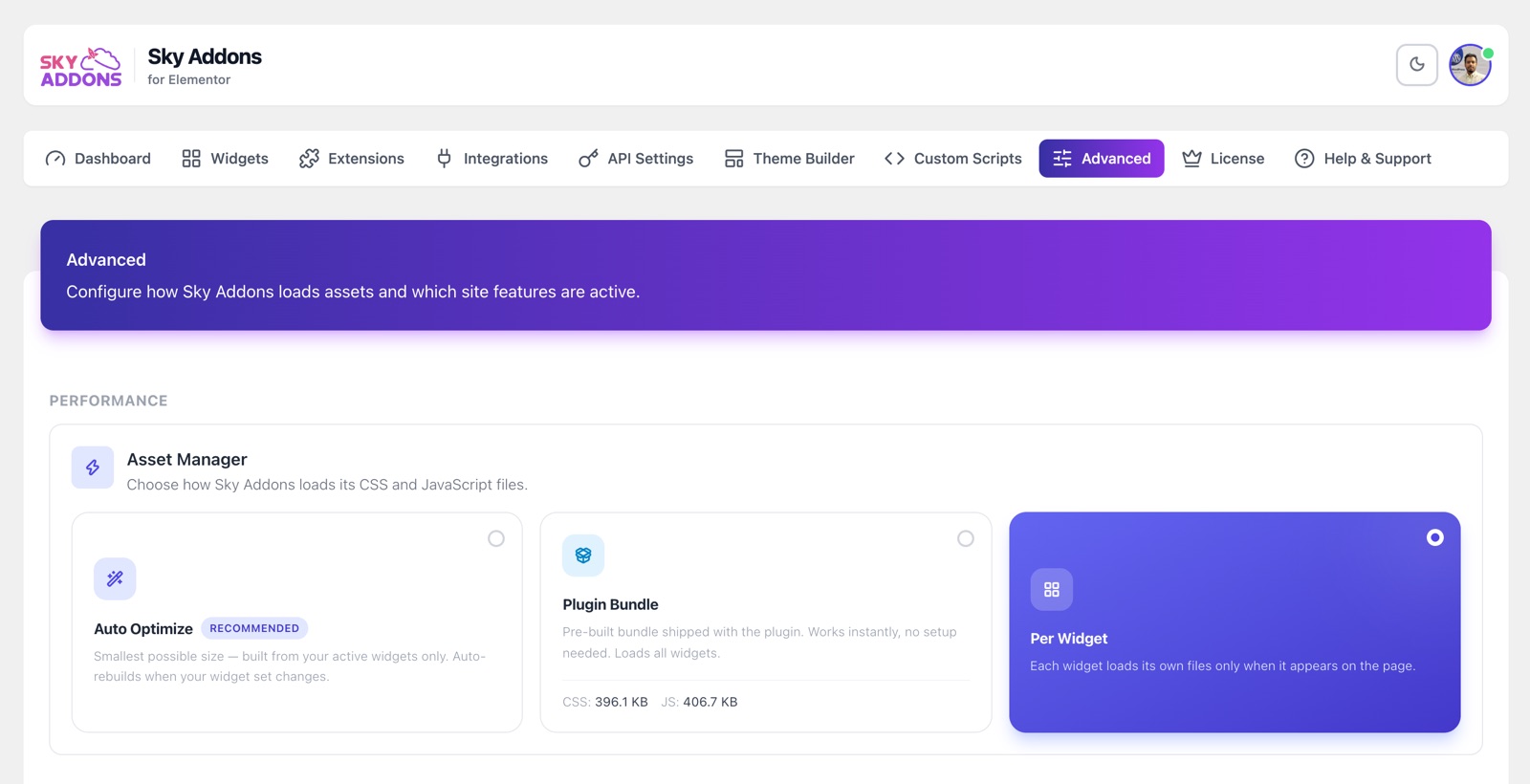
- Go to WordPress Dashboard → Sky Addons → Advanced.
- The first panel is headed Performance, and inside it sits Asset Manager with the line “Choose how Sky Addons loads its CSS and JavaScript files.”
- Three mode cards sit side by side. The active one is highlighted, and Auto Optimize carries a Recommended badge.
- Click the card you want, then save. The Regenerate button, Insights and History below the cards appear only in Auto Optimize mode.
The rest of the Advanced tab holds separate feature toggles (Dynamic Tags, SVG Support, Templates Library, Duplicator, Video Link) which the Sky Addons dashboard tour covers.
The three modes compared
Every Elementor performance optimization decision here comes down to one question: fewer requests carrying more bytes, or more requests carrying fewer bytes?
| Mode | What loads on a page | Best for | Trade-off |
|---|---|---|---|
| Auto Optimize (default) | One custom CSS file and one JavaScript file, built from only the widgets and extensions you have enabled, plus shared base styles. | Almost every live site: the smallest total download for a site that reuses its widgets across pages. | There is a build step, and a failed build falls back to the plugin bundle. |
| Plugin Bundle | One CSS file and one JavaScript file that ship pre-built inside the plugin, containing every widget whether you use it or not. | Staging sites, hosts with a read-only uploads folder, and anyone who wants zero moving parts. | Visitors download styles and scripts for widgets your site never places. |
| Per Widget | One small CSS and JavaScript file for each Sky Addons widget that actually appears on that page: nothing else. | Sites with very few Sky widgets per page, or a landing page that needs the leanest payload. | More individual requests, and a different file set per page, so browser caching helps less site-wide. |
One behaviour applies to all three: inside the Elementor editor, Sky Addons always serves the pre-built plugin bundle whatever mode you picked. The editor needs every widget’s styles at once, so this keeps editing stable.
Auto Optimize in detail
Auto Optimize is the default and the mode most sites should stay on. It reads which widgets and extensions you switched on in the Widgets and Extensions manager, merges those files, minifies them, and writes the result into your uploads folder:
wp-content/uploads/skyaddons/minified/css/sky-addons.css
wp-content/uploads/skyaddons/minified/css/sky-addons.rtl.css
wp-content/uploads/skyaddons/minified/js/sky-addons.js
On a new install no bundle exists yet, so Sky Addons quietly serves the plugin’s own combined files until the first build finishes. With Auto Optimize selected and nothing built, the panel shows a short nudge: “No bundle generated yet. Build your first optimized bundle now.”, and a Generate Bundle button. Click it once and you are done.
Once a bundle exists, two controls appear. Regenerate runs a manual rebuild (“Rebuild after changing active widgets or updating the plugin”) with a progress bar that tracks it through scanning, minifying styles, minifying RTL styles, minifying scripts and verifying output. If the server is slow, the panel says the build will continue in the background and you may leave the page. Insights lists the bundle location and the size of the styles, RTL styles, scripts and total, each with a download link, plus how much smaller your bundle is than the full plugin bundle. History logs recent builds with a timestamp and the reason each one ran.
When Auto Optimize rebuilds by itself
- Saving the mode as Auto Optimize.
- Toggling any widget, extension or integration on or off in the dashboard.
- Elementor’s own cache clear (Elementor → Tools → Regenerate CSS & Data), which triggers a Sky Addons rebuild only while Auto Optimize is active.
- Updating Sky Addons free or Pro, and activating or deactivating Pro. These are scheduled rather than immediate, so the new bundle appears shortly after.
Plugin Bundle and Per Widget in detail
Plugin Bundle serves the combined files built into the plugin download. There is no generation step, nothing is written to your server, and nothing can fail. The cost is that the file contains every widget Sky Addons ships, so a site using a handful still downloads all of them: once, then cached. Choose it if your host has a locked-down uploads folder, or if you prefer a setting with no build step behind it.
Per Widget takes the opposite approach: each widget carries its own small CSS and JavaScript file, enqueued only on pages where that widget is placed. A page with two Sky widgets loads two widget stylesheets. That is the smallest byte count for any single page, but site-wide it means more separate requests and less shared caching between pages.
Example: a blog page that loads three widgets
Your article template uses three Sky Addons widgets: Table Of Contents, Social Share and Post List. Elsewhere on the site you use around thirty more Sky widgets, and the rest are switched off. Here is what changes on that one blog page.
- Plugin Bundle. Two requests (the pre-built stylesheet and script) containing every widget in Sky Addons, including the ones you disabled. Largest payload, but the same two files as every other page, so the browser caches them once.
- Auto Optimize. Two requests again, but generated from your roughly thirty active widgets plus shared base styles. Noticeably fewer bytes, still shared across every page. Insights tells you exactly how many kilobytes that saved against the plugin bundle.
- Per Widget. The shared base files plus a CSS and JavaScript pair for each of the three widgets: nothing for the rest. Lowest byte count on this page, but your homepage uses a different widget set and downloads different files, so the caching benefit does not carry across the site.
For a blog like this, Auto Optimize wins: readers open several articles per session and the same two cached files serve all of them. Per Widget only pulls ahead if a visitor lands on one page and leaves.
What happens after you add a new widget to a page
This is the question that trips people up most often, and the answer is reassuring: in every mode, placing a widget on a page needs no action from you. In Auto Optimize the bundle already contains every widget that is enabled, not only the ones currently placed, so dropping an enabled widget onto a page changes nothing. Plugin Bundle always contains everything. In Per Widget, the new widget’s own files start loading on that page as soon as it is saved.
Only changing the enabled set (flipping a widget or extension switch in the dashboard) rebuilds the Auto Optimize bundle. So the workflow is simple: turn widgets on and off deliberately in the Widgets tab, then build pages freely without thinking about assets again.
Working alongside caching plugins
The Asset Manager and a page-caching plugin solve different halves of the same problem, and they cooperate well as long as you remember one rule: after a bundle is rebuilt, clear your page cache. Each generated bundle is stamped with a build version that is attached to the file URL, so browsers pick up a fresh bundle instead of a stale copy. What a browser cannot fix is cached HTML: if your caching plugin is still serving a saved page that references the previous bundle version, visitors keep getting the old markup. Flushing the page cache resolves it immediately.
If your caching plugin does its own CSS and JavaScript combining or minifying, there is little value in stacking it on Auto Optimize: the bundle is already merged and minified, and double-processing is a common source of odd front-end breakage.
Best Practices
- Trim the widget list first, then generate. The bundle is only as small as your enabled set. The Dashboard tab offers a shortcut that disables widgets used nowhere on your site.
- Leave Auto Optimize on unless you have a reason not to. It is the default, it maintains itself, and it degrades gracefully to the plugin bundle if a build fails.
- Clear the page cache after a regenerate. Make it a habit; it removes almost every “my change is not showing” report before it happens.
- Test on the front end, not the editor. The editor always loads the full plugin bundle, so it is not a valid place to judge how heavy a page is.
Troubleshooting
- A banner says the uploads directory is not writable. Your server is blocking writes to
wp-content/uploads, so no bundle can be built, and the files shipped with the plugin are served instead. Ask your host to correct the folder permissions and press Regenerate, or switch to Plugin Bundle, which never writes anything. - A banner says the last bundle build failed. The panel records the reason and the time, and offers a Dismiss button once you have dealt with it. Try Regenerate; if it fails again, switch to Plugin Bundle so the site is unaffected and send the details to support.
- Styling looks wrong after switching modes or updating. Almost always cached HTML rather than a real fault. Clear the page cache, then hard-refresh. If you run a separate CSS/JS combining feature, turn it off and retest.
- The progress bar seems stuck. Builds run in the background. Navigate away safely, then check the History log later to confirm the build completed.
Frequently Asked Questions
Which asset mode is fastest for Elementor performance optimization?
For most sites, Auto Optimize. It sends two cached files containing only the widgets you have enabled, so repeat page views cost nothing extra. Per Widget produces the smallest single page but loses the cross-page caching advantage, and Plugin Bundle is the simplest but the largest. If in doubt, stay on the default.
Do I have to click Regenerate every time I edit a page?
No. Editing pages never affects the bundle. Only changing which widgets or extensions are enabled does, and that rebuilds automatically. Regenerate is for the occasional manual refresh, such as after a plugin update.
Where are the generated files stored, and can I delete them?
They live in wp-content/uploads/skyaddons/minified/, with separate CSS, RTL CSS and JavaScript files. You can delete them safely; the site falls back to the plugin’s own combined files and the next rebuild recreates them.
Is the Asset Manager a Pro feature?
No. All three delivery modes, the Regenerate action, Insights and History are part of the free plugin. Installing Sky Addons Pro simply adds its own widgets to the set the bundle is built from, and a matching RTL stylesheet is generated either way.
Conclusion
The Sky Addons Asset Manager turns Elementor performance optimization into a decision you make once and then forget. Pick Auto Optimize, prune the widgets you do not use, and the plugin keeps a lean, minified, RTL-ready bundle in step with your site by itself: with Plugin Bundle and Per Widget there for the cases where a different trade-off suits better. If a build refuses to run, copy your System Info from the Sky Addons dashboard and get in touch at https://wowdevs.com/support/.