
How to use Pricing Table Widget of Sky Addons for Elementor
The Sky Addons Pricing Table widget gives you a fully featured pricing card for any Elementor page. It covers every element a modern pricing section needs: a plan header with title and subtitle, an icon or image, multi-currency pricing with sale price and billing period, a feature list with per-item tooltips and icons, a CTA button, a ribbon badge, and a drag-and-drop custom layout reorder. Each element is independently styled. The header, media, pricing block, features area, and footer all have their own typography, color, background, border, and spacing controls. This documentation will guide you through the process of using the Pricing Table Widget to create compelling, conversion-focused pricing sections on your website.
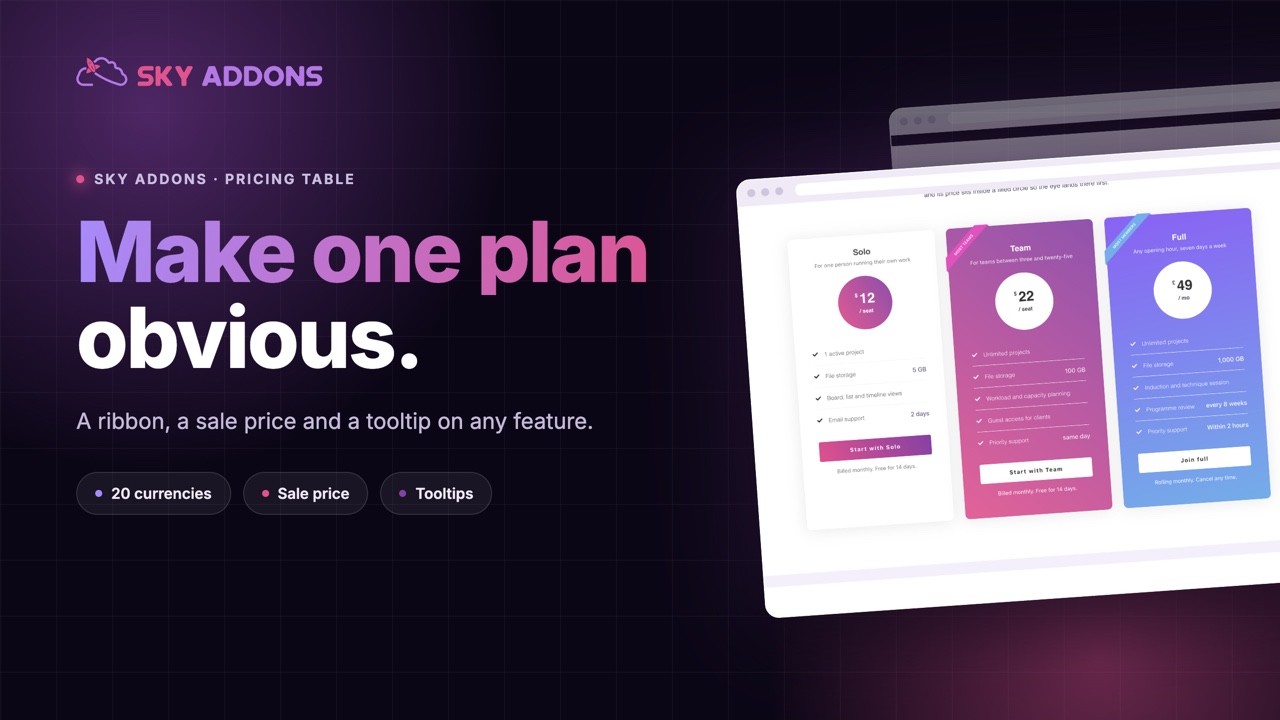
Features:
- Flexible Header: Plan title with configurable HTML tag, optional subtitle with its own tag, and Normal / Hover color states for both.
- Image or Icon Media: Switch between an uploaded image (with size presets) and any icon library icon as the plan’s visual mark, both fully styled from the Style tab.
- Multi-Currency Pricing: Built-in currency symbols for Dollar, Euro, Pound, Rupee, Yen, and 15+ more, or enter a custom symbol. Supports a sale price (strikethrough original price) and a billing period label (e.g., “/ mo”).
- Feature List with Tooltips: A repeater-based feature list where each item has an icon or image, a title, title tail text, optional body text, a link, and a per-item Tippy tooltip with configurable placement and animation.
- Ribbon Badge: A corner ribbon (e.g., “Popular Plan”) with Left or Right position for highlighting your recommended plan.
- Custom Layout Reorder: A drag-and-drop repeater lets you reorder the five sections (Media, Header, Pricing, Features, Footer) into any sequence you need.
- CTA Button: Full-width or auto-width button with an optional icon (before or after the label), custom ID, advanced HTML attributes, and Normal / Hover styling.
- Granular Style Control: Every visual zone (header, media, pricing block, features, footer, ribbon, button, tooltip) has its own background, typography, padding, border, and shadow controls.
Insert Pricing Table Widget
- Open your page in Elementor and click the + icon to add a new section.
- Search for Pricing Table in the widget panel and drag it onto the canvas.
Configure Header
The Header section sets the plan name and optional tagline.
- Title: The plan name (e.g., “Basic”, “Pro”, “Enterprise”). Supports dynamic tags.
- Title HTML Tag: Choose the heading level for the title (H1–H6 or div/span/p) for proper document hierarchy.
- Show Sub Title: Toggle an optional subtitle on or off.
- Sub Title: A short tagline or description for the plan (e.g., “Perfect for small teams”).
- Sub Title HTML Tag: HTML tag for the subtitle (H1–H6 or div/span/p).
Configure Image / Icon
The Image / Icon section adds a visual mark to the pricing card.
- Show Image / Icon: Toggle the media element on or off.
- Media Type: Choose Icon (any Elementor icon library) or Image (upload or media library).
- Choose Image: (Image type) Select the image and a size preset (medium_large by default).
- Icon: (Icon type) Pick from any registered Elementor icon library (default: rocket icon from Font Awesome).
Configure Pricing
The Pricing section controls the price display, currency, sale pricing, and billing period.
- Show Price: Toggle the entire price block on or off.
- Currency Symbol: Choose from Dollar, Euro, Pound, Rupee, Indian Rupee, Yen, Ruble, BDT, Won, and 10+ additional currencies, or choose Custom and enter your own symbol.
- Price: The numeric price value (e.g., “99” or “9.99”). Supports dynamic tags.
- Currency Format: Choose between 1.234,56 (European) and 1,234.56 (US/UK) formatting.
- Show Price Prefix: Toggle the currency symbol prefix (e.g., “$”) before the price on or off.
- Advanced Attributes: Add custom HTML data attributes to the price element using key|value pairs separated by pipe characters.
- Sale Price: Toggle on to show a strikethrough original price alongside the current price.
- Original Price: The higher pre-sale price, displayed with a strikethrough.
- Period: Billing frequency label shown after the price (e.g., “/ mo”, “/ year”). Supports dynamic tags.
- Display Position: Show the period label Inline (next to the price) or on a new line Below.
The Solo card in the Pricing Table demo shows a price of 12 with the Dollar symbol, the 1,234.56 currency format and the Period / seat placed at the Bottom.
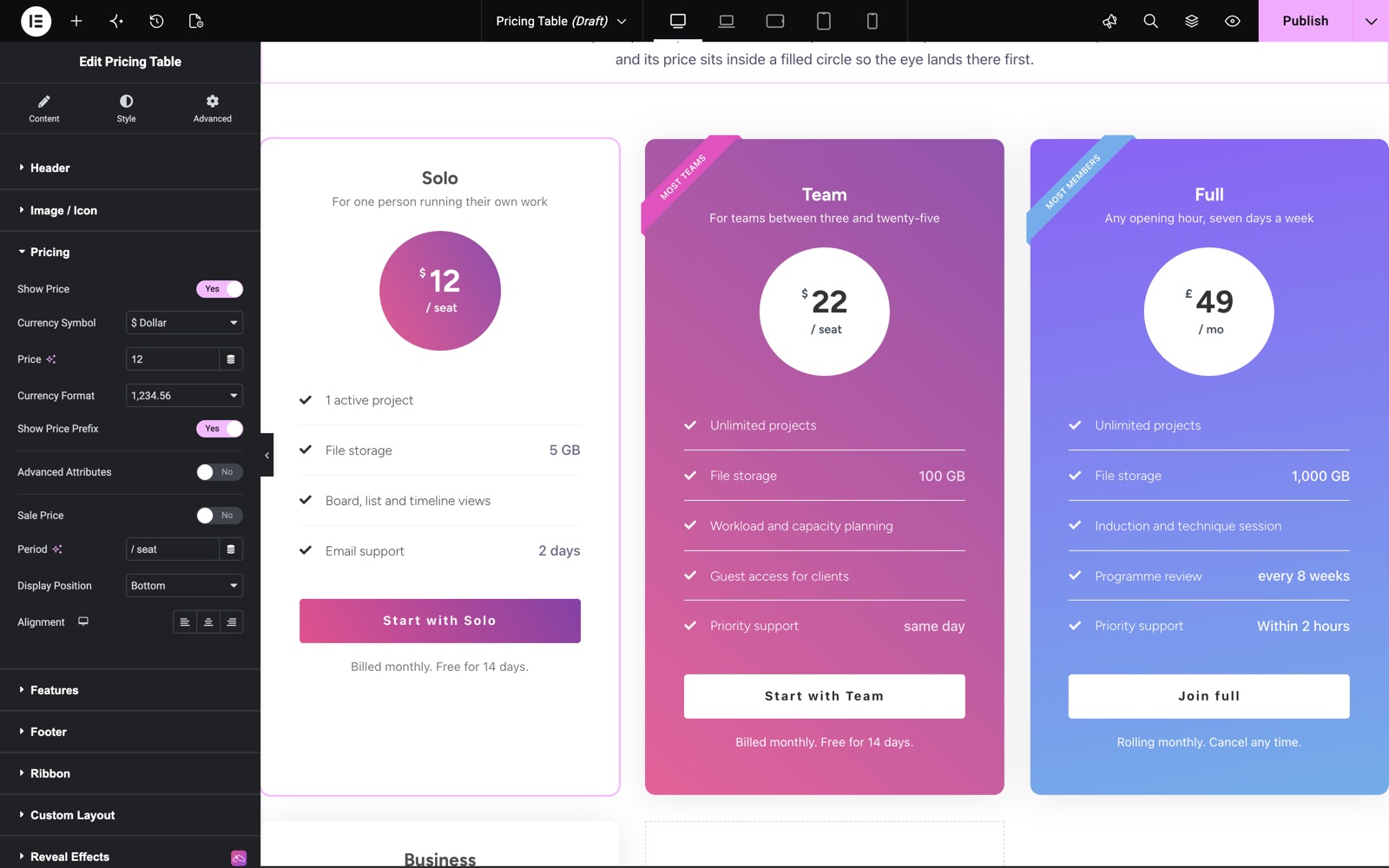
Configure Features
The Features section holds the list of plan inclusions, limitations, and highlights.
- Feature List (repeater): Add as many features as needed. Each item has three tabs:
Normal: Media Type (Icon or Image), Icon or Image picker, Title, Title Tail, Text body, and optional Link URL.
Tooltip: Tooltip Title, Tooltip Text, and Tooltip Placement (Top, Right, Bottom, Left, Auto).
Style: Per-item media color and title color overrides. - Show Tail: Toggle the Title Tail text (a suffix after the feature title, e.g., “5 GB”) on or off globally.
- Show Text: Toggle the feature body text globally on or off.
- Show Tooltip: Toggle tooltip display on or off globally. When on, the Tooltip Settings section becomes available.
- Media Position: Place the feature icon/image to the Left, Right, Top, or Bottom of the feature title, responsive, with independent settings per breakpoint.
- Content Alignment: Align feature list items Left, Center, or Right.
- Features Title HTML Tag: Choose the heading tag for feature titles (H1–H6 or div/span/p).
Its Feature List has four items. Show Tail is on, so values such as 5 GB and 2 days sit at the right of each line.
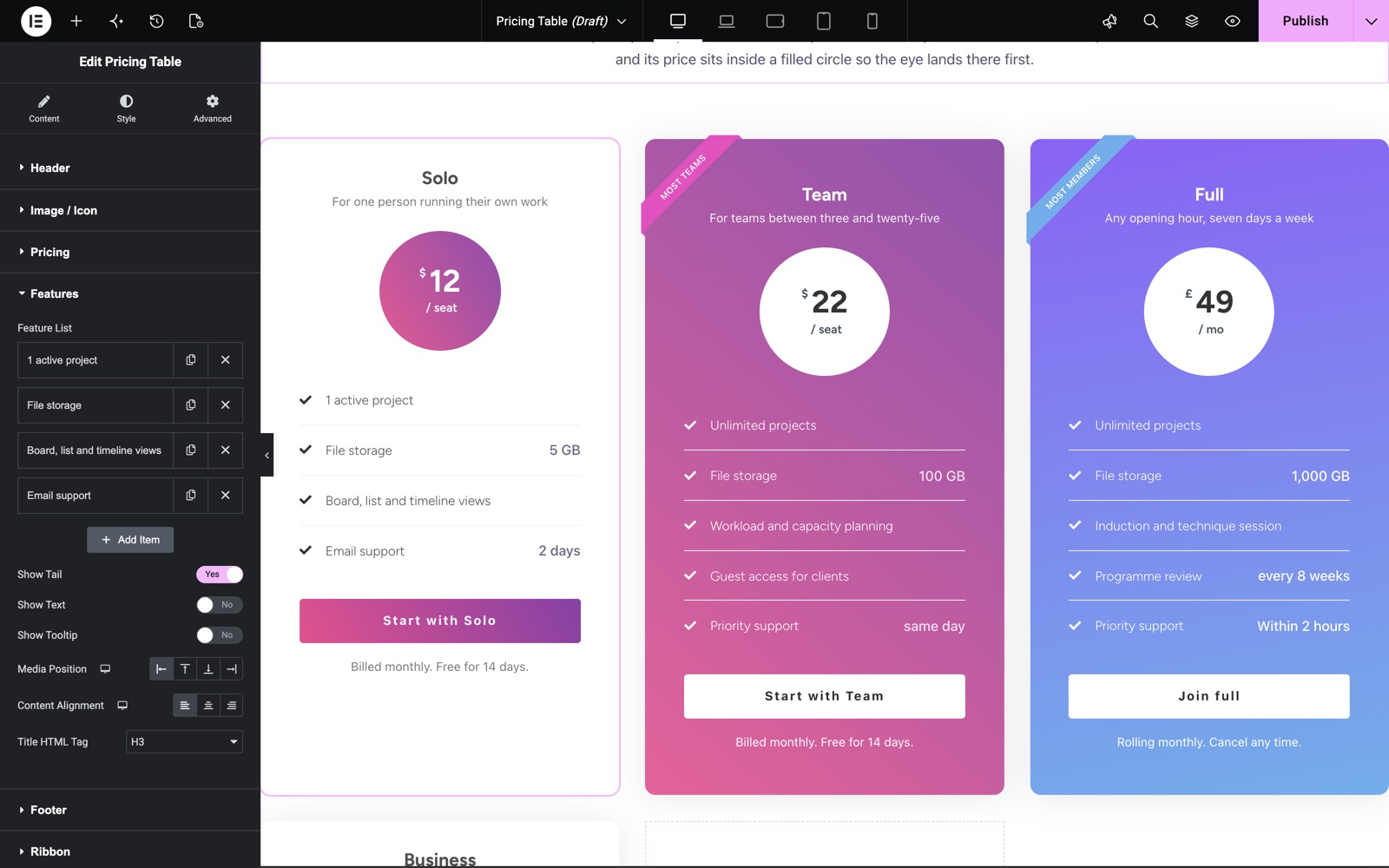
Configure Footer
The Footer section contains the call-to-action button and optional footer text.
- Button Text: The CTA button label (default: “Choose Plan”). Supports dynamic tags.
- Link: The URL the button navigates to. Toggle Open in new tab if needed.
- Full Width: Make the button stretch to the full width of the card.
- Alignment: When Full Width is on, align the button label Left, Center, Right, or Justified.
- Icon: Add an optional icon to the button.
- Icon Position: Place the icon Before or After the button text.
- Icon Spacing: Gap between the icon and the button label text.
- Button ID: A custom HTML ID for the button element (without the # sign), useful for JavaScript event listeners or analytics tracking.
- Advanced Attributes: Custom HTML attributes for the button using key|value pipe-separated pairs.
- Footer Text: Optional small-print text below the button (e.g., “No credit card required”). Supports dynamic tags.
Configure Ribbon
The Ribbon section adds a corner badge to highlight your most popular or recommended plan.
- Show Ribbon: Toggle on to display the ribbon badge.
- Text: The badge label (default: “Popular Plan”). Supports dynamic tags.
- Select Style: Currently Style 1 (corner ribbon) is available.
- Position: Place the ribbon in the top-Left or top-Right corner of the card.
Configure Custom Layout
The Custom Layout section lets you drag and drop the five card sections into any order you prefer.
- The Layout List repeater contains five entries: Media, Header, Pricing, Features, Footer.
- Drag the entries up or down to reorder them. The card renders the sections in the order listed here. For example, move Pricing above Header to show the price before the plan name.
Configure Tooltip Settings
When Show Tooltip is on in the Features section, a global Tooltip Settings section appears in the Content tab.
- Animation: Choose Shift-Away, Shift-Toward, Scale, or Perspective for the tooltip entrance animation.
- Offset: Fine-tune X and Y offset of the tooltip from the feature item using the Offset popover (±300 px).
- Show Arrow: Toggle the tooltip arrow pointer on or off.
- Trigger on Click: By default, tooltips appear on hover. When on, tooltips appear on click instead, useful for touch devices.
Style Your Pricing Table
Use the Style tab to control the visual appearance of every zone in the pricing card.
- Common:
Global alignment (Left / Center / Right) for all text and media elements across the entire card. - Header:
Background, padding, margin, border, and border radius for the header zone. Separate typography, bottom spacing, Normal / Hover color, and text shadow for the Title, and the same for the Sub Title. - Image / Icon:
Size, spacing, padding, border, border radius for the media element. Normal / Hover tabs for icon color and background. A separate hover border color control appears when a border is set. - Pricing:
Background, padding, and margin for the whole pricing zone.
Separate sub-sections for: Price (color, hover color, typography, text shadow, margin), Postfix (decimal portion position, color, typography), Prefix (currency symbol position, color, typography), Original Price (color, typography for the strikethrough), and Period (color, typography, position).
An Advanced Design toggle exposes an additional circular or shaped background layer around the price block with its own background, size, border, border radius, and box shadow. - Features:
Background, padding, and margin for the feature list zone. Then sub-sections for: Feature Item (spacing, padding, border), Feature Media (icon/image size, color, background, border), Feature Title (typography, color, Normal / Hover), Feature Tail (typography, color), Feature Text (typography, color), and Feature Link (color, hover color). - Footer / Button:
Button typography, padding, border radius, and Normal / Hover tabs for text color, background, border color, and box shadow. Also controls for footer text typography and color. - Ribbon:
Background color, text color, typography, padding, and box shadow for the corner badge.
Save and Preview
- Click Update in Elementor to save your page.
- Preview the page to see your Pricing Table widget in action.
Best Practices
- Place three Pricing Table widgets side by side in a three-column Elementor section to create the classic Good/Better/Best pricing layout. Use the Ribbon on the middle “most popular” plan to draw attention to your preferred tier.
- Use the sale price fields to show a crossed-out annual price next to a monthly price, or vice versa. This is a proven technique for communicating the value of longer billing cycles.
- Add tooltips to feature items that need explanation (e.g., “What is a workspace?”) rather than cluttering the feature title with long descriptions. Set Trigger on Click for better touch device behavior.
- Use the Custom Layout reorder to put the CTA button at the top of the card for high-intent visitors who do not need to read the feature list before deciding.
Troubleshooting
- Tooltips do not appear: Make sure Show Tooltip is toggled on in the Features section and that each feature item in the repeater has tooltip text filled in on the Tooltip tab. Tooltips use Tippy.js. Verify the
popperandtippyjsscripts are not blocked by a security plugin or CSP header. - Currency symbol shows as a square or question mark: The built-in symbols use HTML entities (e.g.,
₹for Indian Rupee). If your theme’s font does not include that character, switch to the Custom symbol option and type the character directly, or choose a font with full Unicode coverage. - Ribbon badge appears outside the card boundary: The ribbon uses CSS
overflow: hiddenon the card wrapper to clip the corner. If you have set a very large border radius on the card, the ribbon corner may appear clipped differently. Reduce the border radius or adjust the ribbon position.
Frequently Asked Questions
Can I show monthly and annual pricing with a toggle switch?
The Pricing Table widget displays a single price per card. For a monthly/annual toggle, the common approach is to place two sets of pricing cards and use an Elementor toggle or tab widget to show/hide each set. Custom JavaScript or a dedicated pricing toggle plugin can also drive visibility via CSS classes on the cards.
How do I mark a feature as “not included” (greyed out with an X)?
In the Feature List repeater, set the item’s icon to an X icon (e.g., fas fa-times) and use the per-item Style tab to set a grey or muted color for that item’s media and title color. This creates a clear visual distinction between included and excluded features without needing a separate control.
Can I connect the pricing button to a payment gateway?
Yes. Set the button Link to the checkout URL of your payment gateway (Stripe, PayPal, WooCommerce checkout with a pre-filled product, LemonSqueezy, etc.). Use the Button ID and Advanced Attributes fields if your payment provider requires a specific ID or data- attribute on the button element.
Can I use dynamic data to populate prices from a custom field?
Yes. The Title, Sub Title, Price, Period, and Button Text fields all support Elementor’s dynamic tags. If you store pricing in a custom field (via ACF, Metabox, or similar), link the dynamic tag to the field and the widget will pull the value at render time.
Is the Pricing Table widget compatible with Elementor’s responsive mode?
Yes. All spacing, alignment, and media position controls are fully responsive. They have independent desktop, tablet, and mobile values. Switch to Elementor’s responsive preview mode to adjust the card for each breakpoint.
Related Documentation
Explore other Sky Addons widgets and extensions that complement the Pricing Table widget:
- Login Form: Pair with the Pricing Table on a landing page. Visitors can sign up and immediately log in from the same screen.
- Particles Effects: Add a Polygon or Bubble particle background to the pricing section for a premium, energetic visual impression.
- Offcanvas: Use the Offcanvas panel to show a full feature comparison table triggered by a “Compare all plans” link near the pricing cards.
Conclusion
The Pricing Table widget covers every component of a conversion-ready pricing card, from multi-currency display and sale pricing to per-feature tooltips, a ribbon badge, and a fully reorderable layout, all controlled without writing a line of code. If you have any questions or need help, visit the Sky Addons support center.