
How to Use the Sky Addons Templates Library in Elementor
The Templates Library is an Elementor templates library built into Sky Addons: a catalogue of ready-made pages and blocks that you open, search and insert without ever leaving the editor. Instead of starting a landing page from an empty section, you pick a design that already has the structure and hierarchy right, drop it onto the canvas, and replace the placeholder copy with your own. It sits behind a small Sky Addons button next to Elementor’s own Add Template handle, so it is always one click away. Designs are pulled from skyaddons.com and cached locally, with a Sync button when you want the newest additions. This documentation walks you through opening the library, filtering it, previewing a design and inserting it.
Features:
- Pages, Blocks, Headers and Footers: Full page layouts, single sections you can stack into your own layout, and ready-made headers and footers, each in its own tab.
- Instant search: The grid filters as you type, matching titles and tags.
- Tag filter: A Filter dropdown narrows the grid, with a live counter of matches.
- Preview before you commit: Open a design full-size, or view it on a real page in a new tab.
- One-click insert: The design lands where you clicked, fully editable, with fresh element IDs.
- Pro badges: Premium designs are marked clearly, so you always know what a free install can insert.
- Sync Library: Pull a fresh catalogue on demand instead of waiting for the cache.
Requirements
- Elementor installed and active. The library exists only inside the Elementor editor and has no wp-admin page of its own.
- The Templates Library card switched on under WordPress Dashboard → Sky Addons → Advanced. It is on by default.
- An outbound internet connection. The catalogue and every design are fetched from skyaddons.com.
- A user account that can edit posts, since inserting writes to the page you have open.
- Sky Addons Pro, if you want to insert the designs that carry a Pro badge.
Open the Elementor Templates Library
- Edit any page or post with Elementor, or create a new one.
- Look at an empty area of the canvas. Beside Elementor’s own add-section and add-template buttons is a small round button carrying the Sky Addons logo.
- Click it. The Templates Library opens as a full-screen modal over the editor, in the same style as Elementor’s native template window.
- The modal opens on the Pages tab. Switch to Blocks in the header when you want a single section rather than a whole layout, or to Headers or Footers for site parts.
The position matters: whichever drop target you clicked is where the design lands, so open the library at the point in the page where you want the new content.
The Library Window
The modal has three parts: a header with the tabs and the sync control, a toolbar with search and filtering, and the grid of designs itself.
| Part of the window | What it does |
|---|---|
| Pages tab | Full page layouts inserted in one go. |
| Blocks tab | Single sections you assemble yourself: a hero, a testimonial row, a call to action. |
| Sync Library | The circular-arrow icon in the header; fetches a fresh catalogue. |
| Search box | Filters the grid as you type, matching titles and tags. |
| Filter dropdown | Narrows the grid to one tag. Choosing All clears it again. |
| Counter | Reads like “24 pages found”, and updates with every keystroke. |
| Template card | Thumbnail, title, and a Pro badge on premium designs. |
| Back to Library | Appears while previewing, and returns you to the grid. |
The current library has four tabs: Pages, Blocks, Headers and Footers.
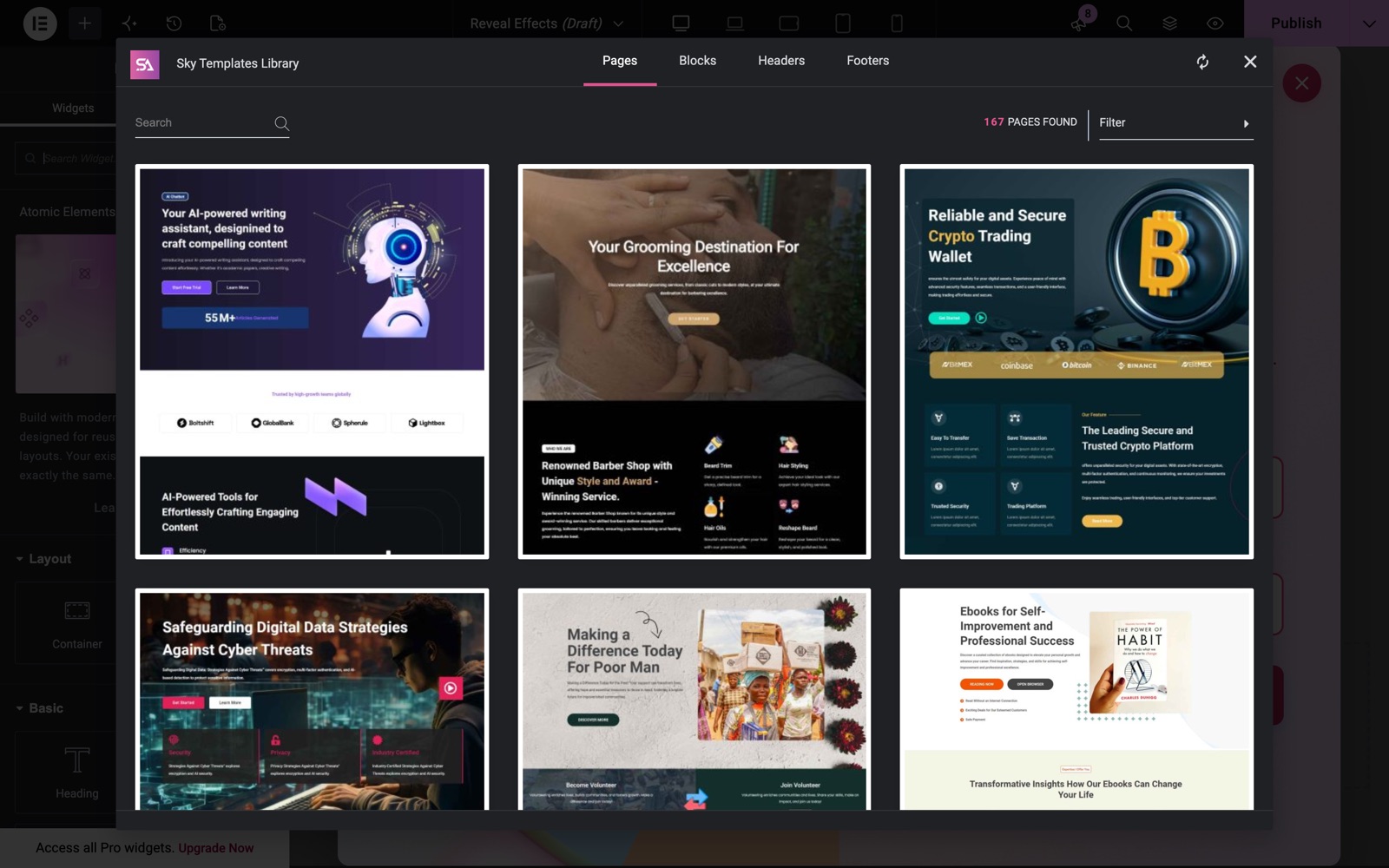
Search and Filter
Search and filtering work together, and both apply only within the tab you are on: a search on the Blocks tab never returns a full page layout.
- Type in the Search box at the left of the toolbar. Matching runs against title and tags, so searching for a purpose (“agency”, “pricing”) works as well as a name.
- Open the Filter dropdown at the right and choose a tag. The button then shows that tag instead of the word Filter, so an active filter is always visible.
- Watch the counter between them: the fastest way to tell whether a search was too narrow.
- Choose All to clear the tag, and empty the search box to clear the text filter.
If nothing matches, the grid shows “Sorry, Results doesn’t Found.” with a note to check your spelling. That means the search found nothing, not that the library is empty.
Preview a Design
A page layout is hard to judge from a thumbnail. There are two ways to look closer first.
- In-modal preview. Hover a card and click the magnifier that appears over the thumbnail. The design opens full-size inside the modal, with Back to Library in the header to return to the grid.
- Live Preview. The preview header also carries a Live Preview link that opens the design on a real published page in a new tab: real fonts, real scrolling, real breakpoints.
The action button, Insert or Go Pro, sits in the preview header as well as on the card.
Insert a Design
Click Insert on the card or in the preview header and Sky Addons does the rest.
- The plugin fetches the design’s JSON from skyaddons.com.
- Every element is given a fresh ID, so inserting the same design twice never produces a collision.
- The content runs through Elementor’s own import handling, so images and settings come in correctly.
- The result drops into the canvas where you opened the library, and the Add Section panel closes itself.
What lands on the canvas is ordinary Elementor content: every section, heading and button is yours to edit or delete, and nothing stays linked to the library. Remember to save: an insert is an editor change, not a publish.
Pro Designs and the Go Pro Button
The library itself is part of the free plugin, but individual designs inside it can be premium. Those carry a Pro badge on the thumbnail, and where a free design shows an Insert button they show Go Pro instead. Nothing is hidden: you can still open a Pro design in preview and Live Preview before deciding. Once Sky Addons Pro is installed and activated, the badge stays as a label but the button becomes a working Insert.
Sync, Caching and What the Site Connects To
The library is not bundled with the plugin. On first open, Sky Addons requests the catalogue (titles, thumbnails, tags and the address of each design’s JSON) from skyaddons.com and stores it in your database so the next open is instant. Inserting fetches that one JSON file. These are outbound requests for template data; your page content is not uploaded to fetch a design.
- Ordinary loads use the cache, so the modal stays fast and no network call happens on every editor session.
- The cache refreshes with Elementor’s own. The catalogue is tied to Elementor’s remote information cache, so when that refreshes, the template list does too.
- Sync Library forces it. The circular arrow discards what is stored and fetches a new catalogue immediately, allowing a longer network timeout than a normal load.
- Failures are handled quietly. If the request fails or returns nothing, the grid shows “Sorry, Templates doesn’t Found.” and a prompt to sync; the plugin then backs off rather than retrying on every load.
Example: Building a Landing Page Hero from a Template
A consultancy needs a landing page for a webinar by the end of the day, with no design file and no budget for a designer. Here is the whole job with the Elementor templates library.
- Create a page called Scaling Without Hiring: Live Webinar and open it with Elementor. Set the page layout to Elementor Canvas or Full Width so the design is not boxed in by the theme.
- Click the Sky Addons button on the empty canvas. The library opens on the Pages tab.
- Switch to the Blocks tab, to assemble the page section by section rather than adopt a whole structure.
- Type
herointo the Search box. The counter drops to a handful of results. - Hover a promising card and click the magnifier. Judge the spacing at full size, then click Live Preview to check how it stacks on a narrow window.
- Click Insert. The hero appears on your canvas and the library closes.
- Swap the content. Replace the heading with “Grow revenue without growing headcount”, put the date and time in the sub-heading, and change the button to “Save my seat” pointing at your registration form.
- Replace the background image with your own, or open the section’s Style tab and use a flat brand colour if no photography fits.
- Open the library again below the hero, search for
testimonialand insert a second block. Repeat for an agenda block and a closing call to action. - Set your fonts and colours in Elementor’s Site Settings so every inserted block picks them up, then publish.
The visitor sees a page that reads as if it was designed for this webinar: a hero stating the promise, social proof, an agenda, and a closing call to action. What actually happened is that four proven layouts were stacked in the right order and the words replaced. The design took minutes and the writing took the afternoon, which is the right way round.
Best Practices
- Build from Blocks once you have a brand. A full page layout brings its own rhythm; stacking blocks lets you borrow only the sections you need.
- Set Site Settings first. Define global fonts and colours before inserting, and each block arrives closer to your brand.
- Use Live Preview when unsure. A thumbnail cannot show how a hero behaves at 375 pixels wide, and undoing an insert is slower than looking first.
- Replace the placeholder images. Stock imagery left in place is the fastest way for a page to look generic.
- Sync before you go hunting. One click on Sync Library rules out a stale catalogue before you conclude a design does not exist.
Troubleshooting
- The Sky Addons button is not on the canvas. Check the Templates Library card under Sky Addons → Advanced: switching it off removes the button and the whole library. Reload the editor after turning it back on.
- The grid says “Sorry, Templates doesn’t Found.” The catalogue could not be fetched. Click Sync Library. If it fails again, the request to skyaddons.com is blocked: a firewall, an offline development site, or a security plugin restricting outbound HTTP.
- Insert gives “Sorry, this Template does not have any content.” That design’s file could not be read. Sync the library, and pick another design if it persists.
- The button says Go Pro instead of Insert. That design is Pro and Sky Addons Pro is not active. Check the licence under Sky Addons → License, then reload the editor.
- The inserted design looks different from the preview. Your theme’s typography, container width and colours apply once the content is on your page. Check Elementor’s Site Settings and the page layout first.
Frequently Asked Questions
Do I need Elementor Pro to use the Sky Addons templates library?
No. The library runs on the free Elementor editor and ships in the free Sky Addons plugin. You need Sky Addons Pro only for the designs marked with a Pro badge; everything else inserts on a free install.
Where is the Sky Addons Templates Library in wp-admin?
It is not in wp-admin at all. The library lives only inside the Elementor editor, opened from the Sky Addons button on the canvas. The only related admin screen is the Templates Library card on Sky Addons → Advanced, which switches the whole feature on or off.
Can I edit a template after inserting it?
Yes, completely. An inserted design becomes normal Elementor content, with every widget, colour and spacing value editable. It keeps no connection to the library, so a later sync will never undo your changes.
Why can I not see any templates in the library?
An empty grid nearly always means the catalogue could not be downloaded. Click Sync Library to retry. Local sites without internet access and hosts that block outbound HTTP are the usual causes.
Does the Templates Library send my site data to skyaddons.com?
It makes outbound requests to fetch the catalogue and then the JSON of whichever design you insert. Your page content is not uploaded to bring a design in: the flow is a download, written into your page locally.
How often does the template list update?
The catalogue is cached and refreshes automatically alongside Elementor’s own remote data, so new designs arrive on their own. For the newest additions right now, click Sync Library.
Conclusion
The Templates Library is the fastest way to get from an empty canvas to a page worth editing, and because everything it inserts is plain Elementor content, using it costs you nothing in flexibility later. Pair it with the widgets manager to keep the editor tidy, and with the Theme Builder for the header and footer around your new page. See the Sky Addons features overview for what else ships in the plugin, and reach the team at https://wowdevs.com/support/ if a design will not insert.