
How to use Archive Page Builder features of Sky Addons for WordPress
Sky Addons Theme Builder Archive feature lets you create fully customized archive templates for your WordPress website using Elementor’s drag-and-drop interface. Replace default category, tag, author, and date archive pages with custom designs that perfectly showcase your content collections.
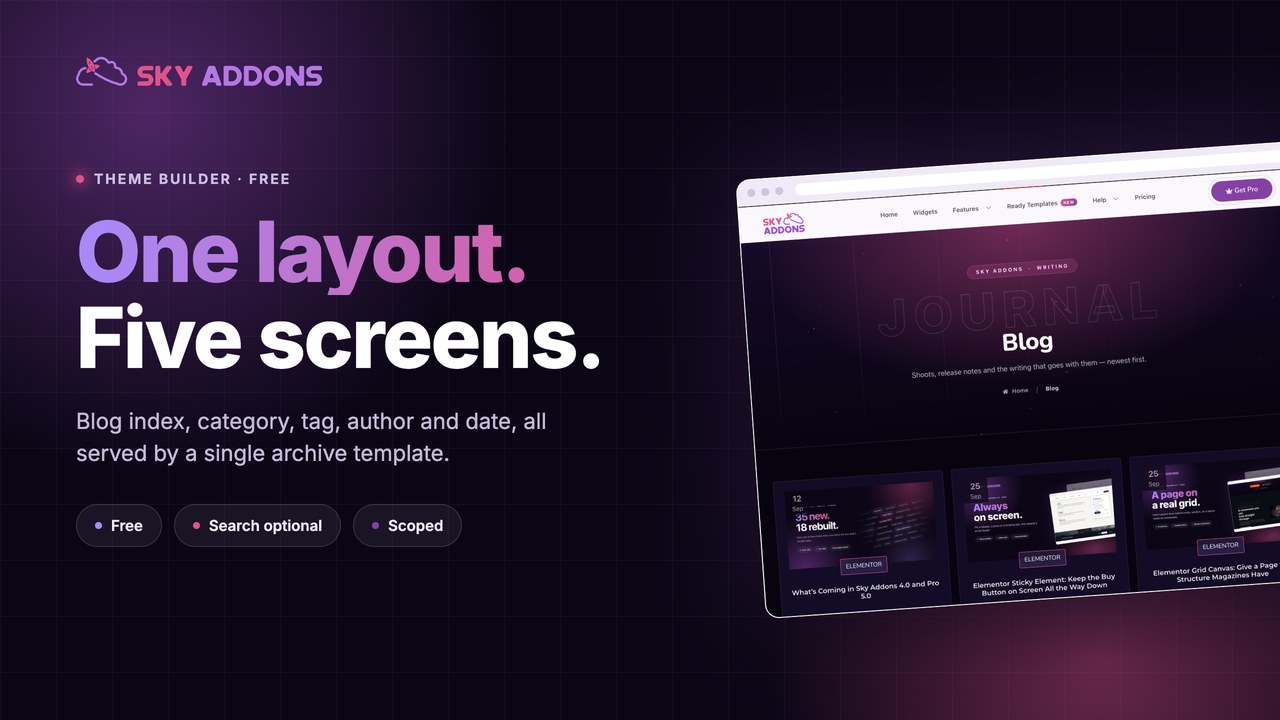
The Archive Builder gives you complete control over how your post collections are displayed. Show the posts with any Sky Addons post widget set to the Current Query source, and style the layout without code. To give a custom post type its own archive design, use the Applies To setting.
Key Features
- Full Elementor design capabilities with all widgets and styling options
- One template covers category, tag, author and date archives
- Applies To setting to target the archives of one post type, such as Products or Portfolio
- Post grid and carousel layouts with custom styles
- Post widgets that read the archive’s own posts (Source: Current Query)
- Control over excerpt length, meta display, and featured images
- Replaces the content area on any classic WordPress theme, between the header and the footer
Once activated, you’ll have access to create and manage custom archive templates.
Create an Archive Template
- In your WordPress Dashboard, go to Sky Addons > Theme Builder
- Click the “Add New” button to create a new template
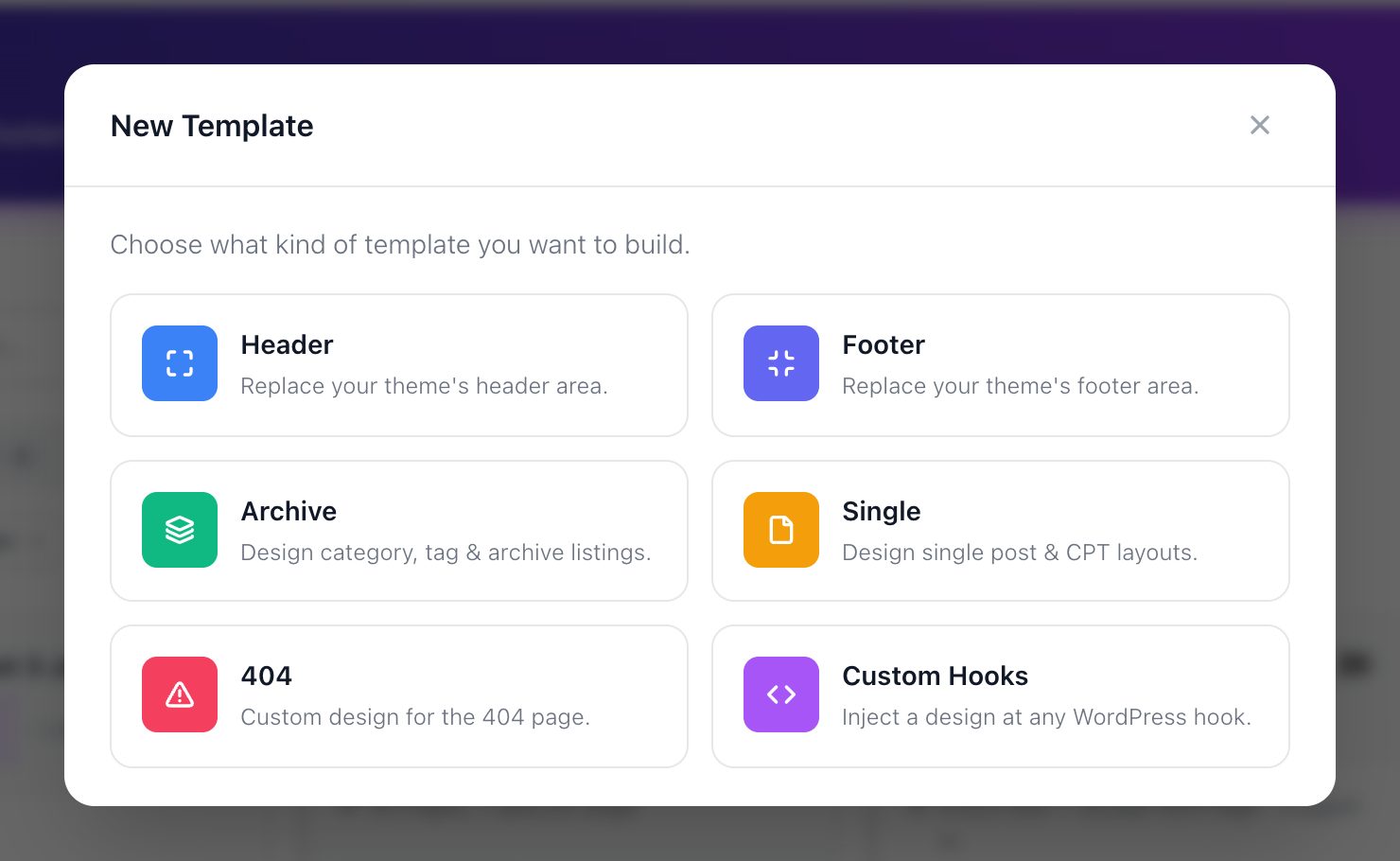
- In the New Template window, click the Archive card
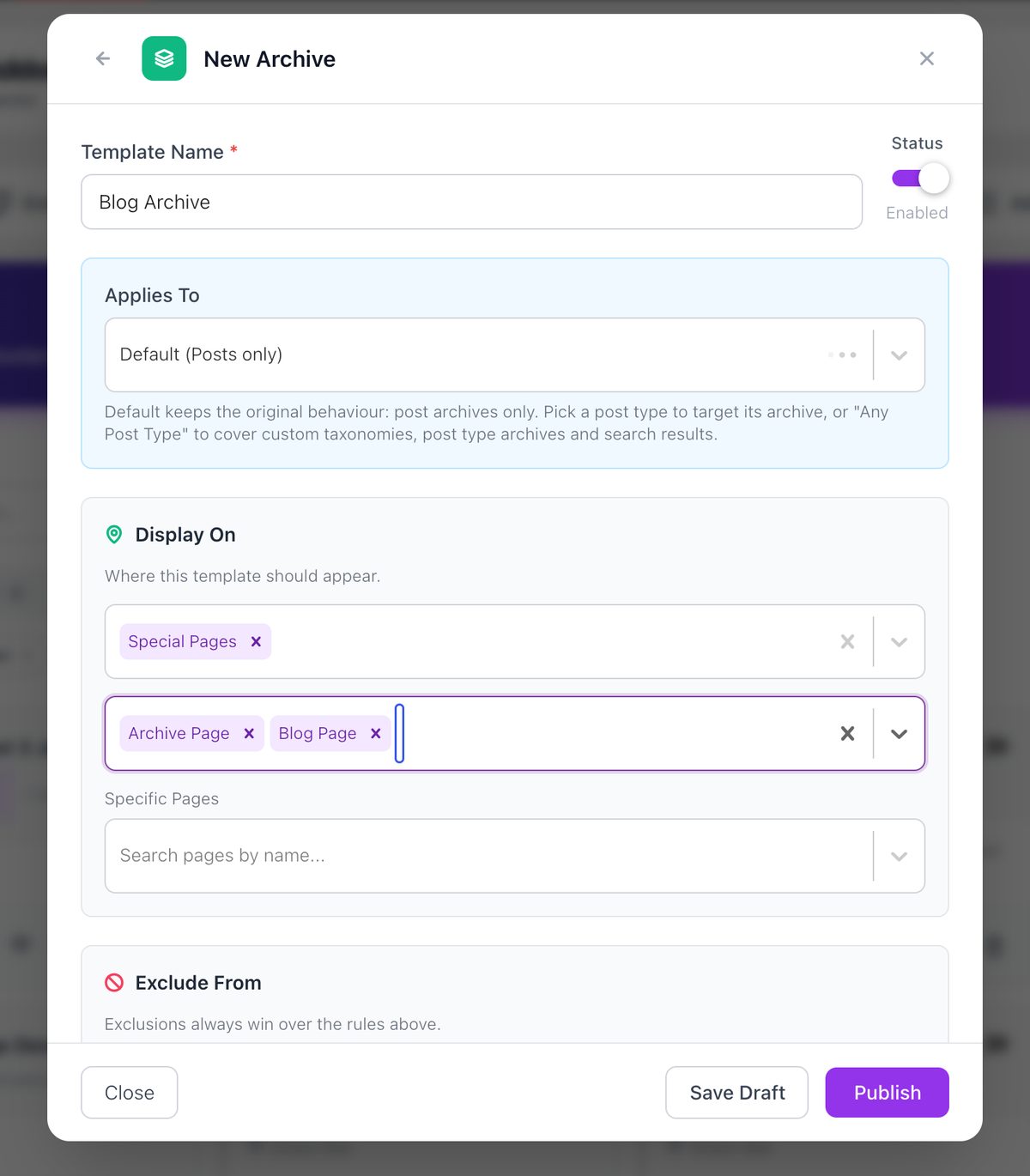
- The settings form opens in the same window. Fill it in as shown below, then click Publish. Click Save Draft instead to keep the template off the site while you work on it.
Archive Layout Settings
Configure the basic settings for your archive template:
- Give your archive template a descriptive name (e.g., “Blog Archive” or “Blog Categories”)
- Template type – The type you picked shows in the window title (New Archive). To pick another, click the back arrow before you save. You cannot change the type later.
- Status – Set to “Enabled” to activate your archive template, or “Disabled” to temporarily turn it off. The template shows on the site only when it is published and its Status is Enabled.
- Applies To – Default (Posts only) covers blog archives. Pick a post type, such as Products, to design its archives, or Any Post Type to cover every listing screen. See Custom Post Types & Taxonomies
- Display On – Choose Special Pages, then Archive Page. Add Blog Page for the blog index and Search Page for search results. Without a Display On value the template never shows. See Display Conditions
- Edit with Elementor – Click to open the Elementor editor and begin designing your archive layout
User Role Targeting
Control archive template visibility based on user roles:
- All Users – Display the archive template to everyone
- Logged In – Show only to any logged-in WordPress user
- Logged Out – Display only to visitors who aren’t logged in
- Administrator/Editor/Author/Contributor/Subscriber – Target specific WordPress user roles
Then click Edit with Elementor – Click to open the Elementor editor and begin designing your archive page.
Design Your Archive Template with Elementor
- After creating your archive template and setting conditions, click “Edit with Elementor”
- Design your archive using powerful Elementor widgets:
- Post widgets – Add a Sky Addons post widget such as Sapling Grid and set its Source to Current Query. It then lists the posts of the archive being viewed
- Other sources – Pick a post type, Manual Selection or Related in Source when you want a fixed list instead of the archive’s posts
- Archive Title – Add a Heading widget and connect it to the Archive Title dynamic tag. With Include Context on (the default) it reads, for example, “Category: Travel”
- Archive Description – Connect a Text Editor widget to the Archive Description dynamic tag to show the category or tag description
- Breadcrumbs – Add the Breadcrumbs widget (Sky Addons Pro) for better user orientation
- Pagination – Turn on Show Pagination in the post widget
- Use Elementor’s section and column controls to create multi-column layouts
- Apply responsive settings to ensure your archive looks perfect on all devices
Archive Template Options
Customize how your archive content is displayed:
- Layout Types – Pick a grid, list or carousel post widget
- Limit – Sets how many posts the widget shows when you use a source other than Current Query
- Featured Image – Customize size, position, and hover effects
- Meta Information – Show/hide and style author, date, comments, categories
- Excerpt Options – Control excerpt length and read more buttons
- Order – With Current Query the order follows the archive. With another source, set Order By and Order
- Filtering – Visitors filter by moving between category and tag archives. The template has no filter bar of its own
Theme Independence
Sky Addons Archive Builder works independently of your theme:
- Content area only – The template replaces the content area of the page. Your theme (or your Sky Addons header and footer templates) still draws the header and footer around it
- Consistent Design – Maintains your custom design regardless of theme updates
- Full Width/Boxed Layouts – Control content width independent of theme settings
- Custom Spacing – Set your own margins and padding regardless of theme defaults
Save and Preview
- Once you’ve designed your archive template, click “Publish” or “Update” in Elementor to save your changes
- Click the eye icon on the template card to open the live preview and check the design at desktop, tablet and mobile width
- Visit your website’s category or tag pages to see your custom archive in action
- Test different archive types to ensure your template works correctly
- Check responsiveness by viewing your archives on different devices
Troubleshooting
- Template not appearing: Verify display conditions and check that no exclusion rules are preventing display. Ensure the template is published and its status is set to “Enabled”. Check that Display On includes Archive Page (and Blog Page for the blog index), and that Applies To matches the post type.
- Multiple templates showing: If you have multiple archive templates with overlapping conditions, review your display rules to ensure only one template targets each archive type.
- Missing archive elements: Add a post widget and set its Source to Current Query to show the archive’s posts.
- Pagination not working: Turn on Show Pagination in the post widget if you have more posts than fit on one page.
- Category/Tag descriptions not showing: Connect a Text Editor widget to the Archive Description dynamic tag to display taxonomy descriptions.
Conclusion
The Sky Addons Theme Builder Archive feature transforms how visitors browse your content collections. Create stunning category, tag, author, and date archive pages that encourage exploration and highlight your best content. The theme-independent approach ensures your custom archive designs work perfectly regardless of which WordPress theme you use, giving you complete creative freedom.
If you have any questions or encounter any challenges while using, please don’t hesitate to reach out to our dedicated support team at https://wowdevs.com/support/ where our expert team is ready to provide prompt and helpful assistance.