
How to use QR Code Widget of Sky Addons for Elementor
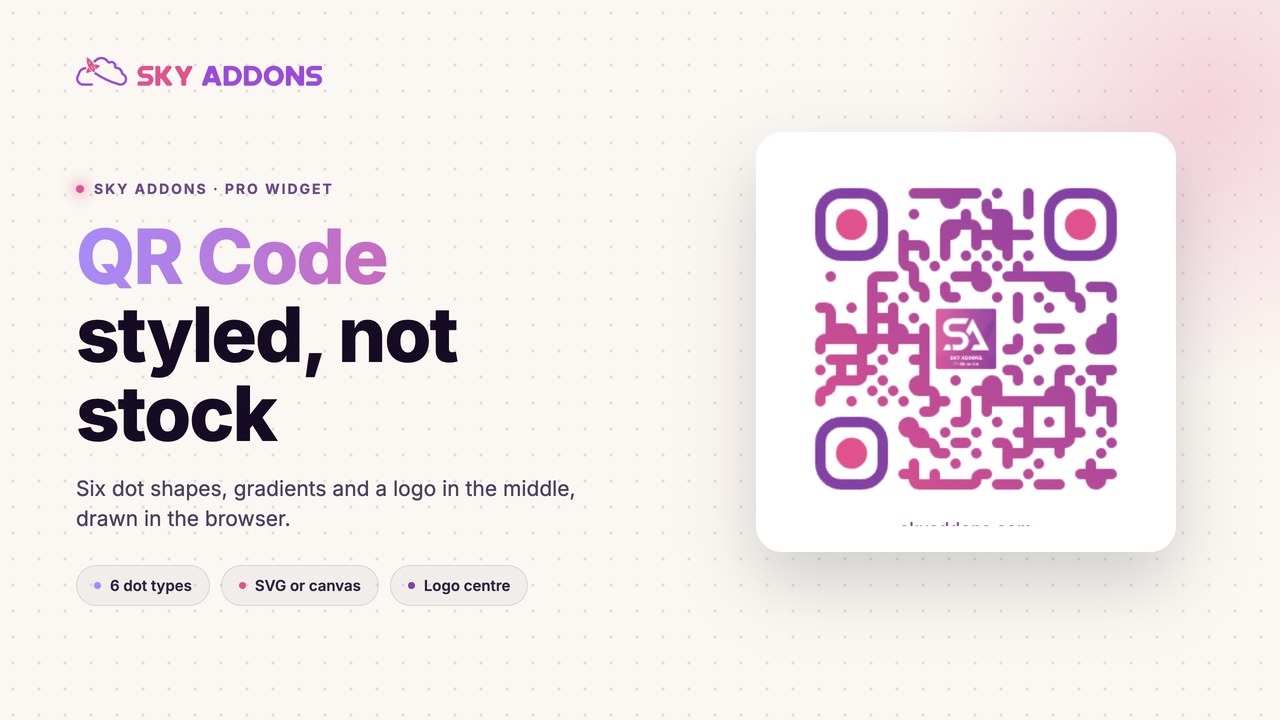
QR Code is a stylish QR code generator widget for Elementor that creates scannable codes right inside your page, with no external generator needed. Encode the current page URL automatically or any custom text or link, drop your logo in the center, and design every part of the code: dot shapes, corner styles, and solid or gradient colors for the background, dots, and corners. Codes render as crisp Canvas or scalable SVG. This documentation will guide you through the process of using the QR Code Widget to add branded, scannable codes to your website.
Features:
- Automatic Page QR: Encode the current page permalink with zero setup, ideal for templates.
- Custom Content: Encode any text or URL, with dynamic tag support.
- Logo in the Middle: Place your brand image at the center of the code with adjustable spacing.
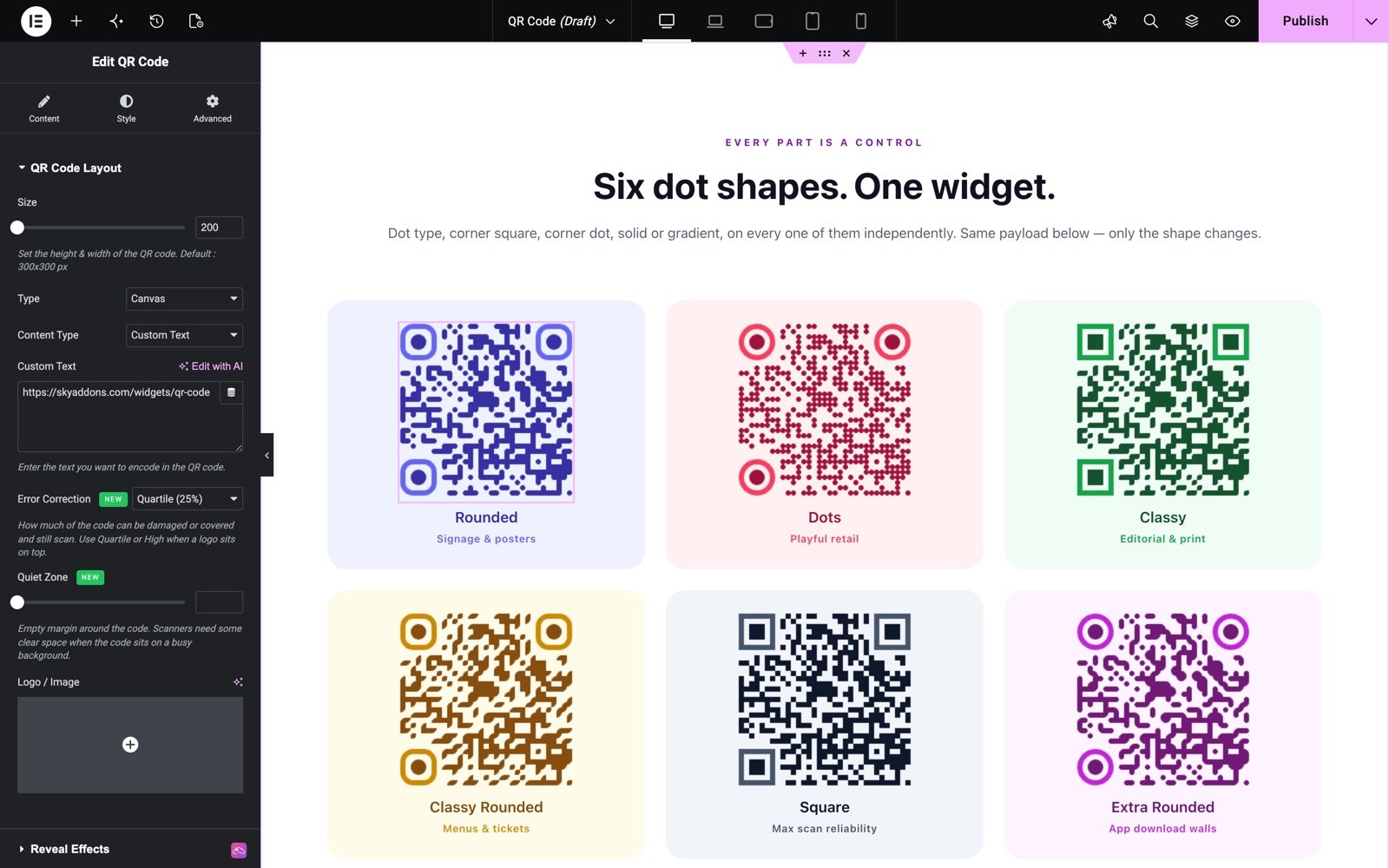
- Designer Dot Styles: Rounded, Dots, Classy, Classy Rounded, Square, and Extra Rounded dot types.
- Custom Corners: Independent styles and colors for the corner squares and corner dots.
- Solid or Gradient Colors: Linear or radial gradients with rotation control for every element of the code.
- Canvas or SVG Output: Pick raster rendering or infinitely scalable vector.
Insert QR Code Widget
- Open Elementor Editor. In the Elementor panel, search for “QR Code” under Sky Addons.
- Drag and Drop the Widget to the desired location on your page / editor.
Configure Content
In the QR Code Layout section you define what the code encodes and how it renders:
- Size: Height and width of the QR code, from 200 to 1200 px (default 300×300).
- Type: Canvas (raster) or SVG (vector, which stays sharp at any size and prints cleanly).
- Content Type: Current Page encodes the page’s own permalink automatically; Custom Text opens a text area where you enter any text or link (dynamic tags supported), and URL encodes the link you enter in the URL field.
- Error Correction: Low (7%), Medium (15%), Quartile (25%, default) or High (30%). This is how much of the code can be covered and still scan. Use Quartile or High when a logo sits on top.
- Quiet Zone: Empty margin around the code (0 to 60 px). Scanners need clear space when the code sits on a busy background.
- Logo / Image: Choose a media library image to display at the center of the code. Logo Size sets how much of the code it covers (10 to 60, default 40).
Each code in the QR Code demo uses Custom Text with a link, Canvas output and the Quartile (25%) Error Correction. Only the dot shape changes from card to card.
Style Your QR Code
Every visual layer of the code has its own style section, and each one supports solid colors or linear/radial gradients with rotation:
- QR Code:
Set the Logo Spacing (clear margin around your center image) and the background Color Type: Solid or Gradient (Linear/Radial with start color, end color, and rotation). - Dots Options:
Pick the Dot Type: Rounded, Dots, Classy, Classy Rounded, Square, or Extra Rounded. Toggle Round Size, and color the dots with a solid or gradient fill. - Corners Square Options:
Choose the Square Type for the three large corner markers (Square, Extra Rounded or Dot), plus their solid/gradient color. - Corners Dot Options:
Style the small dot inside each corner marker (Match Dot Type, Dot or Square), with its own solid/gradient color.
Save and Preview
- Once you’ve customized and styled your QR code, click “Publish” or “Update” to save your changes.
- Preview the page and scan the code with a phone to confirm it resolves to the right destination.
Best Practices
- Always scan-test: After heavy styling (gradients, logos, fancy dots), test with several phones. Contrast between dots and background is what keeps a code scannable.
- Keep the logo modest: A large center image with little spacing can cover too many modules; increase Logo Spacing if scans fail.
- Use SVG for print: If the page will be printed or the code shown large, SVG output stays perfectly sharp.
- Consistency: Match the code’s colors to your brand palette, but keep dots clearly darker (or lighter) than the background.
Troubleshooting
- Code Won’t Scan: Increase contrast between the dot color and background, reduce gradient extremes, or shrink the center logo / raise Logo Spacing.
- QR Not Rendering: The code is generated by JavaScript on the frontend. Check for JS errors from other plugins and clear caches after changes.
- Wrong URL Encoded: With Current Page selected, the code uses the permalink of the page it renders on. Preview the real page, not the template editor.
Frequently Asked Questions
How do I add a QR code to my WordPress site with Elementor?
Drag the QR Code widget from the Sky Addons category onto your page. By default it encodes the current page URL; switch Content Type to Custom Text to encode any other link or text. No external generator or image upload is needed. The code is generated live.
Can I put my logo in the middle of the QR code?
Yes. Use the Logo / Image control in the QR Code Layout section to pick an image, then adjust Logo Spacing in the Style tab so enough quiet space surrounds the logo for reliable scanning.
How do I make the QR code show the current page URL automatically?
Leave Content Type on Current Page. The widget encodes the permalink of whatever page it renders on, which makes it perfect for single-post templates. Every post gets its own scannable code automatically.
Can I style the QR code with gradient colors and rounded dots?
Yes. The Dots, Corners Square, Corners Dot, and background each accept a solid color or a linear/radial gradient with rotation, and you can combine them with six dot shapes and five corner styles for a fully branded look.
Should I choose Canvas or SVG for my QR code?
Canvas is fine for typical on-screen sizes. Choose SVG when the code may be displayed large or printed. Vector output stays crisp at any resolution.
Related Documentation
Conclusion
The QR Code Widget by Sky Addons for Elementor turns plain black-and-white codes into branded design elements: automatic page links, center logos, gradient fills, and designer dot shapes, all generated live on your page. For further assistance, consult the Sky Addons support team or community forums. Happy scanning!
Need help? Our team is happy to answer questions on the Sky Addons support page.