
How to use Scroll Stack Extension of Sky Addons for Elementor
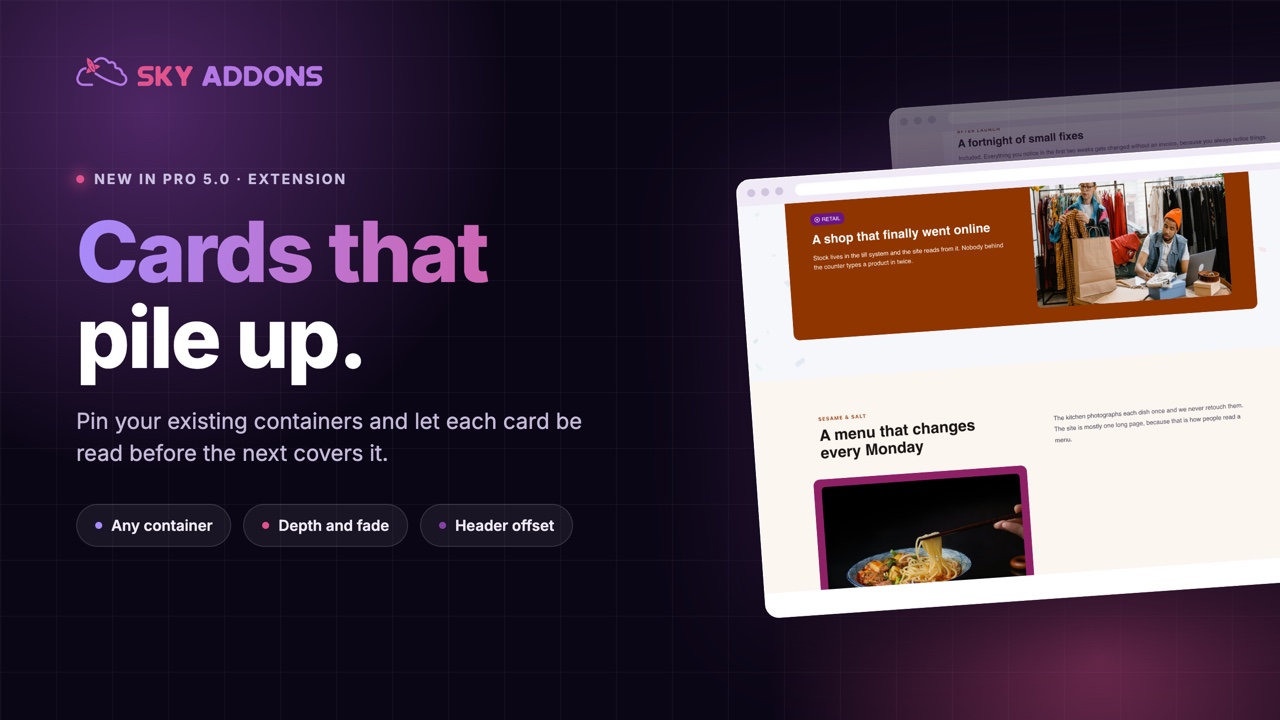
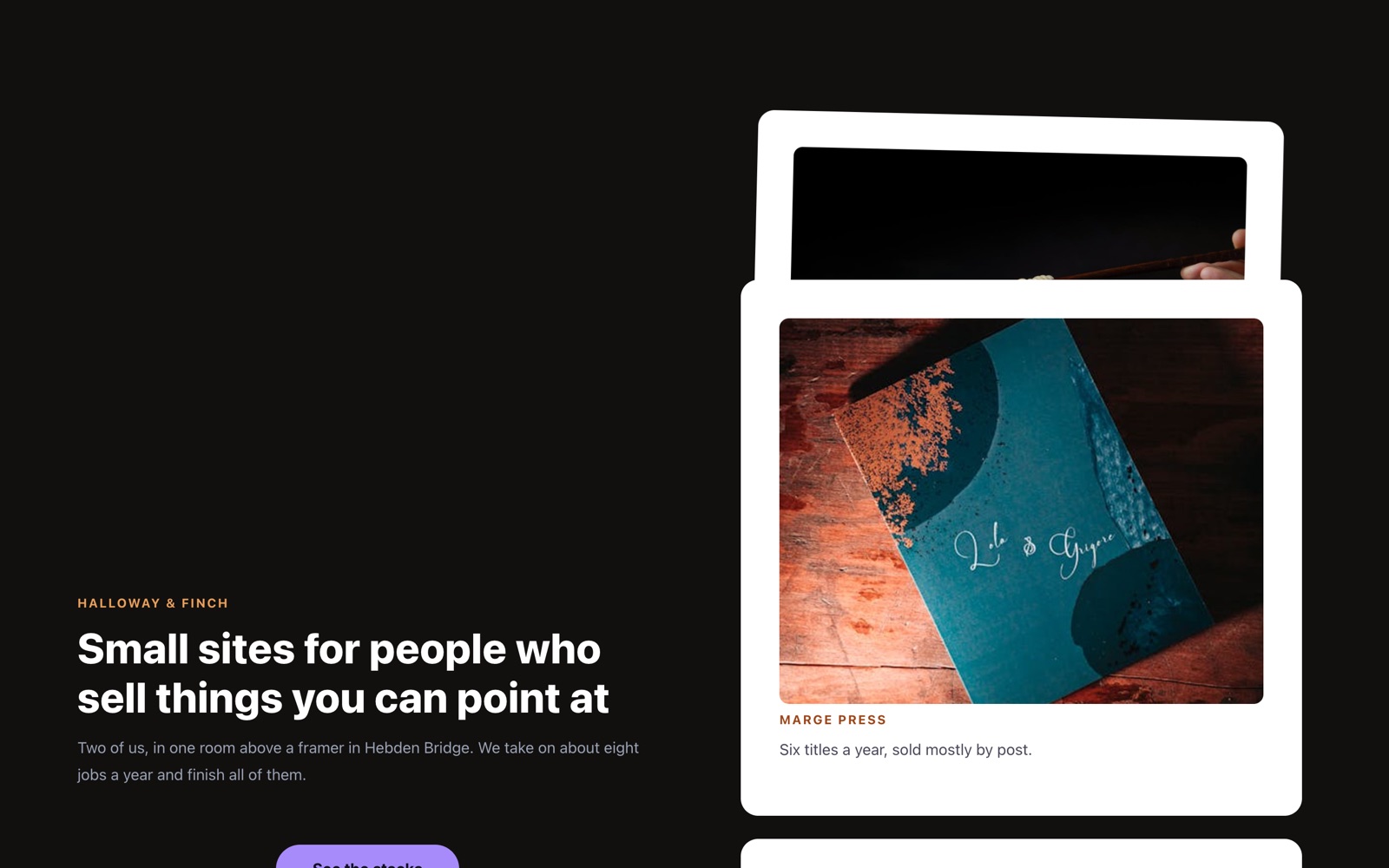
Sky Addons Scroll Stack is a scroll-driven Elementor extension that turns the direct child containers of any container into pinned cards that stack neatly on top of one another as visitors scroll. Instead of scrolling past one section after another, each card sticks to the top of the viewport while the next one slides up and settles over it, building the sticky-stacking-cards effect you see on modern product and agency websites. With the Scroll Stack extension you control the pin offset, stacking gap, depth scaling, fade, and rotation entirely from the Elementor editor, with no section IDs to chase and no custom code. Because it reads the children of the container it lives on, setup is as simple as dropping your cards into one parent container and flipping a switch. This documentation will guide you through enabling and configuring the Scroll Stack extension on your website.
Features:
- Auto card detection: Stacks the direct child containers of the parent container automatically, with no IDs to hunt for.
- Custom selector targeting: Point the effect at specific classes or IDs when you need finer control over which elements stack.
- Adjustable pin offset: Set the distance from the top of the viewport where cards pin, so they never slide under a sticky header.
- Depth scaling: Shrink deeper cards progressively for a layered, three-dimensional stack.
- Fade effect: Dim each card to a chosen opacity once it is fully covered by the card above it.
- Rotation effect: Add an alternating tilt for a loose, hand-dealt deck of cards look.
- Responsive control: Disable the effect independently on tablet and mobile where vertical scrolling reads better.
- Smooth GSAP engine: Powered by GSAP and ScrollTrigger for buttery pinning and transitions.
Enable the Scroll Stack Extension
The Scroll Stack extension works at the container level. It adds a “Scroll Stack” section to the Layout tab of the parent container that holds the cards you want to stack. To enable it:
- Open the Elementor Editor and place your cards as direct child containers inside one parent container.
- Select the parent container (the one that holds all the cards) and open the Layout tab.
- Locate the Scroll Stack section, marked with the Sky Addons icon.
- Toggle the Enable switch on to activate the stacking effect for this container.
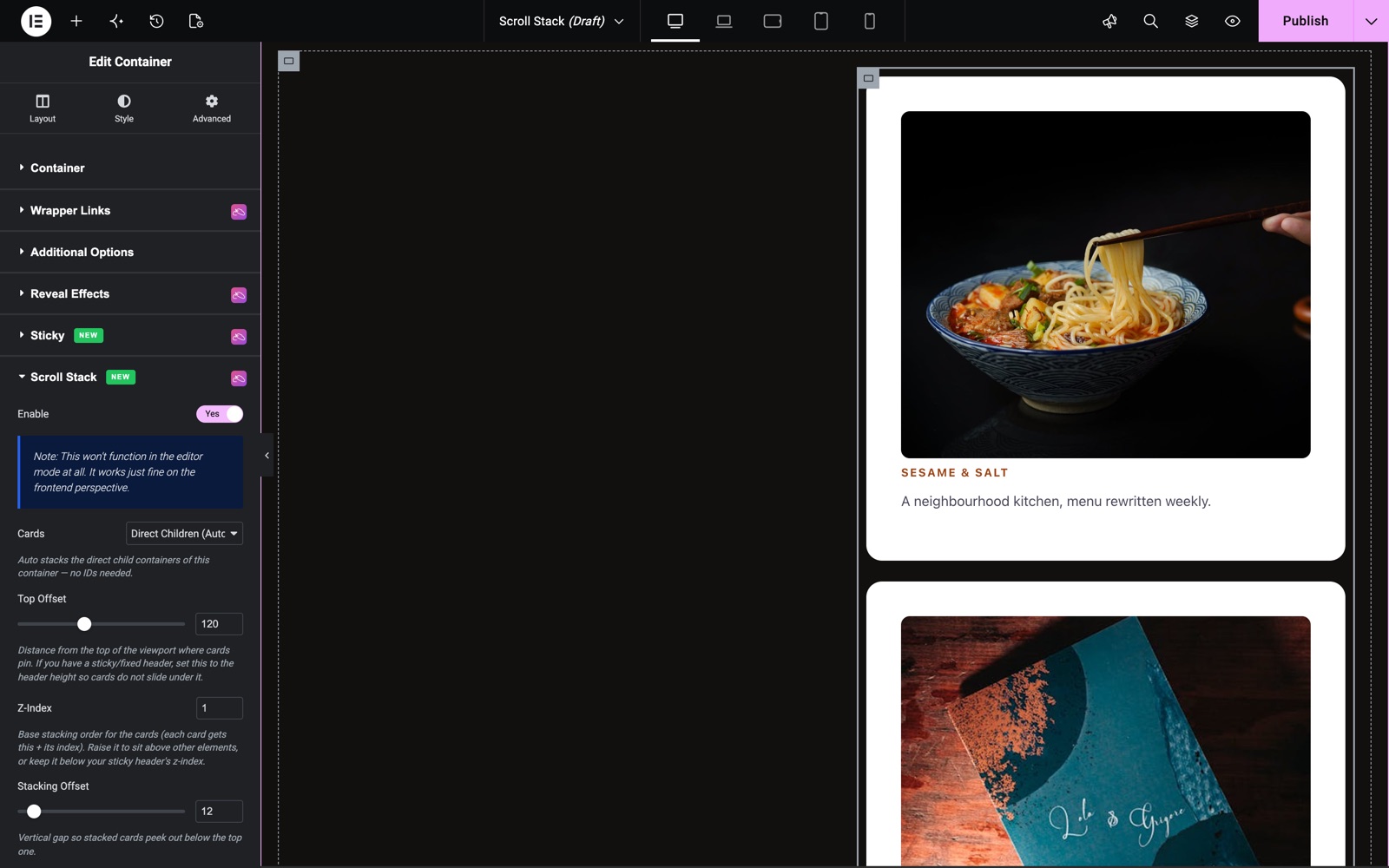
- Note that Scroll Stack does not run inside the editor preview. It only animates on the live front end, so save and preview the page to see it work.
Card Targeting Controls
These controls tell the Scroll Stack extension which elements should become stacking cards.
- Enable – Activates the scroll stack effect on this container.
- Cards – Chooses what to stack: Direct Children (Auto) stacks the container’s direct child containers with no IDs needed, or Custom Selector lets you target specific elements.
- Custom Selector – One or more CSS selectors (classes and/or IDs), scoped inside the container, entered one per line or comma-separated (e.g. .card, #hero, .box). Shown only when Cards is set to Custom Selector.
Pinning and Stacking Controls
These controls govern where cards pin and how tightly they stack.
- Top Offset – Distance in pixels from the top of the viewport where cards pin (0–300, default 0). If you have a sticky or fixed header, set this to the header height so cards do not slide under it.
- Z-Index – Base stacking order for the cards (default 1); each card gets this value plus its index. Raise it to sit above other elements, or keep it below your sticky header’s z-index.
- Stacking Offset – Vertical gap in pixels so stacked cards peek out below the top one (0–120, default 12).
Depth, Fade, and Rotation Controls
These optional effects add depth and character to the stack as cards settle.
- Scale Effect – Enables progressive shrinking of deeper cards (on by default) for a layered depth effect.
- Scale Ratio – How much deeper cards shrink (50%–100%, default 90%). A lower value makes deeper cards shrink more, for a stronger depth effect. Shown when Scale Effect is on.
- Fade Effect – Dims each card once it is fully covered by the card above (off by default).
- Fade To – The opacity a card fades to once it is fully covered (0%–100%, default 50%). Shown when Fade Effect is on.
- Rotation Effect – Adds an alternating tilt to the cards for a loose, hand-dealt deck look (off by default).
- Max Rotation – The maximum tilt in degrees (0–20, default 4). Shown when Rotation Effect is on.
Responsive Controls
Scroll pinning can feel heavy on smaller screens, so you can switch the effect off per device.
- Disable on Tablet – Turns the stacking effect off on tablet-width screens (off by default), letting the cards flow as a normal vertical list.
- Disable on Mobile – Turns the stacking effect off on mobile-width screens (on by default), which is the recommended setting for narrow viewports.
Save and Preview
- Once you’ve configured your scroll stack, click “Publish” or “Update” to save your changes.
- Preview the page on the front end (not the editor) and scroll through the container to confirm the cards pin and stack as desired.
Best Practices
- Feature cards: Stack three to five feature or pricing cards so each one holds the visitor’s attention for a moment before the next slides over it.
- Storytelling sections: Use the effect for a scroll-driven narrative where each full-height card reveals the next chapter of your story or process.
- Match the Top Offset to your header: If your site has a sticky header, set Top Offset to the header height so cards pin just below it instead of sliding underneath.
- Keep the stack short: Three to six cards read best; long stacks can trap visitors in a lengthy pinned scroll, so break very long sequences into separate stacks.
- Disable on mobile: Leave Disable on Mobile on so narrow screens fall back to a clean vertical list, which is easier to read on a phone.
Troubleshooting
- Cards not sticking or stacking: Make sure the Scroll Stack section is enabled on the parent container and that your cards are its direct child containers. If the cards live deeper in the structure, wrap them in one common parent container or switch Cards to Custom Selector and target them explicitly.
- Nothing happens in the editor: Scroll Stack intentionally does not run in the Elementor editor. Save the page and view it on the live front end to see the effect.
- Cards slide under a sticky header: Increase the Top Offset to match your header’s height, and set the Z-Index below your header’s z-index so the header stays on top.
- Custom Selector not matching: Confirm the class or ID exists inside the container and is spelled correctly (with the leading . or #). Selectors are scoped inside the container, so target elements that actually live within it.
Frequently Asked Questions
How do I create a stacking cards effect in Elementor?
Place your cards as direct child containers inside one parent container, select that parent, open the Layout tab, find the Scroll Stack section, and switch Enable on. Leave Cards on Direct Children (Auto), then save and preview the page. The cards pin and stack automatically as you scroll.
Why doesn’t the Scroll Stack effect work in the editor?
Scroll Stack is a front-end scroll effect and is disabled inside the Elementor editor on purpose. Click Update, then open or preview the live page to see the cards pin and stack correctly.
How do I stop cards from sliding under my sticky header?
Set the Top Offset to your header’s height so the cards pin just below it, and keep the Scroll Stack Z-Index lower than your header’s z-index so the header always stays in front.
Can I make the stacked cards look like a deck of cards?
Yes. Turn on the Rotation Effect and adjust Max Rotation for an alternating tilt, then keep the Scale Effect on so deeper cards shrink slightly. Together they create a loose, hand-dealt deck look.
Should I disable Scroll Stack on mobile?
Usually yes. The Disable on Mobile option is on by default because pinned stacking can feel cramped on narrow screens. Leaving it on lets phones fall back to a simple vertical list, and you can disable the effect on tablet too if needed.
Related Documentation
Conclusion
The Scroll Stack extension by Sky Addons for Elementor turns a plain column of sections into a polished, scroll-pinned stack of cards with depth, fade, and tilt, all from the container’s Layout tab, no code required. Keep your stacks short, match the Top Offset to your header, and disable it on mobile for the most professional result. If you have any questions while using the Scroll Stack extension, the Sky Addons support team is happy to help.
Need help? Our team is happy to answer questions on the Sky Addons support page.