
Theme Builder Display Conditions: Where and Who Sees a Template
Elementor display conditions are the rules that decide where a Sky Addons Theme Builder template appears and who is allowed to see it. Every template (header, footer, archive, single, 404 or custom hook) carries the same three condition panels: Display On for the locations it covers, User Roles for the visitors it is meant for, and Exclude From for the screens it must never touch. Get these right and one header can cover an entire site while a second quietly takes over a single landing page. This documentation explains every condition value, the exact order they are evaluated in, and the handful of behaviours that catch people out.
Features:
- Location Rules: Target the entire site, all pages, all posts, the front page, the blog index, archives, search or the 404 screen.
- Specific Page Targeting: Search your pages by name and pin a template to exactly the ones you choose.
- Role Targeting: Show a template to everyone, to logged-in users only, to logged-out visitors only, or to named WordPress roles.
- Exclusions That Always Win: Carve pages out of a broad rule without rewriting it.
- Plain-English Summary: Each card describes its own conditions in a readable line, so you can audit the site at a glance.
- Same Rules for Every Type: One condition system covers headers, footers, singles, archives, 404s and custom hooks.
Requirements
- At least one Theme Builder template: if you have not made one, start with Theme Builder: Getting Started.
- An administrator account: template settings are limited to users who can manage site options.
Where to Set Elementor Display Conditions
- Go to WordPress Dashboard → Sky Addons → Theme Builder.
- Click Settings on the template card, or Add New if you are creating one.
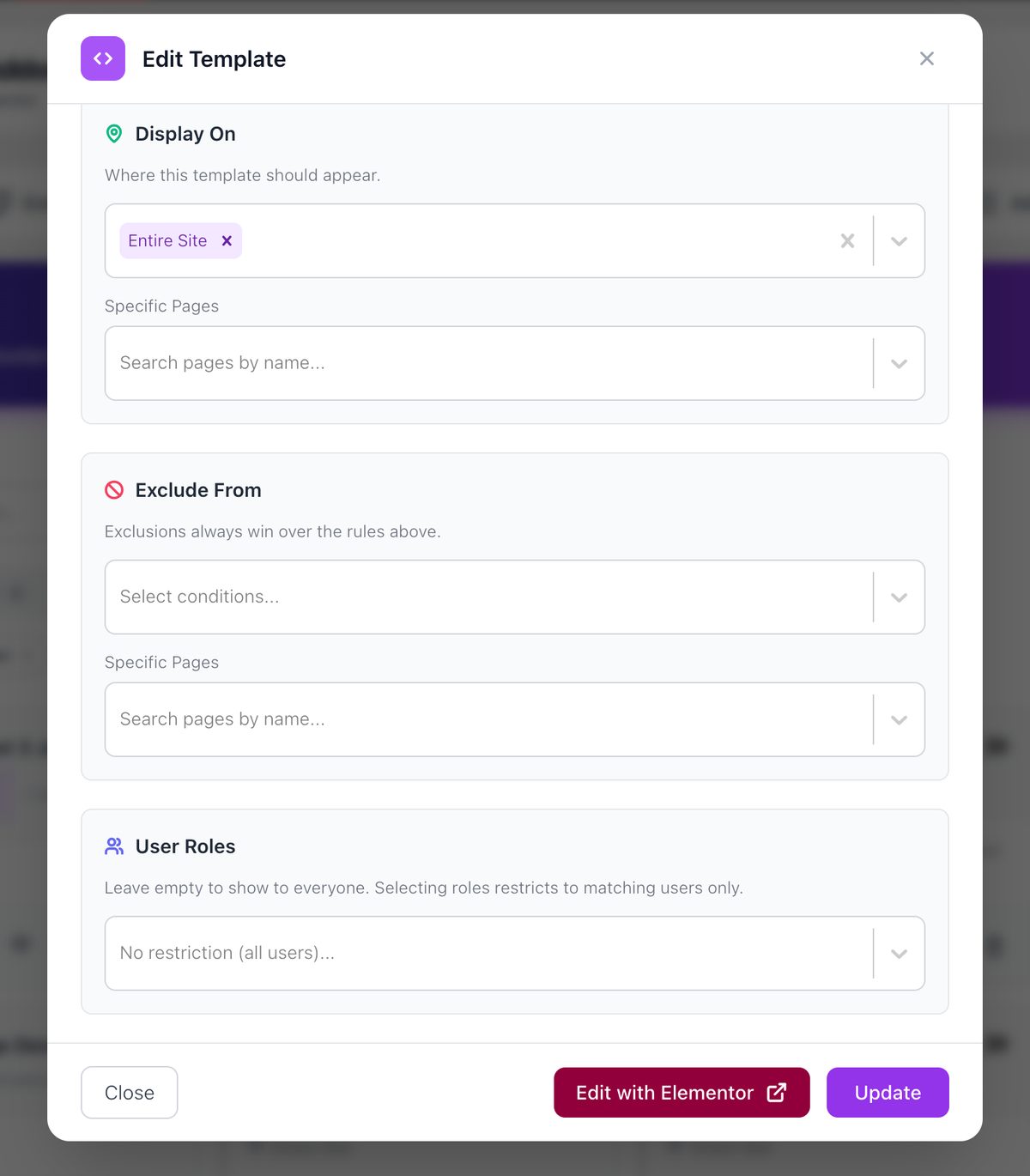
- Scroll to the Display On panel, which is where the location rules live.
- Use Exclude From for anything the template must skip, and User Roles to restrict the audience.
- Click Update (or Publish on a new template). Conditions take effect immediately on the front end.
Display On and Exclude From offer the same three controls: a main condition selector, a Special Pages selector that appears once you choose Special Pages, and a Specific Pages search box. Anything you can include, you can exclude.
How Elementor Display Conditions Are Evaluated
Sky Addons runs three checks in a fixed order against the screen a visitor just opened, and all three must pass. It reads as a sentence: show this template here, to these people, except in these places.
- Step 1: WHERE. The screen must match at least one entry in Display On. If nothing matches, the template is dropped immediately and the remaining checks never run: an empty Display On matches nothing at all.
- Step 2: WHO. If User Roles is empty, or set to All Users, everyone passes. If it lists anything else, the current visitor must match one of the entries.
- Step 3: EXCEPT. Last, Exclude From is checked. If the screen matches anything there the template is dropped, however well it passed the first two steps.
Two consequences follow. Exclusions are absolute (no inclusion is strong enough to beat one) so you never have to work out which rule “wins”. And the steps combine with AND, not OR: a template restricted to Editors and shown on All Posts appears on posts and only to Editors, not on posts for everyone plus everywhere for Editors.
Every Location Condition
The main selector offers four entries: Entire Site, All Pages, All Posts and Special Pages. Choosing Special Pages reveals a second selector with five screen-specific values, and Specific Pages underneath lets you name individual pages. Here is what each one matches.
| Condition | Matches | Typical use |
|---|---|---|
| Entire Site | Every screen on the site, with no exceptions of its own. | The main header and footer. |
| All Pages | Every static WordPress page. | A footer that appears on pages but not on blog posts. |
| All Posts | Every single post: including single entries of custom post types. | A reading-focused header on article screens. |
| Front Page | Your site’s front page, whether that is a static page or the latest posts. | A tall hero header used only on the home page. |
| Blog Page | The blog index only. Not covered by Archive Page. | An Archive template aimed at the blog listing. |
| Archive Page | Category, tag, author, date and post type archive screens. | A shared layout for every listing screen. |
| Search Page | Search results. Needs its own tick. | A results screen with its own heading. |
| 404 Page | The “page not found” screen. | A minimal header on the 404 screen. |
| Specific Pages | Only the pages you pick by name, viewed on their own. | A campaign header on two landing pages. |
Two distinctions cause most of the confusion. Blog Page is separate from Archive Page: the blog index is not treated as an archive, so ticking Archive Page alone leaves your blog listing to the theme. Search Page is separate too, which is the single most reported surprise in the system.
The Specific Pages picker searches your pages by name as you type, and only matches when that page is viewed on its own: a page appearing inside a listing elsewhere will not trigger the template.
Search Results Need Their Own Tick
An Archive template covering “every listing screen” does not automatically cover search results. WordPress treats search results as their own kind of screen rather than an archive, and Sky Addons follows that distinction deliberately, so a template built for category listings never silently takes over a search page it was not designed for.
To put your Archive template on search results, tick Special Pages → Search Page explicitly. The one alternative is setting the template’s Applies To scope to Any Post Type while Display On still covers search (Entire Site does): see Targeting Custom Post Types and Taxonomies. If search still shows the theme’s layout afterwards, clear your cache before assuming the condition failed.
Choosing Who Sees a Template
User Roles answers the second question: of the people who reach a matching screen, which get this template? Leave it empty and everyone does. Selecting roles restricts the template to matching users only.
| Value | Who passes | Typical use |
|---|---|---|
| All Users | Everyone. Identical to leaving the field empty. | The default for public headers and footers. |
| Logged In | Any signed-in user, whatever their role. | A member header with an account menu. |
| Logged Out | Visitors who are not signed in. | A header with Sign Up and Log In buttons. |
| Administrator | Administrators only. | A staff-only notice bar. |
| Editor | Editors only. | An editorial strip above article content. |
| Author | Authors only. | A footer with submission guidelines. |
| Contributor | Contributors only. | Onboarding guidance for new writers. |
| Subscriber | Subscribers only. | A members-only footer block. |
You can select more than one role, and a visitor passes if they hold any of them. What matters most is what a role does to the rest of the rule.
A role narrows a template, it never widens one. Display On set to Entire Site with User Roles set to Administrator does not mean “everywhere, and also to admins”. It means “everywhere, but only to admins”: every other visitor gets the theme’s own output. Entire Site feels like the broadest rule there is, and it is, right up until a role is added on top of it. If you want one design for everyone and something extra for signed-in users, that is two templates with mutually exclusive role settings.
When Two Templates Both Qualify
Only one template of each type renders on a given screen. If two enabled Header templates both match the page a visitor opened, they neither stack nor merge: Sky Addons walks the list of enabled templates and each match replaces the previous one, so the last match found is the one that renders.
There is no priority or ordering field for headers, footers, singles, archives and 404 templates, so the advice is simple: do not design overlapping conditions and hope the right one wins. The clean pattern is a broad template plus a narrow one, where the broad template excludes exactly what the narrow one covers.
Custom Hooks templates are the exception, because several of them can legitimately fire on the same page. They have their own Priority field to order them: see Custom Hooks.
Example: A Header Everywhere Except the Landing Page
You have a standard site header, and one campaign page called Spring Sale that needs a stripped-back version with no navigation. Two templates, no overlap.
- Open Settings on your existing Main Header template.
- Confirm Display On is set to Entire Site.
- In Exclude From, use the Specific Pages box, type Spring, and select Spring Sale. Save.
- Click Add New, choose Header, and name it Campaign Header.
- Leave the main condition selector empty and add Spring Sale to its Specific Pages box instead. Publish it and design it in Elementor.
The result: every URL gets Main Header except Spring Sale, which gets Campaign Header. Because Main Header actively excludes that page, the two can never both match.
Example: A Members-Only Footer
Members should get a footer linking to their account, downloads and support tickets. Everyone else keeps the public footer.
- Create a Footer template named Member Footer.
- Set Display On to Entire Site.
- Set User Roles to Subscriber. Save and build the footer.
- Open your existing public footer and set its User Roles to Logged Out.
A signed-in Subscriber now sees the member footer on every page; a signed-out visitor sees the public one. Step 4 is what makes it predictable: without it both footers would qualify for a Subscriber and only one would survive. Note that with this exact pair a signed-in Editor matches neither template, so use Logged In instead of Subscriber if every account type should be covered.
Example: A Single Template for One Post Type
Your site has a Case Study post type needing its own single layout, while blog posts keep theirs.
- Click Add New and choose Single. Name it Case Study Single.
- In Applies To, pick Case Studies from the post type list.
- Set Display On to All Posts, which covers single entries of every post type.
- Save, then design it with dynamic tags so each case study fills in its own title and image: see Post Dynamic Tags.
Display On gets the template as far as any single entry; Applies To narrows it to case studies, so blog posts fall through to whichever Single template targets them. The two settings do different jobs and you usually need both.
Best Practices
- Keep conditions mutually exclusive. One broad template that excludes what a narrow template covers is always clearer than two overlapping rules.
- Read the summary line on each card. It restates the conditions in plain words and is the fastest way to spot a template targeting too much.
- Prefer Exclude From over long inclusion lists. “Everywhere except three pages” survives you adding a fourth; a hand-picked list of forty does not.
- Test role rules in a private window. Logged in as an administrator you are not seeing what a logged-out visitor sees.
- Clear your cache after every change. A full-page cache will happily keep serving a page that was built under the old rules.
Troubleshooting
- The template shows nowhere. First check that it is published and switched on. If it is, its Display On panel is probably empty, so Step 1 fails everywhere and the card reads “No display conditions set”. Add a location.
- Only I can see the template. User Roles is set to Administrator. Clear it, or switch it to All Users, and check again in a private window.
- My Archive template is missing on search results. Search is not part of Archive Page. Tick Special Pages → Search Page as well.
- The wrong one of two templates is rendering. Both match that screen. Add the disputed pages to the broad template’s Exclude From so only one can qualify.
Frequently Asked Questions
Do I need Elementor Pro for display conditions in Sky Addons?
No. Display conditions are part of the free Sky Addons Theme Builder, and every condition described here (locations, specific pages, user roles and exclusions) is available on every template type without an upgrade.
What happens if a template has no display conditions at all?
It never appears. The first check requires the current screen to match at least one Display On entry, and an empty panel matches nothing. The template stays saved and editable, so adding a condition later brings it straight to life.
Can I show a template only to logged-in users?
Yes. Set User Roles to Logged In and every signed-in account passes, whatever their role. Use Logged Out for the reverse, and pair the two on separate templates when you want a different design for each audience.
Why does my Archive template not show on the blog page?
The blog index is its own condition, listed under Special Pages as Blog Page, and it is not included in Archive Page. Tick both if you want one Archive template covering your blog listing as well as your category and tag screens.
Which wins, Display On or Exclude From?
Exclude From, always. It is checked last and it overrides everything before it, including Entire Site. That makes it safe to write one broad rule and carve exceptions out of it rather than maintaining a long inclusion list.
Conclusion
Display conditions are what turn a Theme Builder design into a working part of your site, and the whole system comes down to one sentence: show it here, to these people, except in these places. Keep your rules mutually exclusive, remember that roles narrow rather than widen, and tick Search Page when you mean it. For the wider picture, read Theme Builder: Getting Started, and if a rule is still not behaving as documented, the team is at https://wowdevs.com/support/.