
Targeting Custom Post Types and Taxonomies in Theme Builder
Building an Elementor custom post type template in Sky Addons comes down to one setting: Applies To. Single and Archive templates carry it, and it decides how far the template reaches: the blog only, one named post type such as Products or Portfolio, or every post type on the site. Get it right and a portfolio archive, a WooCommerce shop page and your blog listing can each have their own layout. Leave it at the default and your templates deliberately stay on posts, which is exactly why an existing site never changes behaviour on its own. This documentation explains each scope, how taxonomy archives are matched, and the order everything resolves in.
Features:
- Per-Post-Type Targeting: Point a Single or Archive template at one named post type and nothing else.
- Any Post Type Scope: Cover every singular screen or every listing screen with one template.
- Taxonomy Coverage: A scoped template automatically picks up that post type’s own category and tag archives.
- Safe Default: Existing templates keep their original blog-only reach until you widen them on purpose.
- WooCommerce Ready: Target Products directly to design shop and product screens.
- Searchable Selector: Every public post type appears in one searchable list.
Requirements
- A Single or Archive template. Other template types have no scope setting: see Theme Builder: Getting Started.
- A registered, publicly viewable custom post type, to target anything beyond posts and pages.
- WooCommerce active, if you intend to target Products.
Where the Applies To Setting Lives
- Go to WordPress Dashboard → Sky Addons → Theme Builder.
- Click Settings on a Single or Archive template, or Add New and pick one of those two types.
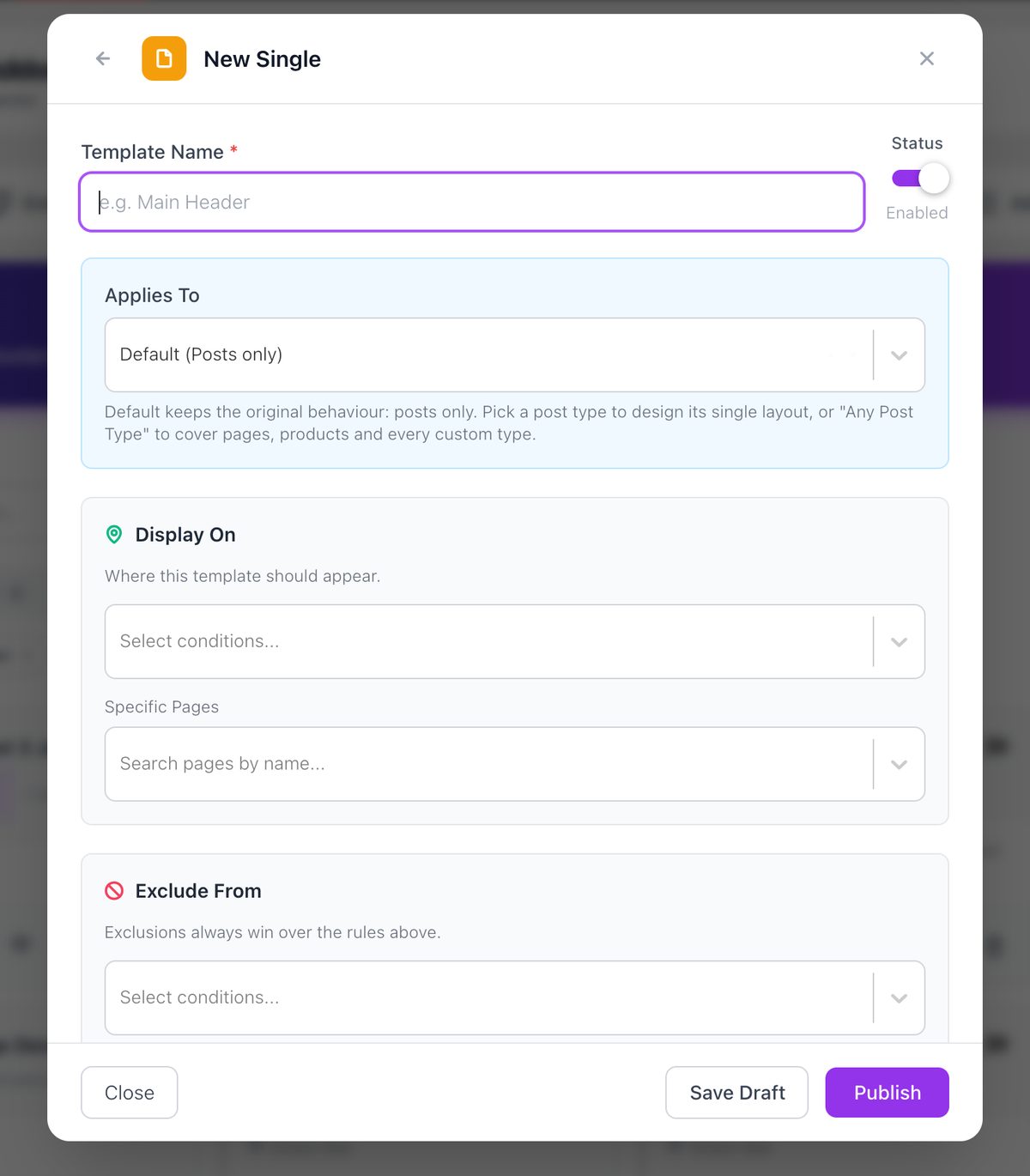
- Find the Applies To selector under the template name and status.
- Choose Default, Any Post Type, or one of your registered post types. The list is searchable.
- Click Publish, or Update on a template that is already published.
The selector only appears for Single and Archive templates, because those are the only two types that render against a post or a query. Headers, footers, 404 screens and custom hooks have no scope: their reach is set entirely through display conditions.
The list is built from the public, viewable post types on your site. Internal types you would never design a front-end template for (attachments, the Elementor template library, Theme Builder’s own storage and WordPress’s block and template types) are filtered out.
The Three Scopes
Every Single and Archive template is in one of three states. The difference between them is simply how many screens the template is allowed to claim.
| Scope | A Single template covers | An Archive template covers |
|---|---|---|
| Default (Posts only) | Blog posts, plus pages that use a custom page template. | Screens listing the post post type: category, tag, author and date archives, and the blog index. |
| A named post type | Single entries of that post type and nothing else. | That post type’s archive and its taxonomy archives. |
| Any Post Type | Every singular screen: posts, pages with no page template, the static front page, attachments and every custom post type. | Every listing screen: custom taxonomies, post type archives and search results. |
Default is deliberately narrow. It is what every template created before this setting existed still uses, and the value a new template starts on. A blog Single template never suddenly appears on a WooCommerce product, and a blog Archive template never takes over your shop page, unless you widen it yourself.
Any Post Type is the blanket option: right when you want one consistent layout everywhere and no per-type variations. It is also the only scope that brings search results into an Archive template without ticking Search Page in the conditions, as long as Display On still covers search (Entire Site does).
How Taxonomy Archives Are Matched
Taxonomy archives do not carry a post type of their own, so Sky Addons works one out. When a visitor opens a custom taxonomy archive (Portfolio Categories, Product Tags, Recipe Cuisines) the taxonomy’s first associated post type is used as the match. A template scoped to Products therefore covers product category and product tag archives without you configuring anything extra.
The built-in archives are simpler. Category, tag, author and date archives, plus the blog index, all list the post post type, so they belong to a Default-scoped or post-scoped Archive template. Post type archives resolve from the screen itself rather than from the loop, so an archive with no entries yet still resolves correctly and still renders your template.
One Archive template genuinely covers the whole family, then; narrowing to a particular screen within it is a conditions job, covered in Archive Page.
How an Elementor Custom Post Type Template Resolves
This part is worth reading twice, because it explains most surprising outcomes with custom post types. Scope is not a router that picks between your templates: it is a gate applied to the template conditions already chose.
- Conditions run first. Every enabled template is tested against the current screen, and exactly one Single template and one Archive template survive.
- Applies To is checked second. The surviving template’s scope is compared with the post type of the current screen.
- If the scope does not match, the theme renders the screen. Sky Addons does not go back and try the next-best template.
The practical rule is worth stating plainly: never give two Single templates conditions that both match the same screen, and never do it with two Archive templates either. If you do, only one is ever considered, and if that one is scoped to the wrong post type the visitor gets the theme’s layout instead of the template you built.
Since Display On has no per-post-type value, the way to keep two templates apart is to use location conditions that cannot overlap. All Pages and All Posts are mutually exclusive: one is static pages, the other is single entries of posts and custom post types. Blog Page, Archive Page and Search Page are three separate screens. Build your set of templates out of those disjoint pairings and every screen resolves predictably.
Example: An Elementor Custom Post Type Template for a Portfolio
A design studio has a Portfolio post type with a Portfolio Category taxonomy, alongside a normal blog. The goal: a case-study layout for portfolio entries, a grid for portfolio listings, and sensible handling for everything else.
- Click Add New, choose Single, and name it Portfolio Single.
- Set Applies To to Portfolio and Display On to All Posts. Save, then design it with dynamic tags so each project fills in its own title, image and terms: see Post Dynamic Tags.
- Click Add New again, choose Archive, and name it Portfolio Archive.
- Set Applies To to Portfolio and Display On to Special Pages → Archive Page. Save and build the grid.
- Create a third template, Blog Listing, of type Archive. Leave Applies To on Default and set Display On to Special Pages → Blog Page.
- Create a fourth template, Page Layout, of type Single, with Applies To set to Any Post Type and Display On set to All Pages.
Now trace what a visitor gets on each screen. On a single portfolio project, All Posts matches Portfolio Single, the scope check passes because the post type is Portfolio, and the case-study layout renders. On a Portfolio Category archive, Archive Page matches Portfolio Archive, the taxonomy resolves to the Portfolio post type, and the grid renders. On the blog index, Blog Page matches Blog Listing and its Default scope resolves to posts, so the blog layout renders. On a static page, All Pages matches Page Layout and Any Post Type accepts it.
Nothing collides, because no two templates of the same type share a location condition. Note what happens to a blog category archive in this setup: it matches Archive Page, so Portfolio Archive is selected, and its Portfolio scope rejects a screen listing posts: the theme renders it. If you want your blog categories covered too, either widen Portfolio Archive to Any Post Type and design one grid that suits both, or add Archive Page to Blog Listing and drop it from Portfolio Archive so the portfolio archive is reached through its own post type archive alone.
Targeting WooCommerce Products
Products are a custom post type like any other, so they follow the same rules. Set Applies To to Products on a Single template and it covers product pages; set it on an Archive template and it covers the shop page and product category and tag archives. Because the Default scope is posts only, an existing blog Archive template will never take over your shop by accident, which is usually what store owners want, since WooCommerce’s own templates are already doing a job.
Fill product templates with the WooCommerce dynamic tags for price, SKU, stock status and rating rather than static text: see WooCommerce Dynamic Tags: and test add-to-cart and variation behaviour on a real product before going live.
Best Practices
- Name templates after their post type. “Portfolio Archive” beats “Archive 2” the moment you have three of them.
- Set Applies To before you design. The editor previews against a post from the targeted type, so you design against realistic content.
- Keep location conditions disjoint. Two Single templates that both match All Posts will fight, and only one can win.
- Widen deliberately, not defensively. Any Post Type is a real commitment: it claims pages, attachments and every future post type you register.
- Check an empty archive. Visit a term with no entries to confirm your empty state reads well.
Troubleshooting
- My template does not appear on a custom post type. Its Applies To is still on Default, which is posts only. Set it to that post type, or to Any Post Type.
- The shop page still uses the theme layout. An Archive template scoped to Default never claims the product archive. Change Applies To to Products.
- One of my two Single templates never renders. Their display conditions overlap, so only one is ever selected. Give them location conditions that cannot both match.
- Search results ignore my Archive template. Tick Special Pages → Search Page in Display On. That one tick covers search on any scope. Without it, search needs both the Any Post Type scope and a Display On value that matches search, such as Entire Site.
Frequently Asked Questions
How do I create an Elementor custom post type template in Sky Addons?
Create a Single template, set its Applies To selector to your custom post type, give it a Display On condition of All Posts, and design it with dynamic tags. The template then renders for every entry of that post type and leaves everything else alone.
Why does my old Archive template not cover my custom post type?
Templates created before the Applies To setting existed sit on the Default scope, which is the post post type only. This is intentional so that upgrading never changes how a live site renders. Open the template’s settings and choose a wider scope.
Do I need a separate template for each taxonomy?
No. A template scoped to a post type already covers that post type’s taxonomy archives, because a taxonomy archive is matched through the post type it belongs to. One Portfolio-scoped Archive template handles the portfolio archive and all of its category and tag screens.
Does targeting custom post types require Sky Addons Pro?
No. Theme Builder and the Applies To scope are part of the free plugin, including targeting WooCommerce products and custom taxonomies. Any post type registered as publicly viewable on your site appears in the selector.
Conclusion
Building an Elementor custom post type template with Sky Addons is mostly a matter of pairing the right Applies To scope with location conditions that do not overlap. Start narrow, widen on purpose, and remember that conditions choose the template before the scope gets a say. For the layout side of the work, read Single Post and Archive Page, and for the rules themselves see Display Conditions. If a post type is still not picking up its template, the team is at https://wowdevs.com/support/.