
How to Enable or Disable Sky Addons Widgets and Extensions
You can disable Elementor widgets you never use from the Sky Addons dashboard, one at a time or in bulk, and the change takes effect immediately. Three tabs (Widgets, Extensions and Integrations) list everything the plugin adds, each as a card with a toggle. Switching something off removes it from the Elementor panel and, depending on your asset settings, keeps its CSS and JavaScript out of what visitors download. There is no Save button: flip a switch and it is stored. This documentation walks you through the tabs, the filters, the bulk actions, and what changes on the front end.
Features:
- Three tabs, one interface: Widgets, Extensions and Integrations all work the same way.
- Instant saving: Toggles apply on the spot, with no Save button to forget.
- Search across everything: One box matches names, slugs, categories and tags.
- Category and licence filters: Narrow the list to one category, or to just the free or Pro items.
- Usage awareness: Widgets show how often they are used on your site, so you can filter down to the unused ones.
- Bulk Enable All and Disable All: Act on everything currently visible, which turns a filter into a selection tool.
- Future-proof storage: Only switched-off items are recorded, so later releases arrive enabled without touching your choices.
Requirements
- An administrator account. The Sky Addons menu and all of its tabs require the
manage_optionscapability. - Elementor active, so the changes are visible where they matter: the editor panel.
- Sky Addons Pro, only if you want to switch on the items marked with a Pro badge.
Open the Widgets, Extensions and Integrations Tabs
- Go to WordPress Dashboard → Sky Addons.
- Choose Widgets for the Sky Addons widgets themselves.
- Choose Extensions for the additions that attach to Elementor’s own core widgets and containers.
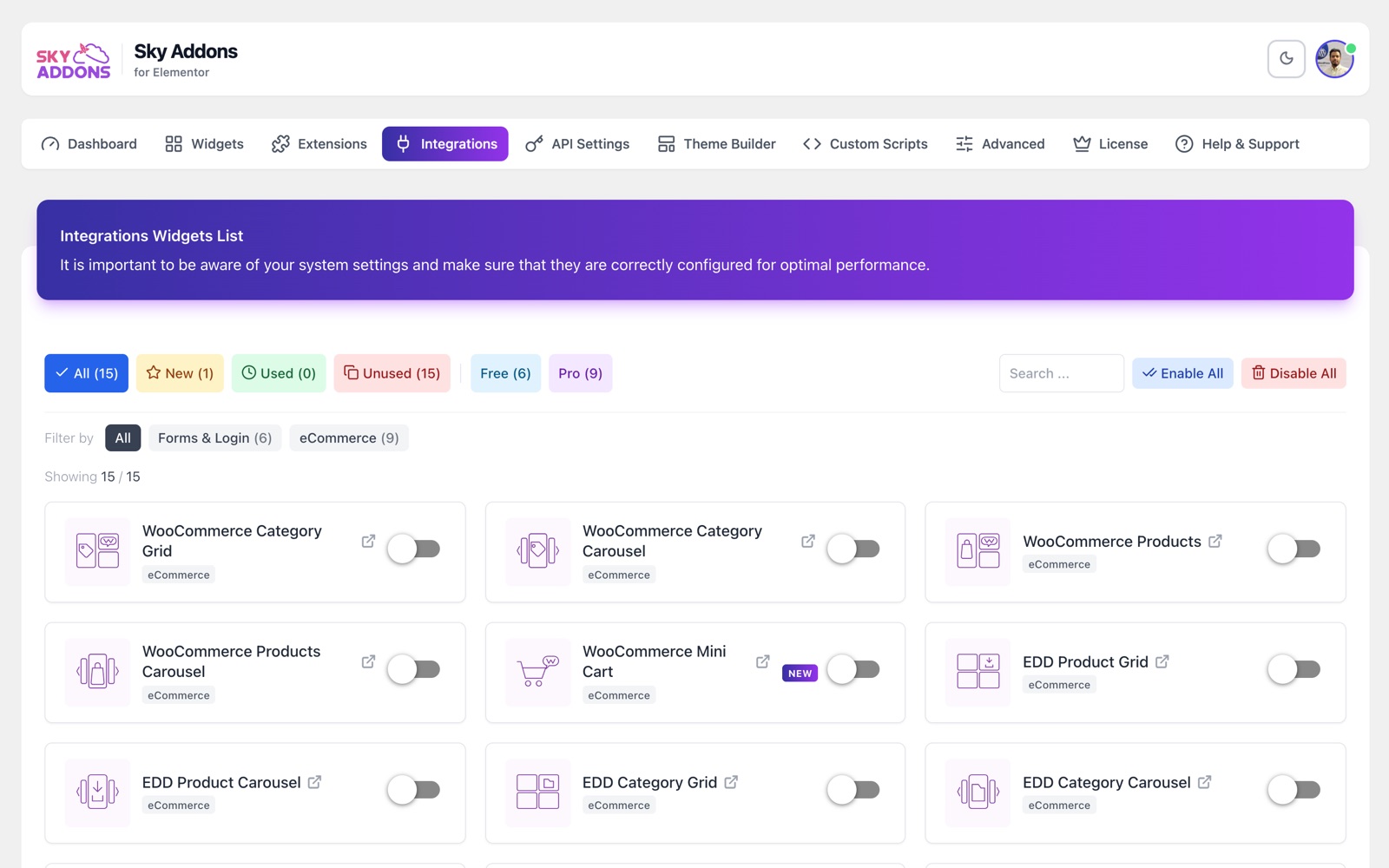
- Choose Integrations for the widgets that display data belonging to other plugins.
All three are tabs on one page, so switching between them is instant.
What a Card Shows
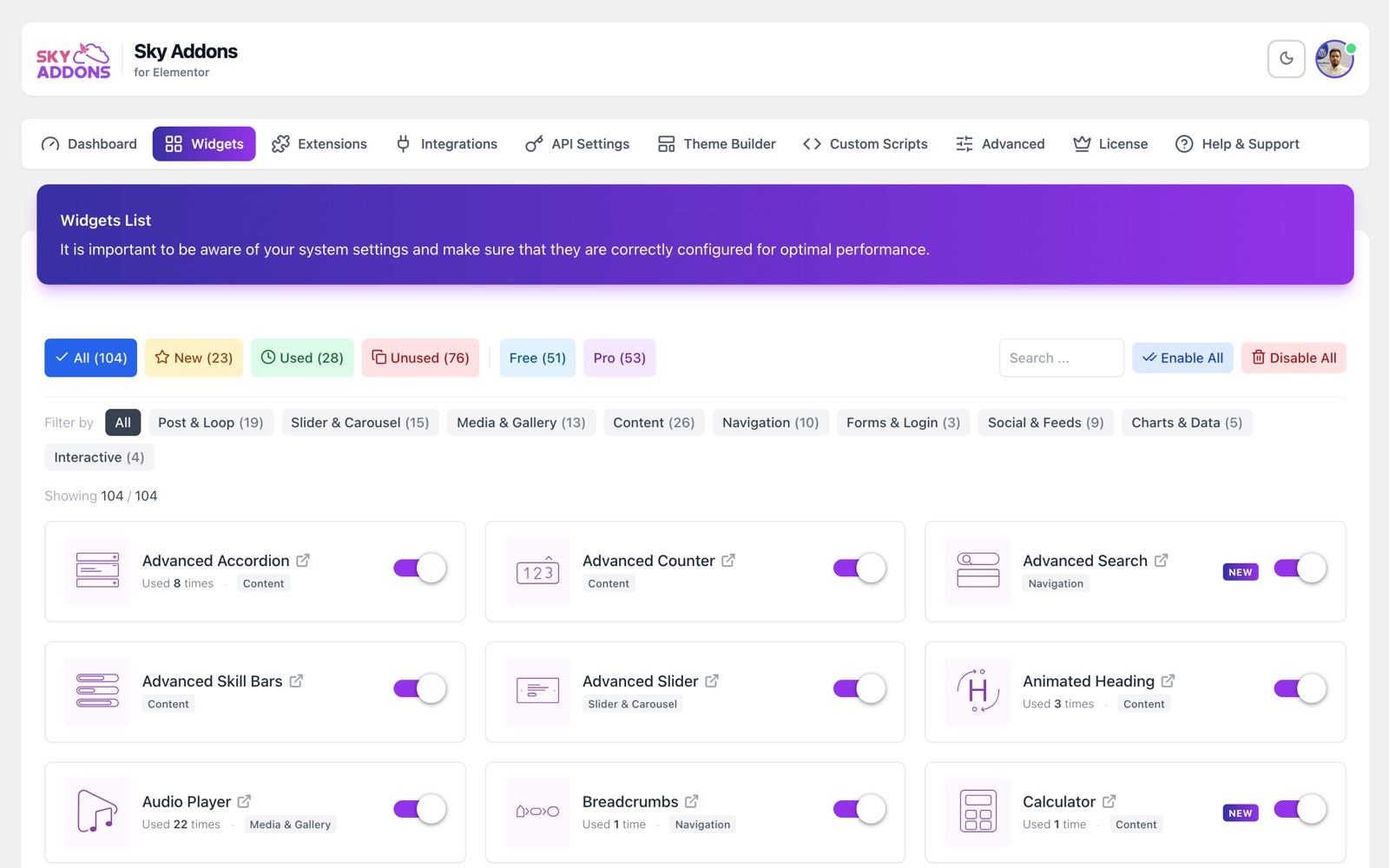
Every item is a card, and each part of it helps you decide whether to keep it.
| Part of the card | What it tells you |
|---|---|
| Icon and name | Identifies the item. Where a live demo exists, the name is a link to it. |
| Usage note | On widgets, a “Used” count of how often it appears on the site. Shown only when the widget is in use. |
| Category chip | The widget’s category. Clicking it filters the list to that category. |
| Pro badge | A premium item. On a free install the switch does not work; clicking it says so. |
| New badge | A recently added item, easier to spot after an update. |
| Toggle switch | On or off. There is nothing else to click. |
Search, Filters and Categories
With a long list the filters are the real interface, and they decide what the bulk buttons act on.
- Search. Matches label, slug, category and tags, so you can find a widget by what it does as well as by name.
- Licence filter. Everything, only free items, or only Pro. The Pro option is hidden when the tab has none.
- Usage filter. All, New, Used and Unused, each with a count. Used and Unused appear only where usage data exists, in practice the Widgets tab.
- Category filter. On the Widgets and Integrations tabs. Extensions are not categorised. Categories are chips on a wide screen and a dropdown with an All categories option on a phone. An empty category is hidden rather than shown.
- Showing X / Y. How many items are visible out of the total, with a Clear filters link whenever a filter is active.
The widget categories are fixed, and every widget belongs to one of them:
| Category | Typical contents |
|---|---|
| Post & Loop | Post grids, lists and loop layouts. |
| Slider & Carousel | Sliders and carousels. |
| Media & Gallery | Galleries, video, audio and images. |
| Content | Headings, boxes, tables and lists. |
| Navigation | Menus, breadcrumbs and tables of contents. |
| Forms & Login | The form builder and form-plugin integrations. |
| Social & Feeds | Feeds, reviews, share buttons and icons. |
| eCommerce | WooCommerce and digital downloads (Integrations tab). |
| Charts & Data | Bar, line, pie, radar and polar area. |
| Interactive | Switchers, comparisons and other visitor-driven widgets. |
Turning One Item On or Off
- Find the item, by scrolling or by typing part of its name into the search box.
- Click its toggle. The switch moves straight away.
- The change is written a moment later, so a run of switches saves together.
- Reload the Elementor editor to see the panel reflect the change.
If the item carries a Pro badge on a free install the switch will not move, and a short message explains why.
How to Disable Elementor Widgets in Bulk
Enable All and Disable All sit at the top of each tab. The one rule that matters is this: they act on what is currently visible, not on the whole tab. A filter is therefore a selection tool.
- Apply a filter, or clear all of them, so the list shows exactly the set you mean to change.
- Check the Showing X / Y count. If X is smaller than Y, a filter is still narrowing the list.
- Click Enable All or Disable All. Bulk actions save immediately.
Filtering to Charts and clicking Disable All switches off the chart widgets and nothing else. Clicking it with no filter switches off the whole tab. Both are useful; the difference is one glance at the count.
Why Disable Elementor Widgets You Never Use
There are two reasons, and only one of them is about speed.
- Less to download. In the Auto Optimize mode of the asset manager, Sky Addons builds one CSS and JS bundle from the items that are switched on, and rebuilds it when your toggles change. A shorter list is a smaller file for every visitor.
- A calmer editor. A panel of a hundred widgets is slower to search than a panel of twenty, and on a client site a short list quietly says “these are the blocks we designed for you”.
Switching a widget off deletes nothing. If it is already on a page its settings stay in that page’s data, and turning it back on renders it exactly as before.
How Your Choices Are Stored
Sky Addons records only the items you have switched off. Nothing is written for an item that is on, because absence from that list is what “enabled” means. Widgets, extensions and integrations keep separate lists.
That has one consequence worth knowing: a widget released in a future update arrives switched on, without disturbing anything you turned off. You never revisit this screen after an update to pick up new work, and an update can never quietly re-enable what you removed.
Example: Cutting a Site Down to Twelve Widgets
A local accountancy firm’s site is five pages plus a blog. It uses a hero, an info box row, a team section, a testimonial slider, a pricing table, a contact form, a post list, a table of contents, breadcrumbs, social icons, a logo grid and an accordion. Twelve widgets; everything else is noise for this project.
- Finish the site first. Doing this mid-design means fetching widgets back every time you reach for one.
- Go to Sky Addons → Widgets and click Used in the usage filter. The list now shows only widgets actually placed on the site, and the count should be close to twelve.
- Write that list down, then click Clear filters.
- With no filter active and Showing X / Y at the full total, click Disable All.
- Search for the first widget on your list, flip it on, clear the search and repeat for the other eleven.
- Do the same on Extensions, keeping only what the build uses.
- On Integrations, keep the one for this site’s form plugin and switch off the rest.
- Open Sky Addons → Advanced. In Auto Optimize mode your toggling has already queued a rebuild; click Regenerate to do it now and watch the bundle size drop.
- Load every key page on the front end. The pages you touched least are what this step catches.
For a visitor the pages look identical, because every widget the site uses is still on, but the stylesheet and script Sky Addons serves now describe twelve widgets instead of the whole catalogue. For the next person to edit the site, the Sky Addons panel is a short, deliberate list. And at the next update nothing changes: your twelve stay on, your disabled list stays disabled, and a new widget simply appears, enabled.
Best Practices
- Prune at handover, not during the build. Design freely, then cut the list once the pages are finished.
- Use the Used filter before Disable All. It is the quickest honest answer to what the site needs.
- Check the Showing count before any bulk click. Bulk actions apply to the visible set, and a forgotten category chip is the usual surprise.
- Test the front end afterwards, including archive pages and any Theme Builder template.
- Leave a note in the handover saying the widget list was trimmed and where to re-enable items. It prevents a support ticket six months later.
Troubleshooting
- A widget is missing from the Elementor panel. Check its toggle on the Widgets tab, then reload the editor: a change made while the editor was open will not appear until you refresh.
- Disable All switched off more than you expected. A filter was not what you thought. Use Enable All to restore the visible set, clear the filters and start again.
- A page lost its layout after a bulk disable. A widget used there is now off; turn it back on and the content returns, because the page data was never touched.
- A Pro item will not switch on. Its switch is inactive until Sky Addons Pro is installed and its licence activated under Sky Addons → License.
- The front end still loads the old assets. The bundle rebuilds in the background; use Regenerate on the Advanced tab, then clear any cache or CDN.
Frequently Asked Questions
Does disabling a widget delete the content I built with it?
No. Disabling controls whether the widget is registered and loaded, not whether your page data survives. Turning it back on restores the section exactly as it was.
Do I have to click Save after changing a toggle?
No, and there is no Save button. Individual toggles are written a moment after you flip them, so a run of changes stores together, and the bulk buttons save immediately.
Will a plugin update re-enable widgets I disabled?
No. Sky Addons stores only the items you switched off, so an update leaves that list alone. New widgets arrive enabled because they were never on it, but nothing you turned off comes back.
Does disabling Elementor widgets actually make a site faster?
It reduces what has to be downloaded, which matters most in Auto Optimize mode, where the bundle is rebuilt from your enabled list. It is one honest improvement rather than a cure for a slow site: images, hosting and caching usually matter more.
What is the difference between Extensions and Integrations?
Extensions add capability to Elementor’s own core widgets and containers, so they change what you already have. Integrations are widgets that display another plugin’s data, so they only matter when that plugin is installed.
Conclusion
The Widgets, Extensions and Integrations manager is the cheapest tidy-up in Sky Addons: a few minutes with the Used filter and the bulk buttons buys a shorter editor panel and a smaller download, with nothing lost. Pair it with the asset manager so the saving reaches visitors, and see the Sky Addons features overview for the rest of the plugin. If a widget will not come back, the team is at https://wowdevs.com/support/.