
How to use Backdrop Filter features of Sky Addons for WordPress
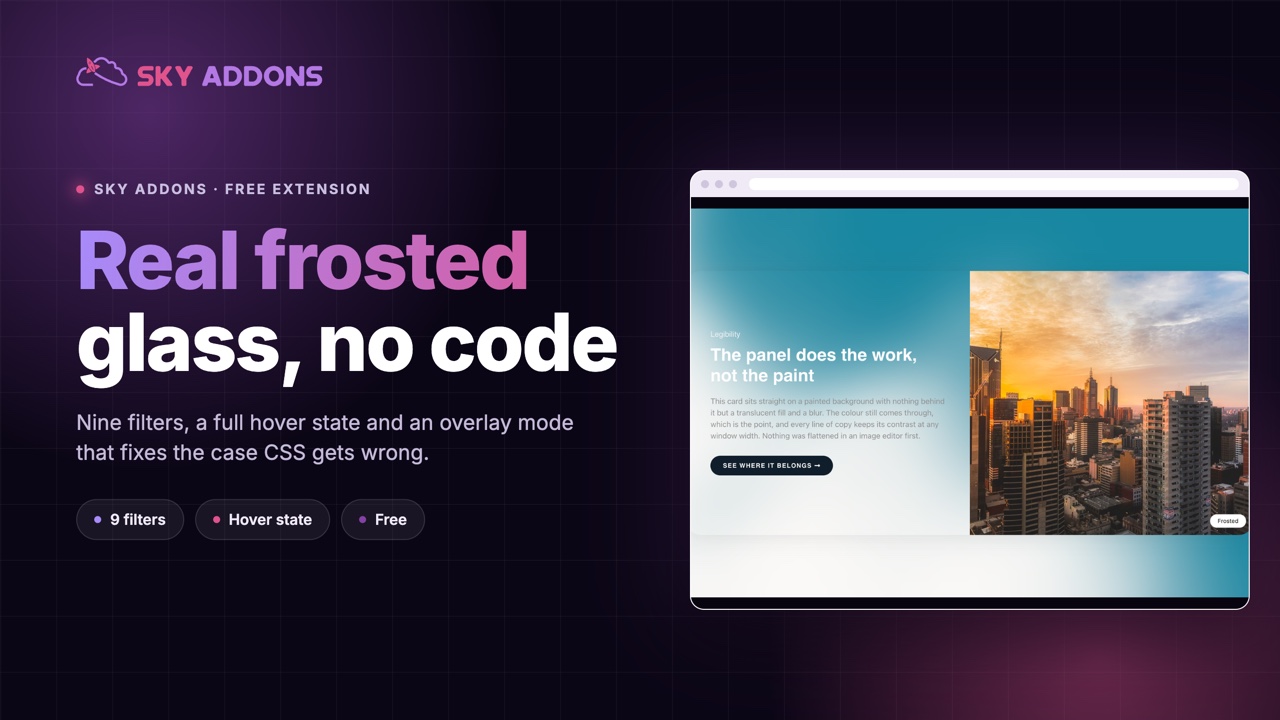
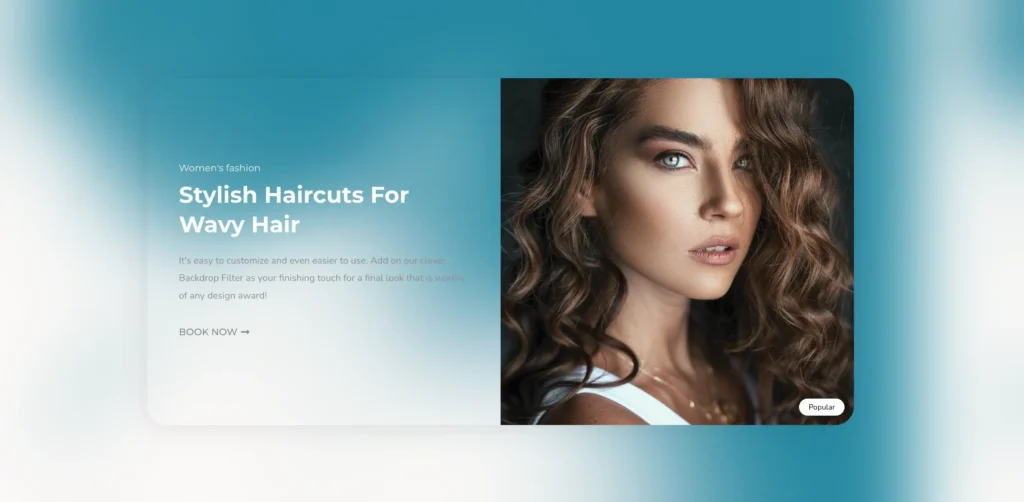
Sky Addons Backdrop Filter Extensions enhances your Elementor design capabilities by applying sophisticated CSS filter effects to element backgrounds. This powerful feature lets you create glass morphism effects, frosted backgrounds, and artistic visual treatments on sections, columns, containers, and widgets without additional plugins or custom code. Perfect for creating modern, immersive web experiences with minimal effort.
Key Features
- Apply backdrop filters to any Elementor element (widgets, sections, columns, and containers)
- 10+ filter effects including blur, brightness, contrast, grayscale, and more
- Fine-tune each filter with intuitive slider controls
- Special background overlay option for sections and containers
- Compatible with all Elementor elements
- Zero impact on page loading speed
Activate Backdrop Filter Module
Backdrop Filter is a core module in Sky Addons that comes pre-activated. However, if you need to verify its status:
- Navigate to your WordPress Dashboard and locate “Sky Addons” in the left sidebar menu
- Click on the “Modules” tab within the Sky Addons dashboard
- Find “Backdrop Filter” in the modules list
- Ensure the toggle switch is in the “On” position
- Save your changes if you made any adjustments
The Backdrop Filter functionality will now be available across all compatible Elementor elements.
Using Backdrop Filter
- Open the Elementor Editor and select any element (widget, section, column, or container)
- For widgets: Navigate to the “Advanced” tab
- For sections/columns/containers: Navigate to the “Style” tab
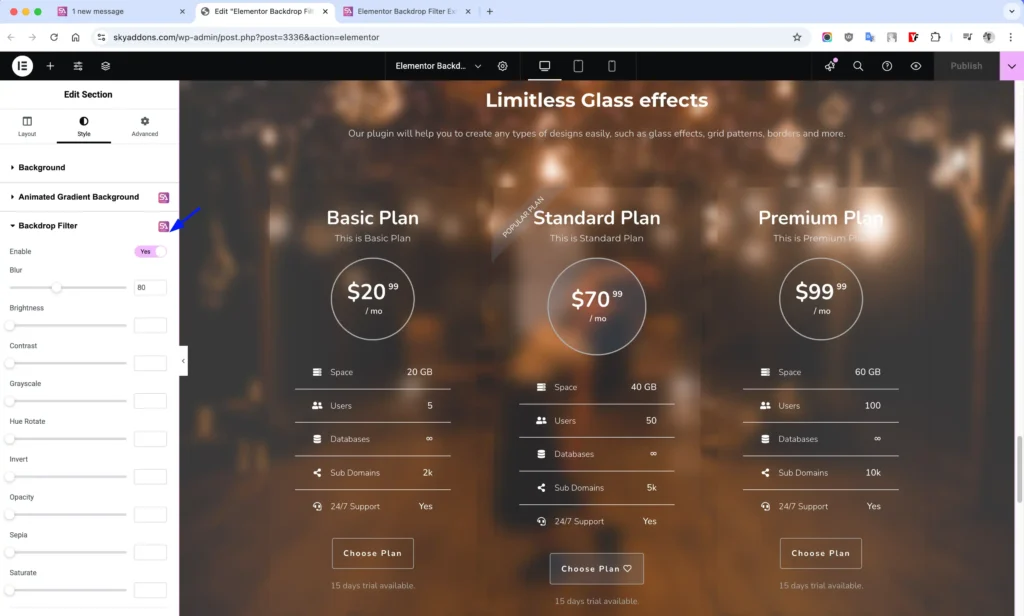
- Locate the “Backdrop Filter” section (marked with the Sky Addons icon)
- Toggle the “Enable” switch to activate backdrop filtering for this element
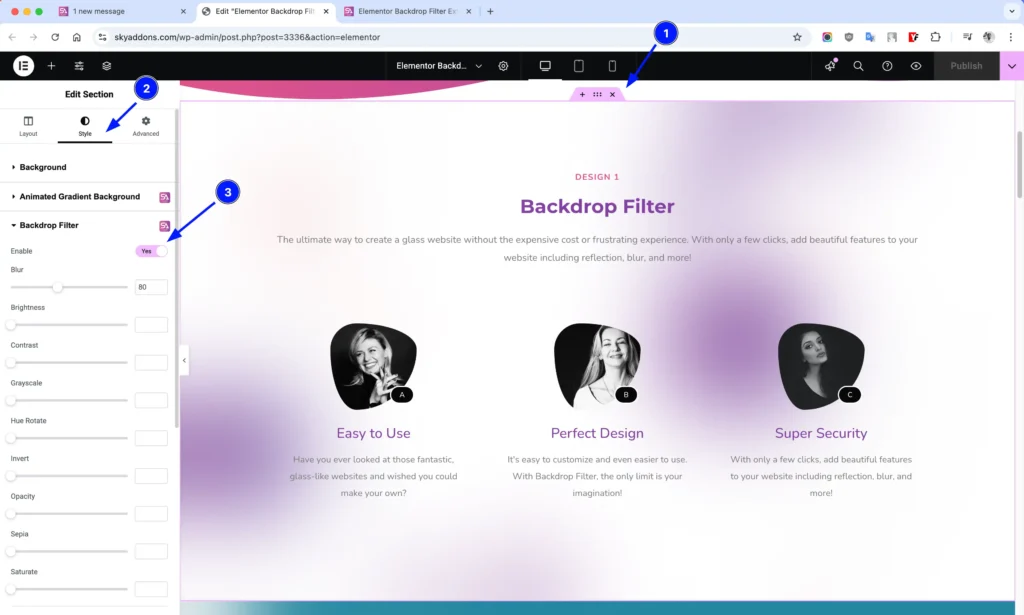
Backdrop Filter Controls
The module provides comprehensive controls to customize your backdrop filter effects:
- Enable – Activates the backdrop filter effect on the selected element
- Blur – Adds a gaussian blur effect (0-200px) to create frosted glass appearances
- Brightness – Adjusts the brightness level (0-200%) for lighter or darker effects
- Contrast – Controls the contrast ratio (0-2) between element colors
- Grayscale – Removes color saturation (0-1) for a monochrome appearance
- Hue Rotate – Shifts colors along the color wheel (0-360 degrees)
- Invert – Inverts all colors in the element (0-1)
- Opacity – Controls transparency level (0-1) of filtered content
- Sepia – Adds a warm, yellowish-brown tone (0-1) for vintage effects
- Saturate – Adjusts color intensity (0-2) from desaturated to vibrant
- Drop Shadow – Cast a shadow through the filtered layer with control over horizontal and vertical offset, blur, and color
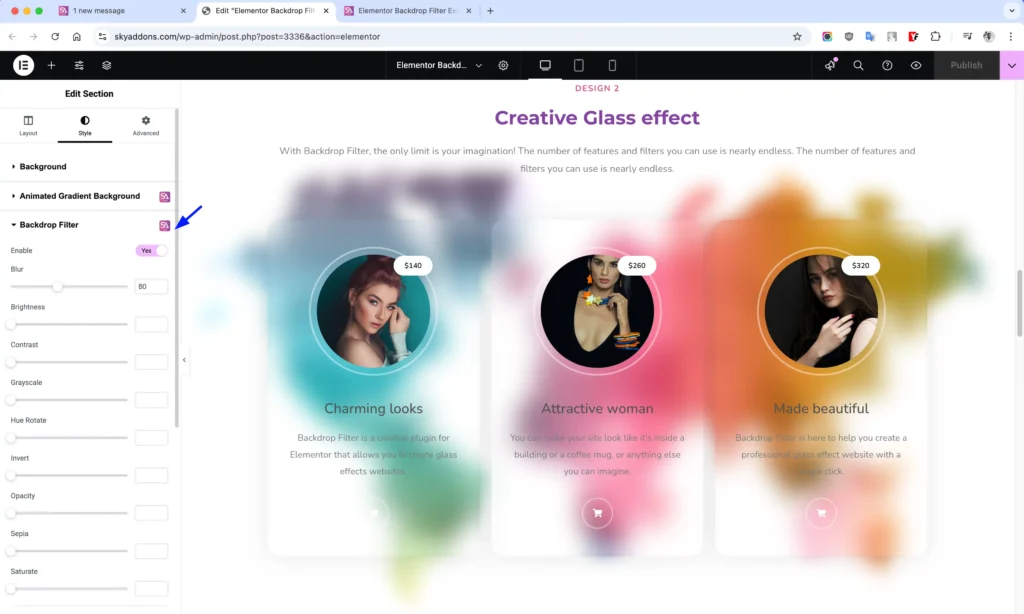
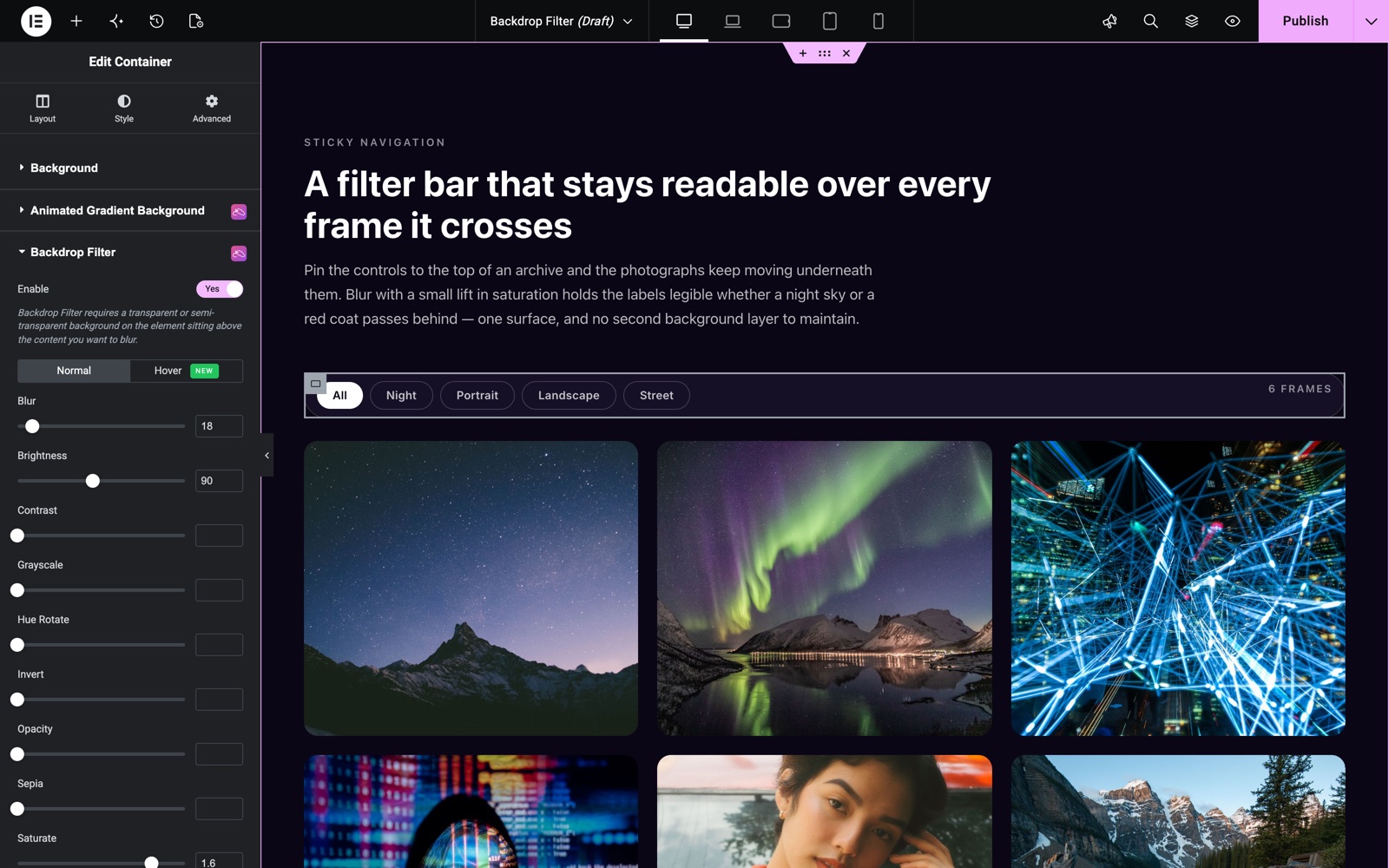
This sticky filter bar sits over a photo grid. The container has a semi-transparent background, and Backdrop Filter adds a Blur of 18 and a Brightness of 90. The photos still move underneath, but the labels stay easy to read. The note under Enable is a reminder: the element needs a transparent or semi-transparent background, or there is nothing to see through.
Hover Effects & Transition
- Hover Tab – Every filter (blur, brightness, contrast, grayscale, hue rotate, invert, opacity, sepia, saturate) has a separate Hover value, so the backdrop can smoothly change when visitors hover the element.
- Transition Duration – Set how long (in seconds) the filter animates between its normal and hover states for a polished, fluid effect.
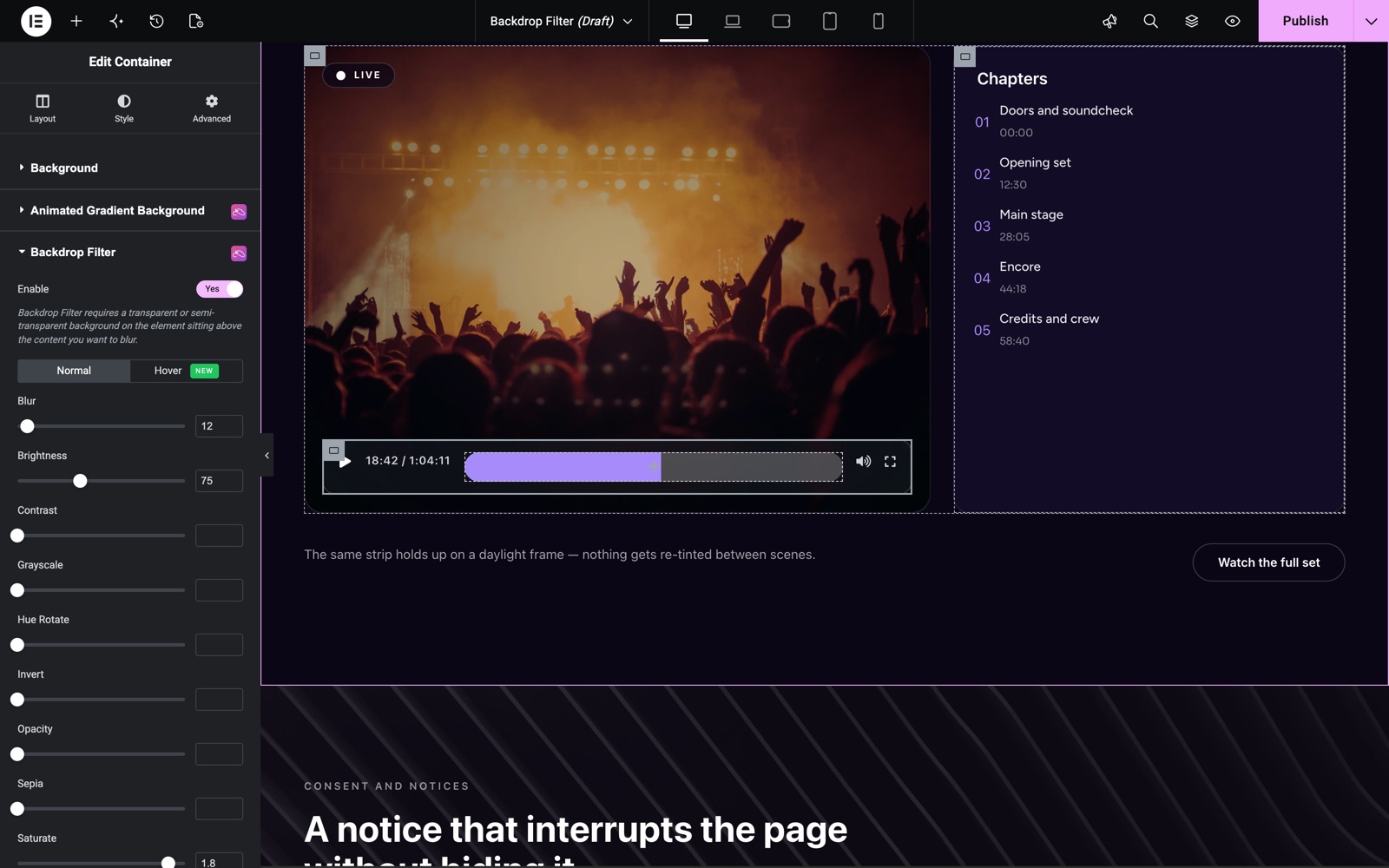
The same idea works on a video player. The control strip uses a Blur of 12, so the bright stage lights behind it do not wash out the time and buttons.
Creative Selector Options
For sections and containers, you have additional control over where the backdrop filter is applied:
- Default – Applies the filter to the main element
- Background Overlay – Applies the filter to the background overlay layer
Usage Note for Background Overlay option:
- Set the Section/Container background first
- Navigate to Background Overlay
- Select “Color” as Background Type
- Set a transparent color with Opacity at 1
- The backdrop filter will now affect the overlay layer
Style Customization
Backdrop filters can dramatically alter the visual appearance of elements. Combine multiple filters to create unique effects:
- Glass Morphism – Use blur (5-20px) with reduced opacity (0.7-0.9) for modern glass effects
- Frosted Glass – Combine blur (10-15px) with slight brightness increase (105-110%)
- Dramatic Contrast – Increase contrast (1.2-1.5) with slight saturation boost (1.1-1.3)
- Vintage Look – Apply sepia (0.5-0.7) with reduced saturation (0.8)
- Color Tinting – Use hue-rotate with saturation adjustments for color shifts
Save and Preview
- Once you’ve customized and styled your backdrop filter, click “Publish” or “Update” to save your changes.
- Preview the page to ensure the effect looks as desired.
Troubleshooting
- Effect Not Visible: Ensure the element has a semi-transparent background or is overlaying other content to see the effect
- Poor Performance: Excessive blur values (above 30px) may cause performance issues on some devices – use moderately
- Not Working in Some Browsers: Backdrop filters have varying browser support; consider adding fallback styling
- Background Overlay Option Not Working: Make sure you’ve followed the exact steps in the usage note above
- Z-index Issues: If filtered content is appearing in the wrong layer, adjust the z-index of your elements
Frequently Asked Questions
Is Backdrop Filter free?
Yes. Backdrop Filter is part of the free Sky Addons plugin.
How do I make a glassmorphism card in Elementor?
Give the card a semi-transparent background color, such as white at 15% opacity. Then turn on Backdrop Filter and set Blur to 10 to 20. Place the card over a photo or a colorful background so the blur has something to soften.
Why can I not see any effect?
A backdrop filter changes what is behind the element. If the element has a solid background, or nothing sits behind it, there is nothing to change. Make the background semi-transparent and place the element over an image or other content.
Related Extensions
- Animated Gradient Background: moving gradients for any element.
- Sticky: keep a bar like the one above on screen while visitors scroll.
Conclusion
The Backdrop Filter extensions brings powerful visual effects that were previously only possible with image editing software directly into your Elementor workflow. Whether creating modern glass morphism designs, adding depth with subtle blurs, or applying creative color filters, this feature helps you create distinctive visual experiences without leaving the editor.
Use backdrop filters strategically – they’re most effective when applied subtly to enhance usability rather than distracting from your content. The module is optimized for performance, but remember that complex filter combinations may impact rendering speed on lower-powered devices.
If you have any questions or encounter any challenges while using the Backdrop Filter module, please don’t hesitate to reach out to our dedicated support team at https://wowdevs.com/support/ where our expert team is ready to provide prompt and helpful assistance.