
How to use Luster Grid Widget of Sky Addons for Elementor
Luster Grid is a refined Elementor post grid widget that lays out your blog posts, news, or any post type in a clean, magazine-style grid. A flexible Query builder pulls posts automatically, and each card shows a featured image, category badges, author, date, and an optional excerpt with a stylish title accent bar. The Luster Grid widget for Elementor even supports video posts with a lightbox play button and numbered pagination for browsing archives. This documentation will guide you through the process of using the Luster Grid Widget to build a beautiful blog section on your website.
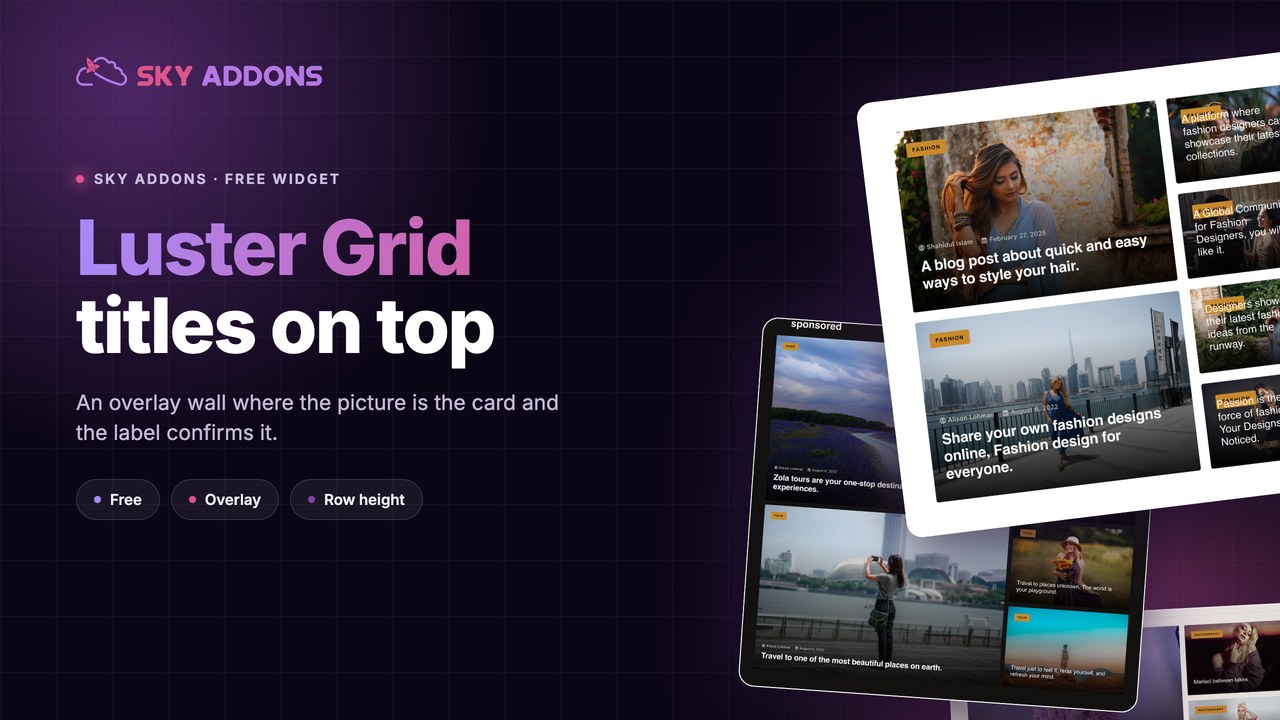
Features:
- Powerful Query Builder: Pull posts from any post type and filter by terms, authors, include/exclude rules, date, order, and offset.
- Flexible Grid Spacing: Responsive Row Gap and Column Gap sliders keep the grid airy on every device.
- Rich Post Elements: Toggle the title, category, author, date, and excerpt independently, with a configurable text limit.
- Primary & Secondary Title Typography: Style featured grid items and regular items with separate title typography.
- Video Support: Video posts get a play button and can open in a lightbox with aspect ratio, autoplay, and mute options.
- Post Pagination: Optional numbered pagination lets visitors page through your full archive.
- Hover Image Effects: Gradient image overlay, CSS filters, and polished card styling out of the box.
- Title Accent Bar: A decorative bar under the post title with adjustable size and color or gradient background.
Insert Luster Grid Widget
- Open Elementor Editor. In the Elementor panel, search for “Luster Grid” under Sky Addons.
- Drag and Drop the Widget to the desired location on your page / editor.
Configure Layout
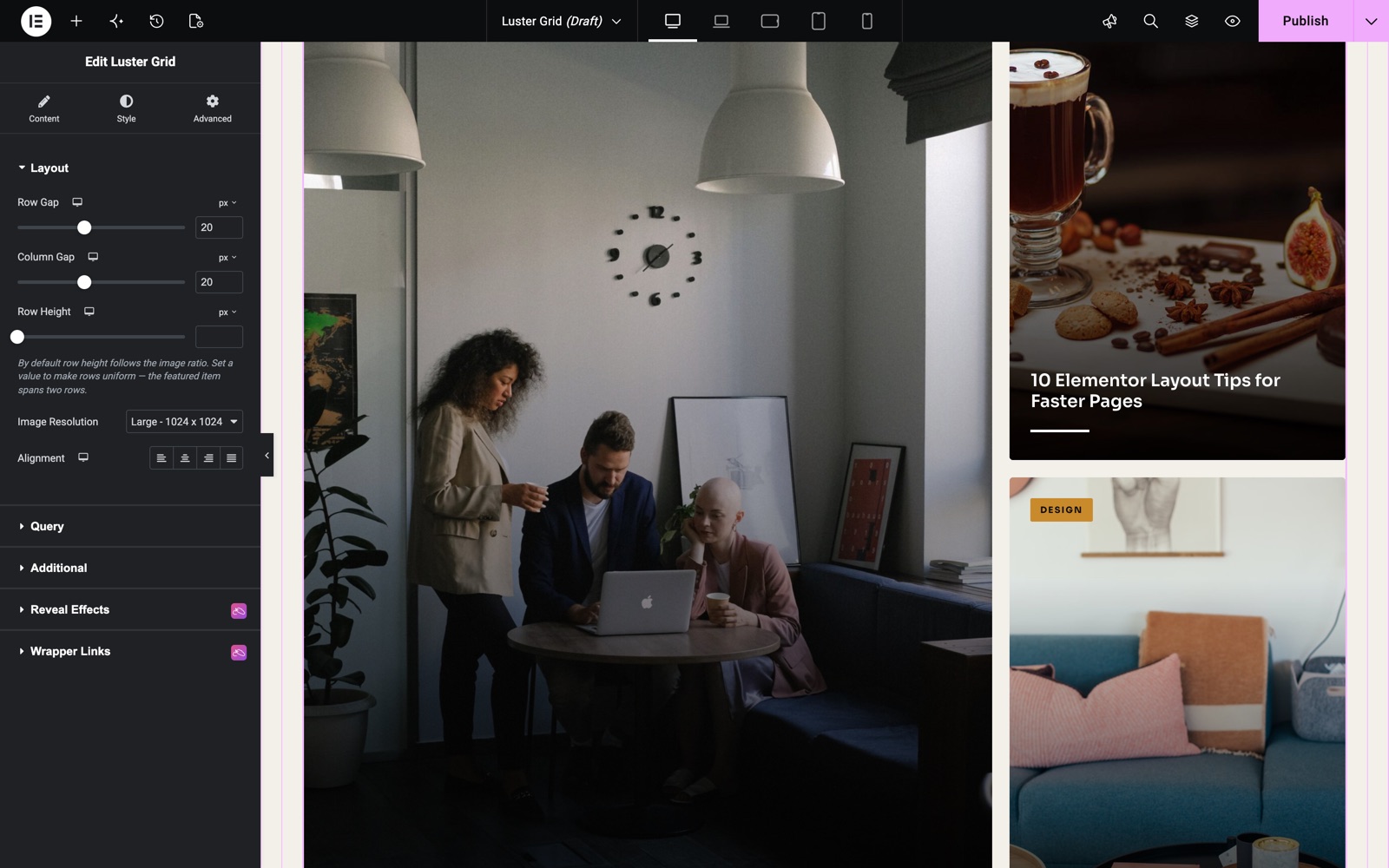
Start in the Layout section to define the grid structure:
- Row Gap: Set the vertical spacing between grid rows, per breakpoint.
- Column Gap: Set the horizontal spacing between grid columns, per breakpoint. Row Height (100 to 600 px) makes every row the same height; by default the height follows the image ratio, and the featured post spans two rows.
- Image Size: Pick the thumbnail resolution (Large by default) for the featured images.
- Alignment: Align the post content left, center, right, or justified per breakpoint.
The grid in the Luster Grid demo uses a 20 px Row Gap and Column Gap with Large images. The first post is the big featured card and the others sit beside it.
Build the Post Query
The Query section decides which posts appear in your Elementor post grid. It works like a mini query builder:
- Source: Select the post type to display: Posts, Pages, or any registered custom post type.
- Limit: Set how many posts the grid shows per page (3 by default).
- Include / Exclude: Hand-pick posts to include or exclude, or filter by Terms (categories, tags, taxonomies) and Authors.
- Offset: Skip a number of posts from the start of the results.
- Date: Restrict posts to a time range such as past week, month, year, or a custom before/after window.
- Order By / Order: Sort by date, title, menu order, random, and more, in ascending or descending order.
- Ignore Sticky Posts: Decide whether sticky posts keep their priority position.
Configure Additional Options
The Additional section toggles each post element on or off:
- Show Title: Display the post title, with a Title HTML Tag selector (H1–H6, div, span, p) for SEO-friendly markup.
- Show Category: Display the post’s category badges above the content.
- Show Author: Display the author name linked to the author archive.
- Show Text: Display an excerpt, with a Text Limit (word count) and a Strip ShortCode switch to keep raw shortcodes out of the excerpt.
- Show Date: Display the publish date, with Human Diff Time (e.g. “3 days ago”), a short-format option, and an optional time display.
- Show Video: Detect video posts and show a play button on the thumbnail.
- Show Pagination: Add numbered pagination below the grid so visitors can browse older posts.
Configure Video Settings
When Show Video is enabled, the Video Settings section controls how videos open:
- Video Open: Open the video in a Lightbox or follow the post link, with an optional new-tab setting for file links.
- Entrance Animation & Aspect Ratio: Choose the lightbox animation and the video ratio (16:9, 4:3, etc.).
- Lazy Load, Autoplay, Mute: Fine-tune playback behavior inside the lightbox.
Style Your Luster Grid
Head to the Style tab to make the grid match your brand. Every element has its own dedicated section:
- Luster Grid (Item):
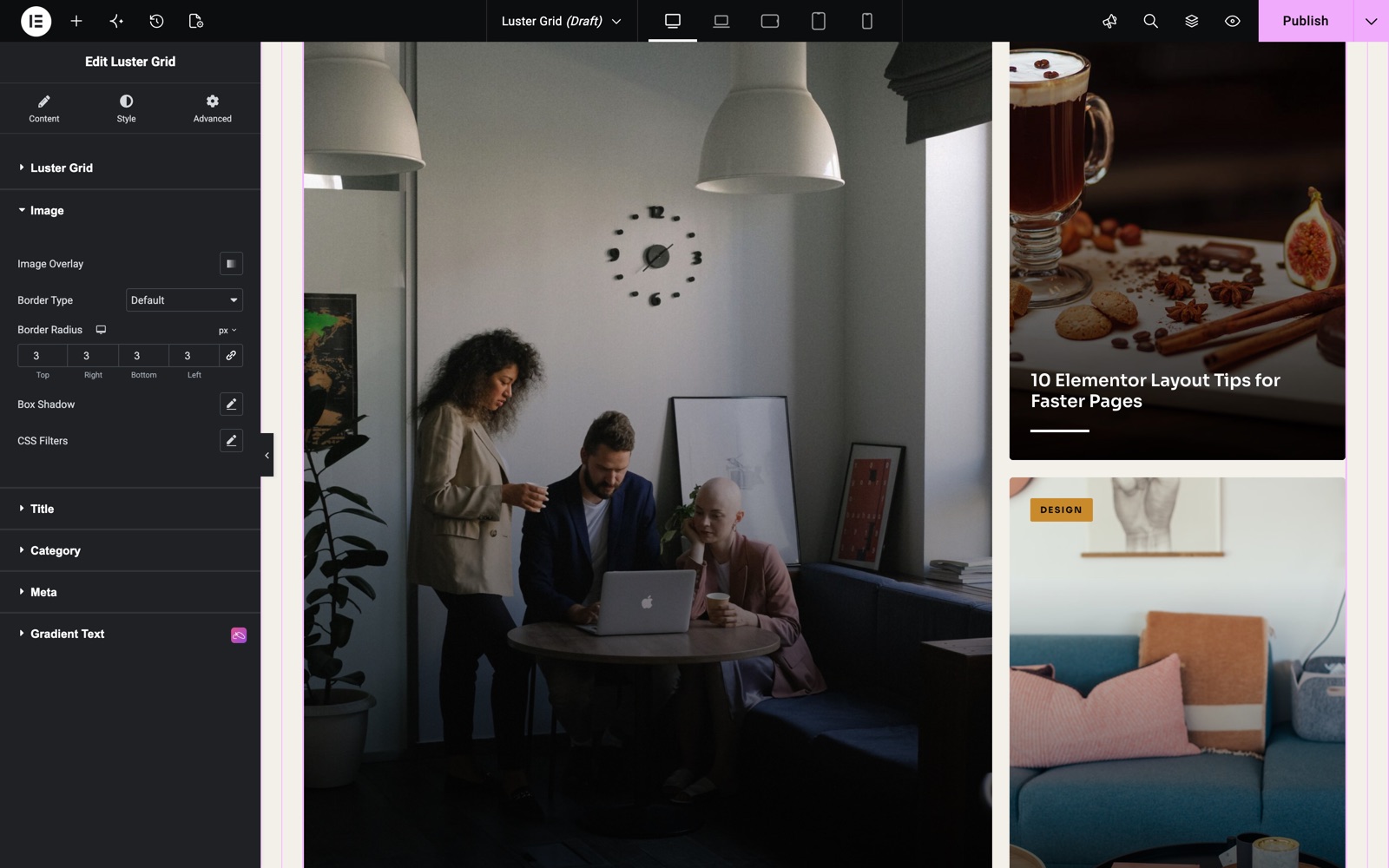
Set padding, border, border radius, and box-shadow for each post card. - Image:
Add a gradient Image Overlay, border, border radius, box-shadow, and CSS filters to the featured image. - Title:
Control spacing, normal and hover colors, and text shadow, with separate Primary Typography for featured items and Secondary Typography for the rest, plus the accent Bar Size and Bar Color. - Text:
Style the excerpt color and typography. - Category:
Adjust spacing, space between badges, colors, background, and typography in normal and hover states. - Meta:
Style the author and date row: spacing, space between items, color, and typography. - Pagination:
Customize the page-number links: colors, background, spacing, and active state. - Play Button:
Customize the video play button size, color, background, border, and hover state.
These styling options let you shape the Luster Grid into a polished blog or news section that fits any design system.
The Image style section adds the Image Overlay gradient, a border, a 3 px radius, box shadow and CSS filters to each featured image.
Save and Preview
- Once you’ve customized and styled your grid, click “Publish” or “Update” to save your changes.
- Preview the page to ensure the widget looks and functions as desired.
Best Practices
- Consistency: Use the same image size and aspect ratio across posts so grid cells line up evenly.
- Accessibility: Keep title contrast strong against the image overlay so text stays readable.
- Use Pagination for Large Archives: Instead of loading dozens of posts at once, keep the Limit modest and enable Show Pagination.
- Testing: Check row and column gaps on tablet and mobile breakpoints for a responsive layout.
Troubleshooting
- No Posts Showing: Check the Query section. The selected source, terms, or date filters may exclude everything. The widget renders nothing when the query finds no posts.
- Pagination Not Appearing: Make sure Show Pagination is enabled and the query returns more posts than the per-page Limit.
- Styling Issues: Double-check CSS settings and clear cache if recent changes aren’t displaying.
Frequently Asked Questions
How do I choose which posts appear in the Luster Grid?
Use the Query section. Select a Source (post type), then filter with Include/Exclude rules, Terms, Authors, a date range, and ordering. The Limit option controls how many posts show per page.
Can I add pagination to the Luster Grid?
Yes. Switch on Show Pagination in the Additional section. Numbered page links appear below the grid, and a dedicated Pagination style section lets you match them to your theme.
Why does the Title style section have Primary and Secondary Typography?
The Luster Grid highlights featured items in its layout pattern. Primary Typography styles those featured titles while Secondary Typography styles the remaining cards, so you can give highlighted posts a larger, bolder headline.
Can the Luster Grid display custom post types?
Yes. The Source dropdown in the Query section lists every public post type, so this Elementor post grid works with portfolios, products, events, or any other custom content.
Does the Luster Grid support video posts?
Yes. With Show Video enabled, posts containing a video get a play button overlay, and the Video Settings section lets the video open in a lightbox with aspect ratio, autoplay, and mute options.
Related Documentation
Conclusion
The Luster Grid Widget by Sky Addons for Elementor gives your blog a clean, magazine-quality grid with full control over query, layout, and styling. Utilize its customizable features to create a seamless user experience. For further assistance, consult the Sky Addons support team or community forums. Enjoy building a beautiful blog section!
Need help? Our team is happy to answer questions on the Sky Addons support page.