
Dynamic Tags in Sky Addons for Elementor: The Complete Reference
Elementor dynamic tags replace a value you typed with a value your site already stores, so one layout renders correctly for every post, product, term and user it meets. Sky Addons registers 77 of them across nine groups, and every one ships in the free plugin. This page is the map rather than the manual. This documentation walks you through which group holds the tag you want, which of seven documents covers it, the two control patterns every tag follows, and the contexts a tag must stand in before it prints anything.
Features:
- 77 Tags, All Free: Every dynamic tag Sky Addons registers is in the free plugin: there are no Pro-only tags.
- Nine Groups, Seven Documents: Post, Site, Search, Archive, Term, User, Media, WooCommerce and ACF.
- Elementor’s Own Picker: The tags join the standard dropdown, under headings beginning “Sky Addons – “.
- Current Context by Default: Post, term, user and product tags read whatever record is being rendered.
- Pin to One Record: A Search & Select control aims a tag at one specific record instead.
- Two Advanced Panels: Text tags carry Word Limit, Before, After and Fallback; URL, image and gallery tags carry Fallback alone.
- Conditional Groups: WooCommerce and ACF tags register only when those plugins are active.
Requirements
- Elementor and Sky Addons, both active. No Pro licence is needed for any dynamic tag.
- A control of the matching type: text, link or image, depending on the tag.
- WooCommerce for the 22 product tags, Advanced Custom Fields for the five field tags.
- A record to read: a Theme Builder template, a loop, or a real archive or search URL.
What a Dynamic Tag Actually Is
A dynamic tag is an instruction attached to one Elementor control that says “fetch this value when the page is requested” instead of holding something you typed. Bind a Heading’s Title to Post Title and it becomes a headline about whichever article is being rendered; bind an Image widget to Featured Image and the same widget shows a different picture on every card in a grid. Nothing else changes (size, link and style controls all still apply) only where the content comes from. The wider case for building this way is in the Dynamic Content overview.
How to Insert an Elementor Dynamic Tag
- Hover the control you want to fill. A dynamic icon appears at the right of its label; controls that cannot take one never show it.
- Click the icon and find the heading you need. Only tags matching the control’s type are listed.
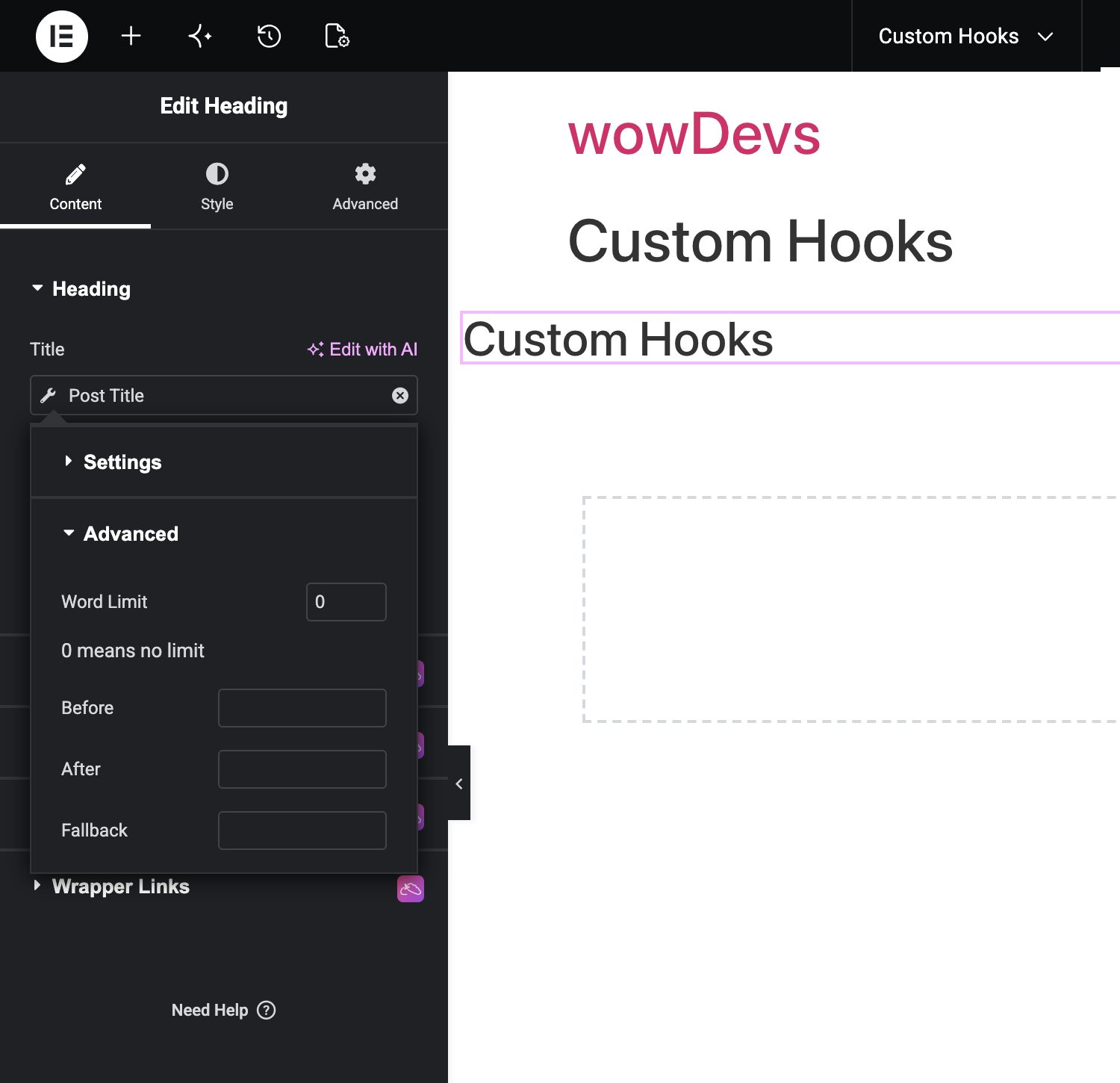
- Click the tag chip for its own settings, and the wrench icon for the Advanced panel.
The click-by-click version, including how to remove a tag again, is in How to Insert a Dynamic Tag on Any Elementor Control.
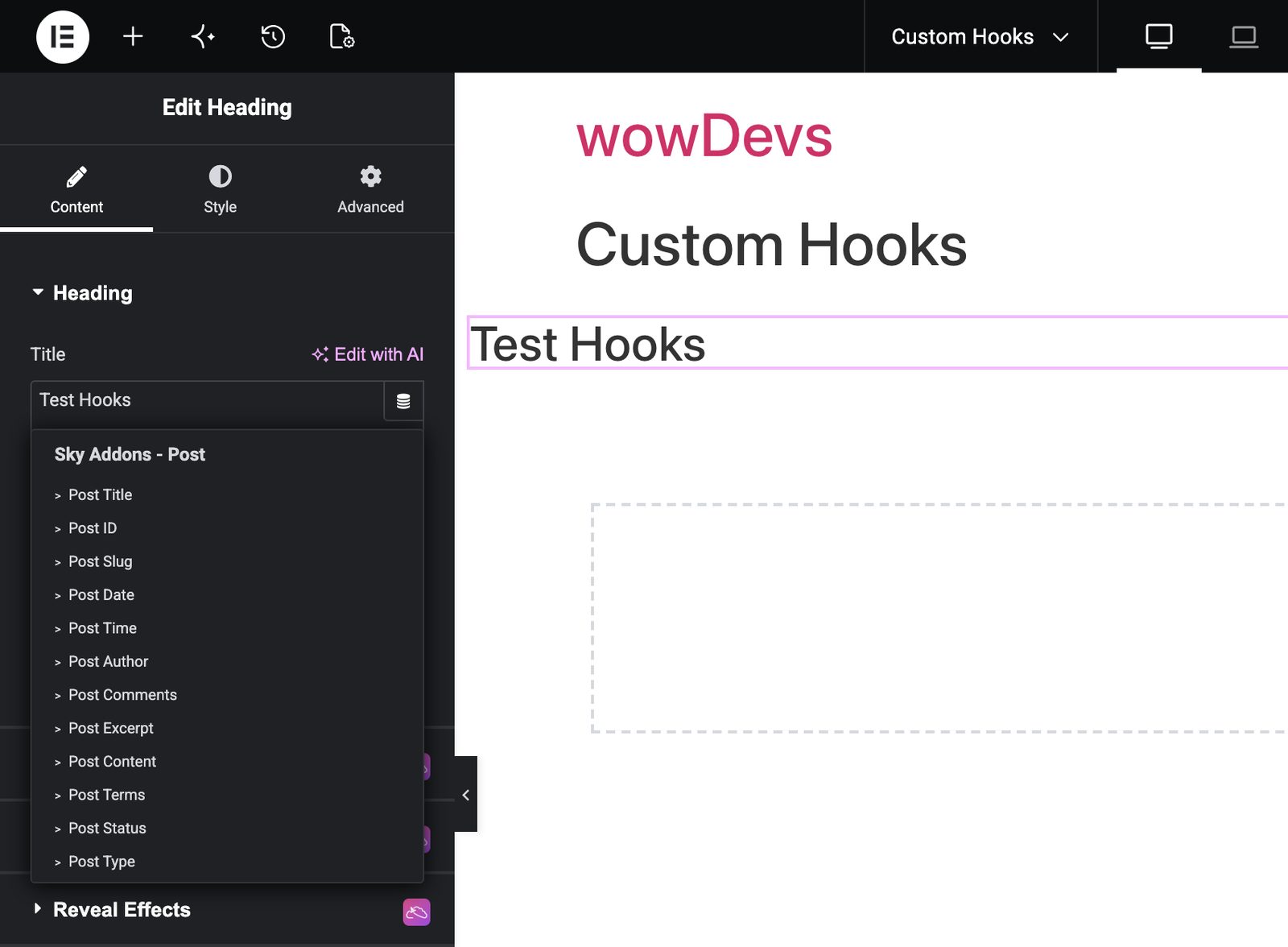
77 Elementor Dynamic Tags, and Where the Number Comes From
- 50 are always available, as soon as Elementor and Sky Addons are active.
- 22 more appear once WooCommerce is active, as the Sky Addons – WooCommerce group.
- 5 more appear once Advanced Custom Fields is active, as the Sky Addons – ACF group.
Both conditional groups are all or nothing. There is no greyed-out entry and no install prompt: with the plugin inactive, the heading and every tag under it are absent from the picker.
Which Group, and Which Document
Start from the value you want to print. The counts are of tags registered in that group.
| Group | What it is for | Tags | Read |
|---|---|---|---|
| Post | Title, date, author, comments, excerpt, content, terms, custom fields, featured image and matching URLs. | 22 | Post tags |
| Site and Search | Site title, tagline, logo, icon, URLs, current date and time, a URL parameter, a shortcode, the search phrase and the result count. | 10, plus Login/Logout URL | Site & Search tags |
| Archive | Title, description, meta, image and link of the archive being viewed. | 5 | Archive tags |
| Term and User | A chosen term’s name, description, slug, ID, count, meta and link; a chosen user’s profile fields, meta, links and avatar. | 12 (7 term, 5 user) | Term & User tags |
| Media | Attachment URL, for linking to a library file. The document also gathers the seven image tags from other groups. | 1 of its own | Media & Image tags |
| WooCommerce | Product title, price, SKU, stock, rating, sale, shipping, attributes and terms, plus cart links and product images. | 22, with WooCommerce | WooCommerce tags |
| ACF | Field values as text, URL, image, gallery or date-time, read from a post, term, user, comment or options page. | 5, with ACF | ACF tags |
Two rows need a footnote. Login/Logout URL is filed under Sky Addons – User in the picker but documented with the site tags, because that is the job it does. And the Media group holds only Attachment URL: image tags are grouped by what they read, not what they produce, so Featured Image sits under Post and Site Logo under Site.
The Two Control Patterns Every Tag Follows
A tag has two layers. The first is its own settings (Post Date asks which date and format, Product Price which price type) and each group document tabulates those. The second is the Advanced panel behind the wrench icon, which takes one of exactly two shapes.
| Tag kind | Advanced panel contains | Why |
|---|---|---|
| Text tags | Word Limit, Before, After, Fallback | All four suit a string: trim it, frame it, cover the empty case. |
| URL, image, gallery and date-time tags | Fallback only | Trimming a link to five words means nothing, and a picture has no prefix. On image tags the Fallback is a media picker. |
Before and After print on either side of the value and disappear with it, which is why a label belongs there rather than in a widget beside the tag. Swap a text tag for a URL tag and the panel shrinking to one field is expected, not a fault.
How to Read a Full Settings Reference Table
Every group document ends with a table titled Full Settings Reference, laid out identically so you never relearn it. Tag names the tag as it reads in the picker, and one with several settings spans several rows with only the first named. Used on says which control type it drops onto; Setting gives the exact panel wording, Options the choices, Default the starting value, where an em dash means empty.
Shown when is the column worth reading properly. An em dash means the setting is always visible; anything else is a dependency. “Format is Custom” means that field only appears once you choose Custom, and two conditions separated by a semicolon must both be true. The paragraph above each table lists the controls shared by every tag in the group, which is what a row reading “Only the shared controls listed above” refers to.
Where a Tag Needs a Context
The commonest report about dynamic tags is “it prints nothing”, and the cause is nearly always that the tag is standing somewhere it cannot read from.
| Tag family | What has to be in context | Otherwise |
|---|---|---|
| Post, WooCommerce, ACF | A post or product being rendered, or one pinned in the tag’s picker. | Nothing prints. |
| Archive | An archive being rendered. There is no picker at all. | Empty on a page or single post. |
| Search | A real search request: a search results URL, or a template rendering one. | Empty, including in the editor. |
| Term | Nothing, but a term must be chosen in Search & Select Term. These never follow the archive. | Empty picker, empty tag. |
| User | Nothing. An empty picker reads the logged-in visitor, not the post’s author. | Filled for you, empty for a visitor. |
| Site | Nothing: these read site settings and work anywhere. | None |
Two habits follow: preview a template against a real record before judging spacing, and check user-facing work in a private window. More edge cases are in Dynamic Content: Common Issues and Limitations.
Example: An Article Footer That Crosses Two Tag Groups
Real templates mix groups. This footer takes its byline from the Post group and its sign-off from the Site group.
- Create the template. Add a Single Post template in the Theme Builder and preview it against a real article: see Single Post.
- Byline. Bind a Heading’s Title to Post Author, leave Data Type on Display Name, set Before to
Written by, and bind its link to Post Author URL on Author Archive: a URL tag, so its Advanced panel offers Fallback alone. - Date. A second Heading bound to Post Date, a preset Format, Before set to
Published. - Sign-off. Switch groups: a third Heading bound to Site Title, Before set to
More from, its link bound to Site URL on Home URL. - Copyright. A final Heading bound to Current Date Time, Format on Custom and Custom Format set to
Y, with the copyright symbol in Before and your company name in After.
Visitors see “Written by Priya Raman”, linked to her archive, “Published 6 May 2024”, then “More from Field Notes” linking home, then the year beside your company name. The first three change with every article because they come from the Post group; the last two are identical everywhere because they come from the Site group.
Best Practices
- Leave the context controls alone unless you mean it. Current post types and blank Search & Select fields are what make a template reusable.
- Set a Fallback on anything that can be blank: excerpts, custom fields, SKUs and featured images.
- Put labels in Before and After, not a separate widget. A static “Published on” heading stays on screen when the date is empty.
- Match the tag family to the template type. Archive and search tags render nothing on a normal page.
- Read the group document, not only its table. The prose carries the exceptions the table assumes you know.
Troubleshooting
- A whole Sky Addons group is missing. Either the control does not accept that kind of value, or the group is conditional and its plugin is inactive.
- The tag is in the picker but prints nothing. Check the context table, then confirm the record has a value.
- The Advanced panel lost Word Limit, Before and After. You swapped a text tag for a URL, image, gallery or date-time tag.
- A listed setting is not in your panel. Read that row’s Shown when column: it is revealed by another choice, sometimes by two.
Frequently Asked Questions
Do I need Elementor Pro to use Sky Addons dynamic tags?
No. You need Elementor and a control that offers a dynamic value. All 77 tags come from the free Sky Addons plugin; WooCommerce and Advanced Custom Fields are the only extra plugins involved, each for its own group.
How many dynamic tags does Sky Addons add to Elementor?
77 across nine groups. Fifty are always available, twenty-two more appear once WooCommerce is active, and five more once Advanced Custom Fields is active.
Which dynamic tag group should I use for a category name?
It depends which category you mean. For the categories on the post being rendered, use Post Terms. For whichever archive the visitor is on, use Archive Title. For one specific category, use Term Title, which requires a term in its picker.
What is the difference between a dynamic tag and the Query Builder?
A dynamic tag decides what one control prints for the current record. The Query Builder decides which records a grid or carousel loops over. You normally use both: the query picks the posts, the tags render each one.
Conclusion
The 77 Elementor dynamic tags in Sky Addons are easier to hold in your head as seven documents than one long list: pick the group that matches where the value is stored, check whether the tag needs a context or a picker, and let the Advanced panel tell you what kind of value you have. Start with the Post tags for a blog, the WooCommerce tags for a shop, and Dynamic Content Troubleshooting when something comes back empty. For anything else, our team is at https://wowdevs.com/support/.