
How to use Floating Effects of Sky Addons for Elementor
Sky Addons Floating Effects Extensions is a powerful enhancement for your Elementor website, designed to bring dynamic, eye-catching animations to any Elementor widget. With this essential addon for Elementor, you can effortlessly add floating, translating, rotating, scaling, and skewing effects to your elements, making your landing pages and templates more interactive and visually appealing. Whether you’re using free Elementor templates or other Elementor addons, Floating Effects helps you create modern, engaging designs without writing a single line of code. Perfect for Elementor Pro users, agencies, and anyone looking to elevate their Elementor WordPress site with advanced animation controls.
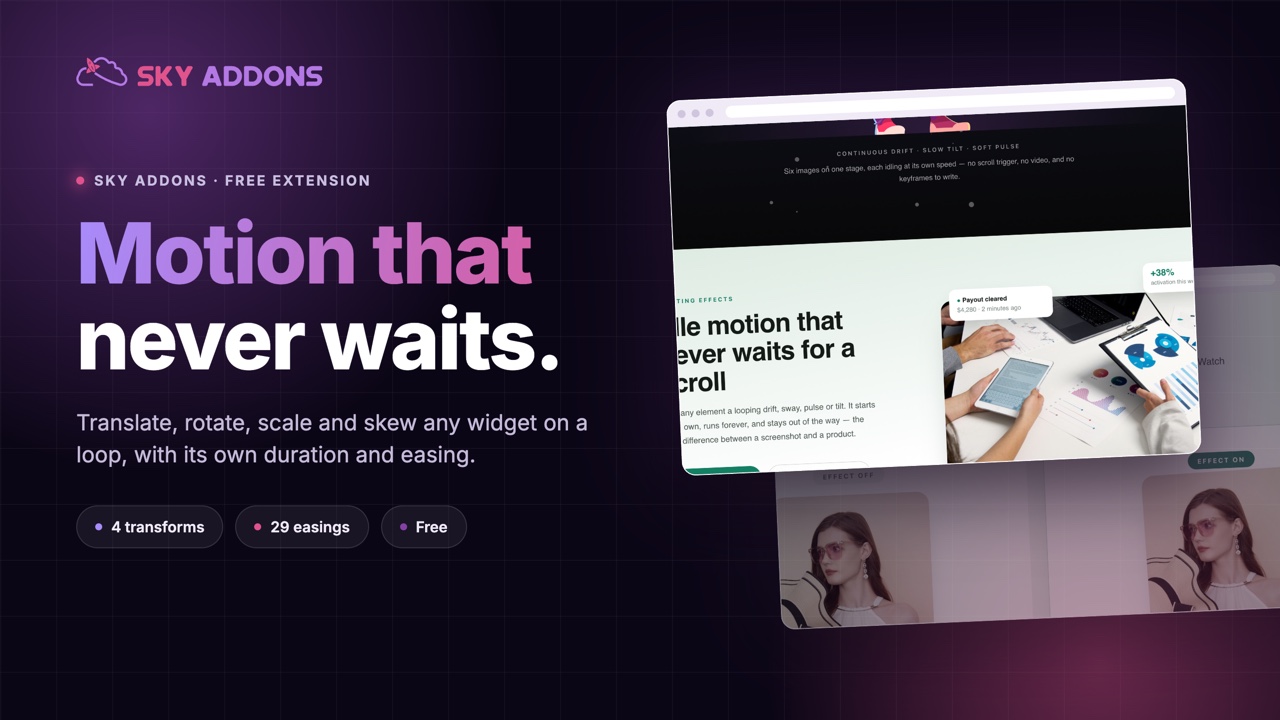
Key Features List
- Enable Floating Effects
Instantly activate floating animations on any Elementor widget for a lively, modern look. - Translate Animations
Move elements smoothly along the X and Y axes with customizable range, duration, and delay. - Rotate Animations
Add 3D rotation effects on X, Y, and Z axes, with full control over angles, speed, and timing. - Scale Animations
Animate scaling up or down on both X and Y axes for attention-grabbing transformations. - Skew Animations
Skew elements dynamically to create unique, creative effects. - Custom Easing Options
Choose from a wide range of easing presets for smooth, professional transitions. - Full Control Panel
All settings are accessible from the Elementor Advanced tab, making it easy to fine-tune every effect.
Activate Advanced Floating Effects Module
To enable the powerful Floating Effects functionality in your Elementor site:
- Navigate to your WordPress Dashboard and locate “Sky Addons” in the left sidebar menu
- Click on the “Extensions” tab within the Sky Addons dashboard area
- Find the “Floating Effects” option in the Extensions list
- Toggle the switch to the “On” position to activate this feature
- Make sure that your changes are saved.
Once activated, you’ll be able to add floating effects to any Elementor widget through the Advanced tab in the element editor.
Activate Floating Effects Extensions
The Floating Effects Extensions is part of the free Sky Addons plugin. To verify it’s active:
- Navigate to your WordPress Dashboard and locate “Sky Addons” in the left sidebar menu
- Click on the “Extensions” tab within the Sky Addons dashboard area
- Find the “Floating Effects” option in the modules list
- Ensure the toggle switch is in the “On” position
- Save your changes if necessary
Apply Floating Effects Extensions
- Open any page in Elementor Editor
- Select the widget where you want to apply the effect
- Go to the “Advanced” tab in the element’s settings panel
- Find “Floating Effects” at the bottom of the advanced options
- Enable the effect by toggling the switch to “Yes”
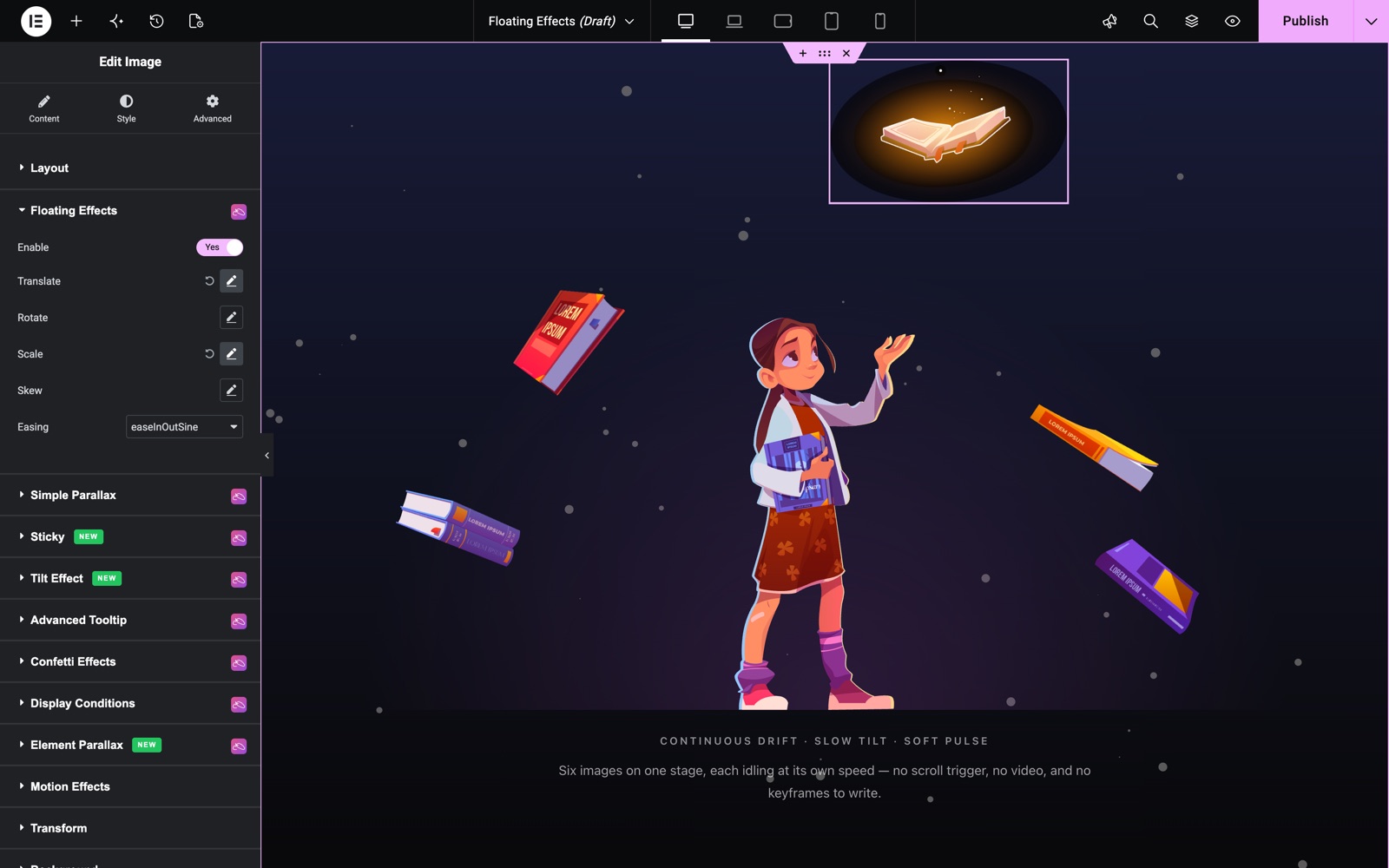
Example Floating Effects Section
- Enable
Turn on floating effects for the selected element. - Translate
Move elements horizontally or vertically with adjustable range, duration, and delay. Translate X and Y run from -100 to 100. Each group has its own Duration (up to 10000 ms) and Delay (up to 5000 ms). - Rotate
Apply 3D rotation on X, Y, or Z axes for dynamic movement. - Scale
Animate scaling up or down for engaging transformations. - Skew
Skew elements for creative, modern effects. - Easing
Select from multiple easing options for smooth, natural animations. Choose Default or one of 28 presets, such as easeInOutSine or easeOutBounce.
Floating Effects works on widgets, not on containers or sections. In this example, an Image widget of a glowing book uses Translate and Scale with the easeInOutSine easing, so it drifts and pulses gently in a loop.
Save and Preview
- Once you’ve customized and set up the effect, click “Publish” or “Update” to save your changes.
- Preview the page to ensure the effect looks and functions as desired.
Troubleshooting
- Floating Effects Not Showing:
Ensure the Floating Effects module is activated in the Sky Addons Extensions panel. - Animations Not Working Properly:
Check that the required “anime.js” script is loaded and there are no JavaScript conflicts with other Elementor plugins.
Frequently Asked Questions
Is Floating Effects free?
Yes. Floating Effects is part of the free Sky Addons plugin.
Can I use it on a container?
No. The section appears on the Advanced tab of widgets only. To move a whole group, apply the effect to each widget, or use Element Parallax, which also works on containers.
Conclusion
Sky Addons Floating Effects Extensions is an essential addon for Elementor, perfect for anyone looking to add premium, interactive animations to their Elementor website builder. With easy-to-use controls and advanced animation options, you can create stunning landing pages, Elementor themes, and templates that stand out. If you have any questions or encounter any challenges while using, please don’t hesitate to reach out to our dedicated support team at https://wowdevs.com/support/ where our expert team is ready to provide prompt and helpful assistance.