
How to use 404 Page Builder features of Sky Addons for WordPress
Sky Addons Theme Builder 404 Page feature lets you create fully customized error pages using Elementor’s drag-and-drop interface. Replace your theme’s default “Page Not Found” error page with a custom design that guides visitors to useful content instead of losing them.
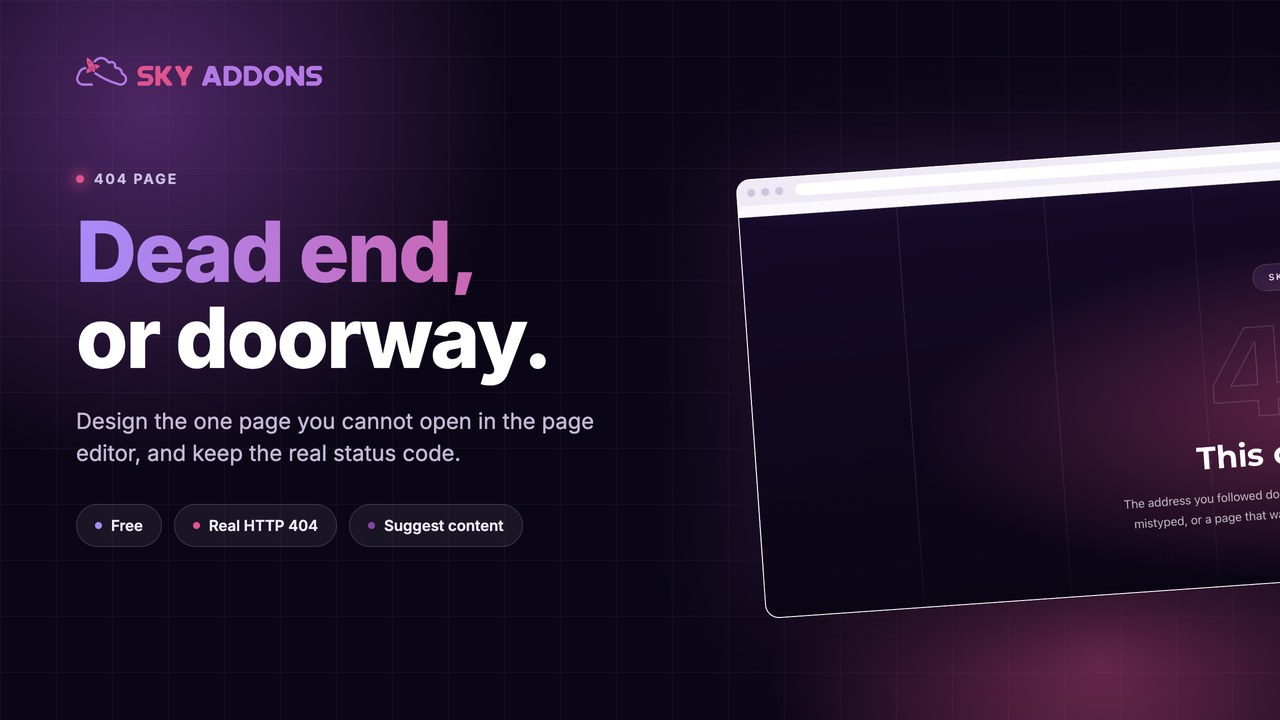
The 404 Page Builder transforms the standard error page experience into an opportunity to re-engage visitors who encounter broken links or mistyped URLs. Create visually appealing 404 pages with helpful navigation options, search functionality, and suggested content that keeps visitors on your site instead of leaving. The theme-independent approach ensures your custom 404 design works consistently regardless of theme updates.
Key Features
- Full Elementor design capabilities with all widgets and styling options
- Custom messaging to turn errors into positive user experiences
- Integrated search functionality to help visitors find what they need
- Suggested content sections to redirect visitors to popular pages
- Contact options to report broken links
- Replaces the content area on any classic WordPress theme, between the header and the footer
- Any Elementor widget, so you can add a search box, helpful links and a contact form
Create a 404 Page Template
- In your WordPress Dashboard, go to Sky Addons > Theme Builder
- Click the “Add New” button to create a new template
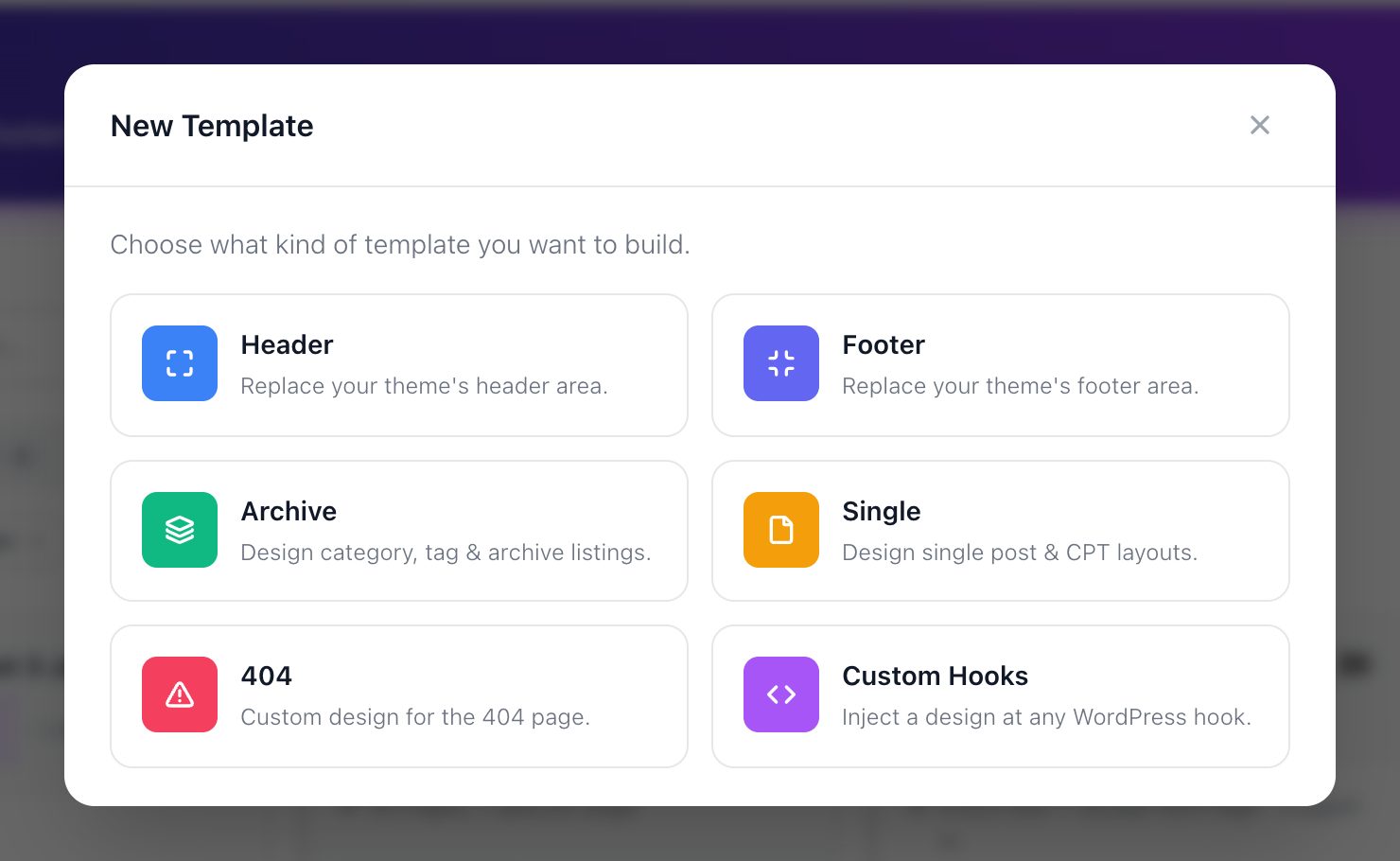
- In the New Template window, click the 404 card
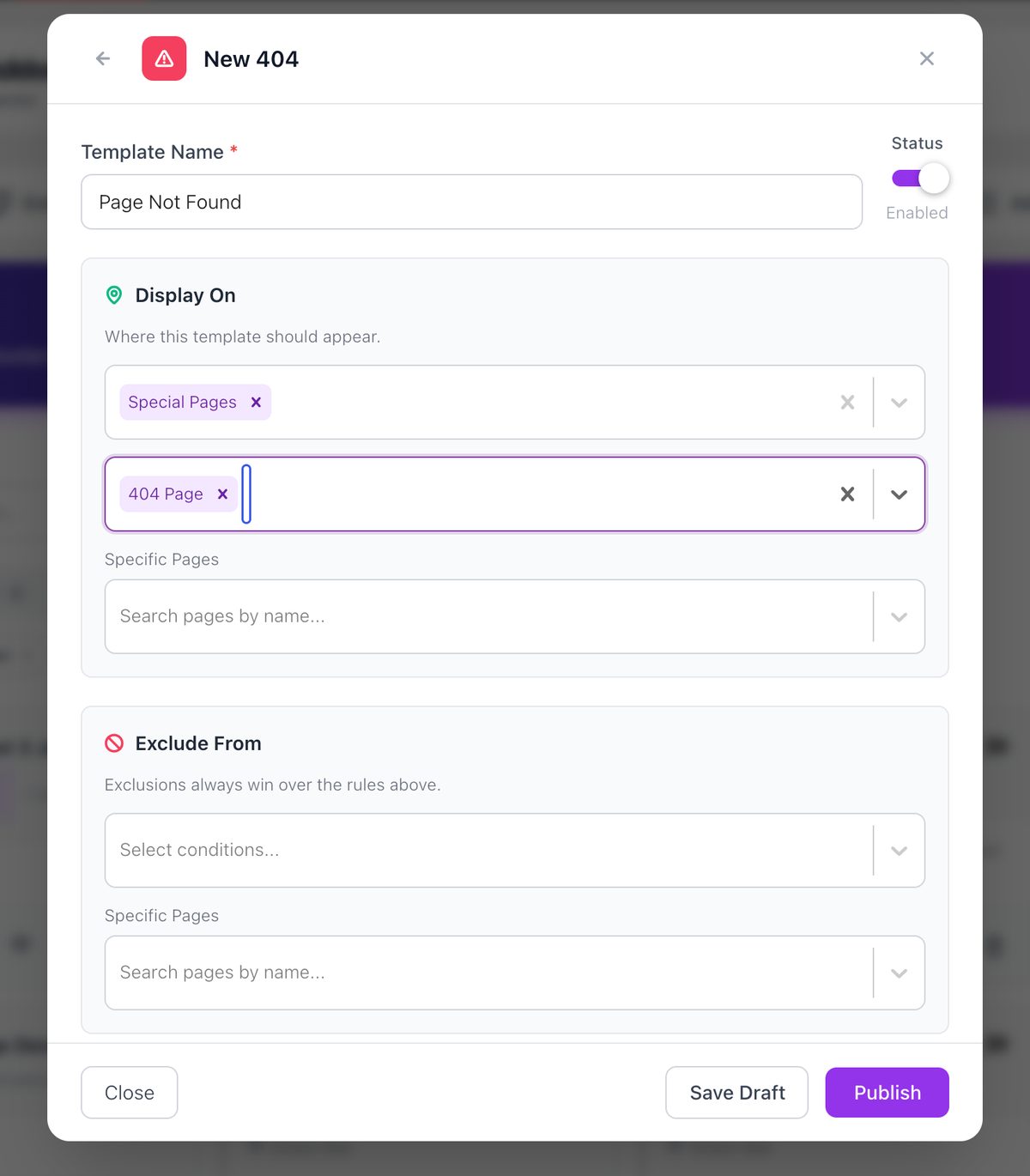
- The settings form opens in the same window. Fill it in as shown below, then click Publish. Click Save Draft instead to keep the template off the site while you work on it.
404 Page Layout Settings
Configure the basic settings for your 404 page template:
- Give your template a descriptive name (e.g., “Custom 404 Page”)
- Template type – The type you picked shows in the window title (New 404). To pick another, click the back arrow before you save. You cannot change the type later.
- Status – Set to “Enabled” to activate your 404 page template, or “Disabled” to temporarily turn it off. The template shows on the site only when it is published and its Status is Enabled.
- Display On – Choose Special Pages, then 404 Page (or Entire Site). The template only replaces the 404 screen, but without a Display On value it never shows
- Edit with Elementor – Click to open the Elementor editor and begin designing your 404 page
User Role Targeting
Control 404 template visibility based on user roles:
- All Users – Display the 404 template to everyone
- Logged In – Show only to any logged-in WordPress user
- Logged Out – Display only to visitors who aren’t logged in
- Administrator/Editor/Author/Contributor/Subscriber – Target specific WordPress user roles
Then click Edit with Elementor – Click to open the Elementor editor and begin designing your 404 Page.
Design Your 404 Page with Elementor
- After creating your 404 template and setting conditions, click “Edit with Elementor”
- Design your 404 page using powerful Elementor widgets:
- Headings – Create friendly error messages with custom typography
- Text Editor – Add helpful explanations about what happened
- Search – Add a search bar, for example with the Advanced Search widget
- Posts – Display suggested or popular content to redirect visitors
- Navigation – Add menus to guide visitors to key sections
- Buttons – Create clear calls-to-action to important pages
- Contact Form – Allow visitors to report broken links
- Use Elementor’s section and column controls to create an organized layout
- Apply responsive settings to ensure your 404 page looks perfect on all devices
404 Page Best Practices
Create an effective 404 page with these recommendations:
- Clear Messaging – Explain what happened in friendly, non-technical language
- Search Functionality – Make it easy for visitors to find what they’re looking for
- Navigation Options – Provide clear paths to your most important pages
- Branding Consistency – Maintain your site’s design language for a seamless experience
- Contact Option – Give visitors a way to report broken links
- Humor (Optional) – Consider a light-hearted approach to ease frustration
- Analytics – Add tracking to identify common causes of 404 errors
Theme Independence
Sky Addons 404 Page Builder works independently of your theme:
- Content area only – The template replaces the content area of the page. Your theme (or your Sky Addons header and footer templates) still draws the header and footer around it
- Consistent Design – Maintains your custom design regardless of theme updates
- Full Width/Boxed Layouts – Control content width independent of theme settings
- Custom Styling – Set your own design regardless of theme defaults
Save and Preview
- Once you’ve designed your 404 page template, click “Publish” or “Update” in Elementor to save your changes
- To preview your 404 page, visit a non-existent URL on your website (e.g., yourdomain.com/page-that-doesnt-exist)
- Click the eye icon on the template card to open the live preview and check the design at desktop, tablet and mobile width
- Check how your 404 page appears and functions
- Test responsiveness by viewing your 404 page on different devices
Troubleshooting
- Template not appearing: Verify that the template is published, its status is set to “Enabled”, Display On includes 404 Page or Entire Site, and no exclusion rules are preventing display.
- Multiple templates conflicting: If you have multiple 404 templates, ensure only one is active or refine your display conditions.
- Search functionality issues: Ensure the search widget is properly configured and test that search results appear correctly.
- Style inconsistencies: Check for any theme CSS overrides that might affect your 404 page design.
- Missing elements: Make sure you’ve added all necessary content components to create a helpful error page experience.
Conclusion
The Sky Addons Theme Builder 404 Page feature transforms what is typically a negative user experience into an opportunity to guide visitors back to valuable content. By creating a custom, branded 404 page with helpful navigation options and search functionality, you can significantly reduce bounce rates from error pages and maintain visitor engagement even when they encounter broken links.
If you have any questions or encounter any challenges while using, please don’t hesitate to reach out to our dedicated support team at https://wowdevs.com/support/ where our expert team is ready to provide prompt and helpful assistance.