
How to use Custom Scripts (CSS/JS) features of Sky Addons for Elementor
The Custom Scripts (CSS/JS) extensions of Sky Addons empowers Elementor users to inject custom CSS and JavaScript directly into their pages without editing theme files. This powerful feature enables advanced customization, allowing you to add tracking codes, custom animations, special styling, and interactive elements to individual pages with complete control over where the code loads-either in the header or footer.
This feature is especially valuable for implementing page-specific functionality that goes beyond Elementor’s built-in options – whether you need to add custom animations, third-party integrations, tracking codes, or advanced styling adjustments. By providing dedicated fields for both header and footer placement, the module gives you precise control over code execution timing, helping optimize performance and ensure proper functionality.
Key Features
- Header & Footer Injection – Add custom code to either the header or footer of your page
- Full Code Editor Support – Write CSS and JavaScript with syntax highlighting
- Page-Specific Customization – Apply unique scripts only to specific pages
- Clean Implementation – No need to modify theme files or use additional plugins
- Edit Mode Protection – JavaScript runs only on the front end, not in the Elementor editor. CSS previews live in the editor
- Performance Optimization – Choose the ideal loading position for your code
- Framework Integration – Easily implement external libraries and frameworks
- No Additional Plugin Required – Built directly into Sky Addons Pro
How to Use Custom Scripts Module
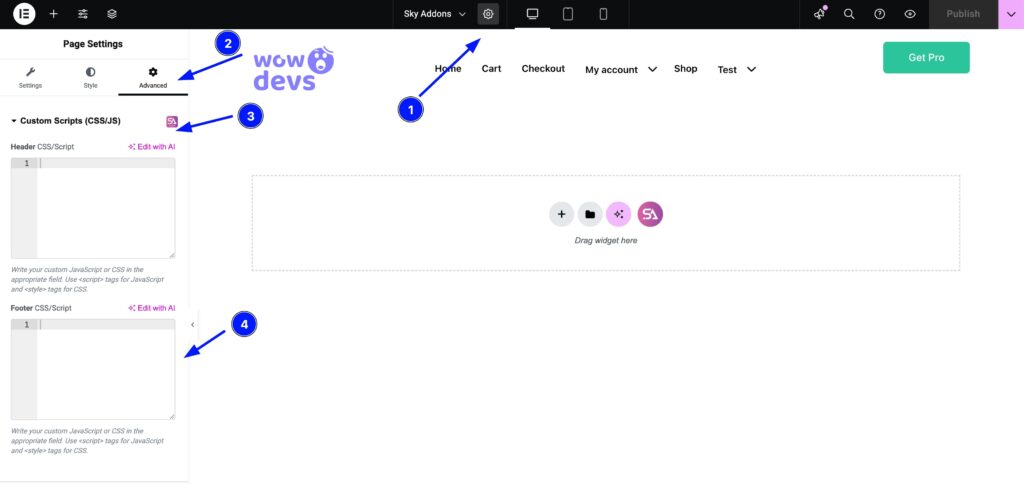
- Open Elementor Editor. Navigate to any page where you want to add custom scripts.
- Click on the Page Settings handle to select the section you want to modify.
- Navigate to the Advanced tab in the Elementor panel.
- Scroll down to find the Custom Scripts (CSS/JS) option and click to expand it. The section is shown only to users who may post unfiltered HTML, such as administrators.
Custom Scripts Options
- Header CSS/Script – Place code here to load in the page header
- Perfect for CSS styles that need to load early to prevent flickering
- Ideal for tracking codes that need to execute before page content loads
- Supports both
<style>and<script>tags
- Footer CSS/Script – Place code here to load in the page footer
- Best for JavaScript that should execute after the page has loaded
- Useful for animations and interactive elements
- Helps improve page load performance by deferring script execution
- Supports both
<style>and<script>tags
Code Writing Guidelines
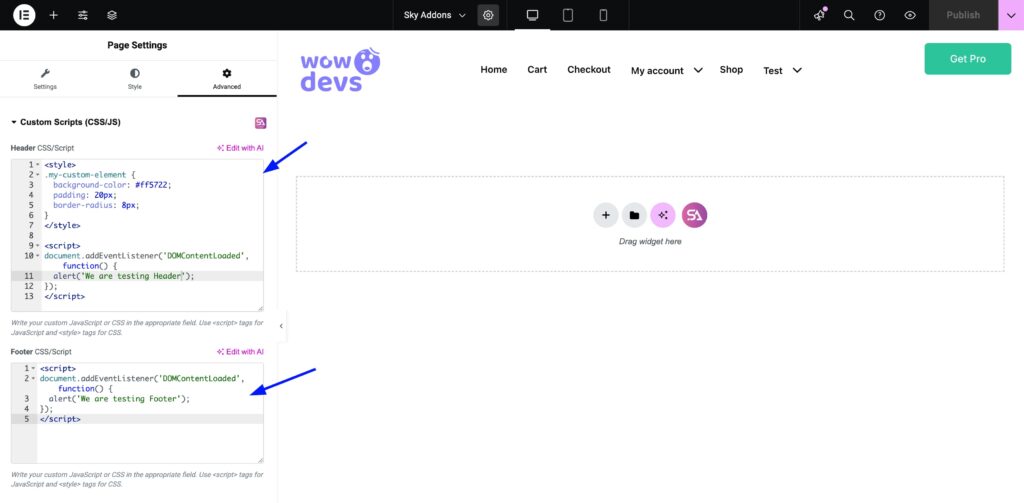
Write your code directly in the appropriate editor fields. The module understands both CSS and JavaScript:
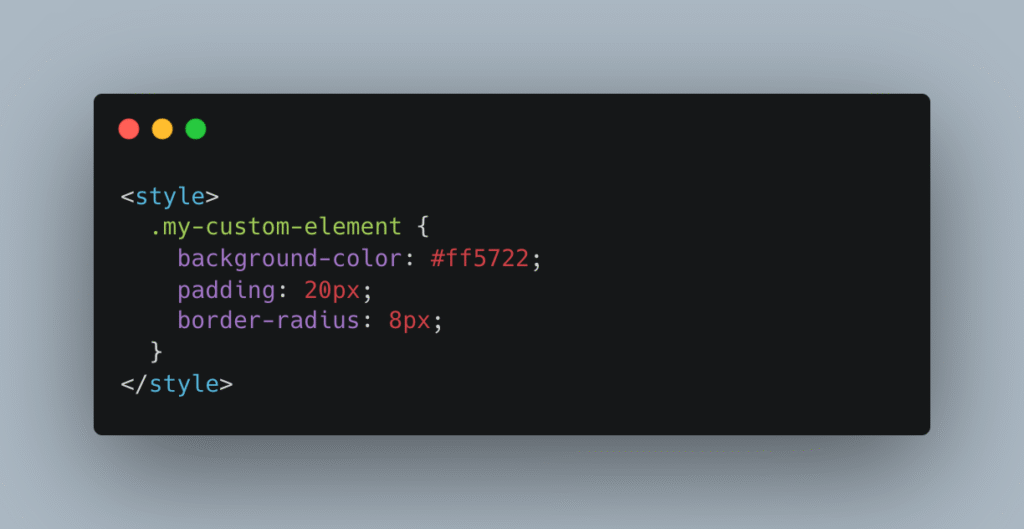
- For CSS, wrap your code in
<style>tags:
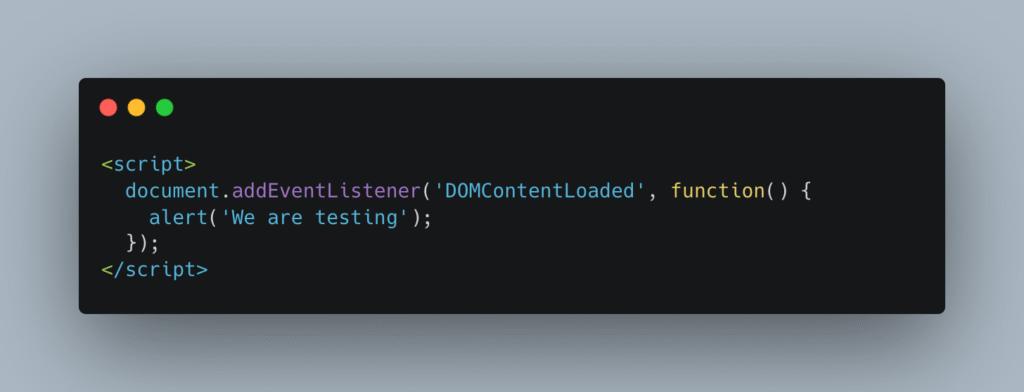
- For JavaScript, wrap your code in
<script>tags:
Save and Preview
- Once you’ve customized and added your code, click “Publish” or “Update” to save your changes.
- Preview the page to ensure the widget looks and functions as desired.
Site-Wide Snippets: the Custom Scripts Tab
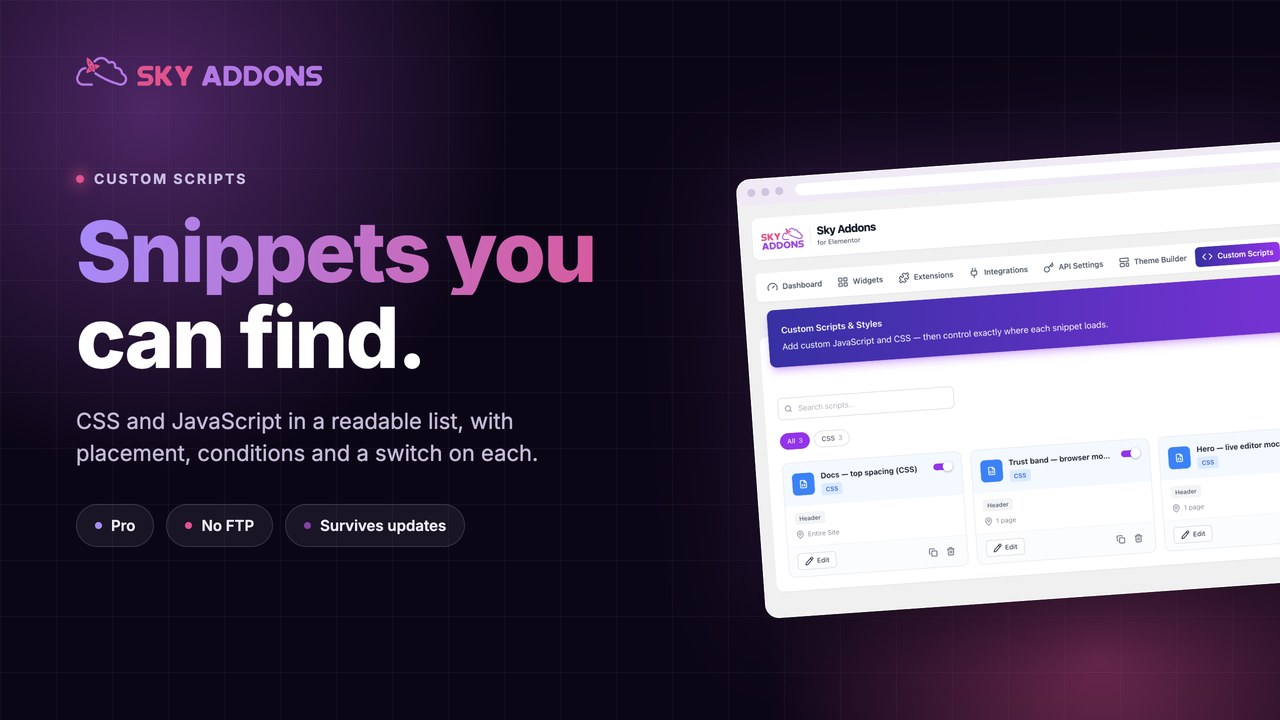
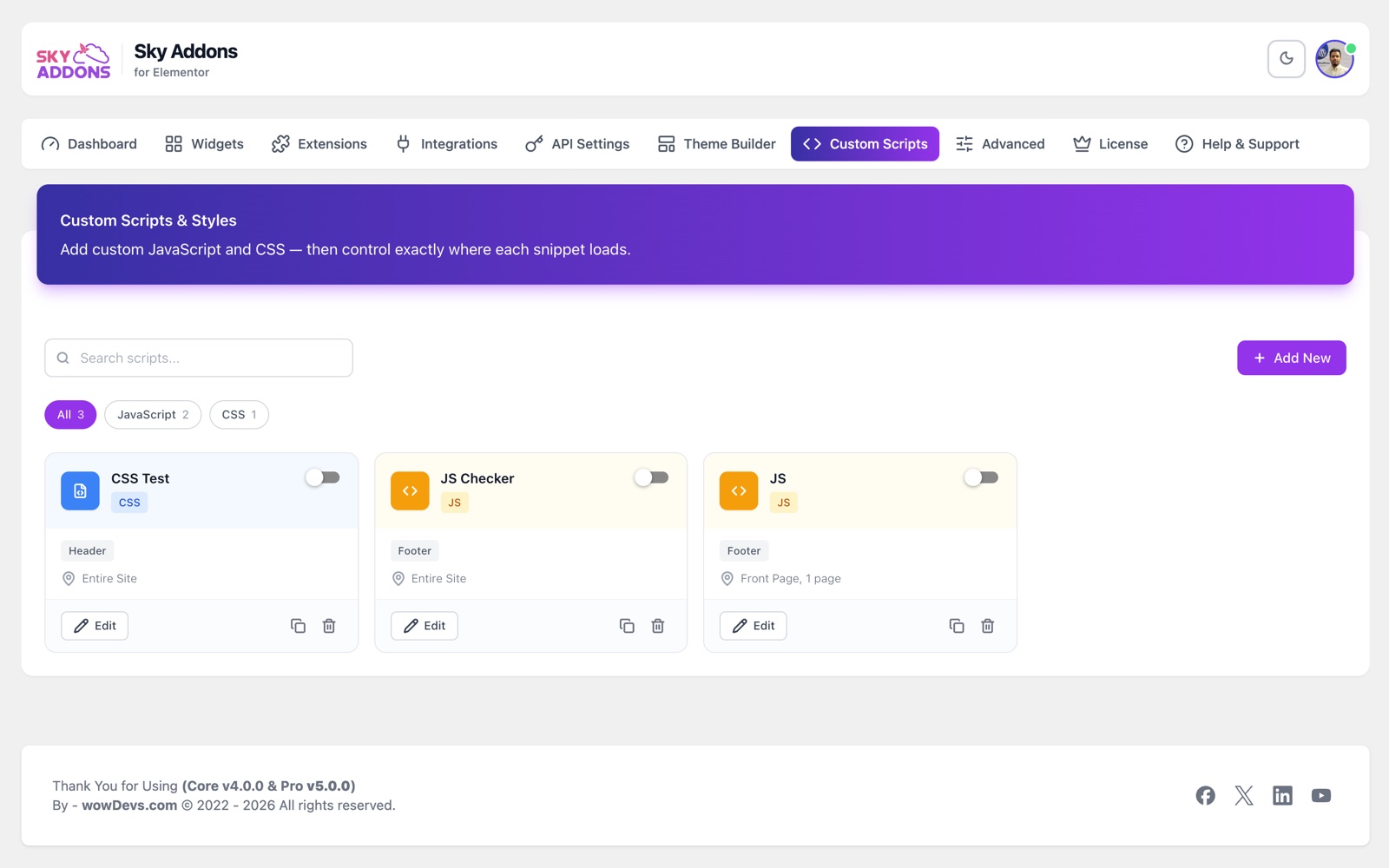
For code that should run on many pages, use Sky Addons > Custom Scripts in the WordPress dashboard. This tab is part of the free plugin and only administrators can use it. Each snippet is a card with its own settings:
- Type: CSS or JavaScript. You do not need to add
<style>or<script>tags; the plugin adds them. - Position: Header or Footer. The default is Footer.
- Status: turn a snippet on or off without deleting it.
- Schedule: an optional start date and end date.
- Display rules: where the snippet loads and where it does not, including special pages, chosen pages and user roles.
Troubleshooting
- Scripts Not Working – Ensure you’re viewing the published page and not in Elementor’s editor or preview mode, as scripts only run on the actual frontend.
- Code Errors – Check your browser’s developer console (F12 or right-click > Inspect > Console) for potential JavaScript errors.
- CSS Not Applying – Verify your CSS selectors are specific enough to override existing styles. You may need to use
!importantfor some properties. - Scripts Loading Too Early/Late – If your code depends on DOM elements or other scripts, make sure to place it in the appropriate location (header or footer).
Conclusion
The Custom Scripts feature of Sky Addons provides a streamlined way to add custom code to your Elementor pages without the need for additional plugins or theme modifications. This powerful feature gives you complete control over your site’s appearance and functionality on a page-by-page basis, making it invaluable for developers and site builders who need to implement custom solutions.
If you have any questions or encounter any challenges while using Custom Scripts, please don’t hesitate to reach out to our dedicated support team at https://wowdevs.com/support/ where our expert team is ready to provide prompt and helpful assistance.