
How to use Portion Effect Widget of Sky Addons for Elementor
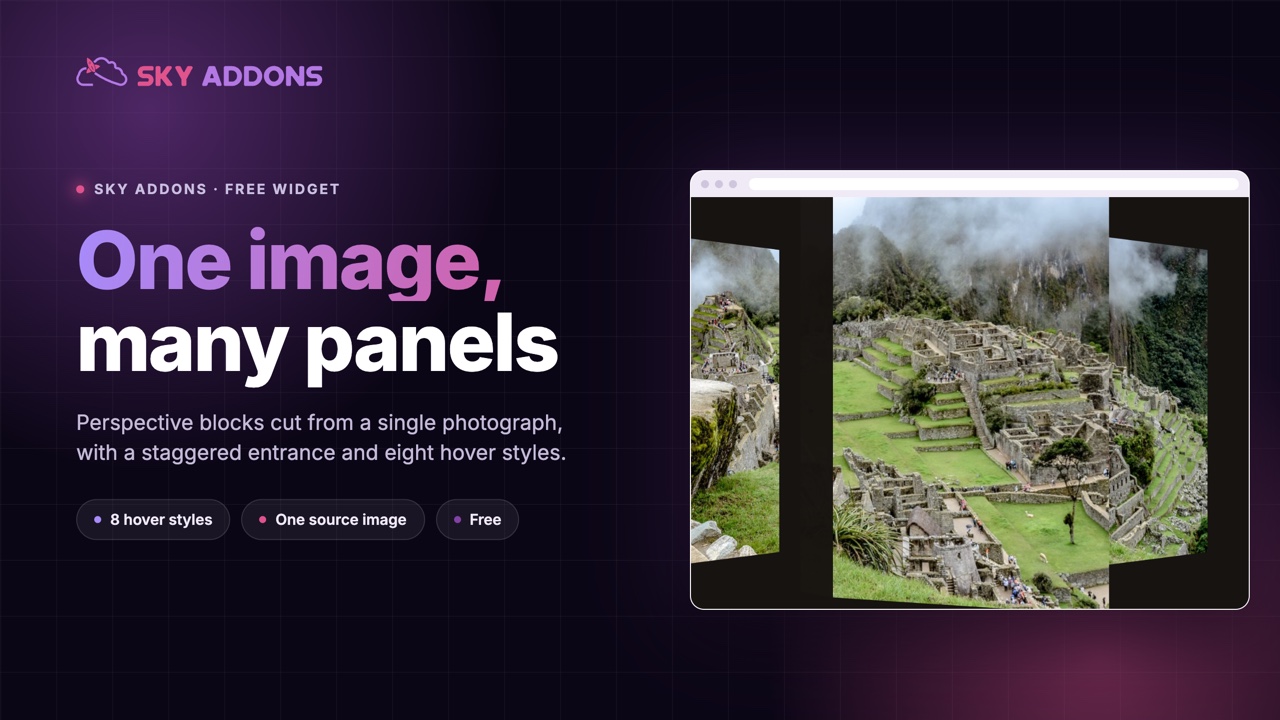
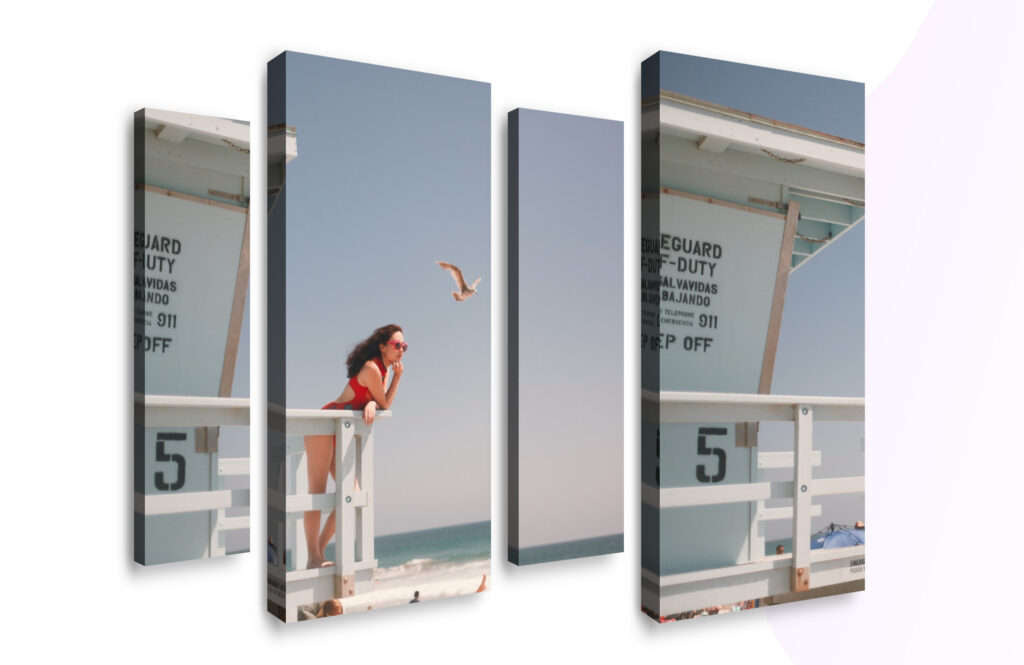
Create amazing image grid layouts using Elementor with the Portion Effect widget. This widget allows you to design unique and creative image displays by slicing images into multiple blocks with dynamic styles. Whether you want small thumbnails, medium-sized blocks, or large image sections, the Portion Effect makes it simple and visually stunning. Ideal for portfolios, creative galleries, or modern UI components, this widget offers full control over each block’s size, position, and effects, all without writing a single line of code.
Features:
- Split any image into custom-sized blocks.
- Full control over each block’s height, width, and position.
- Add creative 3D effects like rotation, brightness, and shadow.
Insert Portion Effect Widget
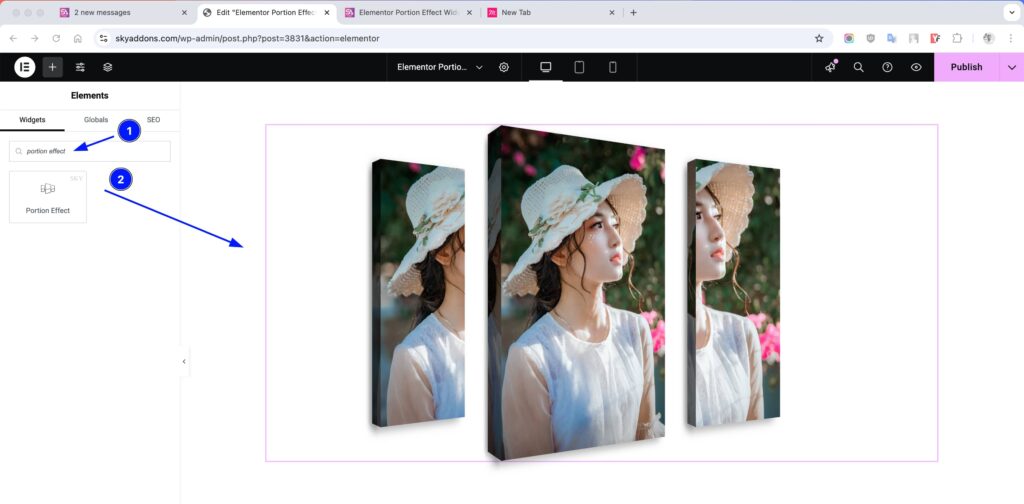
- Open Elementor Editor. In the Elementor panel, search for “Portion Effect” under Sky Addons.
- Drag and Drop the Widget to the desired location on your page / editor.
Layout Section
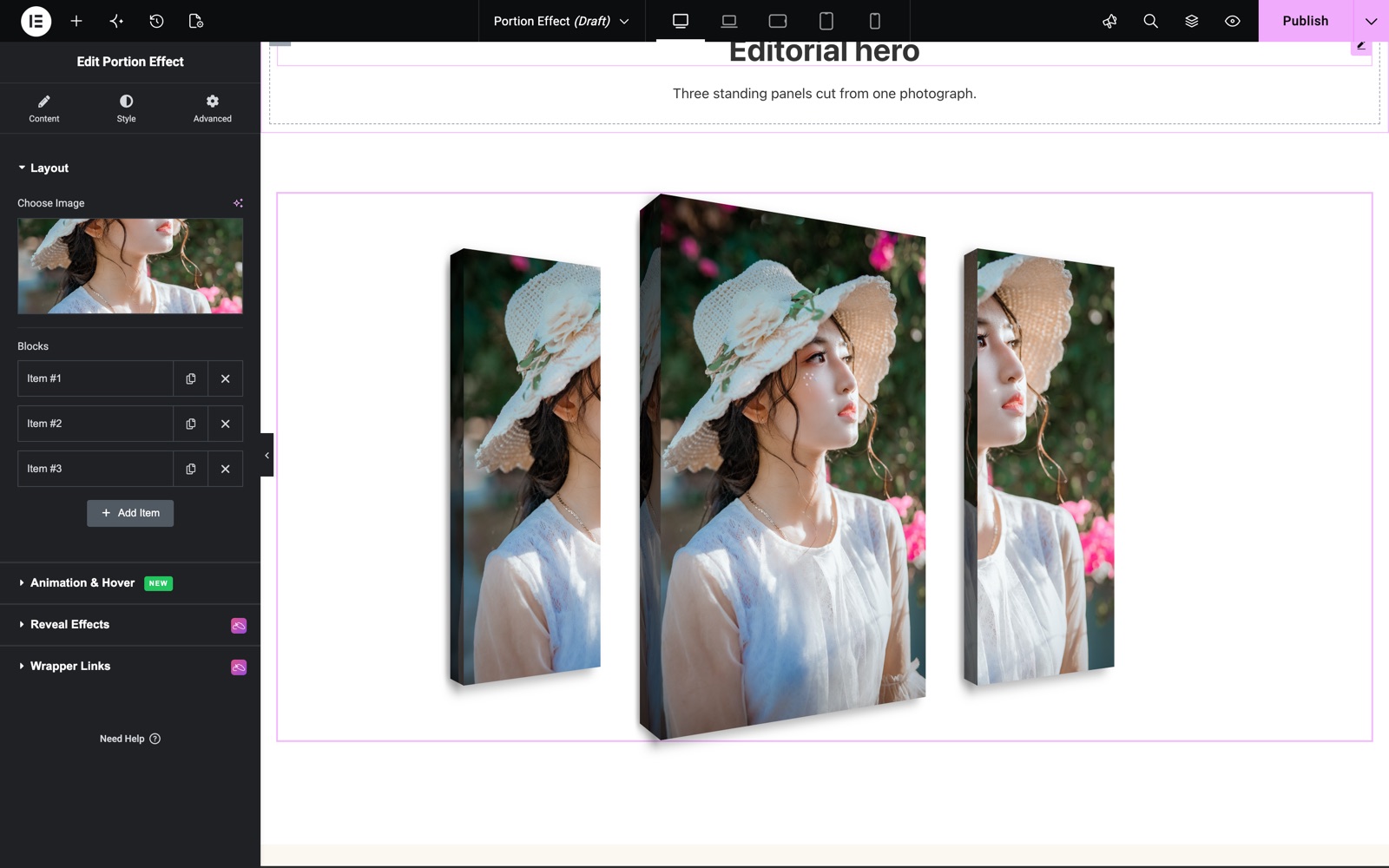
- Choose Image – Upload or select the main image to apply portion effects on.
- Blocks for Creative Portion Effects – Add multiple blocks to slice your image.
- Preset Position – Start from a ready-made layout (Auto, Left · Small, Center · Large, Right · Small, Far Left · XS, Far Right · XS). The sliders below override the preset.
- Height – Set height for each image portion block.
- Width – Set width for each portion block.
- Top – Control vertical position of the block.
- Left – Control horizontal position of the block.
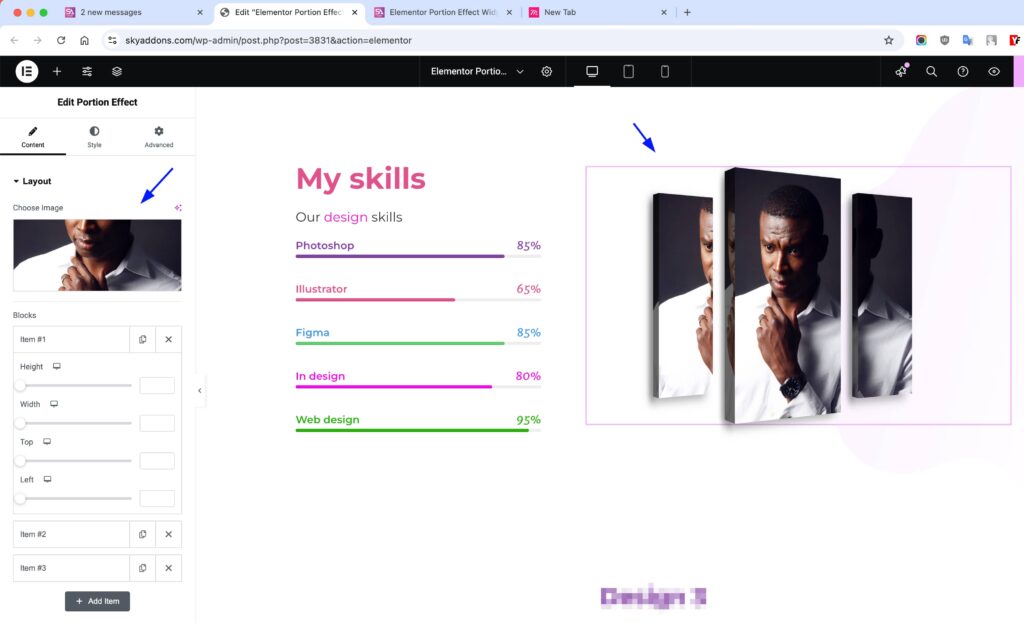
The Portion Effect demo cuts one photograph into three standing panels. Each panel is an item in Blocks.
Animation & Hover Section
Bring the panels to life with a scroll-triggered entrance animation and an interactive hover effect.
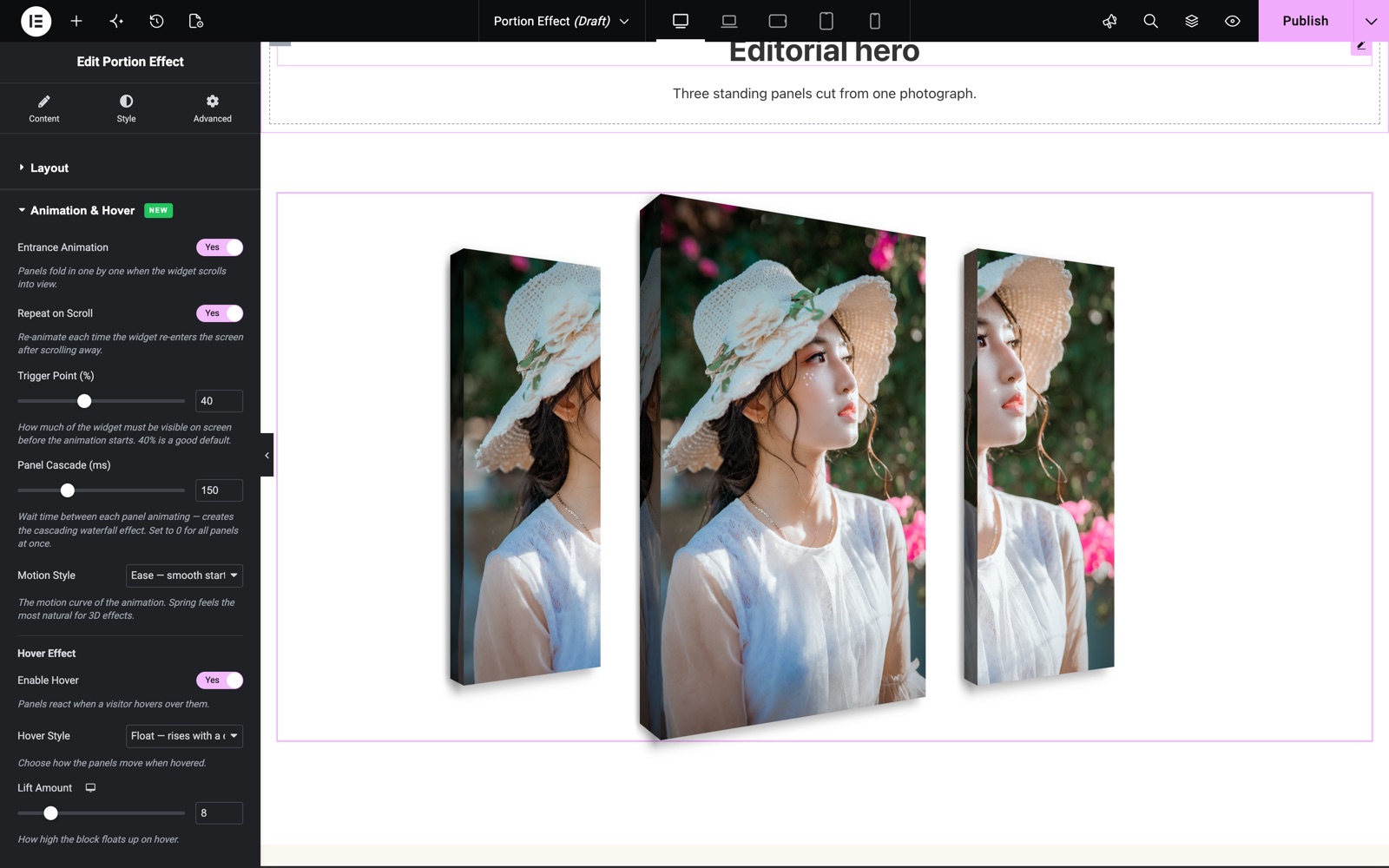
- Entrance Animation – Fold the panels in one by one when the widget scrolls into view.
- Repeat on Scroll – Re-animate every time the widget re-enters the screen.
- Trigger Point (%) – How much of the widget must be visible before the animation starts.
- Speed (ms) – How long each panel takes to fold in.
- Panel Cascade (ms) – Wait time between each panel for a cascading waterfall effect. Set to 0 to animate all at once.
- Motion Style – The easing curve: Ease, Ease In, Ease Out, Ease In Out, Linear, or Spring.
- Enable Hover & Hover Style – Make panels react on hover with styles like Float, Unfold, Zoom, Spread, Swing, Tilt, Shutter, or Lean, plus a Lift Amount.
In this example the panels fold in when 40% of the widget is visible, with a 150 ms Panel Cascade. On hover the Float style lifts each panel by 8 px.
Style Customization
Customize each portion block with various advanced visual effects.
Portion Section
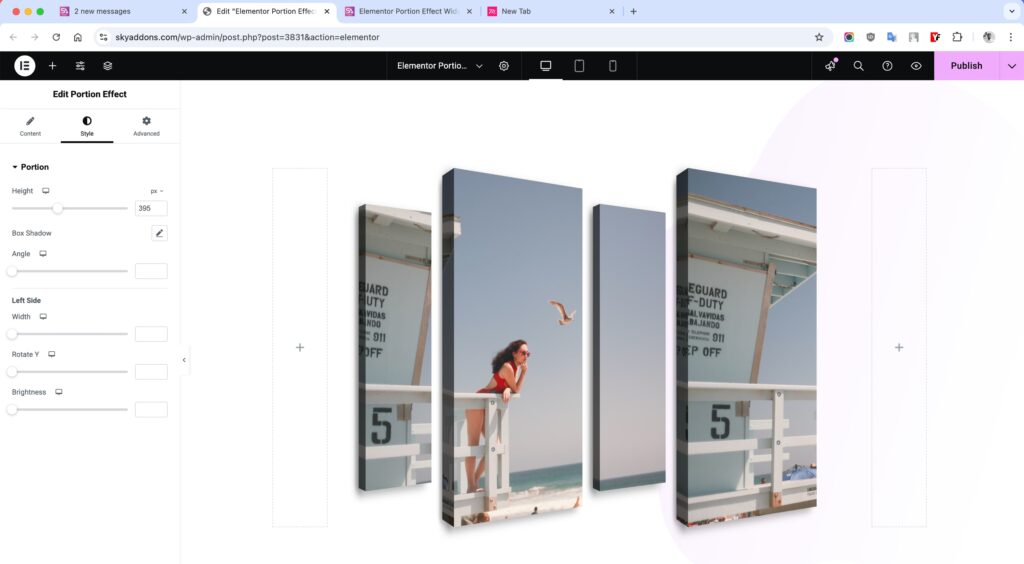
- Height – Controls the vertical dimension of the effect box.
- Box Shadow – Adds depth and realism with shadow effects.
- Angle – Adjust the skew angle for a creative appearance.
- Left Size – Sets how far the block appears from the left.
- Width – Controls horizontal dimension of the block.
- Rotate Y – Adds 3D flipping effect on the Y-axis.
- Brightness – Adjusts light intensity of the block.
Save and Preview
- Once you’ve customized and styled your widget, click “Publish” or “Update” to save your changes.
- Preview the page to ensure the widget looks and functions as desired.
Troubleshooting
- Image not displaying correctly? Make sure your image is properly sized and the blocks do not exceed image boundaries.
- Blocks not aligning properly? Double-check the width, height, top, and left settings for overlapping or overflow issues.
- Rotation looks odd? Try resetting the angle or rotate Y settings to defaults.
Conclusion
The Portion Effect widget offers a creative way to break an image into customizable parts and animate them with unique effects. It’s ideal for designers, portfolios, and interactive visuals, providing high design flexibility with minimal effort. Just pick your image, define the slices, and let the widget do the magic!
Need help? Our team is happy to answer questions on the Sky Addons support page.