
WooCommerce Dynamic Tags for Elementor
The WooCommerce dynamic tags in Sky Addons let you build a product layout once in Elementor and have every product fill it in automatically. Instead of typing a price or a stock line into a widget, you point that control at a tag such as Product Price, and WooCommerce supplies the value for whichever product is being viewed. There are 22 product tags across text, URL and image controls, covering titles, prices, ratings, attributes, shipping, cart links and imagery, and they work in a product template, a product loop, or a page where you have pinned one product. This documentation walks you through every tag, its settings, and a worked example that builds a custom single product template.
Features:
- 22 Product Tags: Twelve text tags, seven URL tags and three image tags, grouped under one heading in Elementor’s tag picker.
- Current Product by Default: Every tag reads the product in the current context, so one template serves the whole catalogue.
- Pin a Specific Product: A Search & Select Product field lets any tag point at one fixed product for landing pages.
- Ready-Made Wording: Ratings, stock and product type ship with text formats, so you rarely need a second widget beside them.
- Cart and Checkout Links: Turn any button into an add to cart or straight to checkout link without a shortcode.
- Image Fallbacks: Featured, gallery and category images accept a replacement image for products that have none.
Requirements
- WooCommerce must be installed and active. The group is registered conditionally: with WooCommerce switched off, Sky Addons – WooCommerce and all 22 tags are absent from the picker. There is no greyed-out entry and no install prompt.
- Most tags need a product context: a single product page, a single product template, or a loop iterating over products. On an ordinary page with no product in view, a tag with an empty product field has nothing to read.
- Elementor’s free plugin is enough. Dynamic tags in Sky Addons are not a paid feature. Product Attribute is the one tag with a further requirement: its dropdown is built from the global attributes defined under Products → Attributes.
Insert a WooCommerce Dynamic Tag
Sky Addons adds no picker of its own. It plugs into the affordance Elementor already gives every compatible control, as described in Inserting a Dynamic Tag.
- Open the template or page in the Elementor editor, ideally one with a product in context.
- Hover the control you want to fill and click the small database icon beside its label.
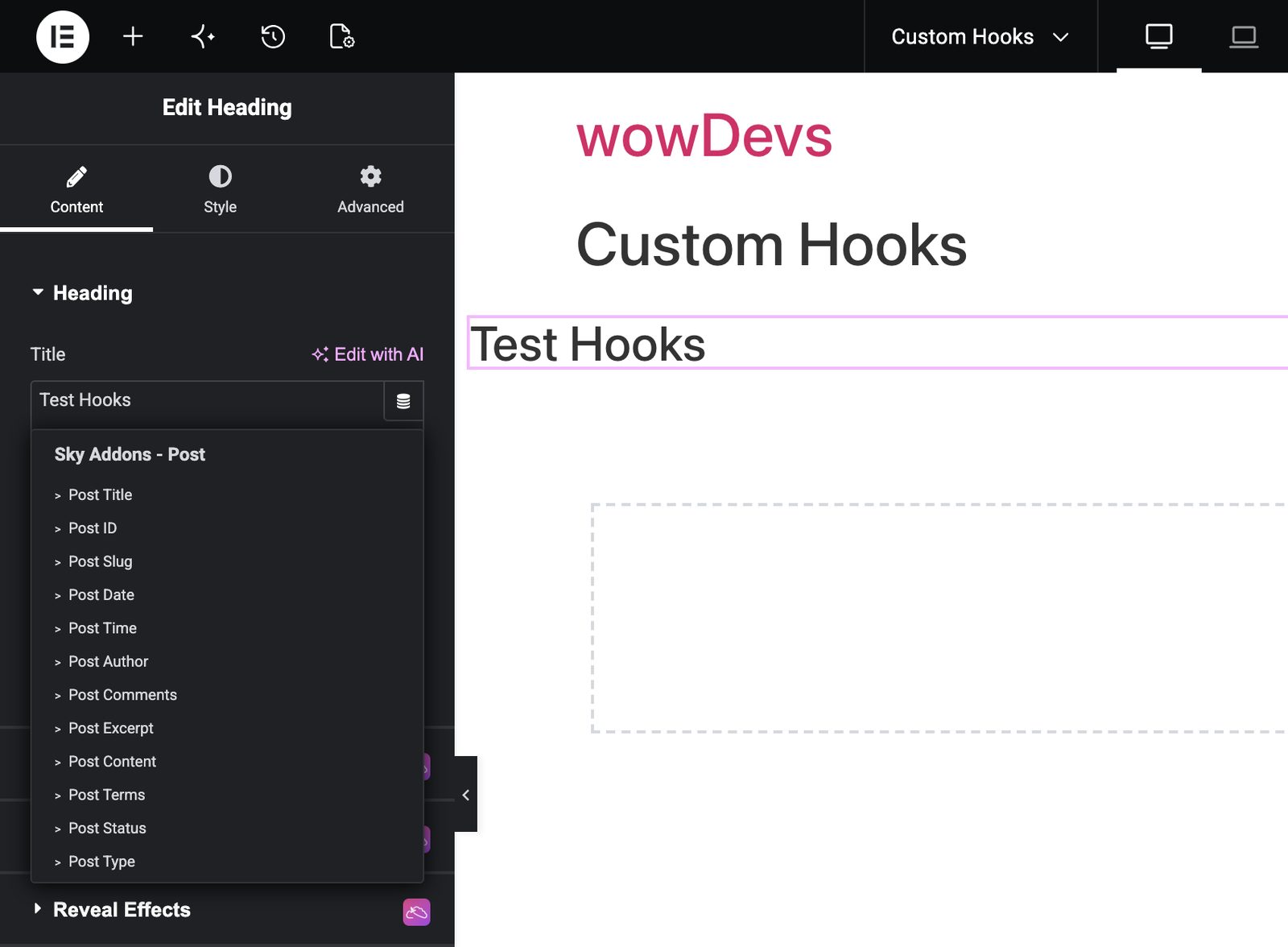
- Pick a tag under Sky Addons – WooCommerce. Only tags matching the control’s type are listed, so an Image widget shows the three image tags and none of the text ones.
- Open the tag’s settings by clicking the tag name, and leave Search & Select Product blank unless you want one fixed product. Blank means “whatever product this template is rendering”.
Product Text Tags
These twelve tags attach to text controls: headings, editor fields, list items, table cells and button labels. Each also carries an Advanced panel with Word Limit, Before, After and Fallback, which is where labels such as “SKU:” belong.
| Tag | What it outputs | Key settings |
|---|---|---|
| Product Title | The product name as saved in WooCommerce. | Search & Select Product |
| Product Price | Regular price, sale price, both together, the discount amount or the discount percentage, in your store currency. | Price Type; Regular and Sale Price HTML Format; prefixes and suffixes; Separator |
| Product SKU | The product’s SKU code. | Search & Select Product |
| Product Stock | Stock status, remaining quantity, the low stock figure, or your own status wording. | Stock Type; Stock Text; Out of Stock Text; Backorder Text |
| Product Rating | Average rating, rating count, review count, or a sentence built from them. | Rating Type; Rating Format; Text Format; Prefix; Suffix; Count Prefix; Count Suffix; Custom Format |
| Product Sale | A sale badge value: discount percentage, discount amount, or a phrase you type. | Sale Type; Sale Text |
| Product Shipping | The product’s weight, its dimensions, or its shipping class name. | Shipping Type; Dimension Type |
| Product Description | Short or full description, optionally stripped of HTML and trimmed. | Description Type; Description Prefix; Strip HTML Tags; Limit Words; Ellipsis |
| Product Purchase Note | The purchase note saved on the product. | Format (Plain Text or HTML) |
| Product Attribute | One attribute as its name, its slug, or the values this product holds. | Attribute; Format; Separator |
| Product Terms | A separated list of the product’s terms in a chosen product taxonomy. | Taxonomy; Limit; Offset; Separator |
| Product Type | Simple, Grouped, External or Variable, as a name, slug or label, or with Downloadable and Virtual flags appended. | Type Format; Property Separator |
- Product Price set to Both Prices prints regular and sale figures side by side, and the two HTML Format selects strike through or underline either one. Discount Amount and Discount Percentage return the saving alone, which is what a badge wants.
- Product Rating set to Rating Text turns a number into a sentence. Text Format offers Rating & Count, Rating Only, Count Only or Custom Format, and the custom field accepts
{prefix},{rating},{suffix},{count_prefix},{count}and{count_suffix}. Rating Format switches the number between 4.5, 90% and 4.5/5. - Product Stock fills in Quantity and Low Stock only where stock management is enabled; Status and Stock Status Text work either way.
Product URL Tags
These seven tags attach to link controls: a Button’s Link field, an image link, or any URL field a widget exposes. They return an address rather than visible text, so each panel holds a Fallback field plus whatever the tag needs.
| Tag | What it outputs | Key settings |
|---|---|---|
| Product URL | The product’s own permalink. | Search & Select Product |
| Product Add to Cart URL | A cart link that adds this product with the quantity you set. | Quantity |
| Product Term URL | The archive link for one of the product’s terms, chosen by position. | Taxonomy; Term Index |
| Product Review URL | A link to the review section of the product page, or to one specific review. | Review ID |
| Product Checkout URL | Your checkout page, directly or after adding this product to the cart. | Checkout Type; Quantity |
| Back to Shop URL | The shop page, or any custom address you supply. | Shop Page; Custom Shop URL |
| Terms Archive URL | The archive link for a product category you pick by name. | Term |
- Product Add to Cart URL behaves by product type. Simple products get a real add to cart address with your quantity attached. Variable and grouped products cannot be added from a link, so the tag sends shoppers to the product page instead.
- Product Checkout URL set to Direct to Checkout ignores the product and returns your checkout address. Add to Cart & Checkout gives you a buy button that drops the item in the cart on the way through.
- Product Review URL left empty links to the reviews area of the current product; a Review ID only works when that review belongs to the product being rendered. Back to Shop URL uses your configured shop page, and resolves to the site home page if none is set.
Product Image Tags
Three tags feed image controls, and all three accept a Fallback image from the media library for products or terms with no picture of their own. Image sizes, alt text and page weight are covered in Media and Image Dynamic Tags.
| Tag | What it outputs | Key settings |
|---|---|---|
| Product Featured Image | The product’s main image. | Fallback |
| Product Gallery Image | One image from the product gallery, chosen by position. | Gallery Image Index; Fallback |
| Product Term Image | The thumbnail saved on a product category or brand term. | Taxonomy (Category or Brand); Term Index; Fallback |
Gallery Image Index counts from zero, so 0 is the first gallery image. A product whose gallery is shorter than the index you asked for shows the fallback instead, which makes the tag safe in a grid.
Settings Every Tag Shares
- Search & Select Product. Present on every tag, with the help text “Leave blank to use current product”. Blank is what you want in a template; filling it in pins the tag to one product, which suits a feature block and ruins a catalogue template.
- The Advanced panel. Text tags carry Word Limit, Before, After and Fallback. Word Limit 0 means no limit, Before and After wrap the value with your own wording, and Fallback prints when there is nothing to output. URL and image tags show Fallback only.
Caveats Worth Knowing
- Product Sale’s Show Discount and Discount Position have no effect. With Sale Type on Custom Text, the tag prints exactly what is in the Sale Text field; those two fields append nothing. For “Sale! 20% off”, use two elements: one with Custom Text, one with Discount Percentage.
- Two tags hardcode their taxonomies. Terms Archive URL lists product categories only, so you cannot point it at a tag, a brand or a custom product taxonomy: use Product Term URL for those. Product Term Image offers Category and Brand only, and Brand needs a brand taxonomy on your store before it has terms to read.
- Empty values print nothing. A product with no SKU, no price, no reviews or no active sale renders nothing at all. Use the Advanced Fallback where a blank line would look broken.
- Variable products report the smallest discount. Product Sale scans every on-sale variation and shows the lowest percentage or amount, so a badge never over-promises.
Example: Build a Custom Single Product Template
This walkthrough builds a product layout that serves the whole catalogue, with nothing hard-coded to one item.
- Create the template. Go to WordPress Dashboard → Sky Addons → Theme Builder, add a single template, and set its display condition to products, as covered in Single Post.
- Product image. Drop an Image widget into the left column and bind its image control to Product Featured Image. Set a plain grey placeholder as the Fallback so unfinished products still fill the space.
- Title. In the right column, add a Heading set to H1 and bind it to Product Title. Leave the product field blank.
- Rating line. Bind a text element to Product Rating, set Rating Type to Rating Text and Text Format to Rating & Count, keeping the defaults “Rated”, “out of 5”, “based on” and “ratings”. A product with three reviews averaging 4.5 reads “Rated 4.5 out of 5 based on 3 ratings”. Set the Advanced Fallback to “No reviews yet”.
- Price. Bind a text element to Product Price with Price Type on Both Prices, Regular Price HTML Format on Strikethrough and Sale Price HTML Format on None. Sale items show the old price crossed out; full-price items show one figure.
- Sale badge. Place a small text element over the image, bind it to Product Sale and leave Sale Type on Discount Percentage. Since the tag renders nothing off-sale, the badge disappears by itself: no display condition needed.
- Stock line. Bind a text element to Product Stock with Stock Type on Stock Status Text, then reword Stock Text, Out of Stock Text and Backorder Text, for example “Ready to ship”, “Sold out” and “Ships when restocked”.
- Buy button. Add a Button and bind its Link control to Product Add to Cart URL with Quantity 1.
- Details block. Add two short lines: Product SKU with the Advanced Before field set to “SKU: “, and Product Shipping with Shipping Type on Weight.
- Description and category link. Bind an editor element to Product Description set to Full Description, then add a link whose text comes from Product Terms and whose address comes from Product Term URL with Term Index 0.
- Preview against three products: one simple product on sale, one variable product, and one with no reviews and no SKU. Those cover nearly every empty-value case the layout will meet.
One template now reads correctly for every product, and the same tags work inside a grid built with the WooCommerce Products widget or the WooCommerce Products Carousel.
Full Settings Reference
Use this table when you know the tag but not the setting. It lists every option each tag in this group exposes, the exact wording you will see in the panel, the value it starts on, and the setting that has to be chosen before a dependent option appears. The Used on column says which kind of Elementor control the tag can be dropped onto. Alongside the settings below, the tags in this group offer a Search & Select Product field, so a tag can be pinned to one product instead of following the page; a Fallback field on the URL, image and gallery tags.
| Tag | Used on | Setting | Options | Default | Shown when |
|---|---|---|---|---|---|
| Product Featured Image | Image | Fallback | Image | None | None |
| Product Gallery Image | Image | Gallery Image Index | Number | None | None |
| Fallback | Image | None | None | ||
| Product Term Image | Image | Taxonomy | Category · Brand | Category | None |
| Term Index | Number | None | None | ||
| Fallback | Image | None | None | ||
| Product Attribute | Text | Attribute | List built from your site | None | None |
| Format | Name · Slug · Value | Value | None | ||
| Separator | Free text | , | Format is Value | ||
| Product Description | Text | Description Type | Short Description · Full Description | Short Description | None |
| Description Prefix | Free text | None | None | ||
| Strip HTML Tags | Yes / No | No | None | ||
| Limit Words | Number | None | Strip HTML Tags is Yes | ||
| Ellipsis | Free text | … | Strip HTML Tags is Yes; Limit Words has a value | ||
| Product Price | Text | Price Type | Regular Price · Sale Price · Both Prices · Discount Amount · Discount Percentage | Regular Price | None |
| Regular Price HTML Format | None · Strikethrough · Underline | Strikethrough | Price Type is Both Prices | ||
| Sale Price HTML Format | None · Strikethrough · Underline | Underline | Price Type is Both Prices | ||
| Regular Price Prefix | Free text | None | Price Type is Regular Price or Both Prices | ||
| Sale Price Prefix | Free text | None | Price Type is Sale Price or Both Prices | ||
| Discount Prefix | Free text | None | Price Type is Discount Amount or Discount Percentage | ||
| Discount Suffix | Free text | None | Price Type is Discount Amount or Discount Percentage | ||
| Separator | Free text | None | Price Type is Both Prices | ||
| Product Purchase Note | Text | Format | Plain Text · HTML | Plain Text | None |
| Product Rating | Text | Rating Type | Rating · Rating Count · Review Count · Rating Text | Rating | None |
| Rating Format | Decimal (4.5) · Percentage (90%) · Fraction (4.5/5) | Decimal (4.5) | Rating Type is Rating | ||
| Text Format | Rating & Count · Rating Only · Count Only · Custom Format | Rating & Count | Rating Type is Rating Text | ||
| Prefix | Free text | Rated | Rating Type is Rating Text; Text Format is Rating & Count or Rating Only or Custom Format | ||
| Suffix | Free text | out of 5 | Rating Type is Rating Text; Text Format is Rating & Count or Rating Only or Custom Format | ||
| Count Prefix | Free text | based on | Rating Type is Rating Text; Text Format is Rating & Count or Count Only or Custom Format | ||
| Count Suffix | Free text | ratings | Rating Type is Rating Text; Text Format is Rating & Count or Count Only or Custom Format | ||
| Custom Format | Free text | {prefix} {rating} {suffix} {count_prefix} {count} {count_suffix} | Rating Type is Rating Text; Text Format is Custom Format | ||
| Product Sale | Text | Sale Type | Discount Percentage · Discount Amount · Custom Text | Discount Percentage | None |
| Sale Text | Free text | Sale! | Sale Type is Custom Text | ||
| Show Discount | Yes / No | Yes | Sale Type is Custom Text | ||
| Discount Position | Before Text · After Text | After Text | Sale Type is Custom Text; Show Discount is Yes | ||
| Product Shipping | Text | Shipping Type | Weight · Dimensions · Shipping Class | Weight | None |
| Dimension Type | All Dimensions · Length · Width · Height | All Dimensions | Shipping Type is Dimensions | ||
| Product SKU | Text | Only the shared controls listed above: the tag prints the value straight from the current context. | |||
| Product Stock | Text | Stock Type | Status · Quantity · Low Stock · Stock Status Text | Status | None |
| Stock Text | Free text | In Stock | Stock Type is Stock Status Text | ||
| Out of Stock Text | Free text | Out of Stock | Stock Type is Stock Status Text | ||
| Backorder Text | Free text | Available on Backorder | Stock Type is Stock Status Text | ||
| Product Terms | Text | Taxonomy | List built from your site | product_cat | None |
| Limit | Number | None | None | ||
| Offset | Number | None | None | ||
| Separator | Free text | , | None | ||
| Product Title | Text | Only the shared controls listed above: the tag prints the value straight from the current context. | |||
| Product Type | Text | Type Format | Name · Slug · Label · Properties | Name | None |
| Property Separator | Free text | , | Type Format is Properties | ||
| Back to Shop URL | URL | Shop Page | Default Shop Page · Custom Page | Default Shop Page | None |
| Custom Shop URL | URL | None | Shop Page is Custom Page | ||
| Product Add to Cart URL | URL | Quantity | Number | None | None |
| Product Checkout URL | URL | Checkout Type | Direct to Checkout · Add to Cart & Checkout | Direct to Checkout | None |
| Quantity | Number | None | Checkout Type is Add to Cart & Checkout | ||
| Product Review URL | URL | Review ID | Free text | None | None |
| Product Term URL | URL | Taxonomy | List built from your site | product_cat | None |
| Term Index | Number | None | None | ||
| Product URL | URL | Only the shared controls listed above: the tag prints the value straight from the current context. | |||
| Terms Archive URL | URL | Term | List built from your site | None | None |
Best Practices
- Leave the product picker blank in templates. A filled product field is the usual reason every product page shows the same title.
- Give text tags a fallback where a blank line would look wrong. SKU, rating and shipping figures are often missing on real catalogues.
- Use Before and After instead of extra widgets. Labels belong in the Advanced panel, not in a separate heading beside the value.
- Test with a variable product early. Prices, sale figures and cart links all behave differently there.
- Keep button wording honest about product type. If your catalogue mixes simple and variable items, “View options” or “Buy now” reads correctly for both.
Troubleshooting
- The Sky Addons – WooCommerce group is missing. WooCommerce is not active. Activate it and reload the Elementor editor; the group returns with all 22 tags.
- Every product page shows the same details. A product has been pinned on one or more tags. Open each tag and clear that field.
- A tag is empty on the front end. The page has no product in context. Move the layout into a product template or loop, or pin a product in the tag.
- Stock quantity is blank while status works. Stock management is off for that product, so there is no quantity to report.
Frequently Asked Questions
Do I need Elementor Pro to use WooCommerce dynamic tags in Elementor?
No. These WooCommerce dynamic tags come from Sky Addons and work with the free Elementor plugin. You need WooCommerce active for the group to appear, and somewhere to use the tags, such as a Sky Addons Theme Builder template.
Why do my WooCommerce dynamic tags show nothing on a normal page?
Almost every tag reads the product currently being rendered, and a normal page has none. Move the layout into a single product template, place it inside a product loop, or choose a specific product in the tag’s product field.
Can I show a discount percentage next to my own sale wording?
Not from a single tag. Product Sale prints either the discount or your custom text, and the Show Discount and Discount Position fields do not change that output. Use two elements side by side, one set to Custom Text and one set to Discount Percentage.
Does the add to cart link work for variable products?
It sends the shopper to the product page rather than adding anything, because a variation still has to be chosen. Grouped products behave the same way. Simple products get a genuine add to cart address with your quantity.
Where else can I use these tags?
Anywhere a product is in context: product loops and grids, a product category archive template, or a promotional section where you pin one product. To control which products a widget loops over, see the Query Builder.
Conclusion
WooCommerce dynamic tags turn one Elementor layout into a store-wide product template, with prices, ratings, stock lines, cart links and imagery supplied at render time. Start with the current-product defaults, add fallbacks where your catalogue has gaps, and test against a simple, a variable and a bare product before publishing. For the wider picture, read the Dynamic Content overview and the troubleshooting guide, or ask us at https://wowdevs.com/support/.