
Elementor Theme Builder in Sky Addons: Getting Started
The Elementor Theme Builder in Sky Addons lets you design the parts of your site that live outside a single page: the header, the footer, the layout every blog post uses, your category listings, the 404 screen, and any spot in your theme you want to inject a design into. Instead of accepting whatever your theme ships with, you build each of those pieces in Elementor, tell Sky Addons where it should appear, and it takes over from the theme automatically. Every template type is completely free, with no upgrade required to use any of them. This documentation walks you through where Theme Builder lives, what each template type replaces, how to create your first one, and how a template goes live once its conditions are set.
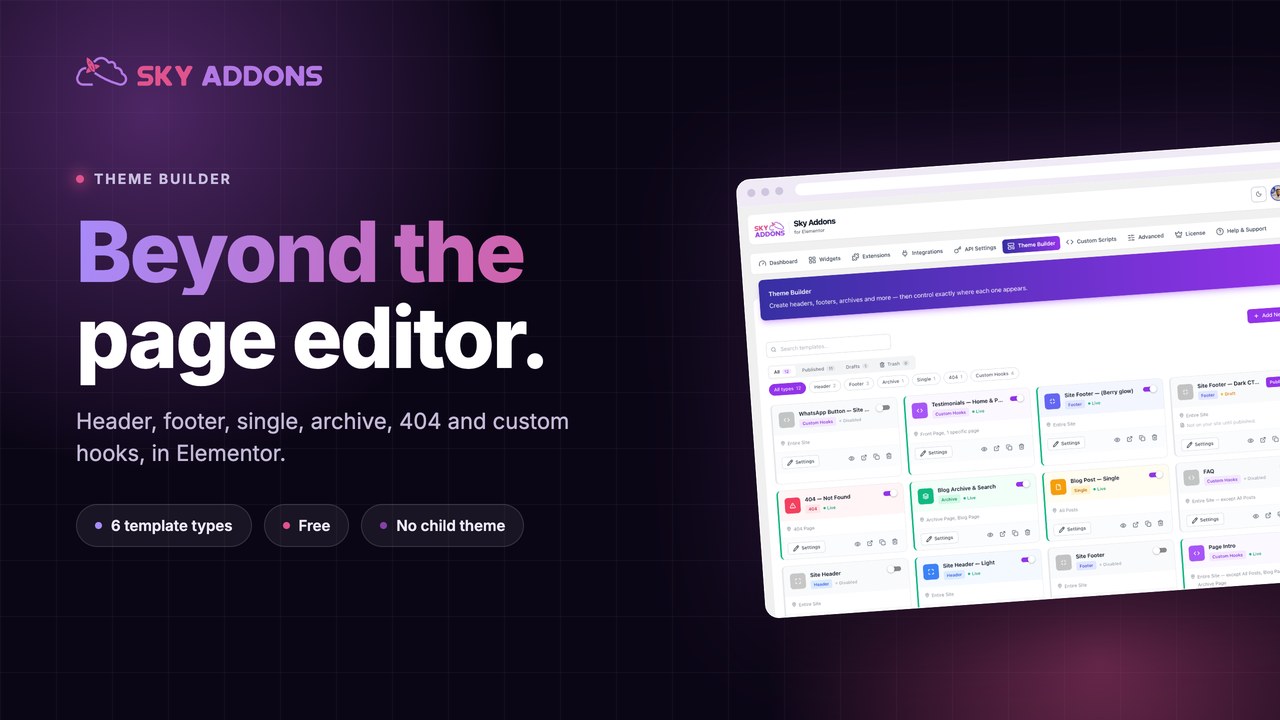
Features:
- Six Template Types: Header, Footer, Archive, Single, 404 and Custom Hooks, all built in the normal Elementor editor.
- Automatic Theme Takeover: Your template replaces the theme’s own markup rather than stacking on top of it.
- Display Conditions: Decide exactly which screens a template appears on, and which visitors get to see it.
- Enable / Disable Switch: Turn any template off without deleting it, and back on when you need it.
- Live Preview: Open a real, current render of a template in a device-scaled window from the dashboard.
- Dynamic Content: Fill Single and Archive templates with the real post title, image, author and terms using dynamic tags.
What a Theme Template Actually Is
A normal Elementor page is one page: you design it, you publish it, and that design belongs to that URL and nowhere else. A theme template is a design applied to a whole class of screens instead. Build one Single template and every blog post adopts that layout; build one Header template and it sits at the top of every page. The template is never the thing visitors land on: it is stamped onto the screens you point it at.
That moves real work out of your theme. Instead of editing theme files or hunting through Customizer panels, you drag and drop. And it means one edit applied everywhere: fix the footer once and every page on the site is fixed.
Two things make a template work: the design you build in Elementor, and the conditions that say where it applies. A template with a beautiful design and no conditions shows up nowhere, which is the most common reason a new user thinks Theme Builder is not working.
Requirements
- Elementor installed and active: Theme Builder templates are Elementor documents.
- An administrator account. Theme Builder templates can only be created, edited and deleted by users who can manage site options.
- A classic WordPress theme. Sky Addons has dedicated support for several popular themes and a generic fallback for the rest: see Theme Compatibility.
Where to Find the Elementor Theme Builder
- Log in to your site and open the WordPress Dashboard.
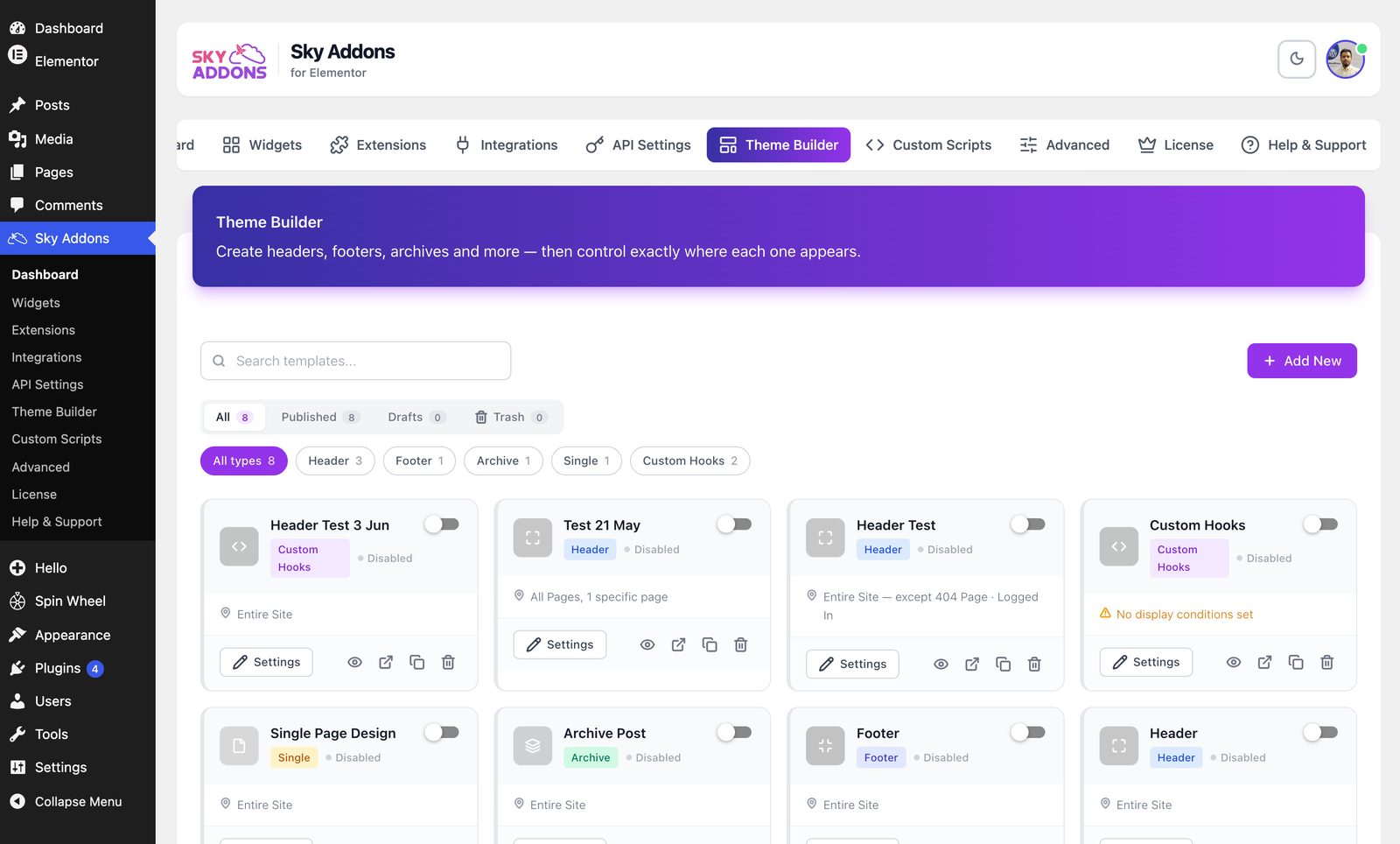
- In the left-hand admin menu, click Sky Addons.
- Choose the Theme Builder item. The full path is WordPress Dashboard → Sky Addons → Theme Builder.
- You land on the template list: a grid of cards, one per template, with a search box, type filter pills and an Add New button at the top.
Theme Builder is a screen inside the Sky Addons dashboard, not a separate posts list, so creating, previewing, duplicating and deleting all happen here.
The Six Template Types at a Glance
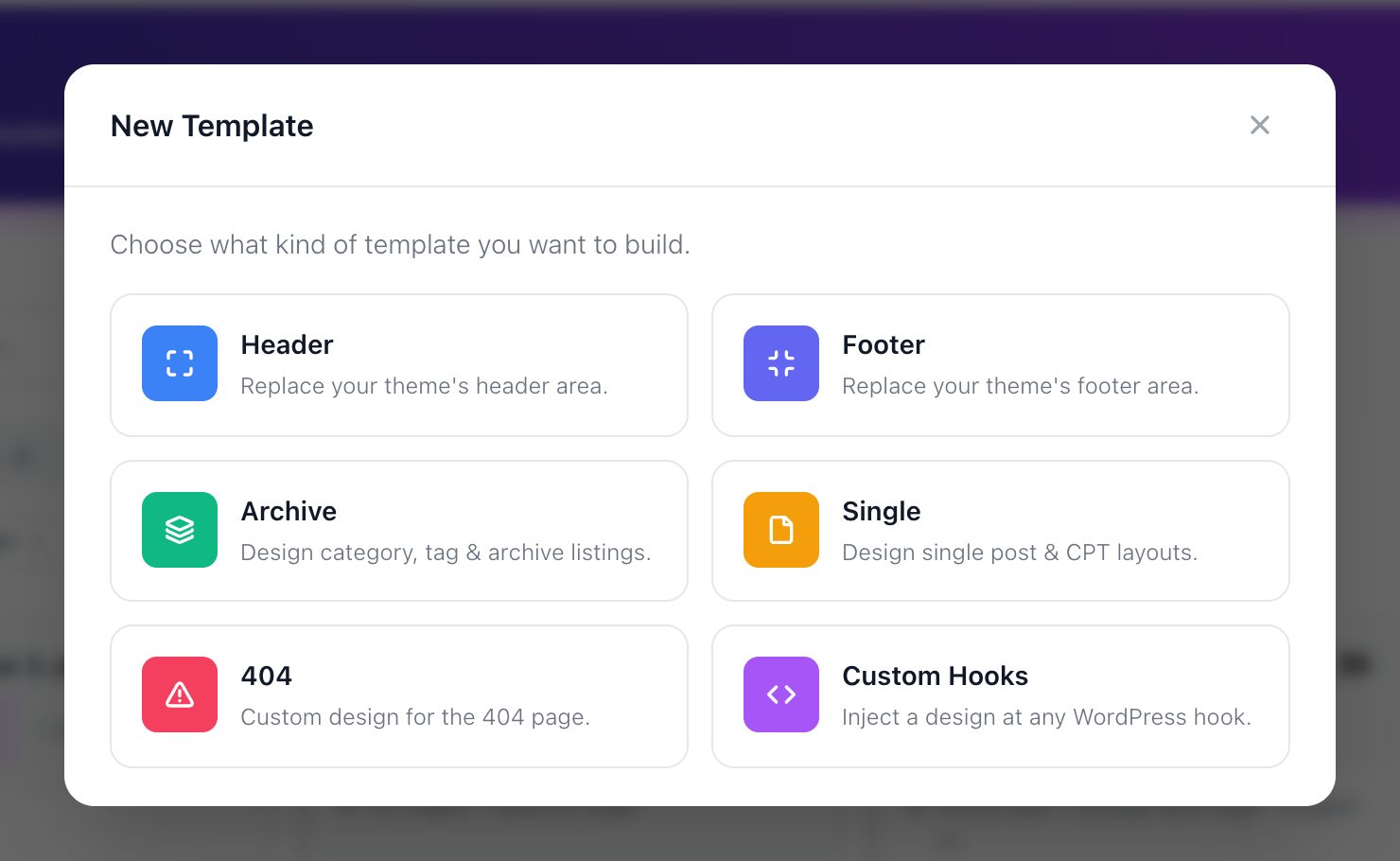
The type you choose decides which part of the site the template is allowed to replace. Each one has its own guide: this table is the map.
| Type | What it replaces | Full guide |
|---|---|---|
| Header | Your theme’s header area: logo, navigation, top bar, anything above the content. | Header Builder |
| Footer | Your theme’s footer area: widgets, credits, contact strip, back-to-top row. | Footer Builder |
| Archive | Listing screens: category, tag, author and date archives, the blog index, post type archives, and search results when you opt in. | Archive Page |
| Single | The layout of an individual post, page or custom post type entry. | Single Post |
| 404 | The “page not found” screen visitors hit on a broken or mistyped URL. | 404 Page |
| Custom Hooks | Nothing: it injects your design at a WordPress action hook you name, leaving the surrounding markup intact. | Custom Hooks |
Note that there is no separate type for a category, tag, author page or the blog index: those are all archive screens, and one Archive template covers them. You narrow it to a specific screen through conditions, not by picking a different type. Search results need an explicit opt-in, covered in Display Conditions.
Single and Archive templates also carry an Applies To setting that decides which post types they reach. If your site runs custom post types or WooCommerce, read Targeting Custom Post Types and Taxonomies before you build them, because the default scope is deliberately narrow.
Creating Your First Elementor Theme Builder Template
Every template is created the same way. The Add New button opens one modal with two steps (pick the type, then fill in the settings) and hands you off to Elementor at the end.
- Click Add New. The New Template window opens on the type picker: a grid of six cards, each with an icon, a name and a one-line description of what it does.
- Pick a type. Clicking a card advances to the settings form. A back arrow at the top left returns you to the picker if you chose wrong.
- Name the template. Template Name is required: use something you will recognise six months from now, like “Main Header” or “Shop Header”.
- Set the Status. The switch reads Enabled or Disabled. Leave it enabled unless you are building something you are not ready to publish.
- Fill in type-specific settings. Single and Archive show an Applies To selector; Custom Hooks shows Hook Name and Priority.
- Set the conditions. Display On says where the template appears, Exclude From carves out exceptions, and User Roles limits who sees it.
- Click Publish or Save Draft. Publish makes the template live straight away, as long as its Status is Enabled. Save Draft keeps it off the site. Either way, an Edit with Elementor button now appears in the window.
- Click Edit with Elementor to open the blank template in the editor and design it.
Saving and designing are separate steps on purpose, and you can return to either at any time: the Settings button on a template card reopens the same modal in edit mode.
How a Template Goes Live
Three things have to be true before a visitor sees your template, and the order explains almost every “why is nothing happening” moment.
- The template is published and enabled. Drafts and disabled templates are skipped entirely: Sky Addons never even evaluates their conditions.
- Its conditions match the current screen. Location first, then user role, then exclusions, which always win. If nothing matches, the theme renders that screen as normal.
- The theme hands over. For headers and footers, Sky Addons removes the theme’s own output and injects yours in its place, so you never get both.
On the template list, an enabled card shows a Live badge and a plain-words summary of its conditions, such as “Entire Site” or “All Posts: except Front Page”; a disabled one reads Disabled, and a draft reads Draft with a Publish button. Flipping the switch takes effect immediately and leaves the design and conditions untouched, which makes it the quickest way to test whether a template is behind something odd on the front end.
Example: Building a Site-Wide Header from Scratch
Here is the whole journey, from an empty Theme Builder to a header on every page. It is the template most people build first, and it exercises every part of the flow.
- Go to WordPress Dashboard → Sky Addons → Theme Builder and click Add New.
- In the type picker, click the Header card.
- Set Template Name to Main Header and leave Status on Enabled.
- In Display On, select Entire Site. Leave Exclude From and User Roles empty for now: the header is for everyone, everywhere.
- Click Publish, then click Edit with Elementor.
- In the editor, add a container with three columns. Drop your logo image on the left, a Nav Menu widget in the middle, and a button on the right.
- Style it, then click Publish.
- Back in Sky Addons → Theme Builder, the Main Header card now shows a Live badge and the summary Entire Site.
- Click the eye icon on the card to open the Live Preview and check the header at desktop, tablet and mobile widths.
- Open your site’s front page in a new tab. Your header is at the top, and the theme’s original header is gone.
What the visitor sees: every page on the site, from the home page to a blog post to a search result, now opens with your header, and changing the logo once changes it everywhere. If you later want a stripped-back header on one campaign page, add that page to this template’s Exclude From list and build a second Header template that targets it.
Making Single and Archive Templates Show Real Content
Headers, footers and 404 screens are mostly fixed content. Single and Archive templates are not: one Single template shows a different title, image and author on every post it renders, and it cannot do that with text typed into a Heading widget.
Dynamic tags solve this. Instead of typing the title, you connect the Heading widget to the Post Title tag and it resolves to whichever post is being viewed. Sky Addons ships tags for post title, content, excerpt, featured image, date, author, terms, comment count, custom fields, archive title and description, search query, ACF fields and WooCommerce product data.
Start with Dynamic Content for the concept, Inserting a Dynamic Tag for the mechanics, and Post Dynamic Tags for the tags a Single template needs most.
Best Practices
- Name templates for their job, not their design. “Shop Header” tells you what it targets; “Header 2” tells you nothing once you have five of them.
- Keep one broad template per type and handle exceptions separately. One site-wide header plus a narrow override beats four headers with overlapping rules.
- Build in private on a live site. Click Save Draft (or publish with Status off), design it, preview it, then publish it or flip it on.
- Duplicate instead of rebuilding. When a second template is mostly the same as an existing one, clone it and change the conditions: see Managing Templates.
- Clear your cache after changing conditions. A full-page cache can keep serving the old header long after the rules changed.
Troubleshooting
- The template does not appear anywhere. It is still a draft, its status is off, or it has no display conditions. A disabled card shows a Disabled badge; a rule-less one summarises as “No display conditions set”.
- Both my header and the theme’s header are showing. Your theme is rendering its header through a route Sky Addons could not suppress: see Theme Compatibility.
- One page is missing the header and footer. That page is almost certainly set to Elementor’s Canvas page template, which intentionally suppresses theme chrome. Switch it to the default or full-width template.
- My Single template shows the same title on every post. You typed the title into the widget instead of connecting it to a dynamic tag. Replace the static text with the Post Title tag.
- Theme Builder is missing from the menu. The screen is limited to administrators: log in with an account that can manage site options.
Frequently Asked Questions
Do I need Elementor Pro to use the Elementor Theme Builder in Sky Addons?
No. Sky Addons Theme Builder is its own system and every template type (Header, Footer, Archive, Single, 404 and Custom Hooks) is free. You need Elementor itself installed, because the templates are Elementor documents, but nothing in Theme Builder is locked behind an upgrade.
Where is the Theme Builder in the WordPress dashboard?
Go to WordPress Dashboard → Sky Addons → Theme Builder. It is a screen inside the Sky Addons dashboard, not a separate post list, so all your templates live on one page with search, type filters and per-card actions.
Can I have more than one header on the same site?
Yes, and it is a common setup: a standard header everywhere plus a slimmed-down one on landing pages. Give each template conditions that cannot both match the same screen. If two headers do both qualify on one page, only one of them renders, and there is no priority control to decide which.
How do I turn a template off without losing it?
Use the status switch on the template card in the Theme Builder list. Only published templates have this switch. A disabled template keeps its design, its conditions and its name: it is simply skipped when Sky Addons decides what to render, so the theme takes that screen back until you switch it on again.
Conclusion
The Elementor Theme Builder in Sky Addons turns the fixed parts of a WordPress theme into things you design yourself, with the same editor and the same widgets you already use for pages. Start with a header, get comfortable with the create-then-design flow, then work outward to the footer, the single post layout and your archives. When you are ready to control exactly where each template appears, Display Conditions is the next thing to read. If something does not behave the way this guide describes, the team is at https://wowdevs.com/support/.