
Managing Theme Builder Templates: Duplicate, Enable, Rename and Delete
The Theme Builder screen in Sky Addons is where you manage Elementor templates after you have built them: every header, footer, archive, single, 404 and custom hook template on your site, in a card grid you can search, filter, publish, switch on and off, duplicate, rename, move to the Trash and restore. Each card says what type the template is, whether it is live, and where it appears. The actions are quick, but some change what visitors see immediately and permanent deletion cannot be undone, so it pays to know what each button really does. This documentation walks through the screen, action by action.
Features:
- Card grid: Every template on one screen, colour-coded by type, with a status indicator.
- Search and filter pills: Find a template by name, or narrow the grid to one type.
- Condition summary: Each card says where the template appears, warning in amber when nothing is targeted.
- Status toggle: Take a template off the site without deleting or unpicking anything.
- Settings and design: Edit conditions in a modal, or open the layout in Elementor.
- Duplicate: Copy a template with its design and conditions in one click. The copy is saved as a draft.
- Status tabs and Trash: See all, published, draft or trashed templates, and restore anything you moved to the Trash.
Requirements
- Elementor installed and active.
- An administrator account: every action here is limited to users who can manage site options.
Where to Manage Elementor Templates
Theme Builder templates do not appear in the normal WordPress posts list. They live inside the Sky Addons dashboard.
- Go to WordPress Dashboard → Sky Addons → Theme Builder.
- The grid loads with every template you have. With none yet, an empty state offers an Add New button instead.
- Use the search box at the top left to filter by name as you type.
- Use the filter pills underneath (All types, Header, Footer, Archive, Single, 404, Custom Hooks) to show one type at a time. Each carries a count, and pills appear only for types you have.
- Use the status tabs above the pills (All, Published, Drafts and Trash) to show templates by their publishing state. All does not include the Trash.
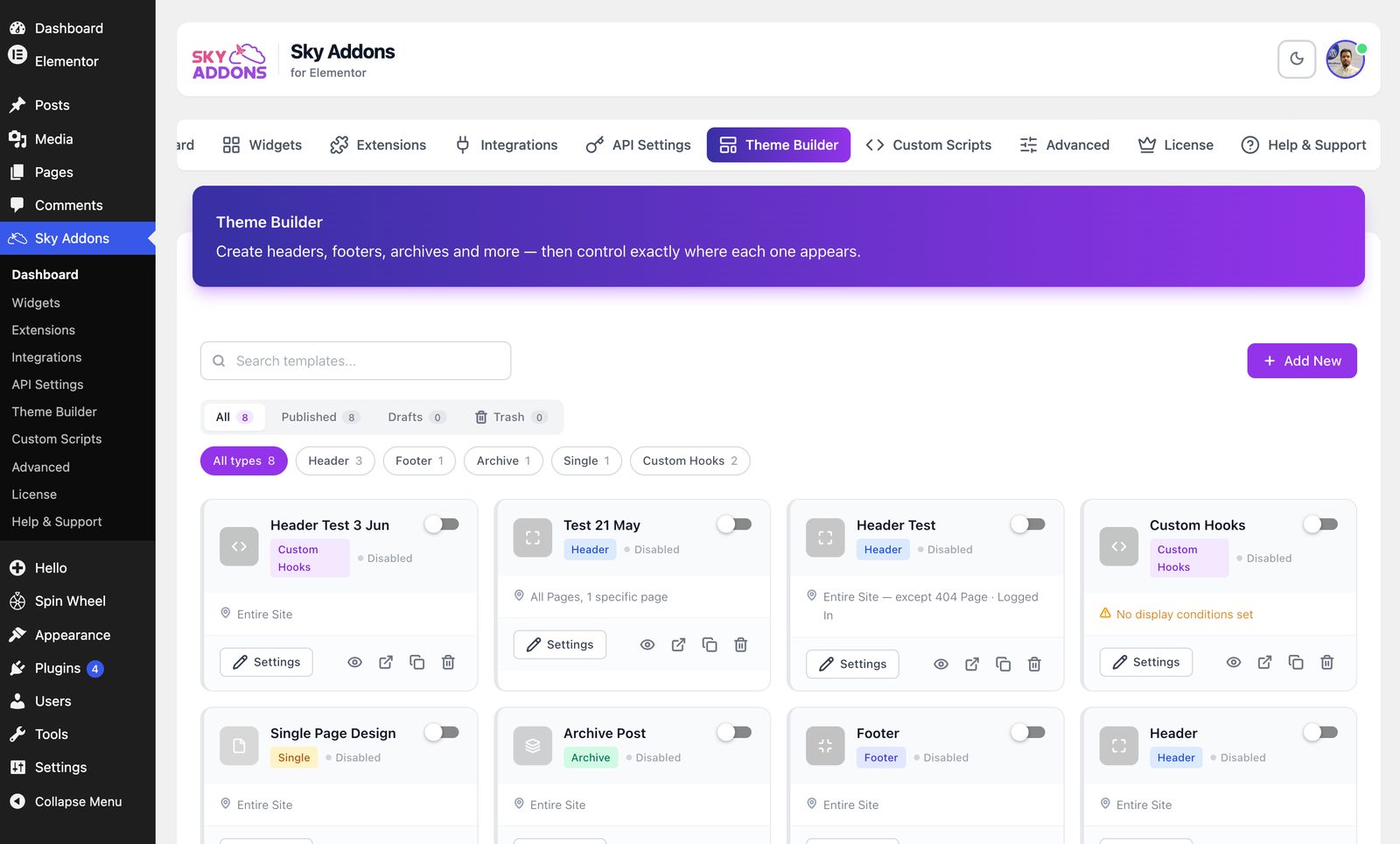
Reading a Template Card
- Tinted header: an icon tile, the name, and a badge naming the type. Live templates keep their type colour; disabled ones go grey.
- Status: a dot reading Live, Disabled, Draft or Trash. A published template has an on/off switch in the top right corner of the card. A draft shows a Publish button there instead, and the line Not on your site until published.
- Condition summary: one line such as “Entire Site” or “All Posts: except Front Page”. If it reads No display conditions set the line turns amber, because a template with no conditions renders nowhere.
- Action row: Settings on the left, then four icons: live preview (eye), edit with Elementor, duplicate and move to Trash. A card in the Trash shows Restore and Delete Permanently instead.
The Status Toggle: What Turning a Template Off Actually Does
Only templates that are published and switched on are considered when a page loads. Drafts and disabled templates are skipped before conditions are even examined, so a template switched off renders nowhere at all, whatever its conditions say.
What it does not do matters just as much. The design, the conditions, the user roles, the post-type scope and the name are all untouched; toggle it back on and the template returns exactly as it was. You can still edit its settings and design, and still open its live preview, which ignores status entirely: that is what makes building in private practical.
A draft has no switch. Click its Publish button first. If its Status was already on, it goes live straight away. The change applies on the next page load. If your site runs a full-page cache or a CDN, clear it after toggling, or visitors keep receiving the previous version.
Editing Settings Versus Editing the Design
A template has two halves, edited in two places. Confusing them is the commonest reason people cannot find a control.
- Settings opens a modal covering everything except the layout: Template Name, the status, the type-specific fields (hook name and priority on a Custom Hooks template), the post-type scope on Single and Archive templates, and the Display On, Exclude From and User Roles sections. A published template has an Update button. A draft has Save Draft and Publish. The card updates straight away.
- Edit with Elementor (the arrow icon) opens the layout in the Elementor editor in a new tab. This is where the design lives: sections, widgets, colours, spacing, dynamic tags.
The two never overlap: changing conditions cannot break a design, and redesigning cannot change where a template appears. The rules deciding which pages a template covers live in Settings: see display conditions.
Duplicating a Template
The clone icon makes a full copy. It appears at the top of the grid, named after the original with (Copy) appended, and saved as a draft. The original is left untouched.
- Copied: the type; the enabled/disabled status; the hook name and priority on a Custom Hooks template; every condition list: Display On, Exclude From, special pages, specific pages and user roles; the post-type scope; and the whole Elementor design with its page settings.
- Not copied: the generated stylesheet, a cache file belonging to the original. The copy builds its own the first time it renders; you need do nothing.
Because the copy is a draft, it never shows on the site until you publish it. Watch the moment you do. The copy keeps the original’s Status switch and conditions, so if you publish it unchanged, two templates of the same type match the same pages, and the site uses only one of them. Before you publish a copy, change its conditions or turn its Status off.
Renaming a Template
Click Settings, edit the Template Name field, and save. The name is a label for you and your team: it appears on the card, in search results and in the preview window title, never on the front end. Renaming affects nothing else.
Rename freely. “Header (Copy)” tells you nothing in three months; “Header: Black Friday” tells you everything.
Deleting a Template
The bin icon moves a template to the Trash. There is no confirmation dialog. Instead, a message with an Undo button shows for six seconds. A template in the Trash never shows on the site.
Open the Trash tab to get it back. Restore returns the template with the status it had before. Delete Permanently removes one template with its design, conditions and settings, and Empty Trash does the same for every template in the Trash. Both ask you to confirm, and neither can be undone.
If your site has the WordPress Trash turned off, the bin icon cannot move the template to the Trash. It asks you to delete the template permanently instead.
If you trash or delete the only active header, nothing breaks. Sky Addons only steps in front of your theme’s own header when it has a matching template to render; with none left it stops intervening, and the theme’s original header returns on the next page load. The same goes for footers, and a trashed or deleted Single, Archive or 404 template hands those screens back to the theme. Clear your cache afterwards, and do not be surprised if that theme header looks unfamiliar: you may have last configured it a long time ago.
Action Reference
| Action | What it affects | Reversible? |
|---|---|---|
| Status toggle off | Where it renders. Design and settings untouched. | Yes. toggle it back on. |
| Rename | The dashboard label only. | Yes. rename again. |
| Edit settings | Conditions, roles, scope, hook, status. | Yes. edit them again. |
| Edit design in Elementor | The layout on every page it covers. | Only by editing it back. |
| Duplicate | Adds a draft copy; original untouched. | Yes. Trash the copy. |
| Move to Trash | Takes the template off the site. | Yes. Undo, or Restore from the Trash tab. |
| Delete Permanently | Removes the template, design and settings. | No. |
Example: Building a Seasonal Header From Your Live One
Your site header is live everywhere and works. You want a Black Friday version with a promo bar and a different call to action, ready to swap in for a fortnight and back out again: without risking the header that currently works.
- Click the duplicate icon on the live header card. “Main Header (Copy)” appears at the top of the grid as a draft, with the same Entire Site condition as the original.
- Click Settings on the copy and turn its Status switch off. Two live headers with identical conditions is the one state to avoid.
- In the same window, rename it Header: Black Friday and click Publish. It is now published but switched off. Leave the conditions as they are: it should cover the same pages when its turn comes.
- Open it with Edit with Elementor, add the promo bar above the logo row, change the button to “Shop the sale”, and update.
- Check it with the eye icon at all three device widths. The preview works on a disabled template, so nobody sees the work in progress.
- On launch day switch the original off first, then the Black Friday header on. In that order there is never a moment with two live headers competing.
- Clear your page cache and load the site to confirm the swap. When the sale ends, reverse the two toggles and keep the seasonal template disabled for next year rather than trashing it.
The result is a two-click seasonal swap you can repeat every year, with the original header never modified.
Best Practices
- Name templates for what they do. “Footer: Shop pages” beats “Footer 2” every time you come back to the grid.
- Never leave two enabled templates of the same type matching the same pages: switch one off before switching the other on.
- Disable rather than delete. A disabled template has no effect at all, and only Delete Permanently and Empty Trash cannot be undone.
- Clear your cache after any status or condition change, and check a real page rather than trusting the dashboard.
Troubleshooting
- I published a copy and my site changed. The copy inherited the original’s status and conditions, so two headers now match the same pages. Switch the copy off, then set the conditions you want.
- The card shows an amber conditions warning. Nothing is targeted, so the template renders nowhere even while enabled. Open Settings and pick at least one Display On value.
- I switched a template off but visitors still see it. Almost always a cached page. Clear your full-page and CDN caches, then reload in a fresh session.
- I deleted a template by mistake. Open the Trash tab and click Restore. A template removed with Delete Permanently or Empty Trash can only come back from a database backup.
Frequently Asked Questions
Does duplicating a template copy its display conditions?
Yes. The copy arrives with the same Display On, Exclude From, special page, specific page and user role settings, plus the same post-type scope and the same Status switch. The copy is saved as a draft, so it is not on the site until you publish it. Only the generated stylesheet is left behind, and the copy rebuilds that on its own.
What happens if I delete my only active header?
Your theme’s own header comes back. Sky Addons only replaces the theme header when it has a matching template to render, so with none left it stops intervening. Clear your cache to see the change immediately.
Can I recover a deleted Theme Builder template?
Yes, if it is in the Trash. The bin icon moves a template to the Trash, and the Trash tab has a Restore button. A template removed with Delete Permanently or Empty Trash is gone for good, and a database backup is the only recovery route.
Do I need Elementor Pro to manage Elementor templates in Sky Addons?
No. Theme Builder is entirely free, including every template type and every action on this screen. You need Elementor itself installed and active, and an administrator account.
Conclusion
The Theme Builder grid is a small screen that does a lot: it is where you manage Elementor templates day to day, and where one careless click can change every page at once. Three rules keep it calm: disable rather than delete, check a copy’s conditions before you publish it, and clear your cache after any change. From here, display conditions covers where each template appears, live preview covers checking one before it goes live, and the Header Builder and Footer Builder guides cover building them. If you get stuck, our team is happy to help on the Sky Addons support page.