
How to use Showcase Flow Widget of Sky Addons for Elementor
The Sky Addons Showcase Flow is a single-row, continuously drifting strip that turns images, an Instagram feed, or dynamic posts into a smooth marquee-style ticker. Unlike a step-by-step carousel, the Showcase Flow widget uses a linear loop that never pauses between slides, giving you the seamless “logo wall” or “photo ribbon” motion you see on modern landing pages. You can feed it a manual Image Gallery, pull your cached Instagram posts with no extra API cost, or render an Elementor loop template for every queried post. Direction, speed, edge fades, hover zoom, and image filters are all controlled visually inside Elementor. Built on Sky Addons for Elementor, it honors reduced-motion preferences and stays draggable on touch devices. This documentation will guide you through the process of using the Showcase Flow widget from source to style.
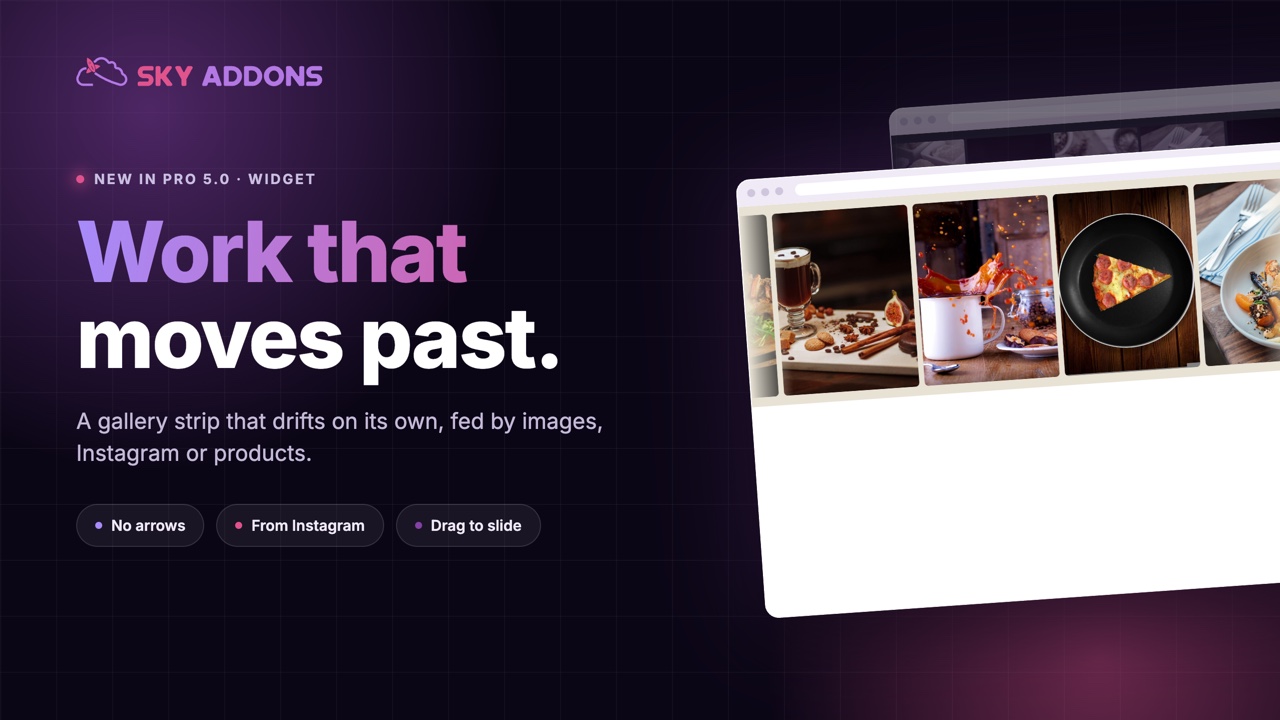
Features:
- Three Data Sources: Feed the strip from a manual Image Gallery, your cached Instagram Feed, or Dynamic Posts rendered through an Elementor loop template.
- Continuous Linear Drift: A looped, zero-delay autoplay with linear timing produces a non-stop marquee glide instead of the step-pause-step of a normal carousel.
- Loop Template per Post: The Dynamic Posts source renders your chosen Elementor loop template for each queried post, so every slide can carry any layout you design.
- Direction and Speed Control: Drift left or right and dial the speed from a slow crawl to a fast ticker.
- Hover Zoom and Overlay: Image sources can zoom on hover and reveal a dimming overlay with an expand or Instagram glyph.
- Image Filters: Apply CSS filters (blur, brightness, contrast, saturation, hue) separately for the Normal and Hover states.
- Edge Fade: Optional left and right fades blend the strip edges into your background for a seamless, endless look.
- Responsive Columns, Pause and Drag: Set visible columns per breakpoint, pause the drift on hover, and let visitors grab and slide the strip.
Insert Showcase Flow Widget
- Open your page in Elementor and click the + icon to add a new section.
- Search for Showcase Flow in the widget panel and drag it onto the canvas.
Configure the Content Source
The Content section chooses where the slides come from.
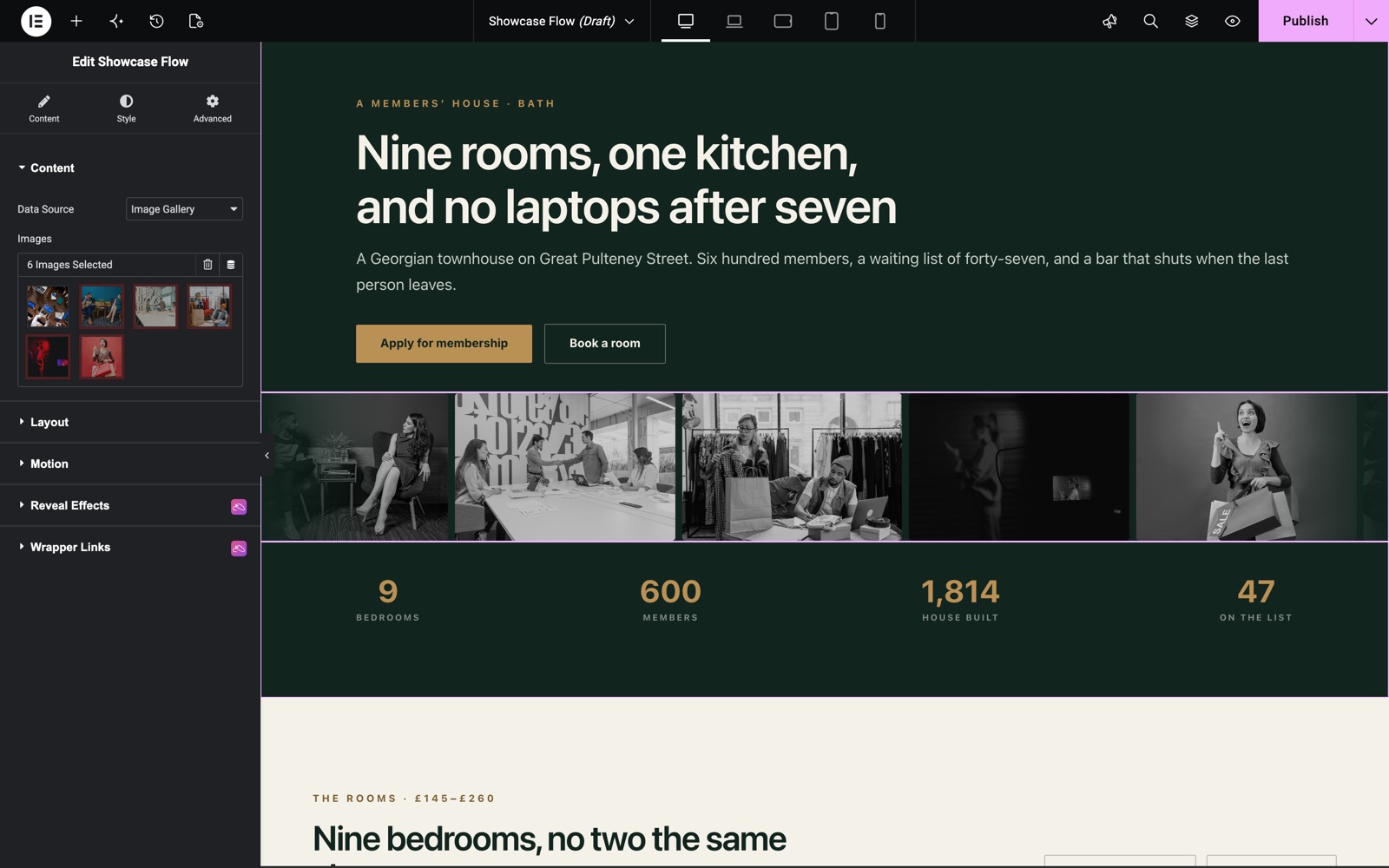
- Data Source: Image Gallery (manual images), Instagram Feed (pulled from the cached feed), or Dynamic Posts (a loop template rendered per post).
- Images: Shown for the Image Gallery source. Select the images that make up the strip.
- Number of Images: Shown for the Instagram source. Sets how many cached feed items to display (2–50, default 12). More images make the loop smoother, with no extra API calls.
- Loop Template: Shown for the Dynamic Posts source. The Elementor loop template rendered for each queried post.
When the Instagram source is selected, an additional credentials section appears so you can enter your Access Token and Account ID for the feed.
Configure the Query (Dynamic Posts)
The Query section appears only for the Dynamic Posts source and uses the standard Sky Addons query builder.
- Query Builder: Choose the post type, filter by taxonomy, term, author, or specific posts, set ordering, and include or exclude items.
- Posts Per Page: How many posts to fetch for the strip (default 8).
Configure the Layout
The Layout section controls the size and spacing of the strip.
- Visible Columns: How many slides are visible across the strip (2–8), set independently for desktop, tablet (default 3), and mobile (default 2).
- Gap: Space between slides in pixels (0–60), responsive per breakpoint.
- Height: Height of the strip in px or vh (default 340px), responsive per breakpoint.
Configure the Motion
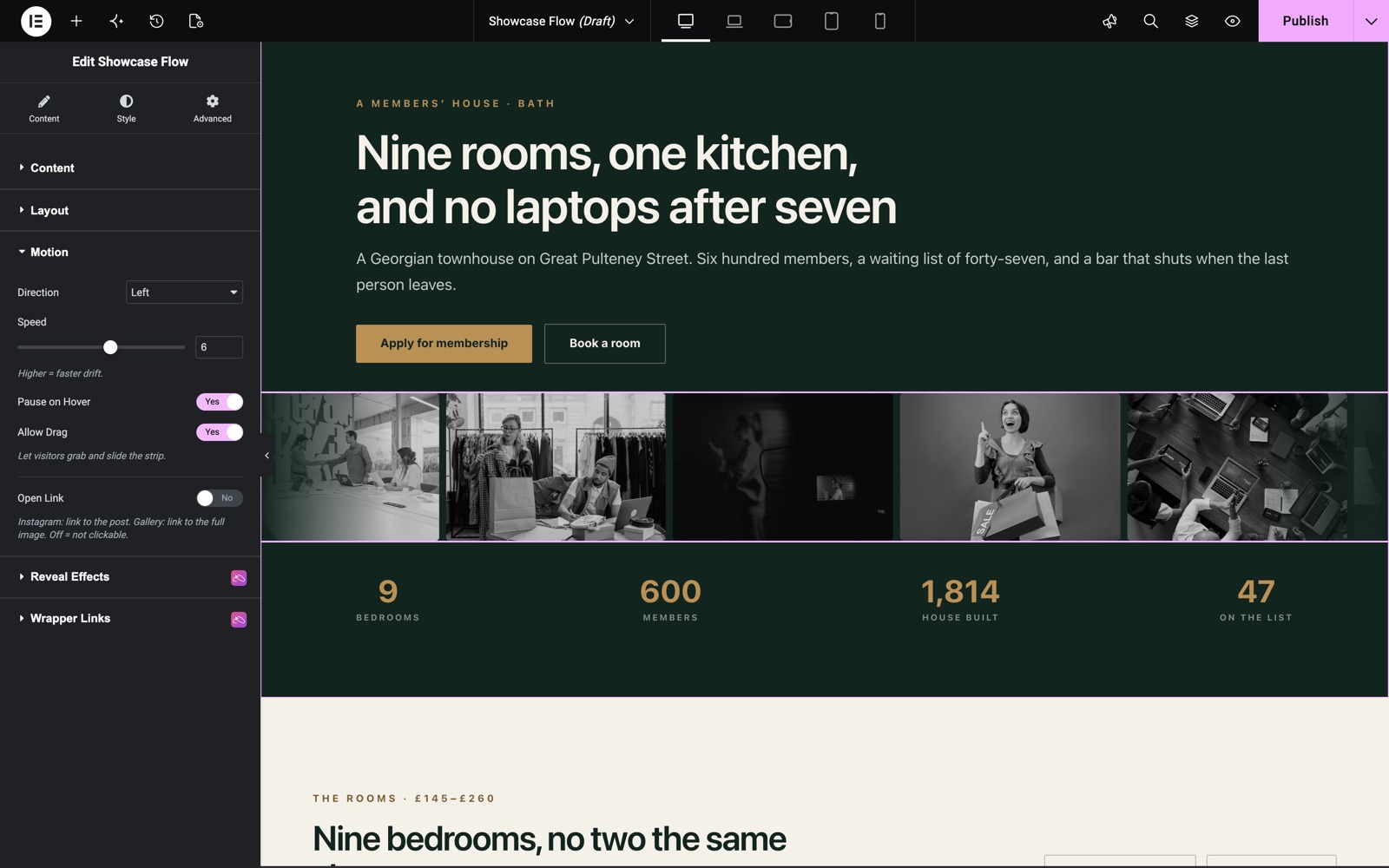
The Motion section governs how the strip drifts and behaves.
- Direction: Drift Left or Right.
- Speed: A 1–10 slider. Higher means faster drift (default 4).
- Pause on Hover: Stop the drift while the pointer is over the strip.
- Allow Drag: Let visitors grab and slide the strip manually.
- Open Link: For Image Gallery and Instagram sources. Links each slide to the full image or the Instagram post. Off makes slides non-clickable.
- Open Links In: New Window or Same Window, shown when Open Link is enabled.
Style the Showcase Flow
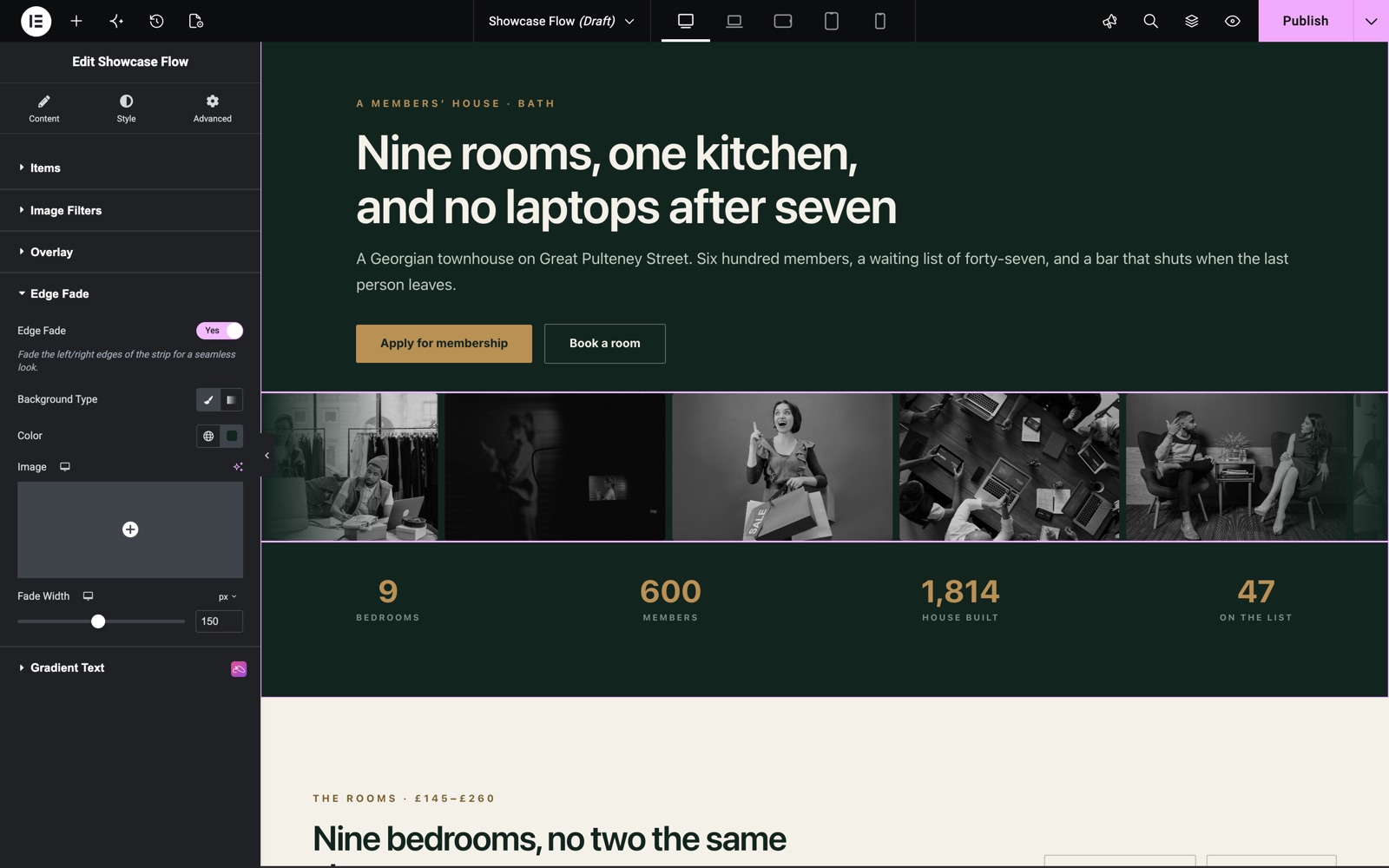
All visual controls live in the Style tab.
- Items:
Image Fit (Cover or Contain, image sources only), Border Radius, and a Border group control for each slide. - Image Filters:
CSS filter group controls (blur, brightness, contrast, saturation, hue) on separate Normal and Hover tabs. Available for the Image Gallery and Instagram sources. - Overlay:
Hover Zoom toggle, Hover Overlay toggle, Overlay Color, and Icon Color for the glyph revealed on hover. Available for image sources. - Edge Fade:
Edge Fade toggle, Fade Color (classic or gradient background), and responsive Fade Width for the left and right edges.
Save and Preview
- Click Update in Elementor to save your page.
- Preview the page to watch the Showcase Flow widget drift, and hover to confirm the pause, zoom, and overlay behave as expected.
Best Practices
- Use the Showcase Flow widget as a logo wall: set Image Fit to Contain, raise the Gap, and enable Edge Fade for a clean “trusted by” strip.
- Add plenty of images (or a higher Number of Images) so the loop feels endless. A short list can look like it snaps back.
- Match the Fade Color to your section background so the edges dissolve invisibly rather than showing a hard seam.
- For a portfolio ribbon, keep Hover Zoom and the overlay on so visitors get an interactive cue that each image is clickable.
- Use the Dynamic Posts source with a compact loop template to turn recent posts, products, or projects into an always-moving showcase.
Troubleshooting
- Instagram feed is empty: Enter a valid Access Token (and Account ID) in the Instagram credentials section. The widget shows an editor notice until the feed can load.
- Dynamic Posts shows nothing: Choose a Loop Template for the Dynamic Posts source, and make sure the Query returns at least one post. The widget reports both cases with an editor notice.
- Strip is not drifting: The widget respects the visitor’s reduced-motion setting and keeps a static, draggable strip when “reduce motion” is enabled in the operating system.
- Motion looks jumpy: Add more slides so the loop has enough content, and lower the Speed slider for a smoother, calmer drift.
Frequently Asked Questions
How is Showcase Flow different from a carousel?
A carousel steps one slide at a time with a pause between moves. Showcase Flow uses a looped, zero-delay autoplay with linear timing, so the strip drifts continuously like a marquee or ticker without ever stopping.
Does the Instagram source make extra API calls?
No. The Instagram source reads from the same cached feed shared across Sky Addons, so increasing the Number of Images does not trigger additional API calls.
Can I put full post layouts in the strip instead of just images?
Yes. Choose the Dynamic Posts source, build an Elementor loop template with whatever layout you like, and select it in the Loop Template field. The widget renders that template for each post returned by the Query.
Can visitors control the strip?
Yes. Enable Allow Drag so visitors can grab and slide the strip, and keep Pause on Hover on so the drift stops while they inspect a slide.
How do I make the edges blend into my background?
Turn on Edge Fade in the Style tab, set the Fade Color to match your section background, and adjust the Fade Width to control how far the fade reaches inward from each edge.
Related Documentation
Explore other Sky Addons widgets that pair well with the Showcase Flow widget:
- Loop Carousel: Render an Elementor loop template in a full-featured, navigable carousel.
- Ultra Carousel: A flexible content carousel with rich navigation and transition options.
- Video Gallery: Build a filterable, lightbox-ready gallery of videos.
- Mate Slider: Create a full slider with layered content and animations.
Conclusion
The Showcase Flow widget from Sky Addons turns images, an Instagram feed, or dynamic posts into a smooth, continuously drifting strip that draws the eye without demanding a click. Pick a data source, set the direction and speed, tune the columns and gap, then style the items, filters, overlay, and edge fade to fit your design. The result is a polished marquee (a logo wall, photo ribbon or post showcase) built entirely from the Elementor panel. If you have any questions or need help, visit the Sky Addons support center.