
How to use Text Animation Extension of Sky Addons for Elementor
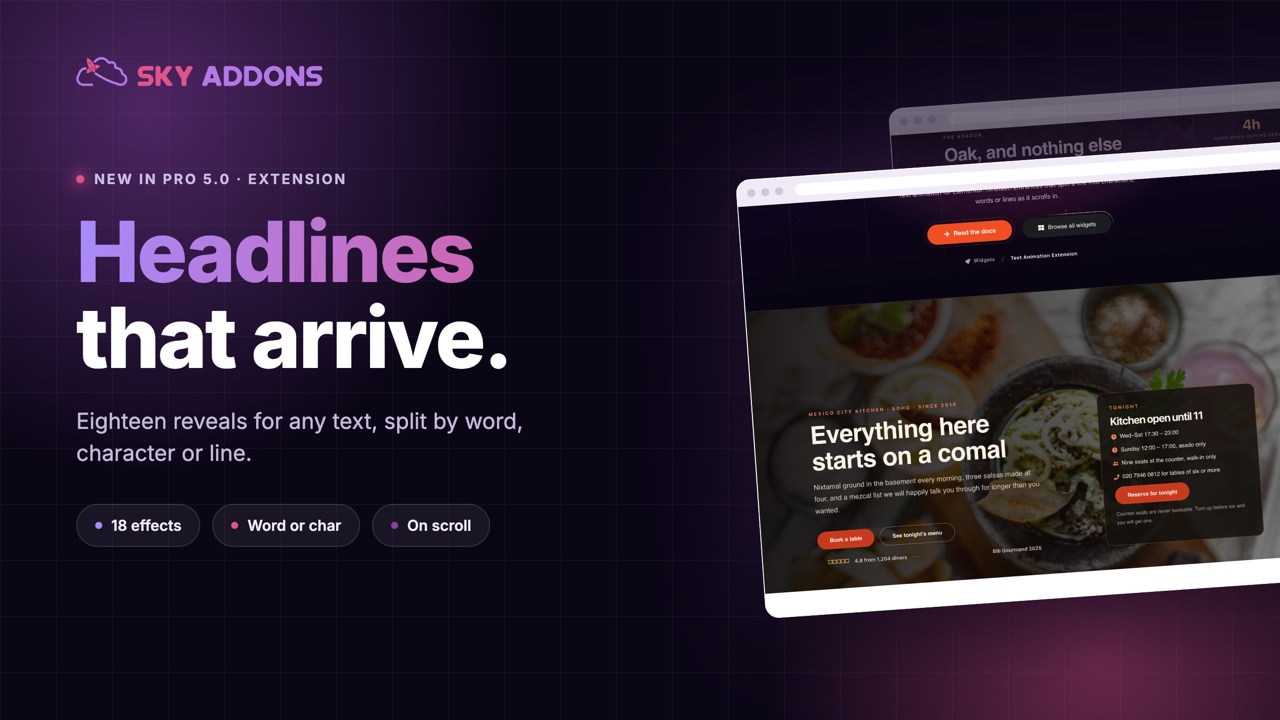
The Sky Addons Text Animation extension brings cinematic, GSAP-powered typography motion to your Elementor pages. The Text Animation extension splits your text into characters, words, or lines and animates each part in with a curated set of presets: fades, blurs, zooms, 3D flips, waves, character cascades, and sweeping reveal masks. Because it hooks into the native Heading, Text Editor, and Button widgets, you never need a special widget. Just enable the effect on the text you already have. The animation plays as a scroll-into-view entrance or on page load, with optional looping, stagger, and per-device controls, and runs identically inside the Elementor edit canvas. This documentation will guide you through enabling and configuring the Text Animation extension on your website.
Features:
- Split text by characters, words, or lines before animating
- Curated presets: Fade (Up, Down, Left, Right, Blur In), Scale (Zoom In, Zoom Out, Elastic Pop), and 3D (Flip X, Flip Y, Perspective Drop, Skew In)
- Signature effects: Split Text, Barrel Roll, Wave, Char Cascade, Line Reveal, and Reveal Slide masks
- Custom mode that unlocks raw GSAP transforms: opacity, scale, offset, rotation X/Y, perspective, transform origin, and easing
- Adjustable stagger so each character, word, or line trails the one before it
- Scroll-into-view trigger with a configurable start offset, or a page-load trigger
- Loop support with yoyo reverse and loop delay, plus per-device toggles to disable on tablet or mobile
Enable the Text Animation Extension
The Text Animation extension ships with Sky Addons and is active out of the box, so there is nothing to install. You apply it directly on a supported widget:
- Open the Elementor Editor and add or select a Heading, Text Editor, or Button widget
- Go to the Content tab of that widget
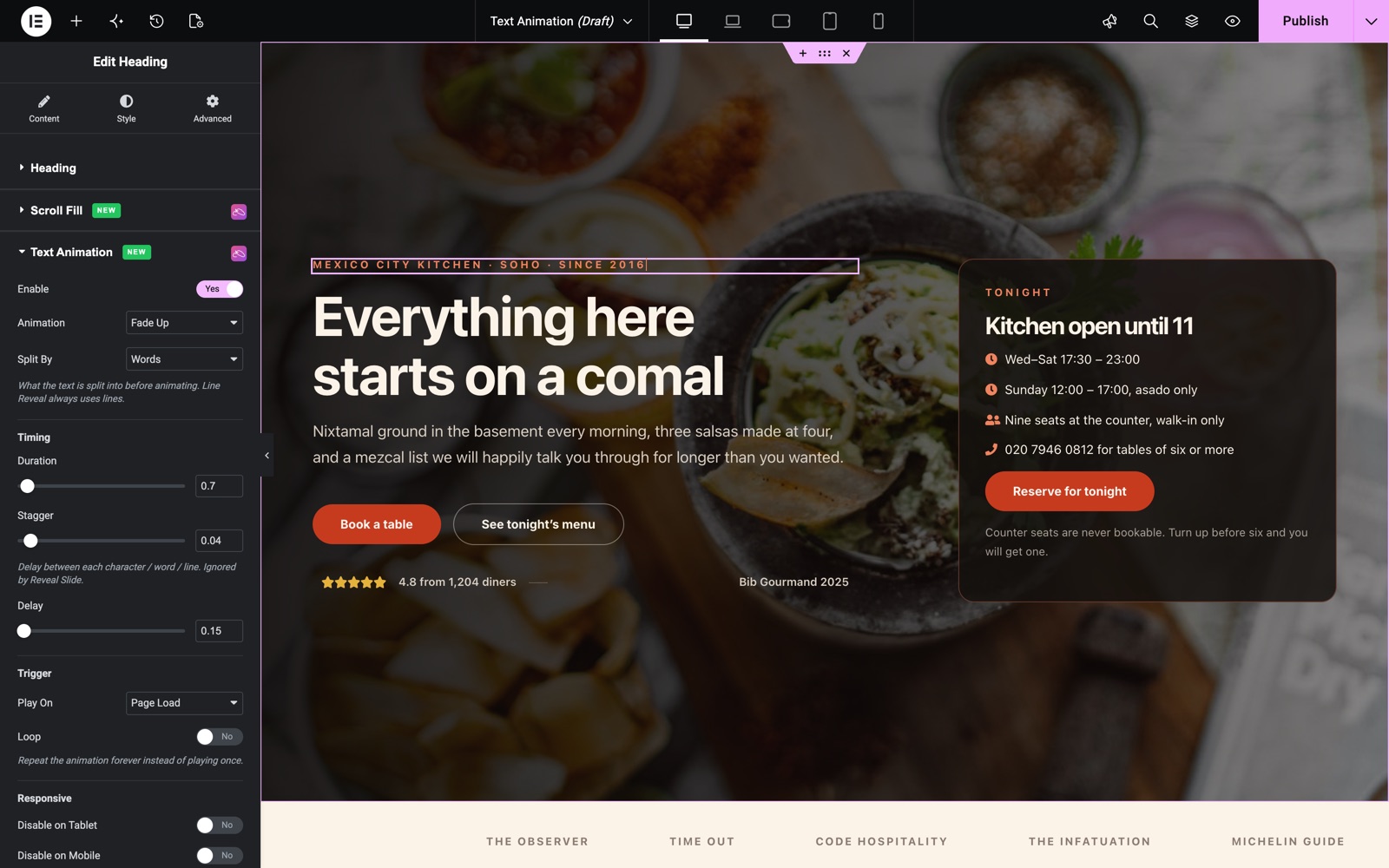
- Locate the Text Animation section (marked with the Sky Addons icon) below the widget’s own content section
- Toggle the Enable switch on to reveal the full set of animation controls
Choose the Animation and Split Mode
- Enable – Activates the text animation on the selected widget.
- Animation – The motion preset, grouped into Fade (Up, Down, Left, Right, Blur In), Scale (Zoom In, Zoom Out, Elastic Pop), 3D (Flip X, Flip Y, Perspective Drop, Skew In), Signature (Split Text, Barrel Roll, Wave, Char Cascade, Line Reveal, Reveal Slide), and Custom. Default is Fade Up.
- Split By – Break the text into Characters, Words, or Lines before animating (default Words). Reveal Slide and Line Reveal always use lines.
Custom Transform Controls
Selecting the Custom (raw transforms) animation exposes the underlying GSAP “from” values. Each part animates from these into place:
- Opacity – Starting opacity from 0 to 1. Leave empty to skip fading.
- Scale – Starting scale from 0 to 3, for grow or shrink entrances.
- Offset X / Offset Y – Horizontal and vertical start offset in pixels (−300 to 300) for slide-ins.
- Rotation X / Rotation Y – 3D tilt in degrees (−360 to 360) around the horizontal or vertical axis.
- Perspective – Depth of the 3D field (0 to 2000). Only affects Rotation X / Y.
- Transform Origin – CSS transform-origin for each part, e.g. 0% 100%. Empty for centre.
- Easing – The curve: Linear, Smooth, Smoother, Sharp, Expo, Back (overshoot), or Elastic (default Smoother).
Reveal Mask Controls
Picking the Reveal Slide (mask) animation adds a Reveal Mask group for the sweeping overlay:
- Mask Color – Colour of the sweeping overlay. Leave empty to match the section background.
- Slide Distance – How far the mask travels across the text, as a percentage of its width (−200 to 200). Leave empty to skip the sweep.
Timing and Trigger Controls
The Timing and Trigger groups are shared across every preset and control the pace and playback:
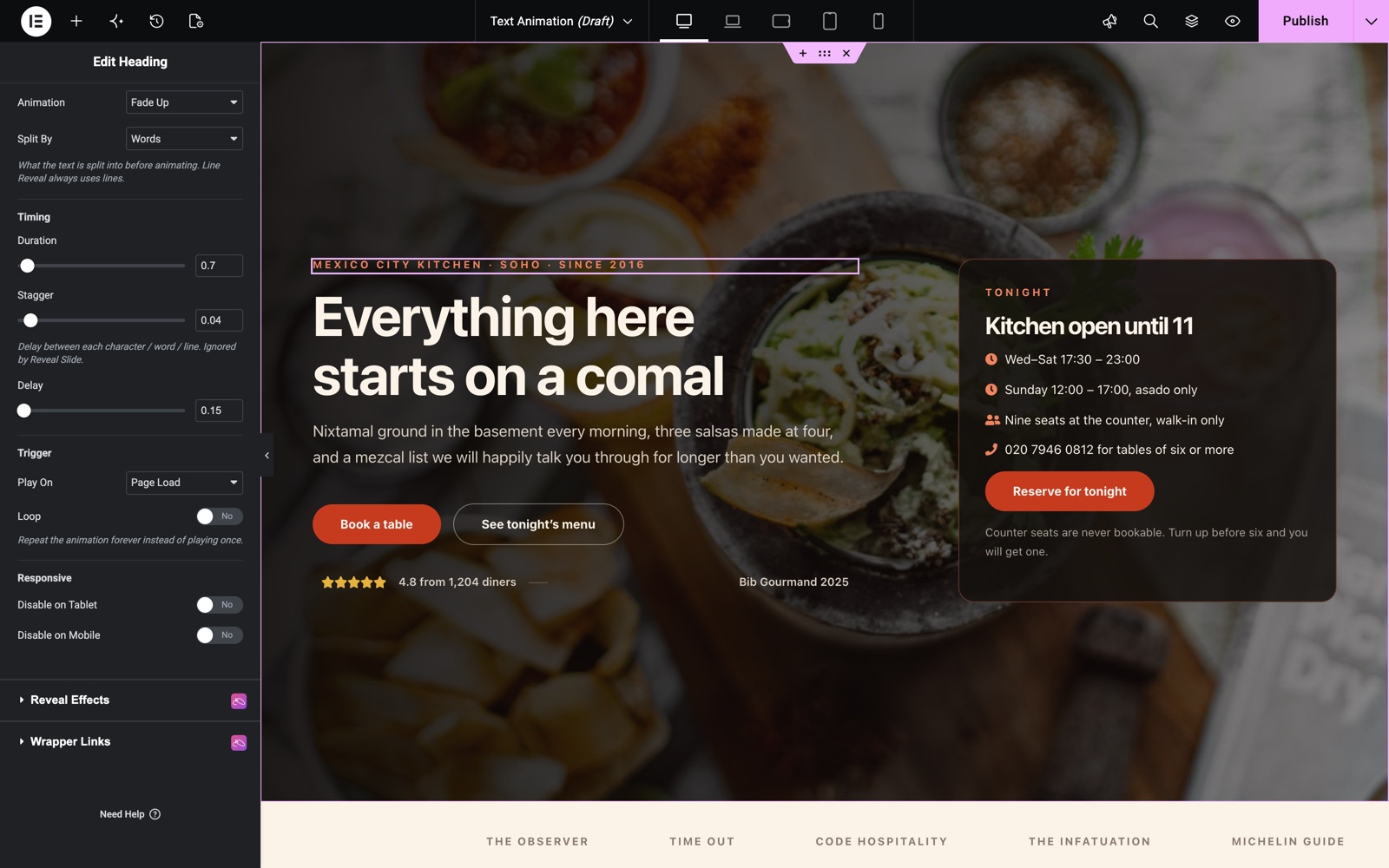
- Duration – Length of each part’s animation in seconds (0.1 to 10, default 0.8).
- Stagger – Delay between each character, word, or line (0 to 0.5s, default 0.05). Ignored by Reveal Slide.
- Delay – A wait before the whole animation begins (0 to 5s).
- Play On – Scroll Into View (default) plays the text as it scrolls onto the screen, or Page Load plays it immediately.
- Start Offset – Where in the viewport the text starts animating (0 to 100%, default 85 = when its top reaches 85% down the screen). Scroll trigger only.
- Loop – Repeats the animation forever instead of playing once.
- Reverse Each Loop – Plays backwards on alternate loops (yoyo) instead of restarting. Available when Loop is on.
- Loop Delay – The pause between loops (0 to 5s, default 0.5). Available when Loop is on.
- Disable on Tablet / Disable on Mobile – Skip the animation on smaller breakpoints so text simply appears in place.
Save and Preview
- Once you’ve configured your text animation, click Publish or Update to save your changes.
- Preview the page and scroll to the text to confirm the animation triggers and paces as you intended.
Best Practices
- Reserve character-level splits (Char Cascade, Split Text) for short hero headlines. They feel busy on long paragraphs.
- For section titles further down the page, keep Play On set to Scroll Into View so each heading animates as the visitor reaches it.
- Use Words or Lines splitting on body copy and Text Editor widgets. Animating every character delays readability.
- Add a subtle Loop with Reverse Each Loop only on small call-to-action buttons or badges.
- Turn on Disable on Mobile for heavy 3D presets so phones render the text instantly.
Troubleshooting
- Animation Not Playing: Confirm Enable is on for the correct widget, and that Play On matches how you view the page. A Scroll trigger only fires once the text scrolls into view.
- Text Animates Too Late: Lower the Start Offset so it begins before the text is fully on screen, or switch Play On to Page Load for above-the-fold headlines.
- Reveal Slide Sweep Not Visible: Set a Mask Color that contrasts with the background and give Slide Distance a non-empty value.
- Custom Transform Has No Effect: The raw fields apply only when set. Give at least one of Opacity, Scale, Offset, or Rotation a value, and add Perspective when using Rotation X / Y.
Frequently Asked Questions
Which widgets support the Text Animation extension?
The extension adds a Text Animation section to the Content tab of Elementor’s native Heading, Text Editor, and Button widgets. No dedicated widget is required.
How do I animate each letter individually in Elementor?
Set Split By to Characters and choose a preset such as Char Cascade or Split Text. Each character is then animated on its own, and the Stagger control sets how much each letter trails the one before it.
Can the text animation loop continuously?
Yes. Turn on the Loop switch to repeat the animation forever. Enable Reverse Each Loop for a back-and-forth yoyo motion, and use Loop Delay to add a pause between each cycle.
Does the animation preview inside the Elementor editor?
It does. The edit canvas is a scrollable frame, so scroll-triggered and page-load animations run in the editor exactly as they will on the live site.
Will the Text Animation extension slow down my page?
The GSAP animation scripts are only loaded on pages where at least one widget has Text Animation enabled, so pages without animated text carry no extra weight. You can also disable the effect on tablet and mobile for lighter rendering.
Related Documentation
Explore other Sky Addons widgets and extensions that pair well with Text Animation:
- Reveal Effects: Add block-reveal overlays that sweep across any widget, section, or container as it scrolls into view.
- Animated Heading: Build rotating, typed, and highlighted headlines with a dedicated heading widget.
- Gradient Text: Apply animated gradient colour fills to your headings and text for extra visual polish.
Conclusion
The Text Animation extension by Sky Addons for Elementor turns plain headings, paragraphs, and buttons into engaging, GSAP-driven motion without a single line of code. Use restrained presets on hero headlines and section titles, and lean on Custom mode when you need pixel-perfect control. If you have any questions while using the Text Animation extension, the Sky Addons support team is happy to help.
Need help? Our team is happy to answer questions on the Sky Addons support page.