
How to use Image Curtain features of Sky Addons for WordPress
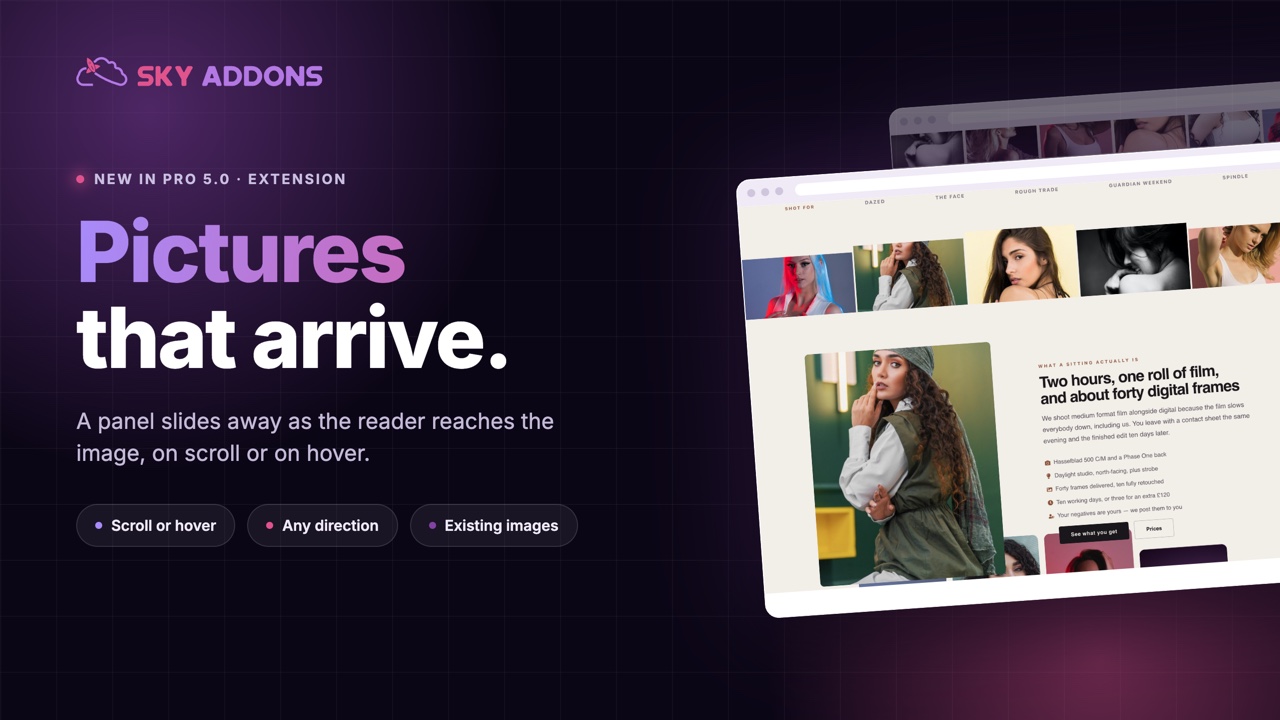
The Sky Addons Image Curtain extension turns any Elementor container into a cinematic opening sequence. A strip of images sits across the container, each one opening from a narrow slit to its full width from the centre outward, then the whole strip falls away and the heading, button and anything else you placed in that container rise into the cleared space. It is the hero treatment agency sites use to introduce a page, and it is built entirely from your own container content. The extension adds no widgets of its own. This documentation will guide you through enabling and configuring the Image Curtain extension on your website.
Key Features
- Works on any Elementor container. The content inside it stays yours to build with native widgets
- An arched strip of images that opens from the centre outward, then drops out of frame
- Full control of the arch: the tallest centre image, the shortest edge images, gaps and corner radius
- Three playback modes: once when scrolled into view, once on page load, or replayed every time it returns
- Separate timings for the opening, the stagger between images and the fall
- Drop distance measured against the container, so it lands the same way at any height
- Image size selectable per strip, so narrow columns do not download full-size photos
- No stylesheet and no extra requests. The layout rules travel with the page’s own CSS
Activate Image Curtain Module
Image Curtain ships with Sky Addons Pro and is available once the module is switched on. To verify its status:
- Navigate to your WordPress Dashboard and locate “Sky Addons” in the left sidebar menu
- Open the “Widgets & Extensions” screen and switch to the Extensions list
- Find “Image Curtain” in the list
- Ensure the toggle switch is in the “On” position
- Save your changes if you made any adjustments
Using Image Curtain
- Open the Elementor Editor and select the container you want to open with a curtain. A hero section is the usual choice.
- Give the container a height. 100vh works well for a full-screen introduction.
- Build the content normally inside it: heading, text, button, whatever the section needs. The strip is injected behind them.
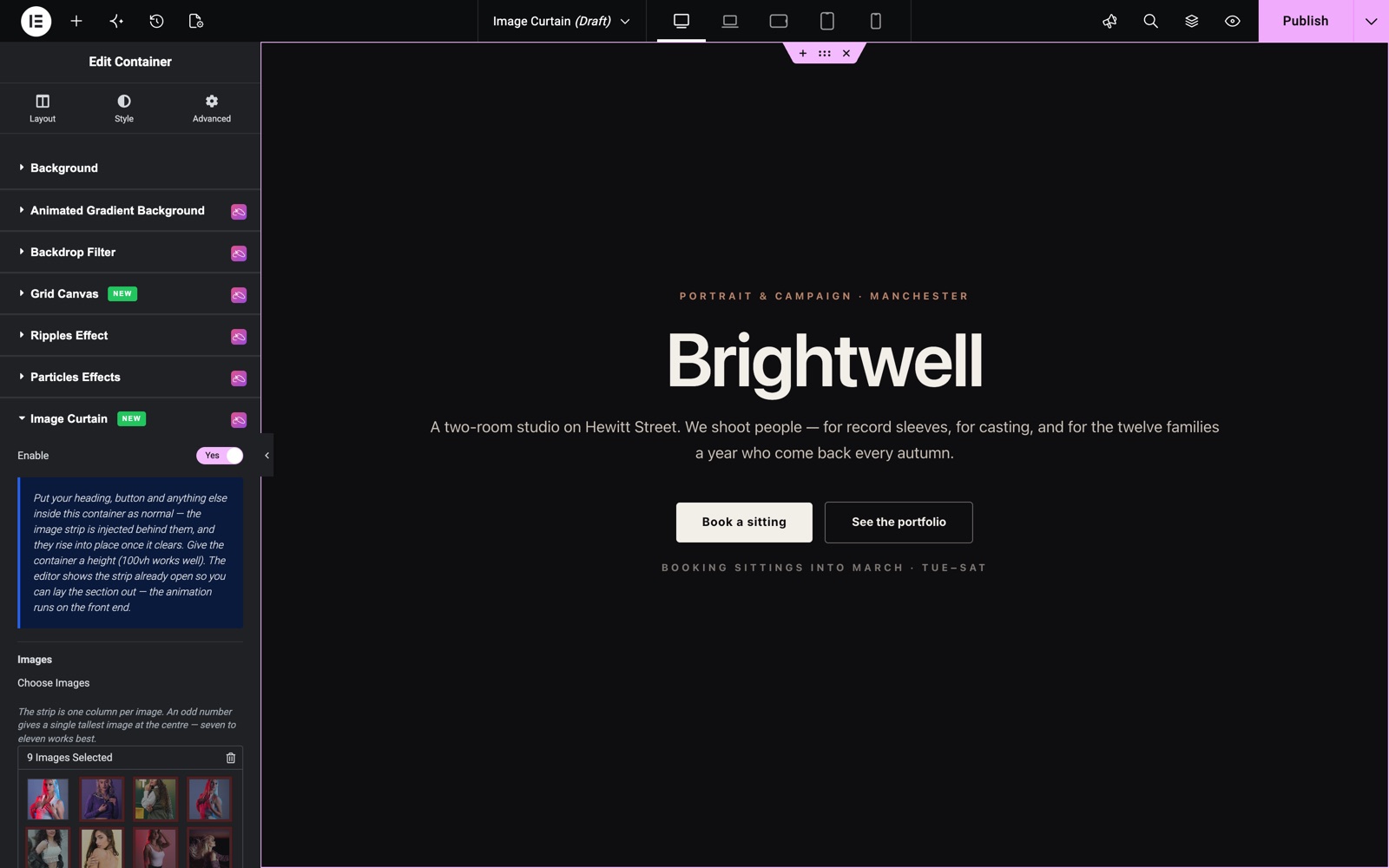
- Open the “Style” tab, find the “Image Curtain” section marked with the Sky Addons icon, and switch “Enable” on.
- Choose your images. The animation runs on the front end, so preview the page to see the strip.
The hero of the Image Curtain demo is a dark container with a heading, a short text and two buttons. Image Curtain is on, with nine portraits in Choose Images.
Choose the Images
- Choose Images – the strip is one column per image. An odd number gives a single tallest image at the centre of the arch, which reads better than two equal ones. Seven to eleven is the sweet spot.
- Image Size – Medium, Medium Large, Large or Full. The images are narrow columns, so a smaller size loads faster with no visible difference. Raise it only if they look soft.
Shape the Strip
Every control in this group is responsive, so the arch can be shallower on a phone than on a desktop.
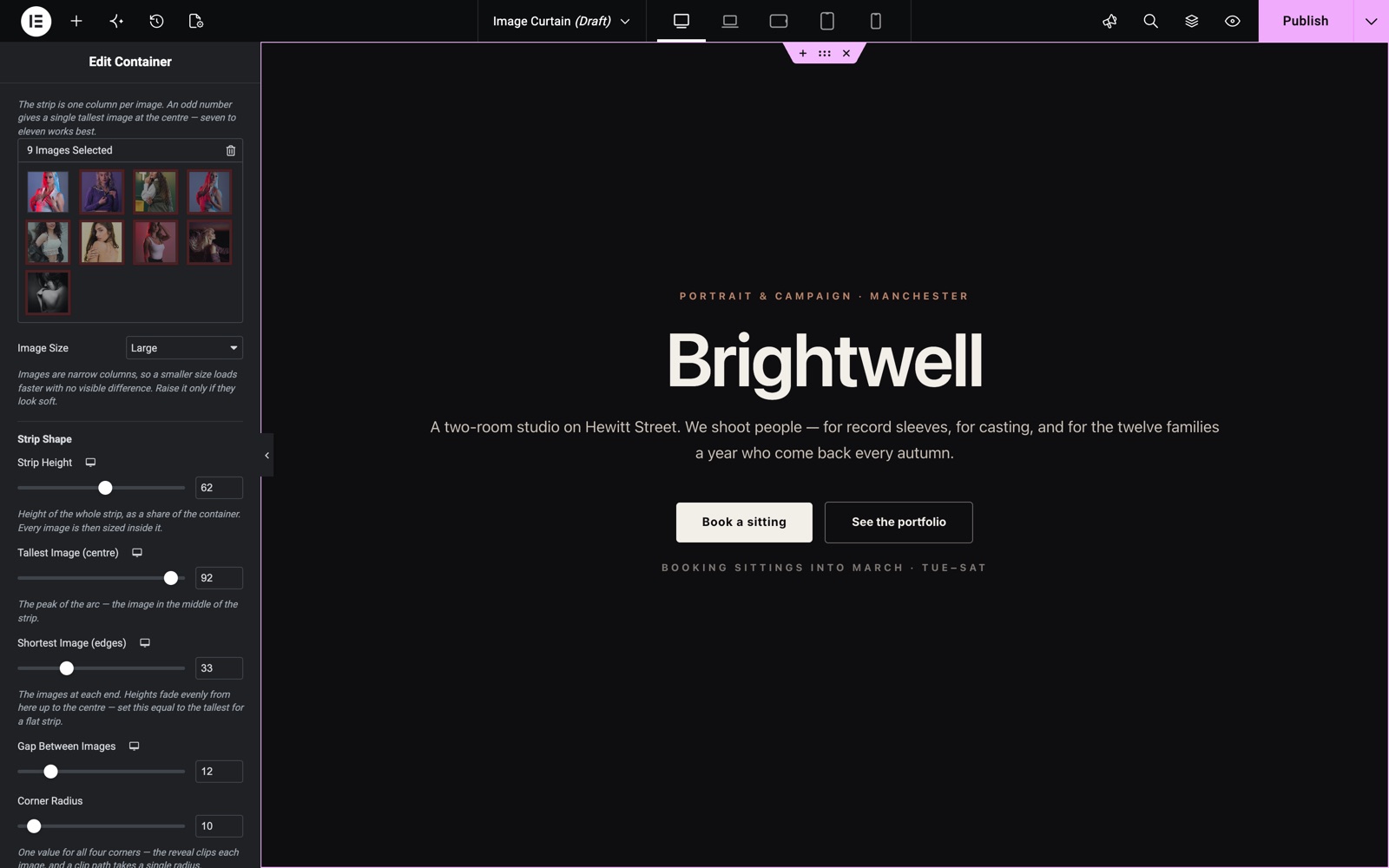
- Strip Height – the height of the whole strip as a share of the container, default 100%. Every image is then sized inside it.
- Tallest Image (centre) – the peak of the arch, default 92%.
- Shortest Image (edges) – the images at each end, default 33%. Heights fade evenly from here up to the centre; set this equal to the tallest value for a flat strip with no arch at all.
- Gap Between Images – the spacing between columns, 0 to 60 pixels.
- Corner Radius – one value for all four corners of every image. The reveal clips each image, and a clip takes a single radius.
This hero uses a Strip Height of 62%, a tallest image of 92%, edge images of 33%, a 12 px gap and a 10 px corner radius.
Configure the Animation
- Playback – “Play once when scrolled into view” is the default and suits a section partway down the page. “Play once on page load” is only right when the container sits at the very top, otherwise the animation is over before anyone sees it. “Replay every time it scrolls back” re-runs it whenever the section returns to view.
- Open Speed (seconds) – how long one image takes to open from a slit to its full width, default 1.1.
- Stagger Delay (seconds) – the wait between one image and the next, counted outward from the centre, default 0.12. Set it to 0 to open them all at once.
- Drop Speed (seconds) – how long the strip takes to fall once it has finished opening, default 1.1.
- Drop Distance – how far the strip falls, as a share of the container height, default 45%. Around 45% leaves the images cropped along the bottom edge; past 80% drops them out of sight entirely.
The total time before your heading appears is roughly the open speed, plus the stagger multiplied by half the image count, plus most of the drop speed. Add those up before choosing values. Three seconds of introduction is a long time to ask a visitor to wait.
On the front end the images open from the centre outward into an arch.
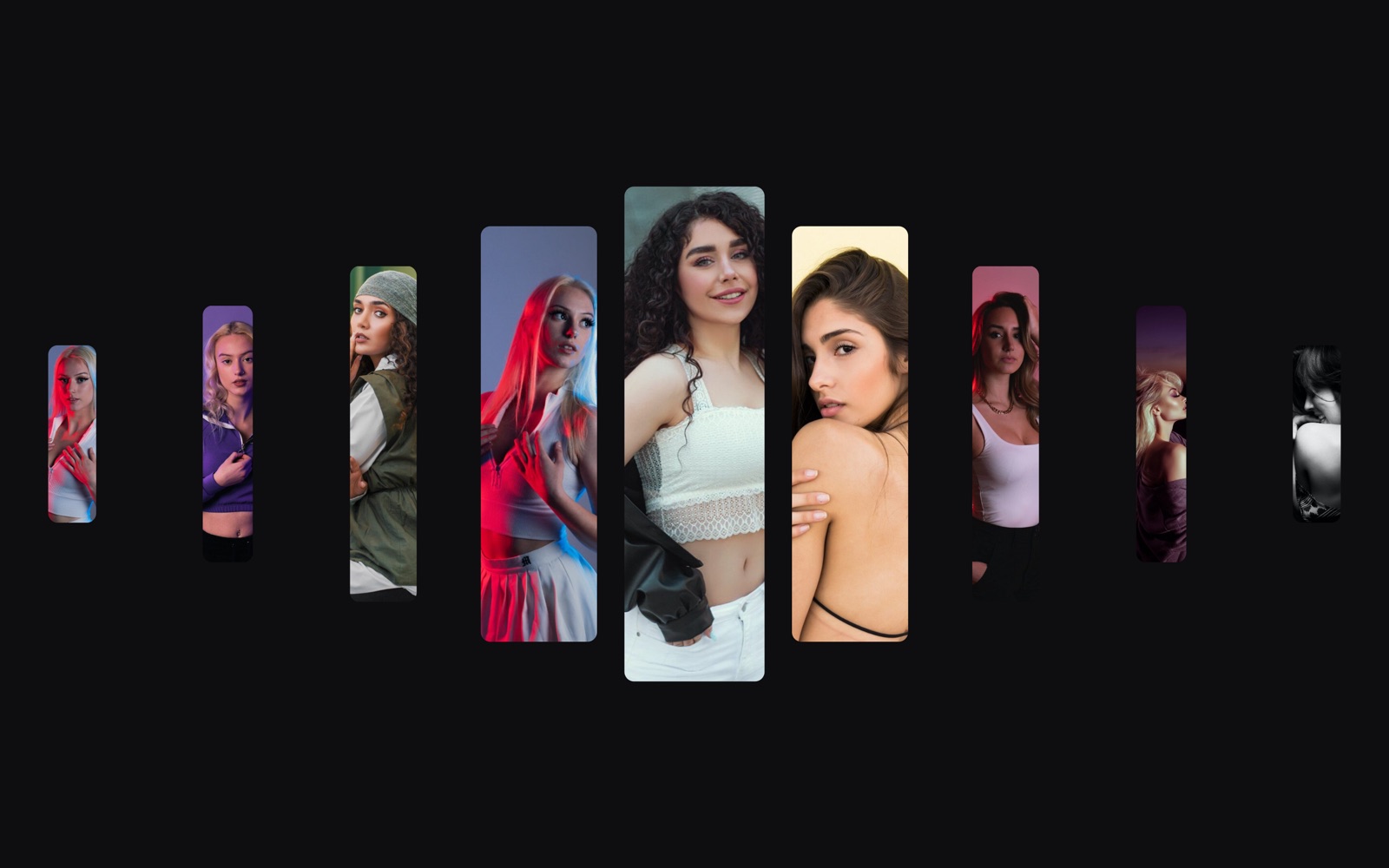
Then the strip drops and the heading and buttons take its place. With a Drop Distance of 45% the images stay cropped along the bottom edge.

Save and Preview
- Click “Publish” or “Update” to save your changes.
- Preview the page on the front end and scroll to the section. The animation does not run in the editor.
Best Practices
- Use an odd number of images. Seven or nine gives one clear tallest image at the centre; an even count leaves two competing for the peak.
- Pick images that work as narrow slices. Each column is a crop of the centre of your photo, so a wide landscape loses its subject. Portraits, textures and close-ups hold up best.
- Keep the whole sequence under about two seconds. It is an introduction, not a video.
- Use it once per page. The effect works because it is the entrance to the page; a second one further down reads as a repeat.
- Reduce the image count on mobile. Eleven columns on a phone become slivers. Consider a shallower arch and fewer, larger images there.
Troubleshooting
- The animation does not play in the editor: that is intentional. Preview the page to see the sequence.
- The strip appears but nothing animates on the front end: the visitor’s device may have reduced motion enabled, in which case the content is simply shown. Check on another device before assuming a fault.
- The reveal jumps instead of easing, or the layout looks wrong after an update: the container is serving CSS generated before these rules existed. Re-save the page, or run Elementor’s “Regenerate Files & Data” from Elementor → Tools.
- The images barely move when they drop: Drop Distance is a share of the container height, so a short container gives a short fall. Raise the container height or the percentage.
- The section is squashed or the strip is cut off: give the container a real height. Without one it collapses to the height of its content and there is no room for the arch.
- The section is empty: it should never be. The content is unhidden on every path, including when the extension is off, has no images, or the browser has no JavaScript. If you do see an empty container, check that the images were actually selected in Choose Images.
Frequently Asked Questions
Where do I put the heading and button?
Inside the same container, as ordinary Elementor widgets. The extension owns no content of its own. It injects the image strip behind whatever you build, and your widgets rise into place once the strip clears.
Why is it in the Style tab and not the widget panel?
Because it is an extension applied to a container rather than a widget you drop on the page. Select the container, open the Style tab, and the Image Curtain section is there with the Sky Addons icon beside it.
How many images should I use?
Seven to eleven, and an odd number. Fewer than five and the arch has no shape; more than about eleven and each column is too narrow to read as an image, especially on a phone.
Can I make the strip flat instead of arched?
Yes. Set “Shortest Image (edges)” to the same value as “Tallest Image (centre)” and every column takes the same height.
Does it add a stylesheet to my page?
No. The layout rules are written into the CSS Elementor already generates for the page, so the extension costs no extra request. Only the animation script is loaded, and only on pages that use it.
Related Documentation
Conclusion
The Image Curtain extension by Sky Addons for Elementor gives a page one memorable opening moment, built out of a container you were going to make anyway. Keep it short, keep it to the top of the page, and let the images carry the section. If you have any questions while using Image Curtain, the Sky Addons support team is happy to help.
Need help? Our team is happy to answer questions on the Sky Addons support page.