
How to use Element Parallax Extension of Sky Addons for Elementor
The Sky Addons Element Parallax extension for Elementor makes any widget or container drift, spin or zoom as the visitor scrolls. The element itself moves, not just its background. Instead of asking you to tune raw numbers, it ships named presets with a single Intensity slider: pick Float, Rise & Spin or Zoom Drift and you are done. Turn on Sync to Container for several elements in the same container and they move together as one layered scene, each at its own depth. This is the multi-layer parallax look of high-end landing pages, with no code. A Custom mode with From → To ranges per axis is there when you want full control. This documentation will guide you through enabling and configuring the Element Parallax extension on your website.
Features:
- Works on every Elementor widget and container: images, headings, buttons, icons, whole sections
- Eight ready-made effects: Float, Sink, Drift Left, Drift Right, Diagonal, Rise & Spin, Zoom Drift and Tilt Drift, driven by one Intensity slider
- Sync to Container: elements in the same container share one scroll timeline and move as a composed scene at different depths
- Custom mode: Translate, Rotate and Scale each get a From → To range, scrubbed from the moment the element enters the viewport to the moment it leaves
- Plays nicely with everything: Elementor’s Transform controls, entrance animations and the Floating Effects extension all keep working on the same element
- Independent tablet and mobile disable toggles, and the effect automatically respects visitors who prefer reduced motion
Enable the Element Parallax Extension
The Element Parallax extension ships with Sky Addons Pro and adds its own “Element Parallax” section to every widget and container. There is nothing to install.
- Select any widget or container in the Elementor Editor
- In the Advanced tab, locate the Element Parallax section (marked with the Sky Addons icon)
- Toggle the Enable switch on
- Scroll the preview canvas. The element moves the same way in the editor as on the live page
Pick an Effect and Intensity
The element drifts from its own position as it crosses the viewport and sits exactly where you placed it when centred. The effect never leaves your layout permanently shifted.
- Effect – Float lifts the element as the page scrolls down, Sink lets it lag behind for a depth look, Drift Left / Drift Right slide it sideways, Diagonal combines the two, Rise & Spin lifts while rotating, Zoom Drift grows while lifting, and Tilt Drift leans into its slide. Custom unlocks the per-axis controls below.
- Intensity – One slider from 1 to 10 that scales the whole effect: how far it travels, how much it spins or grows. Low values read as subtle depth; high values are stage effects.
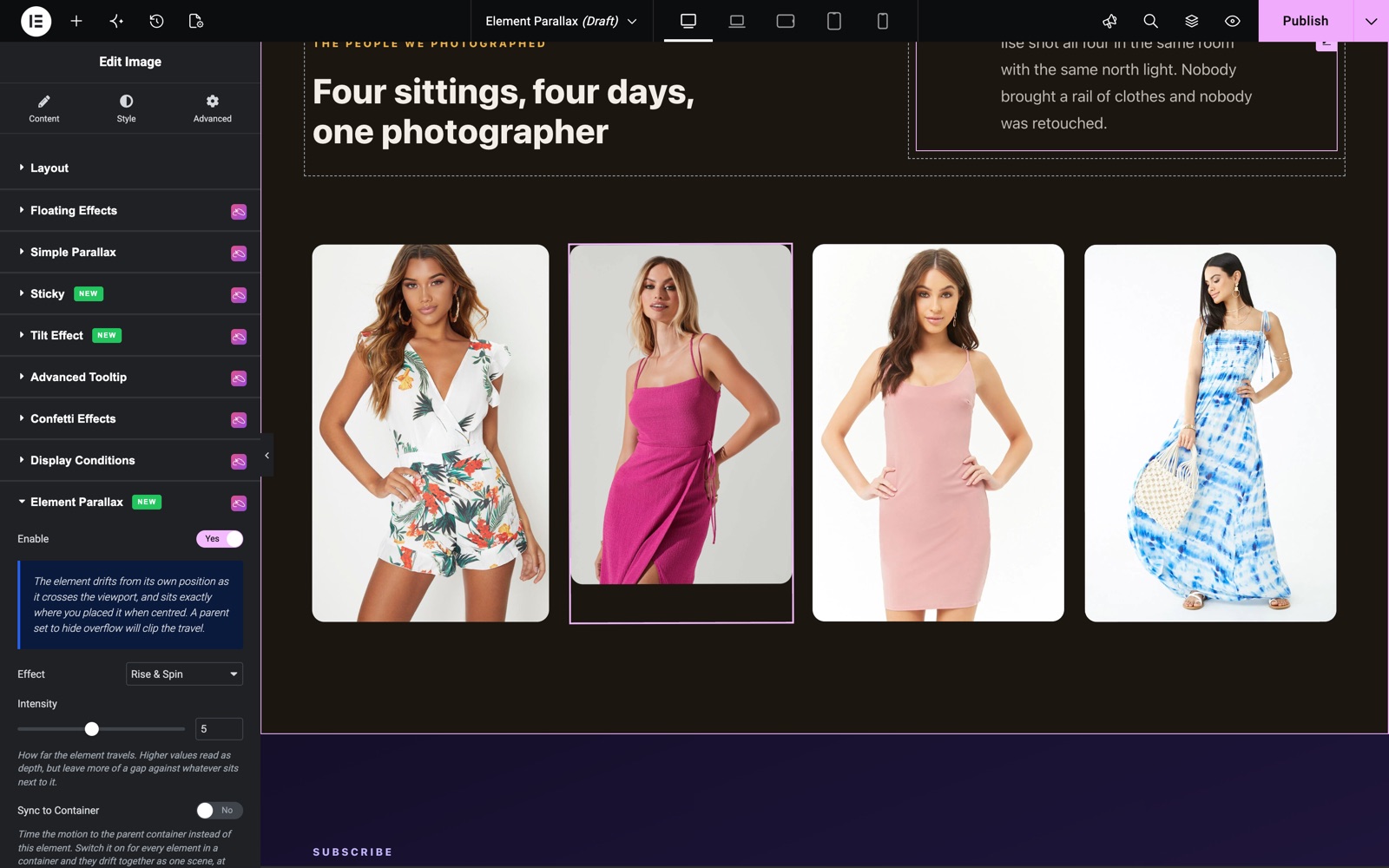
In this photo row, the second image uses Rise & Spin at Intensity 5. In the editor it already sits higher than its neighbors and is turning slightly, because the effect previews as you scroll the canvas.
Custom Mode
Choose Custom as the Effect and three popover groups appear. Each value is a From → To range: From is the value when the element enters the viewport at the bottom, To is the value when it leaves at the top, and the scroll position scrubs smoothly between them, backwards too.
- Translate – Horizontal and vertical movement in pixels. For example, Y from 40 to −40 makes the element climb 80px across its journey.
- Rotate – Rotation in degrees, for example from −25 to 25 for a half-turn sweep as the element passes through the page.
- Scale – Uniform size, for example from 0.8 to 1.4 to grow the element as it rises into view.
Build a Layered Scene with Sync to Container
Normally each element runs its own timeline, starting when it enters the viewport. Sync to Container times the motion to the parent container instead. Switch it on for every element in a container and they all drift together as one composition, each at the speed its own Intensity sets. This is how you build the classic multi-layer hero: shapes at Intensity 8 flying past, a heading at Intensity 2 barely breathing, all moving as one scene.
- Sync to Container – Drives this element’s motion from the parent container’s scroll position instead of its own.
- Disable on Tablet / Disable on Mobile – Turn the effect off below the tablet or mobile breakpoint. Disabling on mobile is recommended, because mobile browsers resize the viewport when the address bar hides, which can make scroll-driven motion jump.
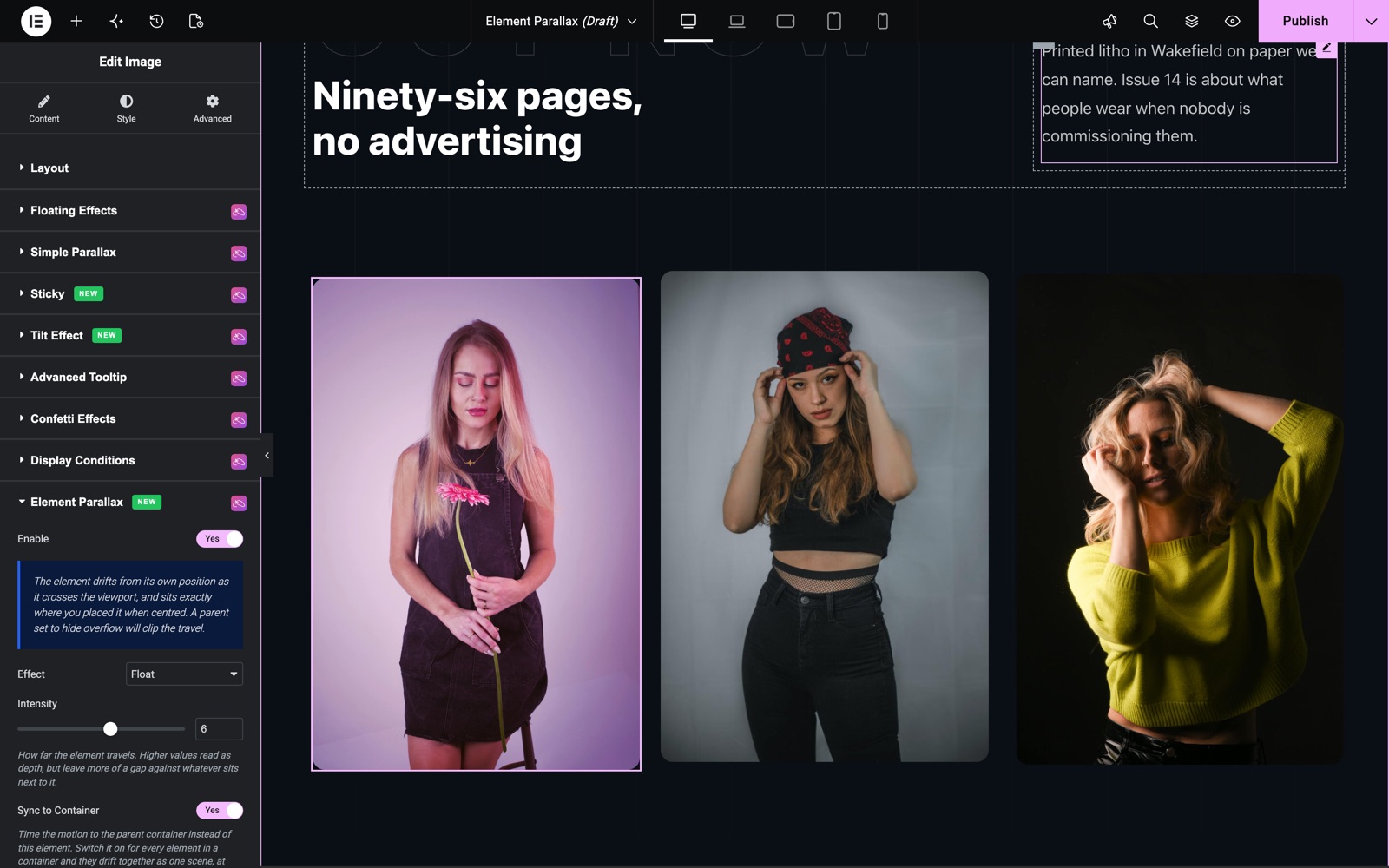
Here three images share one container with Sync to Container on. They use Float, Sink and Drift Left, so they move as one layered scene. The selected image uses Float at Intensity 6.
Save and Preview
- Click the Update/Publish button to save your changes
- Preview the page and scroll through the section to feel the motion at real page speed
Best Practices
- Start with presets: the named effects are tuned to look right out of the box. Reach for Custom only when a preset gets you 90% there and you need the last 10%.
- Vary Intensity, not effects: a scene with one effect at three intensities reads as depth; a scene with three different effects reads as noise.
- Mind the neighbours: a moving element can overlap what sits next to it. Keep Intensity modest for elements inside tight text columns.
- Layer with Background Parallax: Background Parallax on the container plus Element Parallax on the widgets inside is the full multi-layer scene, and the Floating Effects extension can still bob the same elements on top.
Troubleshooting
- The element gets cut off while moving: a parent container set to hide overflow clips the travel. Set the parent’s Overflow to Visible, or lower the Intensity.
- Nothing moves on a phone: Disable on Mobile is on by default; switch it off in the Element Parallax section if you want the effect on small screens.
- Elements in one container move out of step: make sure Sync to Container is switched on for every element in the scene. An element without it runs its own timeline.
Conclusion
The Element Parallax extension turns static pages into scenes. Pick a preset, set an Intensity, sync a container, done. Combined with Background Parallax it delivers the full layered-depth look of custom-built sites from two small sections in the Elementor editor. If you run into anything this guide does not cover, the Sky Addons support team is happy to help.
Need help? Our team is happy to answer questions on the Sky Addons support page.