
How to use Ripples Effect features of Sky Addons for WordPress
Sky Addons Ripples Effect extension for Elementor adds an interactive water-ripple effect to element backgrounds. When visitors move the mouse over a section, column, container, or widget, or click it, realistic WebGL-rendered ripples spread across the background, as if the surface were water. It is a simple way to make hero sections and image backgrounds feel alive, with just a handful of controls and zero custom code. This documentation will guide you through enabling and configuring the Ripples Effect extension on your website.
Key Features
- Works on sections, columns, containers, and widgets
- Realistic water ripples rendered with WebGL for smooth performance
- Reacts to both mouse movement and clicks/taps
- Adjustable drop size, refraction strength, and render resolution
- Scripts load only on pages where the effect is enabled
Activate Ripples Effect Module
Ripples Effect ships with Sky Addons and is available once the module is switched on. To verify its status:
- Navigate to your WordPress Dashboard and locate “Sky Addons” in the left sidebar menu
- Click on the “Extensions” tab within the Sky Addons dashboard
- Find “Ripples Effect” in the extensions list
- Ensure the toggle switch is in the “On” position
- Save your changes if you made any adjustments
Using Ripples Effect
- Open the Elementor Editor and select the element you want to animate
- For widgets: the “Ripples Effect” section appears in the “Advanced” tab
- For sections, columns, and containers: the “Ripples Effect” section appears in the “Style” tab
- Locate the “Ripples Effect” section (marked with the Sky Addons icon)
- Toggle the “Enable” switch to activate the ripple effect for this element
For the most striking result, apply the effect to an element with a background image. The ripples refract the image like water.
Ripples Effect Controls
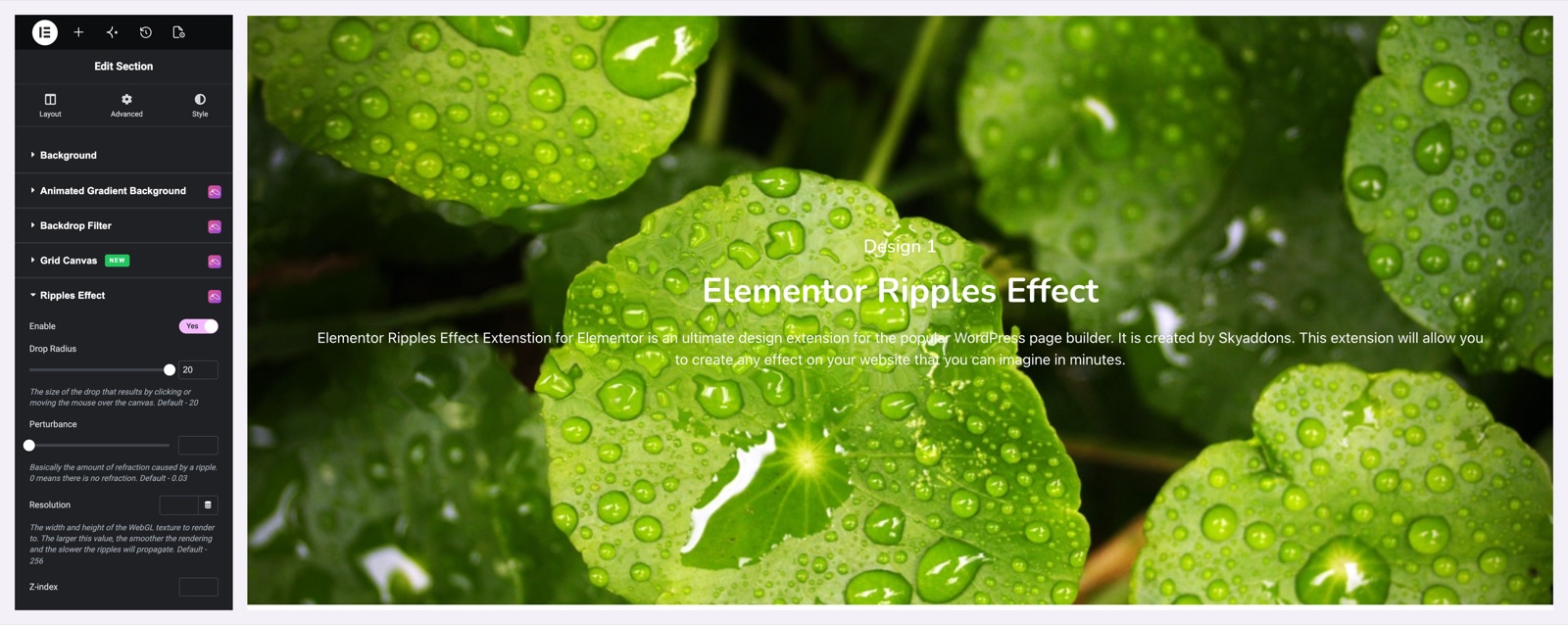
- Enable – Activates the water-ripple effect on the selected element
- Drop Radius – The size of the drop created by clicking or moving the mouse over the surface (1–20, default 20)
- Perturbance – The amount of refraction caused by a ripple (0.01–1, default 0.03). 0 means no refraction; higher values bend the background more strongly
- Resolution – The width and height of the WebGL texture to render to (default 256). Larger values give smoother rendering but slower ripple propagation
- Z-index – Stacking order of the ripple canvas. Adjust it if the effect renders above or below the wrong layer
The editor shows the controls. Move the mouse over the section on the live page to see the ripples. The demo uses a photo of water drops on leaves, which makes the effect easy to see.
Save and Preview
- Once you’ve configured your ripple effect, click “Publish” or “Update” to save your changes.
- Preview the page and move your mouse over the element to confirm the ripples respond as desired.
Troubleshooting
- No Ripples Visible: The effect needs a visible background (ideally an image) on the element, and a browser with WebGL support. Check that hardware acceleration is not disabled
- Effect Covers or Hides Content: Adjust the Z-index control so the ripple canvas sits behind your text and inner widgets
- Slow or Choppy Ripples: Lower the Resolution value. Large textures are smoother but propagate slowly and cost more GPU on low-powered devices
Frequently Asked Questions
How do I add a water ripple effect to an Elementor section?
Select the section, open the Style tab, find the Ripples Effect section marked with the Sky Addons icon, and switch Enable on. Give the section a background image first. The ripples distort that background when visitors hover or click.
Can I make the ripples stronger or softer?
Yes. Increase Perturbance for stronger refraction (the background bends more under each ripple) and Drop Radius for bigger drops. For a subtle, calm-water look keep Perturbance near its 0.03 default.
Why does the ripple effect not show on my widget?
For widgets the controls live in the Advanced tab, not Style. Also make sure the element has a background to distort and that the browser supports WebGL. The effect is rendered on a WebGL canvas.
Does the Ripples Effect extension affect page speed?
The ripple scripts are enqueued only on pages where at least one element has the effect enabled. On those pages, rendering cost depends mainly on the Resolution setting. The 256 default is a good balance.
Does the ripple effect work on mobile devices?
Yes. Taps create drops just like clicks. On lower-powered phones, consider a smaller Resolution value to keep the animation fluid.
Related Documentation
Conclusion
The Ripples Effect extension by Sky Addons for Elementor brings a playful, tactile water effect to your backgrounds with only four settings to tune. Apply it to hero sections and full-width image banners where interaction matters most. If you have any questions while using Ripples Effect, the Sky Addons support team is happy to help.
Need help? Our team is happy to answer questions on the Sky Addons support page.