
How to use Reading Progress Widget of Sky Addons for Elementor
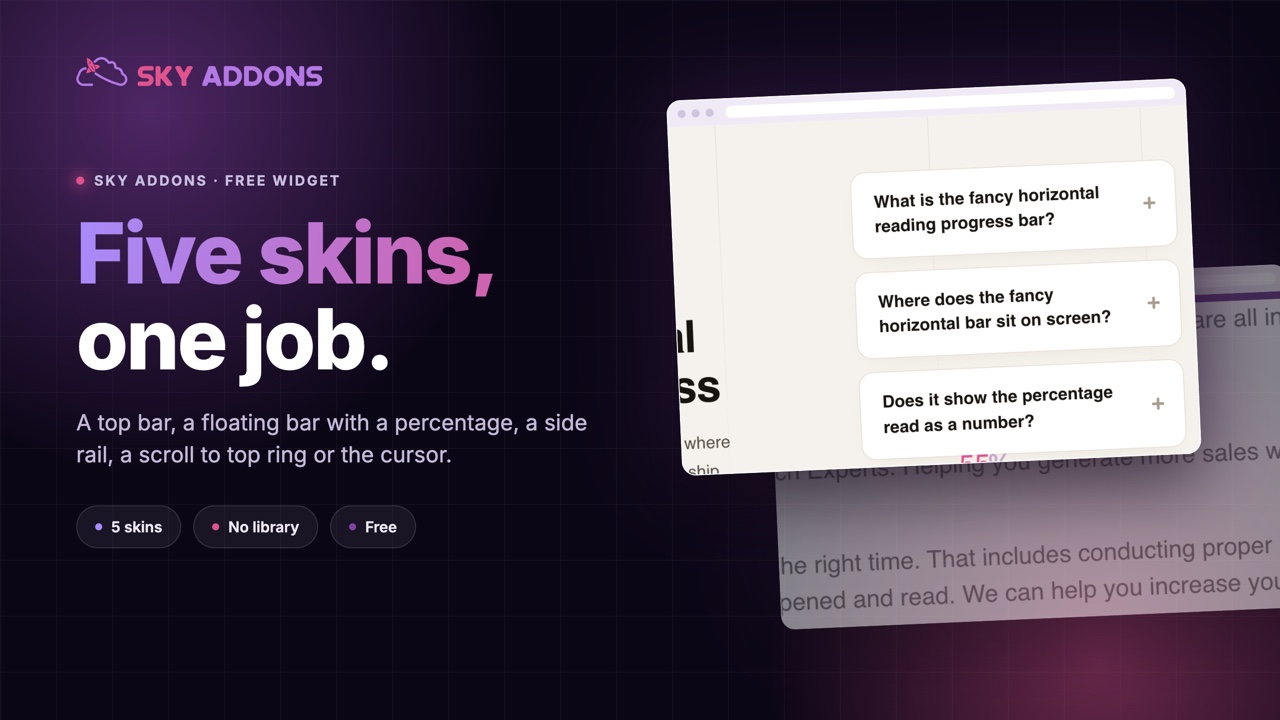
The Reading Progress widget for Elementor by Sky Addons shows visitors how far they’ve read on the page, a small touch that noticeably improves engagement on long articles. It ships with five skins: the Default top/bottom progress bar, Fancy Horizontal and Fancy Vertical bars with a live percentage readout, a circular Scroll Top button that fills as you scroll and jumps back to the top on click, and a playful With Cursor skin that wraps the progress ring around the mouse cursor. This documentation will guide you through the process of using the Reading Progress widget to add a polished scroll indicator to your website.
Features:
- Five Skins: Default bar, Fancy Horizontal, Fancy Vertical, Scroll Top button, and With Cursor.
- Live Percentage: Fancy skins can display the exact reading percentage as you scroll.
- Scroll-to-Top Button: Circular progress button with four corner positions, visibility threshold, and animated scroll back to top.
- Cursor Progress Ring: A dot-and-ring cursor follower that doubles as the progress indicator, with blend modes.
- Flexible Placement: Top or bottom bar, left or right vertical bar, plus pixel-perfect offset controls.
- Smooth Animation: Adjustable animation speed for buttery progress updates.
Insert Reading Progress Widget
- Open Elementor Editor. In the Elementor panel, search for “Reading Progress” under Sky Addons.
- Drag and Drop the Widget anywhere on the page. The indicator itself is positioned fixed on screen, so the widget’s location in the layout doesn’t matter visually.
Choose a Skin
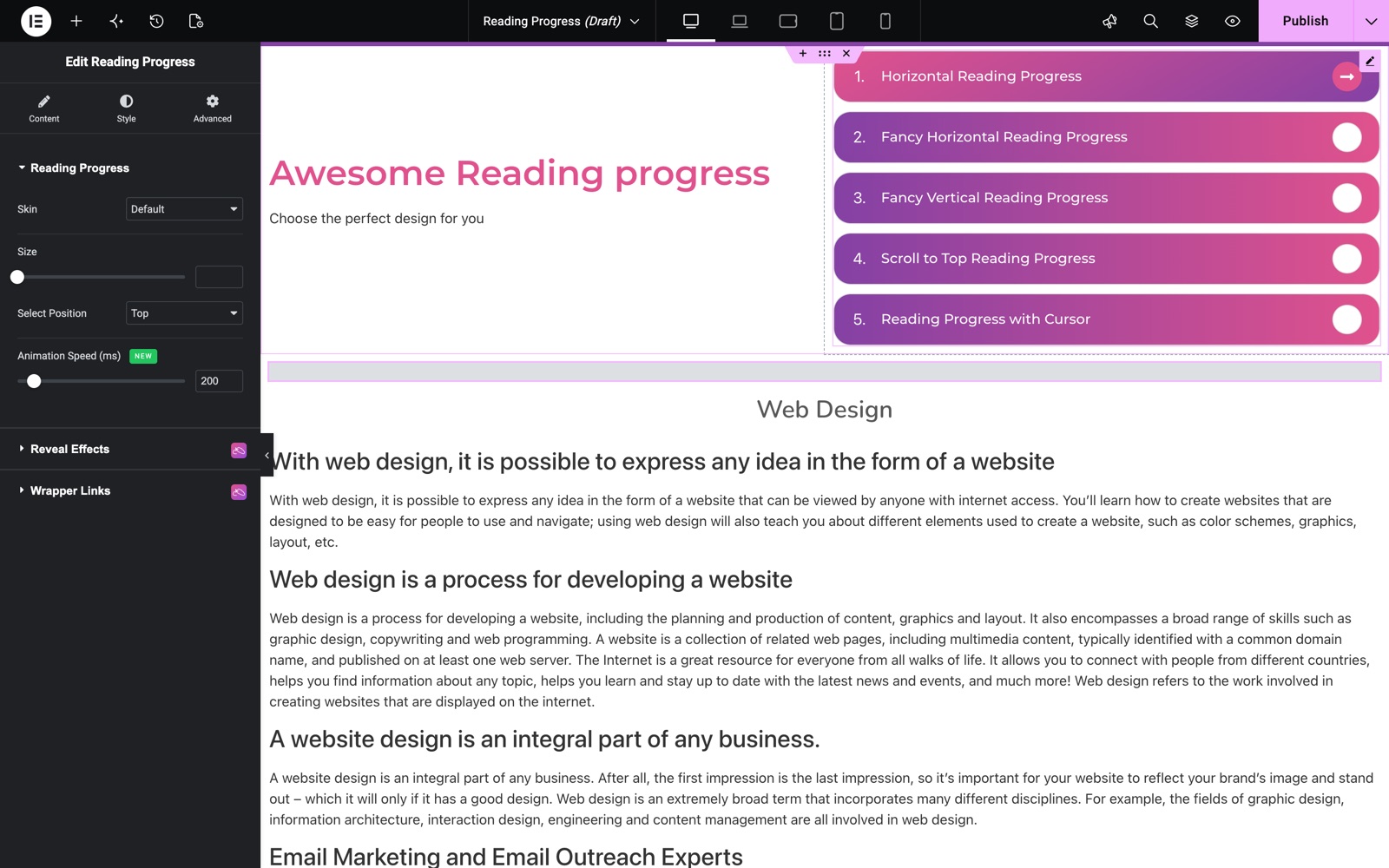
The Skin option at the top of the Content tab switches the whole indicator design:
- Default: A slim progress bar fixed to the Top or Bottom edge of the viewport.
- Fancy Horizontal: A horizontal bar with an optional live percentage readout.
- Fancy Vertical: A vertical bar on the Left or Right side with adjustable spacing from the edge and the same percentage option.
- Scroll Top: A circular button in any of the four screen corners that fills with progress and scrolls the page back to the top when clicked.
- With Cursor: Progress rings that follow the mouse cursor, with a configurable center dot.
The Reading Progress demo shows all five skins. This one uses the Default skin at the Top with a 200 ms Animation Speed.
Configure Settings
Available options change with the selected skin:
- Size: The bar thickness (1–20px).
- Select Position: Top/Bottom for the Default bar; Left/Right (plus edge Spacing) for Fancy Vertical; Right Top / Right Bottom / Left Top / Left Bottom for Scroll Top.
- Show Percentage: Toggle the live percentage readout on the Fancy skins.
- Show After (px): Scroll distance before the Scroll Top button becomes visible (default 50).
- Scroll Animation (ms): Duration of the scroll-to-top animation (default 550).
- Offset: Optional popover with responsive Horizontal and Vertical offsets (−100 to 100px) to nudge the indicator’s exact position.
- Animation Speed (ms): How smoothly the progress value animates (default 200).
- With Cursor options: Dot Size (2–30px), Ring Follow Lag (ms): how far the rings trail behind the cursor (0 = instant), and Ring Thickness (1–8px).
Style Your Reading Progress
- Reading Progress:
Set the main progress Color and the track’s Base Color. The Scroll Top skin adds Icon Color and Icon Size; the With Cursor skin adds Dot Color, Ring Color, and a Blend Mode (Normal, Difference, Exclusion, Multiply, Screen, Overlay) so the cursor stays visible over any background. - Percentage:
For the Fancy skins, the Value Color, Percentage (%) Color, and full Typography of the readout.
Save and Preview
- Once you’ve customized and styled your reading progress indicator, click “Publish” or “Update” to save your changes.
- Preview the page and scroll to confirm the indicator fills correctly from top to bottom.
Best Practices
- Consistency: Use your brand’s accent color as the progress color so the indicator feels native to the site.
- Accessibility: Keep good contrast between the progress color and the base/track color.
- One indicator per page: Multiple progress widgets on the same page compete visually. Pick one skin.
- Testing: The With Cursor skin relies on a mouse. Verify your page still communicates progress for touch visitors, or prefer a bar skin for mobile-heavy audiences.
Troubleshooting
- Bar not visible: It may be hidden behind a fixed header. Use the Offset popover or pick the Bottom position, and check z-index conflicts with other fixed elements.
- Scroll Top button never appears: It only shows after the Show After (px) scroll distance. Lower the threshold or scroll further.
- Progress jumps instead of gliding: Increase Animation Speed (ms) for a smoother transition between values.
Frequently Asked Questions
How do I add a reading progress bar to my WordPress site with Elementor?
Drop the Reading Progress widget by Sky Addons anywhere on the page (a footer template works great for site-wide use), pick a skin, and set the size and colors. The bar is fixed to the viewport and fills as the visitor scrolls.
Can the widget show the reading percentage as a number?
Yes. Choose the Fancy Horizontal or Fancy Vertical skin and enable Show Percentage. You can style the value and the % sign separately, including typography, in the Percentage style section.
How do I add a scroll-to-top button with progress?
Select the Scroll Top skin. A circular button appears in your chosen corner once the visitor scrolls past the Show After threshold, fills with reading progress, and smoothly scrolls back to the top when clicked, with an adjustable animation duration.
What does the With Cursor skin do?
It replaces the static bar with a dot and progress ring that follow the mouse cursor. You control the dot size, ring thickness, follow lag, colors, and a blend mode so the cursor indicator stays visible over both light and dark content.
Can I move the progress bar to the bottom or the side of the screen?
Yes. The Default skin offers Top or Bottom placement; the Fancy Vertical skin pins the bar to the Left or Right edge with adjustable spacing; and the Offset popover gives fine horizontal/vertical nudging per device.
Related Documentation
Conclusion
The Reading Progress Widget by Sky Addons for Elementor gives readers a constant sense of place on the page, from a minimal bar to a cursor-borne progress ring, all without code. For further assistance, consult the Sky Addons support team or community forums. Enjoy keeping your readers engaged!
Need help? Our team is happy to answer questions on the Sky Addons support page.