
How to use Post List Widget of Sky Addons for Elementor
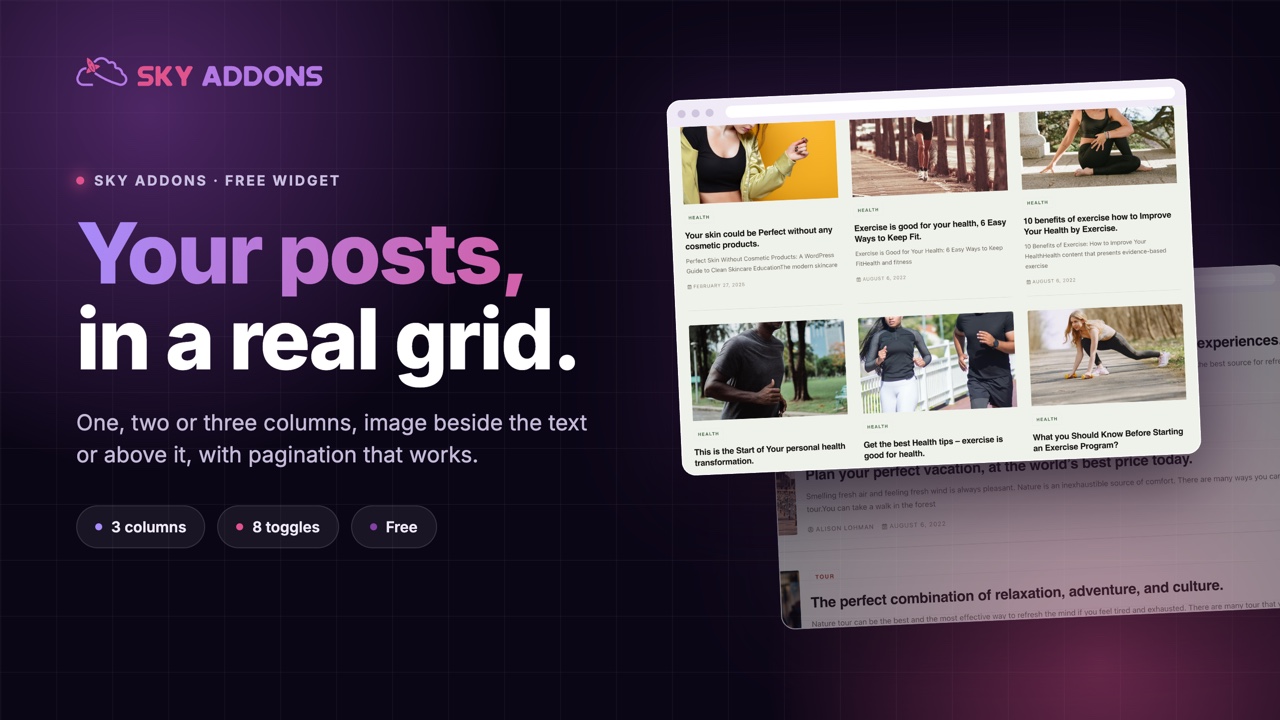
The Post List widget for Elementor by Sky Addons displays your blog posts in a clean, compact list or multi-column grid. Powered by a flexible Query builder, it lets you choose exactly which posts appear, then toggle every part of the card (title, image, category, author, date, excerpt) on or off. Posts with video can show a play button with lightbox, and built-in pagination keeps long archives tidy. This documentation will guide you through the process of using the Post List widget to showcase your latest content anywhere on your website.
Features:
- Query Builder: Pull posts by post type, category, tag, author, and more with fine-grained query controls.
- Responsive Columns: Arrange posts in 1 to 3 columns with an adjustable column gap per device.
- Toggleable Elements: Show or hide the title, image, category, author, date, excerpt, and pagination independently.
- Video Support: Posts with video get a play button that can open in a lightbox.
- Two Content Layouts: Default side-by-side layout or a stacked Block Layout, switchable per breakpoint.
- Full Style Control: Style every element: items, image, title, text, category, meta, pagination, and play button.
Insert Post List Widget
- Open Elementor Editor. In the Elementor panel, search for “Post List” under Sky Addons.
- Drag and Drop the Widget to the desired location on your page / editor.
Configure Layout
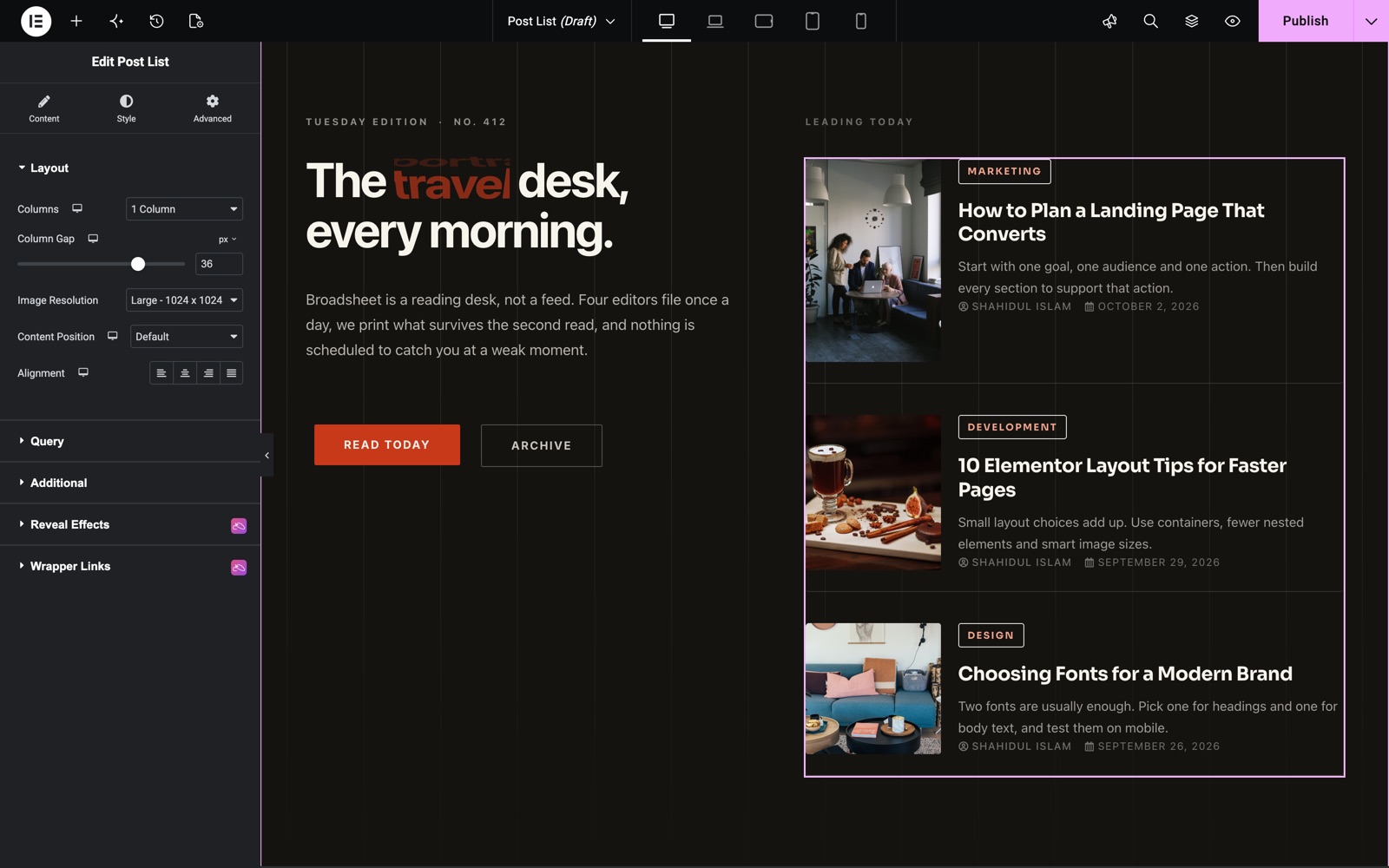
- Columns: Display posts in 1, 2, or 3 columns, with separate defaults for tablet and mobile.
- Column Gap: Control the spacing between post items.
- Image Size: Pick the thumbnail resolution used for post images.
- Content Position: Choose Default for the image beside the content, or Block Layout to stack the image above the content. This is responsive, so you can switch layouts per device.
- Alignment: Align the post content left, center, right, or justified.
The list in the Post List demo uses 1 column with a 36 px Column Gap and the Default content position, so each image sits beside its text.
Build Your Query
The Query section controls which posts appear in the list:
- Select the post type and refine results by terms, authors, or other query parameters.
- Set Limit (default 8) to limit how many posts show at once.
- Combine the query with Show Pagination to let visitors browse through the remaining posts.
Configure Additional Options
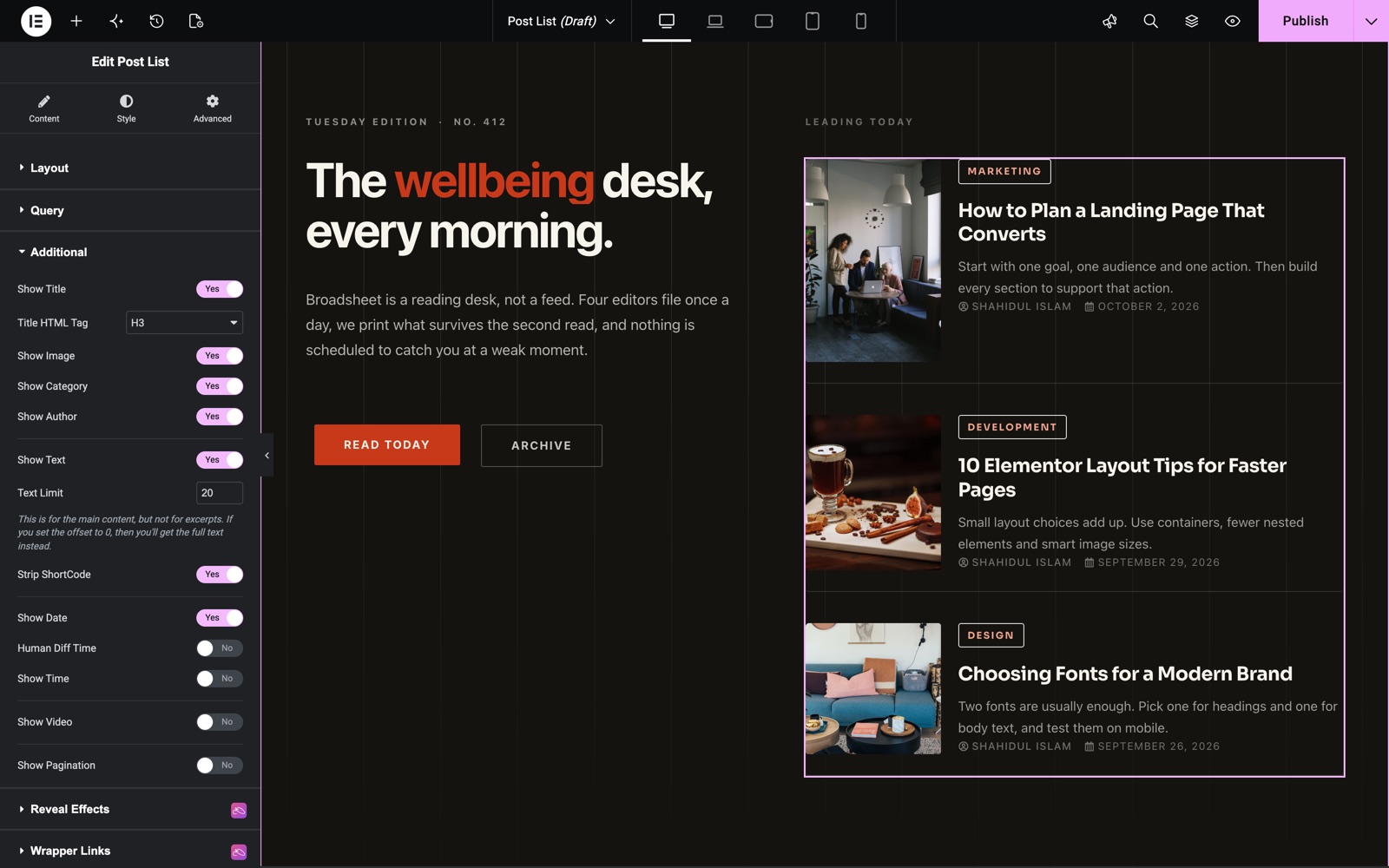
- Show Title: Toggle the post title and pick its Title HTML Tag for SEO and semantics.
- Show Image: Toggle the featured image.
- Show Category: Display the post’s categories above the title.
- Show Author: Display the author name with a link to the author archive.
- Show Text: Display an excerpt, with a Text Limit word count and a Strip ShortCode option to remove shortcodes from the preview text. Setting the limit to 0 outputs the full text.
- Show Date: Display the publish date, with additional date format options.
- Show Video: Posts containing video show a play button over the thumbnail.
- Show Pagination: Add numbered pagination below the list.
This list shows the title, image, category, author, a 20 word excerpt and the date. Video and pagination are off.
Video Settings
When Show Video is on, the Video Settings section appears with the lightbox options, so video posts can open and play in an overlay instead of leaving the page.
Style Your Post List
Customize your post list to match your design aesthetics effortlessly. Each element has its own Style section:
- Post List:
Style the post item with padding, border, border radius, and separate Normal/Hover backgrounds, box shadows, and hover border color. - Image:
Control image width, height, padding, margin, border, border radius, box shadow, and CSS filters. - Title:
Adjust spacing plus title color, typography, and hover state. - Text:
Set the excerpt color and typography. - Category:
Control spacing, space between badges, and the category badge styling. - Meta:
Adjust spacing and the author/date meta colors and typography. - Pagination:
Style the pagination links, including active and hover states. - Play Button:
Customize the video play button size, colors, and hover effects.
Save and Preview
- Once you’ve customized and styled your post list, click “Publish” or “Update” to save your changes.
- Preview the page to ensure the widget looks and functions as desired.
Best Practices
- Consistency: Use the same image size and text limit across lists so cards stay visually even.
- Accessibility: Keep meaningful heading tags on titles and sufficient contrast on meta text.
- Performance: Choose a modest thumbnail size (e.g. Medium). Full-size images slow the page for no visual gain in a list.
- Testing: Check the 1-column mobile layout and Block Layout switch across breakpoints.
Troubleshooting
- No posts appear: The Query returned no results. Loosen the filters or confirm the selected post type has published posts.
- Excerpt shows shortcode fragments: Enable Strip ShortCode in the Additional section.
- Pagination not changing pages: Some static front page setups don’t pass page query vars. Test on a regular page or archive.
Frequently Asked Questions
How do I show only posts from a specific category in the Post List widget?
Open the Query section and refine the source by terms: select the category (or tag, author, etc.) you want. Only matching posts will appear in the list.
Can I control how much text shows for each post?
Yes. Turn on Show Text and set the Text Limit (default 30 words). The limit applies to the main content; if you set it to 0, the full text is shown instead.
Does the Post List widget for Elementor support video posts?
Yes. With Show Video enabled, posts containing video display a play button over the thumbnail, and the Video Settings section lets the video open in a lightbox.
How do I add pagination to the post list?
Enable Show Pagination in the Additional section. The list will paginate based on your Posts Per Page value, and the Pagination style section lets you style the page links.
Can I stack the image above the content instead of beside it?
Yes. Set Content Position to Block Layout in the Layout section. Because the control is responsive, you can keep the side-by-side layout on desktop and stack on mobile.
Related Documentation
Conclusion
The Post List Widget by Sky Addons for Elementor gives you a fast, flexible way to surface your content, from a simple sidebar list to a full multi-column blog feed with video and pagination. For further assistance, consult the Sky Addons support team or community forums. Enjoy showcasing your posts!
Need help? Our team is happy to answer questions on the Sky Addons support page.