
How to use Loop Carousel Widget of Sky Addons for Elementor
The Sky Addons Loop Carousel widget combines Elementor’s Loop Template system with the Swiper carousel engine to display any WordPress post type (posts, pages, custom post types, WooCommerce products) as a smooth, touch-enabled slider. You design the card once as an Elementor Loop Template, point the widget at it, and the widget handles the query, the responsive slide count, autoplay, navigation, and pagination. This documentation will guide you through the process of using the Loop Carousel Widget to create a dynamic, fully designed post carousel on your website.
Features:
- Loop Template Integration: Pick any Elementor Loop Template from a searchable dropdown. The widget renders your custom card design for every matched post.
- Powerful Query Builder: Filter posts by post type, taxonomy, author, date range, custom fields, and manual include/exclude, the same Group Control Query used across all Sky Addons query widgets.
- 1–6 Responsive Columns: Set slides-per-view independently for desktop, tablet, and mobile (Swiper’s
slidesPerView). - Row and Column Gap: Control spacing between slides on both axes with responsive slider controls.
- Swiper Carousel Settings: Autoplay, loop, speed, and item gap, all configurable in the Carousel Settings section.
- Navigation Arrows: Enable prev/next arrow buttons with full style control over icon, size, color, background, and offset.
- Pagination: Dot or fraction pagination with color and spacing customization.
- No Hard-Coded Card Markup: Because the card design lives in your Loop Template, you can change the entire look of every slide without touching the widget settings.
Before You Start: Create a Loop Template
The Loop Carousel requires an Elementor Loop Template to define how each post card looks. If you do not have one yet, create it first.
- In your WordPress dashboard, go to Templates → Saved Templates and create a container template. With Elementor Pro you can also use Templates → Theme Builder → Loop Item.
- Click Add New, choose Loop Item as the template type, and design your card using Elementor’s dynamic tags: Post Title, Featured Image, Excerpt, Post URL, and any custom field you need.
- Publish the template. Its name will appear in the Loop Carousel widget’s template picker.
Insert Loop Carousel Widget
- Open your page in Elementor and click the + icon to add a new section.
- Search for Loop Carousel in the widget panel and drag it onto the canvas.
Configure Layout
The Layout section sets the template and column/gap structure of the carousel.
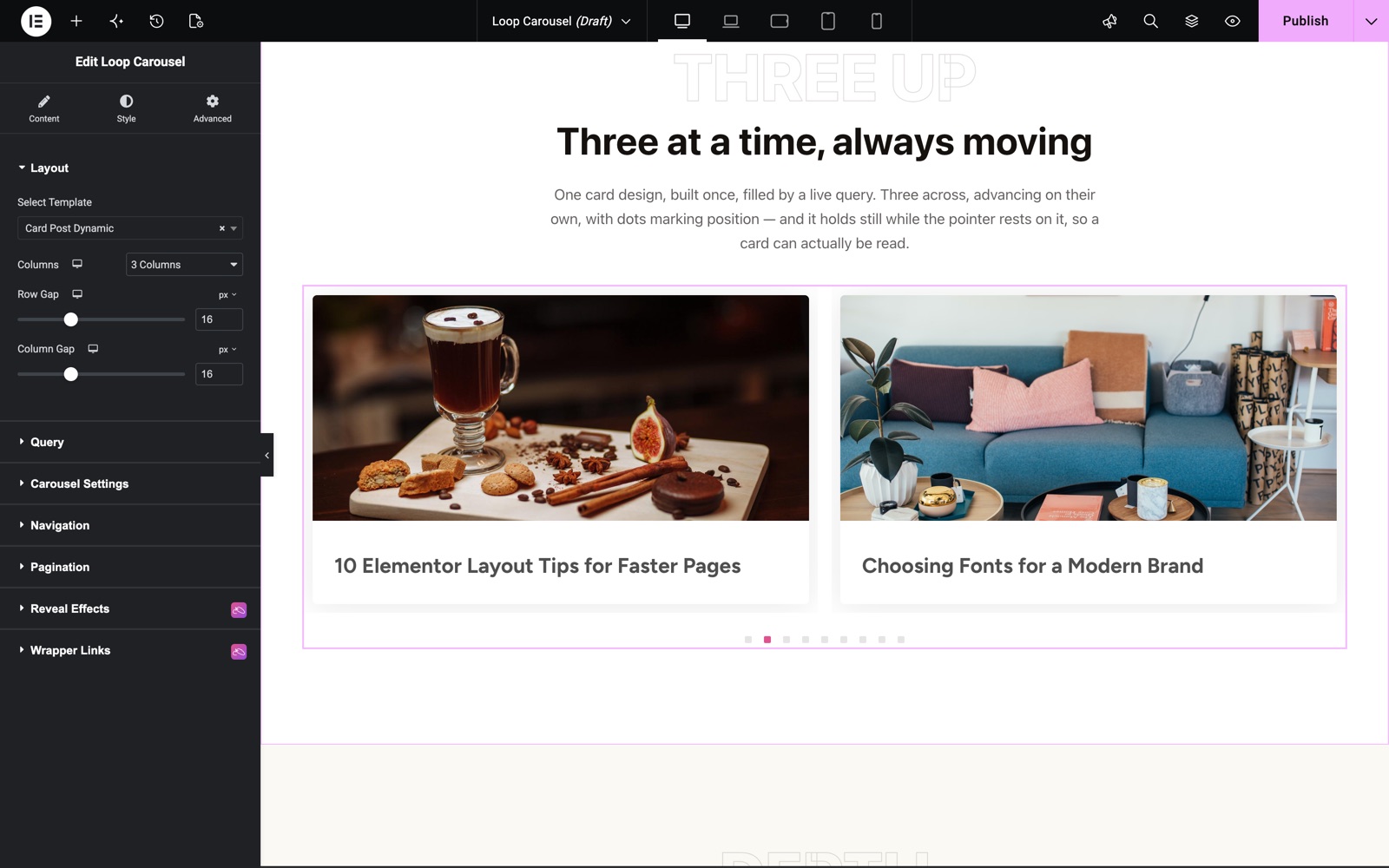
- Select Template: Type and select your Elementor Loop Template from the searchable dropdown. The carousel renders nothing in the editor until a template is chosen.
- Columns: Select 1–6 columns per breakpoint (desktop default: 3, tablet: 2, mobile: 1). This sets Swiper’s
slidesPerView. - Row Gap: Vertical space between slides when multiple rows are visible (0–50 px or em).
- Column Gap: Horizontal space between adjacent slides (0–50 px or em).
In the Loop Carousel demo, the first carousel shows 3 columns with a 16 px Row Gap and Column Gap. Here the template is a saved container template called Card Post Dynamic, built with free Elementor.
Configure Query
The Query section controls which posts appear in the carousel using the Sky Addons Group Control Query Builder.
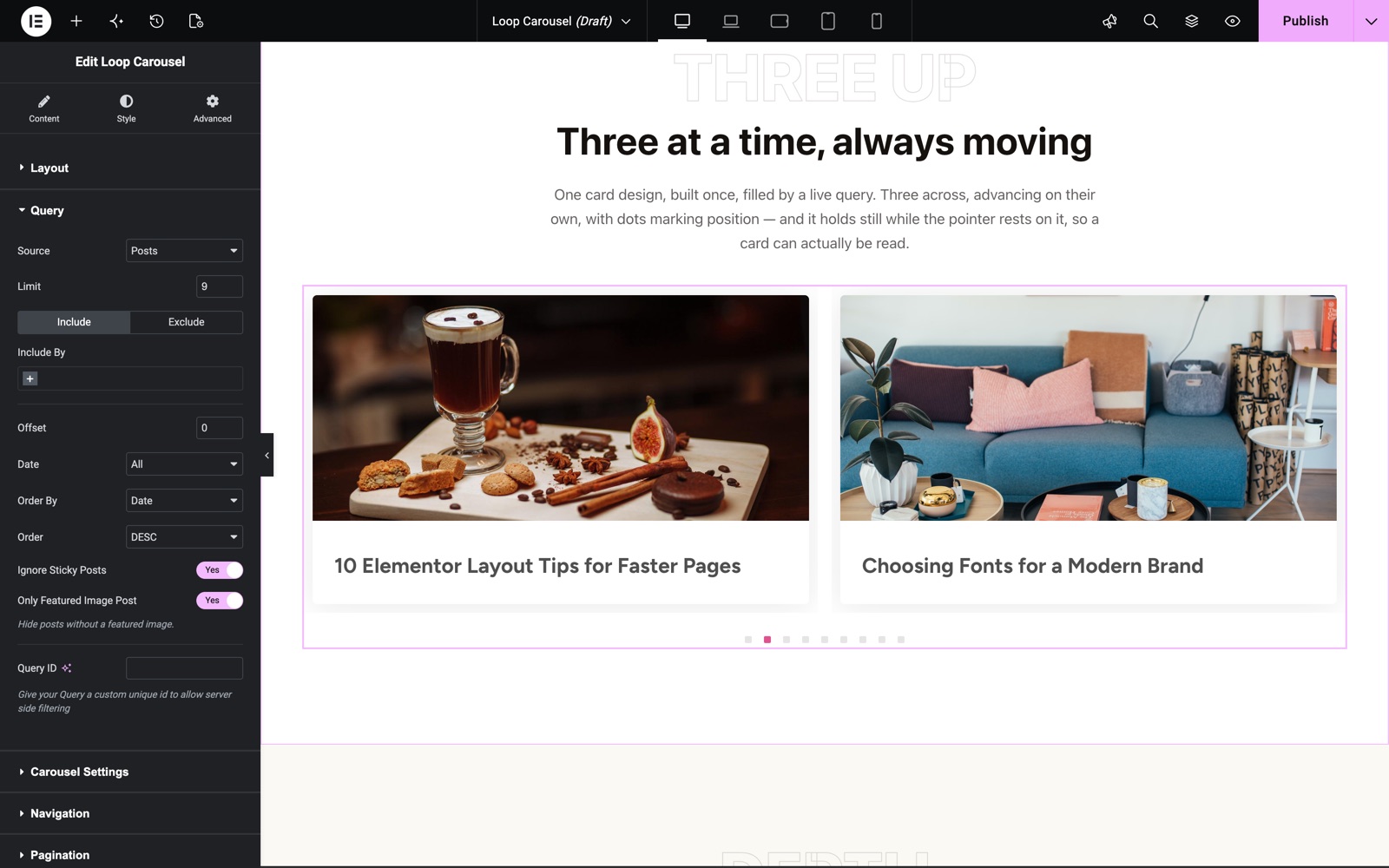
- Source: Choose any registered post type (Posts, Pages, Products, or custom types).
- Limit: How many posts to load into the carousel.
- Order By / Order: Sort by date, title, menu order, modified date, random, or comment count. Choose Ascending or Descending.
- Filter by Taxonomy: Include or exclude specific categories, tags, or custom taxonomy terms.
- Include / Exclude: Manually include or exclude specific post IDs.
- Author: Limit results to posts by specific authors.
The Query section loads 9 posts by date, newest first. Ignore Sticky Posts and Only Featured Image Post are on, so every slide has an image.
Configure Carousel Settings
The Carousel Settings section configures Swiper’s behavior.
- Autoplay: Toggle automatic sliding and set the delay interval.
- Loop: Enable infinite looping from the last slide back to the first.
- Slide Speed (ms): Slide transition duration in milliseconds. Autoplay Speed (ms) sets the delay between slides, and Pause On Hover stops autoplay while the mouse is over the carousel.
- Item Gap: Gap between slides in pixels.
- Transition Effect: Slide or Coverflow. Slides Per Group, Centered Slides, Grab Cursor, Free Mode and Observer fine-tune the movement.
Configure Navigation and Pagination
- Navigation: Enable previous/next arrows and choose the Prev Icon and Next Icon.
- Pagination: Choose the Type: None, Bullets, Fraction, Progress Bar or Dynamic Bullets, and set the Alignment.
Style Your Loop Carousel
Use the Style tab to customize the navigation arrows and pagination indicators. The post card appearance is fully controlled by your Loop Template design.
- Navigation:
Arrow size, background (Normal / Hover), color, border, border radius, box shadow, and horizontal/vertical offset from the carousel edges. - Pagination:
Dot size, inactive color, active color, spacing between dots, and margin from the carousel bottom.
Save and Preview
- Click Update in Elementor to save your page.
- Preview the page to see your Loop Carousel widget in action.
Best Practices
- Design your Loop Template to have a fixed aspect ratio for the featured image. This ensures all slides are the same height and the carousel looks uniform across all posts.
- Keep the Post Per Page count reasonable (6–12). Loading 50 heavy Loop Templates at once can slow the page; use pagination in the Loop Grid if you need to show many posts.
- Use Item Gap in Carousel Settings rather than padding on the Loop Template itself. This keeps the gap consistent and prevents odd behavior when the carousel loops.
- Test on mobile after setting columns: 1 column on mobile is almost always the right choice to give each card full-width visibility.
Troubleshooting
- The carousel shows “Please select a template” in the editor: No Loop Template has been selected. Open the Layout section and choose a template from the Select Template dropdown. If no templates appear, make sure you have at least one published Elementor Loop Item template.
- Carousel does not slide and shows all posts in a column: Swiper failed to initialize. Check the browser console for JavaScript errors. Verify that no other plugin is loading a conflicting version of Swiper and that the
swiperscript is enqueued. - “posts not found” appears on the frontend: The Query settings match no posts. Check the post type, taxonomy filters, and include/exclude IDs. Temporarily removing all filters and setting a high Posts Per Page will confirm whether posts exist.
Frequently Asked Questions
What types of content can I display in the Loop Carousel?
Any registered WordPress post type: blog posts, pages, WooCommerce products, portfolio items, team members, testimonials, or any custom post type your theme or plugin registers.
Can I use a different Loop Template per slide?
The Loop Carousel uses a single template for all slides. If you need alternating card designs, use the Loop Grid widget, which supports alternate templates at defined positions.
Is the Loop Carousel compatible with WooCommerce products?
Yes. Set the post type to product in the Query section and design a Loop Template using Elementor’s WooCommerce dynamic tags (Product Title, Price, Add to Cart, etc.).
How does this differ from the Loop Grid widget?
The Loop Grid displays posts in a static CSS grid and supports pagination and alternate templates at specific positions. The Loop Carousel wraps the same query result in a Swiper slider for horizontal swiping. There is no pagination (the slider loops instead), and alternate templates are not supported.
Do I need Elementor Pro to use Loop Templates?
No. The Select Template picker lists every saved Elementor template, so a container template made with free Elementor works. Fill it with dynamic tags such as the Sky Addons Post Title and Post Featured Image tags. If you have Elementor Pro, its Loop Item templates work too.
Related Documentation
Explore other Sky Addons widgets and extensions that complement the Loop Carousel widget:
- Loop Grid: The static-grid version with alternate template support, pagination, and up to 12 columns.
- Instagram Feed Carousel: A Swiper carousel pre-wired to Instagram posts, with no Loop Template needed.
- Particles: Add an animated particle background to the section that contains your Loop Carousel for a dynamic visual effect.
Conclusion
The Loop Carousel widget is the fastest way to turn any WordPress post type into a touch-friendly, Swiper-powered slider, with your own Elementor Loop Template controlling every pixel of the card design. If you have any questions or need help, visit the Sky Addons support center.