
How to use Iframe Widget of Sky Addons for Elementor
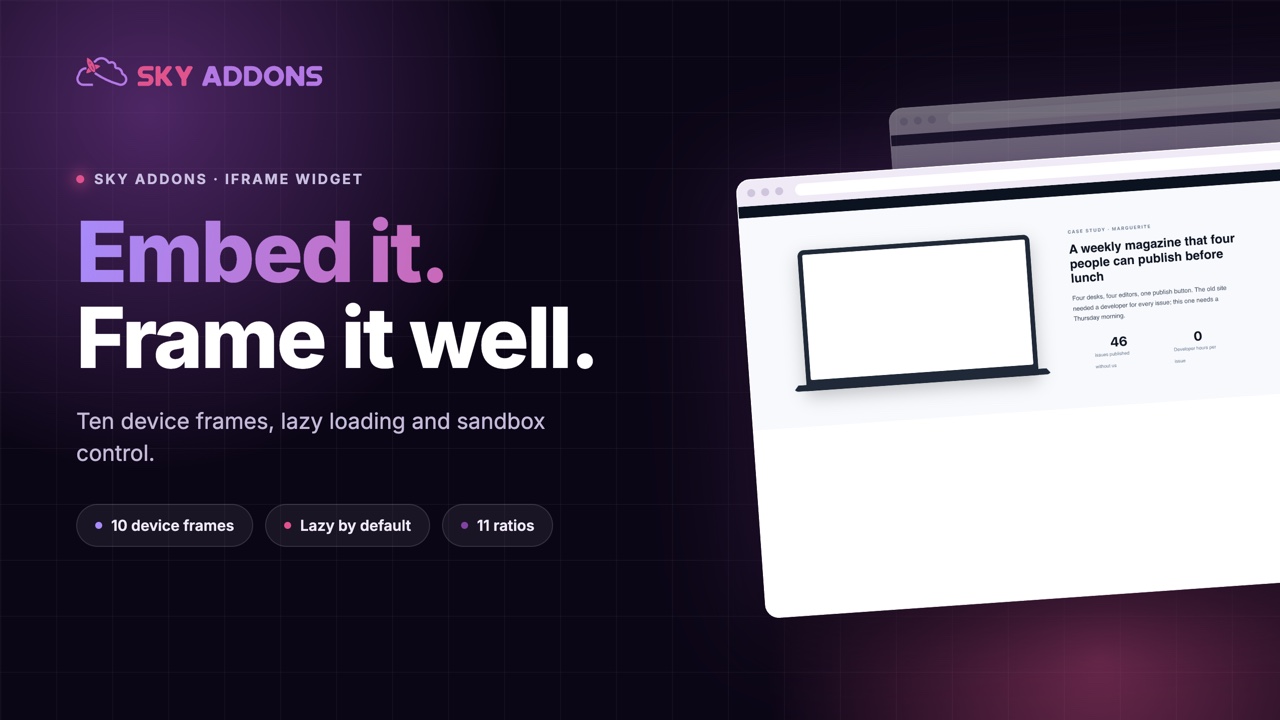
Iframe is a flexible embed widget for Elementor that lets you display any external website or page inside your own. Beyond a plain embed, it can wrap the content in realistic device frames (browser windows, laptops, phones, tablets, even a TV or watch), which makes it perfect for portfolio previews, app showcases, and live demos. With lazy loading, sandbox security options, aspect-ratio or fixed-height sizing, and accessibility-friendly titles, you stay in full control of how embedded content behaves. This documentation will guide you through the process of using the Iframe Widget to embed external content on your website.
Features:
- Embed Any URL: Display external websites, apps, or pages inside your Elementor layout.
- Device Frames: Present the embed inside a Browser, Desktop Window, Laptop, Code Window, Phone, Tablet, Surface, TV, or Watch mockup.
- Frame Skins: Browser skins (macOS Light/Dark, Windows, Chrome, Edge, Safari), phone skins (Notch / Punch-hole), and tablet skins (iPad / Android).
- Two Sizing Modes: Responsive Aspect Ratio (16:9, 4:3, 9:16, and more) or Fixed Height with optional Auto Height.
- Lazy Load: Defers loading the embed until needed, protecting your page speed.
- Sandbox Security: Restrict what the embedded page may do with granular sandbox permissions.
- Accessibility Title: Describe the framed content for screen readers.
- Custom Attributes: Add extra attributes to the iframe element in key|value format.
Insert Iframe Widget
- Open Elementor Editor. In the Elementor panel, search for “Iframe” under Sky Addons.
- Drag and Drop the Widget to the desired location on your page / editor.
Configure Layout
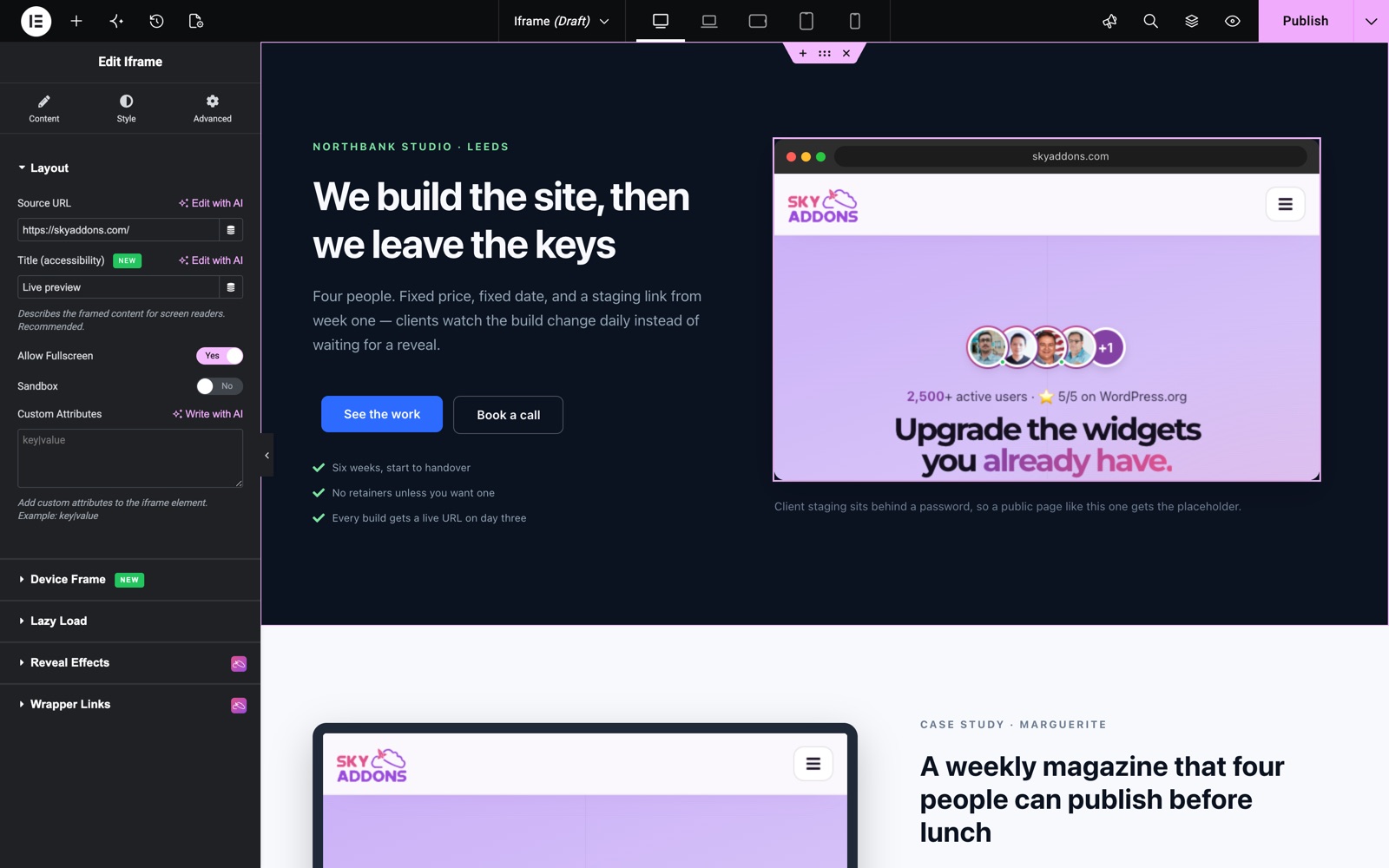
- Source URL: The address of the page to embed (https://…).
- Title (accessibility): Describes the framed content for screen readers. Recommended for every embed.
- Auto Height: Available in Fixed Height sizing. Resizes the frame to the content height. It works only for same-origin pages; cross-origin embeds (YouTube, Maps, other sites) block this and keep the Fixed Height.
- Allow Fullscreen: Lets the embedded content enter fullscreen mode (useful for video players).
- Sandbox: Restricts the embedded page. With the switch on, pick the exact permissions in Sandbox Options: allow-forms, allow-modals, allow-popups, allow-same-origin, allow-scripts, allow-top-navigation, and more.
- Custom Attributes: Add extra iframe attributes, one per line, in key|value format (managed attributes and event handlers are ignored for safety).
In the Iframe demo the hero embeds a live page in a Browser frame. The Title (accessibility) field reads Live preview, and Allow Fullscreen is on.
Device Frame
The Device Frame section wraps your embed in a realistic device mockup:
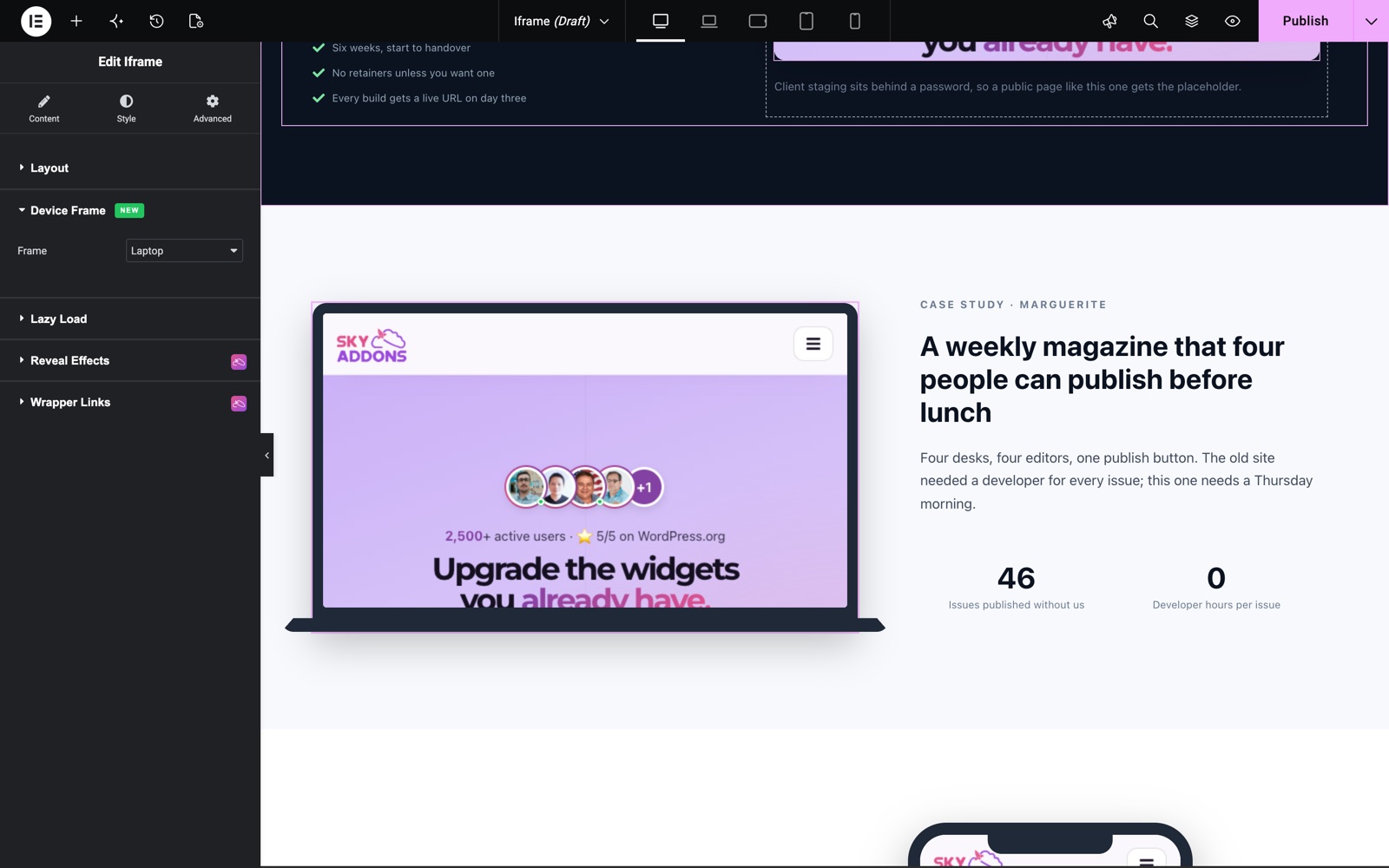
- Frame: None, Browser, Desktop Window, Laptop, Code Window, Phone, Tablet, Surface, TV, or Watch.
- Browser Skin: macOS Light, macOS Dark, Windows, Chrome, Edge, or Safari (Browser frame only).
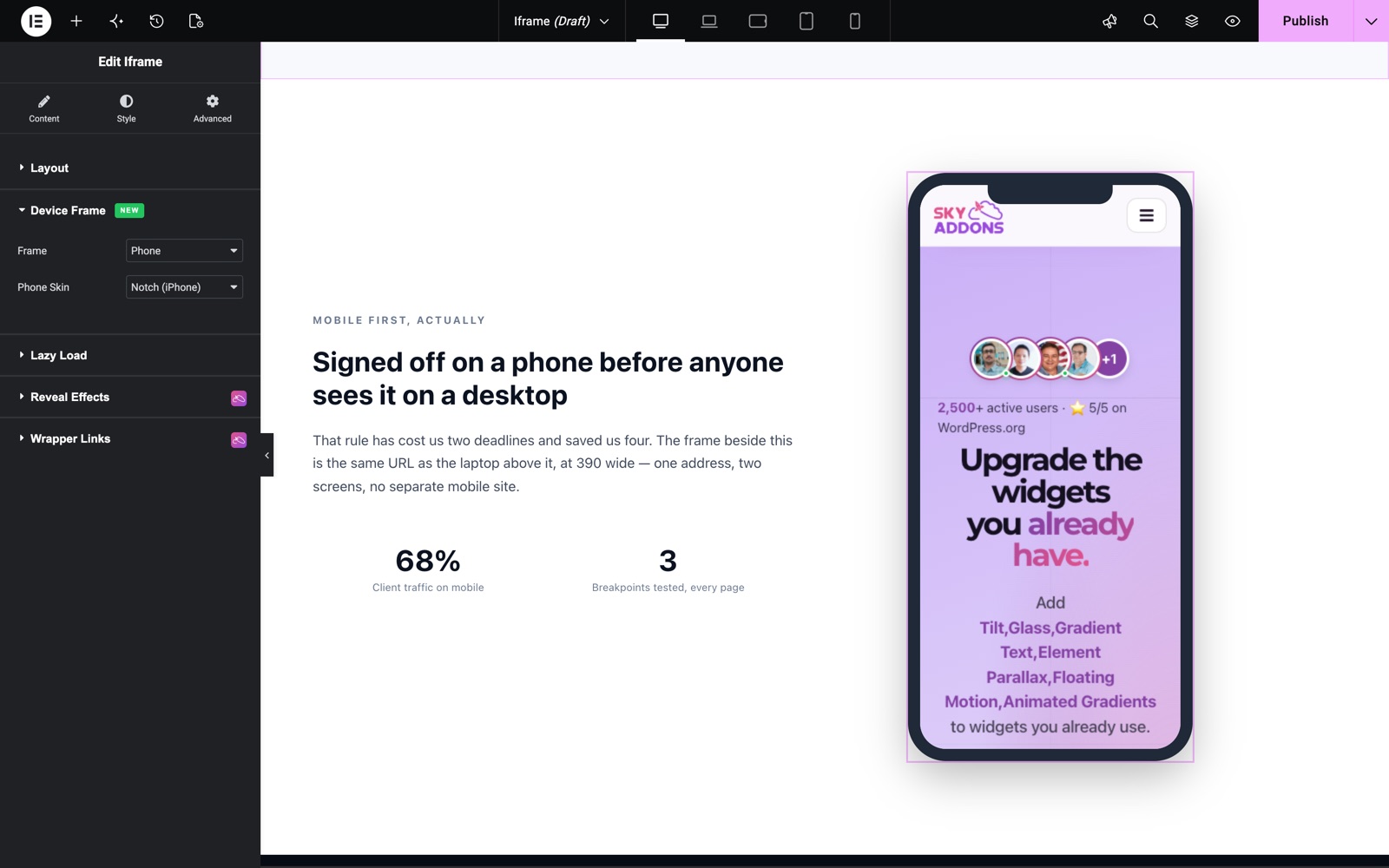
- Phone Skin: Notch (iPhone) or Punch-hole (Android).
- Tablet Skin: iPad or Android.
- Address / Title: The text shown in the title/address bar for Browser, Desktop, and Code frames.
- Show Dots: Toggles the traffic-light dots in the bar for Browser, Desktop, and Code frames.
The same page in a Laptop frame. Laptop has no skin option, so Frame is the only setting.
Set Frame to Phone and the Phone Skin control appears. This one uses Notch (iPhone).
Configure Settings (Lazy Load)
- Lazy Load: Enabled by default. The embed loads only when needed, keeping the heavy external page from slowing your initial load.
Style Your Iframe
Control exactly how large the embed renders and how the device mockup looks:
- Iframe:
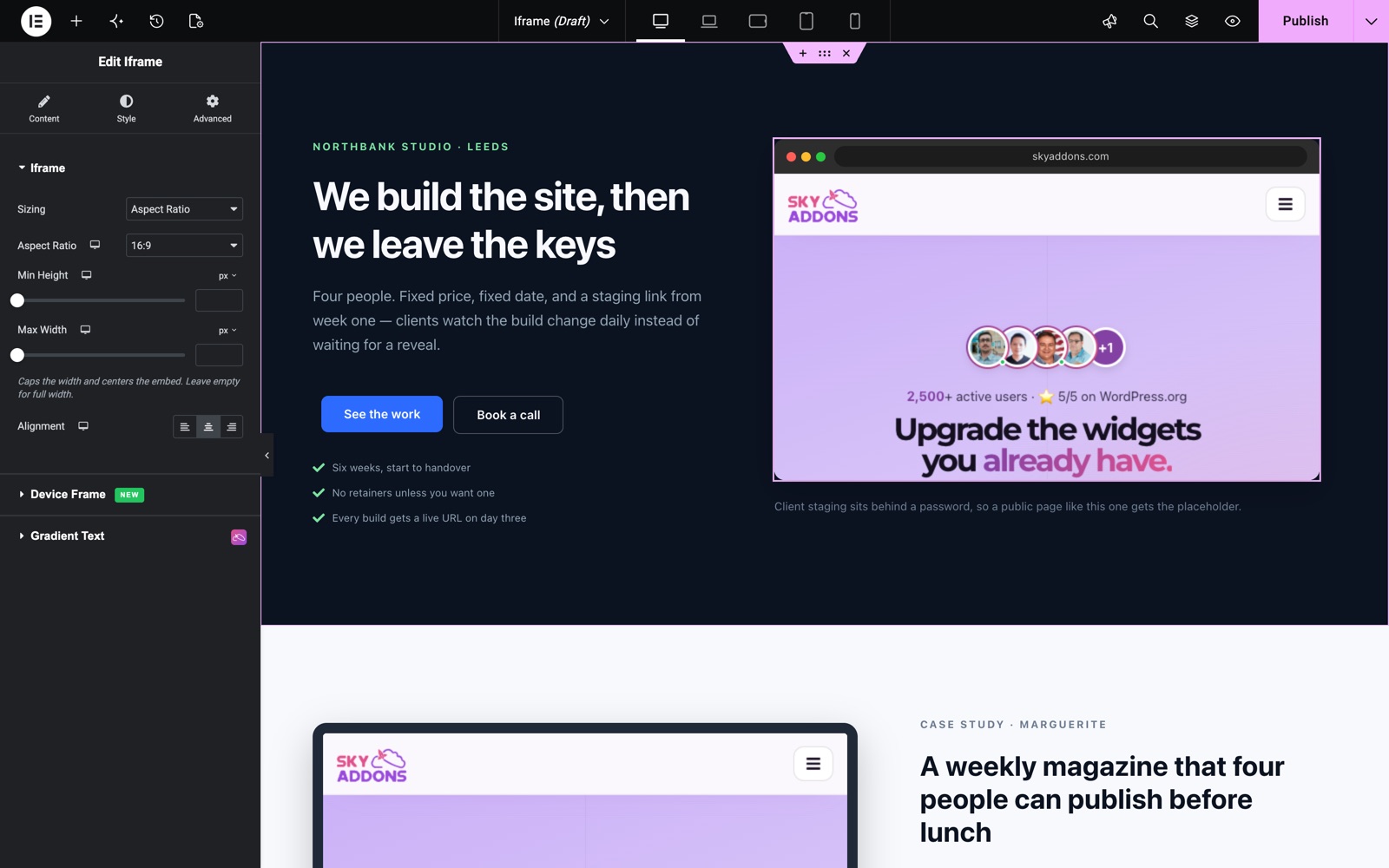
Choose the Sizing mode: Aspect Ratio (responsive presets from 21:9 down to 9:21, per breakpoint) or Fixed Height with Height and Min Height sliders. Cap the width with Max Width and position the embed with Alignment. - Device Frame:
Customize the mockup with Bar Color (Browser/Desktop/Code), Frame Color (Laptop/Phone/Tablet/Surface/TV/Watch), Corner Radius, and a full Box Shadow group.
By default the Sizing mode is Aspect Ratio at 16:9. Ratios run from 21:9 to 9:21, including 9:19.5 for tall phone screens.
Save and Preview
- Once you’ve customized and styled your iframe, click “Publish” or “Update” to save your changes.
- Preview the page to ensure the embedded content loads and the frame looks as desired.
Best Practices
- Always set the accessibility Title so screen-reader users know what the frame contains.
- Keep Lazy Load on for embeds below the fold. External pages can be heavy.
- Sandbox untrusted sources: enable Sandbox and grant only the permissions the embed truly needs.
- Testing: Check the chosen aspect ratio or fixed height across devices. Phone-style frames pair well with tall ratios like 9:19.5.
Troubleshooting
- Embed Shows Blank: Many sites block being framed via X-Frame-Options or CSP headers. That is a restriction of the target site, not the widget. Try a source you control.
- Auto Height Not Working: Auto Height only works for same-origin pages (your own domain); cross-origin embeds keep the Fixed Height.
- Embedded Page Broken with Sandbox On: The page may need permissions you have not granted. Add allow-scripts and/or allow-same-origin in Sandbox Options.
Frequently Asked Questions
How do I embed a website in Elementor with the Iframe widget?
Drop the Iframe widget on the page and paste the address into Source URL. Pick a Sizing mode in the Style tab (Aspect Ratio for responsive embeds, Fixed Height for a set height) and publish. Note that some sites refuse to be embedded by sending X-Frame-Options headers.
How do I show a website inside a phone or laptop mockup in Elementor?
In the Device Frame section, set Frame to Phone, Laptop, Tablet, Browser, or another device. Phones offer Notch (iPhone) and Punch-hole (Android) skins; browsers offer macOS, Windows, Chrome, Edge, and Safari skins, plus an editable address bar.
Why is my iframe blank in Elementor?
The most common cause is the target site blocking framing with X-Frame-Options or a Content-Security-Policy header. This is common on Google, Facebook, and banking sites. If the source allows framing, also check the URL uses https and that Sandbox isn’t blocking required permissions.
Can the iframe resize automatically to its content height?
Yes, with limits: switch Sizing to Fixed Height and enable Auto Height. It works only for same-origin pages (content on your own domain); browsers block reading the height of cross-origin embeds, which then keep the fixed height you set.
Is the Iframe widget safe for embedding third-party content?
Yes. Enable the Sandbox switch and grant only the permissions the embed needs (forms, scripts, popups, and so on). The widget also filters custom attributes so event handlers and managed attributes can’t be injected.
Related Documentation
Conclusion
The Iframe Widget by Sky Addons for Elementor goes far beyond a basic embed. Device mockups, sandbox security, lazy loading, and responsive sizing make it the polished way to showcase external content. For further assistance, consult the Sky Addons support team or community forums. Enjoy presenting your embeds in style!
Need help? Our team is happy to answer questions on the Sky Addons support page.