
How to use Hover Video Widget of Sky Addons for Elementor
The Sky Addons Hover Video widget displays a collection of videos from YouTube, Vimeo, Dailymotion or self-hosted files, stacked in a single player area that switches between them on demand. Visitors hover or click a button (or a tab) to activate a video; the previous video pauses automatically. A horizontal progress bar beneath the player shows which video is active and how far through it you are, and optionally hovering on a progress segment plays that video directly. Built on the Plyr player, the widget provides a consistent, branded playback experience across all video sources. This documentation will guide you through the process of using the Hover Video Widget to create an interactive video showcase on your website.
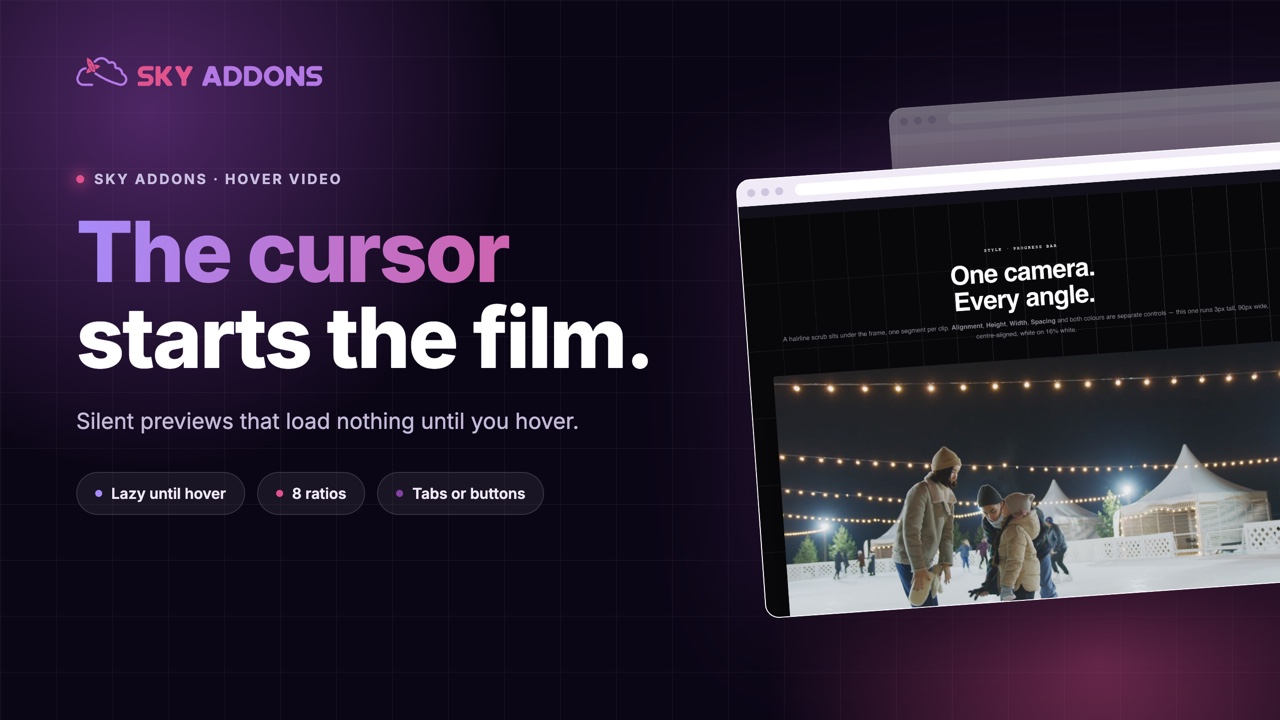
Features:
- Multi-Video Repeater: Add as many videos as you like, each with its own URL (or self-hosted file), title, and icon. The widget handles all of them in a single player container.
- YouTube, Vimeo, Dailymotion, and Self-Hosted: Supports all major video platforms plus MP4/WebM files uploaded to your media library or hosted at an external URL.
- Two Button Styles: Show selection controls as standard Button pills or as connected Tab segments for a more integrated look.
- Progress Bar: A set of individual progress bars, one per video, shows playback position and indicates the active video at a glance.
- Play by Progress: Hovering on a progress segment activates that video, so visitors can jump straight to a specific clip.
- Pause on Mouse Leave: Optionally pause playback automatically when the cursor leaves the video area.
- Aspect Ratio Control: Lock the player to a standard ratio (1:1, 4:3, 16:9, 21:9, etc.) so the layout is stable regardless of the source video’s native dimensions.
Insert Hover Video Widget
- Open your page in Elementor and click the + icon to add a new section.
- Search for Hover Video in the widget panel and drag it onto the canvas.
Configure the Video List
The Hover Video section contains the repeater where you add and manage each video.
- Click Add Item to add a new video entry. Each item has a Video tab and a Content tab.
- In the Video tab:
Video Link: Paste a YouTube, Vimeo, or Dailymotion URL (used when Self Hosted is off).
Self Hosted Video: Toggle on to use a file from your media library or an external URL.
Choose File (self-hosted): Select a video file from the media library.
External URL (self-hosted): Toggle on and enter a direct URL to a video file hosted elsewhere.
Poster (self-hosted): Upload a thumbnail image to show before the video plays. - In the Content tab:
Title: The label shown on the button or tab for this video.
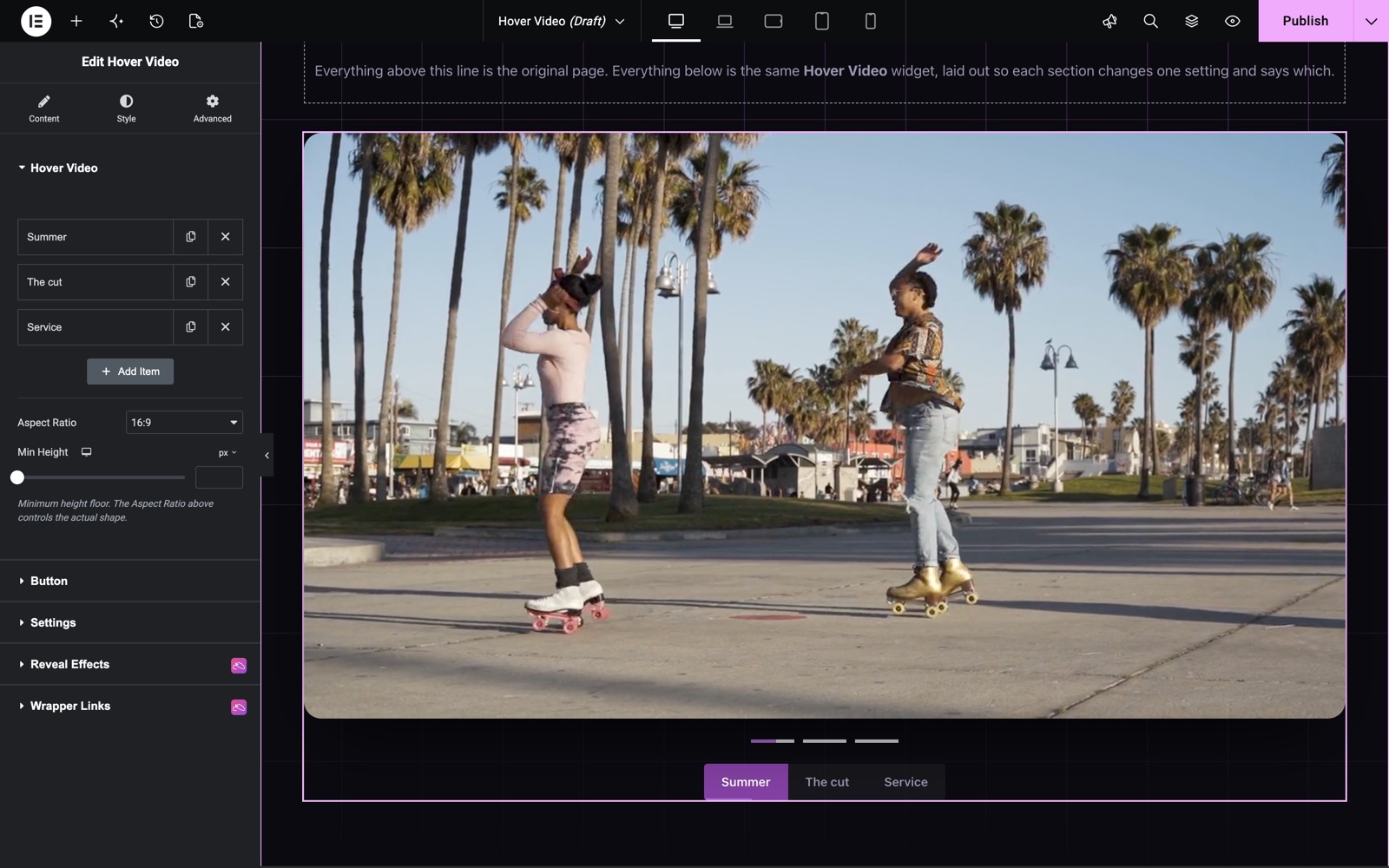
Icon: An optional icon displayed beside the title on the button. - Min Height: A minimum height for the player, from 400 to 1000 px. The Aspect Ratio sets the actual shape.
- Aspect Ratio: Lock the player to 1:1, 2:1, 3:2, 4:3, 8:5, 16:9, 21:9, or 9:16. This is the recommended way to control player dimensions.
- Show Button: This switch is in the Button section. It displays the video selection buttons below the player.
- Show Progress on Button: This switch is in the Button section. It shows a mini progress bar inside each button while its video is playing.
- Show Progress Bar: This switch is in the Settings section. It shows the main progress bar strip beneath the player (one segment per video).
This widget from the Hover Video demo has three videos: Summer, The cut and Service. The titles become the tabs under the player. Aspect Ratio is 16:9.
Configure Button Options
The Button section starts with the Show Button switch. When it is on, the controls below set how the video selection buttons look and behave.
- Style: Choose Button for individual pill-shaped buttons, or Tab for a connected tab bar.
- Alignment: Left, Center, or Right for the button group.
- Space Between: Gap between buttons (in Button style).
- Icon Position: Left, Right, Top, or Bottom. This sets where the icon sits relative to the title text inside each button.
- Icon Spacing: Gap between the icon and the title text.
Configure Player Settings
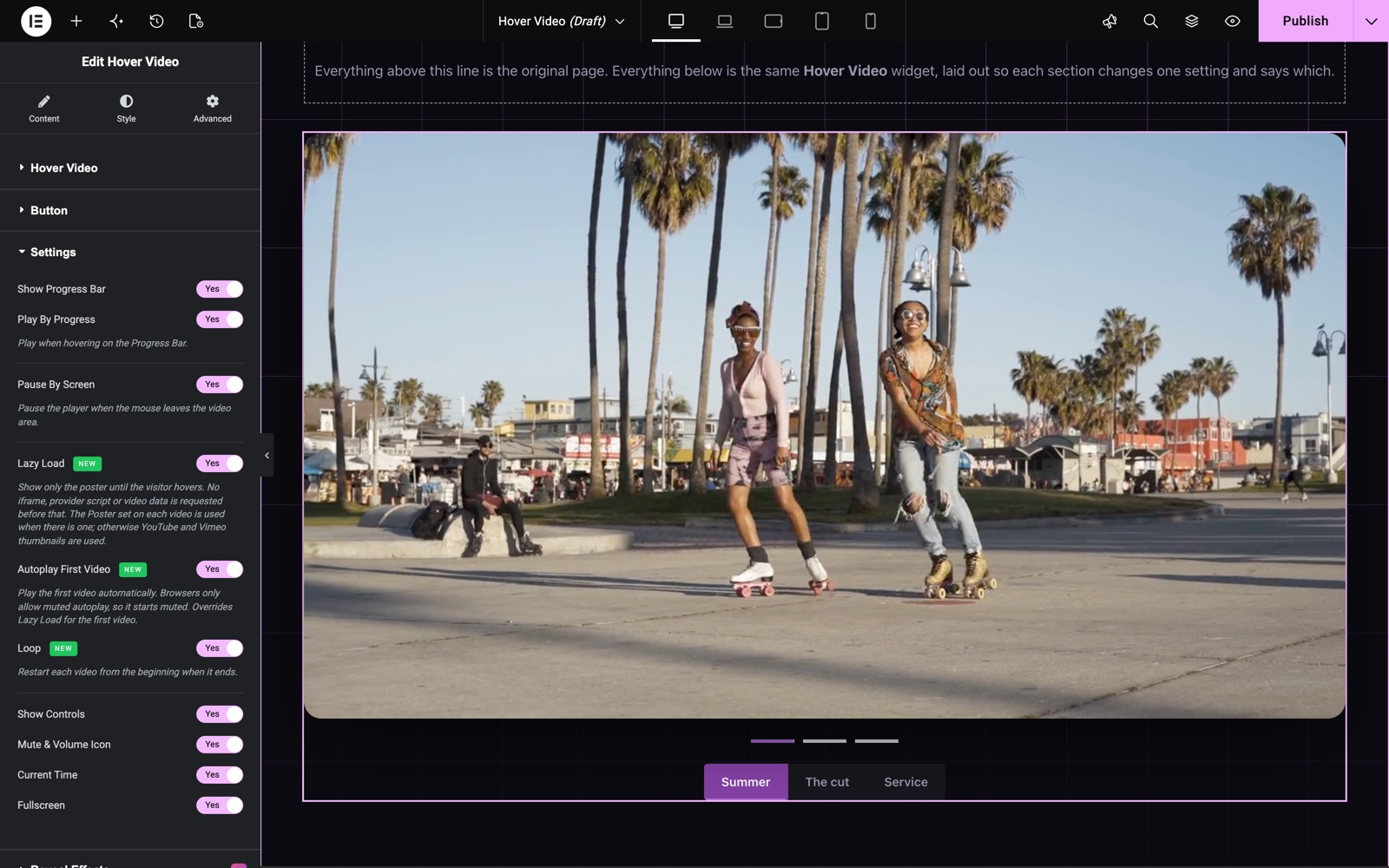
The Settings section controls playback behaviour.
- Play By Progress: When on, hovering the cursor on a progress bar segment plays that video.
- Pause By Screen: When on, the active video pauses as soon as the mouse leaves the player area.
- Lazy Load: On by default. Only the poster shows until the visitor hovers. No iframe, provider script or video data loads before that. If a video has no Poster, the YouTube or Vimeo thumbnail is used.
- Autoplay First Video: Plays the first video automatically. Browsers only allow muted autoplay, so it starts muted. This overrides Lazy Load for the first video.
- Loop: Restarts each video from the beginning when it ends.
- Show Controls: Show or hide the Plyr player control bar.
- Mute & Volume Icon: Show the volume/mute button in the control bar.
- Current Time: Show the current playback time in the control bar.
- Fullscreen: Show the fullscreen toggle button in the control bar.
Style Your Hover Video
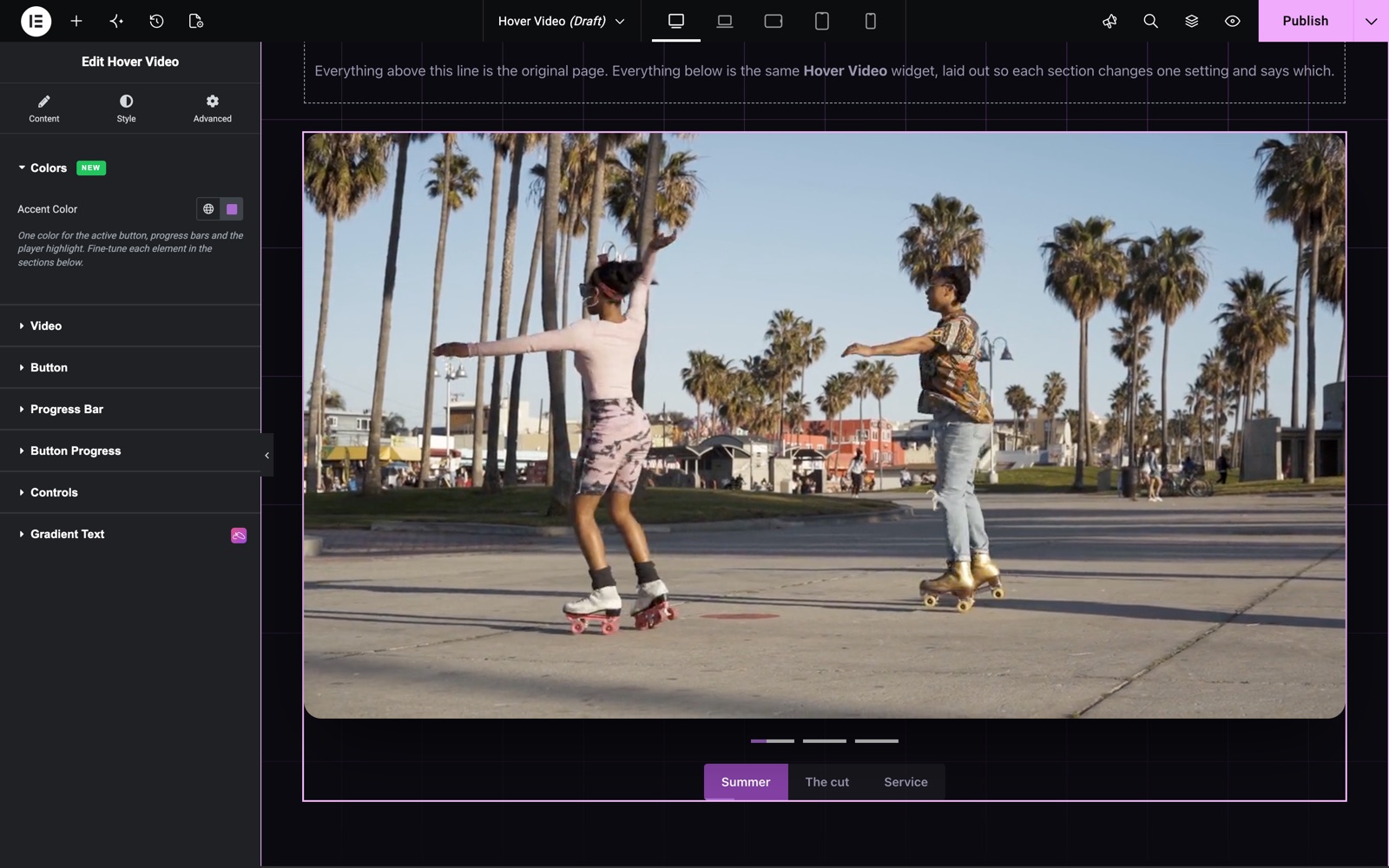
Use the Style tab to customise the player, buttons, progress bars, and controls.
- Colors:
One Accent Color for the active button, the progress bars and the player highlight. Fine-tune each element in the sections below. - Video:
Border, border radius, box shadow, and CSS filters for the entire video player wrapper. - Button:
Padding, typography, border, border radius (Button style) or tab border radius (Tab style). Normal tab: text color, background, text shadow, box shadow, hover animation. Active tab: text color, background, border color, border radius, text shadow, box shadow, for the currently selected button. - Progress Bar:
Alignment, spacing between segments, height, width, base color (background of the track), and progress color (the filled portion). - Button Progress:
Style (Bottom strip or Full Height fill), height (when Bottom), base color, and progress color for the mini progress shown inside each button. - Controls:
Plyr control icon color, control hover color, and primary accent color (the color of the seek bar fill and other accents in the Plyr UI).
The quickest way to brand the widget is the Accent Color in the Colors section. It colors the active tab, the progress bars and the player highlight in one step.
Save and Preview
- Click Update in Elementor to save your page.
- Preview the page to see your Hover Video widget in action.
Best Practices
- Always set an Aspect Ratio rather than relying on the Min Height control. Aspect Ratio gives a stable, responsive layout that works correctly across all screen sizes and source video dimensions.
- Keep the video list to 4–6 items for the best usability. More than that can make the button row crowded, especially on mobile.
- For self-hosted videos, upload them in a web-optimised format (H.264 MP4) and at a resolution appropriate for the player size. Full 1080p is rarely necessary for a widget-sized player.
- Use the Poster image on self-hosted videos to give each one a recognisable preview frame. This makes the progress bar segments and buttons much more meaningful to visitors.
Troubleshooting
- YouTube/Vimeo videos do not play: The Plyr player requires the video URL to be a valid, embeddable YouTube or Vimeo URL. Make sure the video is public (not private or unlisted in a way that blocks embeds) and that the URL is a standard watch or video URL, not a playlist or channel link.
- Self-hosted video does not play: Check that the file URL is publicly accessible (not behind authentication) and that the server is serving the correct MIME type (
video/mp4for MP4 files). Mixed-content warnings (HTTP video on an HTTPS site) will also block playback. - The player is taller than expected: Min Height is a minimum. When the Aspect Ratio gives a smaller height, the player uses Min Height. Lower or clear Min Height to let the Aspect Ratio set the shape.
Frequently Asked Questions
Can I mix YouTube videos and self-hosted videos in the same widget?
Yes. Each item in the repeater has its own source. Some can be YouTube links while others are self-hosted files. The Plyr player handles both types seamlessly inside the same widget instance.
Does the video play automatically when the page loads?
Only when Autoplay First Video is on in the Settings section. Browsers only allow muted autoplay, so the first video starts muted. When the option is off, the first video is active on load and plays after the visitor hovers or clicks.
What is the difference between Button style and Tab style?
Button renders each selector as a separate pill-shaped button with configurable spacing between them. Tab joins all selectors into a single connected bar, similar to a tab navigation component. The Tab style uses a shared border radius variable and looks best with all buttons having equal widths.
Can I show the widget without the selection buttons?
Yes. Disable Show Button in the Button section. You can still show the progress bar, and visitors can switch videos by hovering on progress bar segments (if Play by Progress is enabled).
What video file formats are supported for self-hosted videos?
Plyr supports any format the browser’s native <video> element can play. In practice, H.264 MP4 has the widest browser support. WebM (VP8/VP9) is also well supported in modern browsers. Avoid older formats like AVI or MOV as browser support is inconsistent.
Related Documentation
Explore other Sky Addons widgets and extensions that complement the Hover Video widget:
- Iframe: Embed an external video player or any web-based content directly on your page.
- Ultra Carousel: Build a multi-item carousel that can include video cards alongside other content types.
- Simple Parallax: Add depth and motion to the section containing your Hover Video widget for a more immersive presentation.
Conclusion
The Hover Video widget is a compact, interactive way to present multiple videos in a single player, whether they are YouTube tutorials, product demos, or self-hosted portfolio clips. The progress bar, Play by Progress interaction, and flexible button styles make it engaging without being complex to set up. If you have any questions or need help, visit the Sky Addons support center.