
How to use Gradient Text features of Sky Addons for WordPress
The Sky Addons Gradient Text extension for Elementor turns plain text into eye-catching gradient text on any widget, with zero custom CSS. Enable it from the Style tab of a widget, pick your gradient with Elementor’s familiar background controls, and the colors are clipped straight onto the text. By default it applies to headings, paragraphs, links, and spans inside the widget, and a custom selector option lets you target exactly the elements you want. Perfect for hero headlines, section titles, and standout calls to action.

Key Features
- Apply gradient text to any Elementor widget from the Style tab
- Uses Elementor’s full Background control: gradient type, colors, angle, and position
- Targets h1–h6, span, p, a, and div elements by default
- Custom Selector option to apply the gradient to specific elements only
- Pure CSS output: no extra scripts, no impact on page speed
Activate Gradient Text Module
Gradient Text is a core module in Sky Addons that comes pre-activated. However, if you need to verify its status:
- Navigate to your WordPress Dashboard and locate “Sky Addons” in the left sidebar menu
- Click on the “Modules” tab within the Sky Addons dashboard
- Find “Gradient Text” in the modules list
- Ensure the toggle switch is in the “On” position
- Save your changes if you made any adjustments
Using Gradient Text
- Open the Elementor Editor and select any widget (Heading, Text Editor, Button, and so on)
- Navigate to the Style tab
- Locate the Gradient Text section (marked with the Sky Addons icon)
- Toggle Enable Gradient Text to activate the effect for this widget
- Pick your gradient colors in the Text Color background control
Gradient Text Controls
- Enable Gradient Text: Activates the gradient effect on the selected widget’s text.
- Custom Selector: Optional CSS selector(s) to limit the effect to specific elements. By default the gradient applies to h1, h2, h3, h4, h5, h6, span, p, a, and div inside the widget; enter your own selectors (for example
h2, .my-highlight) to target only those. - Text Color (Background): Elementor’s full Background group control set to Gradient by default. Choose two colors, their stop positions, the gradient type (linear or radial), and the angle. The chosen background is clipped to the text so the letters themselves carry the gradient.
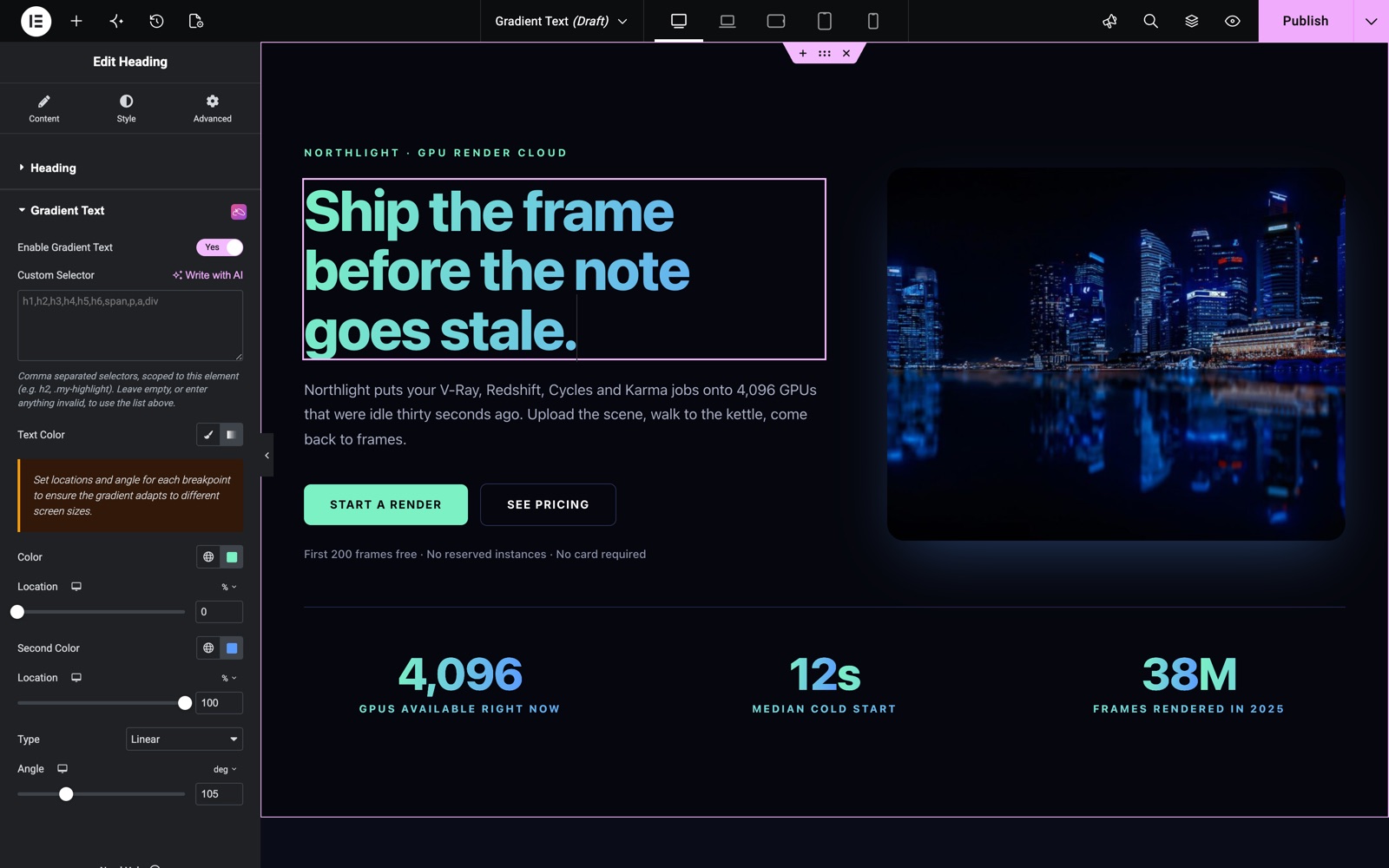
Here a hero heading uses a linear gradient from teal to blue at a 105 degree angle. The Custom Selector field is empty, so the gradient covers the default elements: h1 to h6, span, p, a and div.
Design Tips
- Hero Headlines: Apply a bold two-color linear gradient to a large heading for instant visual impact.
- Accent Words: Wrap one word in a span and use the Custom Selector to gradient just that word.
- Brand Colors: Use your two primary brand colors as gradient stops to keep the effect on-brand.
- Subtle Depth: Two close shades of the same hue create a refined, less flashy gradient.
The same setting works on small headings. These step numbers use a dark teal to blue gradient at 110 degrees, while the step titles stay solid.

Save and Preview
- Once you’ve configured your gradient text, click “Publish” or “Update” to save your changes.
- Preview the page to ensure the effect looks as desired.
Troubleshooting
- Text not showing the gradient: Make sure Enable Gradient Text is on and the Text Color background control actually has a gradient (two color stops) selected.
- Whole widget affected instead of one element: Use the Custom Selector field to limit the gradient to the exact tag or class you want.
- Text invisible: The effect makes the text fill transparent so the gradient shows through. If a theme rule overrides the background, the text can disappear. Clear cache and check for conflicting custom CSS on the same element.
Frequently Asked Questions
How do I add gradient text in Elementor without custom CSS?
Select any widget, open the Style tab, expand the Gradient Text section from Sky Addons, switch on Enable Gradient Text, and choose your gradient colors in the Text Color control. The gradient is applied instantly, with no CSS required.
Which elements does the Gradient Text extension apply to?
By default it targets h1 through h6, span, p, a, and div elements inside the widget. You can narrow that with the Custom Selector field, for example to only h2 tags or a specific class.
Can I apply the gradient to just one word in a heading?
Yes. Wrap the word in a span (or give it a class) in your heading text, then enter that selector in the Custom Selector field. Only the matching element gets the gradient.
Does Gradient Text slow down my page?
No. The effect is generated with pure CSS (background-clip on the text), so there is no additional JavaScript and no measurable impact on loading speed.
Can I use a radial gradient or change the gradient angle?
Yes. The Text Color control is Elementor’s standard Background group control, so you get both linear and radial gradient types, plus full control over color stops, location, and angle.
Related Documentation
Conclusion
The Gradient Text extension by Sky Addons for Elementor makes premium-looking gradient typography a one-toggle job. Use it on headlines and accents where you want attention, and keep body text solid for readability. If you have any questions while using Gradient Text, the Sky Addons support team is happy to help.
Need help? Our team is happy to answer questions on the Sky Addons support page.