
How to use Google Maps Widget of Sky Addons for Elementor
The Sky Addons Google Maps widget embeds a fully interactive Google Map on any Elementor page with multiple markers, rich info windows, six built-in map style presets, optional traffic and transit overlays, a Places autocomplete search box, and a scrollable locations list panel. Markers can be placed by coordinates or street address, each with its own title, description, phone number, website, and link. Everything is configured visually from the Elementor panel, with no custom code required. This documentation will guide you through the process of using the Google Maps Widget to create an informative, styled map experience on your website.
Features:
- Multiple Markers with Repeater: Add as many pins as you need, each positioned by coordinates or address, with individual titles, descriptions, phone, website, link, and optional custom icon images.
- Six Map Style Presets: Default, Silver, Retro, Dark, Night, and Aubergine, or paste your own custom JSON from Snazzy Maps for a fully bespoke map theme.
- Info Windows: Click or hover on a marker to open a styled pop-up with the marker’s title, description, phone, website, and a configurable link button.
- Locations List Panel: A scrollable sidebar that lists all markers. Click a location to fly to its marker and open its info window. Positioned left or right of the map.
- Places Search Box: An autocomplete search field that recenters the map to any address (requires the Places API enabled on your Google Maps key).
- Layer Overlays: Enable Traffic, Transit, or Bicycling layers directly from the panel.
- Full Map Control Toggles: Show or hide the zoom control, map type selector, Street View control, and fullscreen button independently.
Insert Google Maps Widget
- Open your page in Elementor and click the + icon to add a new section.
- Search for Google Maps in the widget panel and drag it onto the canvas.
In the Elementor panel, the widget is listed as Advanced Google Maps.
Add Your Google Maps API Key
The widget requires a Google Maps JavaScript API key to render the map. Before placing the widget, add your key in Sky Addons → Settings → API → Google Maps. Without a key, the map will not display on the front end, and the Elementor editor will show a notice pointing you to the settings page.
Configure Map Settings
The Map section sets the base map behaviour.
- Map Type: Roadmap (default street map), Satellite (aerial imagery), Hybrid (satellite with street labels), or Terrain.
- Zoom: Initial zoom level from 1 (world view) to 21 (building level). Default is 14.
- Fit All Markers: When on, the map auto-zooms and pans so every marker is visible. This overrides the Zoom setting when more than one marker is present.
- Height: Map canvas height in px or vh.
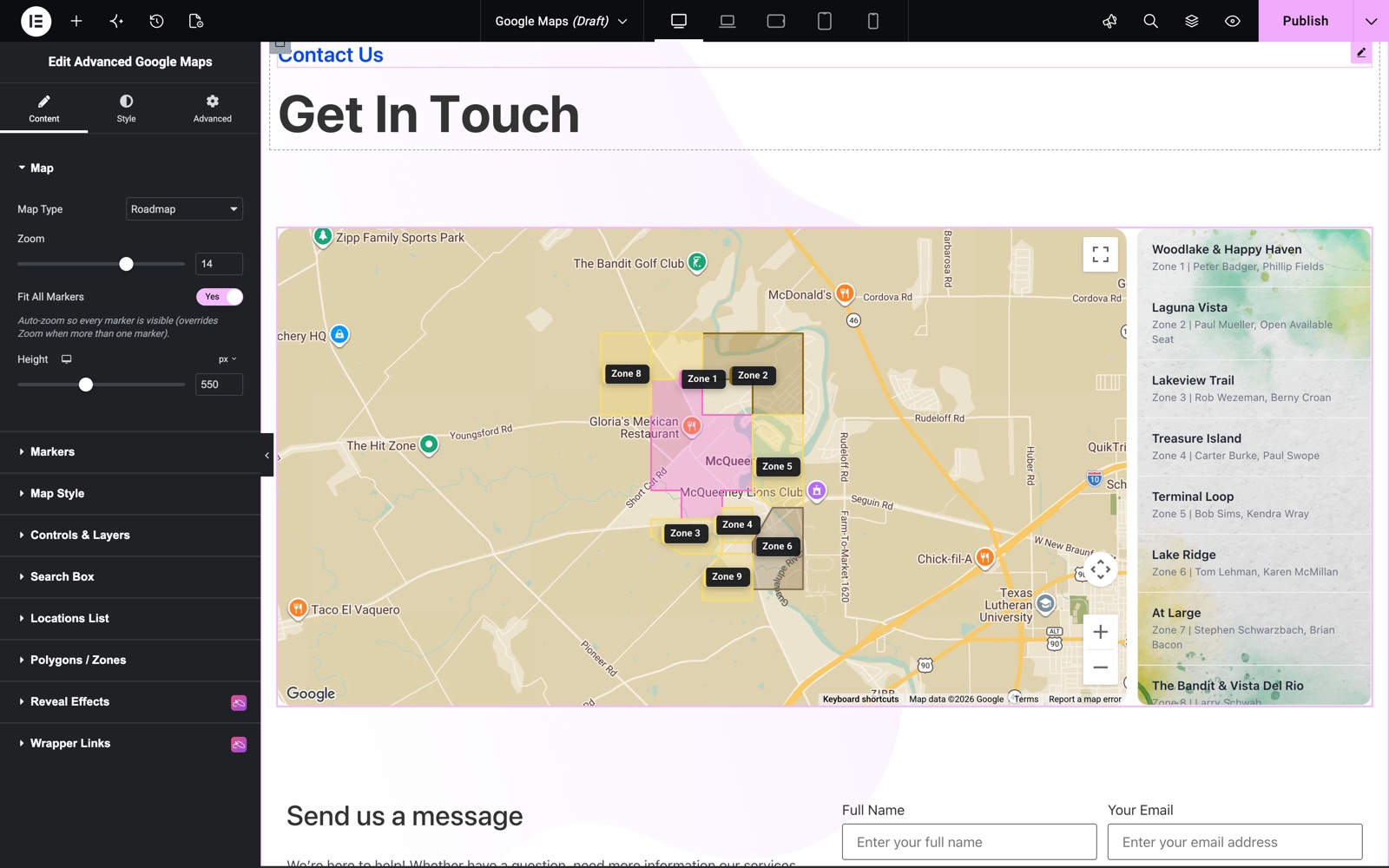
This contact page map uses the Roadmap type at zoom 14 with Fit All Markers on. Colored zones sit on the map, and the locations list on the right shows every marker with its address.
Configure Markers
The Markers section is a repeater. Each row is a pin on the map.
- Position By: Choose Coordinates (enter Latitude and Longitude) or Address (geocoded in the browser). Coordinates are faster and do not count against your Geocoding API quota. Prefer them when you know the lat/lng.
- Title: The marker’s name, shown in the info window and the locations list.
- Description: Rich text (WYSIWYG) body shown in the info window.
- Phone: A clickable phone number row in the info window.
- Website: A clickable website link row in the info window.
- Link: The URL for the link button at the bottom of the info window (label set by Link Text below the repeater).
- Custom Icon: Enable to upload a custom marker image and set its display width.
- Link Text: The label for the info window link button (e.g., “Get Directions”). It is shared across all markers.
- Open Info Window On: Click (default) or Hover.
- Open First On Load: Automatically open the first marker’s info window when the page loads.
Configure Map Theme
The Theme section sets the map’s colour palette.
- Style Preset: Choose from Default, Silver, Retro, Dark, Night, or Aubergine for a one-click style change.
- Custom Style JSON: Select Custom JSON in the Style Preset, then paste a Google Maps style array (e.g., from Snazzy Maps) to apply a fully custom theme.
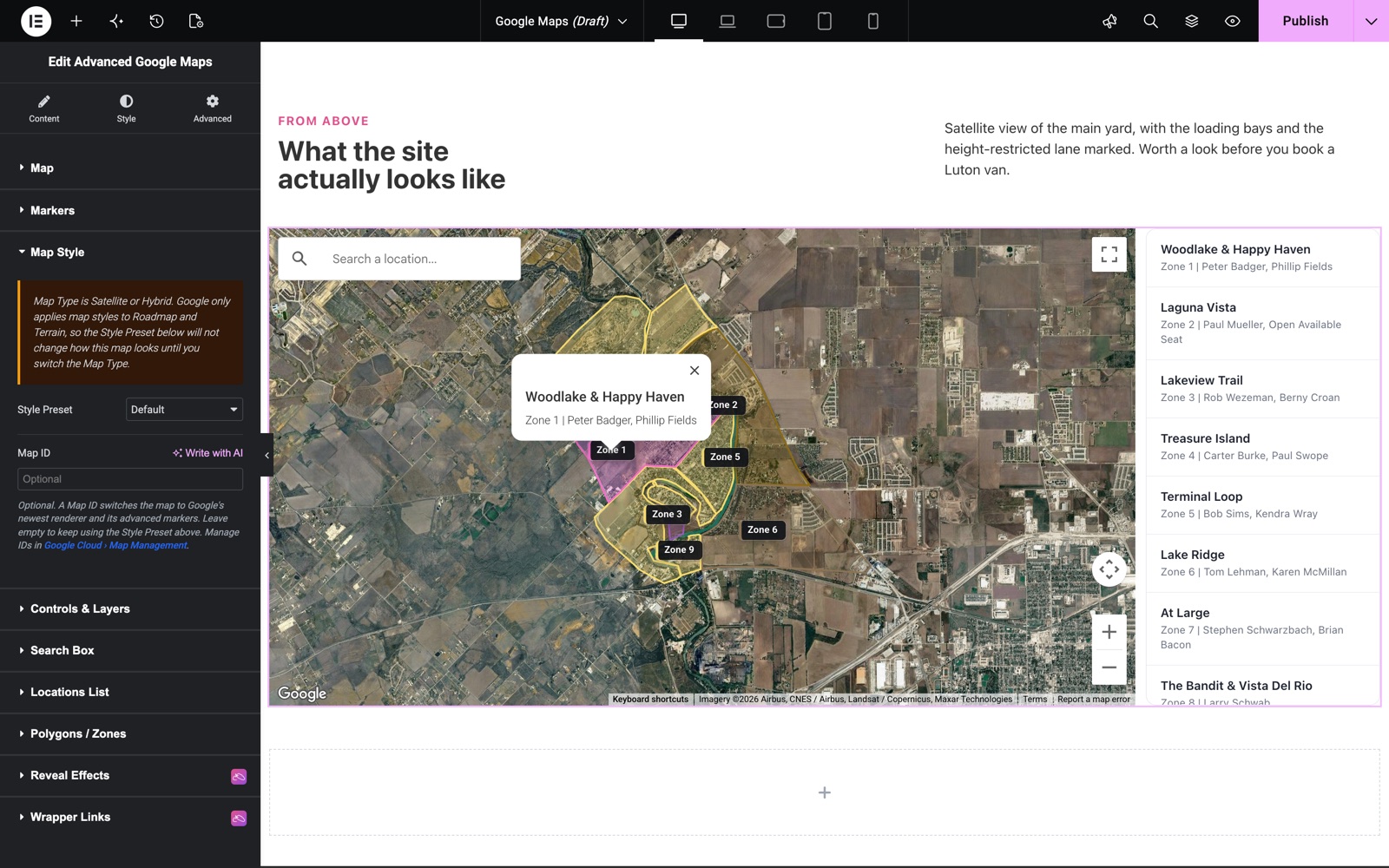
This version uses the Satellite map type. The note in the Map Style section explains that Google applies style presets only to Roadmap and Terrain. The optional Map ID field switches the map to Google’s newest renderer and advanced markers. Leave it empty to keep using the Style Preset.
Configure Controls and Layers
The Controls & Layers section toggles the native Google Maps UI elements.
- Gesture Handling: Cooperative (users must hold Ctrl/⌘ to zoom with the scroll wheel, recommended for full-width maps), Greedy (scroll always zooms), Auto, or None.
- Draggable: Allow or prevent map panning by dragging.
- Zoom Control: Show or hide the +/- zoom buttons.
- Map Type Control: Show or hide the Roadmap/Satellite toggle.
- Street View Control: Show or hide the Pegman icon.
- Fullscreen Control: Show or hide the fullscreen button.
- Traffic / Transit / Bicycling Layers: Toggle each overlay independently.
Configure Search Box
The Search Box section adds a Places autocomplete field to the map canvas.
- Show Search Box: Enable the autocomplete search field. Requires the Places API to be enabled on your Google Maps API key. The same Places API is used by the Google Reviews and Google Reviews Carousel widgets to pull business reviews.
- Placeholder: Customise the input’s placeholder text (default: “Search a location…”).
- Position: Top Left, Top Center, or Top Right.
Configure Locations List
The Locations List section adds a scrollable sidebar listing all your markers.
- Show Locations List: Enable the sidebar panel beside the map.
- Position: Left or Right of the map canvas.
- Panel Width: Width of the sidebar in px or %.
- Show Secondary Line: Display the address or description excerpt below each location’s title in the list.
Configure Polygons and Zones
The Polygons / Zones section draws areas on the map, such as delivery areas or territories. Each row in the list is one zone.
- Zone Name, Tooltip Title and Zone Description: The text visitors see for the zone.
- Label Latitude and Label Longitude: Optional. Leave them empty to place the label in the center of the zone.
- Coordinates: Enter Vertices, one lat,lng pair per line, or paste an Encoded Path from the Google Maps API for complex shapes.
- Stroke Color and Fill Color: The outline and fill of the zone.
- Editable: Lets visitors drag and resize the zone.
Style Your Google Maps
Use the Style tab to customise the map box, search field, info window, and locations list.
- Map Box:
Border, border radius, and box shadow for the map canvas container. - Search Box:
Typography, text color, background color, border, border radius, padding, and width for the autocomplete input field. - Info Window:
Background color (applied to Google’s bubble and its pointer tail), max width, padding. Title color and typography. Description color and typography. Phone/website row color. Directions button text color and background. - Locations List:
Panel background, separator color, item gap, item padding, item radius, active accent color. Normal / Hover / Active item background. Title color and typography. Secondary line color and typography.
Save and Preview
- Click Update in Elementor to save your page.
- Preview the page to see your Google Maps widget in action.
Best Practices
- Use Coordinates rather than Address for marker positioning whenever you know the lat/lng. It renders instantly and does not consume your Geocoding API quota.
- Set Gesture Handling to Cooperative on full-width maps so users are not trapped in the map while trying to scroll the page.
- Keep the map style consistent with your site’s colour palette. The Dark or Night preset works well on sites with dark backgrounds; Silver complements clean, minimal designs.
- Enable Fit All Markers when placing markers for multiple locations so visitors never miss a pin due to an overly zoomed-in default view.
Troubleshooting
- Map does not display / “Add your API key” notice appears: Go to Sky Addons → Settings → API → Google Maps and enter a valid Google Maps JavaScript API key. Ensure the key has the Maps JavaScript API enabled in the Google Cloud Console.
- Address markers do not appear: Address geocoding requires the Geocoding API to be enabled on your Google Cloud key. Alternatively, switch the marker to Coordinates mode to bypass geocoding entirely.
- Search Box does not autocomplete: The search box requires the Places API to be enabled on your API key in addition to the Maps JavaScript API. Enable it in the Google Cloud Console under APIs & Services → Library.
Frequently Asked Questions
Do I need a paid Google Maps API key?
Google Maps provides a free monthly credit ($200 as of this writing) which covers a significant number of map loads for most small and medium-sized sites. If your site receives very high traffic, you may exceed the free tier. Monitor your usage in the Google Cloud Console. The widget itself does not charge anything beyond the Sky Addons Pro license.
Can I use a custom marker image instead of the default red pin?
Yes. In the Markers repeater, enable Custom Icon for any marker, upload an image, and set its display width. Common formats like PNG (with transparency) work well for custom marker icons.
Can I use custom map styles from Snazzy Maps?
Yes. In the Theme section, select Custom JSON from the Style Preset dropdown, then paste the JSON style array copied from Snazzy Maps (or any other Google Maps style generator) into the Custom Style JSON field.
How many markers can I add?
There is no hard limit imposed by the widget. You can add as many markers as needed. However, very large numbers of markers (100+) may affect browser performance. For large location datasets, consider using server-side clustering via the Google Maps Marker Clustering library.
Does the Locations List update when a marker is clicked on the map?
Yes. Clicking a marker on the map highlights the corresponding item in the Locations List panel and scrolls it into view. Clicking a list item flies the map to that marker and opens its info window.
Related Documentation
Explore other Sky Addons widgets and extensions that complement the Google Maps widget:
- Google Reviews: Display Google Place reviews in a card grid. It uses the same API key and Place ID finder as this widget.
- Google Reviews Carousel: Show the same reviews in a sliding Swiper carousel with full navigation and autoplay controls.
- Iframe: Embed any URL, including map services that do not use the Google Maps API, in a responsive iframe.
- QR Code: Generate a QR code that links directly to a Google Maps location URL.
- Post List: Combine with a locations post type to build a directory page alongside the map.
Conclusion
The Google Maps widget from Sky Addons turns a complex API integration into a straightforward Elementor configuration task. Whether you need a single-location contact map with a styled info window, or a multi-location directory with a searchable sidebar, everything is achievable without touching a line of code. If you have any questions or need help, visit the Sky Addons support center.