
How to use Fellow Slider Widget of Sky Addons for Elementor
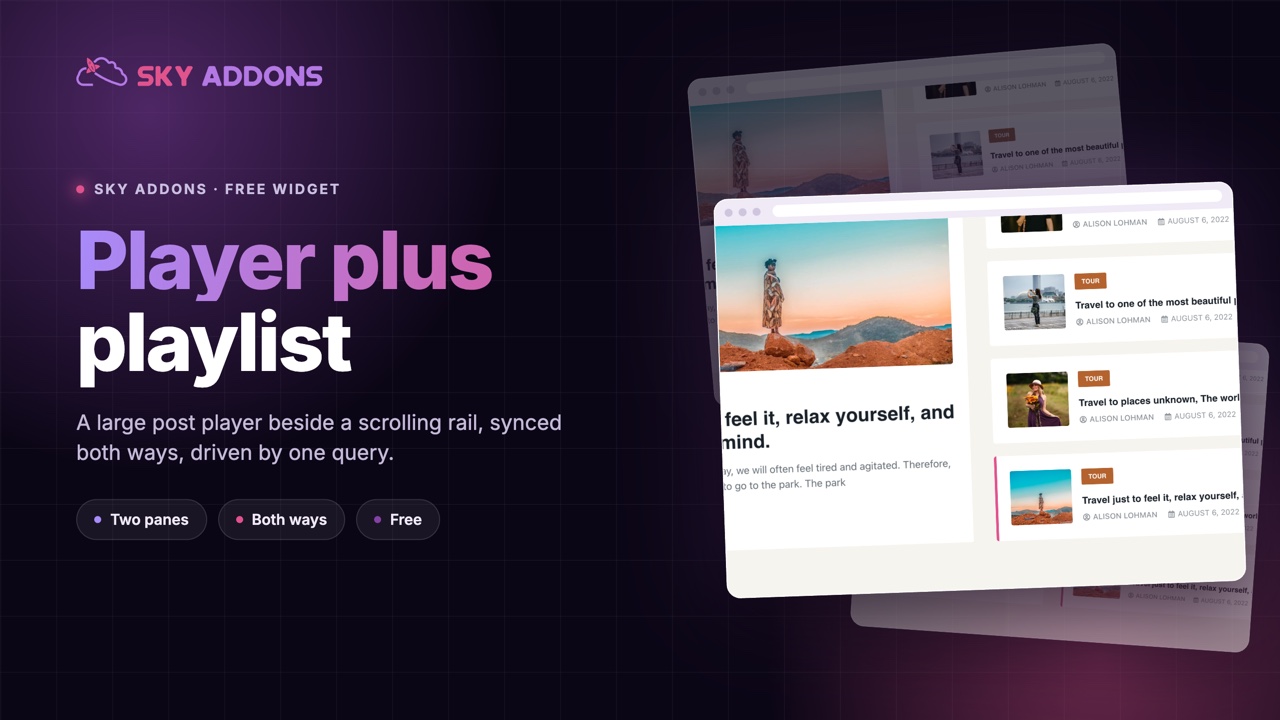
Fellow Slider is a unique blog post slider widget for Elementor that pairs a large featured slide with a synced, scrollable playlist of posts beside it. Click any item in the list and the feature slide jumps to that post. It pulls posts automatically through the built-in Query builder, shows category, author, date, and excerpt, and can even play videos in a lightbox straight from the slider. The Fellow Slider widget for Elementor is a great fit for magazine homepages, news sections, and video blogs. This documentation will guide you through the process of using the Fellow Slider Widget to showcase your posts in an interactive slider on your website.
Features:
- Feature + Playlist Layout: A large feature slider synced with a vertical, scrollable list of posts.
- Query Builder: Choose post types, terms, authors, order, and posts per page. The slider fills itself.
- Video Lightbox: Posts with a video link get a play button that opens the video in a lightbox (or a direct file link).
- Post Elements On/Off: Toggle category, author, date, and excerpt with a text limit and shortcode stripping.
- Slider Controls: Autoplay, loop, slide speed, pause on hover, mouse wheel, and Slide or Coverflow transition effects.
- Draggable Scrollbar: An optional scrollbar on the playlist for quick browsing.
- Deep Styling: Separate style tabs for the feature slide and the list items: image, title, text, category, meta, author, scrollbar, and play buttons.
Insert Fellow Slider Widget
- Open Elementor Editor. In the Elementor panel, search for “Fellow Slider” under Sky Addons.
- Drag and Drop the Widget to the desired location on your page / editor.
Configure Layout
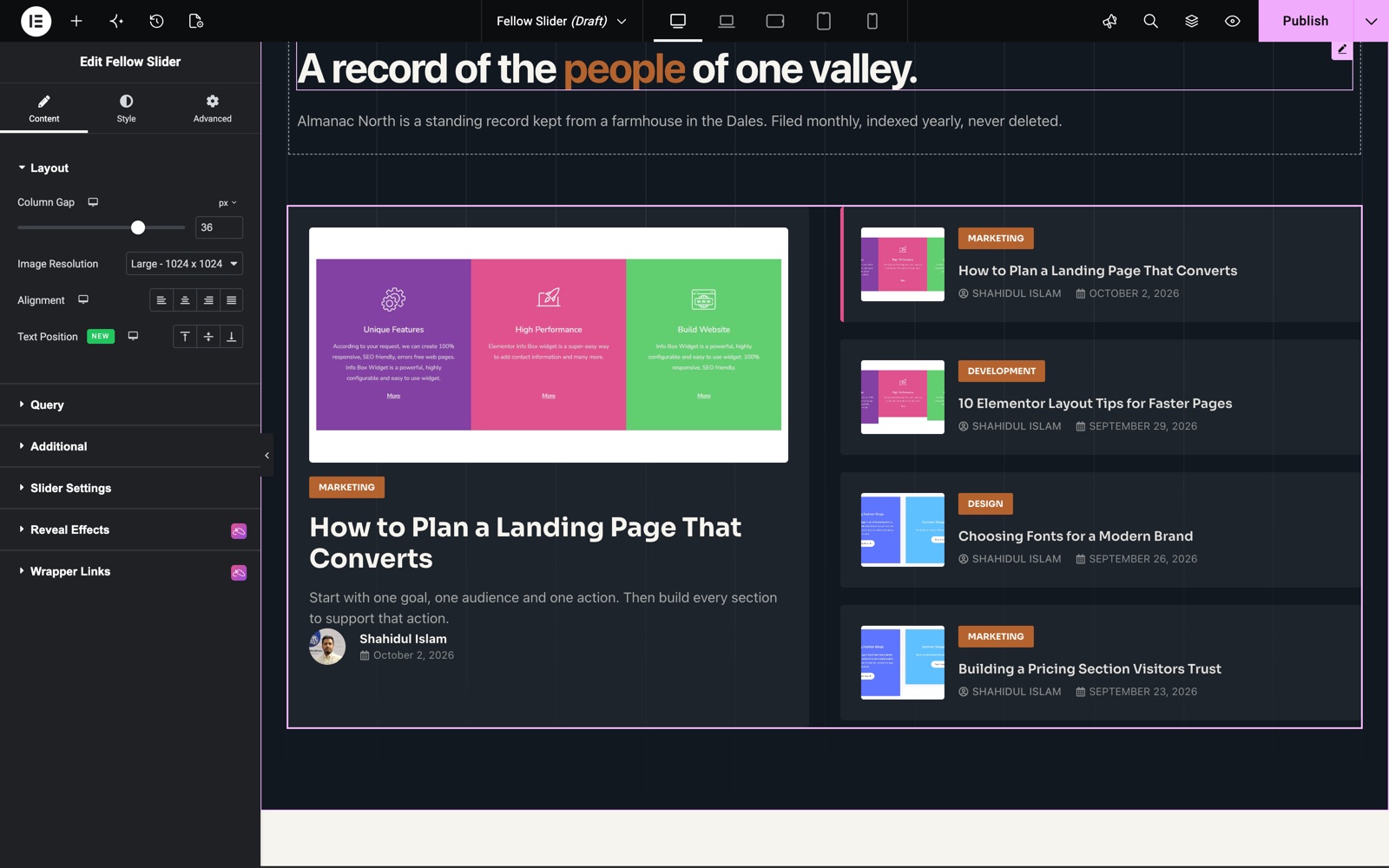
- Column Gap: Space between the feature slider and the playlist column.
- Image Size: Pick the thumbnail size used for post images.
- Alignment: Align the post content left, center, right, or justified, with a setting per device.
Here the feature slide on the left shows the newest post with its image, category, title, excerpt, author and date. The playlist on the right lists the next posts. The active one has a colored edge.
Build the Query
The Query section decides which posts appear in the slider. Select the source post type, include or exclude terms and authors, set the order, and limit results with Posts Per Page. Every matching post becomes one slide and one playlist item.
Configure Additional Options
- Title HTML Tag: Choose the heading tag used for post titles.
- Show Category: Toggle the post category badge.
- Show Author: Toggle the author name (with avatar on the feature slide).
- Show Text: Toggle the excerpt, set the Text Limit (word count from the main content; 0 shows the full text), and use Strip ShortCode to clean shortcodes out of the preview.
- Show Date: Toggle the post date with the standard date format options.
- Show Video: Show a play button on posts that have a video link, enabling the video lightbox.
Configure Slider Settings
The Slider Settings section controls motion and interaction for both the feature slider and the playlist:
- Direction: Horizontal sliding for the feature area (the playlist scrolls vertically).
- Autoplay: Advance slides automatically, with Autoplay Speed (ms) for the delay between slides.
- Loop: Restart from the first post after the last one.
- Slide Speed (ms): Duration of the slide transition animation.
- Pause On Hover: Pause autoplay while the cursor is over the slider.
- Transition Effect: Slide or Coverflow.
- Mouse Wheel: Let visitors scroll the playlist with the mouse wheel.
- Free Mode: Allow free, momentum-style scrolling in the playlist.
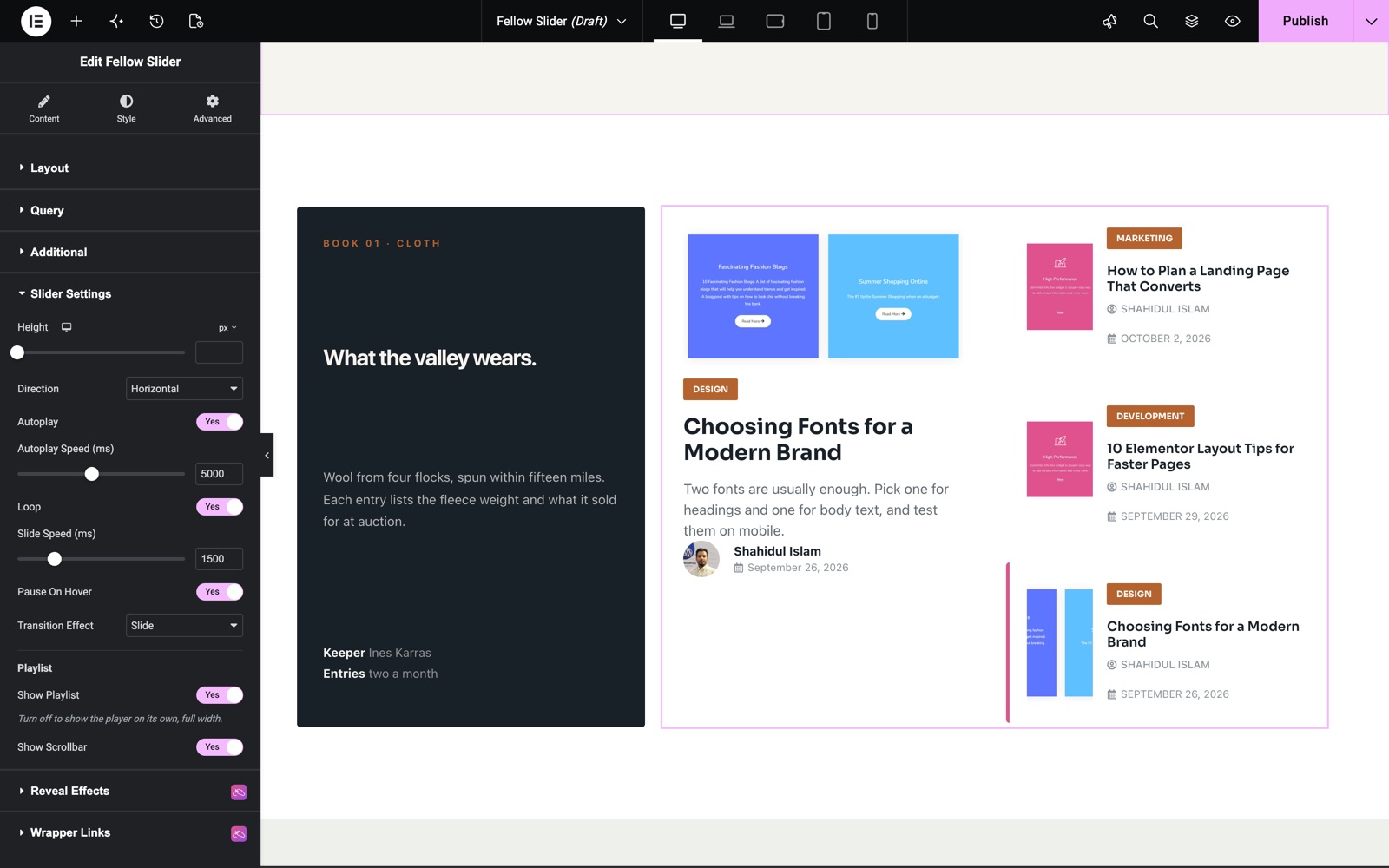
In Slider Settings, this light version uses Autoplay every 5000 ms, Loop, a 1500 ms slide speed and Pause On Hover. Show Playlist and Show Scrollbar are both on.
Scrollbar (Playlist Navigation)
Instead of arrows or dots, the Fellow Slider navigates through its synced playlist. Enable Show Scrollbar to add a draggable scrollbar beside the post list. Visitors can drag it or click any list item to change the feature slide. Note: the scrollbar is not supported together with Loop mode, so deactivate Loop when using it. The scrollbar’s size, color, and drag color are styleable in the Scrollbar style section.
Video Settings
When Show Video is on, the Video Settings section controls how post videos open. Videos play in an Elementor lightbox with options for autoplay, mute, aspect ratio, lazy load, and lightbox entrance animation, or open the video file directly (optionally in a new tab). The video link is read from the post’s Sky Addons video link field.
Style Your Slider
Customize both halves of the layout independently. Most style sections offer separate tabs for the feature slide and the playlist items, so each side can have its own look.
- Fellow Slider:
Item spacing, padding, border, border radius, and Normal/Hover background and border color for post items. - Image:
Feature Image and List Image tabs: border, border radius, box shadow, CSS filters, plus a width control for list thumbnails. - Title:
Title and List Title tabs: spacing, text color with hover, typography, and text shadow. - Text:
Color, typography, and spacing for the excerpt on the feature slide. - Category:
Space between badges plus the full category badge styling (colors, background, padding, radius). - Meta:
Spacing and space-between for the author/date meta row, with color and typography. - Author:
Author name color (normal and hover), typography, text shadow, avatar size/border/radius/shadow/filters, and date color and typography. - Scrollbar:
Scrollbar size, track color, and drag handle color. - Play Button / Play Button Items:
Full play button styling for the feature slide and the list items separately.
Save and Preview
- Once you’ve customized and styled your slider, click “Publish” or “Update” to save your changes.
- Preview the page to ensure the widget looks and functions as desired.
Best Practices
- Consistency: Maintain a consistent style with the rest of your website for a cohesive look.
- Use Featured Images Everywhere: Every queried post should have a featured image. The layout relies on thumbnails.
- Accessibility: Keep autoplay speed comfortable and enable Pause On Hover so visitors can read at their own pace.
- Testing: Check the slider across different devices and screen sizes for a responsive design.
Troubleshooting
- No Posts Showing: Verify the Query section returns published posts (check post type, terms, and Posts Per Page).
- Scrollbar Missing or Broken: The scrollbar is not supported with Loop mode. Turn Loop off when Show Scrollbar is enabled.
- Play Button Not Appearing: Show Video must be on and the post needs a video link saved in its Sky Addons video link field.
Frequently Asked Questions
How do I autoplay the Fellow Slider in Elementor?
Enable Autoplay in the Slider Settings section and set the Autoplay Speed (ms) delay (default 5000). Turn on Pause On Hover if you want autoplay to stop while the visitor is reading.
How does the Fellow Slider choose which posts to display?
Through the Query builder. Pick a post type, filter by terms or authors, set the order, and limit the count with Posts Per Page. The slider and its playlist update automatically as you publish new posts.
Can the Fellow Slider play videos?
Yes. Enable Show Video, and any post with a video link in its Sky Addons video link field gets a play button that opens the video in a lightbox. The Video Settings section controls autoplay, mute, aspect ratio, and the lightbox animation.
How do I shorten the excerpt text in the Fellow Slider?
Use Text Limit in the Additional section to cap the number of words taken from the post content. Setting it to 0 shows the full text, and Strip ShortCode removes leftover shortcodes from the preview.
Why doesn’t the playlist scrollbar work?
The Swiper scrollbar is not compatible with Loop mode. Disable Loop in Slider Settings and the scrollbar will track and drag correctly.
Related Documentation
Conclusion
The Fellow Slider Widget by Sky Addons for Elementor turns your latest posts into an interactive feature-and-playlist showcase. Utilize its query builder, video lightbox, and dual styling tabs to build a magazine-grade slider. For further assistance, consult the Sky Addons support team or community forums. Enjoy presenting your content!
Need help? Our team is happy to answer questions on the Sky Addons support page.